

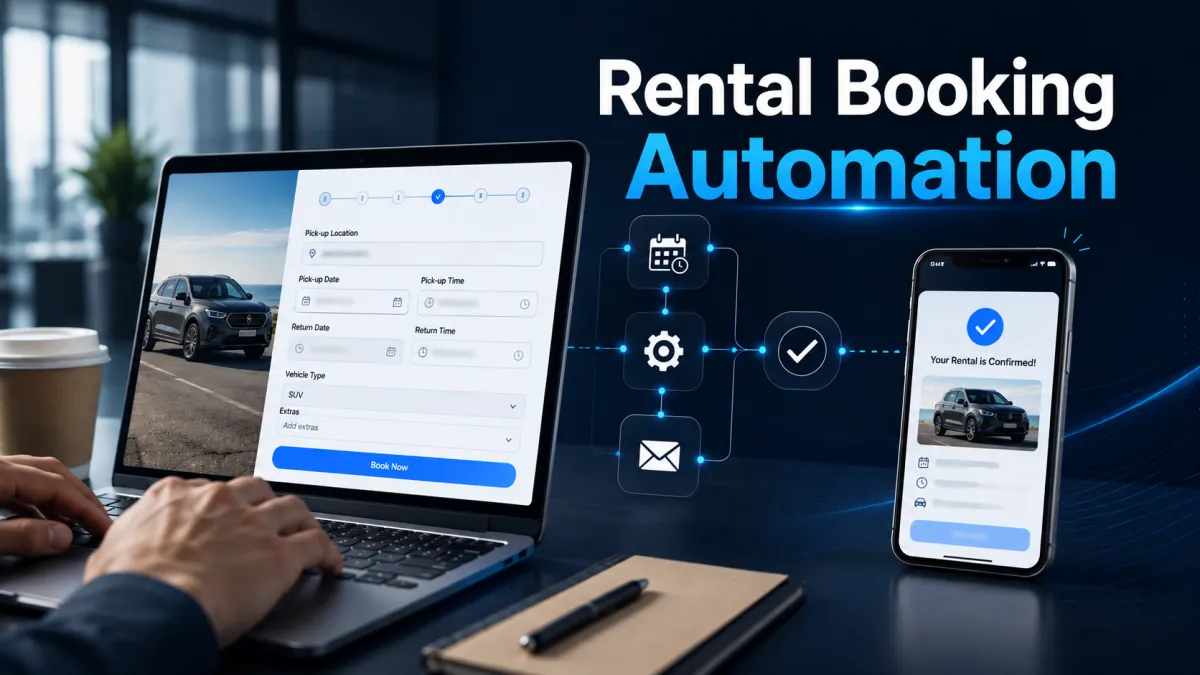
Rental Confirmation Automation
How to Send Rental Confirmation Details Using the Rental Booking Trigger in GoHighLevel
For rental businesses, confirming a booking quickly is an important part of the customer experience. When confirmation details are sent manually, staff must check each new booking, prepare the right information, and make sure nothing is forgotten. As booking volume increases, this process can become time-consuming and inconsistent.
The GoHighLevel Rental Booking Trigger provides a starting point for automating this process. When a rental booking event meets the trigger's criteria, it can initiate a workflow. That workflow can then perform the next steps you have configured, such as sending a confirmation message containing the relevant rental information.
This makes rental confirmation automation more consistent while reducing the need for someone to manually start every follow-up process.
What Is the Rental Booking Trigger in GoHighLevel?
The Rental Booking Trigger in GoHighLevel is a workflow trigger designed for rental booking events. Its purpose is to detect the relevant rental booking activity and use that event to start a workflow.

In simple terms, the trigger acts as the starting point:
Rental booking occurs → Rental Booking Trigger fires → Workflow runs → Confirmation details are sent
The trigger itself does not send the confirmation. Instead, it determines when the workflow should begin. The communication or other follow-up steps are added as actions after the trigger.
This distinction is important. A trigger starts a workflow based on an event or condition, while the workflow actions determine what happens next.
For a rental-based business, this structure is useful because a booking can immediately become the starting point for a consistent confirmation process. Rather than relying on a team member to notice every booking and manually contact the customer, the workflow can begin automatically when the configured Rental Booking Trigger conditions are met.
How the Rental Booking Trigger Starts a Confirmation Workflow
The basic process is straightforward, even for someone new to GoHighLevel workflow automation.

First, a customer completes a rental booking through the business's rental booking process. When that booking activity matches the conditions configured for the GoHighLevel Rental Booking Trigger, the trigger starts the workflow.
Once the workflow begins, GoHighLevel follows the actions placed after the trigger. For example, the workflow can include an appropriate communication action that sends a confirmation to the customer.
The message can then communicate the relevant information associated with the booking and the business's rental process.
The important point is that the booking event and the follow-up action have separate roles. The Rental Booking Trigger identifies when the workflow should start. The actions that follow determine how the business responds.
How to Set Up a Rental Booking Confirmation Workflow
A practical workflow can be created by following these steps:
1. Create a New Workflow
Go to the Automation area and open the workflow section. Create a new workflow where you will build the rental confirmation process.
Before adding anything else, decide what should happen after a qualifying rental booking. For this use case, the primary goal is to send confirmation details.
2. Select the Rental Booking Trigger
Add a workflow trigger and select Rental Booking where available in the trigger selection.
Configure the trigger according to the rental booking event or criteria you want to use as the starting point. The exact configuration should match your rental process rather than assumptions based on appointment or service booking workflows.
Remember that this trigger is specifically for rental bookings. It should not be confused with an Appointment Status Trigger, a regular calendar booking trigger, or a Service Booking trigger.
3. Add the Confirmation Step After the Trigger
After configuring the trigger, add the communication or workflow action you want to occur when the workflow starts.
Depending on your business setup and the communication channel you use, this may involve sending the customer a confirmation message through an appropriate workflow action.
The content should focus on confirming the rental and providing the information the customer needs next.
4. Prepare the Confirmation Content
Write the message carefully and include relevant details using information available to the workflow in your specific setup. Before relying on any dynamic value, confirm that the required data is available in the workflow context.
A clear rental booking confirmation should help the customer understand what they booked and what they need to do next without overwhelming them with unnecessary information.
5. Review, Test, and Activate the Workflow
Before activating the workflow, review the trigger and every action that follows it. Confirm that the Rental Booking Trigger is being used for the intended rental booking scenario and that the confirmation step is connected correctly.
Test the process using a suitable booking scenario and verify that the workflow starts as expected and that the confirmation content is correct. Once you are satisfied with the result, publish or activate the workflow according to your account's workflow setup.
What Rental Confirmation Details Can Be Communicated?
The exact information you communicate should depend on the rental business and the data available in your workflow.
Useful confirmation information may include:
Customer or renter information
Relevant rental details
Booking information
The rental date or rental period
Pickup, return, arrival, or other process-specific instructions
Preparation or usage instructions where applicable
Contact or support information
Important next steps related to the confirmed rental
For example, a business may want the message to explain what the customer has booked, when the rental applies, and what they should do next.
Avoid assuming that every rental-related field is automatically available in every workflow. If your confirmation depends on specific information, verify that the data is captured and accessible for the workflow before building the message around it.
Example: Car Rental Confirmation Automation
Imagine a car rental business that receives rental bookings through its GoHighLevel rental booking process.
A customer completes a booking for a vehicle and selects the relevant rental period. The booking event meets the conditions configured in the Rental Booking Trigger, so the workflow begins.
The workflow then moves to the next action: sending the customer a confirmation message.
That message can confirm the rental and communicate the relevant booking information available in the business's workflow setup. It may also include instructions about the next stage of the rental process, such as where to get help if the customer has questions.
The business does not need a staff member to manually initiate this same confirmation sequence for every qualifying booking. The automated rental confirmation follows the workflow logic already configured.
Why This Automation Matters for Rental Businesses
A well-configured GoHighLevel rental booking automation can provide several practical benefits.
First, it enables faster communication. Customers can receive confirmation as part of the workflow instead of waiting for someone to send it manually.
It also reduces repetitive administrative work. Staff do not have to recreate the same confirmation process for every booking.
Consistency is another major benefit. When the workflow uses a carefully prepared confirmation process, customers receive information in a standardized format.
This can improve the overall customer experience while reducing the chances of forgetting to send important details. It can also help keep rental operations more organized by making the booking event the clear starting point for the follow-up process.
Best Practices for Rental Confirmation Automation
Keep the confirmation message clear and easy to understand. Include only information that is relevant to the customer's rental.
Use personalization when appropriate, but only where the necessary data is reliably available. Review dynamic information carefully so customers do not receive incomplete or incorrect details.
Test the workflow before publishing it. A trigger may be the starting point, but the complete experience depends on every step that follows.
Finally, avoid adding unnecessary messages simply because the workflow can send them. The confirmation content should match the actual rental process and provide useful next-step information.
Conclusion
The GoHighLevel Rental Booking Trigger is a valuable starting point for building rental-related workflows because it connects a rental booking event to the actions that should happen next.
By using the trigger to initiate a workflow and placing the appropriate confirmation action after it, rental businesses can create a more reliable process for sending rental confirmation details. The result is faster communication, fewer manual tasks, and a more consistent experience for customers.
When configured around the business's actual rental process and tested carefully, this approach turns a completed rental booking into the beginning of a structured and dependable confirmation workflow.
Need Expert Help with GoHighLevel?
New to GoHighLevel and ready to get started? Buy your GoHighLevel account hereand launch with confidence.
Already know what you need and want our team to handle everything, from complete setup and customization to funnels, workflows, automations, CRM, and pipelines?Click here.



