

Use Remove Contact Tag in GoHighLevel: Step By Step Guide
How to Keep Contact Segments Accurate Using the Remove Contact Tag Action in GoHighLevel
Introduction
Contact segmentation is only useful when the information behind it stays accurate.
A lead who showed interest three months ago may no longer be interested. A prospect tagged as “Appointment Booked” may cancel. Someone categorized as a “Potential Customer” may eventually become a paying client. If old tags remain attached to these contacts, your CRM can gradually stop reflecting what is actually happening.
That can create a bigger problem than a messy contact record. Outdated tags may affect how contacts are organized, which automations respond to them, and which messages they receive.
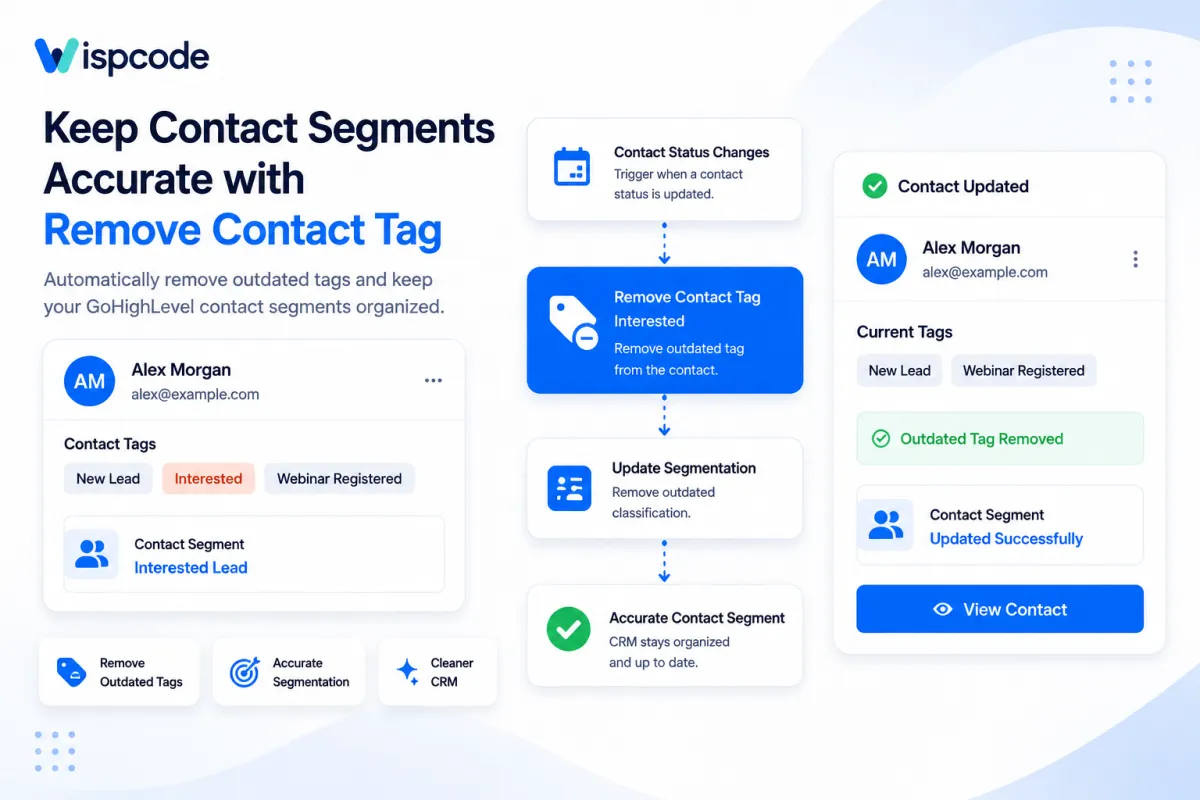
The Remove Contact Tag action in GoHighLevel helps prevent this problem by automatically removing tags when contacts reach the appropriate point in a workflow.
Instead of relying on your team to manually clean up contact records, you can build tag removal directly into your automation strategy. The result is a more organized CRM and contact segments that better reflect each person's current status, behavior, or relationship with your business.
Let's look at how the Remove Contact Tag action works and how to use it effectively.
What Is the Remove Contact Tag Action in GoHighLevel?
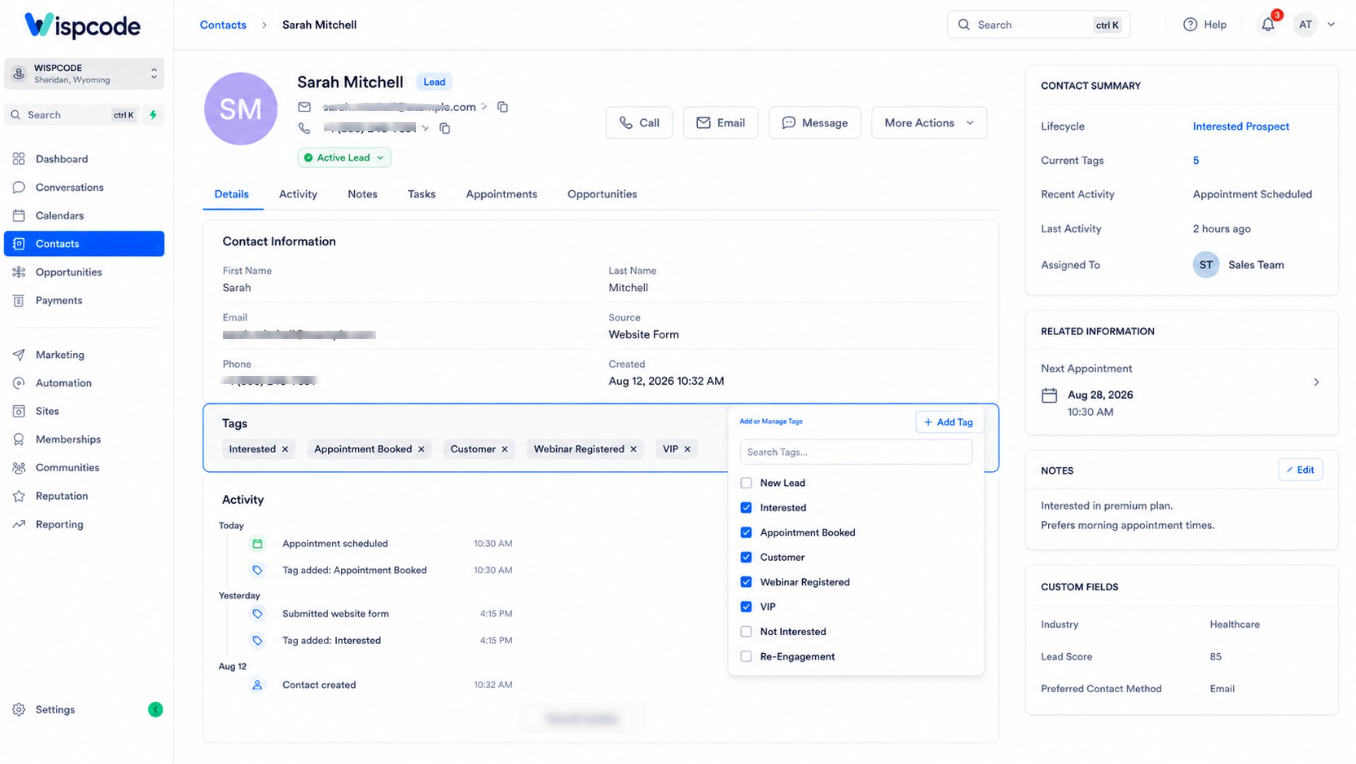
Tags in GoHighLevel are labels used to categorize contacts.
Depending on how your CRM is structured, you might use tags such as:
New Lead
Interested
Appointment Booked
Webinar Registered
Customer
VIP
Re-Engagement
Not Interested
The Remove Contact Tag workflow action allows you to automatically remove selected tags from a contact when that contact reaches the action inside a workflow.
For example, imagine a prospect has the tag: "Appointment Booked"
If their appointment status later changes and that label no longer accurately describes them, a workflow can remove the tag automatically.
The action supports removing one or multiple selected tags. HighLevel also provides a "Remove All Tags" option when you intentionally need to clear every tag from a contact.
This makes tag removal an important part of maintaining dynamic contact segmentation rather than allowing tags to accumulate indefinitely.
Why Accurate Contact Segmentation Matters
Segmentation helps you separate contacts based on characteristics that matter to your business.
For example, you might want to distinguish between:
New leads who still need initial follow-up.
Interested prospects who have shown buying intent.
Booked prospects who have scheduled an appointment.
Customers who have already purchased.
Inactive contacts who may need a different follow-up strategy.
Tags can help support these distinctions, but there is an important principle to remember:
A useful tag should reflect something that is currently meaningful about the contact.
If a prospect is still tagged “New Lead” six months after becoming a customer, the segment is no longer accurate.
Similarly, someone who canceled an appointment should not necessarily remain in a segment designed specifically for contacts with active bookings.
As inaccurate tags accumulate, it becomes harder to trust your segmentation.
Removing outdated tags is therefore just as important as adding new ones.
How the Remove Contact Tag Action Works
The action itself is straightforward.
A contact enters a workflow through your chosen trigger and progresses through the workflow steps. When the contact reaches "Remove Contact Tag", HighLevel removes the tag or tags configured within that action.
The important part is deciding when a tag should be removed.
HighLevel's documentation provides examples of pairing tag removal with triggers such as Customer Replied, Appointment Status Changed, and Survey Submitted.
The exact trigger you choose should depend on what the tag represents.
If a tag represents appointment status, use workflow logic connected to appointment activity.
If it represents interest, remove it when reliable information shows that the contact's interest has changed.
The automation should follow the meaning of the tag.
How to Set Up the Remove Contact Tag Action in GoHighLevel
Setting up automated tag removal only takes a few steps, but planning the logic is important.
Step 1: Decide What the Tag Represents
Before opening the Workflow Builder, define why the tag exists.
Suppose you have: Interested
Ask yourself:
What must be true for someone to receive this tag, and what must change before it should be removed?
This question prevents arbitrary tag removal and gives your workflow clear logic.
Step 2: Create or Open Your Workflow
Navigate to the "Automation" area in your HighLevel sub-account and open Workflows.
You can create a new workflow or edit an existing automation where tag cleanup logically belongs.
Choose the trigger and any filters needed to ensure the correct contacts enter the workflow.
Step 3: Add the Remove Contact Tag Action
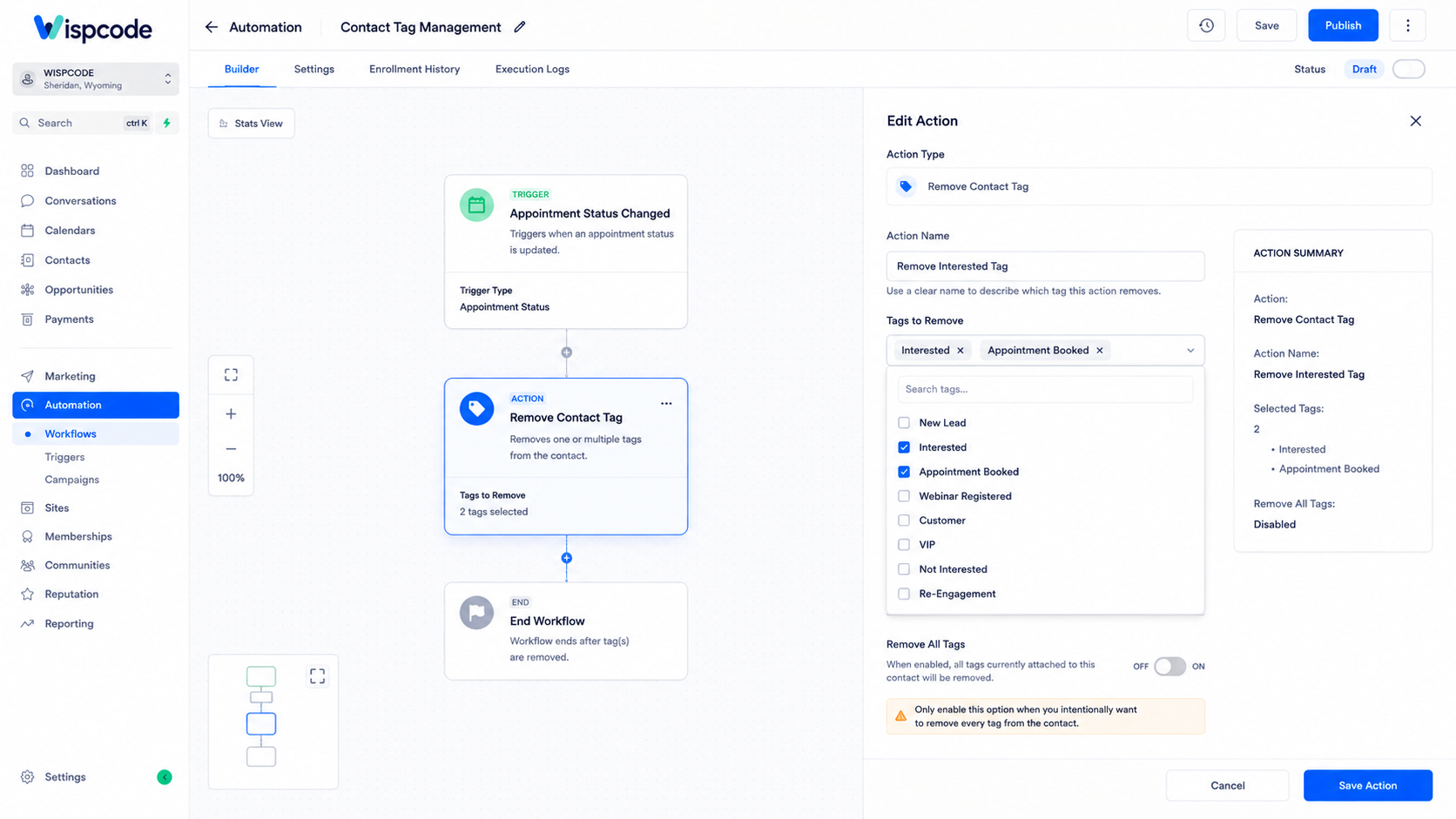
Inside the Workflow Builder, add a new action and choose: "Remove Contact Tag"
Give the action a descriptive name.
Instead of leaving a vague label, use something that explains its purpose, such as:
"Remove Interested Tag" or "Remove Appointment Booked Tag"
Clear action names make complex workflows much easier to understand later.
Step 4: Select the Tag or Tags
Use the Tags field to choose the tag you want removed.
You can select multiple tags if the workflow event makes several classifications outdated at the same time.
For example, if a contact moves into a completely different lifecycle state, you may need to remove more than one previous-status tag.
However, only remove tags you know are no longer valid.
Step 5: Use “Remove All Tags” Carefully
HighLevel also includes a "Remove All Tags" toggle.
When enabled, the action removes all tags from the contact rather than selected tags.
This is powerful, but it should be used intentionally.
A contact may have several tags serving completely different purposes. One might represent lead status, another could identify the contact's source, and another might relate to a separate automation.
Removing everything when only one classification changed can destroy useful segmentation data.
For routine segmentation updates, targeted removal is usually easier to control.
Step 6: Save, Publish, and Test
Once the action is configured, save your changes and ensure the workflow is published when you are ready for it to run.
Before relying on the automation at scale, test it with a controlled contact.
Confirm that:
The correct contact enters the workflow.
The correct conditions are evaluated.
Only the intended tag is removed.
Other useful tags remain intact.
Any downstream workflow behavior occurs as expected.
Testing is particularly important because tags can influence other automations.
Using Tag Removal to Create Dynamic Segmentation
The real value of the GoHighLevel Remove Contact Tag action appears when tags change as the contact's relationship with your business changes.
Consider a simple lead journey.
A new prospect could initially receive:
"New Lead"
After demonstrating meaningful interest, your automation may add:
"Interested'
At that point, keeping “New Lead” may no longer make sense depending on your tagging structure, so it can be removed.
Later, if the prospect becomes a customer, the workflow could remove an outdated lifecycle tag and apply the appropriate customer classification.
The idea is not to constantly add and remove tags for every small interaction.
Instead, tags should change when the underlying information they represent changes.
This creates a CRM that behaves more like a living system than a collection of permanent labels.
Combining Add Contact Tag and Remove Contact Tag
The "Add Contact Tag" and "Remove Contact Tag" actions work especially well together.
Imagine your business categorizes prospects as:
"Interested"
and:
"Not Interested"
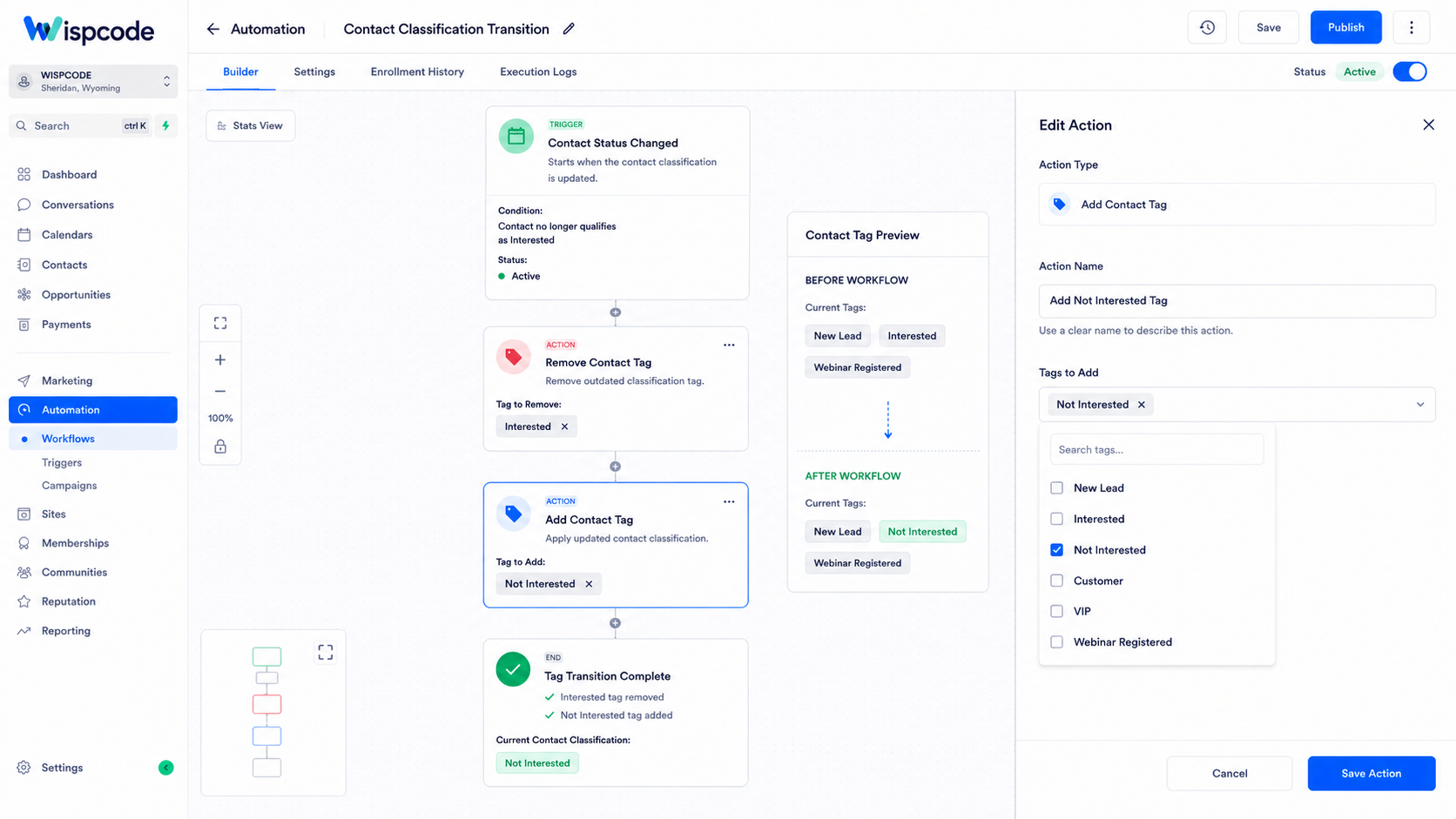
When reliable workflow logic determines that an interested prospect is no longer interested, you could remove the first classification and apply the second.
Conceptually:
Status changes → Remove “Interested” → Add “Not Interested”
This keeps the two segments from overlapping unnecessarily.
The same principle can be applied to other mutually exclusive classifications.
For example:
Prospect → Customer
Appointment Booked → Appointment Canceled
Active Lead → Re-Engagement
The exact tags are up to your CRM design. The important part is preventing contradictory classifications from remaining on the same record when they are meant to represent current status.
Using Tag Removal as a Workflow Trigger
Tag removal can do more than clean a contact record.
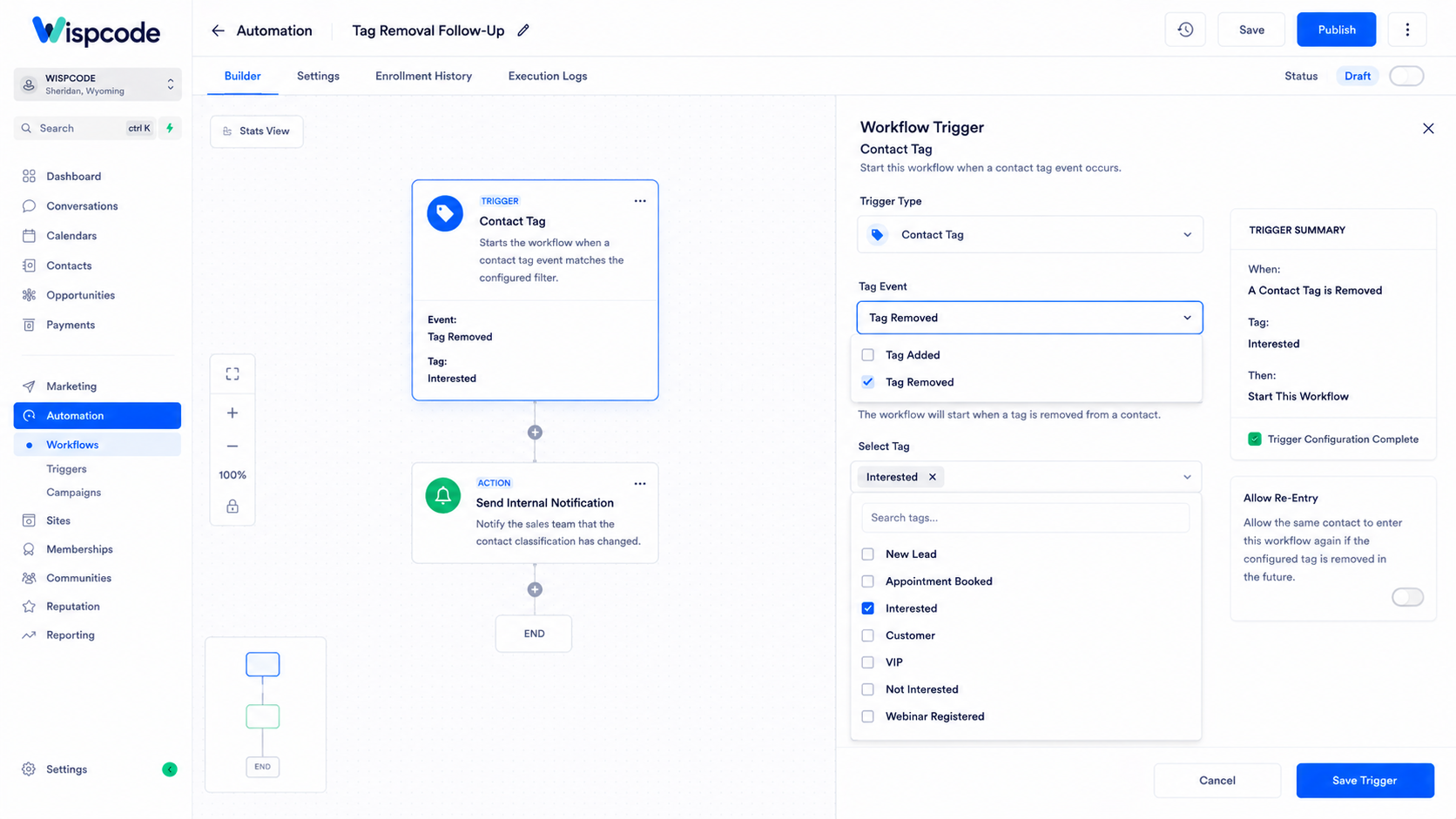
HighLevel's Contact Tag workflow trigger can start an automation when a specified tag is added or removed.
That creates useful automation possibilities.
For example:
Workflow A: A business event causes the “Interested” tag to be removed.
Workflow B: The Contact Tag trigger detects the removal of “Interested” and begins another appropriate automation.
HighLevel allows the Contact Tag trigger to be filtered for Tag Added or Tag Removed, along with the relevant tag.
This means tag changes can become meaningful automation events.
However, use this carefully. If several workflows depend on the same tags, poorly planned tag changes can create overlapping automation.
Map your tag dependencies before building a large system around them.
Practical Use Cases for Removing Contact Tags
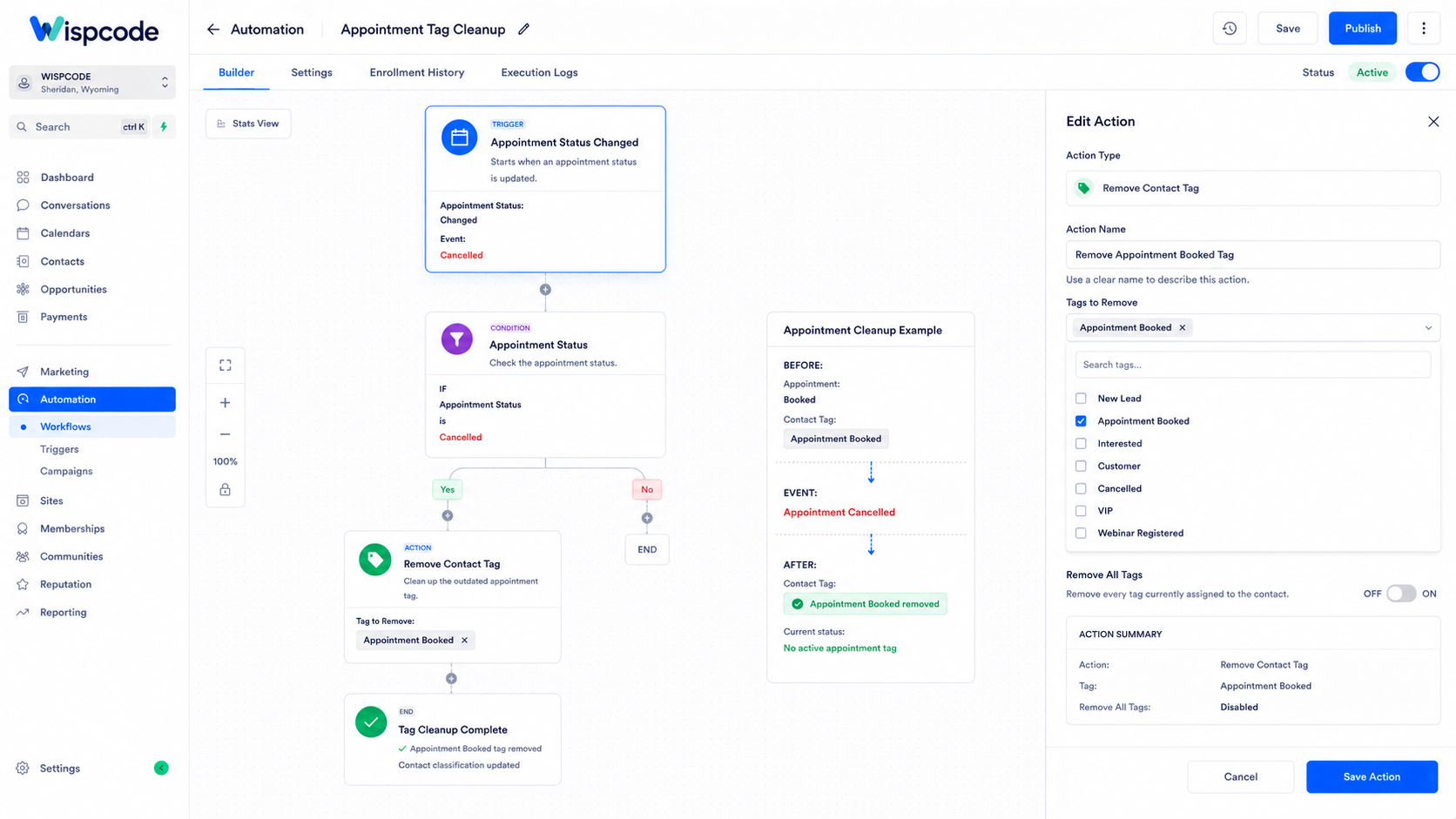
Appointment Status Changes
Suppose a contact has:
Appointment Booked
If the appointment is canceled, that tag may no longer describe the contact correctly.
An appropriate workflow can remove the outdated tag so your booked-appointment segment remains more accurate.
Changes in Lead Interest
A prospect may initially demonstrate interest and receive:
Interested
Later, their response or another qualifying event may indicate they are no longer interested.
Removing the old tag prevents them from remaining inside a segment that no longer represents their current status.
Survey-Based Segmentation
Surveys can reveal changes in preferences, needs, or qualification.
HighLevel's documentation specifically identifies Survey Submitted as one possible trigger to combine with Remove Contact Tag.
If a survey response shows that an existing classification is no longer appropriate, your workflow can remove that tag.
Webinar or Event Follow-Up
Suppose contacts are tagged based on their relationship with a webinar or event.
After the event, you may want to distinguish contacts based on what actually happened rather than leaving everyone under an earlier registration or interest classification.
HighLevel's own Remove Contact Tag documentation uses a webinar scenario to illustrate removing an “Interested” tag when it is no longer appropriate.
Opt-In and Preference Changes
Tag removal can also support changes in how you internally classify contacts when their communication status or preferences change.
However, tags should not be treated as a substitute for HighLevel's actual communication consent or DND controls. Use the platform's dedicated compliance features where required and use tags for appropriate internal organization.
Best Practices for Accurate Tag Management
Create a Consistent Naming System
Avoid having multiple tags that mean almost the same thing.
For example: "Booked, Appointment Booked, Booked Appointment"
If all three represent the same status, your team may use them inconsistently.
Choose clear naming conventions and use them across your workflows.
Define Entry and Exit Rules for Important Tags
For every important segmentation tag, document two things:
When should this tag be added?
When should this tag be removed?
Thinking about both sides prevents tags from becoming permanent labels simply because nobody planned their removal.
Remove Only What Needs to Be Removed
Be cautious with Remove All Tags.
If only one status has changed, removing the specific outdated tag is generally safer than clearing unrelated classifications.
Review Tag Dependencies
Before removing a tag automatically, check whether it is used elsewhere.
A tag may be connected to:
Workflow triggers
Workflow logic
Smart Lists or filtering
Campaign segmentation
Other internal processes
HighLevel's Contact Tag trigger can specifically react to tag removal, so changing a tag may intentionally or unintentionally affect another automation.
Test Workflow Transitions
Do not test only whether the tag disappears.
Check what happens after it disappears.
If another workflow listens for that tag removal, confirm that the downstream automation behaves exactly as intended.
Common Mistakes to Avoid
Only Adding Tags and Never Removing Them
This is one of the easiest ways to create inaccurate segmentation.
Contacts change over time. Your tagging system should account for those changes.
Using Remove All Tags for Routine Updates
Clearing every tag may remove classifications that are still valuable.
Use targeted removal unless you have a specific reason to reset the contact's entire tag structure.
Creating Contradictory Segments
If tags such as “Interested” and “Not Interested” are intended to be mutually exclusive, make sure your workflows remove the outdated status when applying the new one.
Otherwise, the same contact can appear in conflicting segments.
Forgetting About Other Workflows
Removing a tag can itself trigger automation when a Contact Tag workflow trigger is configured for that removal.
Review connected workflows before changing important tagging logic.
Treating Tags as a Replacement for Contact Data
Tags are excellent for flexible categorization, but not every piece of information belongs in a tag.
Use appropriate contact fields, opportunity data, communication preferences, and other HighLevel features when they better represent the information you need to store.
Frequently Asked Questions(FAQ's)
1. What does the Remove Contact Tag action do in GoHighLevel?
The "Remove Contact Tag" action automatically removes one or more selected tags from a contact when they reach that step in a workflow.
2. Can I remove multiple contact tags at once in GoHighLevel?
Yes. You can select multiple tags within the "Remove Contact Tag" workflow action or use "Remove All Tags" when appropriate.
3. Why should I remove outdated tags from contacts?
Removing outdated tags keeps "GoHighLevel contact segmentation" accurate and prevents contacts from remaining in irrelevant or conflicting segments.
4. Can removing a contact tag trigger another GoHighLevel workflow?
Yes. The "Contact Tag workflow trigger" can start an automation when a specified tag is removed from a contact.
5. Does removing a tag delete the contact in GoHighLevel?
No. Removing a tag only removes that classification from the contact; it does "not delete the contact record".
Conclusion
The Remove Contact Tag action in GoHighLevel helps keep your CRM organized by automatically removing outdated or irrelevant contact classifications. When combined with clear tagging rules and well-planned workflows, it creates more accurate contact segmentation and cleaner automation.
The key is to add tags when they become relevant and remove them when they no longer reflect the contact’s current status. This simple approach keeps your GoHighLevel CRM cleaner, more reliable, and easier to manage.
Need Expert Help with GoHighLevel?
New to GoHighLevel and ready to get started? Buy your GoHighLevel account here and launch with confidence.
Already know what you need and want our team to handle everything, from complete setup and customization to funnels, workflows, automations, CRM, and pipelines? Click here.



