


GoHighLevel Math Operation Action: Step-by-Step Guide
How to Perform Calculations Automatically Using the Math Operation Action in GoHighLevel
Introduction
Manual calculations may seem harmless when you are working with a handful of contacts. But once your CRM starts handling hundreds or thousands of records, repeatedly calculating values, adjusting scores, or working out future dates becomes inefficient and easier to get wrong.
That is where the "Math Operation" action in GoHighLevel becomes useful.
Math Operation is a workflow action that performs calculations automatically as contacts move through an automation. You can use it for numeric calculations such as addition, subtraction, multiplication, and division, as well as date-based calculations such as adding or subtracting days, months, or years.
Instead of calculating a value manually and updating a contact record yourself, the workflow can perform the calculation and save the result automatically.
In this guide, we will explain how the GoHighLevel Math Operation action works, how to configure it step by step, practical ways businesses can use it, and the mistakes to avoid when building calculation-based workflows.
What Is the Math Operation Action in GoHighLevel?
The "Math Operation" action is available inside GoHighLevel's Workflow Builder. It allows a workflow to perform mathematical or date-based calculations using information available inside HighLevel.
For numeric and monetary data, supported operations include:
Addition
Subtraction
Multiplication
Division
For date fields, HighLevel supports adding or subtracting periods such as days, months, or years.
A basic numeric example could look like this:
Current Score: 50 → Add 10 → Updated Score: 60
A date-based example could be:
Contract Start Date → Add 12 months → Calculate a future renewal date
The workflow operates when the contact reaches that action and stores the result in the field you configure.
This makes Math Operation useful whenever a business process depends on a value that needs to change or be calculated automatically.

Why Automate Calculations in GoHighLevel?
The biggest advantage is consistency.
Suppose your sales team manually updates a numerical lead score after certain customer actions. One employee may forget to make the change, while another could enter the wrong number.
A properly configured workflow applies the same calculation each time its conditions are met.
That can help with processes involving:
Lead scoring: Adjust a numerical score based on actions or qualification criteria.
Date management: Calculate deadlines, renewal dates, or other future dates.
Financial calculations: Perform appropriate arithmetic on supported monetary fields.
Operational tracking: Increase or decrease numerical CRM values automatically.
Math Operations can also work alongside other workflow components. For example, a calculated result can be used with If/Else logic to determine what should happen next.
The calculation therefore does not have to be the end of the workflow. It can become part of the decision-making process.
How the Math Operation Action Works
Every HighLevel workflow begins with a trigger. The trigger defines the event that causes a contact to enter the automation, while actions determine what happens afterward.
A simple calculation workflow might look like:
Trigger → Math Operation → Update Result → Continue Workflow
For example:
Customer reaches qualifying event
↓
Math Operation: Add 20 to Lead Score
↓
Store calculated score
↓
If/Else: Evaluate new score
↓
Continue appropriate path
The trigger itself does not perform the calculation. The Math Operation action performs it after the workflow reaches that step.
How to Set Up Math Operation in GoHighLevel
Step 1: Create or Open a Workflow
Navigate to: "Automation → Workflows"
Open an existing workflow or create a new one.
Before adding a Math Operation, determine what event should initiate the calculation. HighLevel workflows require a trigger to establish when the automation should run.
Your trigger should relate logically to the calculation you want to perform.
For example, if a score should change after a particular customer event, choose a trigger and filters that accurately represent that event.
Step 2: Add the Math Operation Action
Once your trigger is configured, click the + button where you want the calculation to occur.
Search for and select: "Math Operation"
HighLevel allows actions to be renamed, so give the step a descriptive name rather than leaving every calculation labeled simply "Math Operation."
For example:
Add 20 to Lead Score
is much easier to understand later than:
Math Operation 3
Clear naming becomes especially valuable when a workflow contains several calculations.
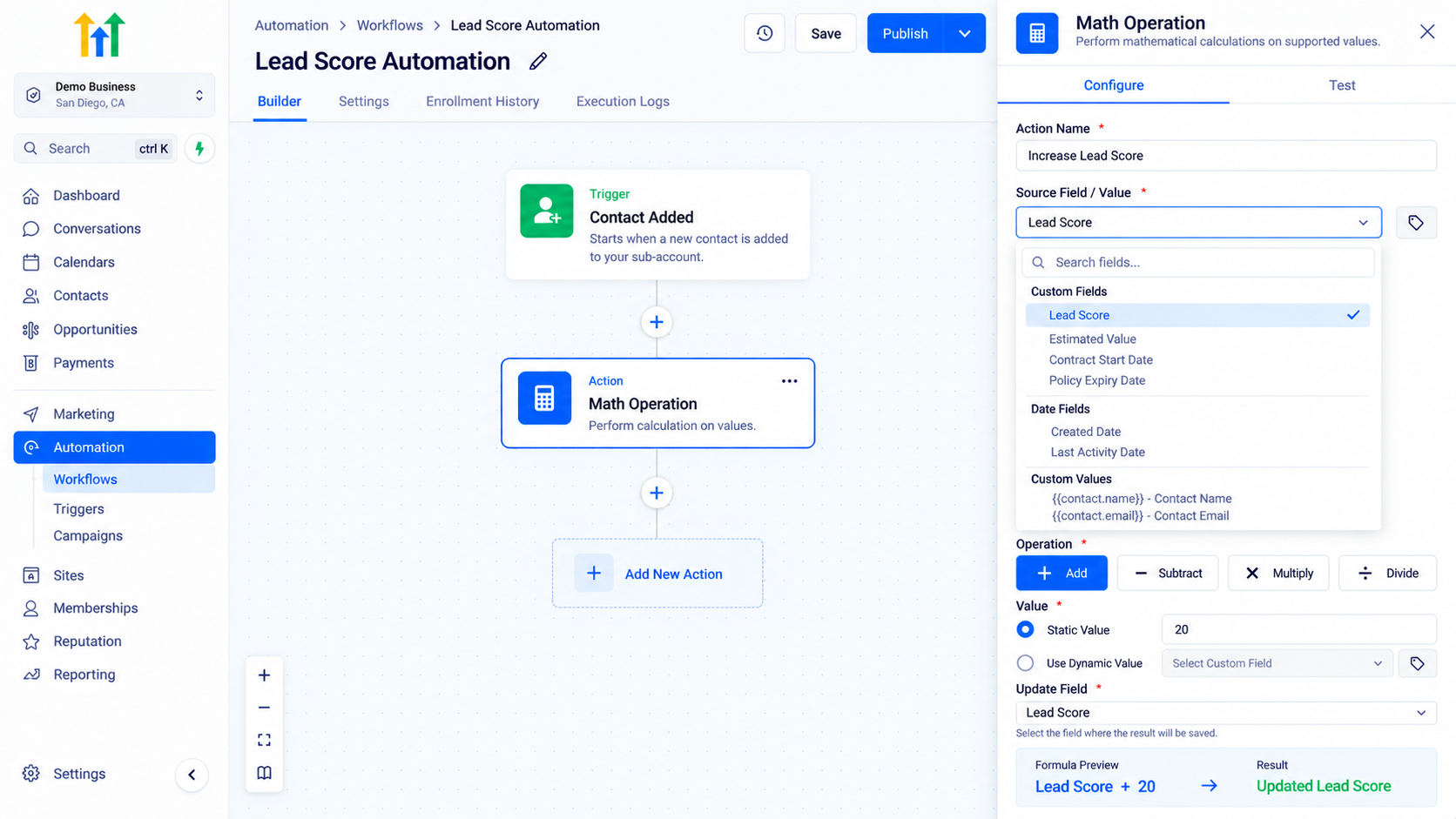
Step 3: Select the Field or Value
Next, choose the data the calculation will use.
HighLevel's Math Operation configuration supports options involving "Date Fields", "Custom Fields", and "Custom Values."
For date calculations, available data can include system date information and appropriate date-based fields.
Custom fields allow you to work with information specific to your CRM configuration.
For example, you may have fields such as:
Lead Score
Contract Start Date
Policy Expiry Date
Estimated Value
Your field selection should match the calculation you are trying to perform.
Step 4: Choose the Operation
After selecting the appropriate data, choose the mathematical operation.
For numeric and monetary fields, you can use:
Add (+)
Increase the value.Subtract (-)
Decrease the value.Multiply (×)
Multiply it by another value.Divide (÷)
Divide it by another value.For date fields, the available calculations are different. HighLevel allows you to add or subtract days, months, or years.
For example: "Renewal Date = Contract Start Date + 12 months"
This can help automate date-based CRM processes without requiring manual calculation of each date.
Step 5: Enter a Static or Dynamic Value
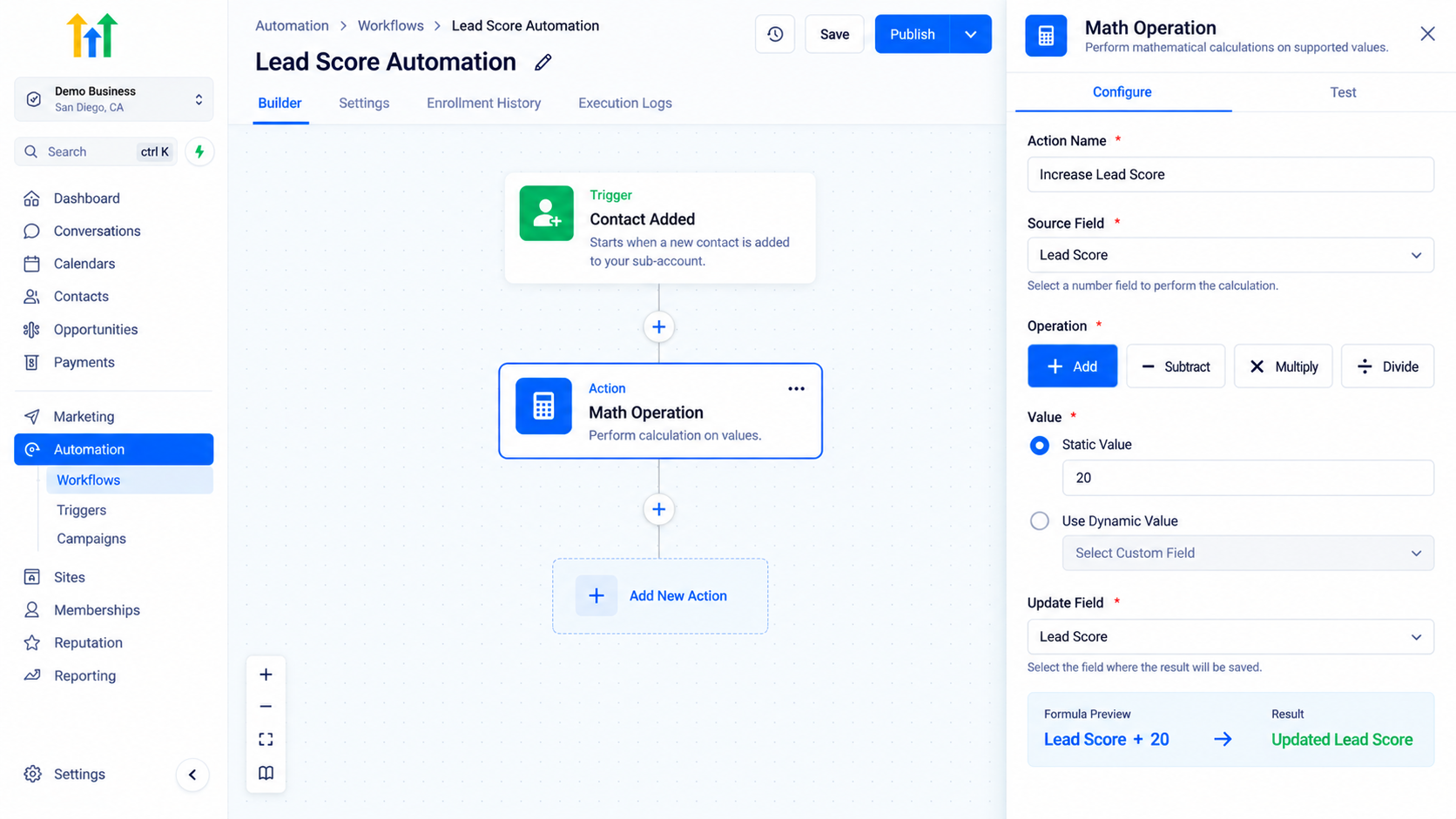
Your calculation does not always need to use the same fixed number.
HighLevel provides a "Tag icon" within Math Operation that lets you select dynamic values from custom fields rather than entering a static number.
A static calculation might be "Lead Score + 10"
Every qualifying contact receives the same increase.
A dynamic calculation could use a value stored in another relevant field, allowing the calculation to adapt to the contact's data.
This makes Math Operation more flexible for workflows where the numbers vary between contacts.
Step 6: Select the Update Field
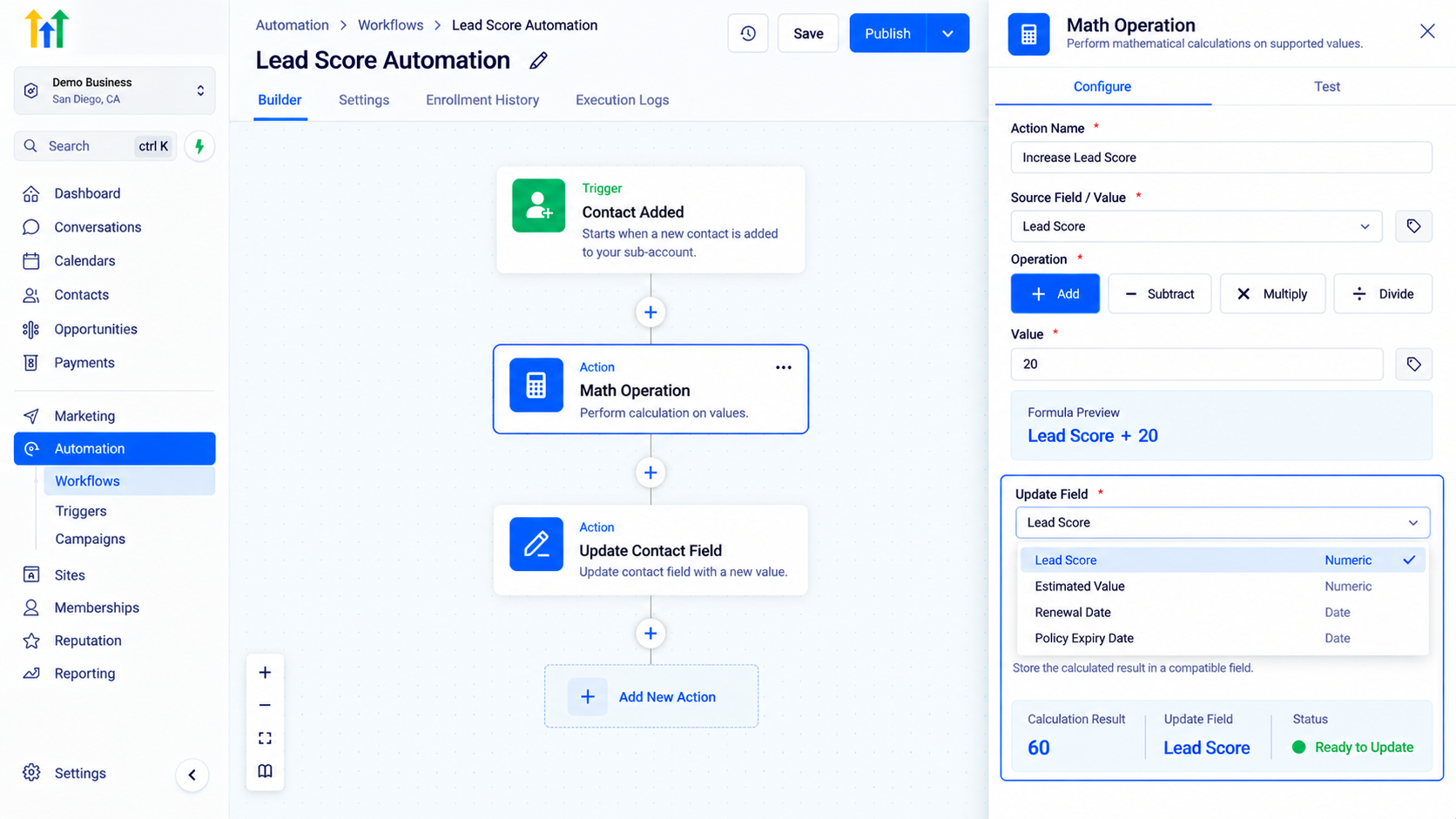
After performing the calculation, HighLevel needs to know where the result should be stored.
The "Update Field" setting determines the destination for the calculated result.
The field type needs to match the result. Numeric calculations should be stored in an appropriate numeric field, while date calculations should be stored in a compatible date field.
This is an important configuration step. A correct formula is not useful if its output is being sent to an incompatible field.
Step 7: Save, Publish, and Test
Save the Math Operation action once your configuration is complete.
Then review the entire workflow and publish it when ready.
Before allowing real contacts to run through it at scale, test the automation with sample records.
Check:
The correct trigger starts the workflow.
The source field contains valid data.
The intended operation runs.
The calculated value is correct.
The result is stored in the correct field.
Any later If/Else branches respond correctly.
HighLevel workflows run automatically once published and their trigger conditions are met, so testing your calculation logic beforehand is important.
Practical Use Cases for Math Operations
1. Automated Lead Scoring
Lead scoring is one of the clearest examples.
Suppose you maintain a numerical custom field called "Lead Score"
When a contact meets a meaningful qualification condition, a workflow could add points to that field.
Conceptually: "Qualifying Event → Math Operation → Lead Score + 20"
You could then use an "If/Else" condition to evaluate the calculated score and route the contact differently when it reaches your chosen threshold.
HighLevel specifically documents combining Math Operation results with If/Else logic for scenarios such as lead-score routing.
2. Renewal Date Calculations
Date calculations are useful for recurring customer processes.
Imagine you store a customer's start date and need to determine another date based on a fixed period.
A workflow could use a Math Operation to add a defined number of months or years to a relevant date and save the result to a compatible date field.
Once the date exists in your CRM, it can support the broader renewal or follow-up process you design.
3. Deadline Management
The same principle applies to deadlines.
For example: "Current Date + 14 Days → Follow-Up Deadline"
Rather than having staff calculate the date manually, the workflow can produce it consistently.
This can be useful when your internal process always allows a defined period after a particular event.
4. Numeric Adjustments
Businesses often maintain numerical CRM fields that need to increase or decrease as events occur.
Math Operations can handle those updates automatically.
For example:
Current Value: 100
Subtract: 15
Result: 85
The exact meaning of the number depends on your CRM design, but the principle remains the same: HighLevel can calculate the updated value instead of requiring manual arithmetic.
5. Percentage-Style Calculations
Multiplication and division also make percentage-based calculations possible when the formula is structured appropriately.
For instance, multiplying a supported numeric value by a decimal can calculate a proportional amount.
However, make sure the destination field supports the resulting data type and test the formula carefully before using it in production.
Using Math Operation with If/Else Logic
Math Operation becomes particularly useful when the calculated result determines what the workflow should do next.
Suppose a workflow calculates a lead score.
After the Math Operation step, an "If/Else" action can evaluate the resulting value.
Conceptually:
Calculate Lead Score
↓
Is Score at or above your qualification threshold?
↓
YES → Qualified path
NO → Standard pathHighLevel explicitly supports using Math Operation results with If/Else conditions.
This creates workflows that do more than update data; they can react to calculated data.

Handling More Complex Calculations
This is an area where careful workflow design matters.
HighLevel's documentation warns that Math Operation should not be treated like a spreadsheet formula engine that automatically applies "PEMDAS/BODMAS" to a complex expression.
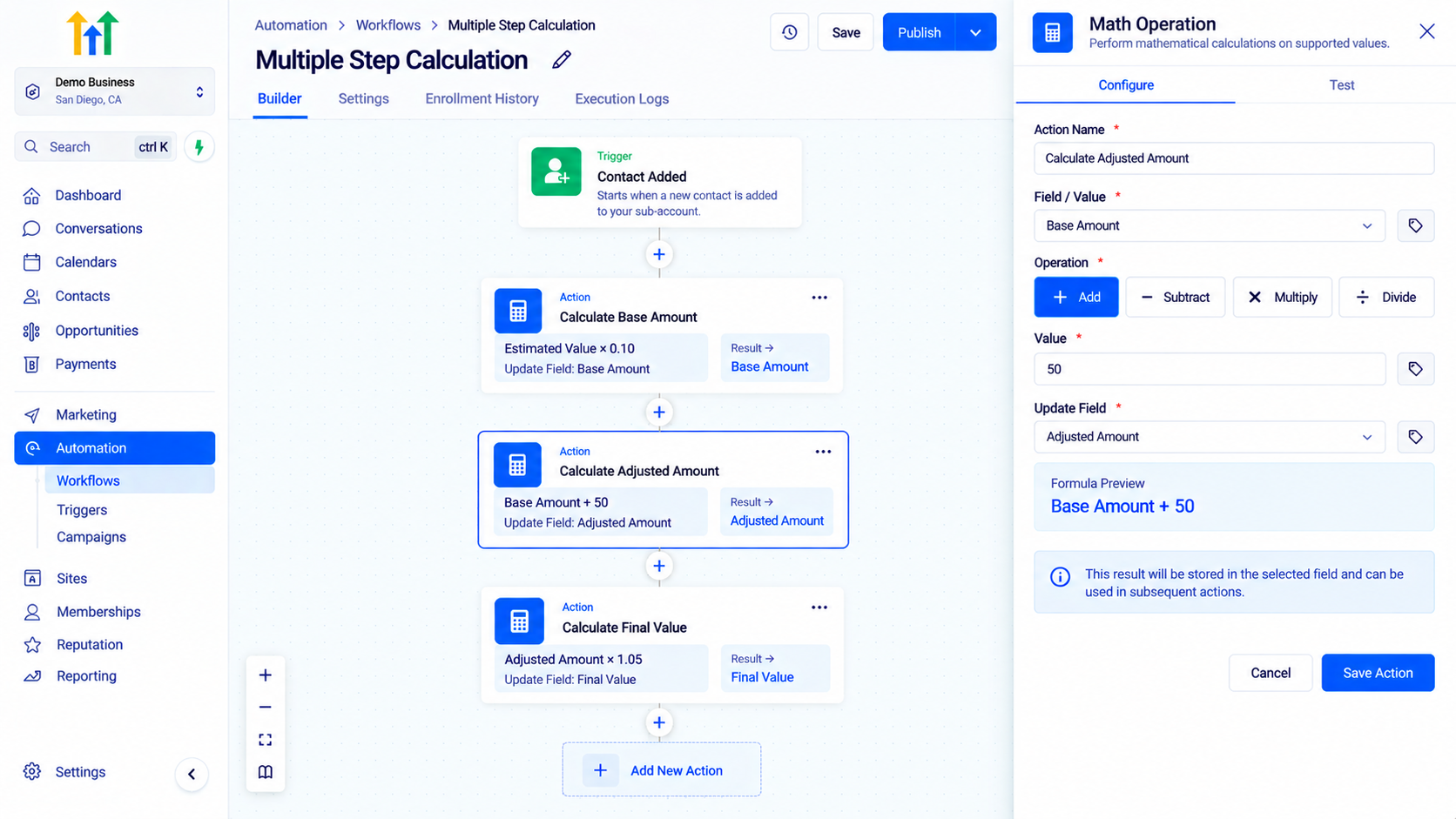
If your calculation requires multiple stages, break it into separate Math Operation steps and use appropriate fields to store intermediate results.
For example, instead of expecting one action to automatically interpret a long formula, structure the workflow as:
Math Operation 1 → Store Result
↓
Math Operation 2 → Use Previous Result
↓
Store Final Result
This makes the sequence easier to test and reduces ambiguity about calculation order.
Best Practices for GoHighLevel Math Operations
Use the Correct Field Types
Numeric, monetary, and date calculations have different requirements.
Make sure both the source data and result field are compatible with the calculation.
HighLevel notes that numeric fields can contain positive and negative values, while monetary fields do not support negative values.
Give Every Calculation a Descriptive Name
If a workflow contains multiple Math Operation steps, names such as:
Calculate Renewal Date
Increase Lead Score
Calculate Adjusted Amount
make troubleshooting much easier.
Validate Your Source Data
A calculation depends on the data it receives.
If your workflow expects a numerical value, ensure the field contains the appropriate data before relying on the result.
Conditional logic can help prevent contacts from reaching calculations when the required information is missing or inappropriate.
Break Complex Formulas Into Steps
Do not assume Math Operations behave like a full spreadsheet formula engine.
Separate complex calculations into logical stages and store intermediate results where necessary.
Test Edge Cases
Do not test only the easiest example.
Check scenarios involving:
Zero values
Larger values
Different dynamic values
Missing information
Date boundaries
Multiple calculation steps
Testing several scenarios gives you more confidence that the workflow behaves correctly.
Common Mistakes to Avoid
Using the Wrong Destination Field
A calculation may be configured correctly but still fail to produce the intended CRM result if you select an incompatible update field.
Match numeric results to numeric fields and date results to appropriate date fields.
Assuming Complex Formula Order Is Automatic
HighLevel's Math Operation action is not designed to automatically interpret complex arithmetic according to PEMDAS/BODMAS.
Use separate steps when calculation order matters.
Forgetting About Negative-Value Restrictions
HighLevel documents different behavior depending on the field type. Numeric fields can store negative values, while monetary fields accept values greater than or equal to zero. Date fields also have their own operation rules.
Build your formulas around the field type you are actually using.
Overcomplicating Simple Workflows
Just because calculations can be combined with conditions and other actions does not mean every workflow needs complicated logic.
Use Math Operations where an actual calculation is required. Keep the workflow as simple as the business process allows.
Publishing Without Testing
A small arithmetic mistake can affect every contact passing through the workflow.
Always test the trigger, calculation, stored result, and any conditions that depend on it before relying on the workflow in production.
Frequently Asked Questions(FAQ's)
1. What does the Math Operation action do in GoHighLevel?
The "Math Operation action" automatically performs calculations on supported numeric, monetary, or date values inside a GoHighLevel workflow.
2. What calculations can I perform with Math Operation?
For supported numeric values, you can perform addition, subtraction, multiplication, and division. Date calculations can add or subtract periods such as days, months, or years.
3. Can I use dynamic values in a Math Operation?
Yes. "Math Operation" can use supported custom fields and dynamic values, allowing calculations to vary based on a contact’s CRM data.
4. Can Math Operation be used for automated lead scoring?
Yes. You can update a numerical lead-score field with "Math Operation" and then use workflow logic such as "If/Else" to route contacts based on the calculated result.
5. Can I perform complex formulas in a single Math Operation?
For calculations requiring multiple stages, it is safer to use separate "Math Operation" steps and store intermediate results rather than expecting one action to automatically evaluate a complex formula.
Conclusion
The "Math Operation" action in GoHighLevel gives businesses a practical way to perform calculations directly inside automated workflows.
You can add, subtract, multiply, or divide supported numeric values, perform date calculations by adding or subtracting time periods, use static or dynamic values, and save the result into an appropriate field. Those calculated results can also work with workflow logic such as If/Else conditions to create more dynamic automations.
The key is to keep the setup deliberate.
Choose the correct source data, use the appropriate operation, store the result in a compatible field, and break complex calculations into separate steps when necessary.
When configured carefully, GoHighLevel "Math Operations" can eliminate repetitive manual calculations and help keep CRM data consistent as contacts move through your workflows.
Need Expert Help with GoHighLevel?
New to GoHighLevel and ready to get started? Buy your GoHighLevel account here and launch with confidence.
Already know what you need and want our team to handle everything, from complete setup and customization to funnels, workflows, automations, CRM, and pipelines? Click here.



