

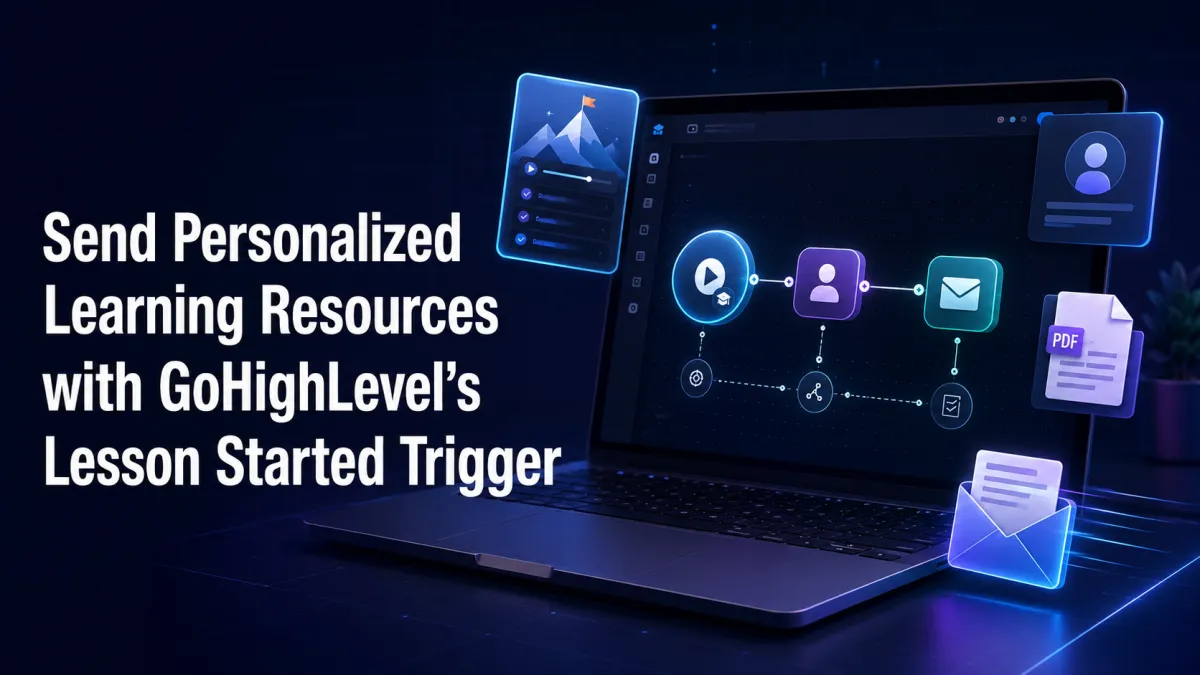
Send Personalized Learning Resources with GoHighLevel’s Lesson Started Trigger
Send Personalized Learning Resources with GoHighLevel’s Lesson Started Trigger
When learners begin a new lesson, they often need more than the lesson content itself. A worksheet, checklist, reference guide, or short reminder can help them understand what to do next. Delivering that material manually, however, becomes difficult as enrollment grows.
The GoHighLevel Lesson Started Trigger provides a practical starting point for timely learner support. It detects when a learner starts a lesson and starts a configured workflow. The workflow can then deliver personalized learning resources through actions chosen and configured by the course owner.
Used carefully, this form of GoHighLevel course automation can support learners without overwhelming them with unnecessary communication.
What Is the GoHighLevel Lesson Started Trigger?

Lesson Started is one of the workflow triggers available under the Courses category in HighLevel. According to HighLevel’s official workflow trigger list, it fires when a learner starts a lesson.
The trigger’s responsibility is limited: it starts the GoHighLevel workflow and allows the associated contact to enter its automation path. It does not independently send an email, text a worksheet, notify an instructor, or decide which resource the learner needs.
Those results require separate workflow actions.
Lesson Started should not be confused with Lesson Completed, Product Started, Product Completed, New Signup, or access-related triggers. It responds to the lesson-start event, not lesson completion, overall course progress, grades, content access, or measured engagement.
Who Can Benefit from This Automation?
This trigger can be useful anywhere structured learning happens inside HighLevel, including:
Online courses that provide worksheets for individual lessons
Coaching programs that send exercises or reflection prompts
Memberships offering lesson-related guides and downloads
Employee training with policies, checklists, or reference documents
Certification programs that provide study aids throughout a curriculum
The main requirement is a clear relationship between the lesson being started and the supporting material delivered afterward.
How to Create the GoHighLevel Workflow
1. Create the workflow
Open the relevant sub-account and go to Automation, then Workflows. Select Create Workflow and start from scratch, or open an existing workflow that you want to update.
Give the workflow a descriptive name, such as “Lesson Started: Client Discovery Resources.” Clear names make troubleshooting easier when several courses or lessons have their own automations.
2. Add Lesson Started as the trigger

Inside the workflow builder, click Add New Trigger. Search for Lesson Started and select it from the Courses triggers.
Review and configure the options presented in your account carefully. If the interface provides criteria for narrowing the event, choose the course and lesson information that corresponds to the intended resource. Do not assume that similarly named lessons belong to the same product.
Save the trigger after confirming the configuration.
3. Add resource-delivery actions

Click the plus icon below the trigger to add the first action. Relevant verified workflow actions include Send Email, Send SMS, Wait, If / Else, Add Contact Tag, and Internal Notification.
For example, use Send Email to provide:
A direct link to a worksheet
A downloadable reference guide
Preparation instructions
A clear explanation of how the resource supports the lesson
Use Send SMS when a short, mobile-friendly reminder is appropriate. Keep the message concise and link to a page or file that the learner is authorized to access.
A Wait action can pause the workflow before a study reminder. An If / Else action can route contacts according to supported information available in the workflow, such as relevant contact fields or tags. Each branch must contain the correct message and resource.
An Internal Notification can alert a team member when human support is genuinely needed. It should not become a notification for every ordinary lesson start unless that serves an operational purpose.
4. Review, test, and publish
Confirm the order of every action and inspect each branch. Test with an appropriate learner contact, verify the resource links, review the workflow execution, and publish only after the path behaves as intended.
A Realistic Automated Student Follow-Up

Consider a coaching program with a lesson on defining an ideal customer profile.
When a learner starts that lesson, Lesson Started initiates the workflow. The next action sends an email containing a link to the matching customer-profile worksheet. The email explains the exercise and includes one clear call to action: complete the worksheet before the next coaching session.
The workflow then uses a Wait action to pause for a configured period. Afterward, a Send SMS action provides a brief study reminder and repeats the resource link.
If different learner segments need different materials, an If / Else step can route them using data already stored and correctly configured in the account. The workflow creator must build this logic. HighLevel does not automatically determine the best resource.
Personalization and Implementation Best Practices

Personalization is only as reliable as the underlying data. Use the custom-value picker available inside the relevant action rather than typing unverified placeholder syntax. Confirm that required contact information, custom fields, custom values, tags, and course context are populated before depending on them.
Follow these practices:
Match every link and message to the correct lesson.
Keep the resource useful, focused, and easy to access.
Use a specific call to action.
Test links, file permissions, and mobile usability.
Avoid stacking unnecessary email and SMS messages.
Use waits and branches only when they improve the learner’s path.
Check workflow execution and communication statistics without assuming delivery is guaranteed.
Common mistakes include treating the trigger as a sending action, configuring the wrong lesson criteria, using inaccessible links, relying on missing contact data, and publishing without a complete test.
Conclusion

The GoHighLevel Lesson Started Trigger gives course businesses a precise event for beginning online course automation. Its value comes from the workflow built after it. By pairing the trigger with carefully configured messages, conditions, waits, and verified resources, educators can provide timely, personalized learning resources while keeping the learner experience focused and manageable.
Frequently Asked Questions
What does the GoHighLevel Lesson Started Trigger do?
The Lesson Started trigger starts a workflow when a learner starts a lesson. It enrolls the associated contact into the workflow so that the configured actions can run. The trigger itself does not send messages or learning resources.
Does Lesson Started mean the learner completed the lesson?
No. Lesson Started and Lesson Completed are separate course triggers. Lesson Started indicates that the learner started a lesson, but it does not confirm completion, measure engagement, grade the learner, or track how much of the lesson they viewed.
Can the trigger automatically send a worksheet or study guide?
Not by itself. You must add a separate Send Email or Send SMS action to the workflow and include the correct worksheet, download link, guide, or supporting page in that action.
Can I send different resources for different lessons?
Yes, provided you configure the workflow and its lesson criteria correctly. Each resource-delivery action must contain the material appropriate to the lesson. HighLevel does not automatically decide which resource should be sent.
Can I personalize the learning-resource message?
Yes. You can use contact information and other dynamic values available in the action’s value picker. Personalization depends on the contact data, custom fields, custom values, tags, and relevant workflow context available in your account. Missing information may result in blank values, so test each message before publishing.
Can I send both an email and an SMS after a lesson starts?
Yes. A GoHighLevel workflow can include separate Send Email and Send SMS actions. Use each channel purposefully, respect communication preferences and applicable consent requirements, and avoid sending unnecessary or repetitive messages.
Can I delay the student follow-up?
Yes. Add a Wait action before the follow-up step and configure the required delay. After the wait ends, the workflow can proceed to another action, such as a study-reminder email or SMS.
Can different learners receive different follow-ups?
Yes. An If / Else action can route contacts through different branches according to supported conditions, such as properly configured contact fields or tags. Each branch must be built separately with the correct message and resource.
Need Expert Help with GoHighLevel?
New to GoHighLevel and ready to get started? Buy your GoHighLevel account here and launch with confidence.
Already know what you need and want our team to handle everything, from complete setup and customization to funnels, workflows, automations, CRM, and pipelines? Click here.



