

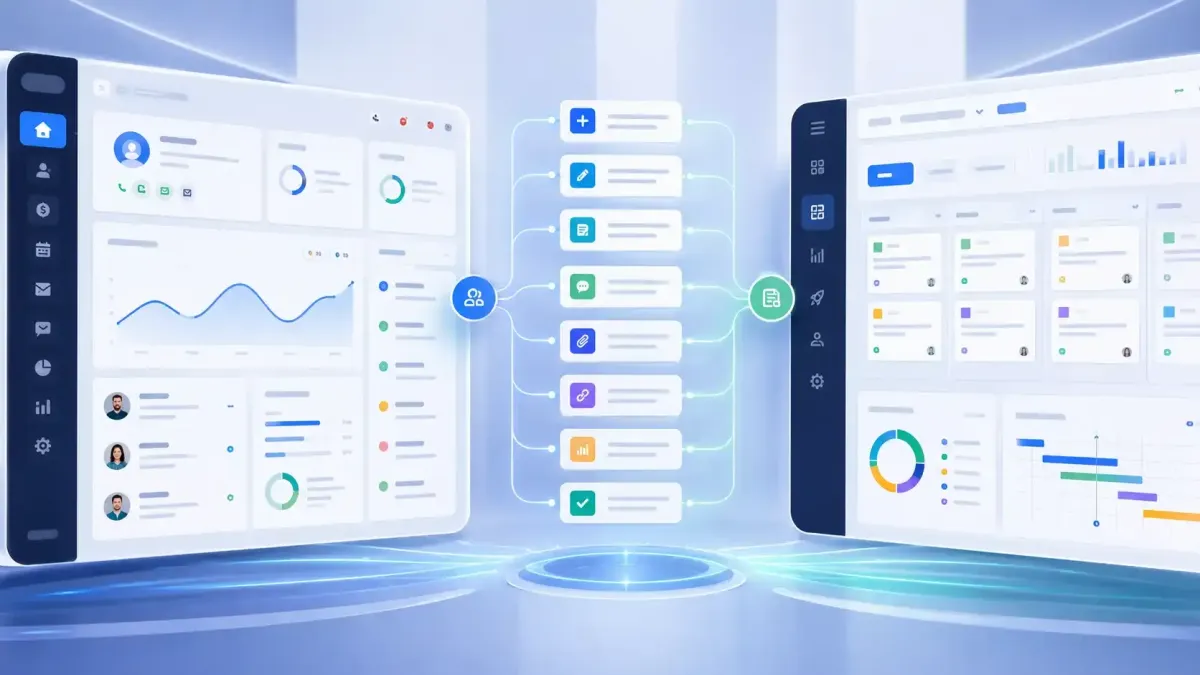
Master Jira Workflow Automation in GoHighLevel
Jira Workflow Actions and Triggers in GoHighLevel
Managing customer relationships and project tasks across separate platforms can quickly become time consuming and inefficient. That's where the GoHighLevel Jira Workflow integration helps. By connecting Jira with the GoHighLevel Workflow Builder, businesses can automate issue management, streamline communication, and reduce repetitive manual work without relying on third-party automation tools.
Whether you manage a digital agency, SaaS business, customer support team, or internal operations department, this integration helps your CRM and project management processes work together more efficiently. In this guide, you'll learn how Jira triggers and actions work in GoHighLevel, how to connect your account, and practical ways to use the integration.
What Is GoHighLevel Jira Workflow?
GoHighLevel Jira Workflow is a native integration that allows your GoHighLevel workflows to interact directly with Jira Cloud. It supports both workflow triggers and workflow actions, enabling you to automate common Jira tasks from inside GoHighLevel.
The integration uses secure OAuth authentication and supports multiple Jira Cloud Sites, making it suitable for businesses managing one or several Jira environments.
With this integration, you can:
Trigger workflows when Jira issues are created or updated
Create and update Jira issues
Find users, projects, and existing issues
Add comments, attachments, watchers, and work logs
Link related issues
Move issues into sprints
How Jira Integration Works in GoHighLevel?
The integration is built around two key automation components.
Workflow TriggerWorkflow ActionStarts a workflow when a Jira event occurs.Performs an action inside Jira during a workflow.
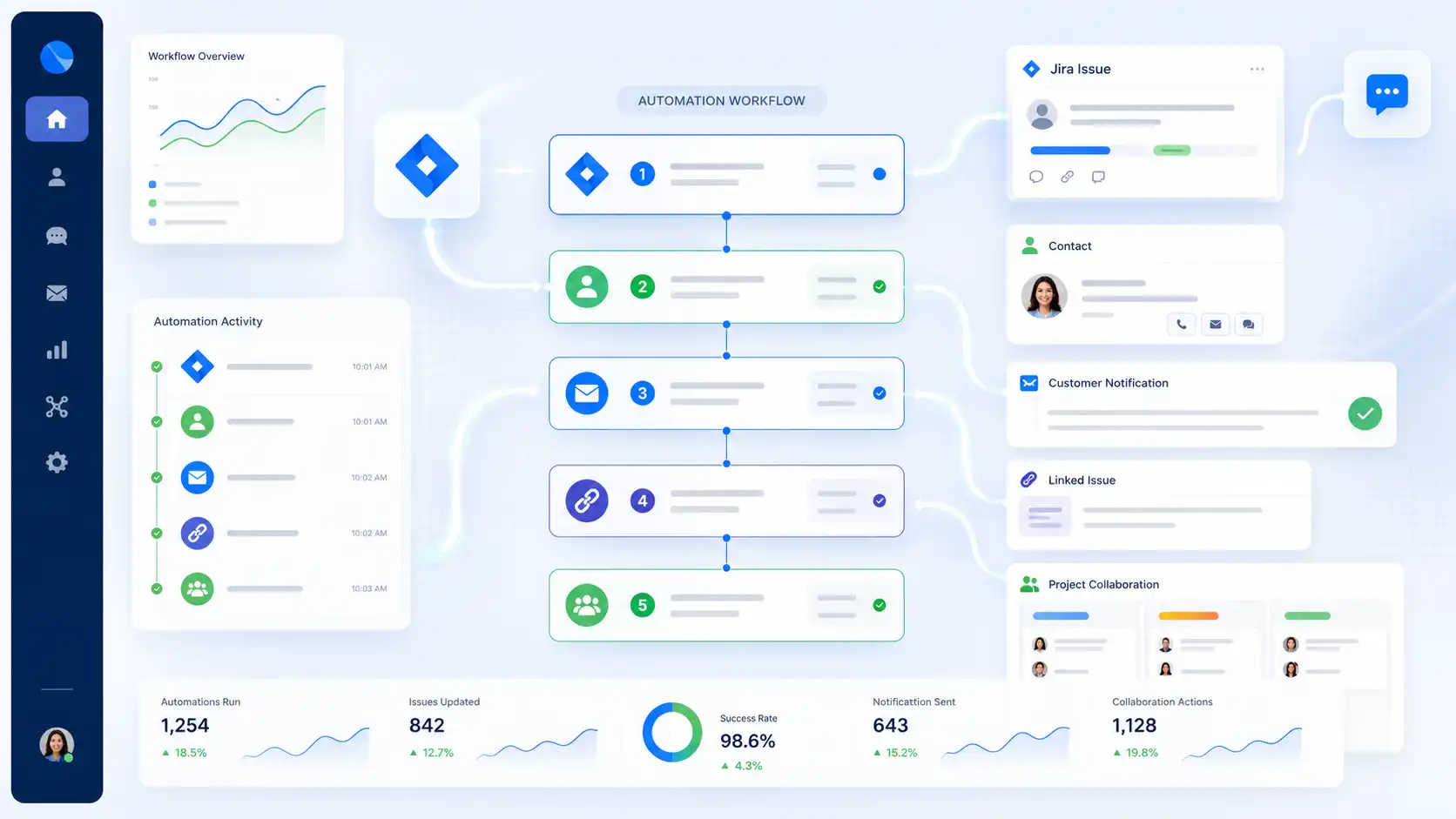
A trigger detects activity in Jira and starts a GoHighLevel workflow, while an action performs a specific operation in Jira as part of that workflow. Together, they create automated workflows that keep customer interactions and project management connected.
The integration uses OAuth authentication for a secure connection, and after connecting your account, you can select the appropriate Jira Cloud Site when configuring triggers or actions.
Jira Workflow Triggers
GoHighLevel currently includes two Jira workflow triggers.
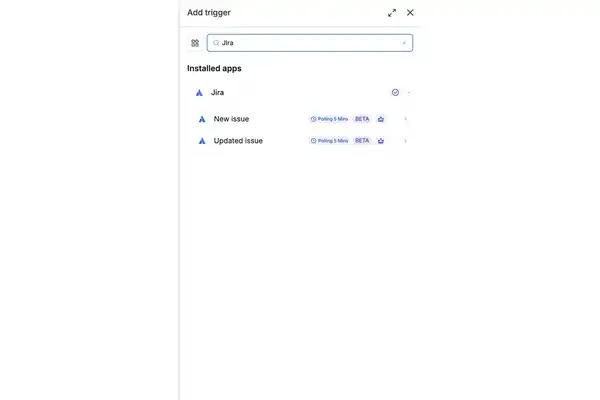
New Issue
The New Issue trigger starts a workflow whenever a new Jira issue is detected. It can be configured using filters such as Cloud Site, Project, and Assignee, allowing workflows to respond only to relevant issues.
For example, a business could automatically notify an account manager when a new client issue is created or start an internal onboarding process after a project ticket is added.
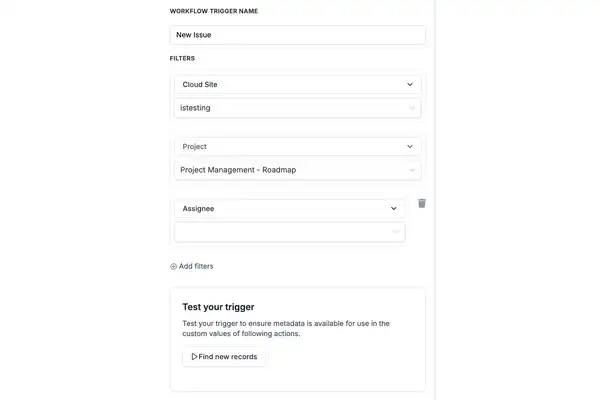
Updated Issue
The Updated Issue trigger runs whenever GoHighLevel detects an update to an existing Jira issue. This is useful for automating customer communication or internal notifications whenever work progresses.
For example, when a support issue changes status, GoHighLevel can automatically continue a workflow that updates the customer or alerts the appropriate team member.
Jira Workflow Actions
GoHighLevel provides several Jira actions that allow workflows to create, update, and organize Jira issues automatically.
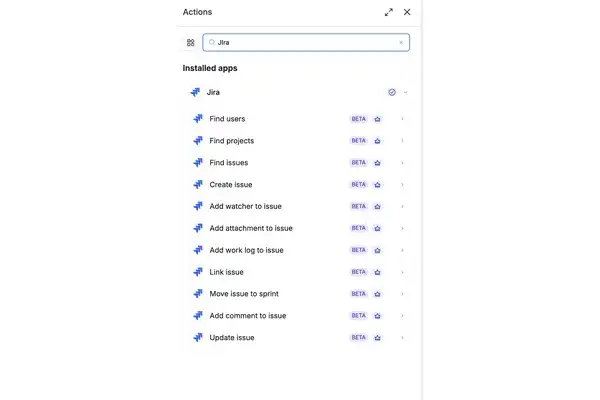
Discovery Actions
These actions help retrieve information from Jira before performing other workflow steps.
Find Users: Retrieves Jira users for assignments or approvals.
Find Projects: Retrieves available Jira projects that can be used within your workflow..
Find Issues: Searches existing Jira issues to help prevent duplicate work or locate specific records.
Issue Management
These actions help create and maintain Jira issues.
Create Issue: Automatically creates a new Jira issue using details from your GoHighLevel workflow.
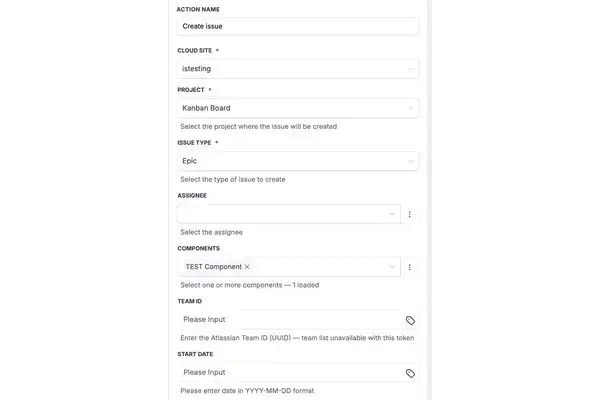
Configuring the Create Issue action inside the GoHighLevel Workflow Builder. Update Issue: Updates an existing Jira issue when new information becomes available.
Issue Enrichment
These actions add more information to existing issues.
Add Comment: Posts updates or notes to a Jira issue.
Add Attachment: Uploads supporting files or documents to a Jira issue.
Add Watcher: Adds users as watchers so they receive updates about the issue.
Add Work Log: Records completed work against an issue.
Relationships and Sprint Management
Link Issue: Connects related Jira issues to improve project organization.
Move Issue to Sprint: Moves an issue into a Jira sprint for improved sprint planning and tracking.
How to Connect Jira to GoHighLevel
Connecting Jira is straightforward and only takes a few steps.
Open Automation → Workflow Builder.
Add a Jira Trigger or Jira Action.
Click Connect Account.
Follow the OAuth authorization prompts to connect your Jira account.
Confirm the account shows as Connected.
Select your preferred Jira Cloud Site, configure the workflow, and save it.
Once connected, your Jira account can be used across supported workflow triggers and actions.
Real-World Use Cases
Notify Customers When an Issue Is Resolved
A workflow can begin with the Updated Issue trigger, find the related contact in GoHighLevel, and automatically send a resolution email or SMS to the customer. This keeps customers informed without requiring manual follow-up and improves the overall support experience.
Link Related Jira Issues Automatically
Using the New Issue trigger, a workflow can search existing issues with Find Issues and connect them using Link Issue. This helps teams identify duplicate requests, organize related work, and maintain cleaner Jira projects.
Benefits of GoHighLevel Jira Workflow
Connecting Jira with GoHighLevel offers several advantages for agencies and businesses.
Automates repetitive project management tasks
Reduces manual data entry
Improves customer communication
Keeps CRM and project management connected
Increases team collaboration
Provides better project visibility
Improves overall team productivity
Creates more efficient support workflows
Best Practices
To build reliable Jira automations:
Use clear and consistent issue names.
Keep Jira projects organized.
Apply labels where appropriate.
Verify that the correct Jira Cloud Site is selected before publishing the workflow.
Test workflows before using them in production.
Use filters to ensure workflows only run when necessary.
Common Mistakes to Avoid
Avoid these common configuration issues:
Selecting the wrong Jira Cloud Site
Incomplete OAuth authorization.
Missing required fields when creating or updating issues
Configuring workflow steps in the wrong order.
Skipping workflow testing before activation
Frequently Asked Questions
What is GoHighLevel Jira Workflow?
It is a native integration that connects Jira with the GoHighLevel Workflow Builder for workflow automation.
Which Jira triggers are available?
The integration includes New Issue and Updated Issue triggers.
How often do Jira triggers check for changes?
Both triggers currently use a polling interval of five minutes to detect new or updated Jira issues.
Can I connect multiple Jira Cloud Sites?
Yes. You can select the appropriate Cloud Site while configuring triggers and actions.
Can GoHighLevel create Jira issues?
Yes. The Create Issue action automatically creates new Jira issues from your workflows.
Can I update existing Jira issues?
Yes. The Update Issue action allows workflows to modify existing Jira issues automatically.
Conclusion
The GoHighLevel Jira Workflow integration helps businesses connect CRM automation with Jira project management through native workflow triggers and actions. From creating and updating issues to adding comments, linking related tasks, and moving work into sprints, the integration simplifies project management while reducing manual effort. By combining Jira with GoHighLevel's Workflow Builder, agencies and businesses can create more connected, efficient, and scalable automation processes.
Need Expert Help with GoHighLevel?
New to GoHighLevel and ready to get started? Buy your GoHighLevel account here and launch with confidence.
Already know what you need and want our team to handle everything, from complete setup and customization to funnels, workflows, automations, CRM, and pipelines? Click here.



