

GoHighLevel Issue Badge Action: Automate Course Badges
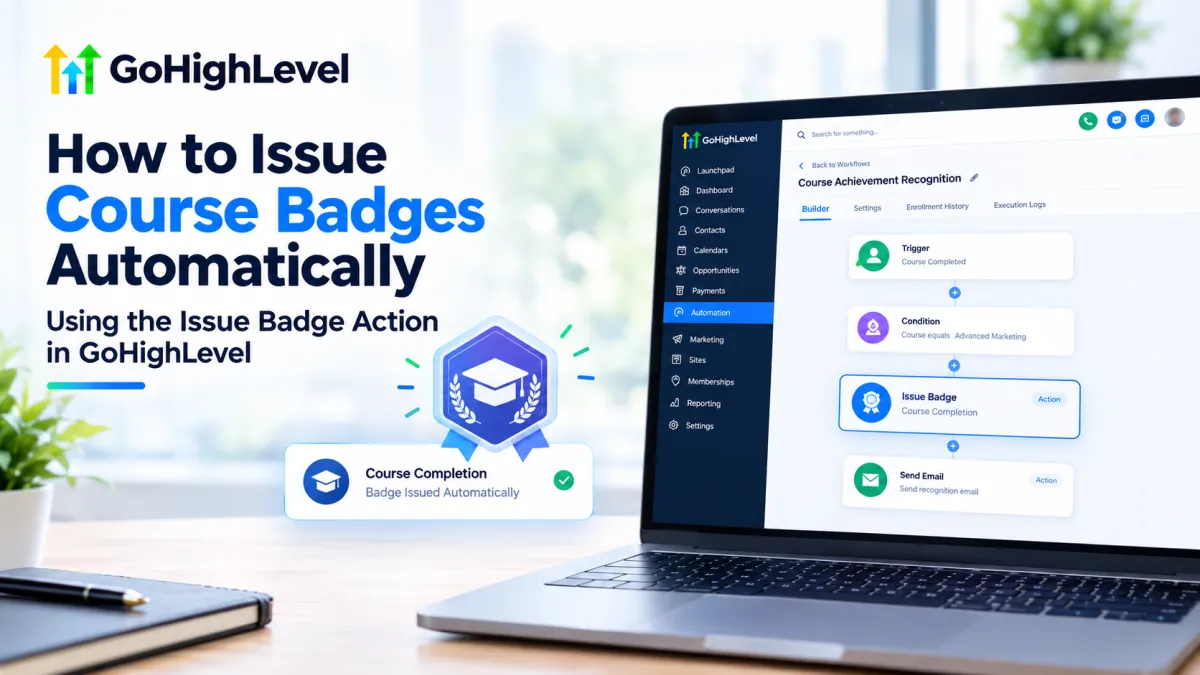
How to Issue Course Badges Automatically Using the Issue Badge Action in GoHighLevel
Recognizing progress is an important part of running online courses, communities, and learning programs. A badge can provide a simple way to acknowledge that a member or student has reached a particular milestone. Instead of manually issuing badges every time someone qualifies, GoHighLevel allows badge issuance to become part of a workflow automation.
The Issue Badge action is designed specifically for this purpose. It can award a selected badge when a contact reaches that point in a workflow. Because it is a workflow action, it works alongside a workflow trigger and other automation steps rather than starting the workflow itself.
What Is the Issue Badge Action in GoHighLevel?
The Issue Badge action in GoHighLevel is a workflow action that automatically awards a badge to the contact when the workflow reaches that step.
This distinction is important. In GoHighLevel, a trigger determines when a workflow starts, while an action tells the workflow what to do after it starts. The Issue Badge action therefore does not initiate automation. Instead, it performs badge issuance as one step within an existing workflow.
HighLevel's current documentation describes badge automation as including both the Issue Badge action and a separate Badge Issued trigger. The Issue Badge action awards a badge, while the Badge Issued trigger can start a separate workflow when a specified badge is awarded.
How the Issue Badge Action Fits Into a Workflow
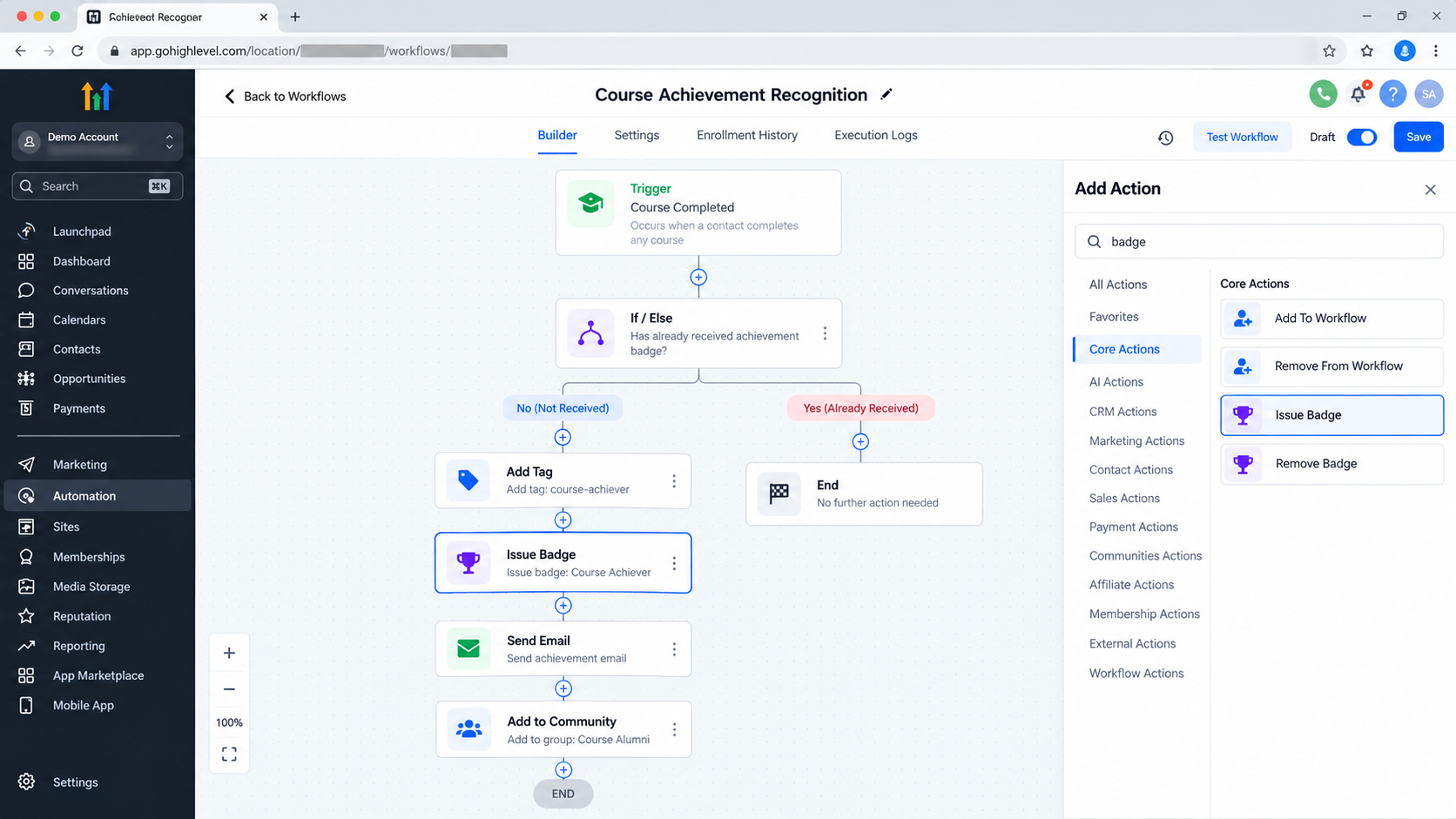
A simple badge automation can be structured like this:
Trigger → Conditions or other workflow steps → Issue Badge Action → Remaining workflow steps
The trigger establishes the event that brings a contact into the workflow. Any necessary conditions or other actions can then determine whether the contact should receive recognition. When the workflow reaches the Issue Badge action, GoHighLevel awards the selected badge.
For example, a learning-related workflow could be designed around an appropriate completion or milestone event. The important point is that the milestone event belongs to the workflow trigger or preceding workflow logic; the Issue Badge action is responsible for actually issuing the badge.
This separation makes the automation easier to understand and maintain.
How to Use the Issue Badge Action
Before adding the action, make sure the badge you want to award has already been created and configured in the HighLevel account. HighLevel's documentation states that badges must exist before they can be selected for workflow-based issuance.
A practical setup looks like this:
Open or create a workflow.
Go to the Workflows area and open an existing workflow or create one for the milestone you want to automate.Configure the workflow trigger.
Select an appropriate event that should bring the contact into the workflow. The trigger should represent the actual condition or event that makes the person eligible for recognition.Add any required workflow logic.
If your process requires additional conditions or steps before awarding the badge, place them before the badge action.Add the Issue Badge action.
In the workflow builder, add a new action and select Issue Badge from the available workflow actions.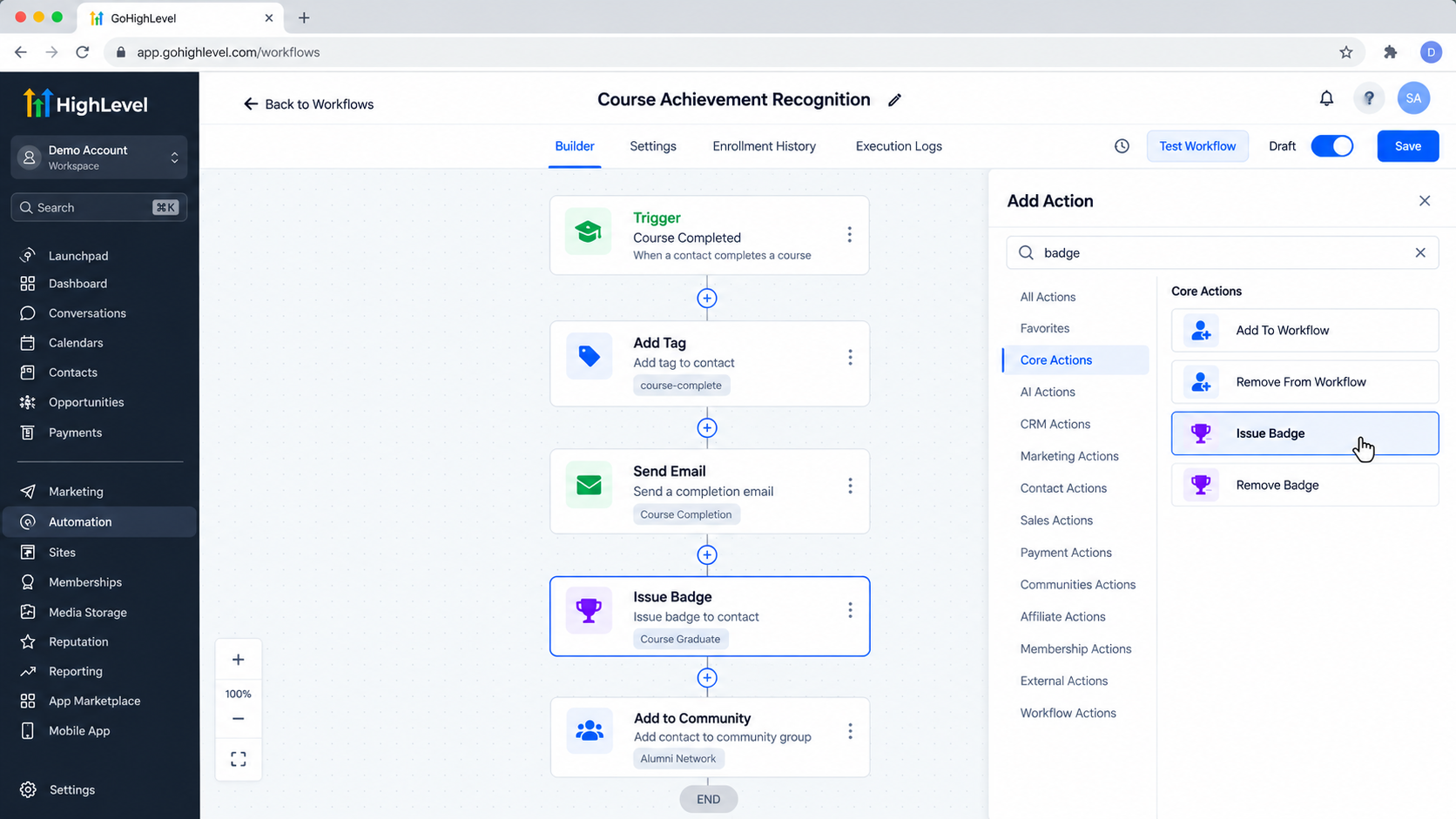
Adding the Issue Badge action to a GoHighLevel workflow for automated course recognition. Select the badge.
Choose the badge that should be issued when the workflow reaches this action. HighLevel's documentation notes that active badges configured in the account are available for selection.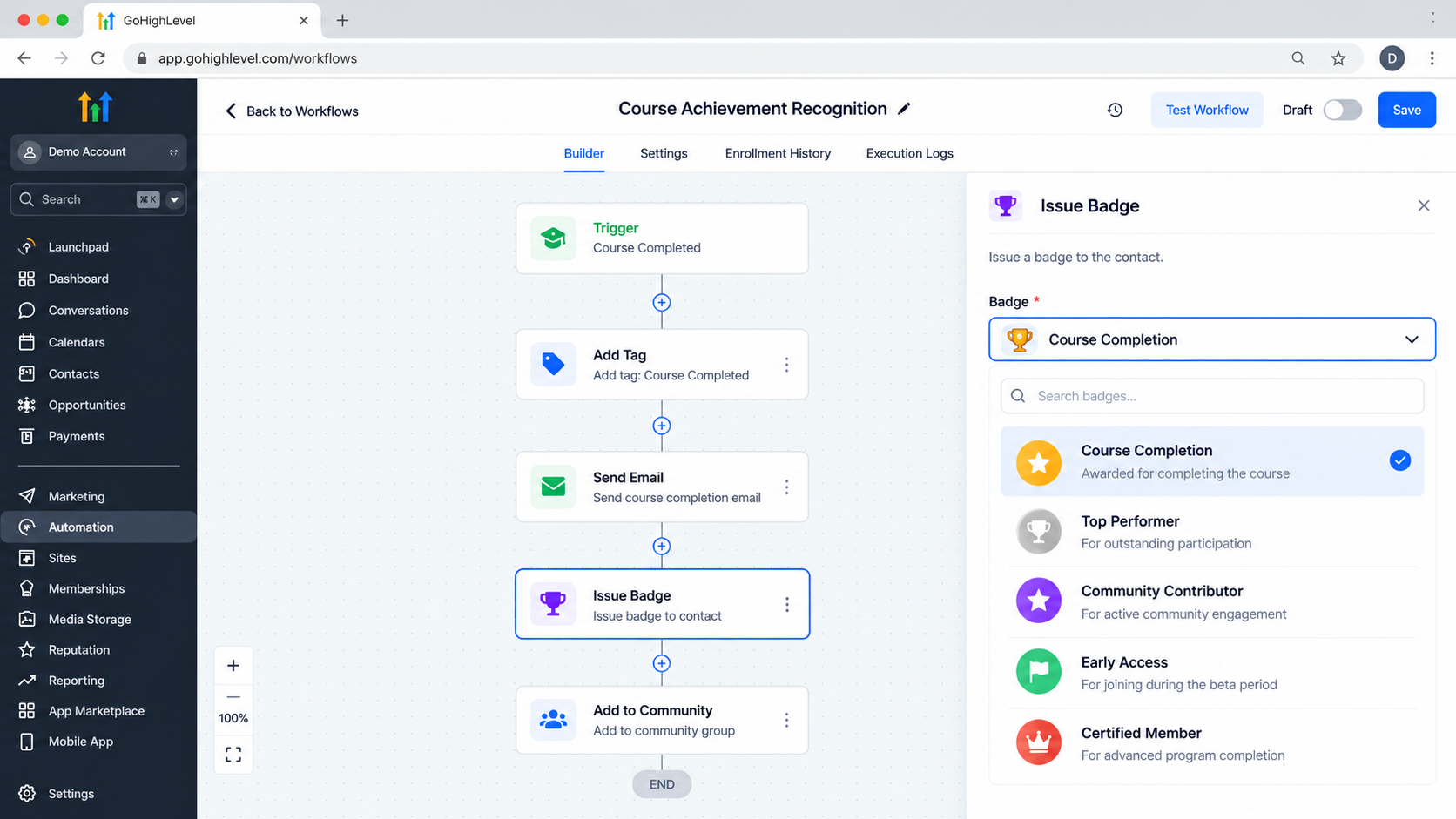
Selecting the Course Completion badge in the GoHighLevel Issue Badge workflow action. Save and activate the workflow.
Once the workflow is configured and tested, activate it so eligible contacts can move through the automation.
The exact workflow around the action will depend on the event you are automating. The key is to make sure the trigger and preceding logic accurately identify the people who should receive the badge.
Practical Use Cases for GoHighLevel Course Badges
There are several situations where GoHighLevel course badges can fit naturally into an automation.
Recognizing Course Achievements
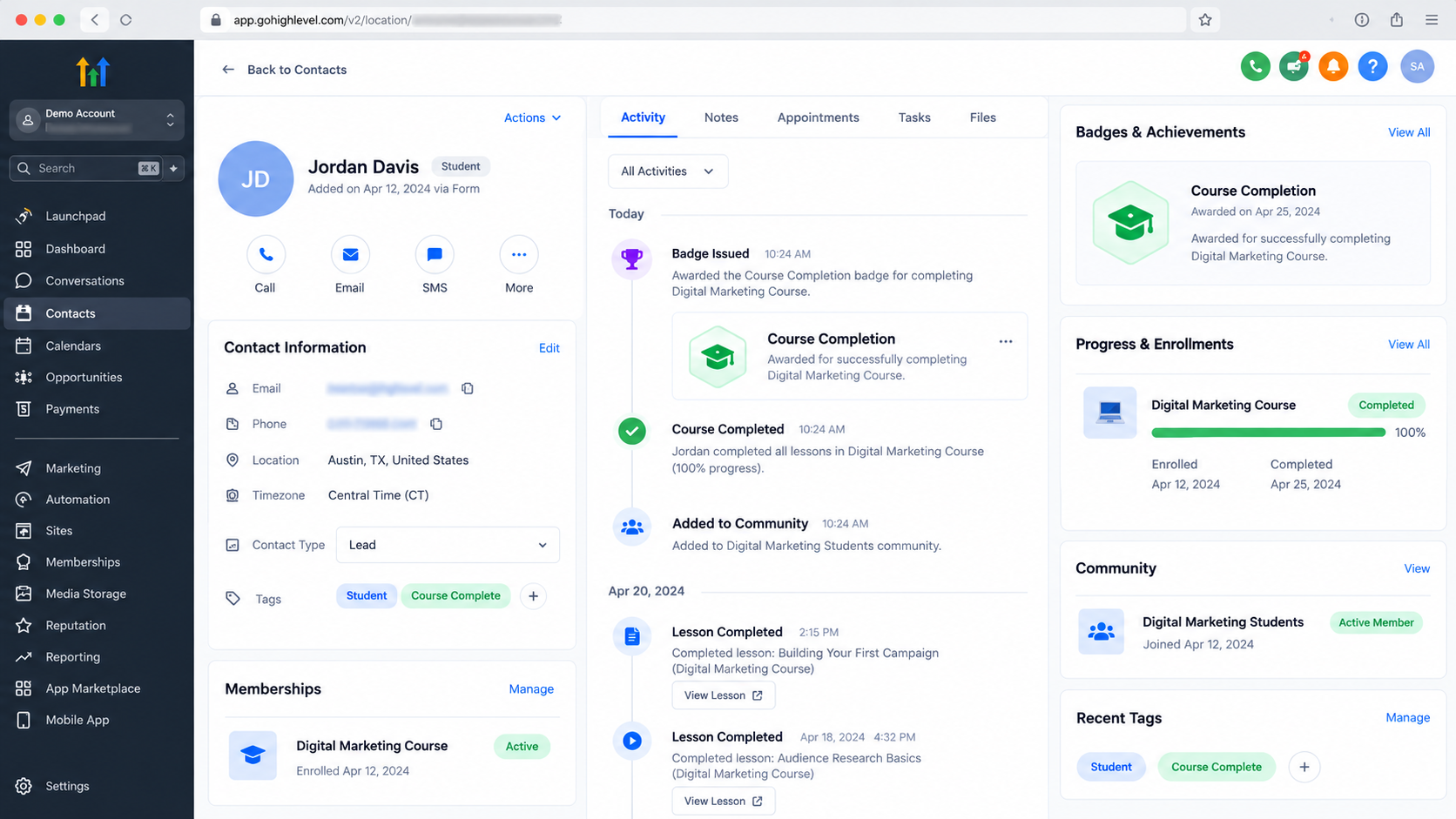
If a workflow is triggered by an appropriate course-related milestone, the Issue Badge action can award a badge when that milestone is reached. This can turn a completed learning event into an automated recognition step.
Rewarding Community Milestones
For a community or learning program, a workflow can be designed around an appropriate qualifying event and then use the Issue Badge action to recognize the member's achievement.
Creating Structured Recognition Journeys
Badge issuance does not have to be the final step. HighLevel also provides a Badge Issued trigger, allowing another workflow to begin when a selected badge is awarded. This can be useful when badge recognition should lead into another automation, such as a follow-up communication or additional workflow step.
This creates a useful separation: one workflow can determine when recognition should happen, while another can respond to the badge being issued.
Why Automate Badges in GoHighLevel?
Automating badge issuance can provide several practical advantages:
Consistent recognition: Eligible contacts can receive the intended badge through the same workflow logic.
Less manual work: Staff do not need to manually issue every badge when the appropriate automation is already configured.
Timely recognition: The badge can be issued when the workflow reaches the relevant step.
Better workflow organization: Recognition becomes part of a defined automation rather than a separate manual task.
Flexible follow-up: The Badge Issued trigger can connect badge awards with additional workflows when appropriate.
These benefits describe workflow efficiency and organization; they should not be treated as guarantees of higher engagement, retention, or revenue.
Best Practices for Badge Automation
Before activating a badge workflow, make sure the trigger genuinely represents the achievement you want to recognize. A badge should only be issued after the intended criteria have been satisfied.
It is also worth testing the workflow before using it with live contacts. Check the trigger, workflow path, selected badge, and placement of the Issue Badge action carefully.
Finally, keep the automation logically organized. If a workflow contains multiple milestones, make each badge issuance step easy to understand so future changes do not accidentally award the wrong badge.
Conclusion
The GoHighLevel Issue Badge action provides a straightforward way to incorporate badge recognition into workflow automation. Its role is specific: a workflow starts through a trigger, moves through its configured logic, and then the Issue Badge action awards the selected badge when that step is reached.
For courses, communities, and other structured learning experiences, this can reduce manual badge administration while keeping recognition connected to the workflow that determines eligibility. The most important part is accurate workflow design using the right trigger, applying appropriate conditions, selecting the correct badge, and testing the automation before activation.
Frequently Asked Questions
What is the Issue Badge action in GoHighLevel?
The Issue Badge action is a workflow action that automatically awards a selected badge to a contact when they reach that step in a GoHighLevel workflow.
Is Issue Badge a workflow trigger or an action?
It is a workflow action, not a trigger. A trigger starts the workflow, while the Issue Badge action performs the badge-awarding step after the contact enters and progresses through the workflow.
Do I need to create the badge before adding the Issue Badge action?
Yes. The badge should already be created and active in your HighLevel account so that it can be selected when configuring the Issue Badge action.
Can I automatically issue a badge after a course milestone?
Yes. You can build a workflow around an appropriate course or learning milestone and place the Issue Badge action at the point where the contact qualifies for recognition.
What is the difference between Issue Badge and Badge Issued in GoHighLevel?
Issue Badge is an action that awards a badge. Badge Issued is a trigger that can start a workflow after a specified badge has been awarded.
Can a badge trigger another automation in GoHighLevel?
Yes. The Badge Issued trigger can be used in another workflow to initiate follow-up automation after the selected badge has been awarded.
Need Expert Help with GoHighLevel?
New to GoHighLevel and ready to get started? Buy your GoHighLevel account here and launch with confidence.
Already know what you need and want our team to handle everything, from complete setup and customization to funnels, workflows, automations, CRM, and pipelines? Click here.



