

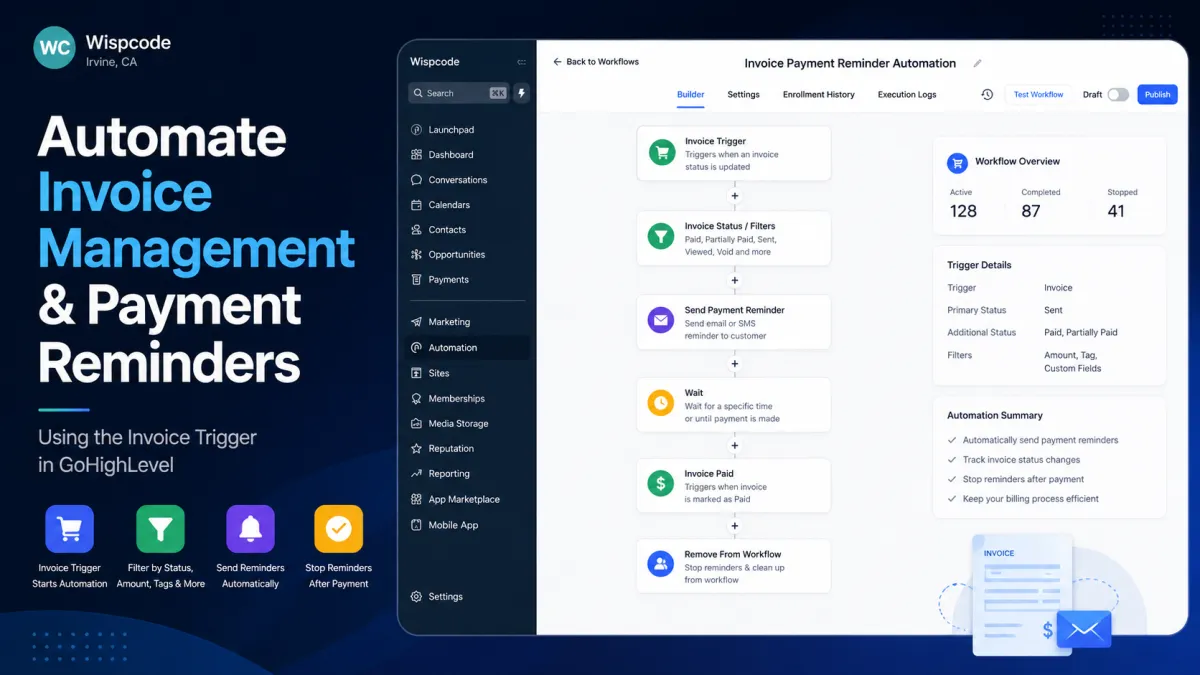
GoHighLevel Invoice Trigger Automation & Payment Reminders
How to Automate Invoice Management and Payment Reminders Using the Invoice Trigger in GoHighLevel
Unpaid invoices create more than a cash-flow problem: they also create repetitive administrative work. Teams must notice invoice activity, send follow-ups, notify staff, and avoid chasing customers who already paid. GoHighLevel’s Invoice workflow trigger provides an event-driven way to automate these processes.
What Is the Invoice Trigger in GoHighLevel?

The GoHighLevel Invoice trigger starts a workflow when an invoice changes to a configured status. It is a workflow trigger—not an invoice, payment, or messaging action. The trigger determines when the workflow begins; the actions you add afterward determine what the automation actually does.
It does not, by itself, send email or SMS, collect payment, charge a card, create an invoice, or mark an invoice paid. Those outcomes require the appropriate workflow actions and invoicing or payment features.
How the Invoice Trigger Works
The architecture is: trigger → filters → actions. In the current interface, go to Automation → Workflows, create or open a workflow, add a new trigger, and select Invoice. Give it a descriptive name, configure the filters, then add the workflow actions you need. Test the workflow and activate it when ready.
The event is an invoice status change matching your configuration. That makes the trigger useful for event-driven invoice automation rather than manual follow-up.
Invoice Statuses and Filters

The current HighLevel documentation lists these Invoice Status options:
Paid
Partially Paid
Sent
Viewed
Void
These statuses are not interchangeable. Paid means the invoice is fully paid, while Partially Paid represents a partial settlement. Viewed means the invoice was viewed; it does not prove an intention to pay. Void is useful when an invoice has been canceled and should no longer drive normal follow-up.
HighLevel also documents Invoice Amount, Tag, and Custom Fields as additional filters. Invoice Amount supports a Between operator, with inclusive minimum and maximum values. Filters let you narrow enrollment—for example, applying an automation only to invoices within a defined value range or contacts matching relevant tag or custom-field data.
How to Build an Invoice Management Workflow
Start with a clear purpose, such as “Invoice Sent – Customer Follow-Up” or “High-Value Invoice Paid – Team Alert.” Then:
Add the Invoice trigger.
Select the appropriate Invoice Status.
Add supported filters when tighter enrollment is needed.
Add actions such as email/SMS communication, CRM updates, or internal follow-up tasks.
Test representative invoice scenarios.
Save and activate the workflow.
The key principle is that the trigger only starts the process. Workflow actions produce the customer communication or internal operation.
Building Smarter Payment Reminder Automation

A practical sequence can begin with an Invoice trigger set to Sent, followed by controlled wait logic and a reminder message. However, a professional reminder system must account for payment occurring before the next reminder.
One verified approach is to use a separate Invoice workflow triggered by Paid and add the Remove from Workflow action to remove the contact from the active reminder workflow. HighLevel specifically documents this pattern for preventing duplicate reminders after payment. The removal action can target another workflow, allowing the paid event to stop the outstanding reminder sequence.

For partial payments, use Partially Paid as a separate path. You might notify billing staff or acknowledge the payment, then apply appropriate follow-up logic. The Invoice trigger does not calculate installment schedules or decide the remaining balance; it reacts to the invoice status event.
Also remember that Payment Received is a separate workflow trigger designed around incoming payment events across the CRM. Do not substitute it for the Invoice trigger when automation depends on invoice status.
Invoice Trigger vs. Built-In Invoice Reminder Settings

GoHighLevel also provides native Invoice Reminder Settings. These can schedule multiple reminders relative to the invoice sent date or due date, with configurable templates and reminder limits.
That is different from an Invoice workflow. Native reminders are purpose-built for invoice reminders; the Invoice trigger lets you build broader workflow logic around invoice status changes, filters, notifications, CRM updates, and other supported actions. Configuring one does not automatically configure the other.
Practical Use Cases
Marketing agencies can notify account managers when a high-value invoice is paid. Consultants and coaches can send customer confirmations after payment. Professional-service businesses can route Partially Paid events to billing staff. Local service companies can use Sent events to start controlled follow-up sequences and Paid events to remove customers from reminder workflows.
Best Practices and Common Mistakes
Use separate workflows when different invoice statuses require genuinely different outcomes. Keep trigger names specific, test paid and partially paid scenarios, and never assume Viewed means a customer is ready to pay.
Do not invent an “Overdue” trigger status simply because overdue invoices are common. Use only the statuses and filters currently exposed by the Invoice trigger. Also avoid confusing Send Invoice—a separate workflow action that creates and delivers a one-time invoice—with the Invoice trigger itself.
Conclusion
GoHighLevel invoice automation works best when you treat the Invoice trigger as the event detector and the workflow as the decision-and-action layer. By combining verified statuses, targeted filters, controlled waits, and a separate Paid workflow for cleanup, businesses can automate invoice management while reducing unnecessary reminders. The result is a billing process that responds to what actually happens to an invoice instead of relying on manual follow-up.
Frequently Asked Questions About the GoHighLevel Invoice Trigger
1. What is the GoHighLevel Invoice Trigger?
The GoHighLevel Invoice Trigger is a workflow trigger that starts automation when an invoice reaches a configured status or qualifying condition. It can be used to initiate follow-ups, notifications, CRM updates, and other workflow actions.
2. Does the Invoice Trigger automatically send payment reminders?
No. The Invoice Trigger only starts the workflow. You must add appropriate workflow actions—such as email or SMS communication—to create a payment-reminder process.
3. What invoice statuses can trigger a workflow in GoHighLevel?
The current HighLevel documentation lists Paid, Partially Paid, Sent, Viewed, and Void as Invoice Status options. Always verify the options displayed in your account because HighLevel's interface can change.
4. Can I trigger a workflow when an invoice is paid?
Yes. You can configure the Invoice Trigger for the Paid status and then add actions such as a customer confirmation, internal notification, CRM update, or other appropriate workflow actions.
5. Can I create a workflow for partially paid invoices?
Yes. Partially Paid is a separate invoice status. This allows businesses to create different automation for partial payments rather than treating them as fully paid invoices.
6. How can I prevent payment reminders after an invoice is paid?
A practical approach is to use a separate workflow triggered by the Paid invoice status and use the Remove from Workflow action to remove the contact from the active reminder workflow. HighLevel's documentation specifically describes this approach.
7. Can I filter the Invoice Trigger?
Yes. HighLevel documents filters such as Invoice Status, Invoice Amount, Tag, and Custom Fields. Filters help ensure that only invoices or contacts matching your specified criteria enter the workflow.
Need Expert Help with GoHighLevel?
New to GoHighLevel and ready to get started? Buy your GoHighLevel account here and launch with confidence.
Already know what you need and want our team to handle everything, from complete setup and customization to funnels, workflows, automations, CRM, and pipelines? Click here.



