GoHighLevel Inbound Webhook Update: 5 Suggested Actions Explained
Suggested Actions for Inbound Webhook Triggers in GoHighLevel
Choosing the right action after an Inbound Webhook trigger is an important part of building a GoHighLevel workflow. With this update, GoHighLevel makes that next step easier to identify by presenting a dedicated group of suggested actions in the workflow builder.
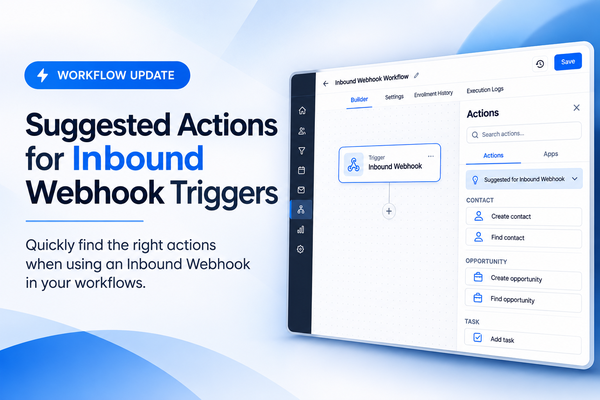
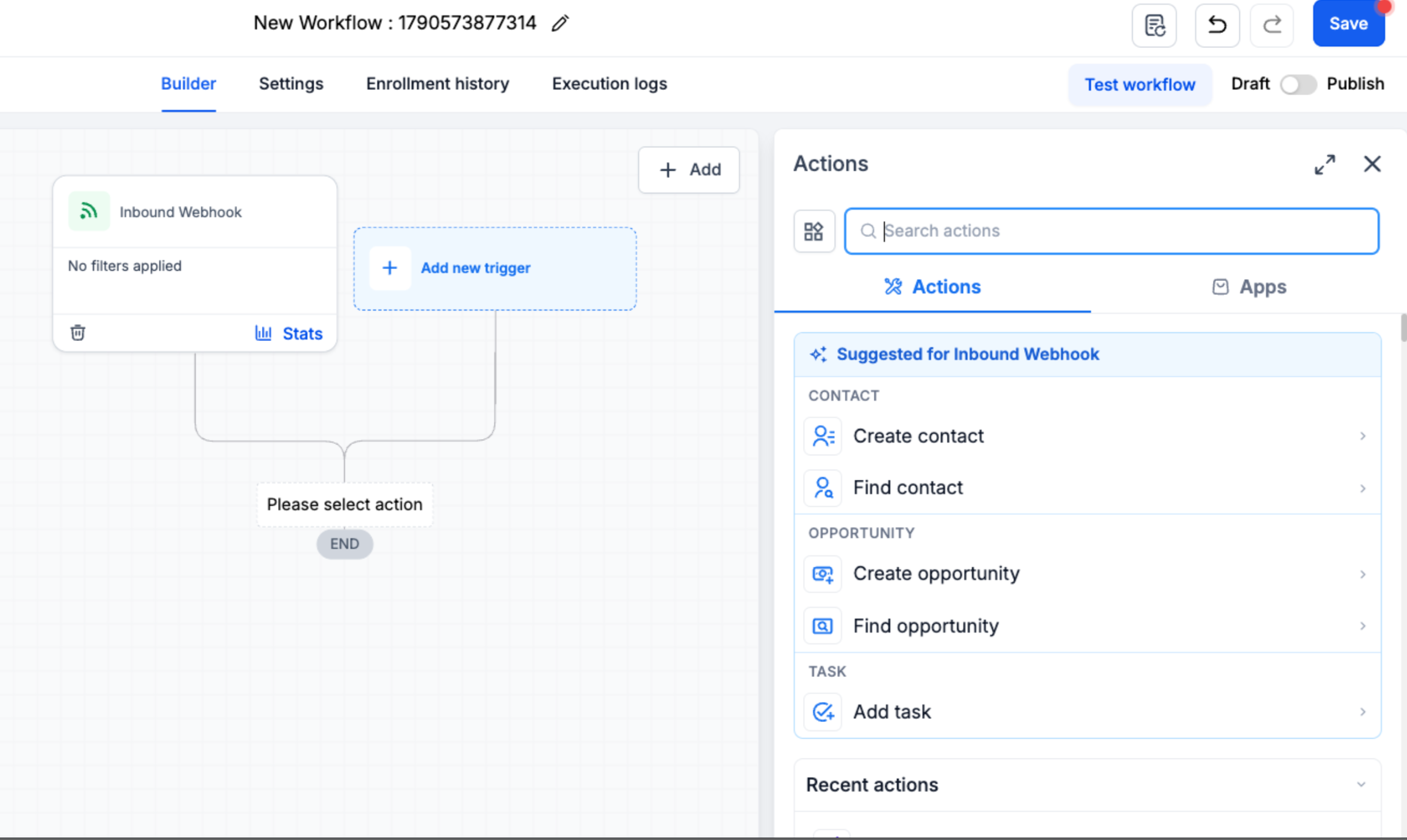
The new Suggested for Inbound Webhook section brings together five actions covering contacts, opportunities, and tasks. Users can choose an action based on the type of record their workflow needs, directly from the suggestions shown in the builder.
This is a focused improvement to the workflow-building experience. It does not change the purpose of the Inbound Webhook trigger; it helps users locate relevant next actions after adding it.
What’s New in the GoHighLevel Inbound Webhook Update?
When you add an Inbound Webhook trigger to a workflow, the builder now displays a section called Suggested for Inbound Webhook. It groups five actions under three record types:
Contact: Create Contact and Find Contact
Opportunity: Create Opportunity and Find Opportunity
Task: Add Task
Each suggestion appears under the record type it relates to, helping users identify an action that matches the intended next step. The update makes these five actions easier to find in the context of an Inbound Webhook workflow.
Understanding the Five Suggested Actions
The suggestions are organized by record type. Here is a closer look at the five action names included in the update.
1. Create Contact
Create Contact appears under the Contact category. It is a suggested choice when the workflow needs a contact-related action and creating a contact is the intended next step.
2. Find Contact
Find Contact is the second option under Contact. It is presented separately from Create Contact, giving users a distinct suggested choice when the workflow needs to find a contact.
3. Create Opportunity
Under Opportunity, GoHighLevel suggests Create Opportunity. Users can select this action when the workflow needs an opportunity-related next step, then configure and save it as part of the workflow.
4. Find Opportunity
Find Opportunity is the other suggestion in the Opportunity group. It is listed separately from Create Opportunity, making both available opportunity actions easy to identify.
5. Add Task
The Task category contains one suggested action: Add Task. It gives users a direct option when the next action they need in the workflow is task-related.
Together, these five suggestions cover the contact, opportunity, and task actions named in the official update. Their grouping helps users choose according to the record type and action their workflow requires.
How to Use Suggested Actions for an Inbound Webhook
To use the new suggestions in a GoHighLevel workflow, follow these steps:
Open a workflow. Go to Automation > Workflows and open a workflow.
Add the trigger. Add an Inbound Webhook trigger and select a sample request as its mapping reference. Save the trigger.
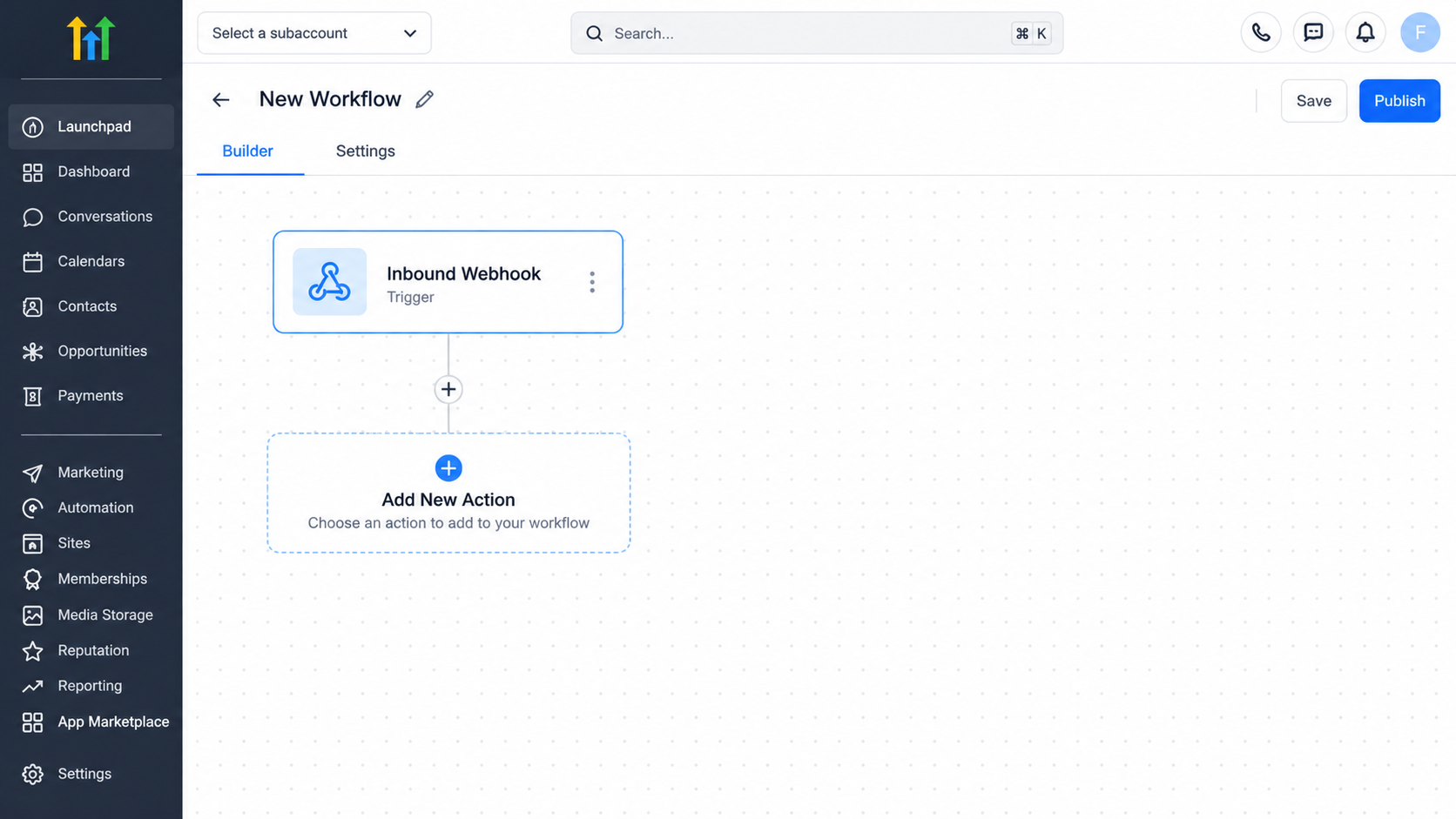
Start by opening a workflow and adding the Inbound Webhook trigger in GoHighLevel. Choose a suggested action. Under Suggested for Inbound Webhook, select a contact, opportunity, or task action.
Configure and continue. Configure and save the action, then add the rest of your workflow.
After saving the trigger, review the Contact, Opportunity, and Task categories and choose the listed action that fits the workflow's next step.
Important: Inbound Webhook Is a Premium Trigger
There is an important cost detail to keep in mind. Inbound Webhook is a premium trigger, and additional charges apply per execution.
Users should take this premium status into account when planning to use the trigger in a workflow. The platform notification does not provide an exact charge, so no specific price should be assumed from this update. Be aware that each execution carries an additional charge.
This update changes how the builder presents relevant actions; it does not change the premium-trigger notice.
Why This Update Matters for Workflow Builders
A workflow needs an appropriate next action after its trigger has been added. By placing Create Contact, Find Contact, Create Opportunity, Find Opportunity, and Add Task in a dedicated section, GoHighLevel gives users a more direct way to locate these options.
The record-based grouping connects the choice of action with the type of record involved. Instead of treating all five suggestions as one undifferentiated list, users can review the relevant category. This gives both new and experienced users a clearer way to find the listed actions in the context of an Inbound Webhook trigger.
Final Thoughts
The GoHighLevel Inbound Webhook update adds a Suggested for Inbound Webhook section to the workflow builder, grouping five actions across contacts, opportunities, and tasks. After adding and saving the trigger with a sample request as its mapping reference, users can select a relevant suggestion, configure and save the action, and continue building the workflow.
It is a focused usability update that makes the next action easier to locate. Remember that Inbound Webhook remains a premium trigger, with additional charges applying per execution.
Frequently Asked Questions (FAQs)
Q1. What is the new GoHighLevel Inbound Webhook update?
GoHighLevel has introduced a Suggested for Inbound Webhook section in the workflow builder, grouping five suggested actions for contacts, opportunities, and tasks.
Q2. Which actions are suggested for Inbound Webhook triggers?
The five actions are Create Contact, Find Contact, Create Opportunity, Find Opportunity, and Add Task.
Q3. How can I access the suggested actions in GoHighLevel?
Navigate to Automation > Workflows, open a workflow, add an Inbound Webhook trigger, select a sample request as its mapping reference, and save the trigger. You can then select an action from the Suggested for Inbound Webhook section.
Q4. Does the GoHighLevel Inbound Webhook trigger have additional charges?
Yes. Inbound Webhook is a premium trigger, and additional charges apply per execution. The update notification does not specify an exact price.
Need Expert Help with GoHighLevel?
New to GoHighLevel and ready to get started? Buy your GoHighLevel account here and launch with confidence.
Already know what you need and want our team to handle everything, from complete setup and customization to funnels, workflows, automations, CRM, and pipelines? Click here.