

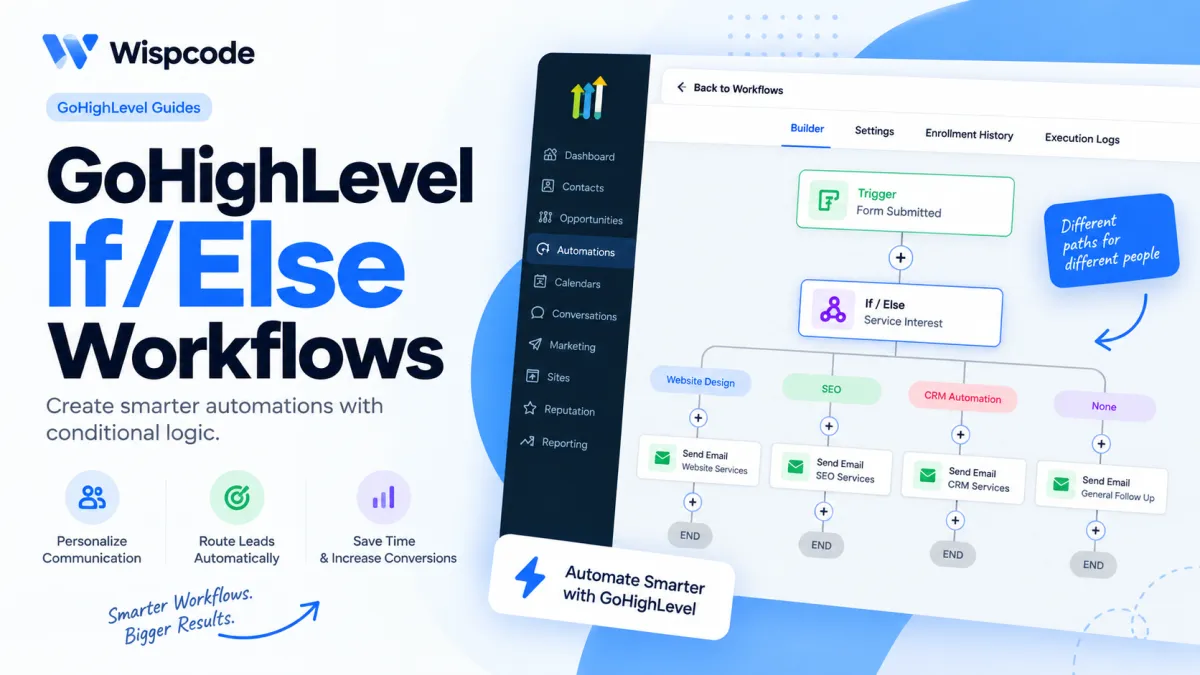
GoHighLevel If/Else Workflows
How to Create Conditional Workflows Using the If/Else Action in GoHighLevel
Automation becomes much more powerful when it can make decisions instead of sending every contact through the exact same sequence.
Think about a typical lead journey. One person may submit a form and immediately book an appointment. Another may submit the same form but leave without scheduling. A third lead may be interested in a different service altogether.
Sending all three contacts the same messages can create irrelevant follow-ups and a poor customer experience.
This is where the If/Else Action in GoHighLevel becomes useful.
The If/Else action allows you to introduce conditional logic into a workflow. GoHighLevel can evaluate specific information about a contact or workflow situation and then route that contact into the appropriate branch.
Instead of:
Trigger → Message → Wait → Message
you can build:
Trigger → If/Else Decision → Matching Branch → Relevant Actions
In this guide, we’ll explain how the GoHighLevel If/Else Action works, how to configure its conditions and branches, and how businesses can use conditional workflows to create smarter automation.
What Is the If/Else Action in GoHighLevel?
The If/Else Action is a workflow action that evaluates predefined conditions and routes contacts through different paths depending on which conditions they match.
For example, suppose a lead submits a consultation form.
Before sending another booking reminder, the workflow could check:
Has this contact already booked an appointment?
If the relevant condition is met, the contact can move into an appointment-related branch.
If it is not met, the contact can continue through follow-up designed to encourage them to schedule.
This prevents every contact from receiving identical communication regardless of what they have already done.
Why Use Conditional Workflows?
Basic workflows work well when every contact should receive the same actions. But most real customer journeys are more complicated.
Conditional logic can help businesses:
Personalize follow-up based on contact information
Separate qualified and unqualified leads
Route contacts according to appointment status
Use tags and custom fields to control automation
Create different paths for different services
Adjust communication according to opportunity information
Reduce irrelevant or contradictory messages
The purpose of If/Else is not to make a workflow more complicated. It is to make the automation more relevant.
How to Add an If/Else Action in GoHighLevel
Start by going to:
Automation → Workflows
Create a new workflow or open an existing one.
Choose the appropriate workflow trigger based on the process you want to automate. For example, a workflow might begin when a lead submits a form.
Once you reach the point where the workflow needs to make a decision, click the + icon and select If/Else.
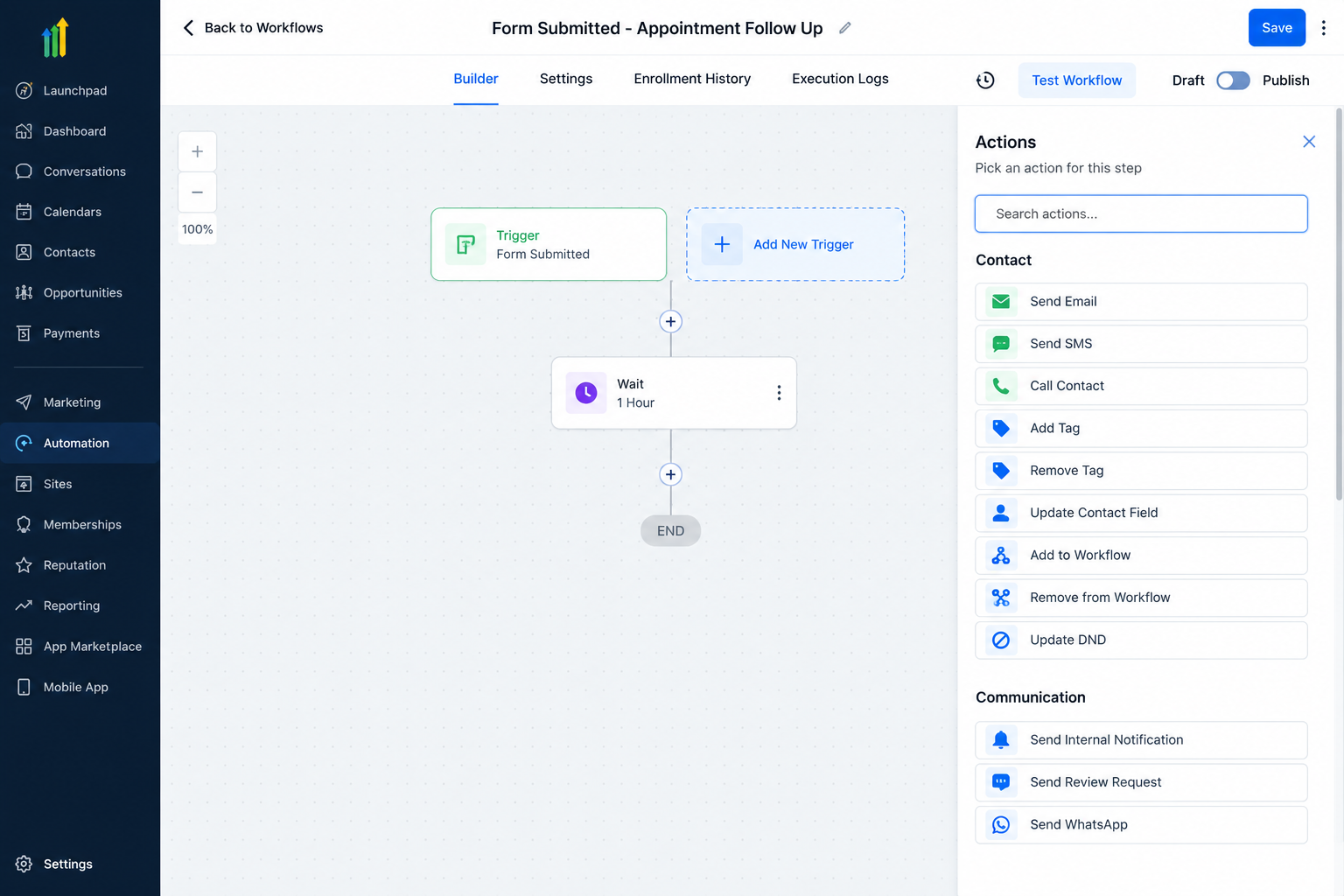
You can then configure the conditions GoHighLevel should evaluate.
Build Your Own vs. Scenario Recipes
When setting up an If/Else action, you may have options for creating the logic manually or starting from an available scenario recipe.
Build Your Own
Build Your Own allows you to configure the conditions yourself.
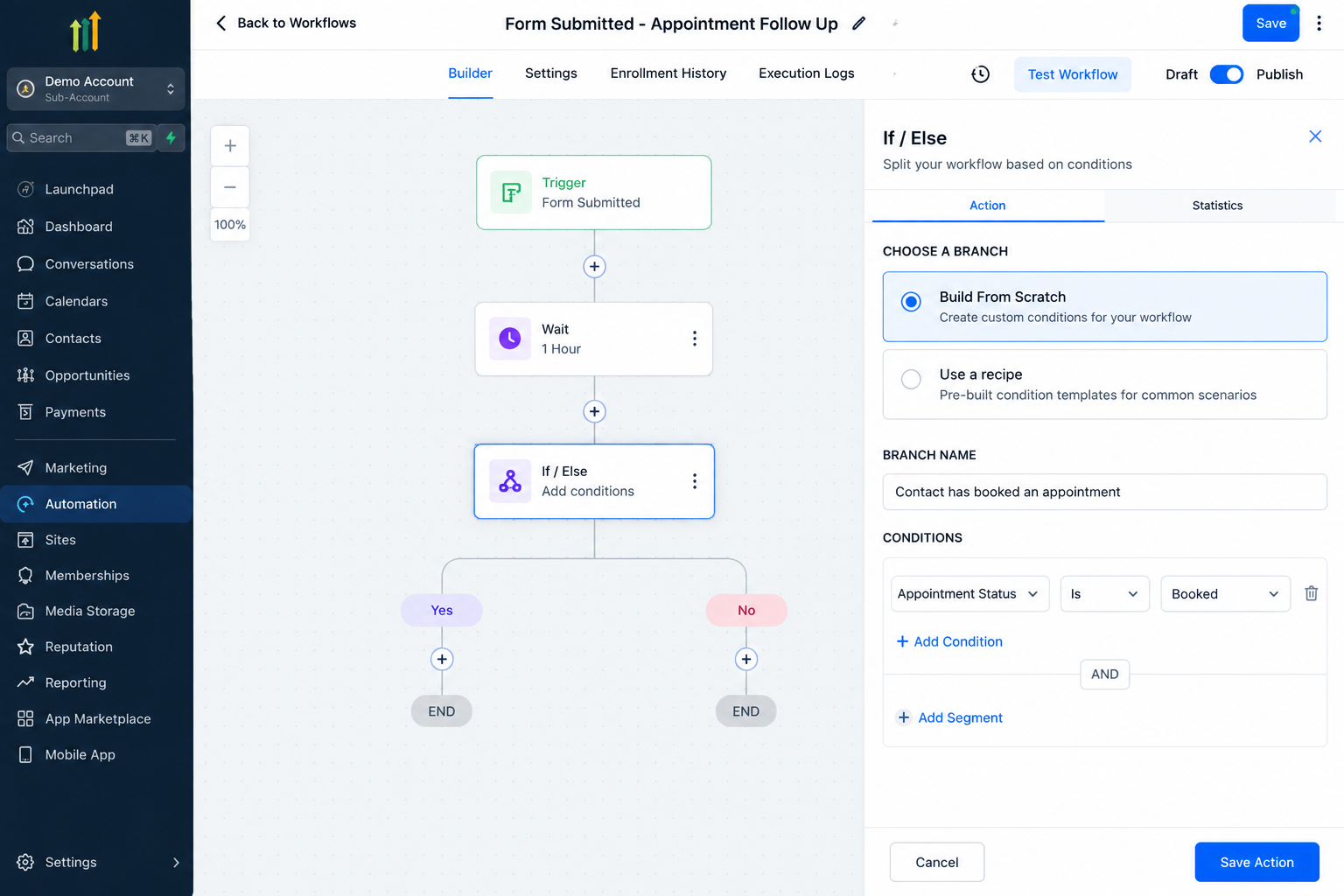
The general structure is:
Field → Operator → Value
For example:
Contact Tag → Contains → Qualified Lead
This tells the workflow to check whether the contact contains the specified tag.
Build Your Own is useful when your business has specific routing requirements and you know exactly what information should determine the contact's path.
Scenario Recipes
GoHighLevel may also provide Scenario Recipes for common conditional situations.
These can provide a faster starting point for frequently used scenarios. You should still review the conditions before using a recipe to make sure they match your actual automation requirements.
Understanding Conditions
Conditions tell the workflow exactly what information it should evaluate.
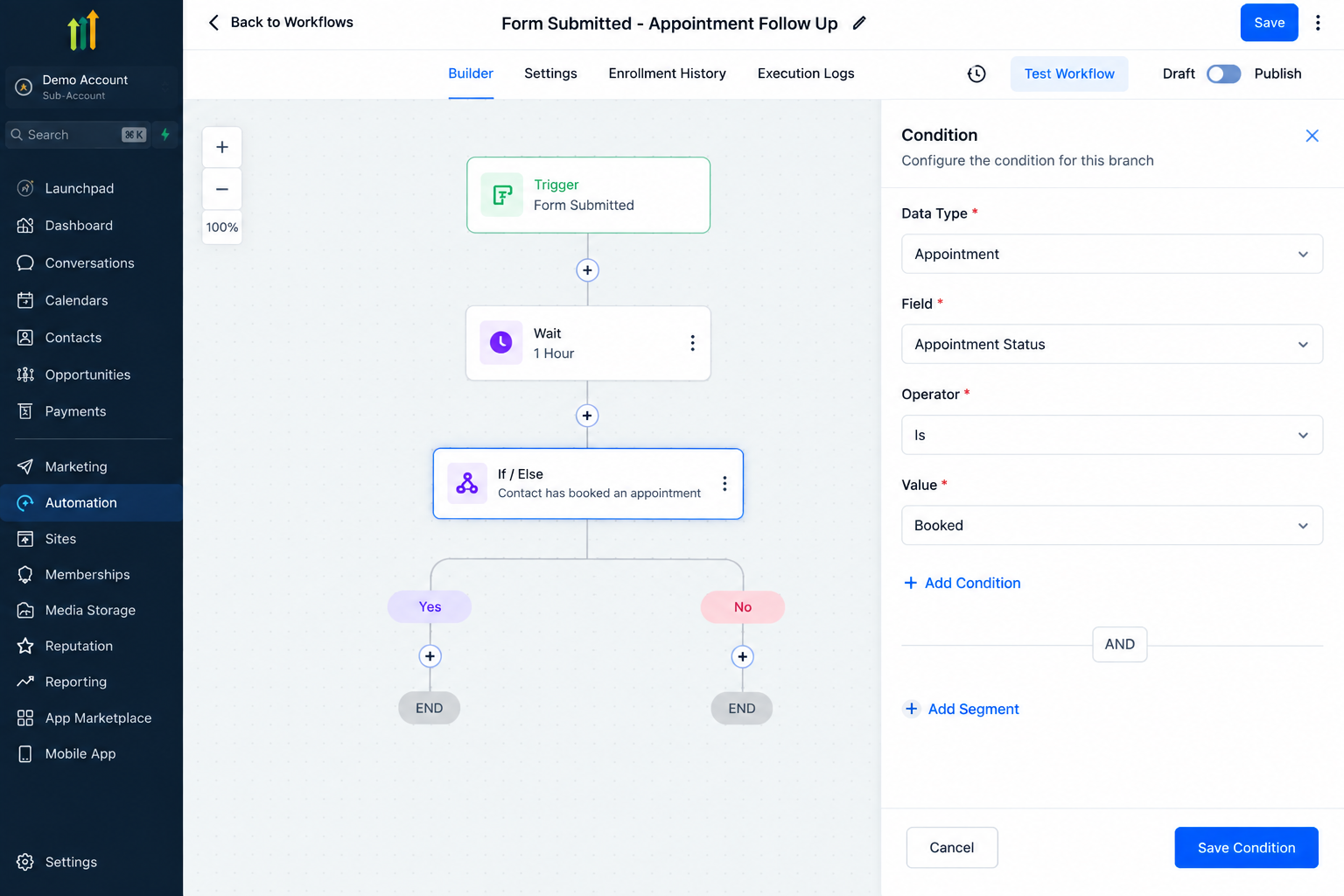
Depending on the workflow context and information available in your GoHighLevel account, you may be able to build conditions around areas such as:
Contact details
Contact tags
Custom fields
Appointments
Opportunities and pipeline information
Form-related information
Attribution data
Company information
Payment-related information in relevant contexts
Information available from previous workflow actions
For example, if you have a custom field called Service Interest, you could use it to route contacts according to the service they selected.
Understanding Operators
After choosing what information should be evaluated, you need an operator.
The operator determines how GoHighLevel compares the stored information with your condition.
Depending on the selected field and its data type, available operators can include options such as:
Is – Checks for a matching value.
Is Not – Checks that the value does not match.
Contains – Checks whether the information contains a specified value.
Is Empty – Checks whether no value exists.
Is Not Empty – Checks whether a value exists.
For supported numerical values, comparison operators can also include options such as:
Greater Than
Greater Than or Equal To
Less Than
Less Than or Equal To
The available operators can change depending on the type of field being evaluated.
Creating Multiple Branches
One of the most useful parts of GoHighLevel's If/Else action is the ability to create multiple branches.
You are not restricted to one simple Yes/No decision.
Imagine a custom field called Service Interest.
Your workflow could contain:
Branch 1: Service Interest = Website Design
Branch 2: Service Interest = SEO
Branch 3: Service Interest = CRM Automation
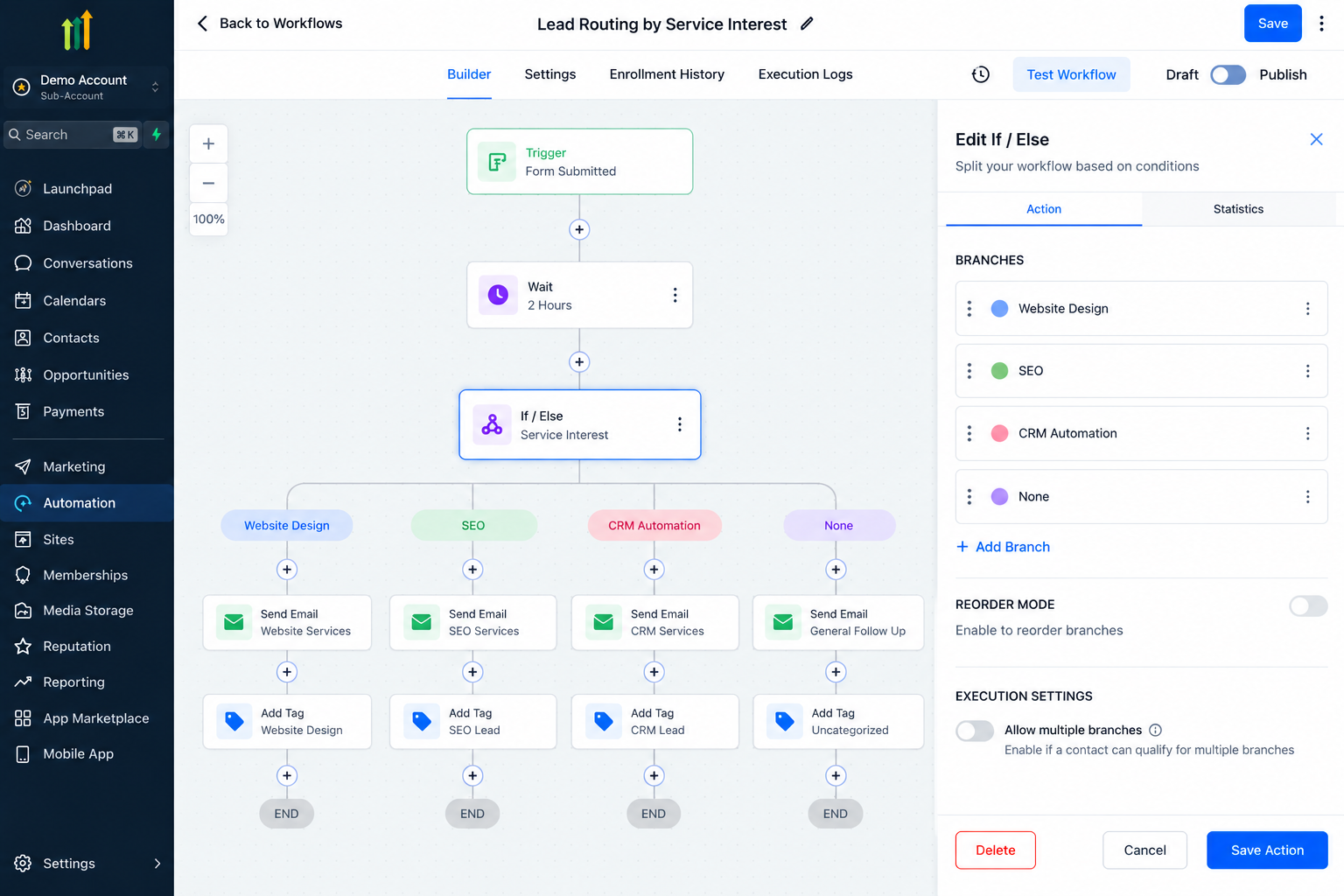
Each contact can then continue into follow-up specifically designed for the relevant service.
This allows one workflow to handle several customer journeys without forcing every contact through the same path.
Understanding the None Branch
GoHighLevel also provides a None branch.
Think of this as the fallback route.
If a contact does not satisfy the conditions configured for your other branches, the contact can continue through the None path.
For example:
Branch 1: Service Interest = Website Design
Branch 2: Service Interest = SEO
Branch 3: Service Interest = CRM Automation
None: Contact does not match the configured branches
You could use the None path to send general follow-up, notify a team member, request additional information, or simply end that portion of the automation.
Never ignore the None branch when planning a workflow. You should know what happens to contacts that do not match your expected conditions.
Using AND/OR Logic
Sometimes one condition is not enough.
GoHighLevel allows conditions to be combined using logical relationships such as AND and OR.
AND Logic
AND requires the relevant conditions in the group to be satisfied.
For example:
Lead Status = Qualified
AND
Appointment condition = Not Booked
This can help identify qualified leads that still require appointment follow-up.
OR Logic
OR allows you to create logic where alternative qualifying criteria can satisfy the condition.
For example, a business may want a priority branch for contacts who belong to one of several qualifying categories.
AND/OR logic can make your branches much more precise, but it should be used carefully. Incorrect grouping can send contacts down the wrong path.
Using Dynamic Values
For supported If/Else conditions, GoHighLevel can also use Dynamic Values.
A fixed condition compares information against a value you manually specify.
For example:
Lead Value > $5,000
A dynamic comparison can instead use information available from another supported source or previous workflow step.
This is helpful when the value being evaluated changes from contact to contact rather than remaining fixed.
Dynamic values can be particularly useful with supported numeric, monetary, date, and select-type conditions.
Appointment-Based Conditions
Conditional workflows are particularly useful for appointment automation.
When your workflow has the appropriate appointment context, appointment-related information can be evaluated to create different paths.
Relevant appointment conditions can include information such as:
Rescheduled status
Appointment start date
Appointment end date
The exact options available depend on the trigger and context of your workflow.
This is important because not every condition appears in every workflow. GoHighLevel displays options based partly on the data and context available to the automation.
Practical Example: Form Submission to Appointment Booking
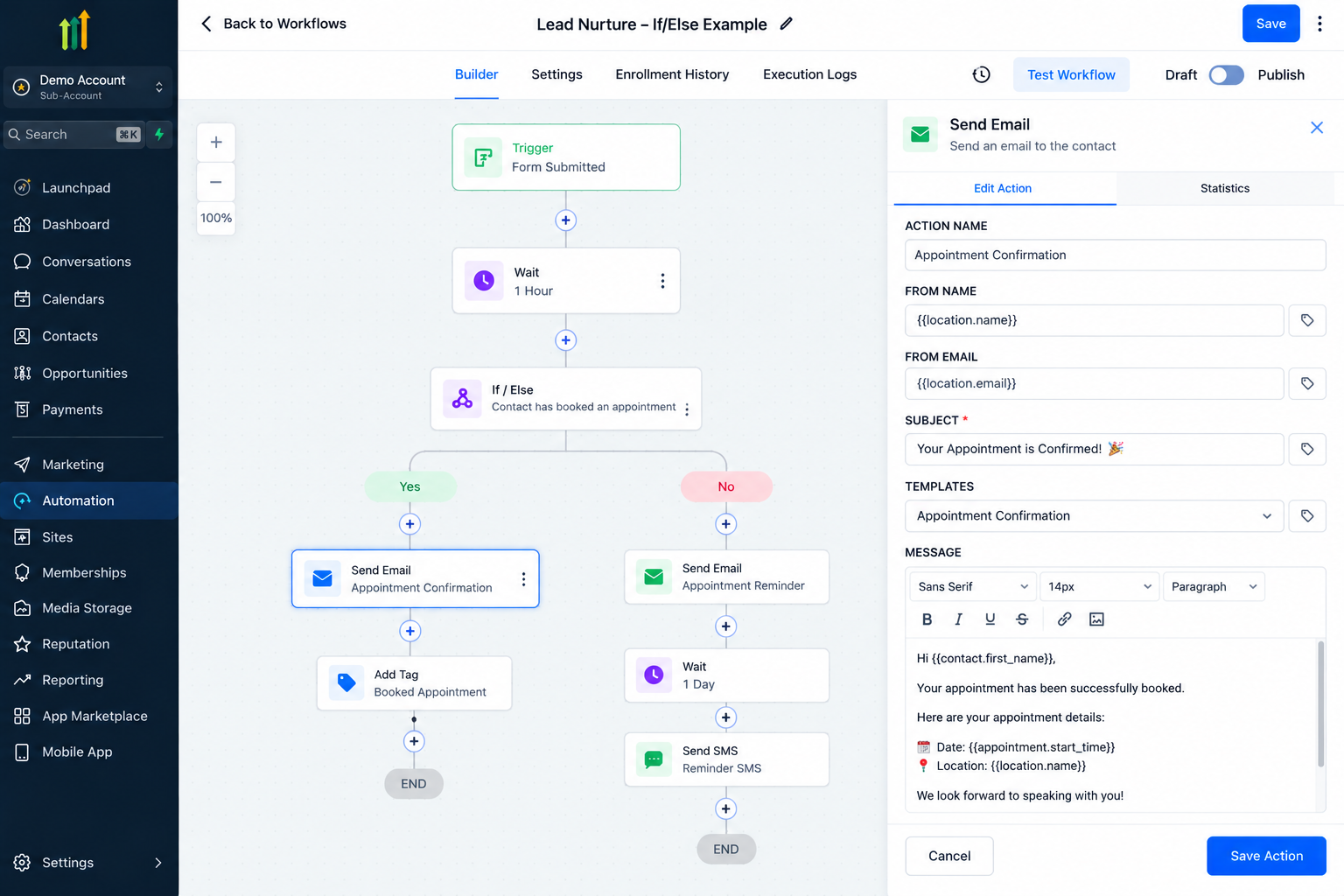
Suppose a marketing agency has a consultation form on its website.
When someone submits the form, they enter a workflow.
Instead of immediately sending multiple booking reminders, the automation could work like this:
Form Submitted
↓
Wait
↓
If/Else: Check Relevant Appointment Condition
Appointment Path
If the contact has reached the desired appointment condition, the workflow could:
Send appointment preparation information
Update relevant contact information
Notify the sales team
Continue into appointment reminders
Follow-Up Path
If the contact still needs to schedule, the workflow could:
Send a booking reminder
Provide the scheduling link
Send an additional follow-up email
Continue the lead nurture sequence
This simple decision makes the automation much more relevant.
Why Wait Actions and If/Else Work Well Together
One common mistake is checking a condition too early.
Suppose a lead submits a form and your workflow immediately checks whether that person has booked an appointment.
The lead may simply not have had enough time to schedule yet.
A better structure may be:
Form Submitted → Wait → If/Else → Appropriate Follow-Up
The Wait action gives the contact time to take the desired action before the workflow evaluates the condition.
This is especially useful for abandoned booking, lead qualification, purchase follow-up, and other processes where the contact needs time to complete an action.
More Ways to Use If/Else in GoHighLevel
Once you understand the basic logic, If/Else can support many different automation scenarios.
Lead Qualification
Qualified Lead → Sales Follow-Up
Other Lead → Nurture Sequence
Appointment Follow-Up
Appointment Condition Met → Appointment Communication
Condition Not Met → Booking Follow-Up
Service-Based Routing
Website Design → Website Follow-Up
SEO → SEO Follow-Up
CRM Automation → CRM Follow-Up
Existing Customer vs. New Lead
Existing Customer → Customer Communication
New Lead → Sales Sequence
Custom Field Routing
If a form stores answers in custom fields, those values can help determine what happens next.
For example:
Budget = Higher Range → Priority Follow-Up
Budget = Standard Range → Normal Sales Process
Opportunity-Based Automation
Opportunity information can also be useful when communication should change according to a contact's position in the sales process.
A lead in an early pipeline stage should not necessarily receive the same communication as someone who has progressed further.
Using Multiple If/Else Decisions
You can also use more than one decision point in a customer journey.
For example:
Form Submitted
↓
If/Else: Is Lead Qualified?
↓
If/Else: Has Appointment Been Booked?
↓
Appropriate Follow-Up
A qualified lead with an appointment might receive preparation information.
A qualified lead without an appointment could receive booking reminders.
Another contact might continue into a longer nurture sequence.
Multiple decisions can create powerful automation, but avoid adding unnecessary complexity.
Common If/Else Workflow Mistakes
Several mistakes can reduce the reliability of conditional workflows.
Checking conditions too early: Give contacts enough time to complete the action being evaluated.
Using outdated contact data: Your workflow can only make decisions based on the information available to it.
Ignoring the None branch: Plan what should happen when no configured branch matches.
Using incorrect AND/OR logic: Review how multiple conditions are grouped.
Creating too many nested branches: Complex workflows can become difficult to understand and troubleshoot.
Overlapping workflows: Check whether contacts are receiving similar or contradictory communication from other automations.
Testing only one path: Test every important branch, including fallback scenarios.
Best Practices for Smarter Conditional Workflows
Keep your conditional logic as simple as the business process allows.
Use descriptive names such as:
Has Contact Booked an Appointment?
instead of:
If/Else #3
Make sure the fields used in your conditions contain reliable information. Document important workflow decisions, especially when multiple team members manage the same GoHighLevel account.
Most importantly, test different contact scenarios before publishing the workflow.
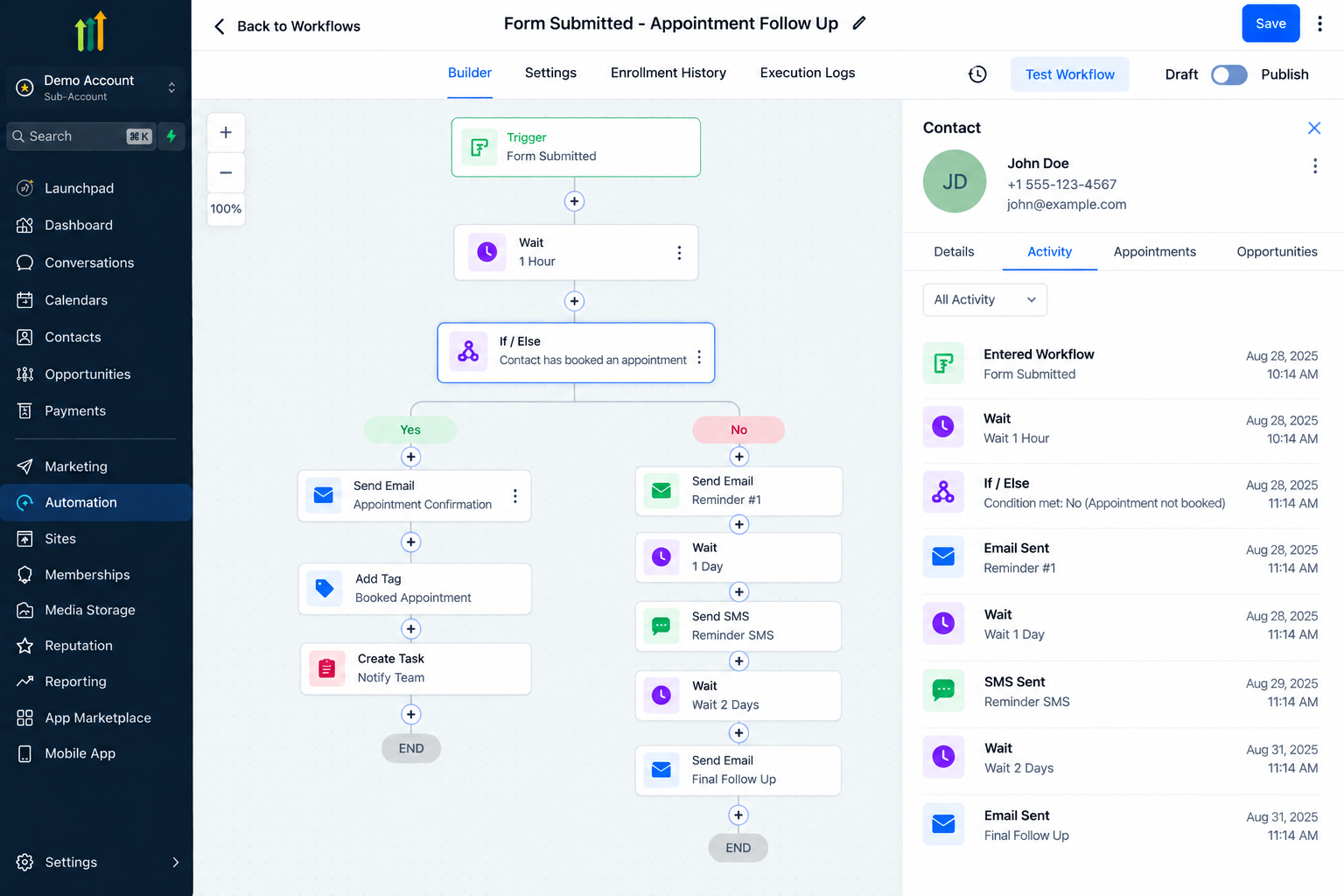
A good test should answer questions such as:
What happens when the contact matches Branch 1?
What happens when another branch matches?
What happens when nothing matches?
Are the correct messages being sent?
Could another workflow send conflicting communication?
Is the condition being evaluated at the correct time?
Conclusion
The If/Else Action in GoHighLevel is one of the most useful tools for turning basic automation into a more intelligent customer journey.
Instead of forcing every contact through one fixed sequence, you can evaluate relevant information and route contacts into different branches based on their current situation.
With features such as multiple branches, the None fallback branch, AND/OR logic, different condition operators, dynamic values, and context-specific conditions, If/Else can support everything from basic appointment follow-up to more advanced lead qualification and sales routing.
The key is not to create as many conditions as possible.
It is to identify the moments where your workflow genuinely needs to make a decision.
When those decision points are structured carefully, GoHighLevel workflows can deliver more relevant follow-up, reduce unnecessary communication, and create automation that better reflects how real customers move through your business.
Frequently Asked Questions
1. What is the If/Else Action in GoHighLevel?
The If/Else Action is a workflow action that evaluates defined conditions and routes contacts into different branches. It allows a workflow to take different actions based on contact data, tags, custom fields, appointments, opportunities, and other supported information.
2. Can I create more than two branches with If/Else in GoHighLevel?
Yes. GoHighLevel If/Else logic is not limited to a simple Yes/No structure. You can create multiple branches with different conditions. Contacts are routed according to the configured branch logic, while contacts that do not match the defined branches can continue through the None branch.
3. What is the None branch in GoHighLevel If/Else?
The None branch acts as a fallback path. If a contact does not meet the conditions of the configured branches, they are routed through None. You can add follow-up actions to this path or leave it without additional actions depending on your workflow.
4. Can I use AND and OR conditions in a GoHighLevel If/Else Action?
Yes. You can combine conditions using AND/OR logic to create more specific routing rules. AND can be used when multiple criteria need to be satisfied, while OR can support scenarios where alternative criteria can qualify a contact for a branch.
5. Can GoHighLevel If/Else check custom fields?
Yes. Custom fields can be used in conditional workflow logic when they are available in the relevant workflow context. For example, a custom field containing a lead's service interest, qualification information, or another stored value can be used to determine which branch the contact follows.
Need Expert Help with GoHighLevel?
New to GoHighLevel and ready to get started? Buy your GoHighLevel account hereand launch with confidence.
Already know what you need and want our team to handle everything, from complete setup and customization to funnels, workflows, automations, CRM, and pipelines?Click here.



