

GoHighLevel Form Validation: How to Keep Lead Data Clean
How to Build a Data Validation Process for GoHighLevel Forms
Introduction
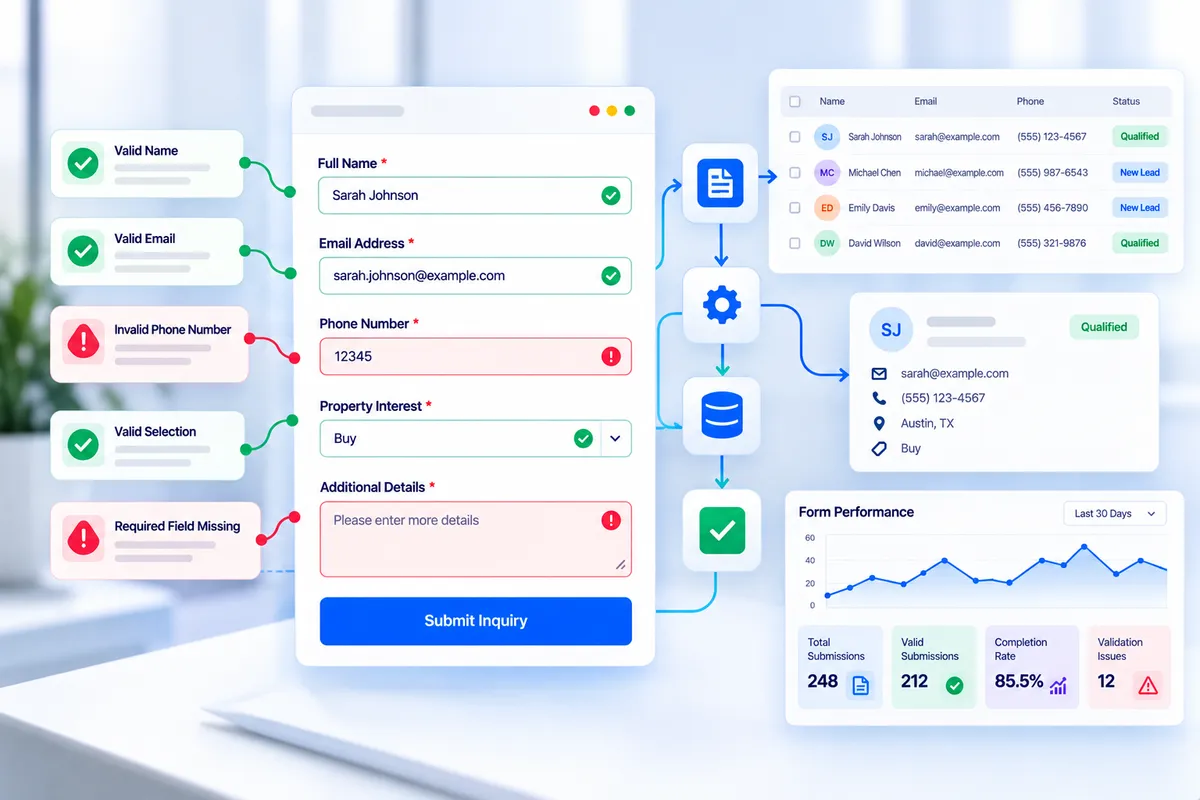
A form can collect hundreds of leads, but if the information entering your CRM is incomplete, incorrectly formatted, or fake, more leads can actually create more work.
That is why data validation for GoHighLevel forms should be part of your form strategy from the beginning. Instead of allowing every submission to enter your CRM unchecked, you can build a process that requires important information, validates contact details, uses conditional logic where appropriate, and adds protection against spam and fake submissions.
GoHighLevel provides several tools that can contribute to this process, including required fields, email validation, phone verification, conditional logic, CAPTCHA, custom fields, and workflow automation.
The goal is not to make your forms unnecessarily complicated. It is to create a simple validation process that collects the right information in a usable format while keeping the experience easy for legitimate prospects.
What Is Data Validation in a GoHighLevel Form?
Data validation is the process of checking information submitted through a form before or as it enters your CRM and automation system.
For example, imagine a lead submits:
An incomplete name
An incorrectly formatted email address
An invalid phone number
A value that does not match the expected answer
Random or spam information
If that submission immediately triggers an email sequence, SMS follow-up, sales notification, or opportunity creation, your automation may start acting on bad data.
A well-designed validation process helps reduce those problems.
GoHighLevel forms can collect standard contact information as well as custom fields. Custom fields can be used for business-specific information such as lead type, budget, preferred contact method, referral source, property type, or other qualification details.
The important distinction is that "validation is not one single setting". It is better approached as a combination of controls that work together.
Why Data Validation Matters
Your form is often the first point where information enters your CRM. If the information is unreliable at that stage, every system connected to it can be affected.
Cleaner CRM records
Required fields and appropriate field types help standardize the information entering contact records.
For example, using a dropdown for a fixed list of services is generally more structured than asking someone to type the service name manually.
More reliable automation
Forms frequently act as triggers for follow-up workflows. If a form submission starts an automation, poor-quality data can lead to poor-quality personalization and unnecessary communication.
Better lead qualification
Validation can also help make sure that the information required by your sales process is actually provided before the lead moves forward.
Less spam and wasted follow-up
GoHighLevel provides CAPTCHA along with email and phone validation options that can help reduce unwanted or invalid submissions. This is particularly useful when submissions trigger automated communication.
Start With the Data You Actually Need
Before adding validation rules, decide what information your business genuinely needs.
One of the most common mistakes is creating a form with too many fields simply because the CRM allows them.
Instead, separate your information into three groups:
Essential information
Information required to identify or contact the lead.
Examples include:
First name
Last name
Email
Phone number
Qualification information
Information your sales or service team needs to understand the inquiry.
Examples include:
Service needed
Budget range
Project timeline
Property type
Lead source
Optional information
Useful information that does not need to prevent submission.
Examples might include:
Additional comments
Secondary contact information
Additional project details
This approach makes the validation process more intentional. You are validating information because it serves a purpose, not simply because you can.
Use Required Fields Carefully
Required fields are one of the simplest ways to improve form data quality.
If your sales team cannot work a lead without a phone number, for example, making the phone field required prevents incomplete submissions from entering through that form.
GoHighLevel's form builder allows important fields to be marked as required. Forms can also contain standard contact fields and custom fields.
However, avoid making every field mandatory.
A form with too many required fields can create unnecessary friction. Instead, ask yourself:
“Would I actually use this information after the submission?”
If the answer is no, it probably does not belong as a required field.
Choose the Correct Field Type
Field type is another important part of data validation.
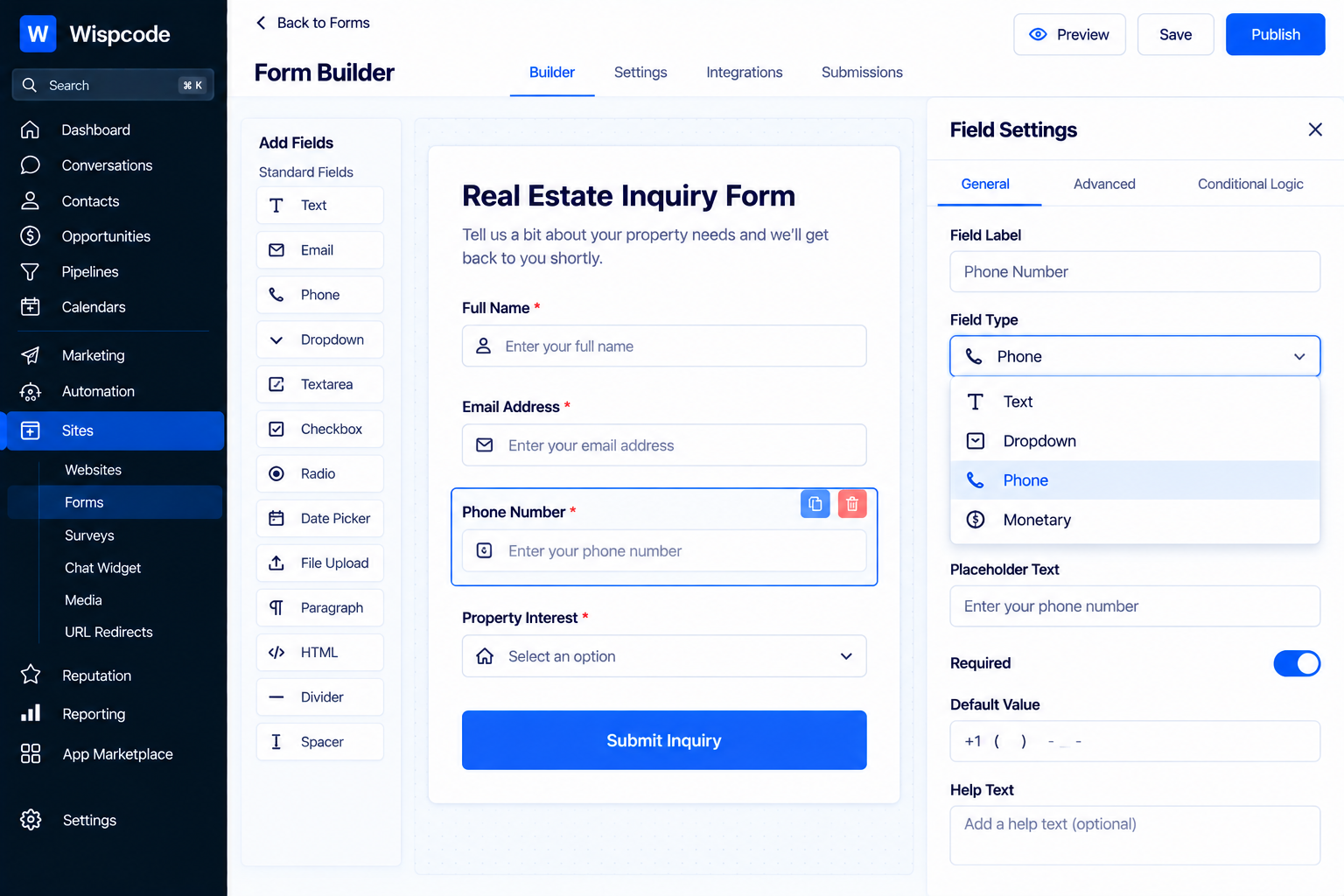
GoHighLevel supports different custom field types, including text, dropdowns, date pickers, numbers, monetary fields, phone fields, radio selections, checkbox groups, and other options.
Use the field type that matches the information you want.
For example:
Service selection: Use a dropdown or radio selection.
Budget: Use an appropriate numeric or monetary field.
Project date: Use a date picker.
Long project description: Use a multi-line text field.
Phone number: Use a phone field.
This reduces inconsistent answers and makes the information easier to use later in workflows, filters, Smart Lists, and CRM records.
For values that you expect to filter or segment later, structured options are often preferable to unrestricted text.
Validate Email Addresses
Email validation is particularly important because an email address can look correctly formatted without necessarily being accessible by the person submitting the form.
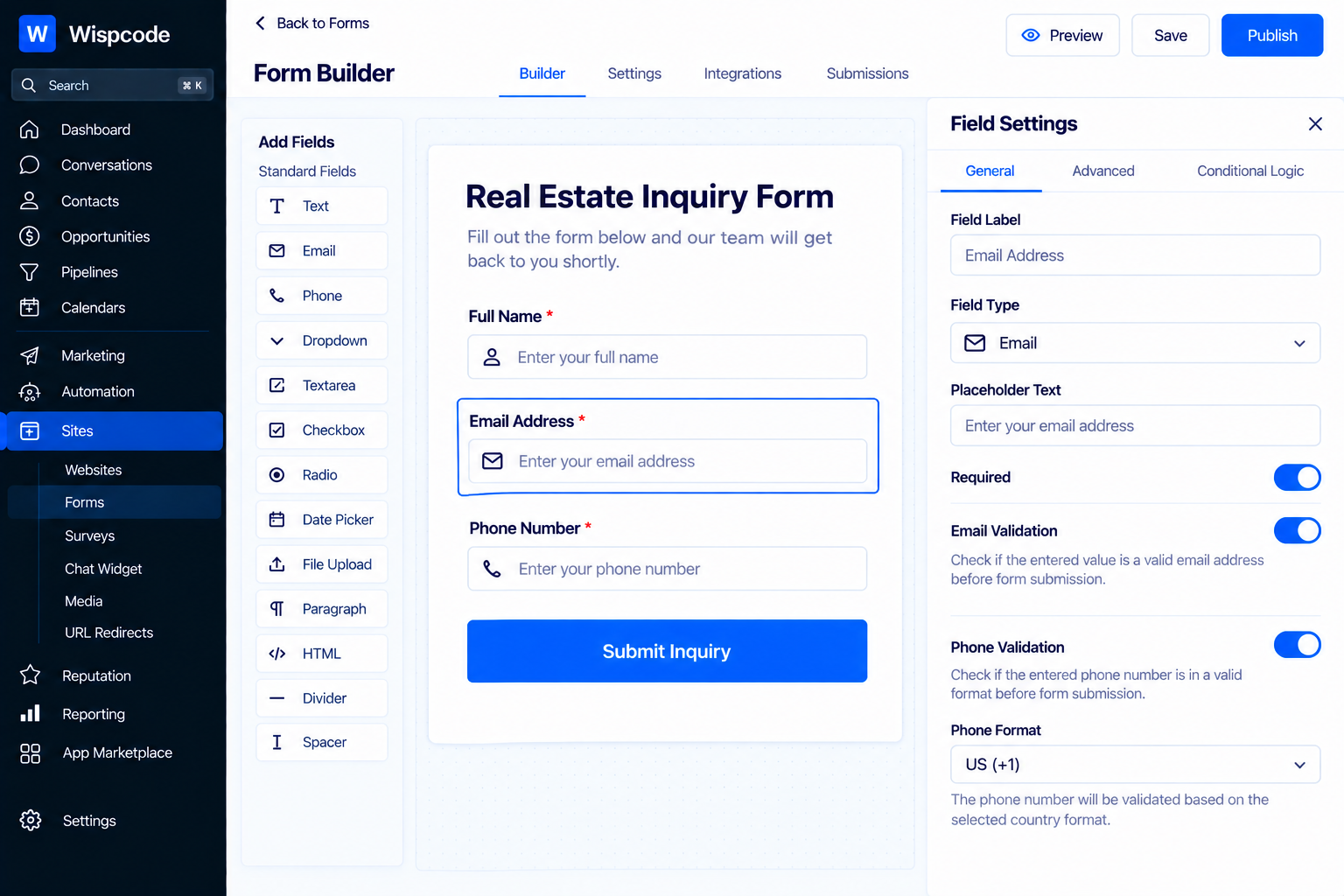
GoHighLevel provides an "Email Validation" feature for Forms and Surveys. When enabled, a visitor who enters a properly formatted email can use a verification button to receive a validation code. The visitor then enters that code to confirm access to the email address.
This creates an additional layer of confidence.
There are therefore two different concepts to keep in mind:
Format validation: Does the email look like a valid email address?
Verification: Has the person demonstrated access to that email address?
For forms where email quality is particularly important, verification can be more useful than relying only on formatting.
Validate Phone Numbers When Necessary
Phone information can be just as important as email, especially when your workflow sends SMS messages or your sales team relies heavily on calls.
GoHighLevel provides SMS verification for phone fields in Forms and Surveys. After enabling "Validate Phone" on a phone field, respondents can verify their number before completing the process. The verification result is available in the submission data.
This is especially useful when your automation depends on a valid phone number.
However, consider the user experience before requiring verification on every form. A verification step adds friction, so it should be used where the quality of the phone number justifies the additional step.
Add CAPTCHA for Spam Protection
Not every bad submission comes from a real person entering incorrect information.
Some submissions may come from automated spam.
GoHighLevel provides CAPTCHA as one of the options that can help protect forms against unwanted submissions. Its support documentation also recommends combining CAPTCHA with email and phone validation where appropriate.
A practical validation setup might therefore look like:
Required fields → format validation → verification where necessary → spam protection
Each layer solves a slightly different problem.
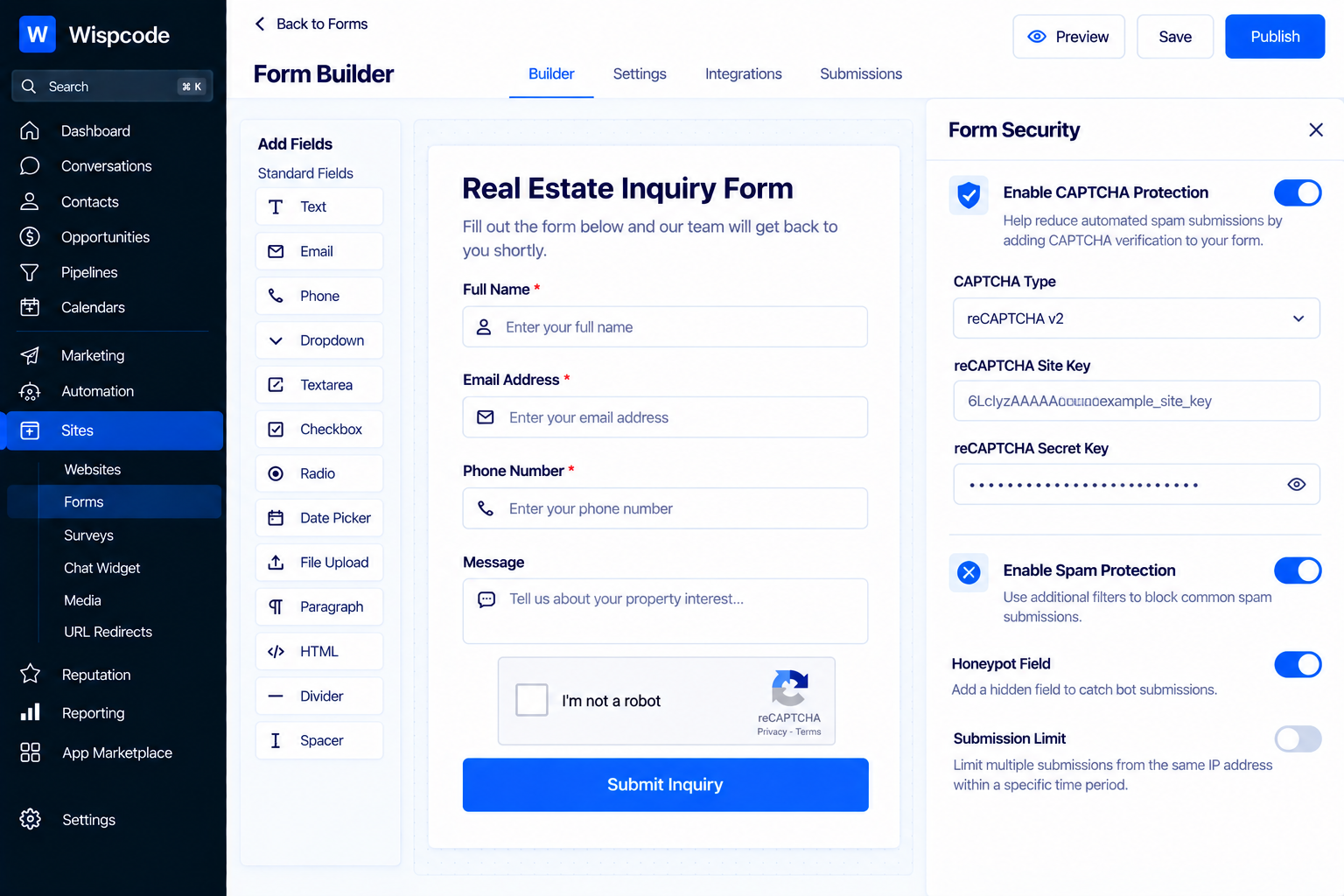
GoHighLevel Form Builder screen showing security configuration options, including toggles for CAPTCHA protection, reCAPTCHA type settings, spam filters, honeypot fields, and submission limits
Use Conditional Logic to Validate Responses
Not every lead needs to answer every question.
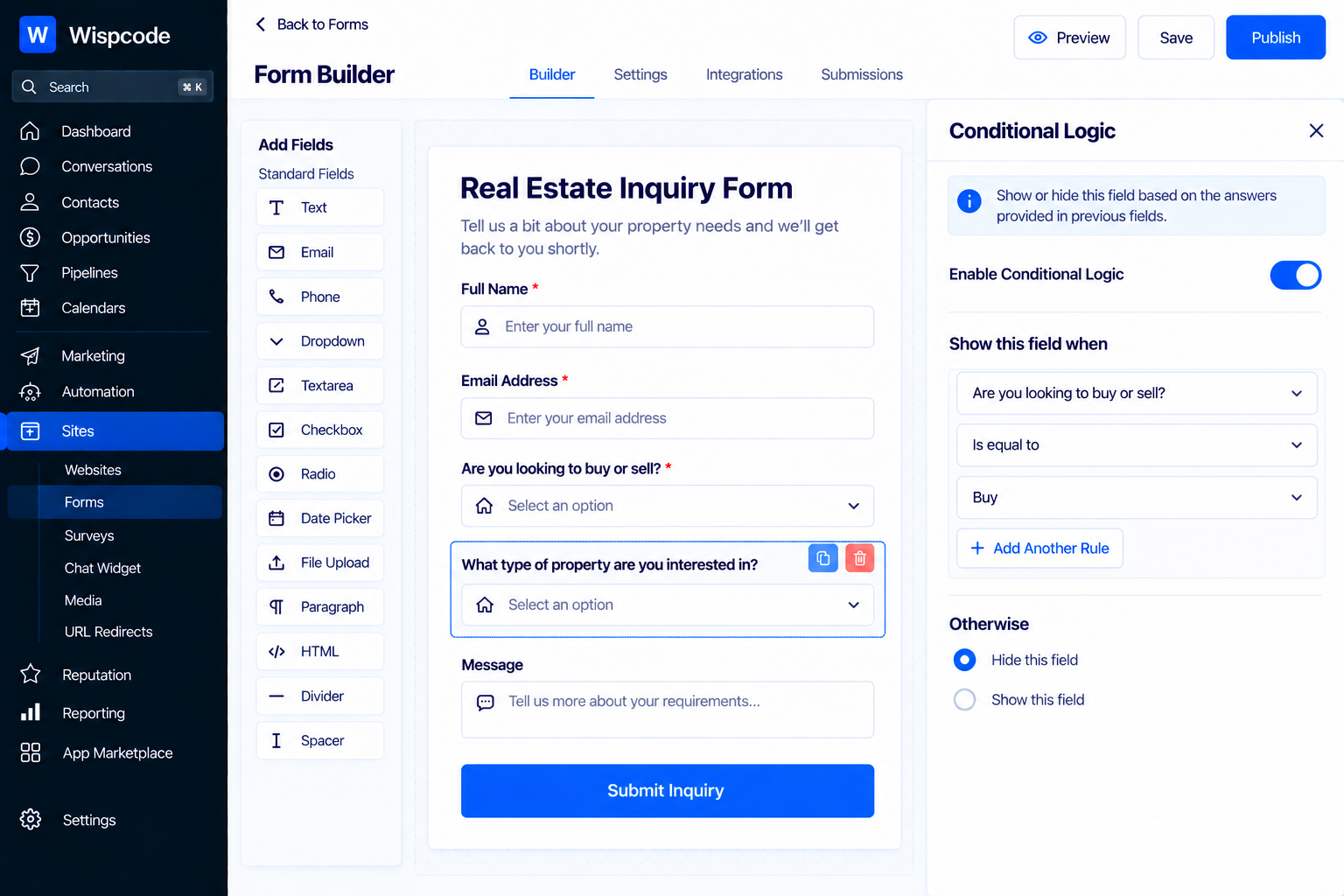
Conditional Logic can make forms more intelligent by displaying or hiding fields based on previous answers. GoHighLevel's current Conditional Logic supports fields such as text, phone, email, number, monetary, date, dropdowns, radio selections, checkboxes, file uploads, signatures, and other supported elements.
For example, suppose your business provides both residential and commercial services.
You could ask:
What type of project do you have?
Residential
Commercial
If the visitor selects "Commercial", you could show additional questions relevant to commercial projects.
This approach helps in two ways:
You collect more relevant information.
You avoid forcing every visitor to complete unnecessary fields.
Conditional Logic can also be used to display messages, redirect visitors, or disqualify submissions based on configured rules.
Build a Validation Layer Before Automation
A common mistake is allowing every form submission to immediately trigger every downstream automation.
Instead, think of your form process in stages.
Stage 1: Capture
The visitor submits basic information.
Stage 2: Validate
The system checks the information through required fields, appropriate field types, validation options, and other available controls.
Stage 3: Qualify
Use the submitted information to determine whether the lead meets your business criteria.
Stage 4: Automate
Only then should your broader follow-up process begin.
This structure is especially useful when form submissions trigger email, SMS, opportunity creation, notifications, or other workflow actions.
The exact implementation depends on your business process, but the principle is simple: "do not treat every submission as equally trustworthy just because it reached your CRM".
Use Custom Fields to Standardize Lead Data
Custom fields are useful when the default contact fields do not contain everything your business needs.
For example, an agency might create:
Lead Type
Service Requested
Monthly Budget
Project Timeline
Referral Source
A home-services company might collect:
Property Type
Service Category
Project Size
Preferred Contact Method
Because these fields can be used across supported forms, workflows, Smart Lists, records, and other CRM functions, they can become part of a consistent data structure.
The key is to create fields with a clear purpose.
Avoid creating multiple fields that capture essentially the same information under different names. That creates confusion and makes future automation harder to maintain.
Use Conditional Rules Instead of Asking Everything Up Front
A sophisticated form does not necessarily mean a long form.
Suppose you need to know whether someone has an existing website.
Instead of displaying five website-related questions to everyone, ask one initial question:
Do you currently have a website?
If they answer Yes, show the relevant website fields.
If they answer No, skip them.
This is where conditional logic can improve both the user experience and the quality of collected information.
The result is a form that adapts to the respondent rather than forcing every visitor down the same path.
Test the Entire Validation Process
Never assume that a form works correctly simply because it looks correct in the builder.
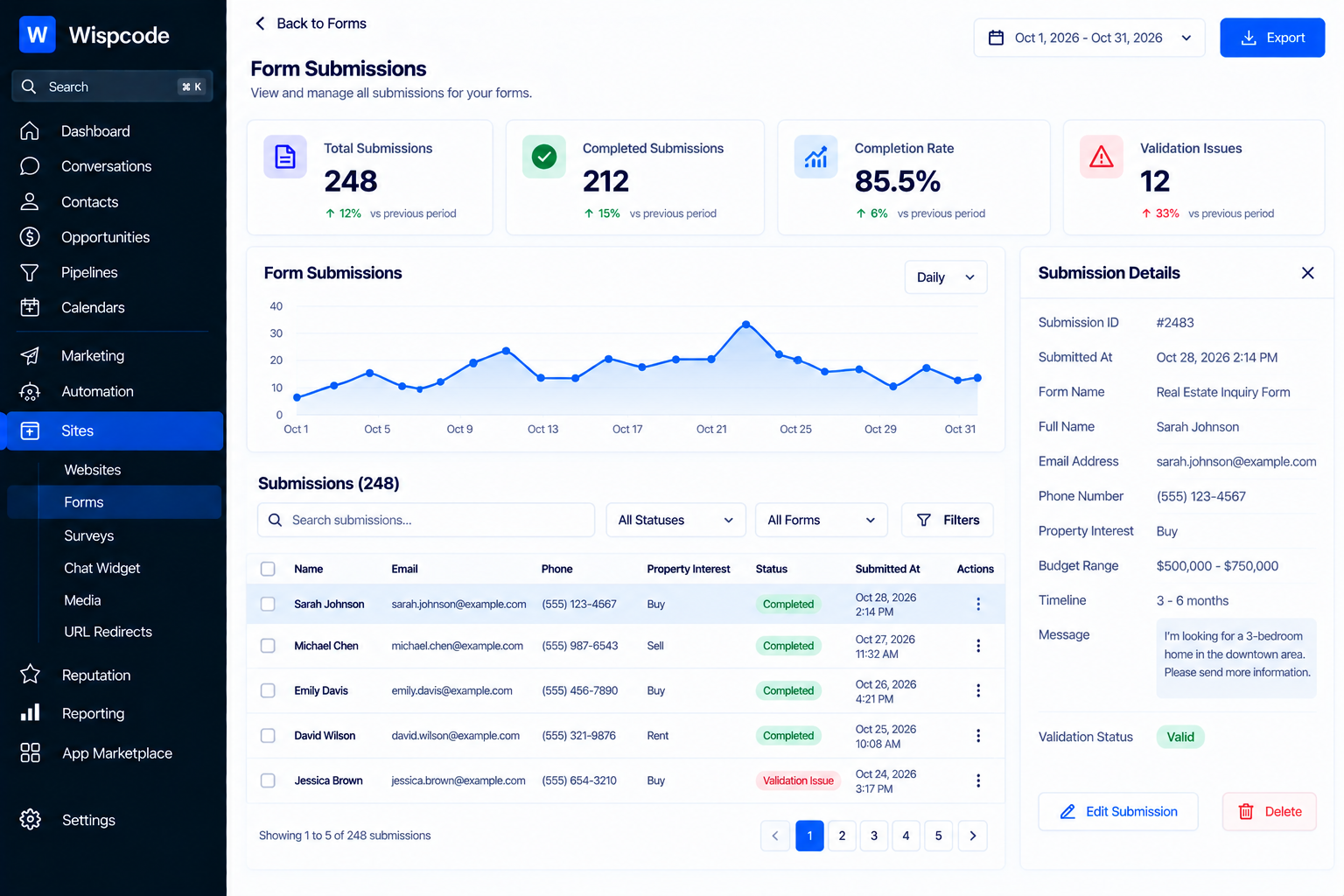
GoHighLevel recommends testing forms before using them publicly and provides submission data for reviewing responses. Published forms can also have analytics available for views, responses, average completion time, and completion rate.
Create a simple testing checklist.
Test valid information
Submit a completely valid form and confirm that everything enters the CRM correctly.
Test missing required fields
Leave required fields blank and confirm that the form prevents submission.
Test invalid email information
Check how the form handles incorrectly formatted or unverified email addresses based on your configuration.
Test phone validation
If phone verification is enabled, confirm that the verification process works as expected.
Test conditional logic
Select different answers and make sure the correct fields appear or remain hidden.
Test spam protection
Verify that your configured CAPTCHA or other protection behaves as expected.
Test downstream automation
Confirm that the correct workflow, notification, opportunity, or follow-up process starts after a valid submission.
Testing the complete path is more valuable than simply checking whether the form can be submitted.
Common Data Validation Mistakes
Making every field required
This can make the form unnecessarily difficult to complete.
Better approach: Require only genuinely necessary information.
Using free text for everything
Free-text responses can create inconsistent data.
Better approach: Use dropdowns, radio selections, checkboxes, numbers, dates, or other appropriate field types when possible.
Treating formatting as verification
A correctly formatted email is not necessarily an accessible email.
Better approach: Use email verification when confirming ownership or accessibility is important.
Ignoring phone verification
If your entire follow-up strategy depends on SMS, poor phone data can create problems.
Better approach: Consider phone validation when the use case justifies the extra step.
Sending automation immediately without considering data quality
A form submission should not automatically be treated as a fully qualified lead.
Better approach: Design your validation and qualification process before building the downstream automation.
Never reviewing submission data
Even a well-designed form can produce unexpected responses.
Better approach: Regularly review submissions and look for patterns such as incomplete information, spam, confusing questions, or unexpected values.
Frequently Asked Questions(FAQ's)
1. What is data validation in GoHighLevel forms?
Data validation in GoHighLevel forms is the process of ensuring that submitted information is complete, properly formatted, and useful before it enters your CRM and triggers automation.
2. How can I validate email addresses in GoHighLevel forms?
GoHighLevel Forms and Surveys can use "Email Validation" to have respondents verify their email address with a verification code before completing the form.
3. Can I verify phone numbers in GoHighLevel forms?
Yes. GoHighLevel supports "SMS phone verification" for supported phone fields in Forms and Surveys, allowing respondents to verify their phone number before completing the submission.
4. How can I prevent spam submissions in GoHighLevel forms?
You can use "CAPTCHA" on GoHighLevel forms to help protect against unwanted automated submissions. For stronger data-quality controls, you can also combine spam protection with email and phone validation where appropriate.
5. How does conditional logic improve GoHighLevel form data?
Conditional logic allows a form to display relevant fields based on a visitor's previous answers. This helps collect more useful information without requiring every lead to complete unnecessary questions.
Conclusion
Building a data validation process for GoHighLevel forms is less about adding as many restrictions as possible and more about creating a reliable path for information to enter your CRM.
Start with the data your business actually needs. Use the right field types, make critical information required, and use email, phone, CAPTCHA, and conditional logic features where they make sense.
Most importantly, remember that validation is part of a larger system. A clean form should lead to clean CRM records, sensible qualification, and reliable automation.
When these pieces work together, your GoHighLevel forms become more than simple lead-capture tools. They become a controlled entry point into your CRM and automation system, helping your team work with information that is structured, useful, and easier to act on.
Need Expert Help with GoHighLevel?
New to GoHighLevel and ready to get started? Buy your GoHighLevel account here and launch with confidence.
Already know what you need and want our team to handle everything, from complete setup and customization to funnels, workflows, automations, CRM, and pipelines? Click here.



