

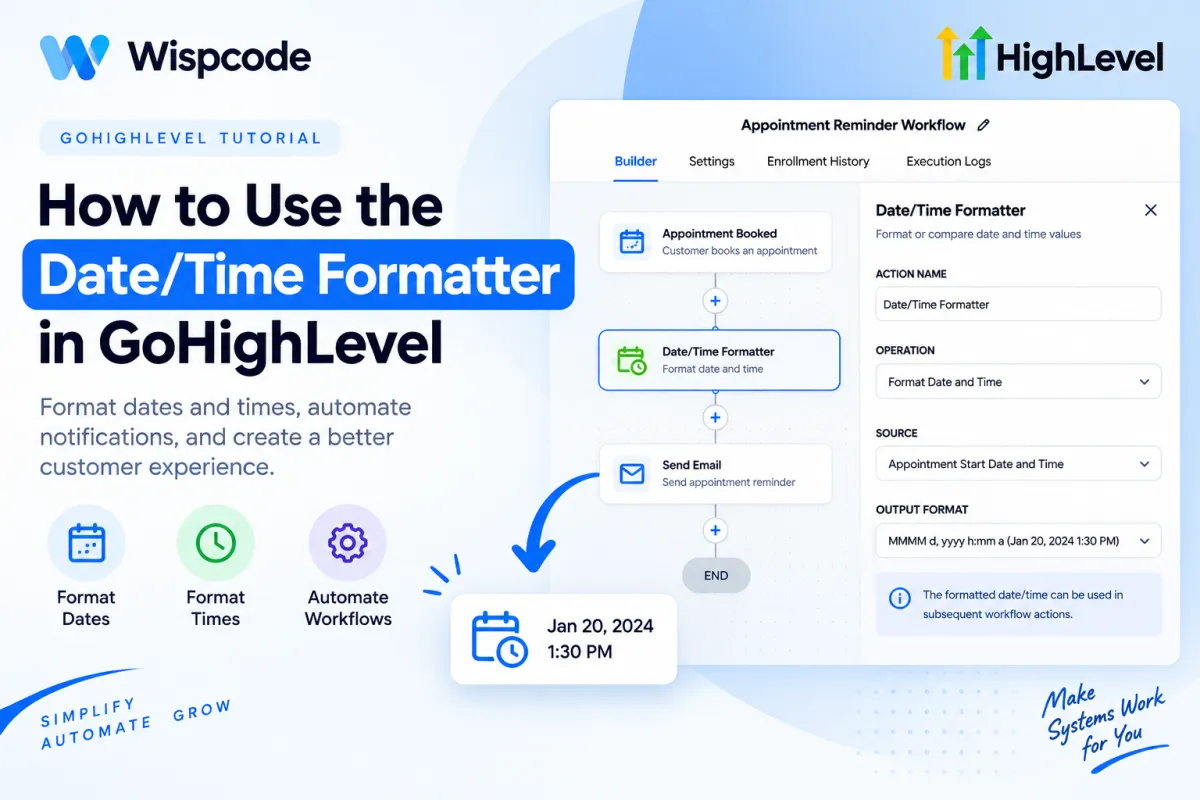
How to Use the Date/Time Formatter in GoHighLevel
How to Format Dates and Times Automatically Using the Date/Time Formatter Action in GoHighLevel
Imagine a customer books an appointment and your workflow has the correct appointment date and time. Everything is technically working but the value you need for the next step is not presented in the format you want.
That small formatting problem can make an otherwise polished automation harder to use.
The GoHighLevel Date/Time Formatter Action helps solve this by taking an existing date or date-time value and converting it into a selected format before that result is used later in the workflow.
For agencies, marketers, and automation specialists building complex workflows, it is a small action that can make date-driven automation significantly cleaner.
What Is the GoHighLevel Date/Time Formatter Action?
The Date/Time Formatter is a GoHighLevel workflow action designed to work with date and date-time information.
At its simplest, the process looks like this:
Date/Time Input → Date/Time Formatter → Formatted Output → Later Workflow Action
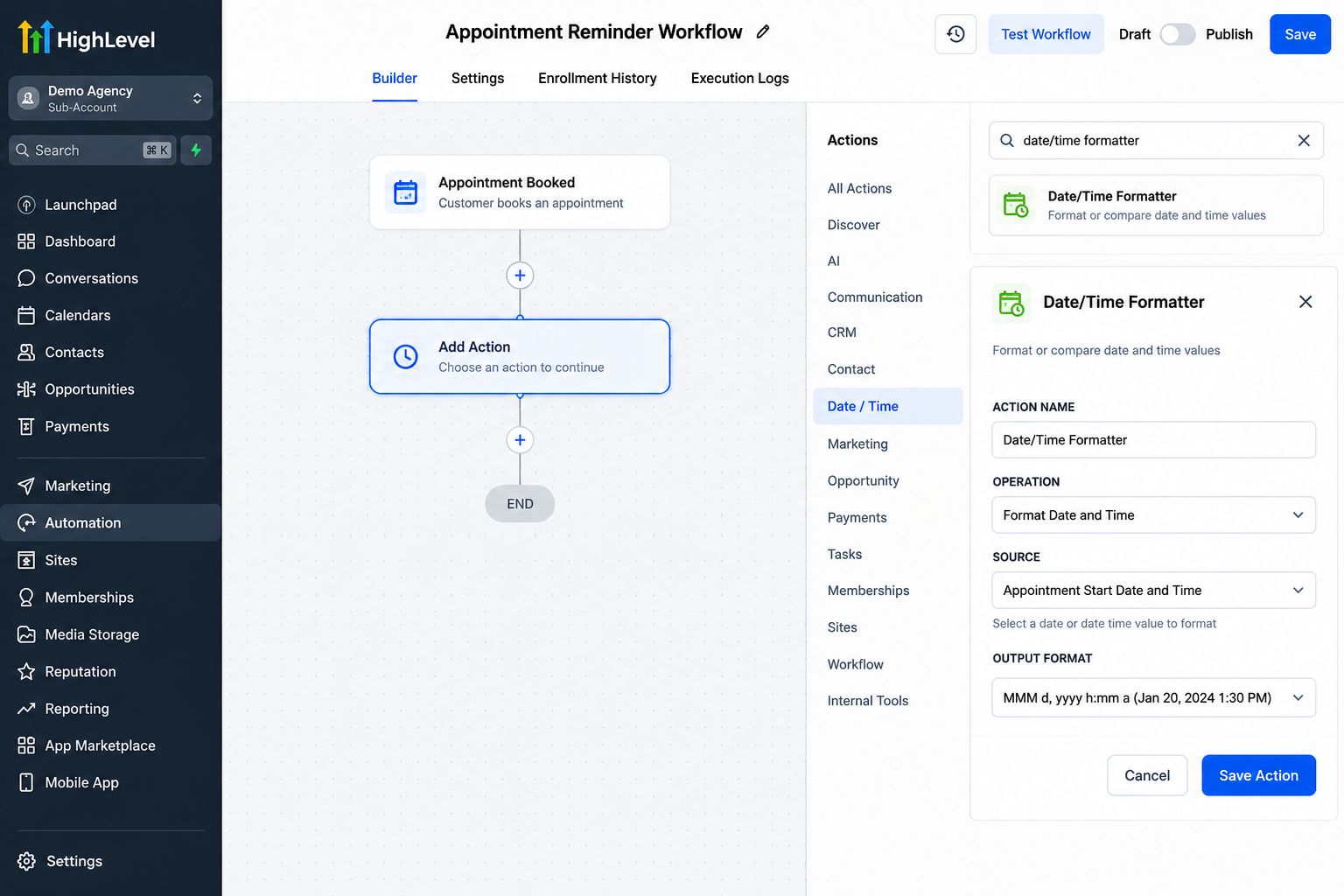
For example, you might start with an appointment date, pass it through the formatter, and then use the resulting value in a subsequent workflow step.
HighLevel's Date/Time Formatter supports formatting a date, formatting a date and time, and comparing dates. When formatting, you select the source value and the format you want for the output.
The important distinction is that formatting changes how the value is prepared for use it is not the same as changing unrelated contact or opportunity information.
Why Date and Time Formatting Matters
Dates are used throughout CRM automation: appointments, events, follow-ups, onboarding processes, deadlines, and internal notifications can all depend on them.
The challenge is that the way a date is stored or received is not always the way you want to use or display it.
A customer-facing message, for example, should present date information in a format that is easy for the recipient to understand. A webhook or another workflow action may require a particular structure instead.
Using a GoHighLevel date formatter gives you more control over that transformation without manually rewriting date information every time a workflow runs.
This becomes especially useful when your automation receives dynamic values that change from contact to contact.
How to Use the Date/Time Formatter Action in GoHighLevel
Start by opening the workflow where the date or time needs to be processed.
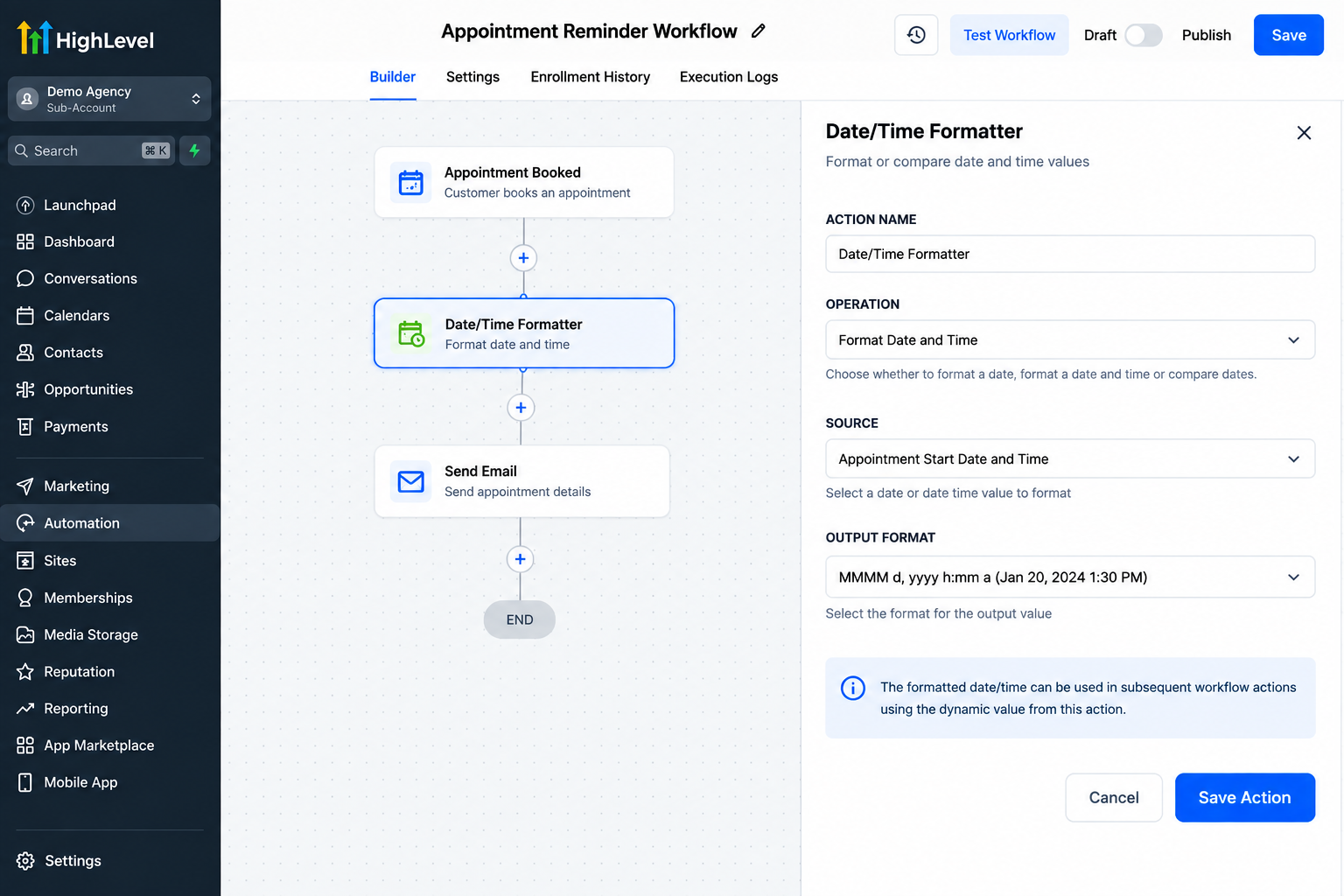
Add a new workflow action and select Date/Time Formatter. From there, choose whether you need to format a date, format a date and time, or perform another supported operation such as comparing dates.
Next, select the source value.
For date formatting, HighLevel supports sources including specific or current dates, contact date fields, date-type custom fields, appointment start/end dates, custom values, and data from an Inbound Webhook Trigger.
For date-time formatting, supported sources include specific or current date and time values, appointment start/end date and time, custom values, and inbound webhook data. HighLevel's documentation notes that Contact Custom Fields do not currently support the Date Time structure.
When certain system fields are selected, HighLevel can automatically detect and preselect the source format. With sources such as Custom Values or Inbound Webhook data, you need to select the format that correctly matches the incoming value.
Then choose the desired output format and save the action.
The formatter produces an output that can be selected dynamically in supported subsequent workflow actions.
Before relying on the workflow with real customers, test it with representative data and confirm that the resulting date or time appears exactly as intended.
Real-World Uses for Date and Time Formatting
Appointment communication: Format an appointment start date or date-time before using the result in a later communication step, making the information easier for the recipient to understand.
Event reminders: If a workflow is built around an event date, formatting the value can provide a cleaner representation before it is included in supported downstream actions.
Internal notifications: Teams often need appointment or deadline information in notifications. Consistent formatting makes those messages faster to read.
Webhook data: Dates received through an Inbound Webhook Trigger may arrive in a structure that is not appropriate for the next destination. The Date/Time Formatter can prepare that value before it moves further through the workflow.
Example GoHighLevel Date and Time Automation
Consider an appointment reminder workflow:
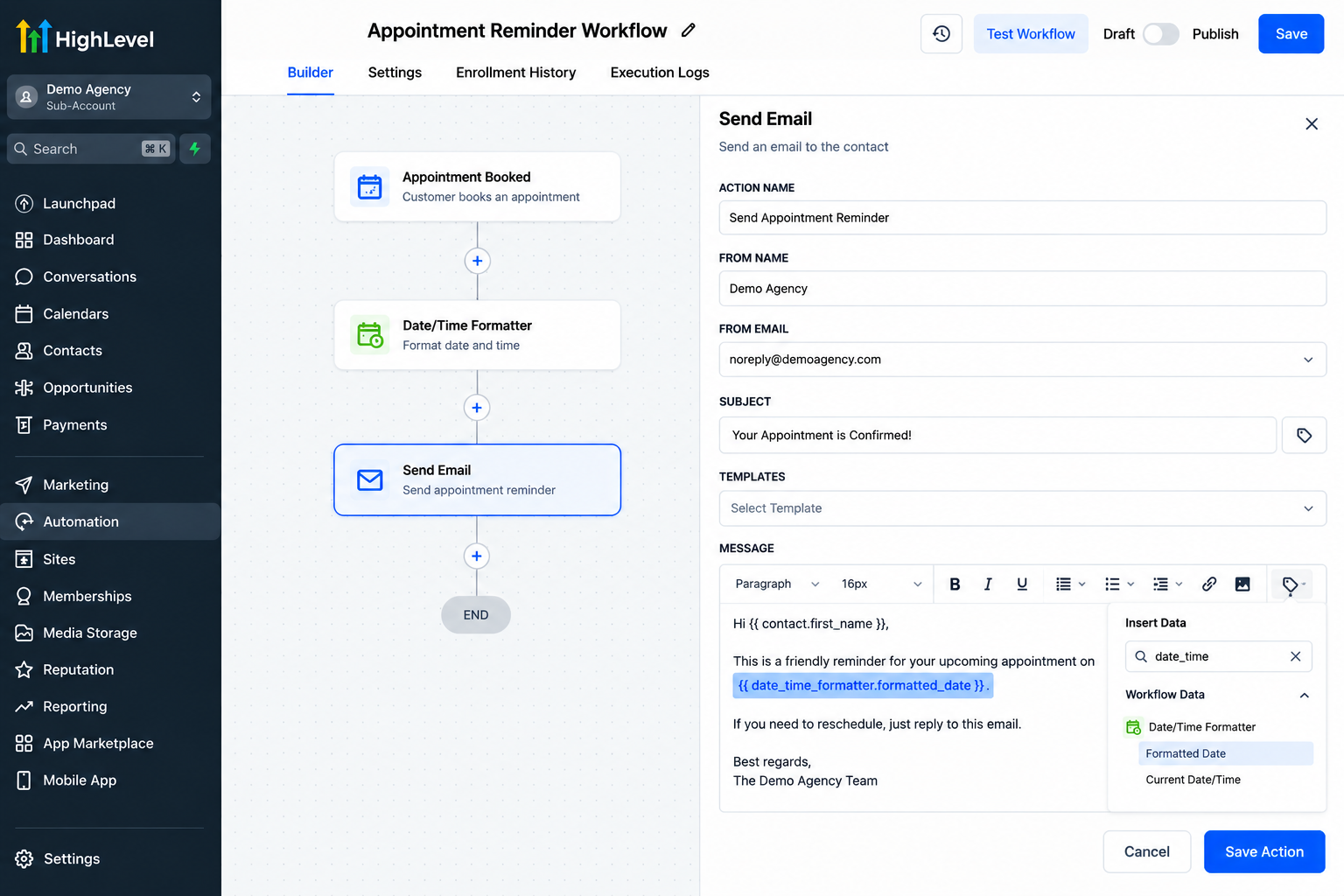
Appointment Trigger → Appointment Start Date/Time → Date/Time Formatter → Send Message
First, the appropriate appointment event enrolls the contact in the workflow.
Next, the workflow has access to the relevant appointment information. The GoHighLevel Date/Time Formatter Action takes the appointment date-time value and converts it to the selected output format.
The resulting dynamic value can then be inserted into a supported later action, such as an email or SMS.
The workflow still uses the actual appointment information; the formatter simply prepares that information in the desired structure.
Best Practices and Common Mistakes
Always verify your source value before troubleshooting the formatter. If the incoming date is incorrect or does not match the selected source format, changing the output format will not solve the underlying data problem.
For customer-facing communications, choose formats that are immediately understandable and avoid unnecessary complexity.
Be particularly careful when date-times involve different time zones. Formatting and timezone handling are separate considerations, so test the complete workflow in the context in which it will actually run.
Another common mistake is building the entire automation and assuming the formatted result will look right. Run realistic test data through the workflow and inspect the output before publishing.
Finally, keep your date conventions consistent across related workflows. Consistency makes large GoHighLevel workflow automation systems much easier to troubleshoot and maintain.
Conclusion
Date formatting may seem like a minor detail, but small data-quality improvements can make an automation feel considerably more polished.
The GoHighLevel Date/Time Formatter Action gives workflow builders a practical way to reformat existing date and date-time information and use the resulting value in later workflow actions.
Whether you're preparing appointment information, processing webhook data, or creating clearer customer communications, learning to format dates in GoHighLevel can make your workflows cleaner, easier to understand, and easier to maintain.
Frequently Asked Questions
1. What is the Date/Time Formatter Action in GoHighLevel?
The GoHighLevel Date/Time Formatter Action is a workflow action that lets you take an existing date or date-time value and convert it into a selected format. The formatted result can then be used dynamically in supported actions later in the workflow.
2. Can I format appointment dates and times in GoHighLevel?
Yes. The Date/Time Formatter can work with appointment start and end date/time values. This is useful when you want appointment information presented in a cleaner format before using it in customer communications or other supported workflow actions.
3. Can the Date/Time Formatter use custom fields?
For date formatting, GoHighLevel supports date-type contact custom fields as a source. However, HighLevel's documentation notes that Contact Custom Fields do not currently support the Date Time structure, so it is important to distinguish between a date field and a full date-time value.
4. Can I use a formatted date later in the same workflow?
Yes. The output produced by the Date/Time Formatter can be selected dynamically in supported subsequent workflow actions. For example, you could format an appointment date and then use that formatted output in a later email or SMS action.
5. Why should I use the GoHighLevel Date/Time Formatter Action?
It helps keep date and time information consistent and easier to understand throughout your automations. This is especially useful for appointment reminders, internal notifications, event-related workflows, webhook data, and other workflows where dates or times need to appear in a specific format.
Need Expert Help with GoHighLevel?
New to GoHighLevel and ready to get started? Buy your GoHighLevel account here and launch with confidence.
Already know what you need and want our team to handle everything, from complete setup and customization to funnels, workflows, automations, CRM, and pipelines? Click here.



