

GoHighLevel Date Range Update
Date Range Setting Can Now Count Only the Days You Actually Work
A booking window can look perfectly reasonable on paper but behave very differently in practice.
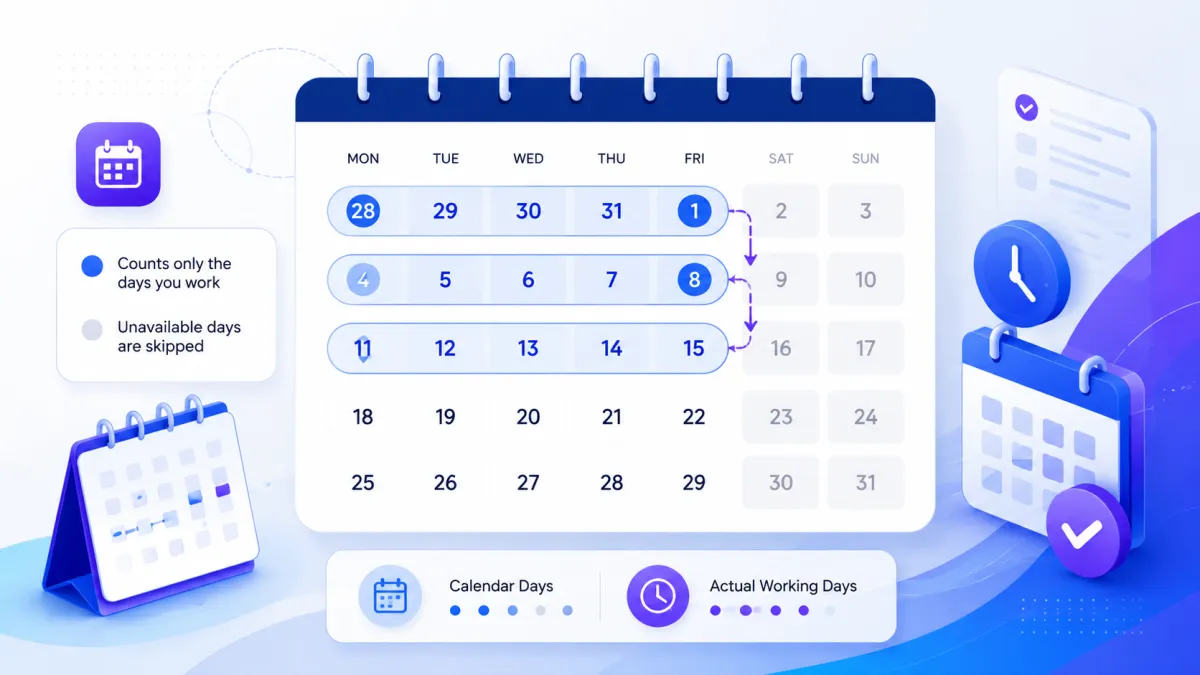
Imagine a business that offers a 2-day booking window but is closed every Saturday and Sunday. A customer begins booking on Friday, yet Saturday and Sunday consume the available range even though the business cannot accept bookings on either day. By the time Monday arrives, the booking window may already be exhausted.
That is the difference between counting calendar days and counting the days a business is actually available.
GoHighLevel is addressing this with a new option inside the Date Range setting. The Count available days only toggle gives businesses a way to make their booking windows reflect their configured availability instead of simply moving through every calendar day.
What Changed in GoHighLevel’s Date Range Setting?
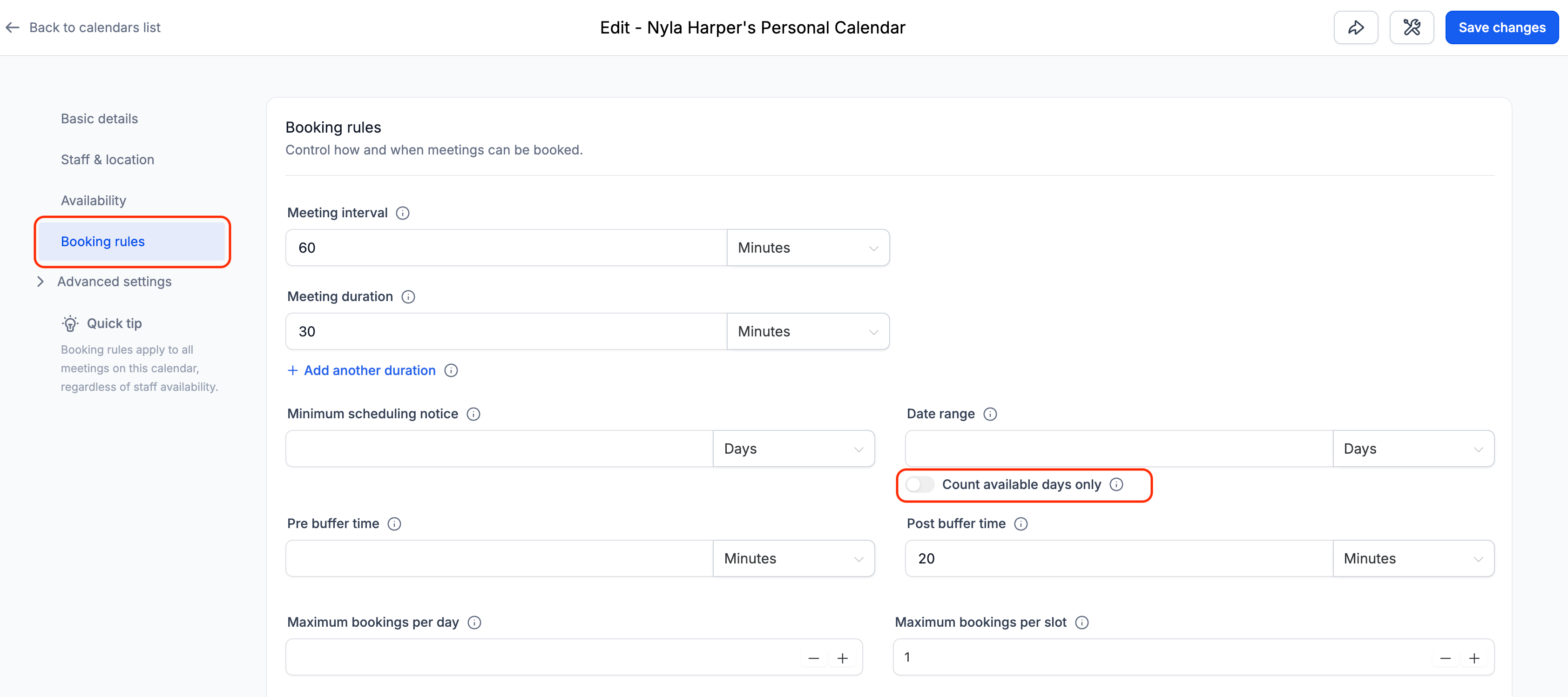
The new Count available days only toggle appears directly below the Date Range setting across Calendars, Services, and Rentals.
When enabled, GoHighLevel skips days that fall outside the business’s availability schedule when calculating the date range.
This makes the booking window more closely match how the business actually operates.
For example, suppose a business is closed Saturday and Sunday and has a 2-day date range. With the new setting enabled, those weekend days do not consume the two available days. Instead, the booking window can continue into the next available working days, such as Monday and Tuesday.
The distinction is simple but important: the range is based on available days rather than every day on the calendar.
A Simple Example: When a 2-Day Range Isn’t Really 2 Working Days
Consider a business that operates Monday through Friday.
A customer visits the GoHighLevel booking calendar on Friday, while the business has a 2-day Date Range configured.
Without counting available days only, the weekend can fall inside that date range even though the business is closed. This can leave the customer with an unexpectedly limited or empty booking window.
With Count available days only enabled, Saturday and Sunday are skipped because they are outside the configured availability. The booking window can then continue to the next available working days.
This is especially useful for businesses whose schedules do not follow a simple seven-day calendar.
How It Works With Minimum Scheduling Notice
The new setting also works together with Minimum Scheduling Notice in a more predictable way.
When Count available days only is enabled, the Date Range begins counting from the first available day after the minimum scheduling notice period ends.
In practical terms, the notice period is respected first. Once that period has passed, GoHighLevel counts the configured number of available days for the booking window.
This means a business can maintain its required scheduling notice while still allowing customers to see the full number of available days configured in the Date Range.
The two settings therefore work together instead of allowing unavailable days to unnecessarily consume the booking window.
Where the New Setting Works
The Count available days only option is available across the main booking types covered by this update:
Meeting Calendars
Services
Rentals
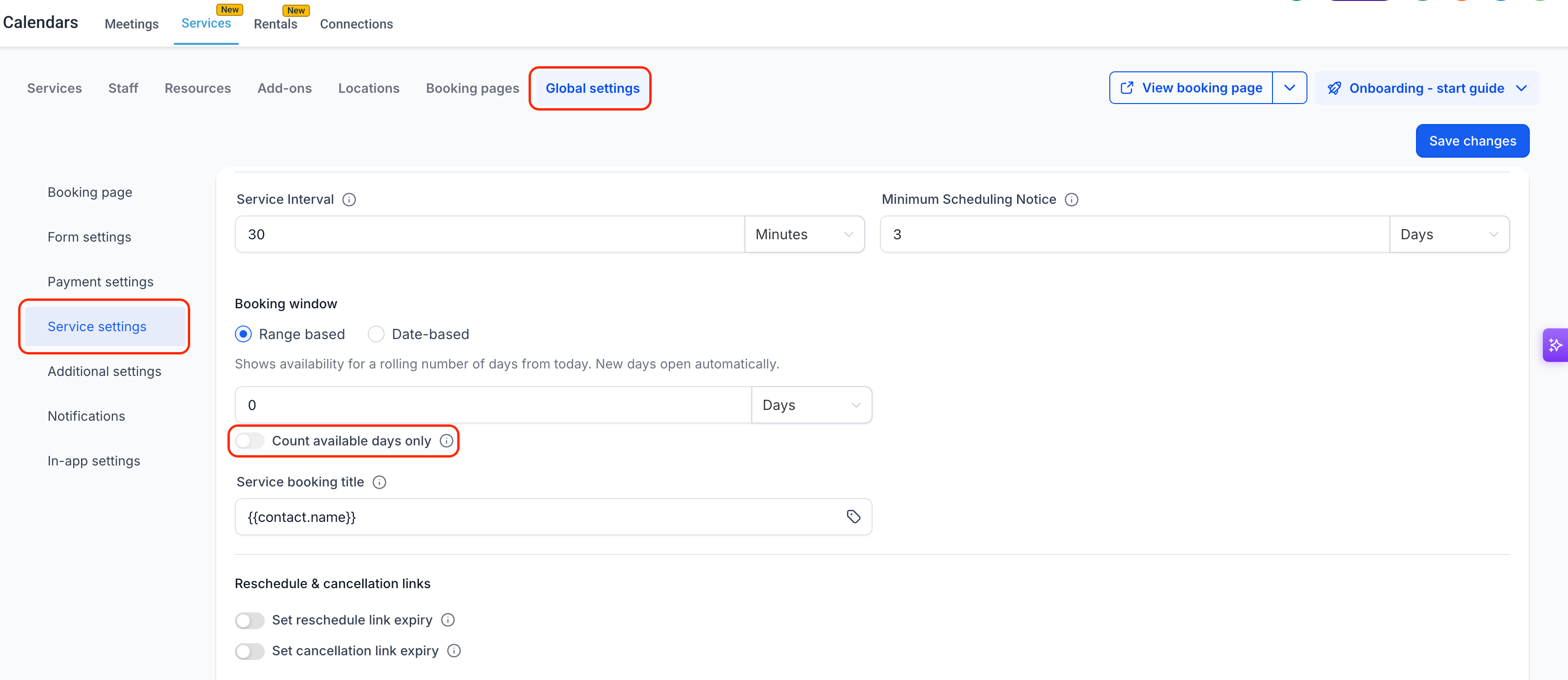
The Count available days only option is also available for GoHighLevel Services under Global Settings.
It also supports Round Robin and Collective calendars.
For these calendars, a day is considered available when at least one assigned team member has availability on that day.
That makes the setting useful for team-based scheduling scenarios where availability may differ between individual team members.
How Date-Specific Hours Affect the Date Range
GoHighLevel also respects date-specific hour overrides when calculating the booking window.
There are two important behaviors to understand:
Days added through date-specific hours can count toward the booking window.
Days blocked through date-specific hours are skipped.
This allows the Date Range calculation to follow the availability configured for specific dates rather than treating every date identically.
How to Enable Count Available Days Only
The setting can be enabled from the relevant booking configuration area.
For Calendars
Go to:
Calendars → Calendar Settings
Then click Edit on the calendar you want to update.
For Services
Go to:
Services → Global Settings → Service Settings
For Rentals
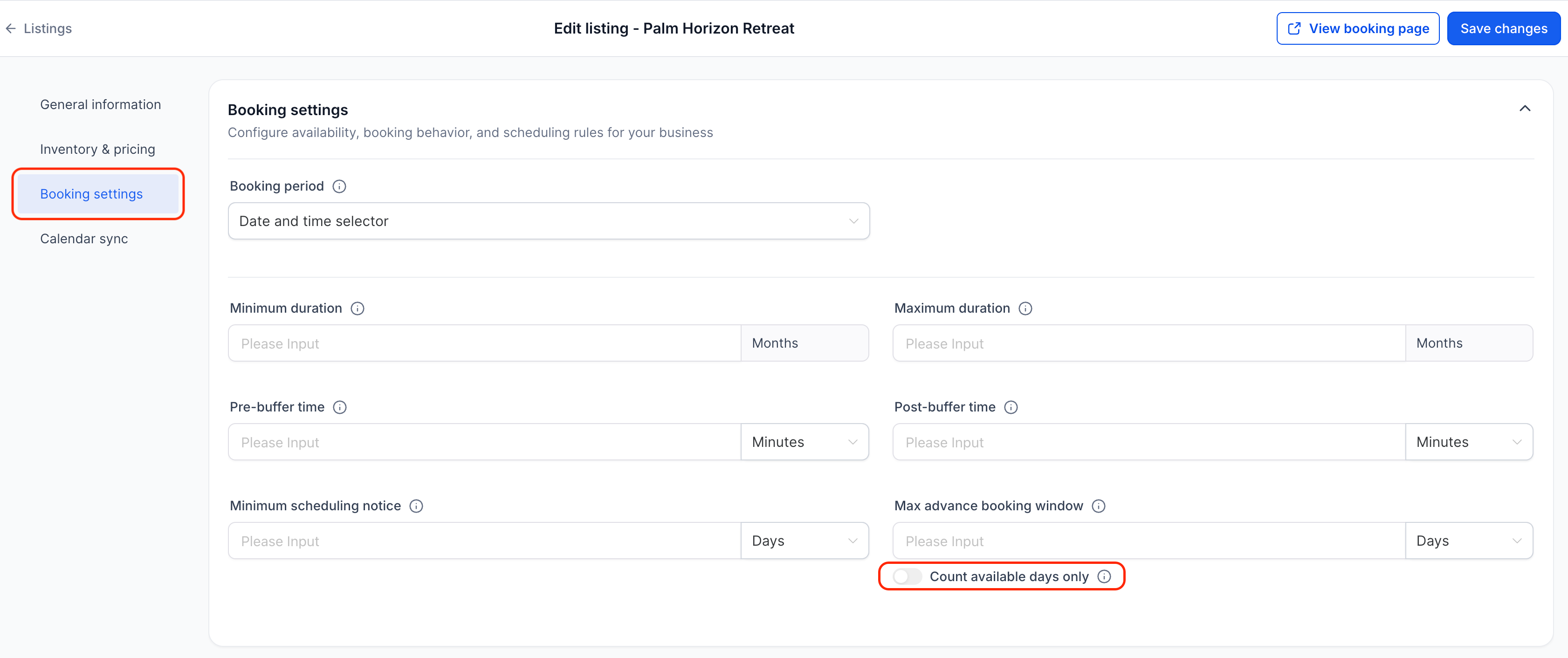
Edit the relevant Listing and open:
Booking Settings
Then Enable the Setting
Once you are in the appropriate settings area:
Find the Date Range setting.
Look directly below the Date Range input for Count available days only.
Turn the toggle on.
Save your changes.
The configuration is straightforward, but its effect can make booking windows much more aligned with the business’s actual operating schedule.
Why This Update Matters for Businesses
Not every business operates Monday through Friday, and even businesses with standard schedules may have specific days when they are unavailable.
A salon might close on weekends. A clinic could operate on selected weekdays. A field service team may use rotating availability. Another business might only accept appointments on Monday, Wednesday, and Friday or Tuesday and Thursday.
With the new setting, these schedules can be reflected in the way the booking window is counted.
The benefit is not simply having another calendar option. It is reducing the mismatch between what a business considers an available booking day and what a date range previously counted as a day.
For customers, this can also prevent confusing situations where a GoHighLevel booking calendar appears to have no useful dates even though valid availability exists in the following working days.
Final Thoughts
The Count available days only update makes the GoHighLevel Date Range setting more practical for businesses that do not operate every day.
Instead of allowing weekends or unavailable dates to silently consume a booking window, the setting can count the days that actually fit the business’s configured availability.
With support for Meeting Calendars, Services, Rentals, Round Robin, Collective calendars, date-specific hours, and Minimum Scheduling Notice, this is a focused improvement to GoHighLevel scheduling that helps booking windows better match real-world working schedules.
Frequently Asked Questions
1. What does “Count available days only” do in GoHighLevel?
It makes the Date Range count only days when the business is available, instead of all calendar days.
2. Where is the “Count available days only” setting available?
It is available for Meeting Calendars, Services, and Rentals.
3. Does it work with Round Robin and Collective calendars?
Yes. A day counts as available when at least one assigned team member is available.
4. How does it work with Minimum Scheduling Notice?
The Date Range starts counting from the first available day after the minimum scheduling notice period ends.
5. Do date-specific hours affect the Date Range?
Yes. Added dates can count toward the range, while dates blocked through date-specific hours are skipped.
Need Expert Help with GoHighLevel?
New to GoHighLevel and ready to get started? Buy your GoHighLevel account here and launch with confidence.
Already know what you need and want our team to handle everything, from complete setup and customization to funnels, workflows, automations, CRM, and pipelines? Click here.



