
How to Monitor GoHighLevel Data Synchronization
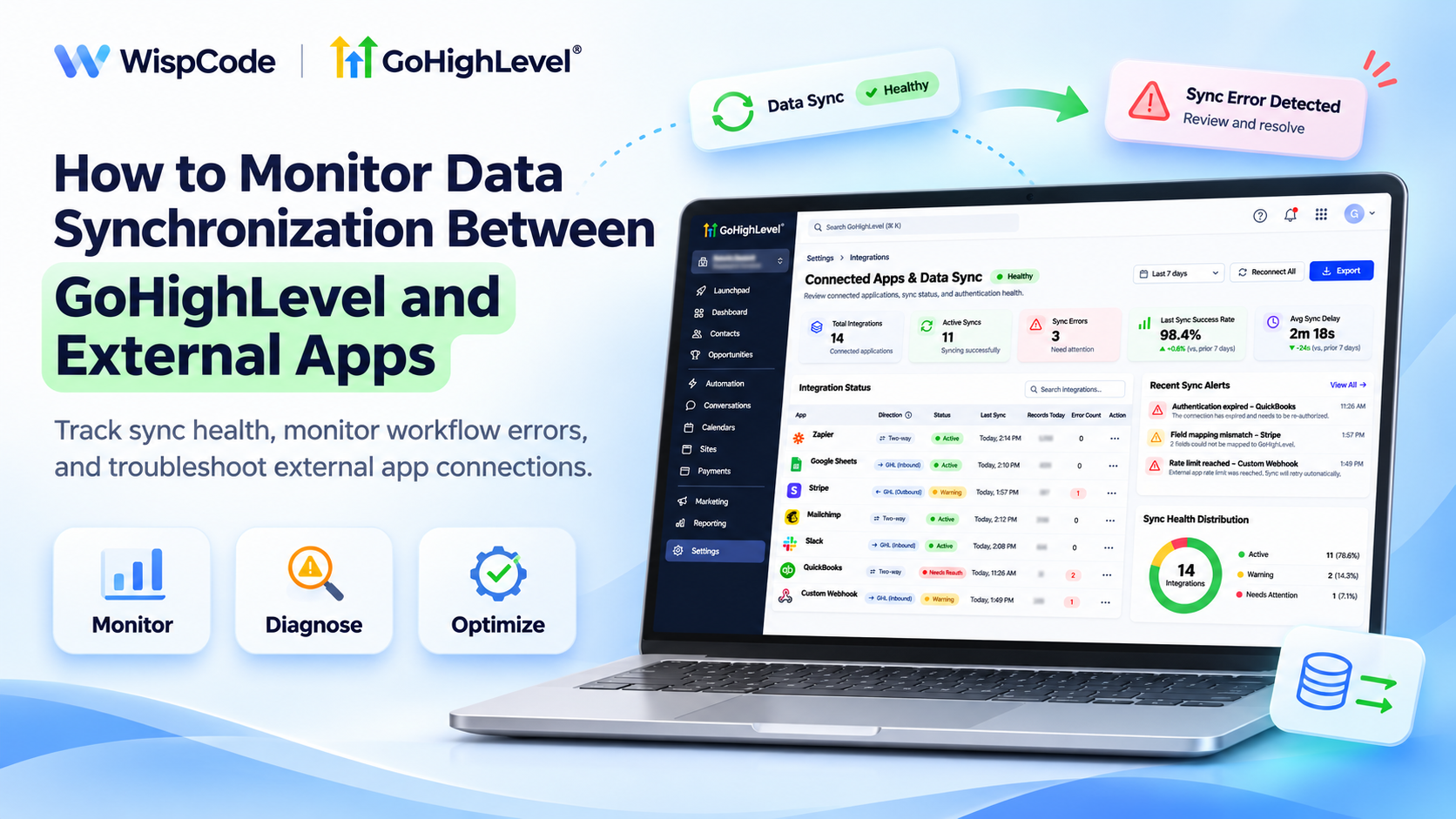
How to Monitor Data Synchronization Between GoHighLevel and External Apps
A business connects GoHighLevel with Google Sheets, Zapier, and an external CRM to automate customer data updates. Everything works initially, but a few days later, new leads stop appearing in one connected application.
The team continues working without realizing important information is missing.
These synchronization problems can cause missed follow-ups, duplicate records, and inaccurate reporting.
GoHighLevel provides integration settings, workflow execution logs, and error-monitoring tools to help identify problems. With regular monitoring, businesses can detect failed transfers, investigate errors, and maintain reliable data across connected systems.
How Data Synchronization Monitoring Works in GoHighLevel
Data synchronization keeps information consistent between GoHighLevel and external applications.
Depending on the integration, information may move through native connections, workflow webhooks, APIs, or automation platforms such as Zapier and Make.
For example, submitting a GoHighLevel form might trigger a workflow that sends contact information to an external system.
Monitoring involves checking whether the event occurred, the transfer succeeded, and the receiving application saved the correct information.
GoHighLevel provides useful monitoring tools, but there is no single universal dashboard that verifies every external application's data.
What You Need Before Monitoring Integrations
Before starting, make sure you have:
Access to the relevant GoHighLevel sub-account.
Active connections to the external applications.
Permission to view workflows and integration settings.
Knowledge of which records and fields should synchronize.
Access to third-party automation logs when applicable.
Test records that do not contain sensitive customer information.
Identify whether each integration transfers information into GoHighLevel, out of GoHighLevel, or in both directions.
How to Monitor Data Synchronization in GoHighLevel
Follow these six steps to check integration activity and identify synchronization problems.
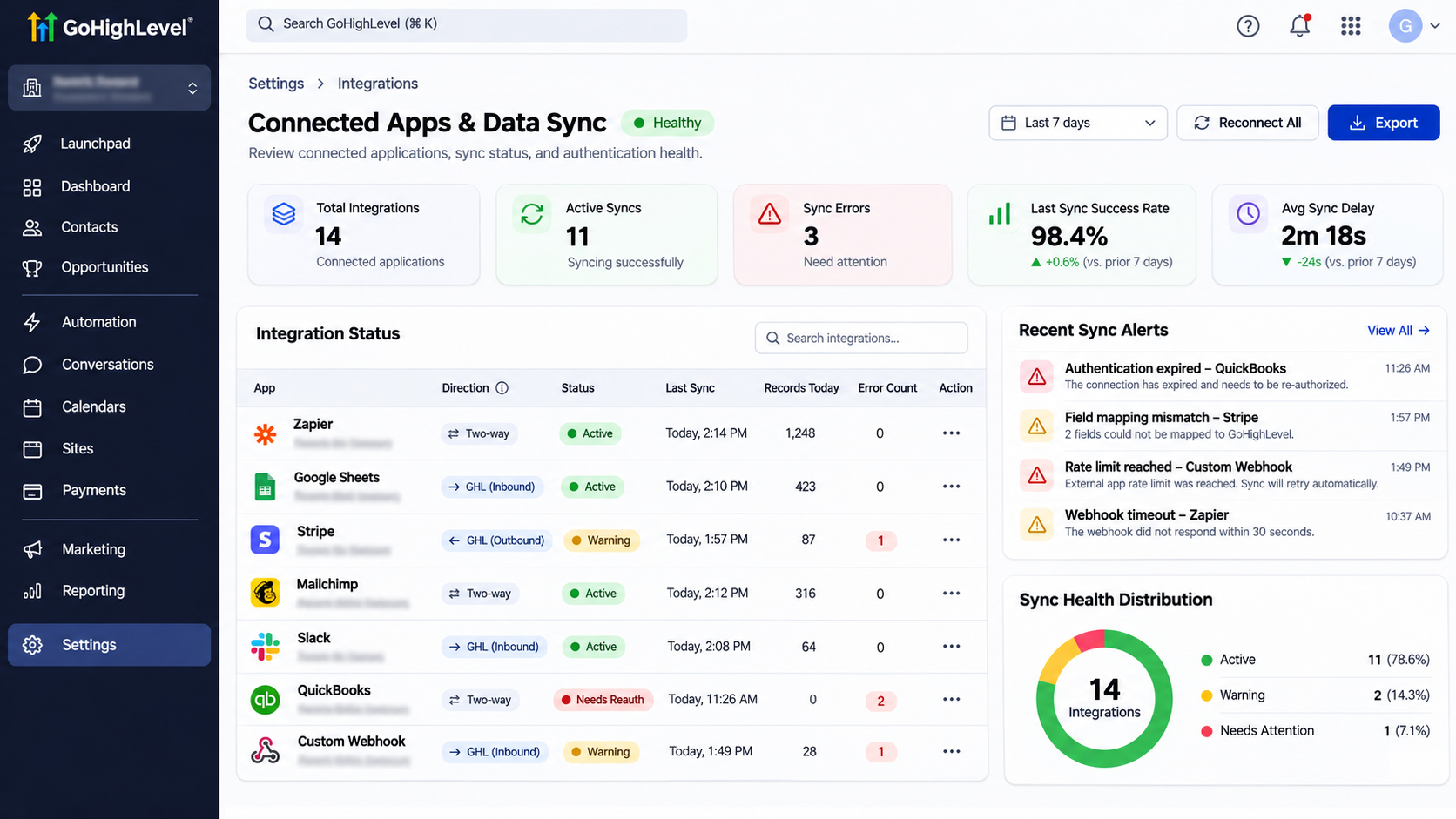
Step 1: Review Your Connected Integrations
Navigate to Settings → Integrations in your GoHighLevel sub-account.
Review connected applications and their available connection details.
Look for disconnected accounts, authentication errors, or integrations requiring reauthorization.
For supported integrations, open account management to review connection settings and field mappings.
For example, if Facebook lead information stops appearing in GoHighLevel, verify the connected account and relevant form mapping.
Not every external application appears or operates identically within this section.
Step 2: Review Workflow Execution Logs
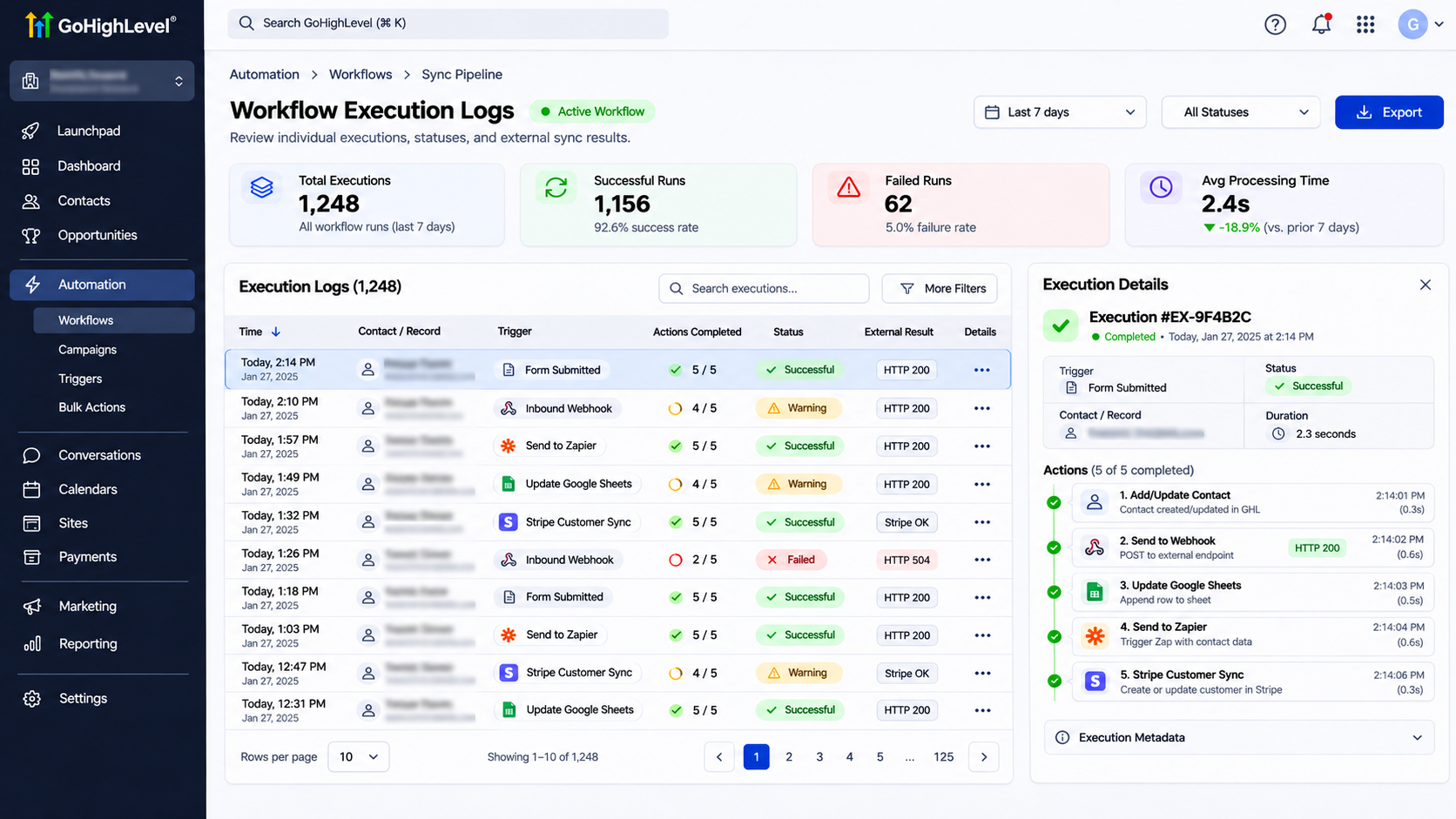
Navigate to Automation → Workflows and open the workflow responsible for transferring data.
Select Execution Logs.
Review recent executions, action statuses, and error details.
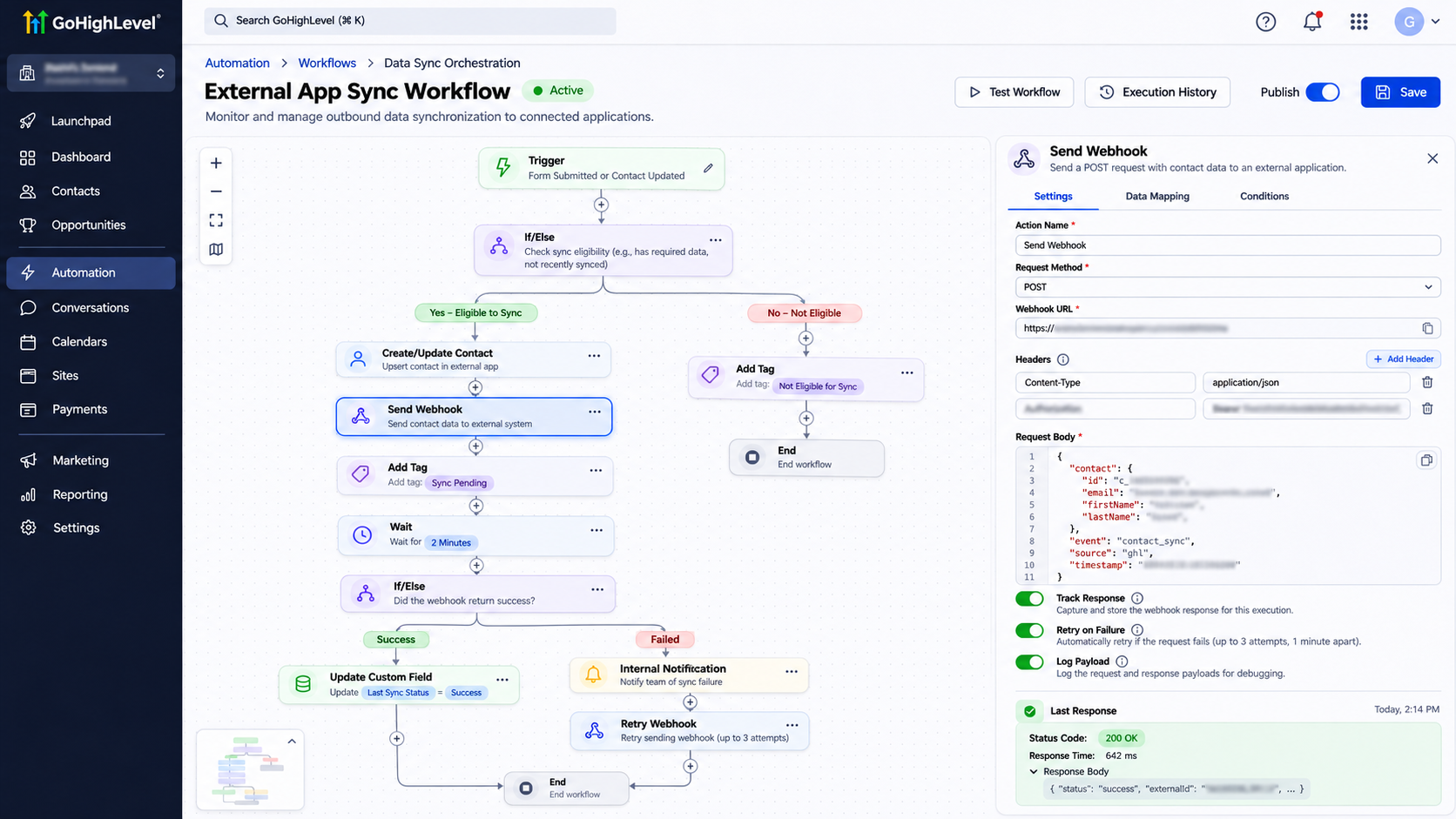
For example, if a workflow sends new contacts to an external application, inspect its Webhook action.
Check whether the action executed successfully or returned an error.
Use available filters and execution details to investigate individual records.
Remember that successful workflow execution does not necessarily confirm that the receiving application stored the information correctly.
Step 3: Monitor Webhook Data Transfers
GoHighLevel supports inbound and outbound webhooks for exchanging information with external systems.
An Inbound Webhook trigger receives supported requests from external applications.
An outbound Webhook action sends information from a GoHighLevel workflow to another system.
Review the configured endpoint, payload, and available execution details.
Where supported, inspect response codes and delivery attempts through the relevant developer webhook logging tools.
A successful HTTP response indicates that the receiving endpoint accepted the request. It does not guarantee that every field was processed correctly.
Step 4: Check Third-Party Automation History
If you use Zapier or Make, review execution history inside that platform.
For example, consider a workflow that transfers GoHighLevel leads into Google Sheets through Zapier.
Verify that the automation triggered, completed its actions, and updated the intended spreadsheet.
Compare the original GoHighLevel contact with the spreadsheet record.
Check important fields such as name, email, phone number, and lead source.
If the transfer fails, inspect the third-party error message before modifying your GoHighLevel workflow.
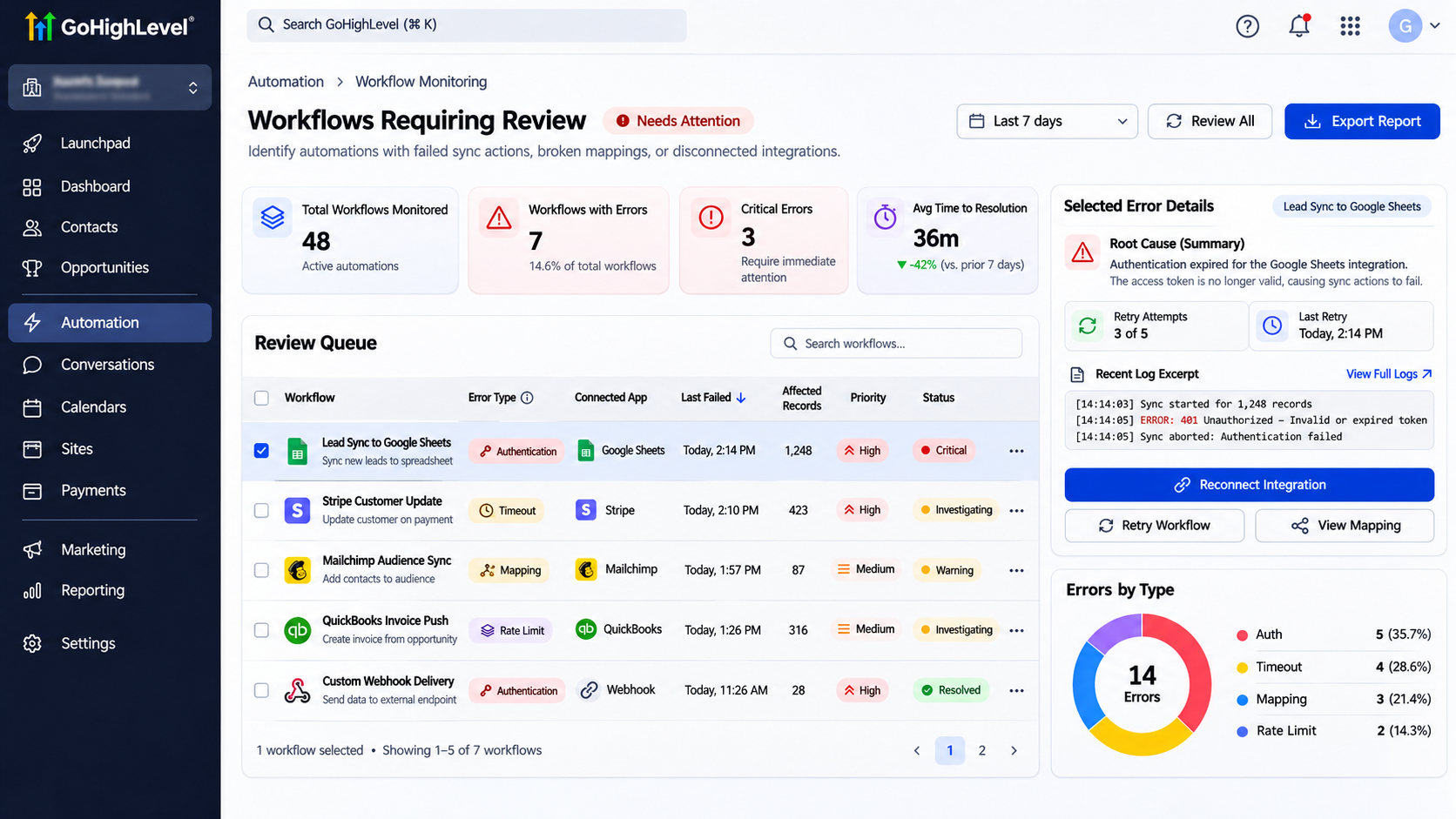
Step 5: Enable Workflow Error Monitoring
GoHighLevel provides workflow error monitoring to help identify failed automations.
Open Automation → Workflows and review available error indicators or the Needs Review section.
You can also use Workflow Maps → Review workflows with errors where available.
Review the affected workflow, identify the failed action, and inspect its execution details.
Configure workflow error email notifications in Workflow Settings if supported for your account.
Correct the underlying issue before clearing an error notification.
Step 6: Compare Records Across Connected Applications
Regularly verify that synchronized records match their source data.
For example, compare a GoHighLevel contact with its corresponding record in an external CRM.
Check whether email addresses, phone numbers, custom fields, and update timestamps match expectations.
Use consistent record identifiers when available to prevent duplicate entries.
Document missing records, incorrect values, and synchronization delays for further investigation.
Test Your Data Synchronization
Create a test contact and initiate the relevant integration event.
Check GoHighLevel execution logs, third-party automation history, and the destination record.
Update a test field and verify whether the change synchronizes as intended.
Test duplicate submissions and failed connections where practical.
Common Synchronization Problems and Fixes
Missing records: Check workflow triggers, filters, and external automation history.
Authentication errors: Reconnect the affected application using valid credentials.
Incorrect field values: Review field mappings and payload formats.
Duplicate contacts: Check identifiers, creation rules, and repeated triggers.
Delayed updates: Investigate processing schedules, retries, and third-party service limitations.
Best Practices for Reliable Data Synchronization
Review important integrations regularly and investigate errors promptly.
Use consistent field mappings, restrict unnecessary data sharing, and avoid exposing credentials in logs or screenshots.
Document integration changes and test workflows after major updates.
Conclusion
Monitoring data synchronization helps businesses maintain accurate information and prevent disruptions between GoHighLevel and connected applications.
Regularly checking integration settings, workflow logs, webhook activity, and destination records makes troubleshooting more effective.
Need help managing your GoHighLevel integrations? WispCode provides CRM integration, workflow automation, and data synchronization solutions to help businesses maintain reliable, connected operations.
Frequently Asked Questions
1. Can GoHighLevel monitor integration errors?
Yes. GoHighLevel provides workflow execution logs and error-review features for supported automation failures.
2. How do I know if a webhook failed?
Review the relevant workflow execution details, available response information, and receiving application's logs.
3. Can GoHighLevel synchronize data with Zapier and Make?
Yes. Supported integrations, webhooks, and APIs can exchange data with these external automation platforms.
4. Why are my contacts not syncing correctly?
Common causes include incorrect field mappings, authentication problems, workflow filters, and failed external automation steps.
5. How often should I check synchronization activity?
Review critical integrations daily or use appropriate error alerts, alongside periodic record-level verification.
Need Expert Help with GoHighLevel?
New to GoHighLevel and ready to get started? Buy your GoHighLevel account here and launch with confidence.
Already know what you need and want our team to handle everything, from complete setup and customization to funnels, workflows, automations, CRM, and pipelines? Click here.