

How to Prevent Incorrect Customer Status Updates in GoHighLevel
How to Prevent Incorrect Customer Status Updates in GoHighLevel
A sales representative marks a lead as a customer, but the payment hasn't been confirmed. The CRM automatically starts onboarding, assigns tasks, and sends a welcome email.
Later, the team discovers that the deal was never completed.
One incorrect status update has now triggered several unnecessary actions.
GoHighLevel helps businesses reduce these problems through custom fields, workflow conditions, controlled CRM updates, and execution monitoring.
With the right configuration, teams can ensure customer statuses reflect verified business activities rather than assumptions or accidental changes.
How Customer Status Updates Work in GoHighLevel
Customer status updates indicate where a contact stands in your business process.
GoHighLevel can track this information through contact fields, opportunity statuses, and pipeline stages.
For example, a contact might move from New Lead to Qualified, while an associated opportunity moves from Open to Won.
These are different CRM records and should not be treated as interchangeable.
The Contact Changed workflow trigger can detect supported field updates, while Opportunity Status Changed responds to changes in opportunity status.
The Update Contact Field action allows workflows to modify standard or custom contact fields.
Preventing incorrect updates requires reliable triggers, appropriate validation conditions, and clearly defined responsibilities.
What You Need Before Configuring Status Protection
Before creating your workflow, ensure you have:
Access to the appropriate GoHighLevel sub-account.
Clearly defined customer lifecycle stages.
Relevant contact custom fields and opportunity pipelines.
Team members with suitable CRM permissions.
Verified business events that justify status changes.
Existing workflows reviewed for overlapping updates.
Test contacts for checking automation behavior.
These preparations help reduce unnecessary status changes and conflicting CRM information.
How to Prevent Incorrect Customer Status Updates in GoHighLevel
Follow these six steps to improve customer status accuracy.
Step 1: Define Clear Customer Status Rules
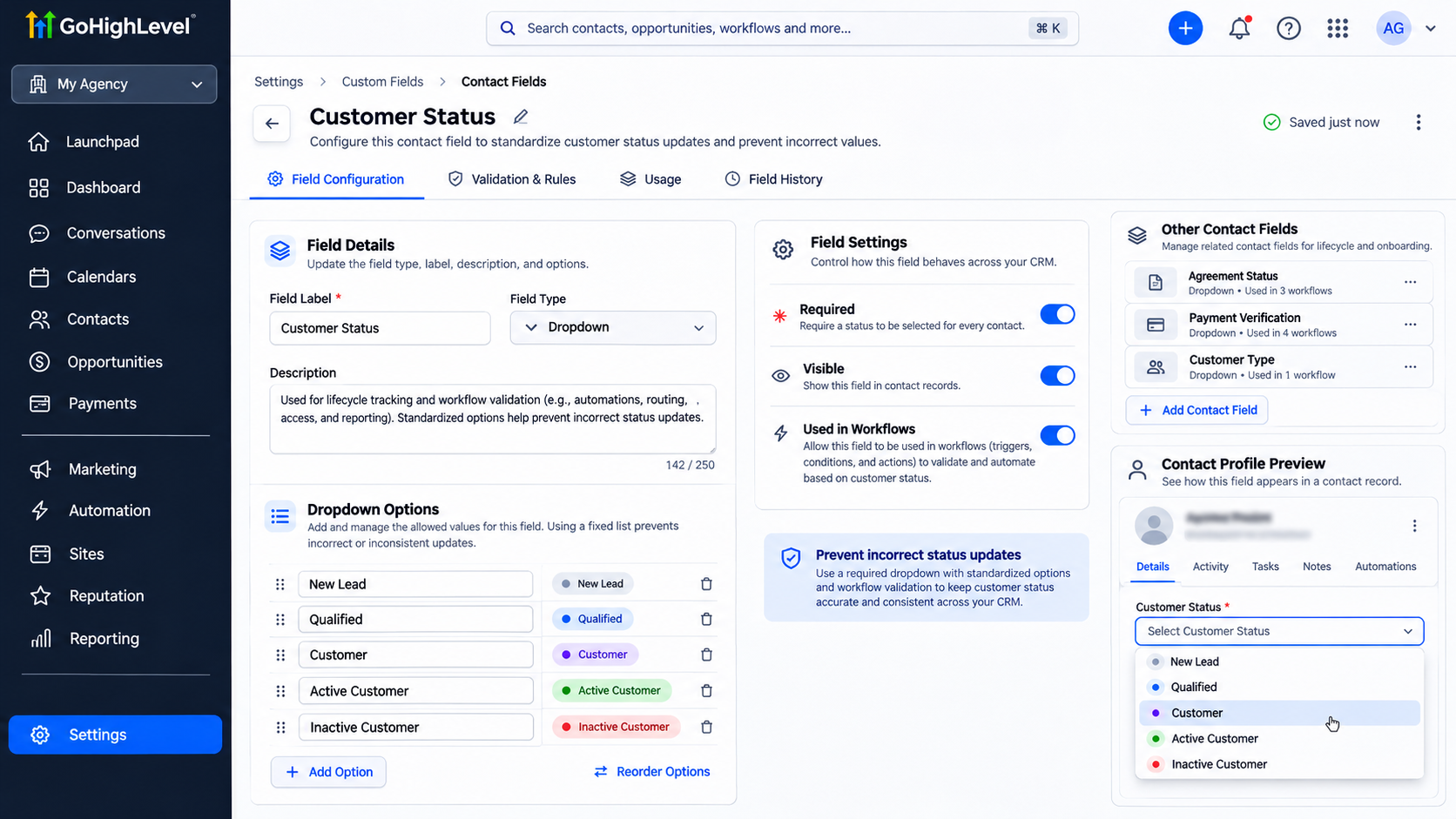
Start by deciding what each customer status actually means.
For example, a service business might use:
New Lead: An inquiry has been received.
Qualified: The lead meets the business's requirements.
Customer: The required sale or approval has been confirmed.
Active Customer: Service delivery has started.
Inactive Customer: The customer no longer has an active engagement.
Navigate to Settings → Custom Fields to create a contact-level Customer Status field if needed.
Use a dropdown with standardized options instead of relying on inconsistent manual descriptions.
Document the conditions required for every status change.
Step 2: Create a Workflow to Monitor Status Changes
Navigate to Automation → Workflows → Create Workflow.
Select Start from Scratch.
Name your workflow "Customer Status Validation."
Click Add New Trigger and select Contact Changed.
Configure the trigger filters to monitor the Customer Status custom field.
Save the trigger.
If your process depends on sales opportunities, use Opportunity Status Changed with filters matching the relevant status transition.
Choose triggers based on actual business events rather than unrelated contact activity.
Step 3: Add Validation Conditions Before Updating Status
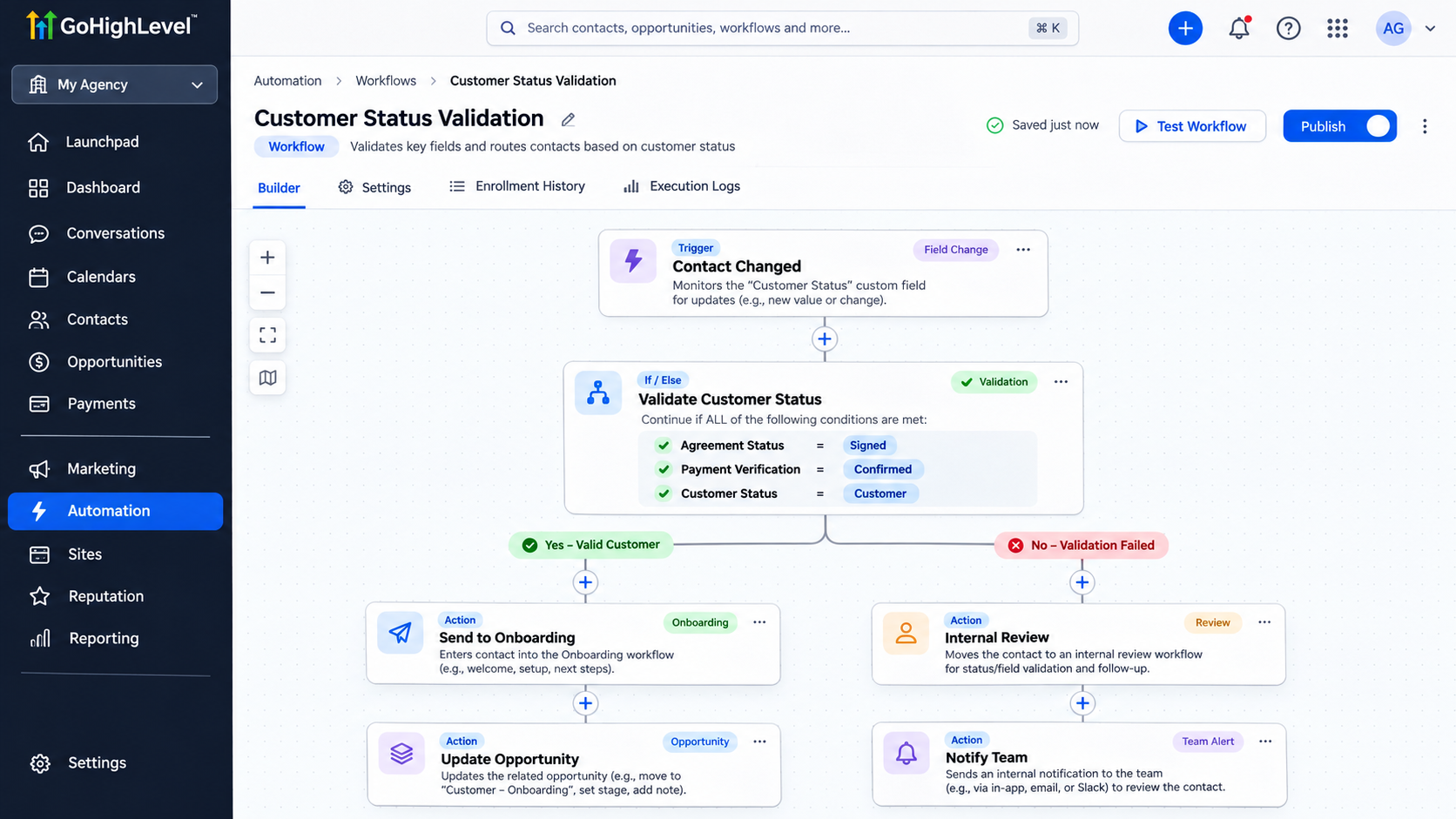
Click the plus icon beneath the trigger and select If/Else.
Configure conditions that check whether the required business criteria have been satisfied.
For example, before allowing a customer to enter onboarding, check whether the following recorded values are correct:
Agreement Status: Signed.
Payment Verification: Confirmed.
Customer Status: Customer.
If the requirements are satisfied, continue to the appropriate onboarding actions.
Otherwise, route the contact to an internal review process.
Remember that If/Else conditions control workflow actions; they do not automatically prevent employees or external applications from editing CRM records.
Step 4: Control Automated Status Updates
Review workflows that modify customer information.
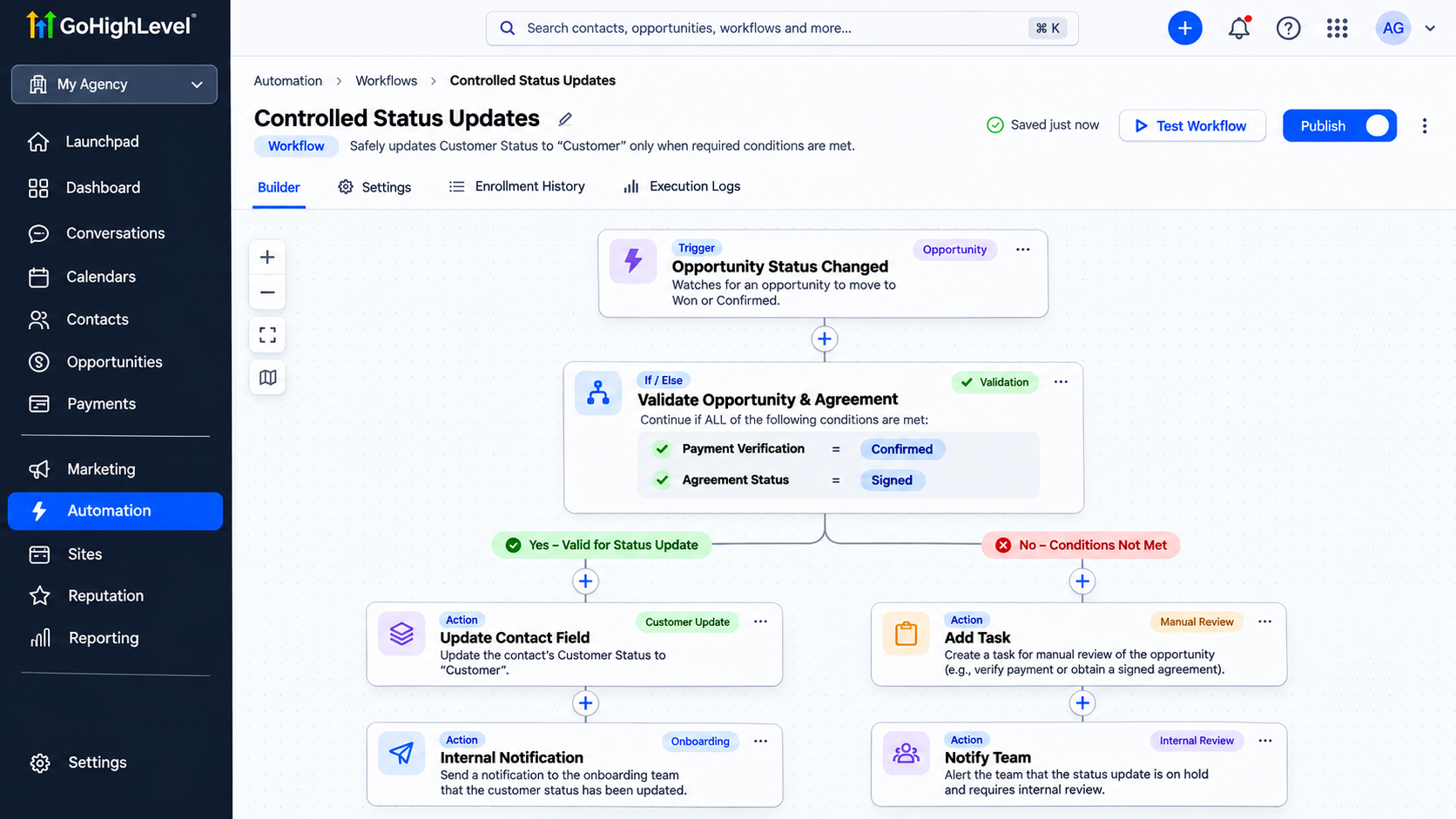
For each workflow, identify where the Update Contact Field action changes the Customer Status field.
Avoid allowing several automations to update the same field without coordinated rules.
For example, a payment confirmation workflow might update Customer Status to Customer only after verification.
Add an If/Else check before the update to confirm the required information is present.
Use Internal Notification or Add Task when an employee needs to investigate missing details.
This allows the team to review questionable records instead of automatically advancing every contact.
Step 5: Review Workflow Re-Entry and Conflicting Automations
Open your workflow's Settings tab.
Review the Allow Re-entry option and other applicable enrollment settings.
Repeated triggers can cause workflows to execute status updates more than once.
Disable unnecessary re-entry where appropriate.
Also, review other workflows that use Contact Changed, Opportunity Status Changed, or similar triggers.
For example, one workflow should not mark a customer Active while another automatically changes the same contact to Inactive without checking current business conditions.
Establish which workflow is responsible for each important status transition.
Step 6: Monitor Status Changes and Workflow Execution
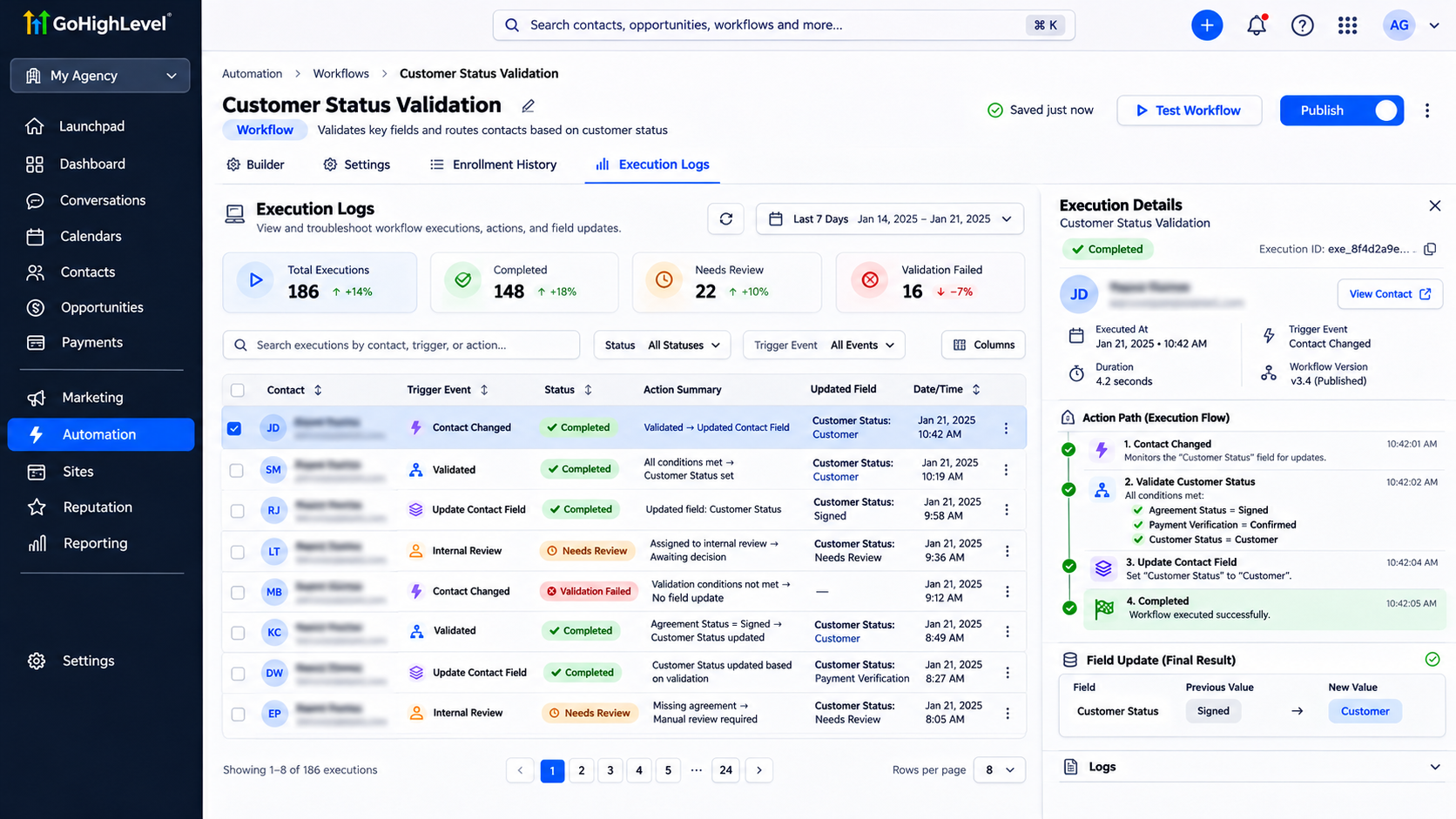
Open the relevant workflow and select Execution Logs or Enrollment History.
Review recent executions to confirm that the correct conditions and actions were processed.
Check the contact record to verify the resulting status.
If an unexpected update occurs, compare the relevant workflow histories and investigate any external integrations or manual changes.
A successful workflow execution does not necessarily prove that the new customer status is accurate.
Test Your Customer Status Workflow
Create test contacts representing different customer situations.
Simulate a confirmed payment, an incomplete agreement, and an incorrectly updated customer status.
Verify that the correct workflow branches execute.
Confirm that customers with incomplete requirements do not enter dependent onboarding actions.
Test repeated updates and review the resulting CRM records.
Common Customer Status Problems and Fixes
Incorrect status changes: Review field values, triggers, and validation conditions.
Duplicate updates: Check workflow re-entry and overlapping automations.
Missing verification: Confirm that required business information is recorded before updating the status.
Unexpected onboarding: Review workflows triggered by customer lifecycle changes.
Conflicting CRM information: Establish one authoritative status field and clearly defined update responsibilities.
Best Practices for Accurate Customer Status Management
Keep lifecycle definitions simple and consistent.
Use verified business events to justify important status changes.
Limit unnecessary editing permissions where supported and assign clear responsibility for maintaining customer records.
Review critical workflows regularly and test changes before publishing.
Conclusion
Preventing incorrect customer status updates helps businesses maintain accurate CRM information, reduce unnecessary automation, and improve internal coordination.
GoHighLevel provides workflow triggers, conditional logic, and CRM update actions that help teams manage customer information more reliably.
Need help improving your GoHighLevel CRM accuracy? WispCode provides CRM configuration, workflow automation, and business process optimization solutions to help businesses maintain dependable customer records.
Frequently Asked Questions (FAQs)
1. Can GoHighLevel automatically validate customer status updates?
Yes. Workflows can check recorded CRM information through If/Else conditions before performing dependent actions.
2. Can GoHighLevel detect changes to customer status fields?
Yes. The Contact Changed trigger supports monitoring configured contact field updates, including supported custom fields.
3. How can I prevent duplicate status updates?
Review overlapping workflows, configure appropriate re-entry settings, and check current field values before performing updates.
4. Can I require approval before changing a customer status?
You can design an approval-based workflow using custom fields, internal notifications, and conditional actions. This does not automatically block every manual CRM edit.
5. How can I investigate an incorrect customer status?
Review the contact record, relevant workflow execution logs, enrollment history, and any external integrations that may have modified the information.
Need Expert Help with GoHighLevel?
New to GoHighLevel and ready to get started? Buy your GoHighLevel account here and launch with confidence.
Already know what you need and want our team to handle everything, from complete setup and customization to funnels, workflows, automations, CRM, and pipelines? Click here.