

GoHighLevel Custom Objects Update: 4 New Improvements
GoHighLevel Custom Objects Update: Rename Fields, Copy Internal Names & Open Documents Easily
Managing CRM data becomes easier when the platform provides flexibility in how information is displayed, accessed, and organized. GoHighLevel has introduced several improvements to Custom Objects that make everyday CRM management more convenient.
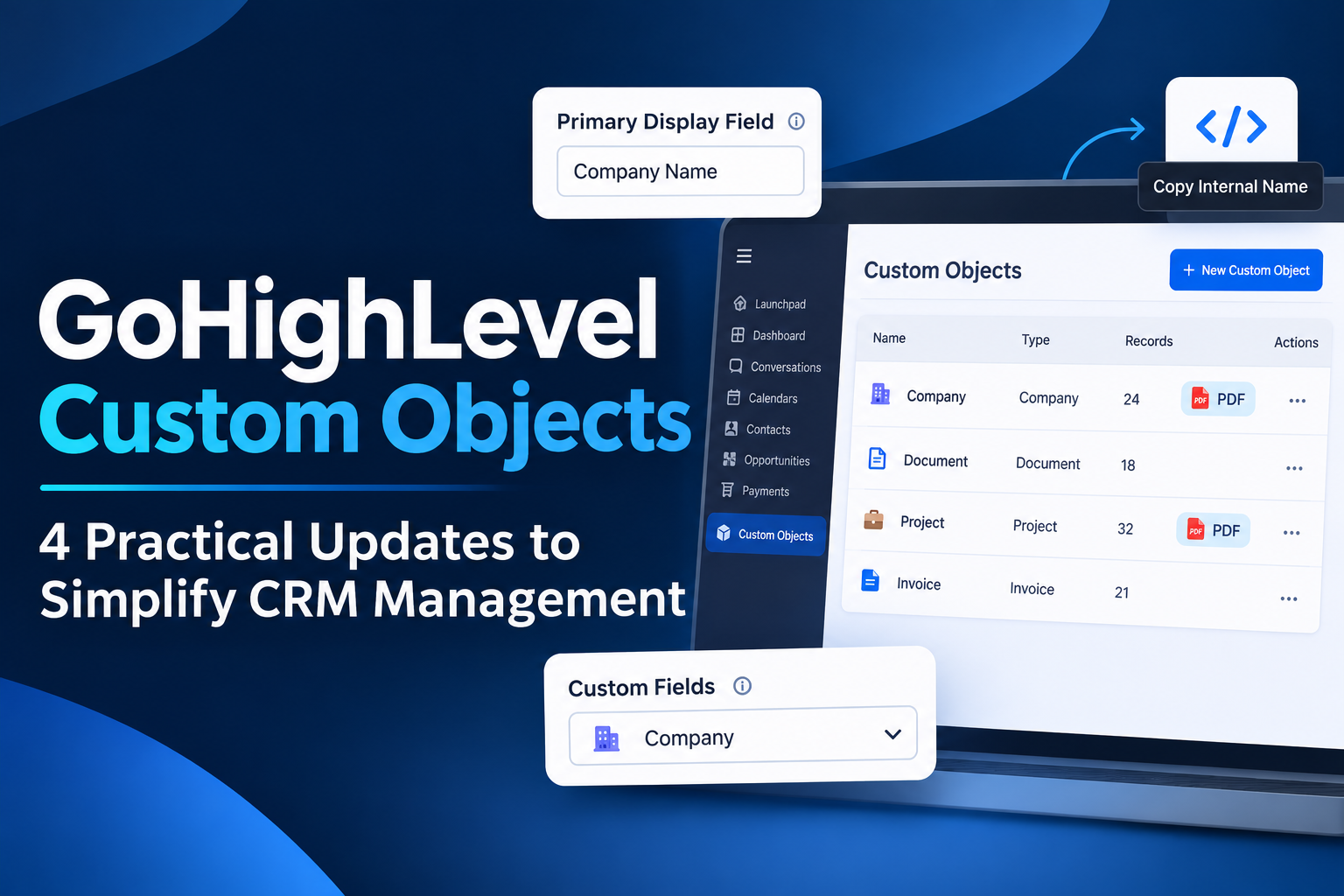
This GoHighLevel Custom Objects update focuses on four practical improvements: renaming the Primary display field, copying internal names with one click, opening uploaded documents directly from the list view, and displaying custom Company object names in Custom Fields settings.
Although these are quality-of-life improvements, they address common inconveniences that users can experience when managing custom CRM data. Let's explore what's changed and how these improvements work.
What's New in GoHighLevel Custom Objects?
GoHighLevel has introduced a collection of customer-requested improvements designed to make Custom Objects easier to manage.
The update includes four changes:
Rename the Primary display field name without changing its field type or internal name.
Copy object and primary field internal names with one click.
Open uploaded documents directly from the Custom Object list view.
See your assigned Company object name in the Custom Fields object dropdown.
Each improvement focuses on making the interface clearer and reducing unnecessary steps when working with CRM information.
Rename the Primary Display Field
One of the most useful additions is the ability to rename the Primary display field directly from Custom Object settings.
Previously established display names may not always remain suitable as business requirements change. Users may want a different name that better represents the information stored in their CRM.
With this update, you can change the Primary display field name without changing its underlying field type or internal name.
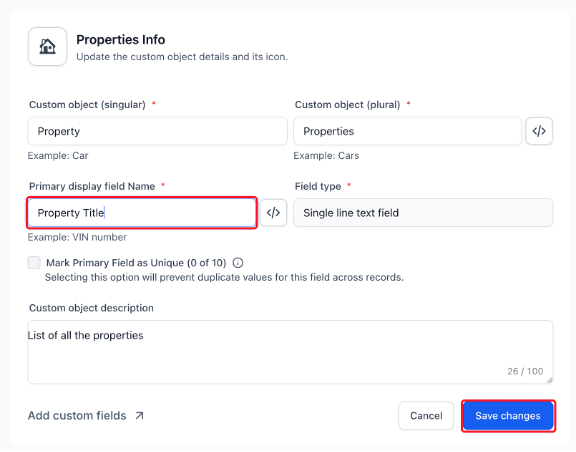
This distinction is important. The display name is what users see when working with the field, while its internal name remains unchanged.
For businesses managing custom CRM data, this provides additional flexibility when maintaining clear and understandable field names.
The improvement also helps users keep their Custom Objects aligned with their current naming preferences without changing the field's internal identity.
Copy Internal Names Without Manual Typing
GoHighLevel has also introduced a one-click option for copying internal names.
Users can now copy the internal name of a Custom Object or its Primary field directly from the interface.
To access this option, click the code icon next to the relevant name. This displays the internal name and provides a Copy option.
This is particularly helpful when users need to reference exact internal names while working with integrations or other technical configurations.
Typing internal names manually can introduce unnecessary errors, especially when names contain multiple words or specific formatting.
Being able to copy the exact value directly makes the process simpler and reduces the possibility of typing mistakes.
Open Uploaded Documents Directly from the List View
Another practical improvement makes uploaded documents easier to access.
Previously, users looking for uploaded files could need to open individual records to access their documents. With this update, file upload fields in the Custom Object list view display clickable file chips.
For example, an uploaded document named Listing Agreement.pdf appears as a clickable chip. Selecting it opens the document in a new browser tab.
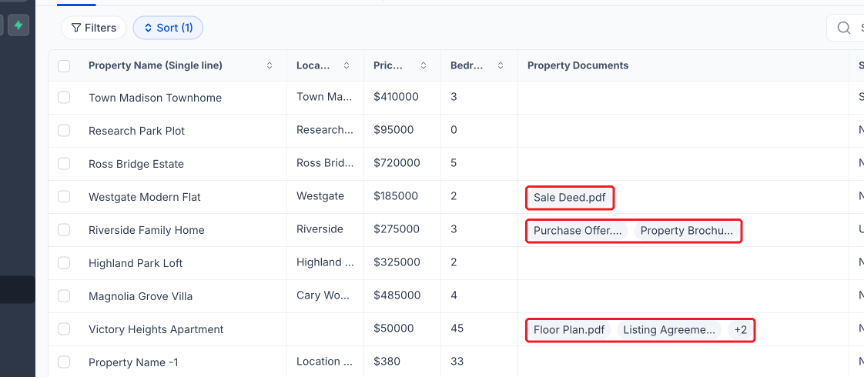
This provides a more convenient way to access important files while viewing Custom Object records.
GoHighLevel has also included a useful detail for situations where multiple files are attached. Users can hover over a shortened file name or the +N indicator to see the complete file names.
This makes identifying uploaded documents easier without requiring users to open each individual record just to check their file names.
Display Your Custom Company Name in Custom Fields
The fourth improvement focuses on clarity within Custom Fields settings.
GoHighLevel now displays the user-assigned name of the Company object in the Custom Fields object dropdown.
This means that when users have assigned a custom name to their Company object, that name is displayed in the dropdown instead of relying on a less familiar default label.
For users managing Custom Fields, this small interface improvement makes it easier to recognize the correct Company object when working within the settings.
It also creates a more consistent experience between the naming preferences users have established and what they see in the Custom Fields interface.
How to Use These Custom Objects Updates
You can access these improvements directly through the GoHighLevel interface.
Follow these steps:
Navigate to Settings > Objects and open the Custom Object you want to manage.
Change the Primary display field name and click Save changes.
Click the code icon next to a name to view its internal name, then click Copy.
In the Custom Object list view, click a document chip to open the uploaded file.
For the Company object naming improvement, the updated name appears automatically in the Custom Fields object dropdown.
Pro Tip: Renaming the Primary display field does not change its internal name or field type, so integrations that rely on the existing internal name continue working. You can also hover over shortened file names or the +N indicator to view complete file names.
Why These Improvements Matter for CRM Management
These GoHighLevel Custom Objects improvements focus on making everyday CRM management more straightforward.
First, the ability to rename the Primary display field gives users more control over how their information is presented. Clear naming makes it easier to understand fields when managing custom data.
Second, copying internal names reduces the need for manual typing. This is especially useful when exact internal names are needed for integrations or technical configurations.
Third, clickable document chips improve access to uploaded files. Instead of opening individual records to locate documents, users can access them directly from the list view.
Finally, displaying the custom Company object name in Custom Fields settings helps users recognize their assigned object name more easily.
Together, these changes reduce small points of friction and make the Custom Objects interface more convenient to work with.
Final Thoughts
The latest GoHighLevel Custom Objects update introduces four practical improvements that make managing custom CRM information easier.
From renaming Primary display fields to copying internal names and accessing uploaded documents directly, each change addresses a specific part of the user experience.
These improvements do not introduce unnecessary complexity. Instead, they provide additional convenience and flexibility when working with Custom Objects.
For businesses and CRM professionals who regularly manage custom data in GoHighLevel, these are useful additions worth exploring.
Frequently Asked Questions (FAQs)
1. Can you rename the Primary display field in GoHighLevel Custom Objects?
Yes. GoHighLevel allows users to rename an object's Primary display field from its Custom Object settings.
2. Does renaming the Primary display field change its internal name?
No. Renaming the Primary display field does not change its internal name or field type.
3. How can you copy a GoHighLevel Custom Object's internal name?
Click the code icon next to the object or Primary field name to view its internal name, then select Copy.
4. Can uploaded documents be opened directly from the Custom Object list view?
Yes. File upload fields display clickable document chips. Clicking a chip opens the uploaded document in a new browser tab.
5. Where does GoHighLevel display the custom Company object name?
The user-assigned Company object name is now displayed in the object dropdown within Custom Fields settings.
Need Expert Help with GoHighLevel?
New to GoHighLevel and ready to get started? Buy your GoHighLevel account here and launch with confidence.
Already know what you need and want our team to handle everything, from complete setup and customization to funnels, workflows, automations, CRM, and pipelines? Click here.