

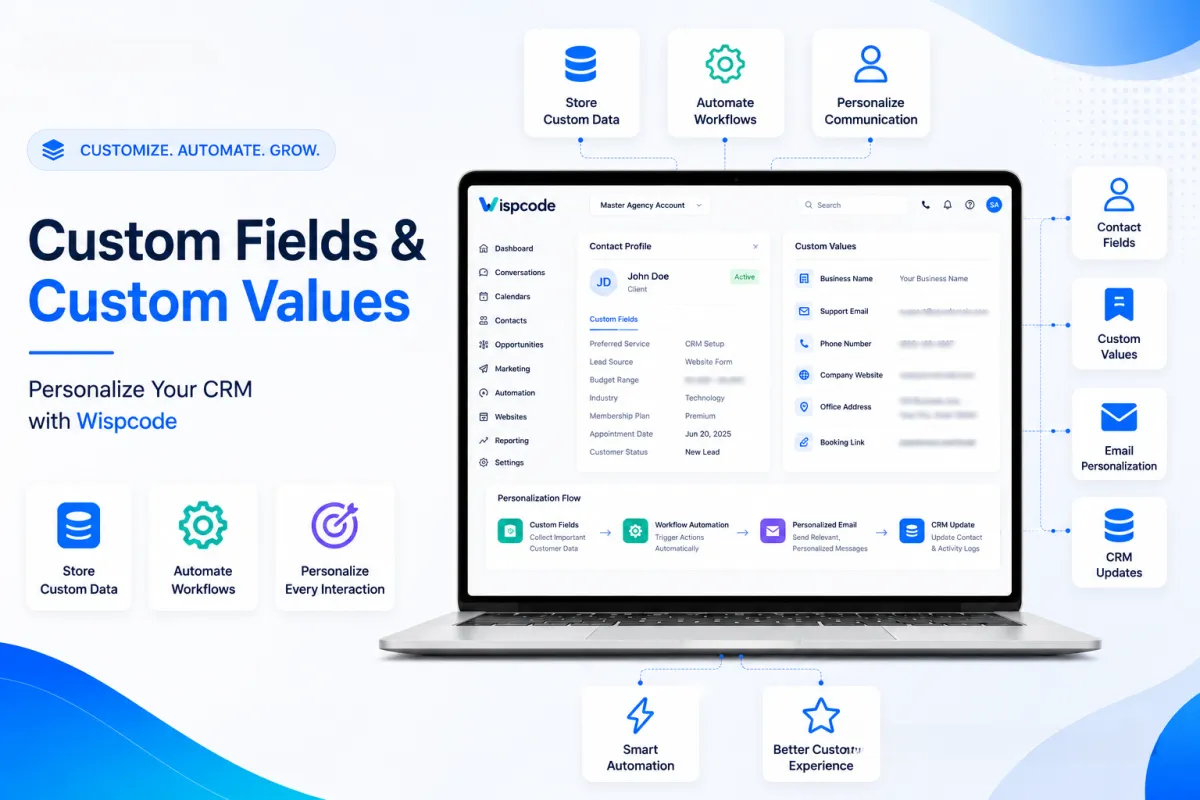
GoHighLevel Custom Fields & Custom Values: Complete Setup Guide for Better CRM Automation
How to Use Custom Fields and Custom Values in GoHighLevel to Personalize Your CRM
Introduction
Personalization has become a key factor in building stronger customer relationships. While storing basic details like names, email addresses, and phone numbers is important, modern businesses need a CRM that can collect detailed customer information and use it to deliver more relevant experiences.
That's where Custom Fields and Custom Values in GoHighLevel make a significant difference.
These features help businesses organize customer data, personalize communication, automate workflows, and maintain consistent business information across emails, funnels, websites, forms, and templates. Whether you're a marketing agency, local business, or SaaS company, understanding how to use these tools can improve efficiency while creating a better customer experience.
In this guide, you'll learn the difference between Custom Fields and Custom Values, how they work, and why they're essential for building a personalized and scalable CRM in GoHighLevel.
What Are Custom Fields in GoHighLevel?
Custom Fields allow you to collect and store information beyond GoHighLevel's default contact fields. Instead of limiting your CRM to basic contact details, you can capture data that's specific to your business, making it easier to organize contacts, personalize communication, and automate processes.
Since every business has different requirements, Custom Fields help you tailor your CRM to match your sales, marketing, and customer management workflows.
Examples of Custom Fields
Depending on your business model, you may create Custom Fields such as:
Lead Source
Budget Range
Company Size
Industry
Birthday
Customer ID
These fields can be used across supported areas of GoHighLevel, including Contact Records, Forms, Surveys, Conversations, and Workflow Automations, allowing your team to capture and use customer-specific data more effectively.
Why Custom Fields Are Important
Custom Fields help transform your CRM into a centralized source of customer intelligence. Instead of treating every contact the same, you can organize leads based on meaningful information and deliver more relevant interactions throughout the customer journey.
With well-structured Custom Fields, you can:
Personalize email and SMS campaigns.
Trigger workflow automations using customer data.
Provide sales teams with better lead insights.
Build a more organized and scalable CRM.
The more useful information you collect, the easier it becomes to automate tasks, qualify leads, and create personalized experiences.
Common Types of Custom Fields
Choosing the correct field type improves data accuracy, keeps your CRM organized, and supports more reliable automations.
Text Fields
Ideal for collecting short responses such as names, job titles, or customer preferences.
Example: Preferred Sales Representative
Number Fields
Best for storing numerical values like budgets, employee counts, or customer IDs.
Example: Monthly Marketing Budget
Date Fields
Useful for appointments, birthdays, membership renewals, or consultation dates.
Example: Membership Renewal Date
Dropdown Fields
Allow users to select a single predefined option, helping maintain consistent data.
Example:
Basic Plan
Professional Plan
Enterprise Plan
Multi-Select Fields
Enable users to choose multiple options from a predefined list.
Example: Services Interested In
SEO
Facebook Ads
Website Design
Email Marketing
Checkbox Fields
Perfect for collecting simple yes/no responses.
Example: Newsletter Subscriber
What Are Custom Values in GoHighLevel?
While Custom Fields store information unique to each contact, Custom Values store reusable business information that remains consistent across your GoHighLevel account.
Think of Custom Values as reusable placeholders. Instead of manually entering the same business information in every email, funnel, website, or template, you can create a Custom Value once and reuse it wherever supported.
For example, if your company updates its phone number, office address, or support email, you only need to update the corresponding Custom Value. The new information is then reflected across supported assets, saving time and reducing manual updates.
Examples of Custom Values
Some of the most commonly used Custom Values include:
Business Name
Company Address
Support Email
Sales Email
Phone Number
Website URL
Booking Link
Facebook Page URL
Instagram Profile
Using Custom Values helps maintain consistent branding while making future updates faster and more efficient.
Why Custom Fields and Custom Values Matter for CRM Personalization
Customers expect personalized communication that reflects their interests and needs. By combining Custom Fields with Custom Values, businesses can create a CRM that supports both personalized customer interactions and consistent business messaging.
These features allow you to:
Build smarter workflow automations.
Maintain consistent branding across emails, funnels, forms, and websites.
Reduce repetitive manual updates.
Improve customer engagement with relevant communication.
When implemented strategically, Custom Fields and Custom Values help create a more organized CRM, strengthen marketing automation, and support long-term customer relationship management.
How to Create Custom Fields in GoHighLevel (Step-by-Step)
Setting up Custom Fields correctly helps you build a structured CRM that supports better lead management, segmentation, and automation. Before creating new fields, identify the customer information your business actually needs to keep your CRM organized and scalable.
Follow these steps to create a Custom Field in GoHighLevel.
Step 1: Open the Settings Menu
Log in to your GoHighLevel account and navigate to Settings, where you'll find the CRM customization options.
Step 2: Navigate to Custom Fields
Open the Custom Fields section to view existing fields or create new ones. Use descriptive field names so your team can easily identify and use them across forms, workflows, and contact records.

Step 3: Create a New Custom Field
Click Add Field and choose the field type that matches the information you want to collect.
Common field types include:
Single Line Text
Number
Date
Dropdown
Multi-Select
Checkbox
Large Text Area
Selecting the correct field type ensures consistent data collection and improves workflow accuracy.

Step 4: Name and Save Your Field
Use meaningful field names such as:
Preferred Service
Marketing Budget
Lead Priority
Referral Partner
Business Category
Avoid generic names like Field 1 or Option A, as they become difficult to manage when your CRM grows.
Once saved, the field becomes available across supported GoHighLevel features, including contact records, forms, surveys, and workflow automations.

How to Create Custom Values in GoHighLevel
Unlike Custom Fields, Custom Values store reusable business information that remains consistent throughout your account.
Step 1: Open the Custom Values Section
Go to Settings and select Custom Values.

Step 2: Add a New Custom Value
Click Add Custom Value and provide:
A descriptive name
A unique placeholder
The value you want to reuse
Examples:
Custom Value: Business Name ABC Digital Agency Support
Emails: [email protected]
Sales Phone:(123) 456-7890
Company Website: www.yourcompany.com
Office Address: Your Business Address

Step 3: Save and Reuse
Once saved, Custom Values can be inserted into supported emails, funnels, websites, templates, and automations whenever your business information changes. Updating the Custom Value once ensures consistency across all supported assets.
Where Can You Use Custom Fields and Custom Values?
One of the biggest advantages of these features is their flexibility across the GoHighLevel platform. They allow customer information and business details to work together, creating a more personalized and efficient CRM.

Contact Records
Custom Fields help store detailed customer information beyond standard contact details.
Examples include:
Preferred Service
Budget Range
Membership Level
Property Interest
Company Size
This gives your sales and support teams valuable context before every interaction.
Forms and Surveys
Custom Fields can be added to forms and surveys to collect additional information from prospects.
Instead of requesting only a name and email address, you can also capture:
Service Requirements
Monthly Budget
Business Goals
Preferred Consultation Time
Industry
Collecting this information early improves lead qualification and supports more personalized follow-up.
Workflow Automations
Custom Fields become even more valuable inside GoHighLevel Workflows, where contact data can be used to automate actions.
For example, you can:
Assign leads based on location.
Send different follow-up sequences based on the selected service.
Trigger reminders before renewal dates.
Notify your team when high-value leads enter the CRM.
These automations reduce manual work while improving response times and customer engagement.
Email and SMS Campaigns
Personalized messaging creates better customer experiences than generic communication.
Using Custom Fields, you can include contact-specific information in emails and SMS campaigns, while Custom Values automatically insert consistent business details such as your company name, phone number, or support email.
This combination improves personalization without increasing manual work.
Funnels and Websites
Custom Values are especially useful for funnels and websites where the same business information appears on multiple pages.
Common examples include:
Business Name
Phone Number
Email Address
Office Location
Website URL
Booking Link
Updating a Custom Value once keeps your branding accurate across all supported pages without requiring manual edits.
Real Business Use Cases
Understanding how different industries use these features makes it easier to apply them effectively.
Marketing Agency
A marketing agency may collect:
Business Type
Monthly Advertising Budget
Preferred Marketing Service
Number of Employees
This information allows workflows to automatically assign leads to the appropriate account manager and deliver more relevant follow-up.
Real Estate Agency
Real estate businesses often capture:
Property Type
Budget
Preferred City
Buying Timeline
Agents can quickly filter contacts and recommend properties based on each buyer's preferences.
Home Services Business
Home service companies can create Custom Fields for:
Service Requested
Property Type
Preferred Appointment Time
Having this information before appointments helps technicians prepare more effectively and improve customer service.
Advanced Personalization Strategies
Once you've mastered the basics, you can use Custom Fields and Custom Values to create a smarter CRM experience.
Segment Contacts More Effectively
Use Custom Fields to organize contacts by information such as:
Industry
Location
Budget
Service Interest
Customer Status
Well-structured segmentation allows you to deliver more relevant campaigns and improve engagement.
Build Smarter Workflow Automations
Use Custom Field data to personalize customer journeys.
For example, if a contact selects Website Design as their preferred service, your workflow can automatically send website-related resources instead of generic marketing content.
Standardize Business Information
Store recurring business details as Custom Values instead of manually updating multiple assets.
This helps maintain:
Consistent branding
Faster updates
Fewer manual errors
Easier template management
Professional Best Practices
To maximize the value of Custom Fields and Custom Values, follow these best practices:
Plan your CRM structure before creating new fields.
Use clear and consistent naming conventions.
Avoid duplicate fields that collect similar information.
Select the correct field type for each data point.
Review unused fields regularly to keep your CRM organized.
Use Custom Values only for reusable business information.
Keep forms simple to encourage higher completion rates.
Test workflows after adding or updating Custom Fields.
Following these practices helps maintain a clean CRM, improves reporting accuracy, and supports more effective marketing automation as your business grows.
Common Mistakes to Avoid When Using Custom Fields and Custom Values
Custom Fields and Custom Values make your CRM more powerful, but poor implementation can create unnecessary complexity. Avoiding these common mistakes will help keep your GoHighLevel account organized, scalable, and easy to manage.
1. Creating Too Many Custom Fields
Creating a new field for every piece of information can clutter your CRM and make it difficult to manage.
Best Practice:
Before adding a new field, ask yourself:
Will this information support reporting or automation?
Will it be used regularly?
Can an existing field already store this data?
Create only the fields that provide long-term business value.
2. Using Inconsistent Naming Conventions
Using different names for similar information, such as Budget, Client Budget, and Marketing Budget, can create confusion when filtering contacts or building workflows.
Best Practice:
Adopt a consistent naming convention, for example:
Lead Source
Lead Status
Lead Budget
Preferred Service
Preferred Contact Method
A standardized structure improves collaboration and makes your CRM easier to maintain.
3. Choosing the Wrong Field Type
Selecting an incorrect field type can lead to inconsistent data and less effective segmentation.
For example, storing membership plans in a text field may result in multiple variations of the same value, while a dropdown keeps entries consistent.
Best Practice:
Choose field types based on the data you need:
Dropdown for predefined options
Checkbox for yes/no responses
Date Field for appointments and renewals
Number Field for budgets or quantities
Using the right field type improves reporting accuracy and workflow automation.
4. Confusing Custom Fields with Custom Values
Although these features complement each other, they serve different purposes.
Custom Fields store information unique to individual contacts.
Custom Values store reusable business information shared across your account.
Understanding this distinction helps you build a cleaner CRM and prevents duplicate information.
Frequently Asked Questions (FAQs)
Can I use Custom Fields in GoHighLevel workflows?
Yes. Custom Fields can be referenced in supported workflow conditions and actions, allowing you to personalize automations using contact-specific information.
What's the difference between Custom Fields and Custom Values?
Custom Fields store unique information for each contact, such as budget, preferred service, or renewal date.
Custom Values store reusable business information like your company name, phone number, support email, or website, making it easy to maintain consistency across supported assets.
Can I use Custom Fields in forms?
Yes. Custom Fields can be added to GoHighLevel forms and surveys, allowing you to collect additional customer information during lead generation.
Where can Custom Values be used?
Custom Values can be inserted into supported emails, funnels, websites, templates, and other assets where reusable business information is required.
Should I create a Custom Field for every piece of customer information?
No. Create Custom Fields only for information that supports personalization, segmentation, reporting, or workflow automation. Keeping your CRM streamlined makes it easier to manage and scale.
Conclusion
Custom Fields and Custom Values are essential features for businesses looking to build a more organized and personalized CRM in GoHighLevel. While Custom Fields capture customer-specific information that supports segmentation and automation, Custom Values keep your business information consistent across emails, funnels, websites, templates, and other supported assets.
Using these features strategically helps reduce manual work, improve data accuracy, and create more personalized customer experiences. Instead of collecting unnecessary information, focus on the data that supports your sales, marketing, and customer service processes. A well-structured CRM not only improves operational efficiency but also makes it easier to scale your business as it grows.
Whether you're managing a local business, a digital marketing agency, or multiple client accounts, mastering Custom Fields and Custom Values in GoHighLevel allows you to create smarter automations, maintain consistent branding, and build stronger customer relationships. By following the best practices outlined in this guide, you'll be well-positioned to create a scalable CRM that supports long-term growth and delivers a better customer experience.
Need Expert Help with GoHighLevel?
New to GoHighLevel and ready to get started? Buy your GoHighLevel account here and launch with confidence.
Already know what you need and want our team to handle everything, from complete setup and customization to funnels, workflows, automations, CRM, and pipelines? Click here.



