

GoHighLevel Create & Update Opportunity Action: Step-by-Step Guide
How to Create and Update Sales Opportunities Using the Create and Update Opportunity Action in GoHighLevel
Introduction
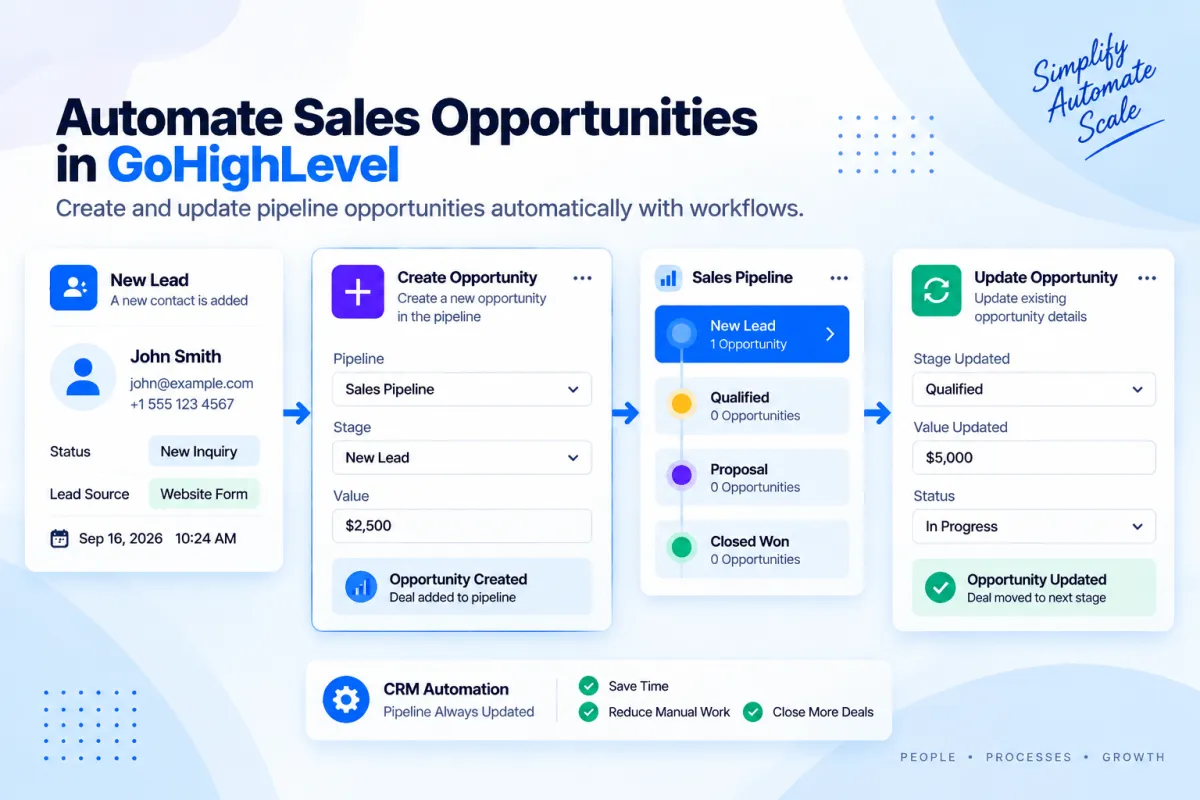
A CRM is only useful when your sales records stay accurate as leads move through the buying process. If new leads enter your system but opportunities are not created, your pipeline can quickly become difficult to manage. The same problem occurs when existing opportunities are not updated as a prospect progresses.
GoHighLevel provides workflow actions that can automate these processes. The "Create Opportunity" action can create a new opportunity in a selected pipeline and stage, while "Update Opportunity" can modify an existing opportunity based on workflow logic. GoHighLevel also has a combined "Create/Update Opportunity" action, although its current documentation says that this combined action is being phased out for new workflows in favor of the separate Create Opportunity and Update Opportunity actions.
In this guide, you'll learn how opportunity creation and updates work in GoHighLevel, how to configure these workflow actions, when to use each one, and how to avoid common pipeline automation mistakes.
What Is an Opportunity in GoHighLevel?
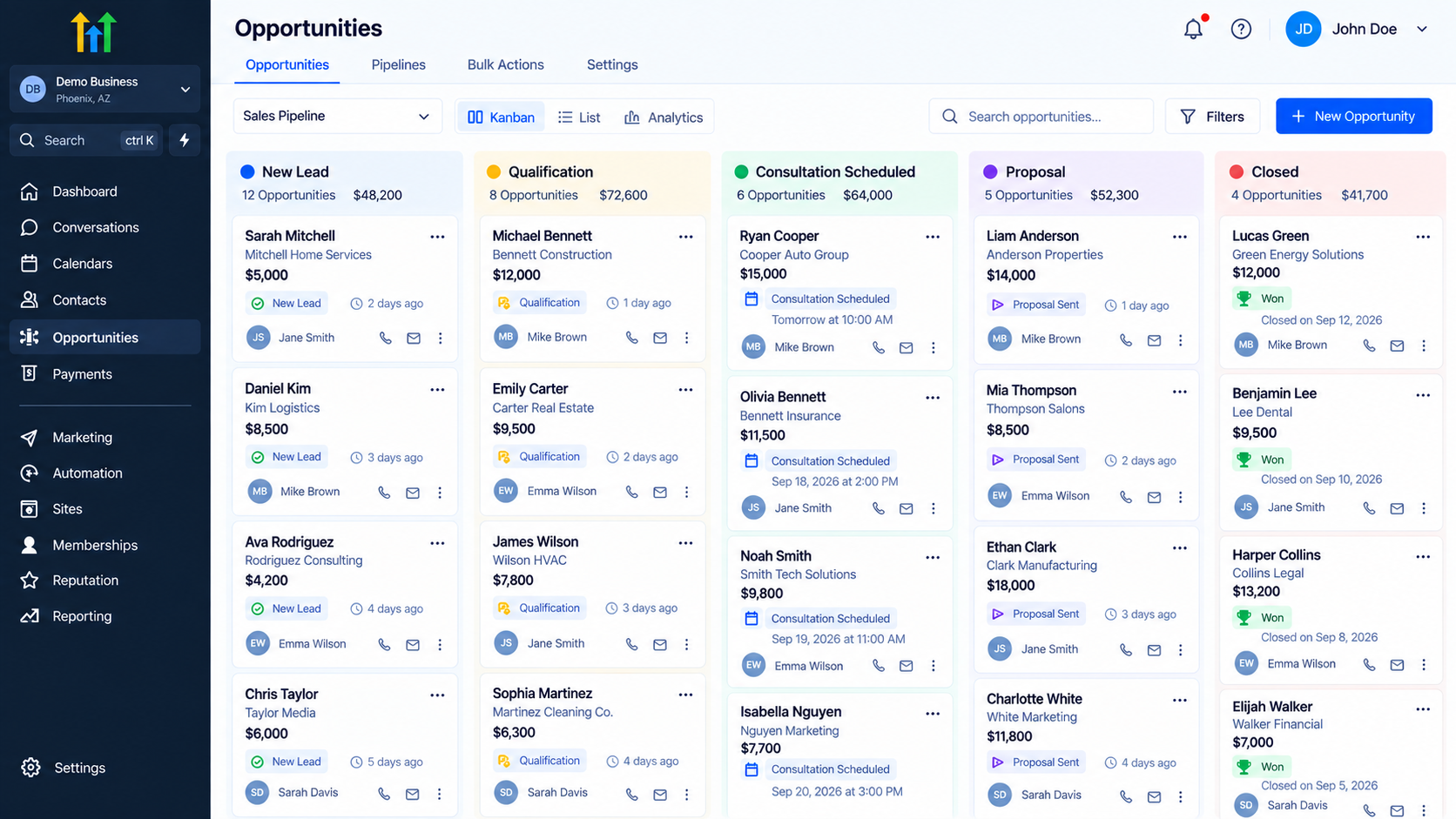
An opportunity represents a potential deal associated with a contact. Opportunities are organized inside pipelines, while pipeline stages represent the different steps in your sales process.
A simple structure looks like this:
Contact → Opportunity → Pipeline → Stage
For example, a new prospect might have an opportunity in the Sales Pipeline, initially placed in "New Lead". As the prospect progresses, the opportunity can move through stages such as Qualification, Proposal, and Closed.
Automating these movements helps keep the CRM aligned with your sales process.
Create Opportunity vs. Update Opportunity
Although these actions are closely related, they have different purposes.
Create Opportunity
The "Create Opportunity" action creates a new opportunity for a contact. You can configure the pipeline, stage, opportunity name, source, status, value, and other available opportunity fields. You can also control whether a new opportunity should be created when the contact already has another opportunity, depending on your duplicate settings.
Update Opportunity
The "Update Opportunity" action modifies an existing opportunity. Depending on the workflow and available fields, you can update information such as the pipeline, stage, name, value, status, and source.
A useful way to remember the difference is:
Create = make a new opportunity.
Update = change an existing opportunity.
What About the Create/Update Opportunity Action?
GoHighLevel's combined "Create/Update Opportunity" action can create a new opportunity or update an existing opportunity according to its configured logic. However, HighLevel's current documentation states that this combined action is being phased out for new workflows. The recommended approach is to use the separate "Create Opportunity" and "Update Opportunity" actions because they provide more granular control and support scenarios such as using a Find Opportunity step or working with the opportunity that triggered the workflow. Existing workflows using the combined action continue to work.
This distinction is important if you are creating a new automation today.
Why Automate Opportunity Management?
Manually creating and updating every sales opportunity can become difficult as your lead volume grows.
Workflow automation allows opportunity records to respond to events that already happen inside your CRM.
For example:
Form Submitted
↓
Create Opportunity
↓
New Lead Stage
Later:
Appointment Booked
↓
Update Opportunity
↓
Consultation Scheduled
This approach keeps the sales pipeline connected to customer activity without requiring a team member to make every change manually.
Keep the Pipeline Organized
When opportunities are automatically created at the right point, sales representatives can see new prospects in the appropriate pipeline stage.
Reduce Manual Data Entry
Instead of repeatedly creating records or changing stages by hand, workflows can perform these updates when specific conditions occur.
Keep Sales Data Current
Opportunity values, stages, statuses, and other fields can be updated as the customer progresses.
Connect Customer Activity to Sales Processes
Events such as form submissions, appointments, tags, payments, and other workflow triggers can be used to initiate opportunity-related automation.
How to Create an Opportunity Automatically
Step 1: Open Workflows
Go to:
Automation → Workflows
Create a new workflow or open an existing workflow that should create the opportunity.
The workflow needs a trigger that determines when a contact should enter the process.
For example: "Form Submitted"
This could be useful when every new inquiry from a particular form should become a sales opportunity.
Step 2: Configure the Trigger
Click "Add New Trigger" and select the event that should start the workflow.
For example:
Form Submitted → Project Inquiry Form
Using a specific trigger helps prevent unrelated contacts from entering the opportunity workflow.
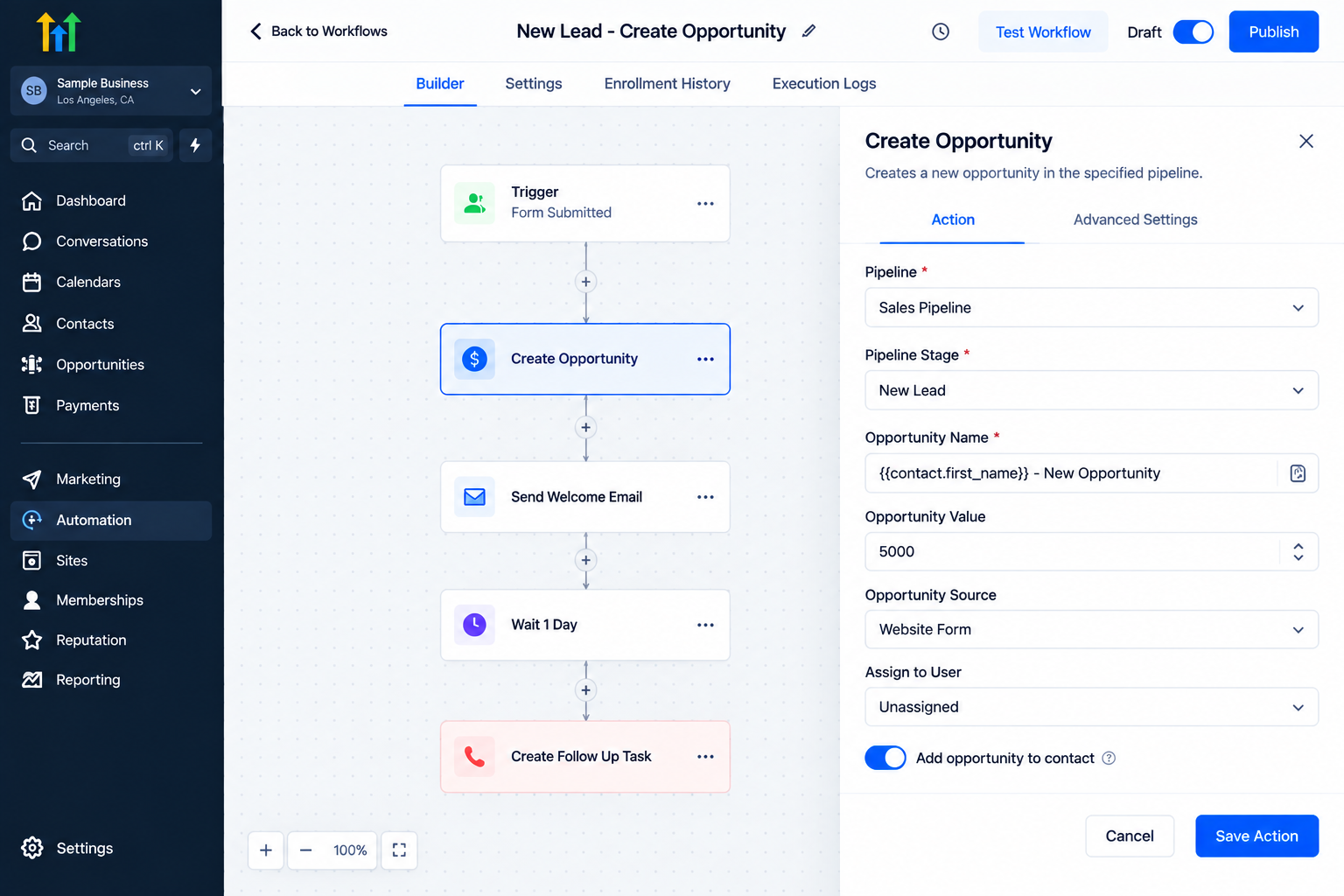
Step 3: Add Create Opportunity
Click the + button beneath the trigger and select:
Opportunity → Create Opportunity
GoHighLevel's current Create Opportunity action allows you to configure fields such as the pipeline, pipeline stage, opportunity name, source, status, value, duplicate settings, ownership behavior, and available custom opportunity fields.
Step 4: Select the Pipeline
Choose the pipeline where the opportunity should appear.
For example:
Pipeline: Sales Pipeline
Your pipeline should represent the sales process that applies to this particular lead.
Step 5: Choose the Pipeline Stage
Select the initial stage.
For example:
Pipeline Stage: New Lead
If no stage is selected, the current HighLevel documentation states that the first stage of the selected pipeline is used by default.
Step 6: Configure Opportunity Details
Add information such as:
Opportunity name
Opportunity source
Status
Opportunity value
Custom opportunity fields
You can also use dynamic values where supported. For example, an opportunity name could use the contact's first name.
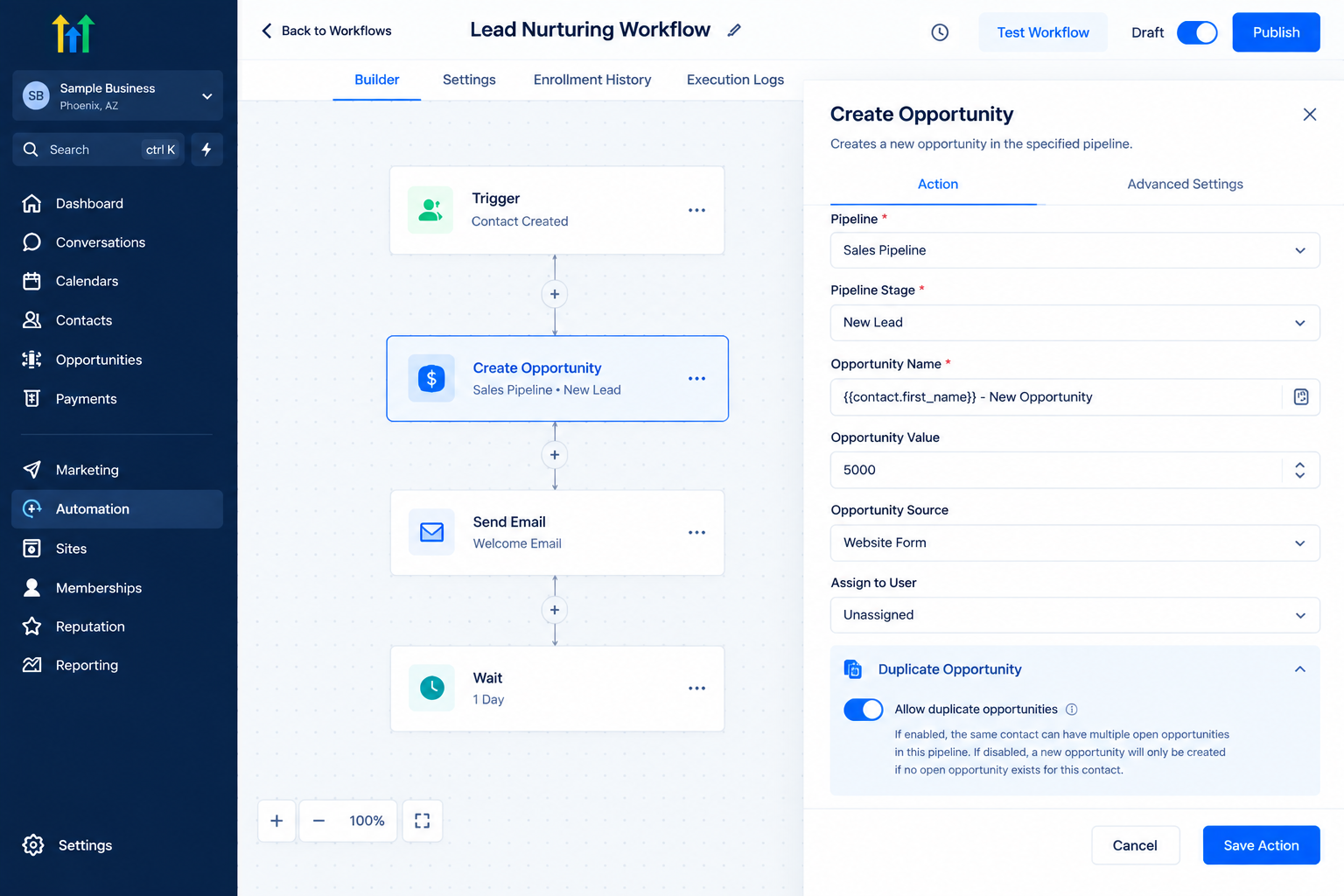
Step 7: Review Duplicate Settings
Pay close attention to the duplicate opportunity setting.
The current Create Opportunity documentation explains that duplicate logic is based on the "contact ID." If duplicate creation is disabled and that contact already has an opportunity, a new opportunity will not be created.
This is particularly important for workflows that can trigger multiple times for the same contact.
Step 8: Test and Publish
Test the workflow with a suitable contact before activating it for your full audience.
Confirm that the opportunity appears in:
The correct pipeline
The correct stage
The correct status
The correct contact record
Once everything is working as expected, publish the workflow.
How to Update an Existing Opportunity
Creating the opportunity is only the beginning. Your sales process also needs a way to reflect changes in customer behavior.
Step 1: Choose an Appropriate Trigger
Open or create a workflow and select the event that should cause the opportunity to change.
For example:
Appointment Booked
You might want a lead who books a consultation to move from "New Lead" to "Consultation Scheduled."
Step 2: Make Sure the Correct Opportunity Is Available
This is an important part of opportunity automation.
The current Update Opportunity documentation explains that an opportunity-based workflow trigger can provide the opportunity context needed for the update. If your trigger does not provide an opportunity, you can use "Find Opportunity" to locate an existing opportunity associated with the contact.
The Find Opportunity action can search for the earliest or latest matching opportunity using configured filters. If a match is found, subsequent opportunity actions can use that opportunity as the reference.
Step 3: Add Update Opportunity
Click + Action and select:
Opportunity → Update Opportunity
You can then choose the opportunity fields you want to modify.
For example:
Pipeline Stage → Consultation Scheduled
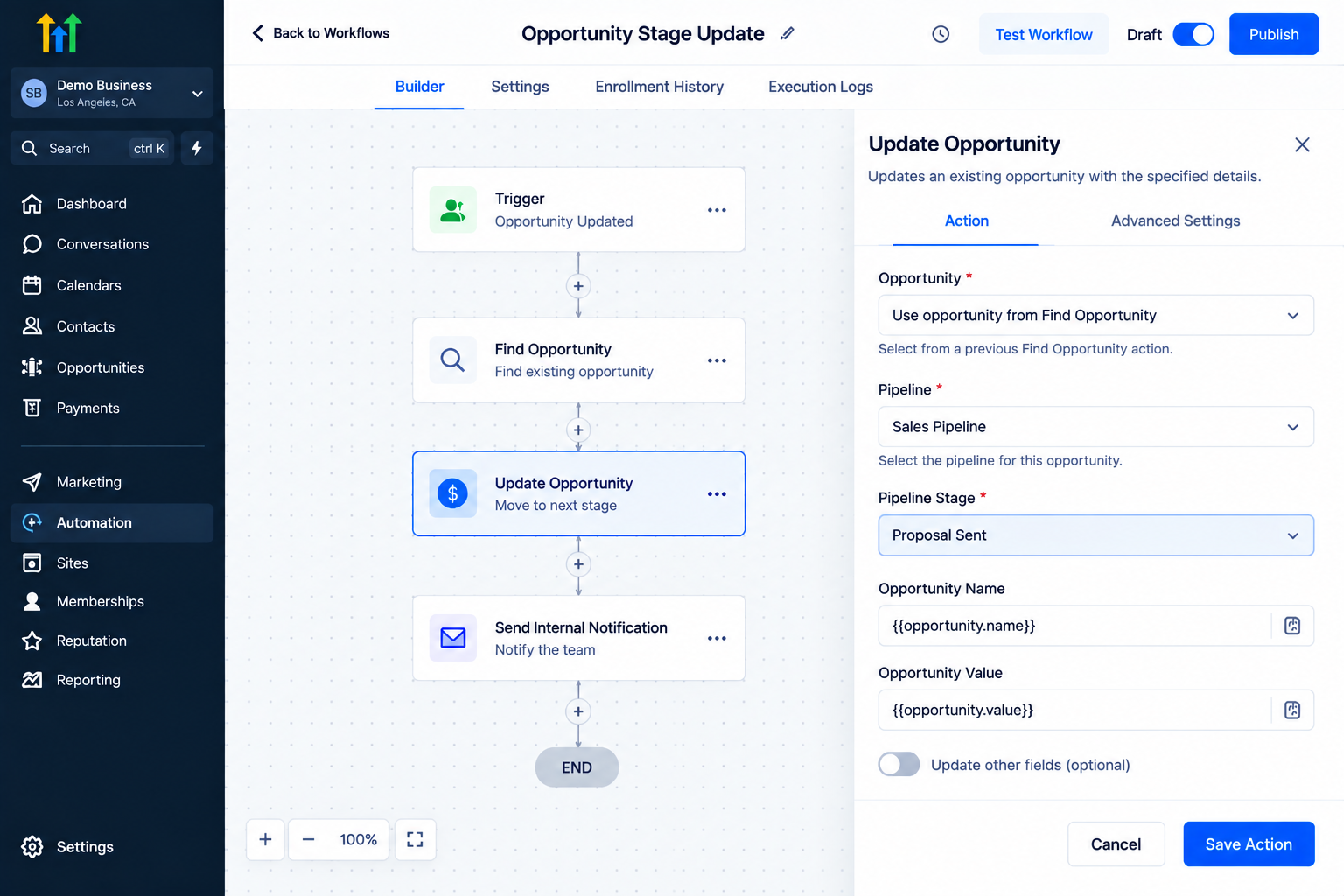
GoHighLevel workflow builder displaying the Opportunity Stage Update automation configuration and pipeline stage settings
Step 4: Update the Required Fields
Depending on your workflow, you can update fields such as:
Pipeline
Pipeline stage
Opportunity name
Opportunity value
Status
Opportunity source
Available custom opportunity fields
The Update Opportunity action supports dynamic values where applicable, allowing workflow information to be used when updating opportunity records.
Step 5: Review Backward Stage Movement
GoHighLevel provides an option called "Allow Opportunity to Move to Any Previous Stage."
If your process requires an opportunity to move backward in the pipeline, review this setting carefully. The documented default behavior is to allow opportunities to move forward or remain in the same stage, while the setting provides flexibility for backward movement.
Step 6: Save and Test
Save the action and test the workflow.
Check the opportunity afterward to make sure the intended field or stage changed and that the correct opportunity was updated.
Practical Use Cases for Opportunity Management
New Lead Management
A prospect submits a website form.
Form Submitted
↓
Create Opportunity
↓
Sales Pipeline → New Lead
The lead is immediately represented in the pipeline.
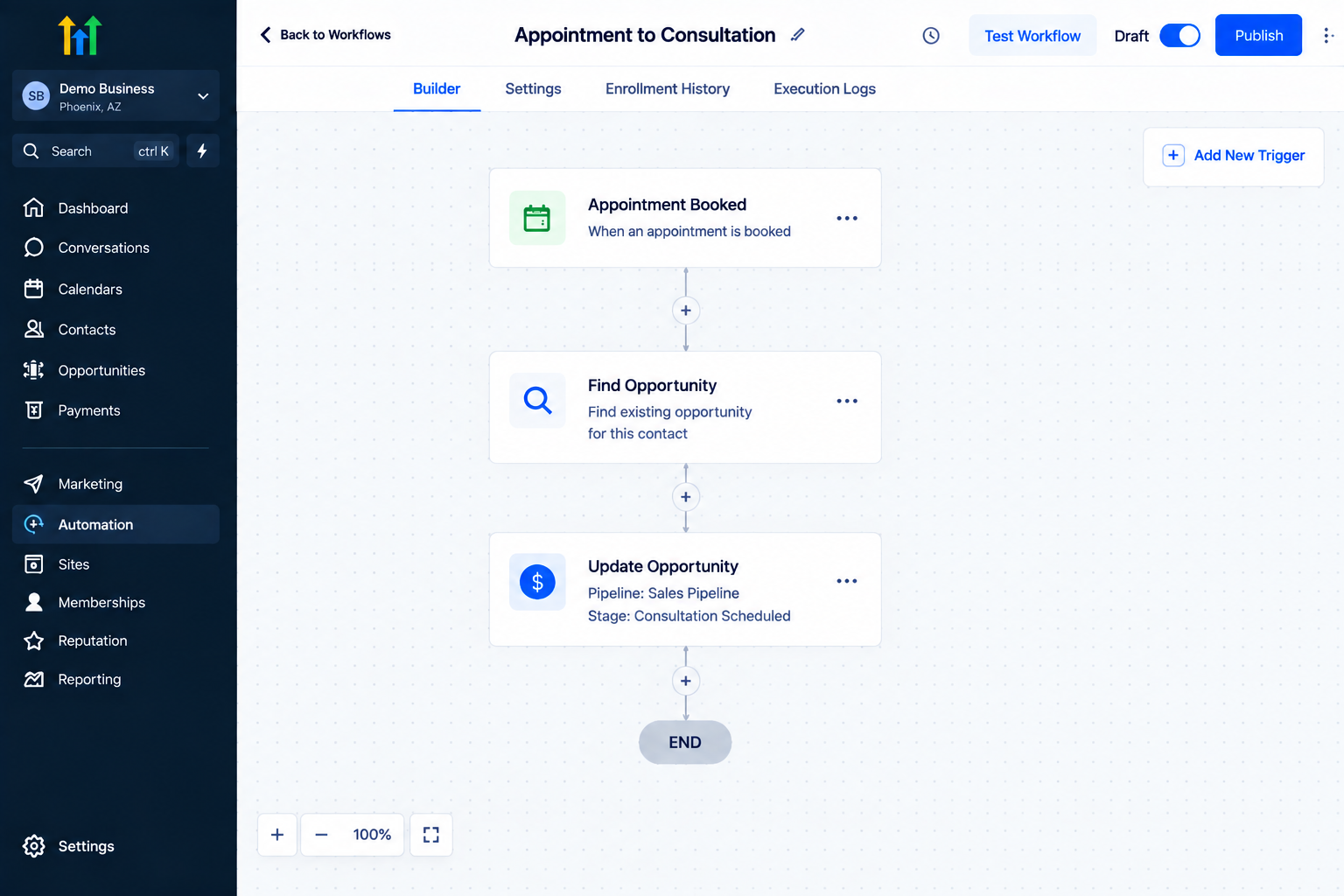
Appointment-Based Sales Process
A prospect books a consultation.
Appointment Booked
↓
Find Opportunity
↓
Update Opportunity
↓
Consultation Scheduled
This keeps the pipeline stage aligned with the appointment event.
Moving a Deal to a Different Pipeline
Some businesses use separate pipelines for different sales processes.
An existing opportunity can be updated to a different pipeline when the workflow logic requires it. The Update Opportunity action supports changing the pipeline and stage.
Updating Opportunity Value
If the expected deal value changes during the sales process, the Update Opportunity action can be used to update the opportunity value.
For example:
Initial Value: $500
↓
Updated Quote: $1,000
↓
Update Opportunity Value: $1,000
This helps keep opportunity information current.
Best Practices for Opportunity Automation
Design Your Pipeline First
Before creating workflows, define the stages your sales team actually uses. HighLevel recommends building pipeline stages around the real steps in your sales process.
Use Create and Update for Different Jobs
Don't use an opportunity creation action when your actual goal is to modify an existing opportunity.
Use:
Create Opportunity → New record
Update Opportunity → Existing record
Be Careful With Duplicates
Decide whether the same contact should be able to have multiple opportunities.
This matters for businesses where a contact can submit multiple inquiries, purchase repeatedly, or have separate projects.
Use Find Opportunity When Necessary
If your workflow starts from a contact-based event and you need to modify an existing opportunity, consider using "Find Opportunity" to identify the correct record before Update Opportunity.
Test Before Launching
Always test opportunity workflows with sample contacts.
A small test can reveal incorrect pipeline selection, duplicate records, missing opportunity context, or unexpected stage movement.
Common Mistakes to Avoid
Creating Duplicates Unintentionally
A workflow that runs multiple times can create unnecessary opportunities if duplicate settings are not configured appropriately.
Updating Without the Correct Opportunity
An Update Opportunity action needs the correct opportunity context. If the workflow does not already have it, use Find Opportunity where appropriate.
Using the Deprecated Combined Action for New Workflows
The combined Create/Update Opportunity action is still documented and existing workflows continue to work, but HighLevel recommends the separate Create Opportunity and Update Opportunity actions for new workflows.
Ignoring Pipeline Stage Logic
Your workflow should move opportunities based on actual sales events rather than arbitrary automation steps.
Skipping Testing
A workflow that looks correct in the builder can still behave differently when real contacts enter it. Test the complete process before turning it on.
Frequently Asked Questions(FAQ's)
1. What does Create Opportunity do in GoHighLevel?
It automatically creates a new opportunity in a selected pipeline and stage for a contact.
2. What does Update Opportunity do?
It modifies an existing opportunity, such as its stage, value, name, pipeline, or status.
3. Can I use Find Opportunity before Update Opportunity?
Yes. Find Opportunity can locate the appropriate existing opportunity so a later Update Opportunity action can modify it.
4. Is the Create/Update Opportunity action still available?
HighLevel documents the combined action, but says it is being phased out for new workflows. Separate Create Opportunity and Update Opportunity actions are recommended for new setups.
Conclusion
Automating opportunity management can make a GoHighLevel CRM much easier to maintain. Instead of relying on sales representatives to manually create every opportunity and update every pipeline stage, workflows can connect customer activity with the appropriate sales process.
The key is understanding the difference between the available actions.
"Create Opportunity" is used when you need to create a new sales record. "Update Opportunity" is used when an existing opportunity needs to change. When the correct opportunity is not already available in the workflow, "Find Opportunity" can help locate it before an update.
For new workflows, keep the current HighLevel guidance in mind: the combined "Create/Update Opportunity" action is being phased out in favor of the separate Create and Update actions.
With a well-designed pipeline, clear triggers, appropriate duplicate settings, and careful testing, you can build opportunity automation that keeps your CRM organized and your sales team working from more accurate pipeline information.
Need Expert Help with GoHighLevel?
New to GoHighLevel and ready to get started? Buy your GoHighLevel account here and launch with confidence.
Already know what you need and want our team to handle everything, from complete setup and customization to funnels, workflows, automations, CRM, and pipelines? Click here.



