

Use Copy Contact in GoHighLevel by using duplicate contact records: Step-by-Step Guide
How to Duplicate Contact Records Across Workflows Using the Copy Contact Action in GoHighLevel
Introduction
Managing contacts across multiple GoHighLevel sub-accounts can become complicated quickly. An agency may have one account handling lead generation, another managing a regional operation, or separate sub-accounts for different brands and clients. In these situations, moving contact information manually between accounts can create unnecessary work and increase the chance of inconsistent data.
GoHighLevel's Copy Contact workflow action provides a way to automate this process.
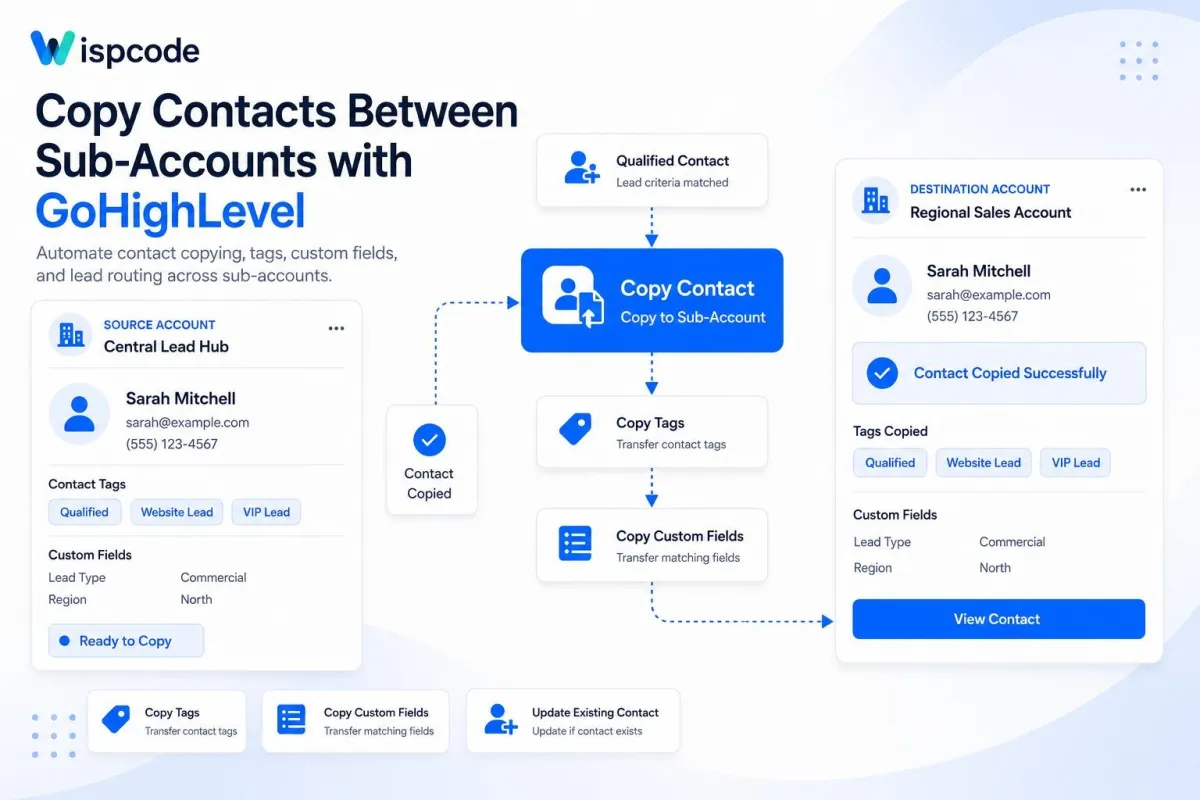
However, there is an important distinction to understand before setting it up: Copy Contact does not duplicate a contact from one workflow into another workflow. Instead, it copies a contact from one GoHighLevel sub-account to another. Depending on your configuration, you can also copy tags and compatible custom-field data and choose whether an existing contact in the destination account should be updated.
In this guide, you'll learn how the Copy Contact action works, how to configure it step by step, when to use it, what information is transferred, and which limitations you should understand before using it in a live automation.
What Is the Copy Contact Action in GoHighLevel?
The Copy Contact action is a workflow action designed to copy a contact from the current GoHighLevel sub-account into another selected sub-account.
It can be particularly useful for agencies and businesses that operate multiple accounts but need certain contact information to exist in more than one location.
For example, imagine an agency has a central account that receives new leads. When a lead meets a specific condition, a workflow can use the Copy Contact action to send that contact to the appropriate client or regional sub-account.
According to GoHighLevel's documentation, the action can be configured to:
Select a destination sub-account
Add specific tags in the destination account
Copy existing contact tags
Copy custom fields when the corresponding fields exist in the destination
Update the contact if it already exists in the destination account
Skip copying contacts that lack required basic information when that option is enabled
The action is therefore more than a simple manual export. It allows contact duplication to become part of an automated workflow.
Why Use Copy Contact in a Workflow?
Copying contacts between sub-accounts can be useful when different parts of a business need access to the same contact record.
Some common scenarios include:
Multi-location businesses
A business may operate separate GoHighLevel sub-accounts for different branches or locations. A central account can collect leads and automatically copy qualifying contacts into the appropriate destination account.
Agencies managing multiple sub-accounts
An agency may maintain a central lead-management process while individual client or operational accounts handle the next stage of the customer journey.
Copy Contact can help transfer the relevant contact record without requiring an employee to manually recreate it.
Lead routing
Suppose a lead completes a form and selects a particular service area. Your workflow can use conditions to determine which account should receive the contact and then copy the contact to the appropriate sub-account.
Keeping selected data available across accounts
If tags and compatible custom fields are enabled in the action, important contact information can accompany the copied record. This can reduce the amount of manual data entry required by the receiving team.
How to Set Up Copy Contact in GoHighLevel
Before building your workflow, make sure your agency has access to the required premium workflow functionality. GoHighLevel documents Copy Contact as a premium action, and its availability and execution costs depend on your agency's premium-action configuration.
Once the feature is available, you can configure it from the Workflow Builder.
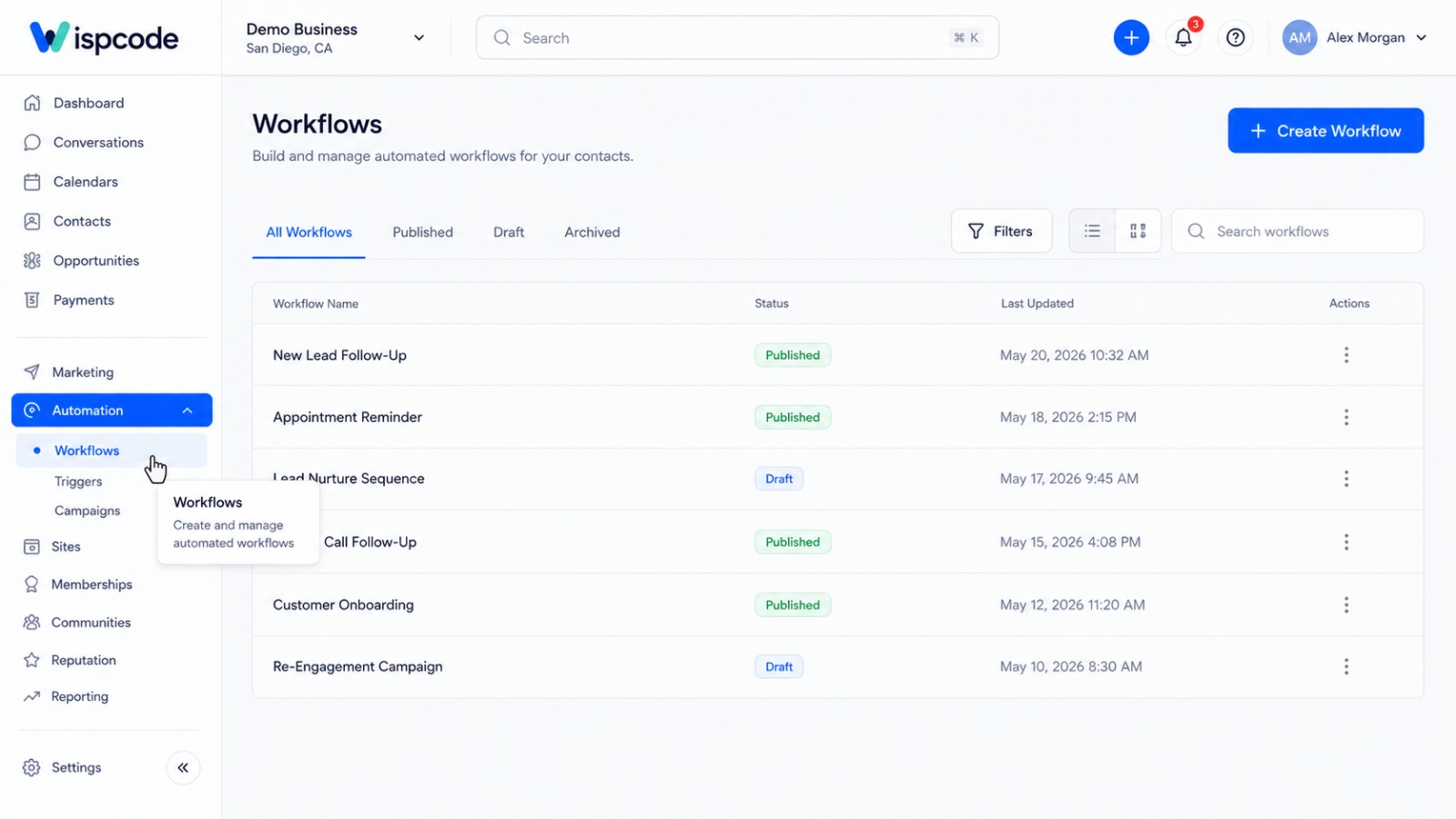
Step 1: Open the Workflow Builder
Log in to the appropriate GoHighLevel sub-account and open:
Automations → Workflows
Create a new workflow or open an existing workflow where you want the contact-copying process to happen.
GoHighLevel workflows operate by starting with a trigger and then executing actions sequentially. This means the Copy Contact action can be placed after an event or condition that determines when a contact should be transferred.
Step 2: Choose Your Workflow Trigger
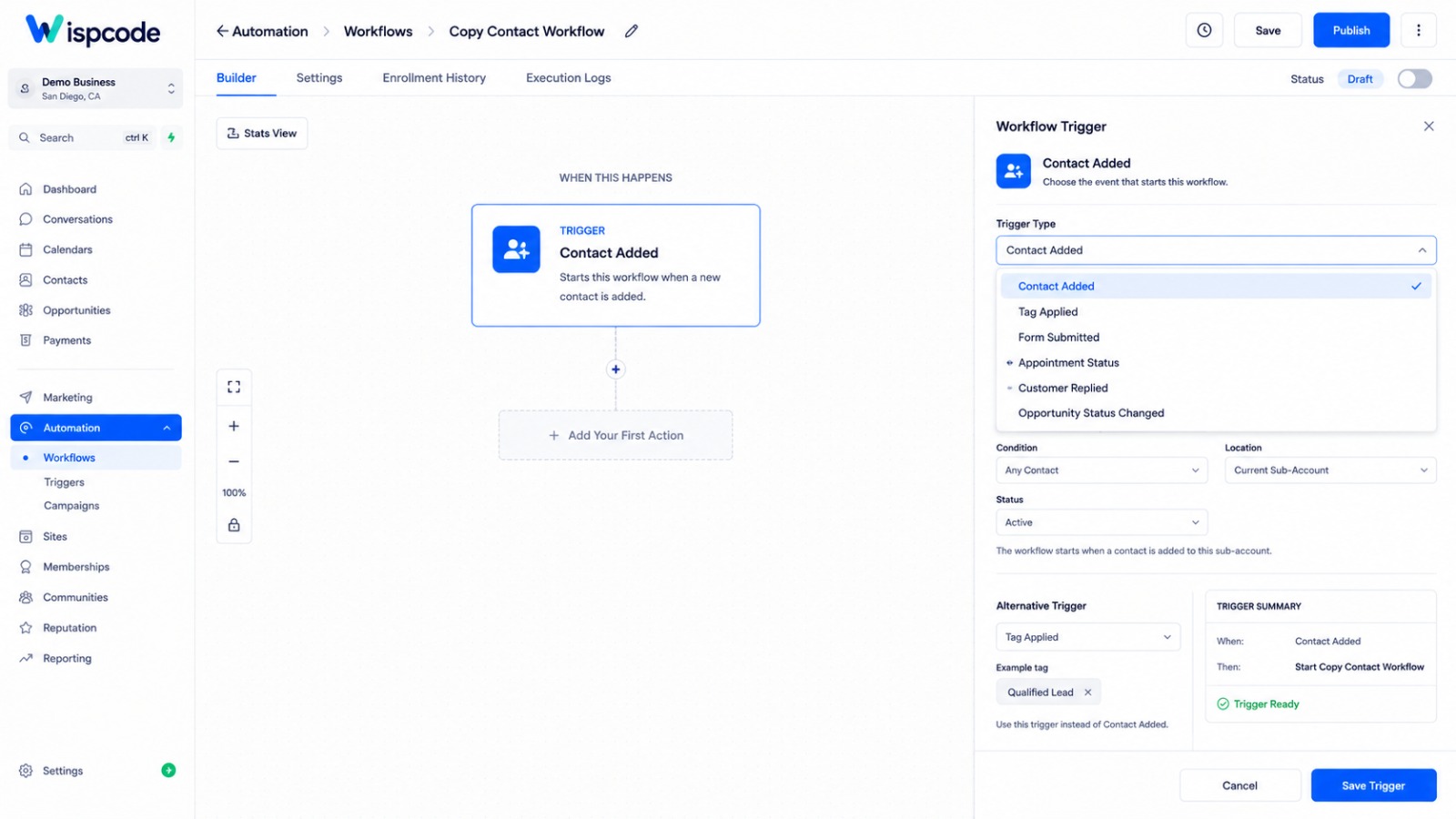
The trigger determines when the workflow should begin.
For example, you could build a workflow around a Contact Added event, or use another appropriate trigger such as a tag being applied or a contact being updated.
The best trigger depends on your business process.
For example:
New Contact → Check Lead Type → Copy Contact
Or:
VIP Tag Added → Copy Contact → Destination Account
GoHighLevel specifically lists Contact Added, Tag Applied, and Contact Updated as examples of triggers that can be combined with Copy Contact.
Step 3: Add the Copy Contact Action
After configuring the trigger, click Add Action inside the workflow.
Search for the contact action called Copy Contact or Copy Contact to Sub-Account, depending on how it is displayed in your GoHighLevel interface.
This is the action that performs the actual contact transfer.
Step 4: Select the Destination Account
The first important setting is the destination account.
Select the GoHighLevel sub-account where you want the contact to be copied.
For example:
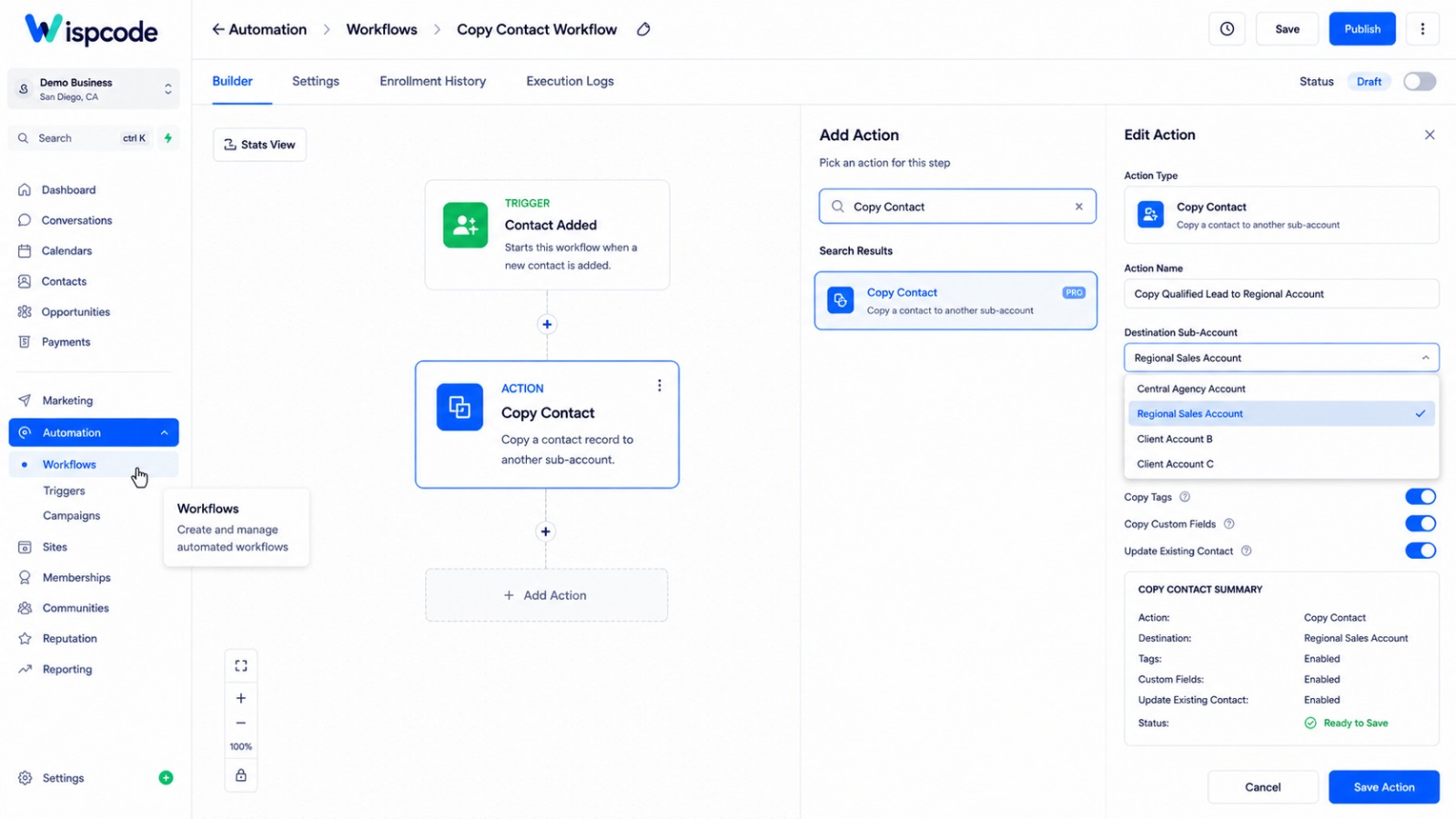
Source Account → Regional Sales Account
The destination account is required because GoHighLevel needs to know where the new contact record should be created.
Step 5: Configure Tags
GoHighLevel provides options for handling tags during the copy process.
You can add specific tags to the copied contact in the destination account. You can also enable the option to Copy Tags, which allows the contact's existing tags to be copied.
For example, a source contact might have:
VIP LeadWebsite LeadQualified
If Copy Tags is enabled, those existing tags can be copied according to the action's configuration.
You can also add destination-specific tags when appropriate. This can help the receiving account immediately identify why the contact was transferred.
Step 6: Enable Copy Custom Fields When Needed
If your source contact contains important information stored in custom fields, you can enable Copy Custom Fields.
There is an important requirement here: the corresponding custom field needs to exist in the destination sub-account, and GoHighLevel's documentation notes that the custom-field type must match.
For example, if the source account contains:
Lead Type: Commercial
the corresponding custom field must be available in the destination account for its value to be copied.
This is why it is worth standardizing custom fields across accounts before relying heavily on this automation.
Step 7: Decide What Happens if the Contact Already Exists
Another important setting is Update Contact if it Already Exists.
When enabled, GoHighLevel can update the existing contact in the destination account instead of simply creating another record.
If the contact does not already exist, a new contact can be created.
This option is particularly useful when your workflow may run more than once for the same contact and you want the destination account to stay updated rather than intentionally creating additional records.
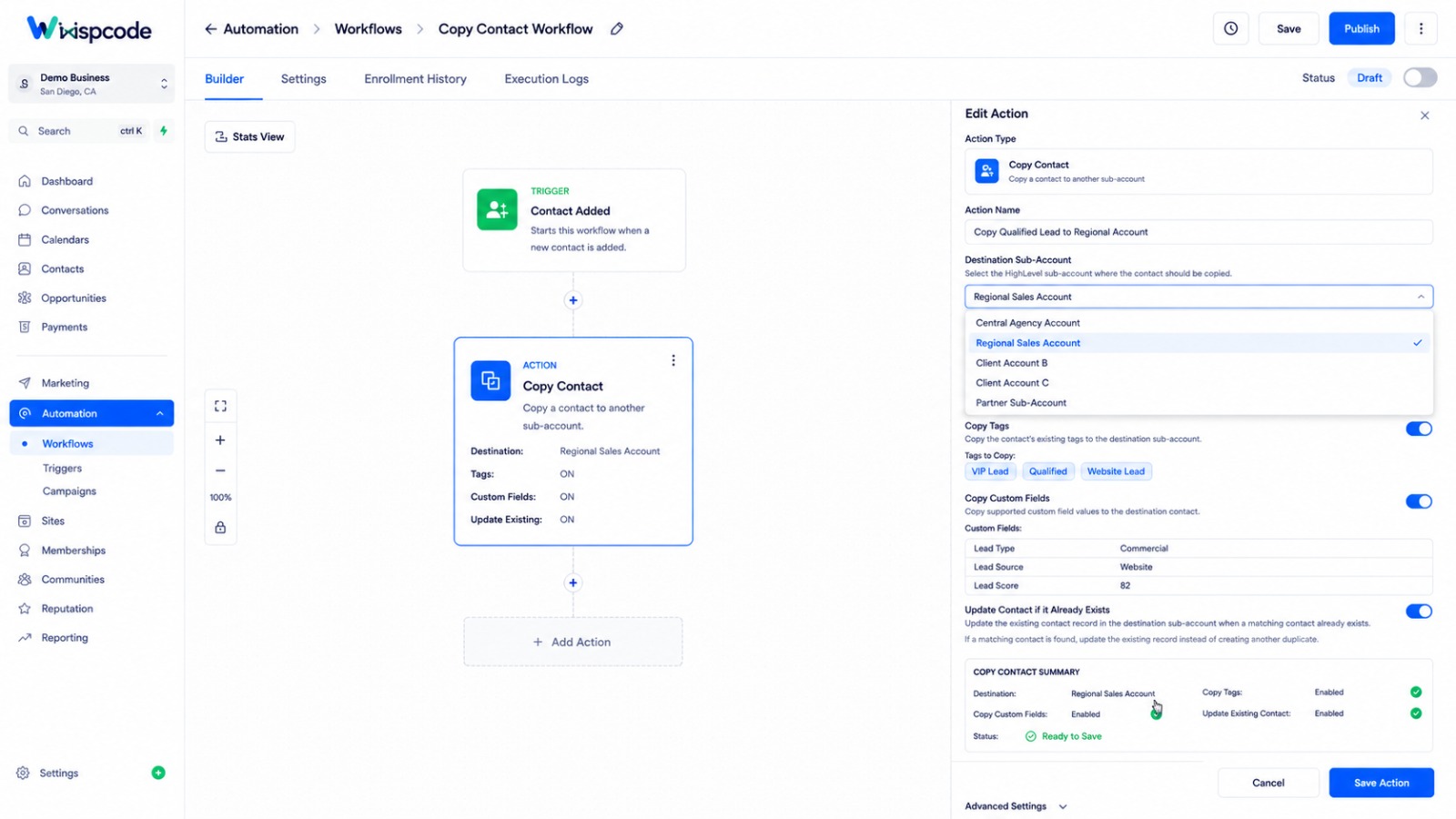
Step 8: Review and Publish the Workflow
Once your settings are configured, review the workflow carefully.
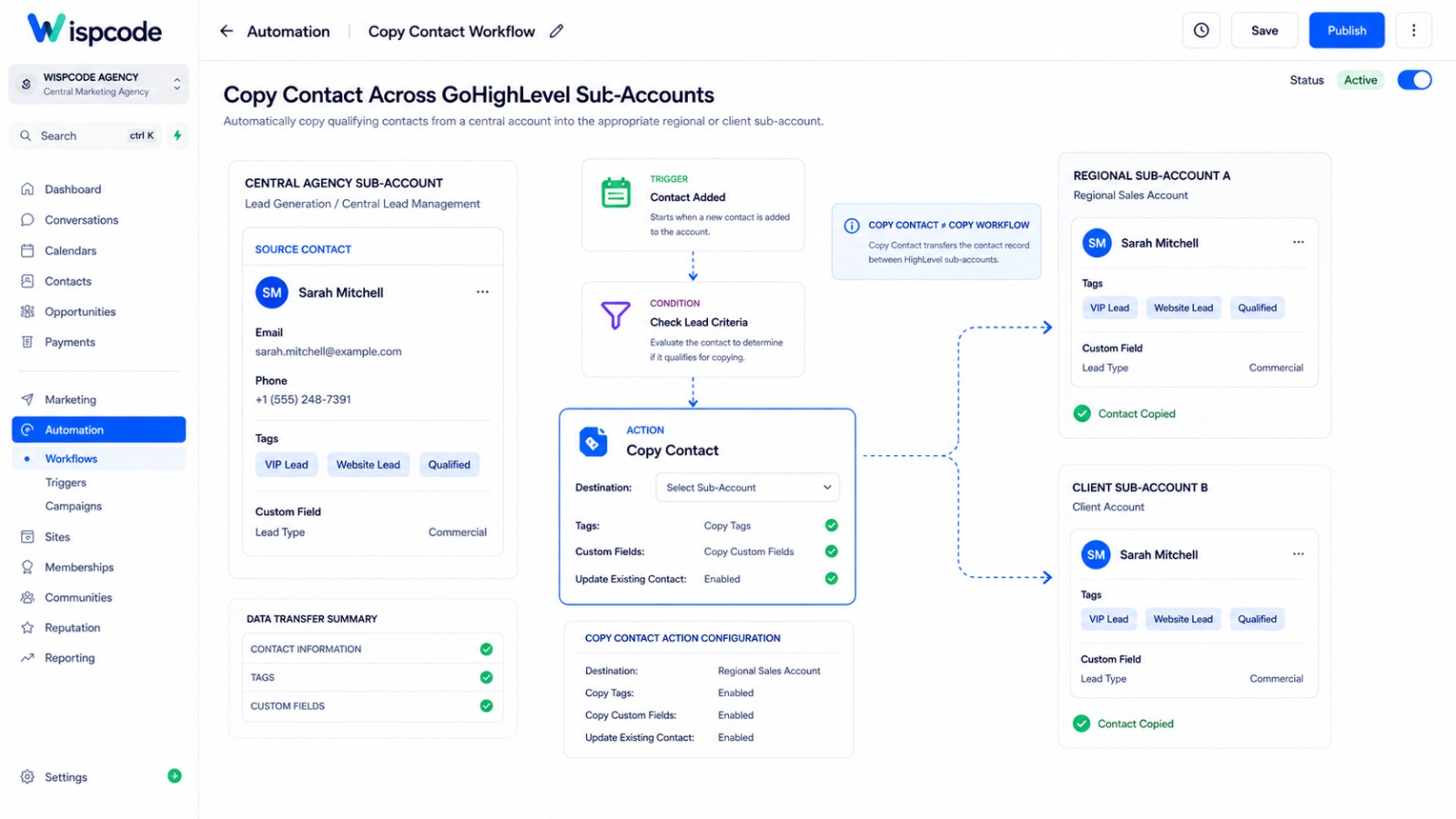
A simple structure might look like this:
Contact Added
↓
Check Lead Criteria
↓
Copy Contact
↓
Destination: Regional Account
↓
Copy Tags: Enabled
↓
Copy Custom Fields: Enabled
↓
Update Existing Contact: Enabled
Save and publish the workflow after testing your configuration.
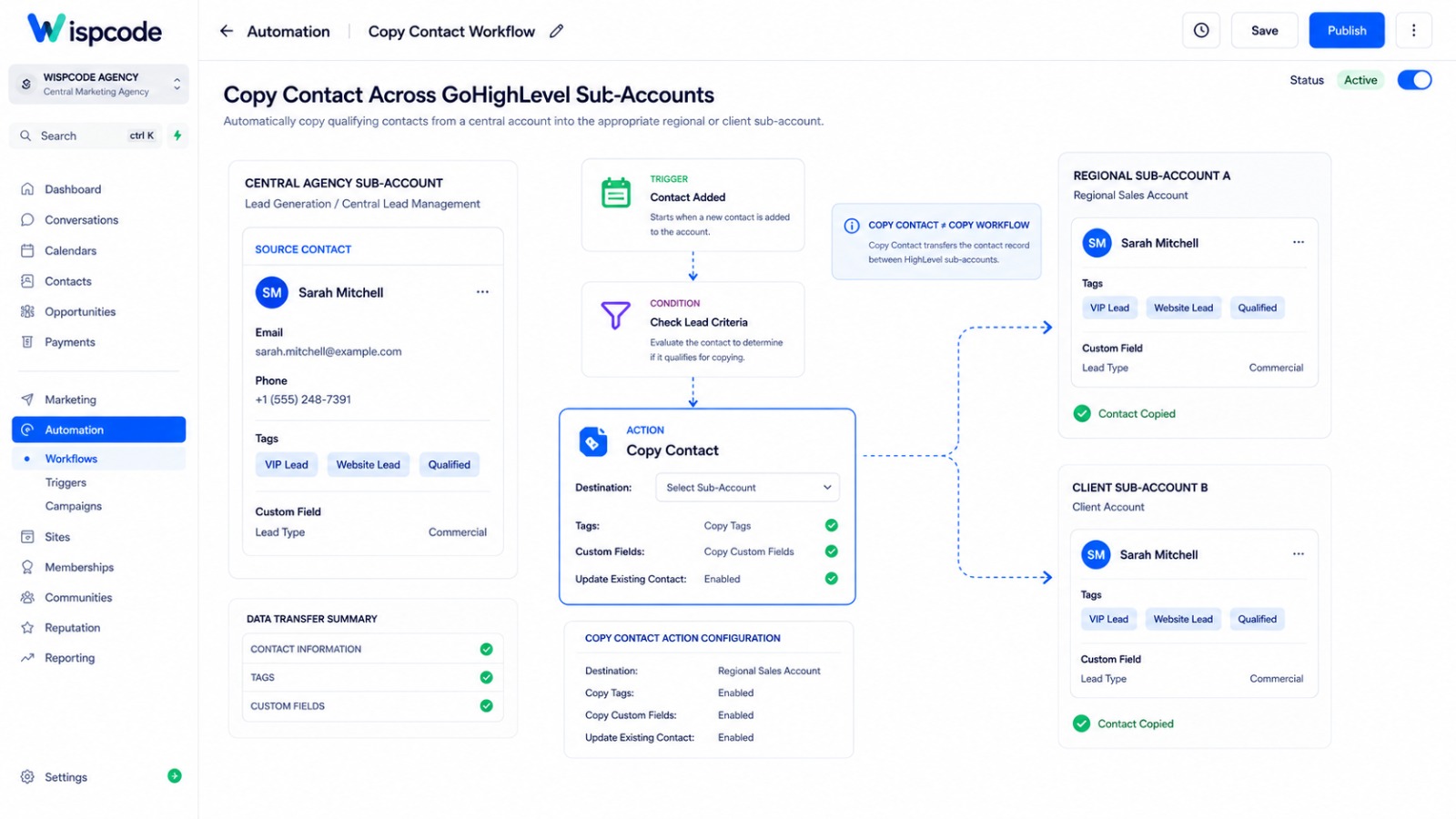
Example: Automatically Copy a Qualified Lead
Consider an agency that uses one central GoHighLevel account to collect leads for several regional offices.
A visitor submits a lead form and provides their location. The agency wants qualified leads to be copied into a regional sub-account.
The automation could follow this structure:
Trigger: Contact Added
↓
Condition: Lead meets the required qualification criteria
↓
Action: Copy Contact
↓
Destination: Regional Office Account
↓
Copy Tags: Enabled
↓
Copy Custom Fields: Enabled
↓
Update Existing Contact: Enabled
This setup allows the central account to remain the source of the lead while the regional account receives the contact information needed for its own operations.
The exact workflow conditions will depend on how your business qualifies and routes leads.
What Information Does Copy Contact Transfer?
Understanding what is and isn't copied is essential.
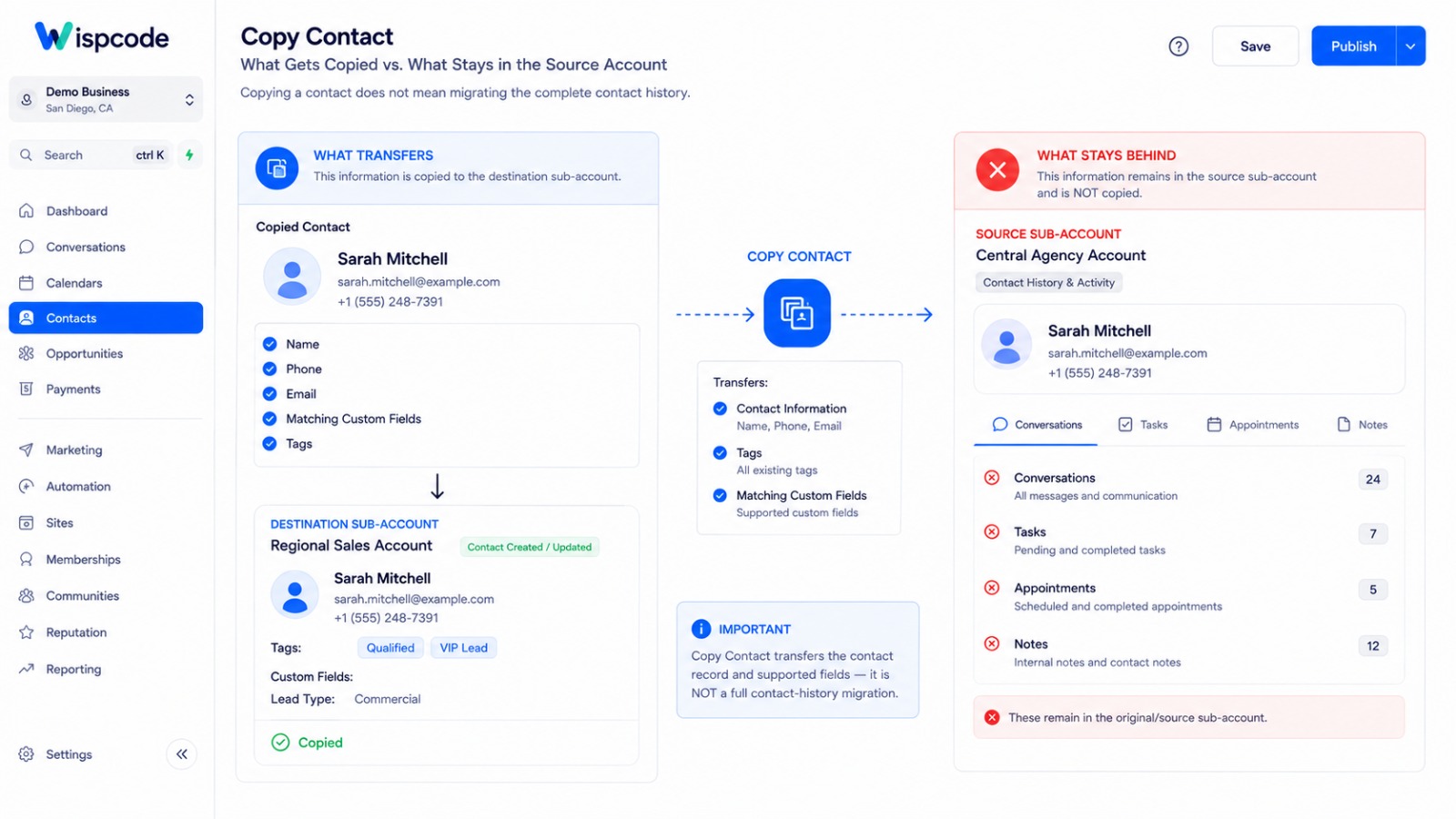
GoHighLevel's documentation states that the Copy Contact action can transfer:
Contact information
General contact information
Tags, when the Copy Tags option is enabled
Custom fields, when Copy Custom Fields is enabled and matching fields exist in the destination account
However, it does not copy everything associated with the contact record.
What Is Not Copied?
According to GoHighLevel, the following are not transferred as part of the Copy Contact action:
Conversations
Activity
Notes
Tasks
Appointments
Payments
Independently transferred documents and files
Files have additional limitations. GoHighLevel notes that file or document transfer between sub-accounts is not supported as a standalone migration through Copy Contact. In some situations, references may still depend on the original contact in the source account.
This means you should not treat Copy Contact as a complete migration or cloning tool for every piece of a contact's history.
Best Practices for Using Copy Contact
Standardize custom fields
If several sub-accounts need the same contact data, create matching custom fields with compatible types before activating the automation.
Use meaningful destination tags
Adding a tag such as Copied From Central Account or a location-specific tag can make transferred contacts easier to identify and segment.
Be careful with duplicate handling
Decide whether the destination should receive a new record or update an existing record. Enabling the update option can be helpful when synchronization is intended.
Test with sample contacts
Before activating the workflow for real leads, use test contacts and verify the destination account.
Check:
Contact information
Tags
Custom fields
Existing-contact behavior
Workflow execution results
Don't assume contact copying means history migration
If your business needs conversations, appointments, notes, payments, or other historical information in the destination account, Copy Contact alone will not provide that complete history.
Understanding this limitation before building the workflow can prevent major operational problems.
Common Mistakes to Avoid
Confusing Copy Contact with workflow duplication
Copy Contact moves contact data between sub-accounts. It does not copy an entire workflow or move a contact from one workflow into another.
Forgetting destination custom fields
If a custom field doesn't exist in the destination account, its value cannot simply be assumed to appear there.
Ignoring premium-action requirements
Copy Contact is a premium workflow action, so agencies should verify their GoHighLevel premium-action configuration before deploying it at scale.
Expecting conversations and appointments to transfer
The copied contact is not a complete historical replica. Conversations, activities, notes, tasks, appointments, and payments are among the information GoHighLevel says is not copied.
Frequently Asked Questions(FAQ's)
1. Does Copy Contact duplicate a contact inside another workflow?
No. Copy Contact is designed to copy a contact from one GoHighLevel sub-account to another. It does not duplicate a contact record between two workflows within the same account.
2. Can I copy contact tags?
Yes. You can enable the Copy Tags option so tags associated with the source contact can be copied to the destination contact. You can also configure tags to be added in the destination account.
3. Can custom fields be copied?
Yes, provided Copy Custom Fields is enabled and the corresponding custom fields exist in the destination account with compatible field types.
4. What happens if the contact already exists?
If Update Contact if it Already Exists is enabled, GoHighLevel can update the existing contact in the destination account. If no matching contact exists, the contact can be created there.
5. Does Copy Contact transfer conversations and appointments?
No. GoHighLevel specifically states that conversations, activity, notes, tasks, appointments, payments, and independently transferred files are not copied by this action.
Conclusion
The Copy Contact action can be a valuable automation tool when your GoHighLevel setup includes multiple sub-accounts that need access to the same contact information.
Instead of manually recreating contact records, you can trigger the process from a workflow and control which account receives the contact. You can also choose whether tags and compatible custom-field information should be copied and whether an existing destination contact should be updated.
The key is to understand what the action actually does. Copy Contact is designed for copying contacts between GoHighLevel sub-accounts—not for duplicating contacts between workflows. It also does not transfer the complete history associated with a contact.
Once you understand those boundaries, you can use the action more confidently for multi-account lead routing, regional operations, agency workflows, and other contact-management processes.
For a reliable implementation, standardize your contact fields, define your destination logic clearly, test with sample records, and verify the resulting contact data before putting the automation into production
Need Expert Help with GoHighLevel?
New to GoHighLevel and ready to get started? Buy your GoHighLevel account here and launch with confidence.
Already know what you need and want our team to handle everything, from complete setup and customization to funnels, workflows, automations, CRM, and pipelines? Click here.



