

How to Merge Contacts Safely in GoHighLevel
How to Manage Contact Merging Without Losing Important Information in GoHighLevel
A sales representative creates a new contact after receiving an inquiry, unaware that the same customer already exists in the CRM. Both records contain different information, including conversation history, appointments, and customer notes.
Merging these records seems straightforward, but selecting the wrong information could affect important customer details.
GoHighLevel helps businesses manage duplicate contacts through its Contact Merge and Manage Duplicates features.
With careful review, businesses can consolidate customer records, protect valuable information, and maintain a more organized CRM.
How Contact Merging Works in GoHighLevel
Contact merging combines duplicate customer records into one primary profile, known as the Master Contact.
GoHighLevel allows businesses to merge contacts manually or identify potential duplicates using matching information such as email addresses, phone numbers, and names.
Supported information, including conversations, notes, tags, tasks, and opportunities, can be combined into the surviving contact.
However, some information requires special attention. Existing custom field values on the master contact are not automatically overwritten by values from duplicate records.
Important: Contact merging is permanent and cannot be undone. Always verify your records before confirming a merge.
What You Need Before Merging Contacts
Before starting, ensure you have:
Access to the relevant GoHighLevel sub-account.
Appropriate permissions to manage contacts.
Verified duplicate contact records.
Accurate customer names, emails, and phone numbers.
Access to related opportunities, notes, and appointments.
A backup or export of critical information.
Awareness of any active workflows involving the contacts.
These precautions reduce the risk of losing important information during consolidation.
How to Merge Contacts Safely in GoHighLevel
Follow these six steps to manage duplicate contacts while protecting your CRM data.
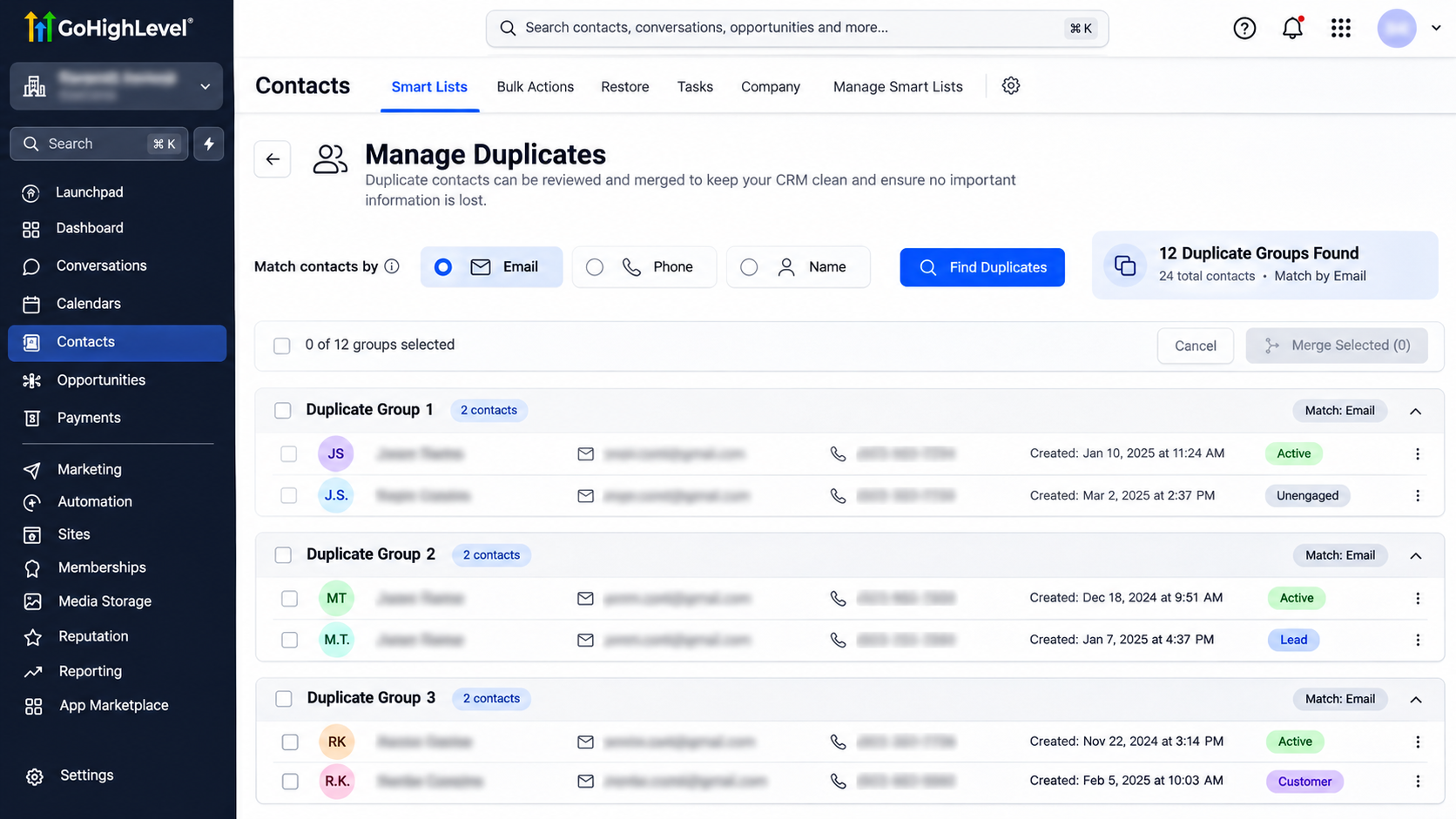
Step 1: Identify Potential Duplicate Contacts
Navigate to Contacts → Smart Lists.
Use the search bar to find contacts with matching names, email addresses, or phone numbers.
For a broader review, open the three-dot menu in Contacts and select Manage Duplicates.
Choose a matching criterion:
Email
Phone
Name
Click Find Duplicates to display potential matches.
Review each suggested group carefully. Matching names alone do not guarantee that two records belong to the same person.
Step 2: Review Customer Information Before Merging
Open the duplicate contact records and compare their information.
Check primary contact details, communication history, assigned users, custom fields, appointments, and opportunities.
For example, one record might contain the customer's current phone number, while another holds important notes from previous conversations.
Record any information that requires special handling.
Pay particular attention to existing custom fields because values on the master record take priority when those fields are already populated.
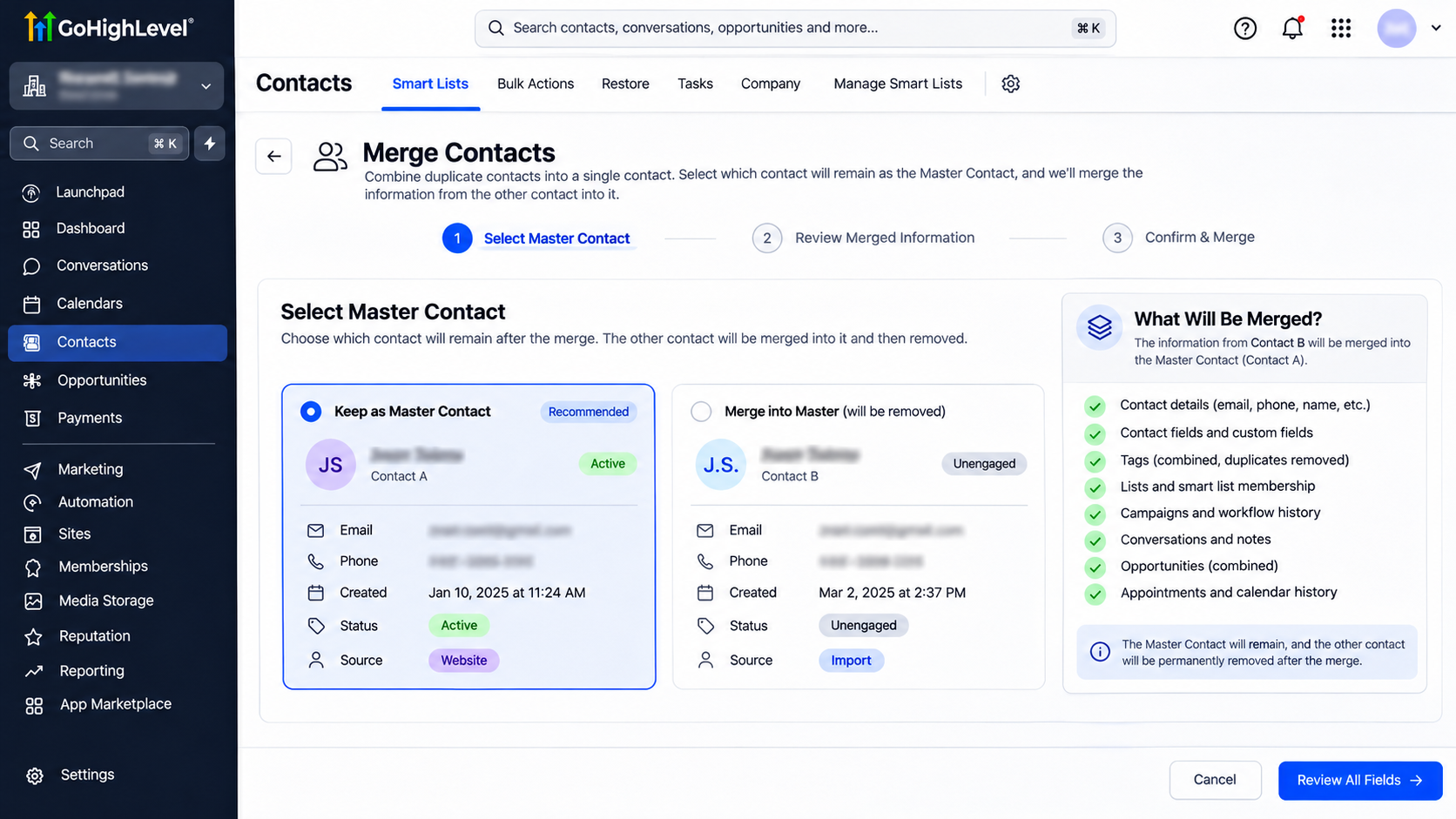
Step 3: Select the Correct Master Contact
From Contacts → Smart Lists, select the duplicate records.
Click More → Merge.
In the Merge Contacts window, select the record that should remain as the Master Contact.
Choose the profile containing the most reliable customer information.
For example, if one record contains accurate contact information and the other contains older details, select the more reliable profile.
Review the available field selections before proceeding.
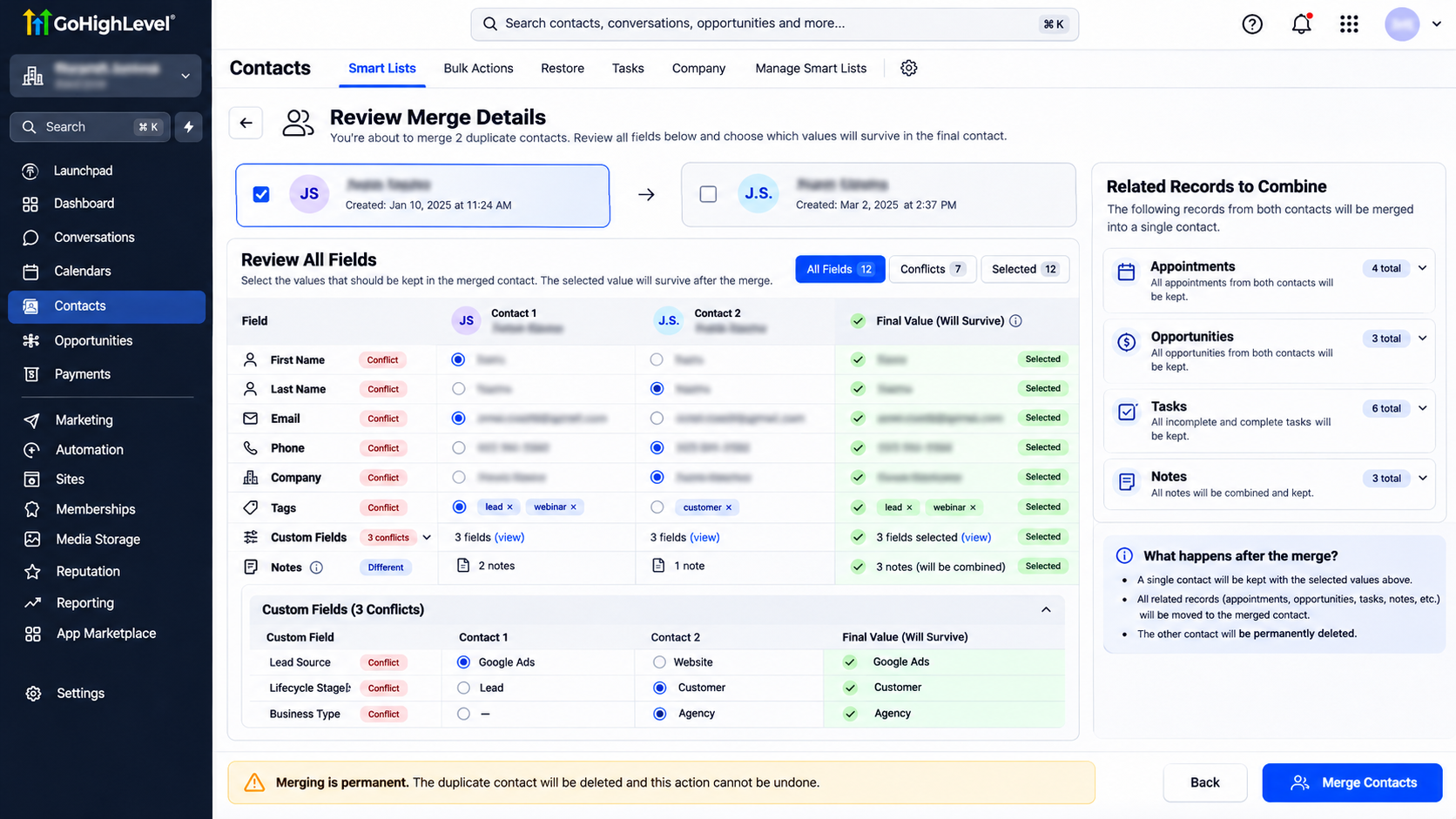
Step 4: Review Conflicting Fields and Related Records
Open Review All Fields and examine any conflicting values.
Confirm which email address, phone number, business name, and other supported details should remain.
Check custom fields separately. Information from a duplicate custom field is transferred only when the corresponding master field is empty.
Review related appointments, payments, orders, and invoices because these can default to the master contact's information.
Preserve any important differences separately before merging if they cannot be retained through the available field selections.
Step 5: Confirm and Complete the Contact Merge
After verifying the master record and selected information, click Merge Contacts.
If using Manage Duplicates, review the confirmation message and acknowledge that the operation cannot be reversed.
The duplicate records are consolidated into the surviving master contact.
GoHighLevel's duplicate management tool supports merging up to ten selected records at once.
For larger cleanups, process records in carefully reviewed groups rather than merging everything without inspection.
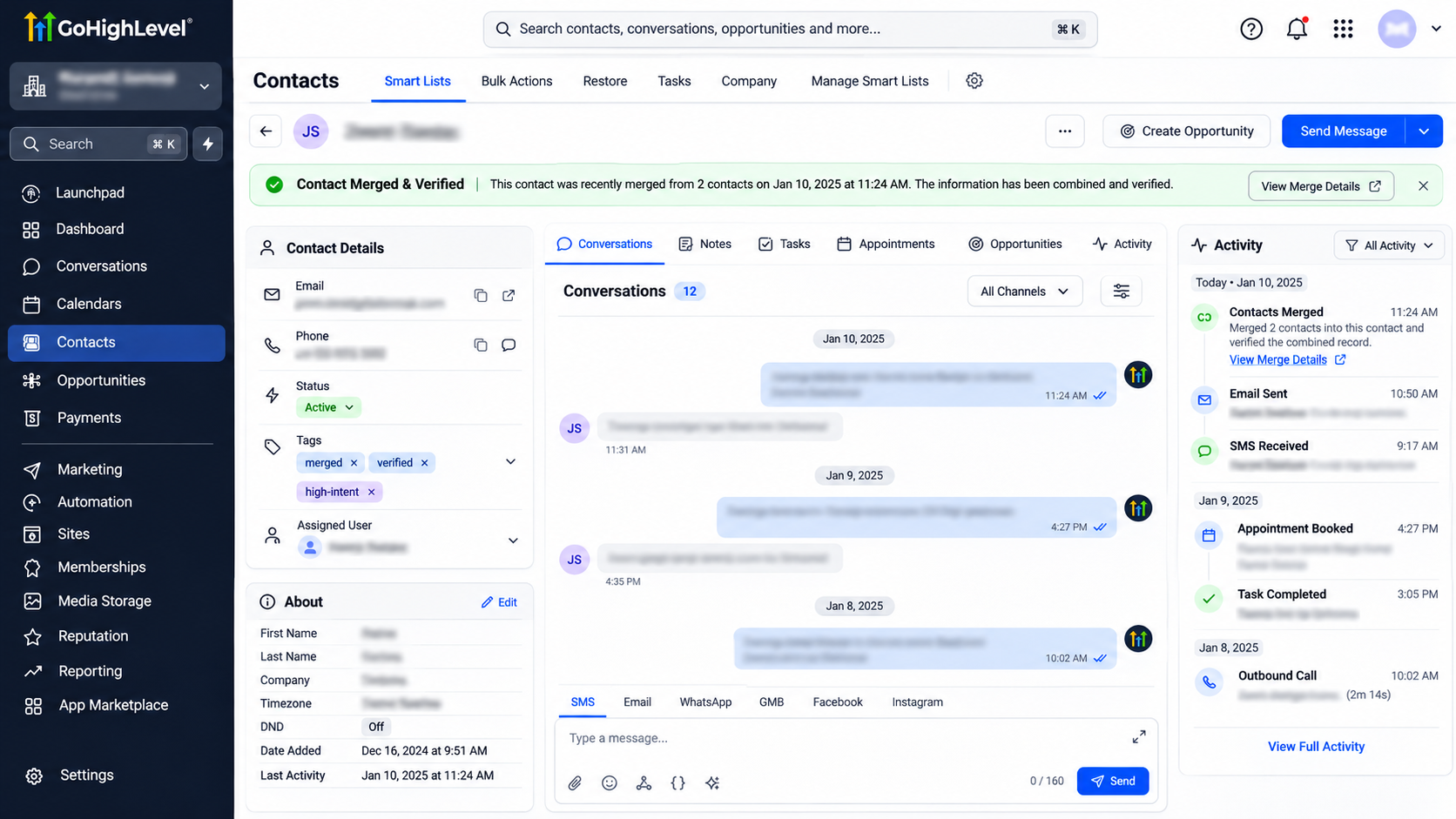
Step 6: Verify the Merged Contact Record
Open the surviving contact profile.
Confirm that essential details remain accurate, including:
Primary email address and phone number.
Relevant notes and conversation history.
Tags and custom field values.
Opportunities and assigned tasks.
Appointments and financial records.
Also review active workflow behavior.
GoHighLevel may transfer workflow execution to the master contact, but existing enrollment, wait conditions, and re-entry settings can affect continuation.
Test Contact Merging Before Bulk Cleanup
Create two test contacts with matching information but different field values.
Merge them and verify which details remain on the master record.
Check custom fields, notes, opportunities, and workflow execution where applicable.
Use these findings to establish a repeatable merging procedure for your team.
Common Contact Merging Problems and Fixes
Missing custom field values: Check whether the master contact already contained a value.
Incorrect master selected: Verify record accuracy before confirming because merging cannot be reversed.
Duplicate contacts not detected: Try another supported matching criterion.
Workflow stops unexpectedly: Review execution logs, workflow enrollment, and re-entry settings.
Merge option unavailable: Check record selection and user permissions.
Best Practices for Safe Contact Management
Review duplicates regularly and maintain consistent data entry standards.
Limit merging access to authorized employees and preserve critical information before major cleanups.
Configure Settings → Business Profile → Contact Preferences to review contact deduplication settings and reduce future duplicate creation.
Conclusion
Managing duplicate contacts improves CRM accuracy, customer communication, and overall data organization.
GoHighLevel provides tools to identify, review, and merge contact records, but protecting important information requires careful master selection and post-merge verification.
Need help organizing your GoHighLevel CRM? WispCode provides CRM configuration, contact management, data cleanup, and automation solutions tailored to your business needs.
Frequently Asked Questions (FAQs)
1. Can I undo a contact merge in GoHighLevel?
No. Contact merging is permanent and cannot be reversed.
2. Does GoHighLevel preserve contact notes and conversations?
Supported notes and conversation information can be combined into the surviving master contact.
3. What happens to custom fields during merging?
Existing master contact values remain unchanged. Duplicate values fill corresponding custom fields only when the master fields are empty.
4. Can GoHighLevel merge duplicate contacts automatically?
Yes. The Merge Contact workflow action supports automated merging using configured matching criteria.
5. How can I prevent duplicate contacts in the future?
Review Contact Deduplication Preferences, standardize customer information, and monitor incoming contact records regularly.
Need Expert Help with GoHighLevel?
New to GoHighLevel and ready to get started? Buy your GoHighLevel account here and launch with confidence.
Already know what you need and want our team to handle everything, from complete setup and customization to funnels, workflows, automations, CRM, and pipelines? Click here.