

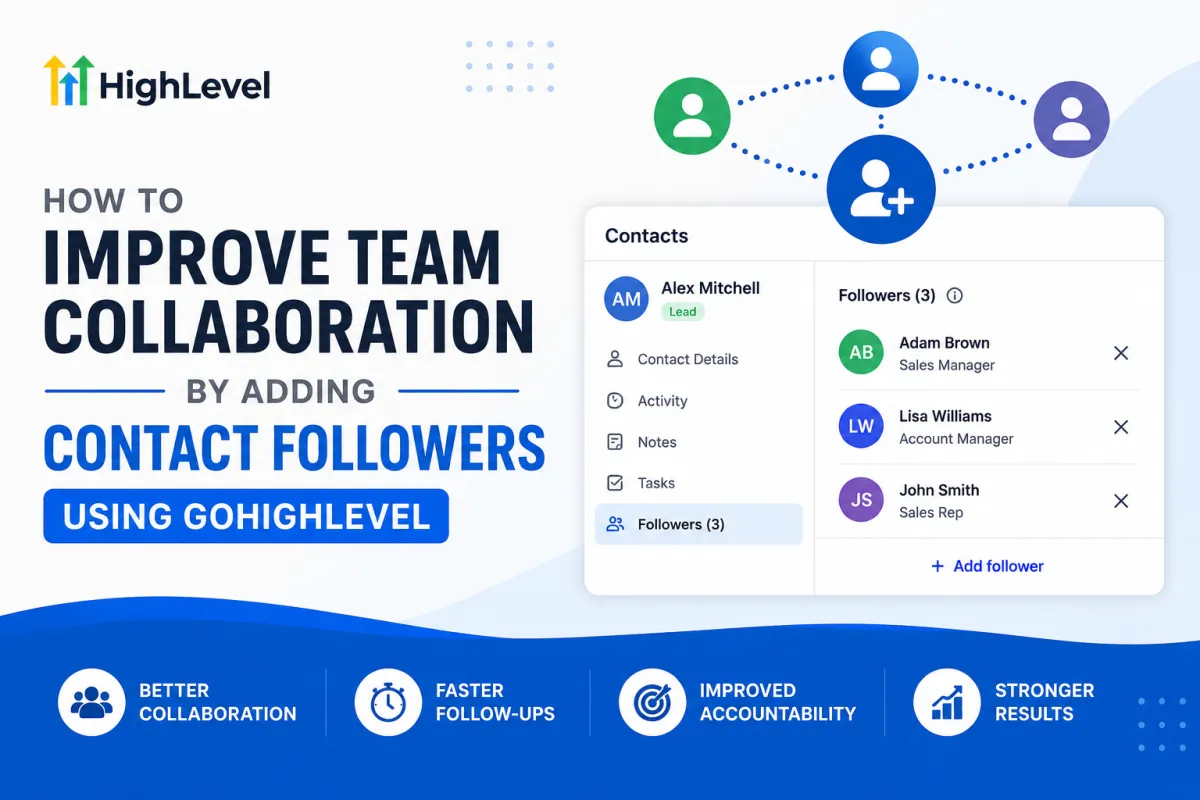
GoHighLevel Contact Followers: Step-by-Step Guide
How to Improve Team Collaboration by Adding Contact Followers Using GoHighLevel
Managing leads inside a CRM becomes more complicated when several team members need to stay involved with the same customer.
A sales representative may be responsible for closing a lead, while a sales manager needs visibility into the relationship. An account manager may also need access as the prospect moves closer to becoming a customer. Reassigning the contact every time another person becomes involved can create unnecessary confusion.
This is where GoHighLevel Contact Followers can help.
Instead of changing who owns the contact, GoHighLevel allows additional users to be added as followers. This creates a clearer way for multiple team members to work around the same contact while keeping primary responsibility intact.
What Are GoHighLevel Contact Followers?
Contact Followers in GoHighLevel are users who are added to a contact record so they can follow and access that contact alongside the primary owner.
GoHighLevel currently supports adding up to 10 users as followers to a contact. Followers are particularly useful for teams using the Only Assigned Data permission because adding someone as a follower can give that user access to the relevant CRM record even when their normal access is restricted.
Followers can view and manage the record according to applicable permissions, but following a contact does not make that user the contact owner.
That distinction is what makes the feature valuable for GoHighLevel team collaboration.
Contact Followers vs. GoHighLevel Assigned User
An Assigned User and a Contact Follower serve different purposes.
The assigned user represents primary ownership or responsibility for the contact. For example, if Sarah is the salesperson responsible for a new lead, Sarah may be assigned to that contact.
A follower is an additional user who needs access or involvement without replacing Sarah as the owner.
Imagine that Sarah's sales manager, David, needs to stay involved with an important opportunity. Instead of reassigning the contact from Sarah to David, the business can keep Sarah assigned and add David as a follower.
This creates a simple structure:
Assigned User: The person with primary responsibility
Contact Follower: An additional team member who needs access and involvement
Understanding this difference helps businesses build cleaner GoHighLevel contact management processes.
Why Contact Followers Matter for Team Collaboration
Many customer relationships involve more than one department or employee. Contact Followers provide a practical way to support that collaboration.
For example, followers can help teams:
Keep relevant employees connected to important contacts
Support smoother collaboration between sales and account management
Maintain clear ownership while allowing additional involvement
Reduce unnecessary contact reassignment
Give appropriate users access to records when Only Assigned Data is being used
Create clearer processes for high-value or complex customer relationships
The main benefit is organizational clarity. Your team does not have to choose between giving someone involvement and changing the contact's primary ownership.
How to Add Contact Followers in GoHighLevel
Adding a follower manually is straightforward.
Step 1: Open Contacts
From your GoHighLevel sub-account, navigate to Contacts and locate the contact you want to manage.
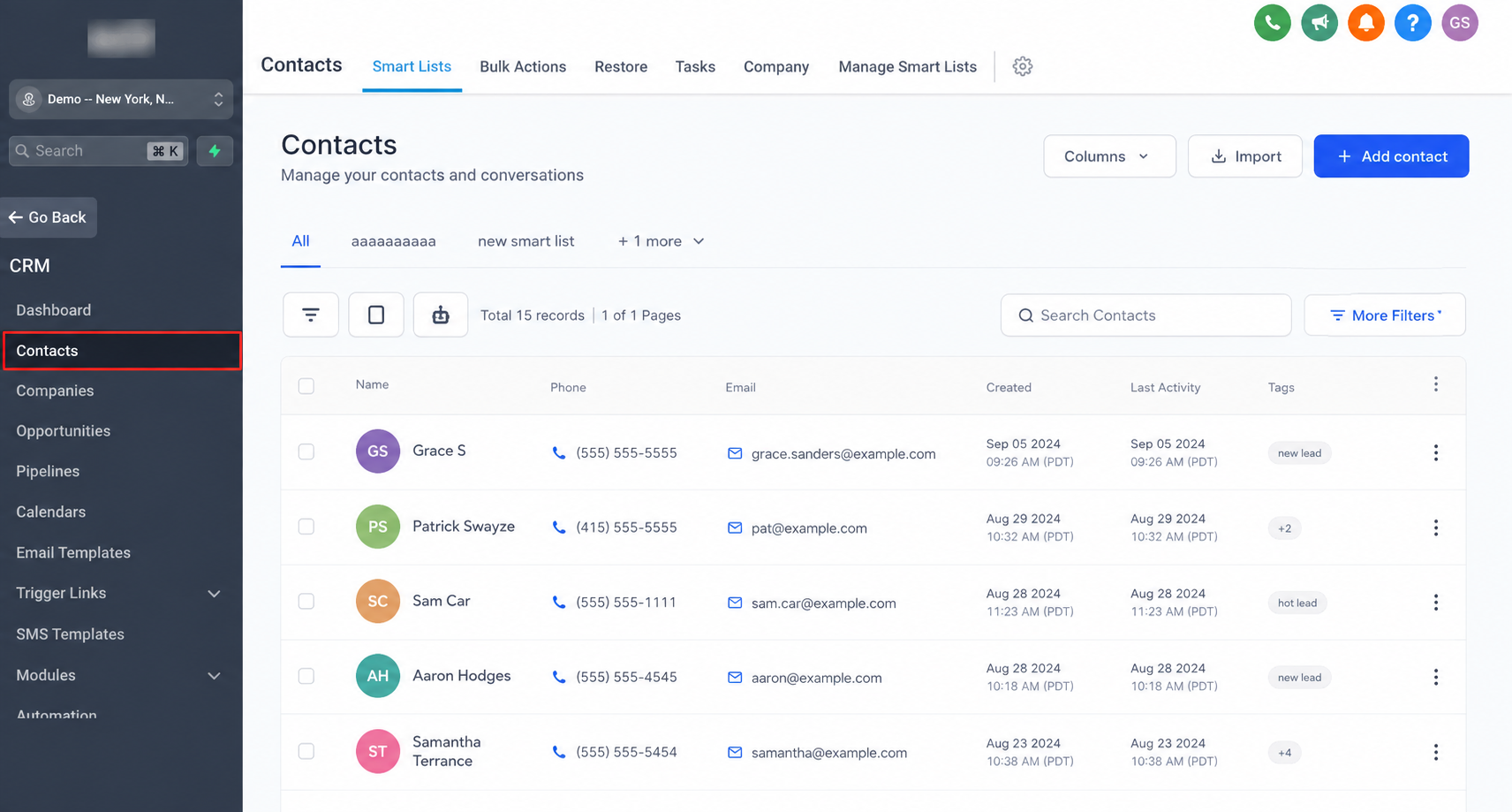
Step 2: Open the Contact Record
Click the contact's name to open their detailed contact page.
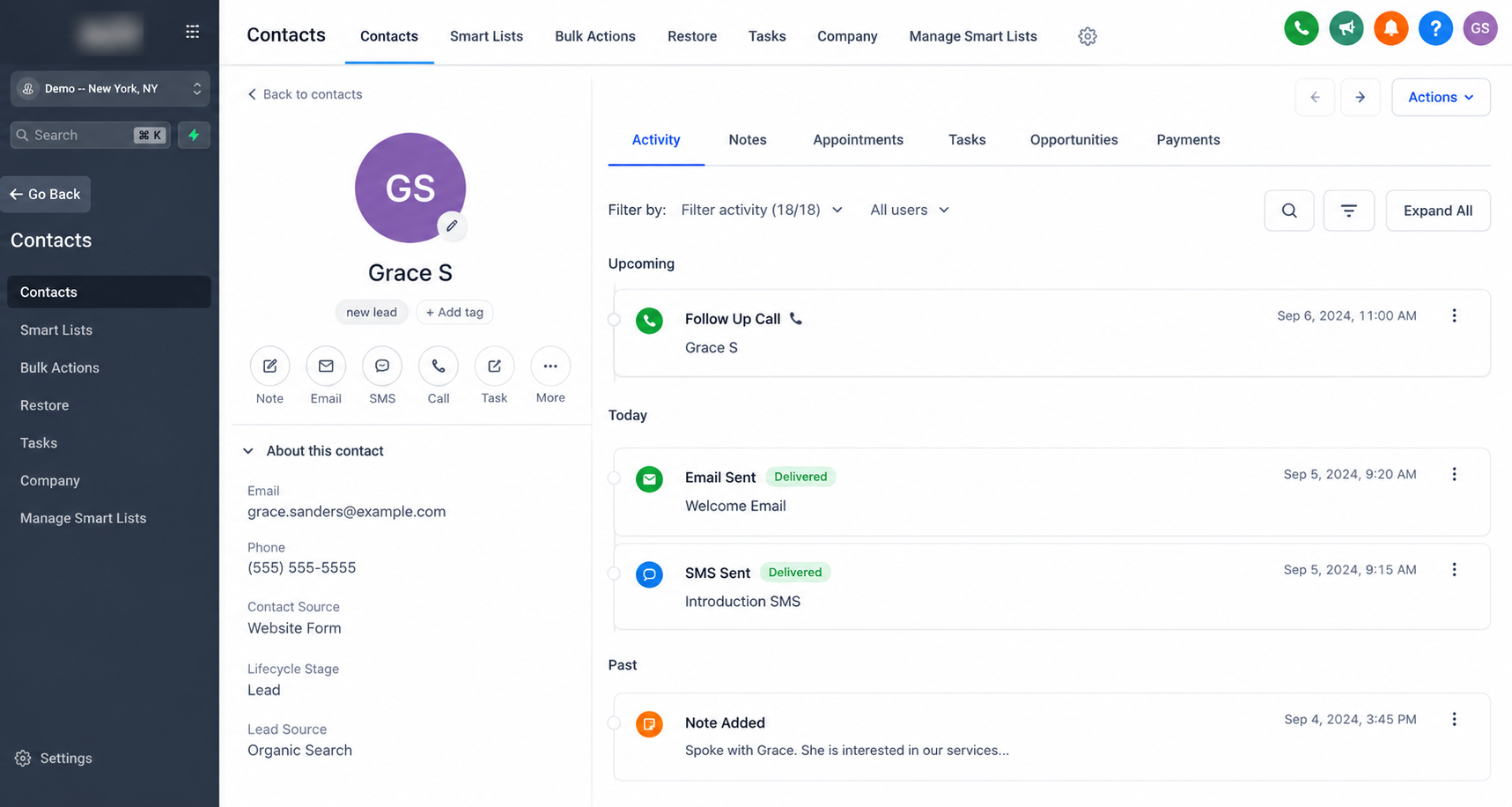
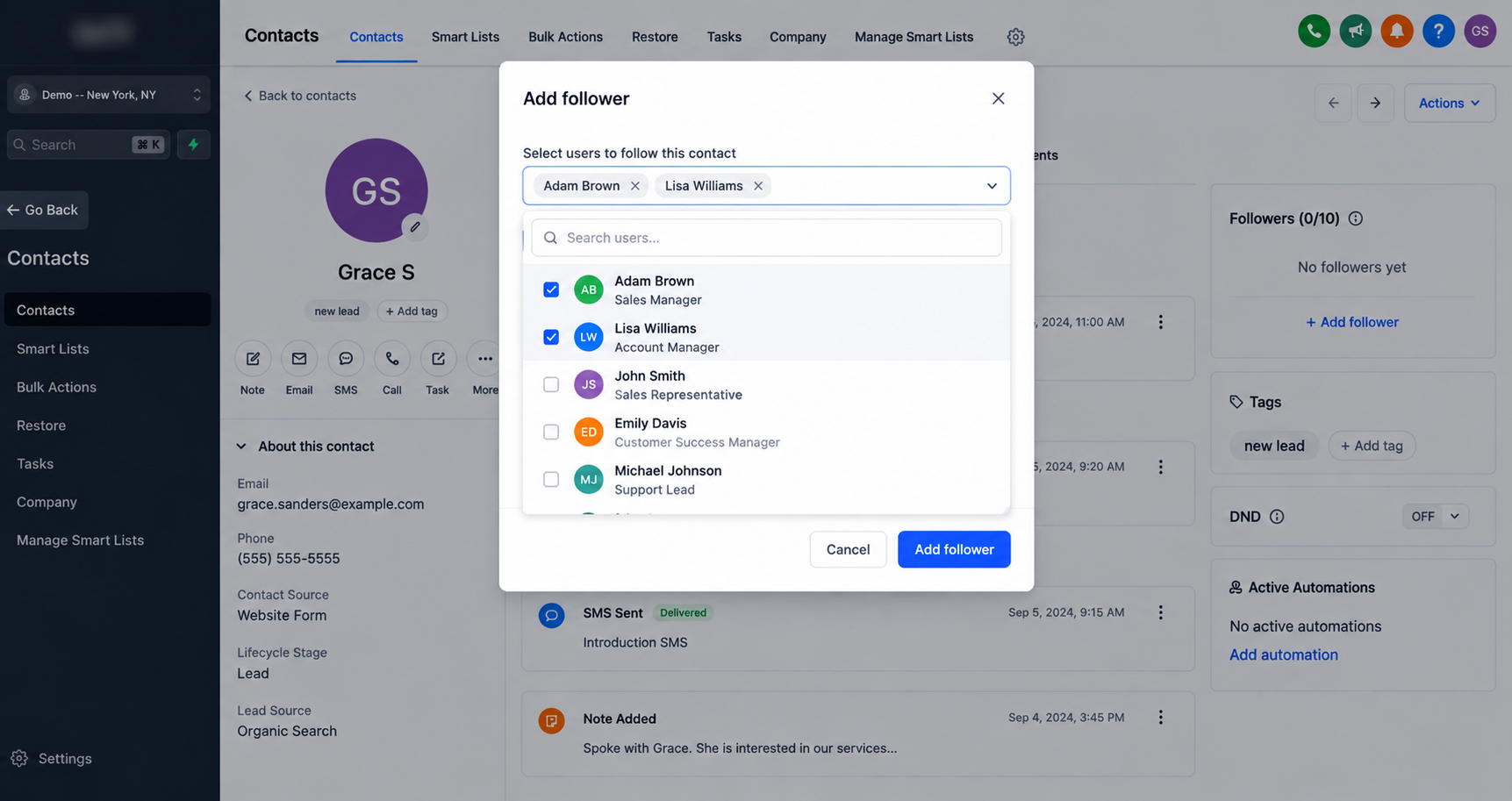
Step 3: Locate Followers
Find the Followers area on the contact record. HighLevel's Contact Detail Page can be customized, so the exact presentation may vary depending on your account's configured view.
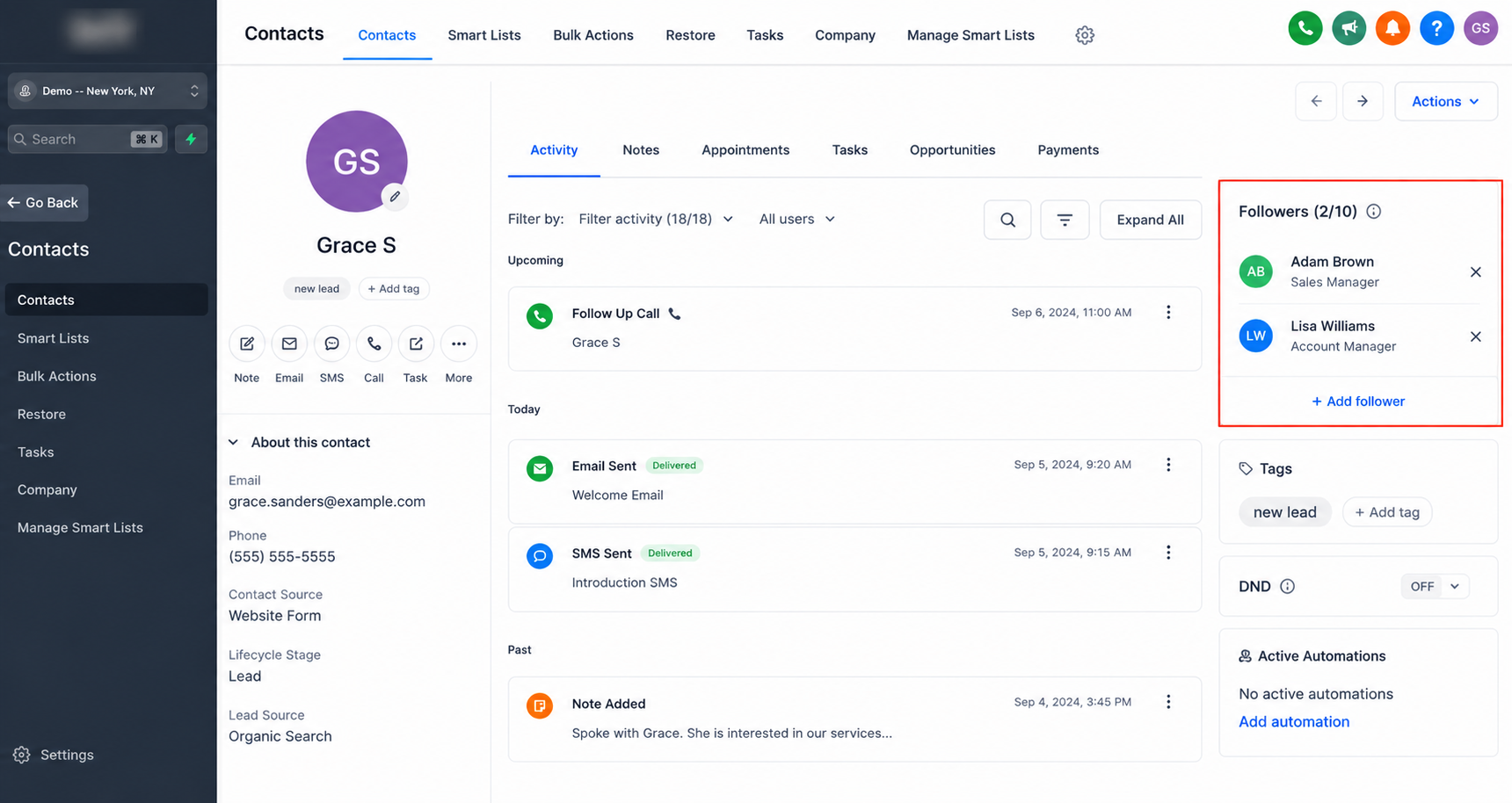
Step 4: Add the Appropriate User
Select the user or users who should follow the contact. Once added, they become followers without replacing the existing owner.
GoHighLevel also provides an Add Contact Follower workflow action for businesses that need to manage followers automatically. This can add one or more followers when a contact reaches the relevant point in a properly configured workflow.
Automation should be used when there is a repeatable business rule rather than adding unnecessary followers to every contact.
Real-World Example
Consider a marketing agency receiving a high-value lead.
The agency assigns the lead to Alex, an account executive responsible for qualification and follow-up. Normally, Alex should remain the assigned user because he owns the sales relationship.
However, the agency's sales manager also wants access to strategic prospects.
Instead of transferring ownership, the manager can be added as a Contact Follower. Alex keeps primary responsibility while the manager can remain involved with the record.
This structure makes responsibility clearer while supporting collaboration.
Best Use Cases for Contact Followers
Contact Followers in GHL can be useful across many business models.
A marketing agency might keep an account manager involved with a salesperson's prospect. A sales organization could add a manager to strategic leads. A local service business may need another appropriate team member involved with an important customer.
Consulting businesses can use followers when multiple specialists contribute to a client relationship, while customer success teams can use them when account management requires collaboration across roles.
The key question is simple: Does this person need involvement with the contact without becoming its primary owner?
If yes, adding them as a follower may be appropriate.
Best Practices for Cleaner GoHighLevel Team Management
Create a clear internal rule defining when someone should be assigned versus added as a follower.
Keep the assigned user focused on primary responsibility, and reserve followers for people who genuinely need access or involvement. Avoid adding unnecessary users simply because the option exists.
Also review user permissions when designing your GoHighLevel CRM collaboration process. Access to contacts and related information can depend on account permissions and configuration.
Conclusion
Effective CRM collaboration does not always require complicated automation.
With GoHighLevel Contact Followers, businesses can keep primary contact ownership clear while allowing additional team members to stay involved with important leads and customers.
Review how your team currently manages shared customer relationships. If contacts are frequently reassigned simply because another employee needs involvement, consider whether Contact Followers could create a cleaner and more collaborative GoHighLevel CRM process.
Frequently Asked Questions
1. What are Contact Followers in GoHighLevel?
Contact Followers are additional users who can follow and stay involved with a contact without replacing the contact’s primary assigned user.
2. What is the difference between a Contact Follower and an Assigned User?
The Assigned User typically represents primary responsibility for the contact, while followers are additional team members who need access or involvement with that contact.
3. How do I add Contact Followers in GoHighLevel?
Open the contact record in GoHighLevel, locate the Followers section, and select the appropriate user or users you want to add as followers.
4. Can Contact Followers be added automatically in GoHighLevel?
Yes. GoHighLevel provides an Add Contact Follower workflow action that can be used to add selected users as followers as part of a workflow.
5. When should I use GoHighLevel Contact Followers?
Use Contact Followers when multiple team members need involvement with the same lead or customer, but you still want one assigned user to maintain primary responsibility.
Need Expert Help with GoHighLevel?
New to GoHighLevel and ready to get started? Buy your GoHighLevel account here and launch with confidence.
Already know what you need and want our team to handle everything, from complete setup and customization to funnels, workflows, automations, CRM, and pipelines? Click here.



