

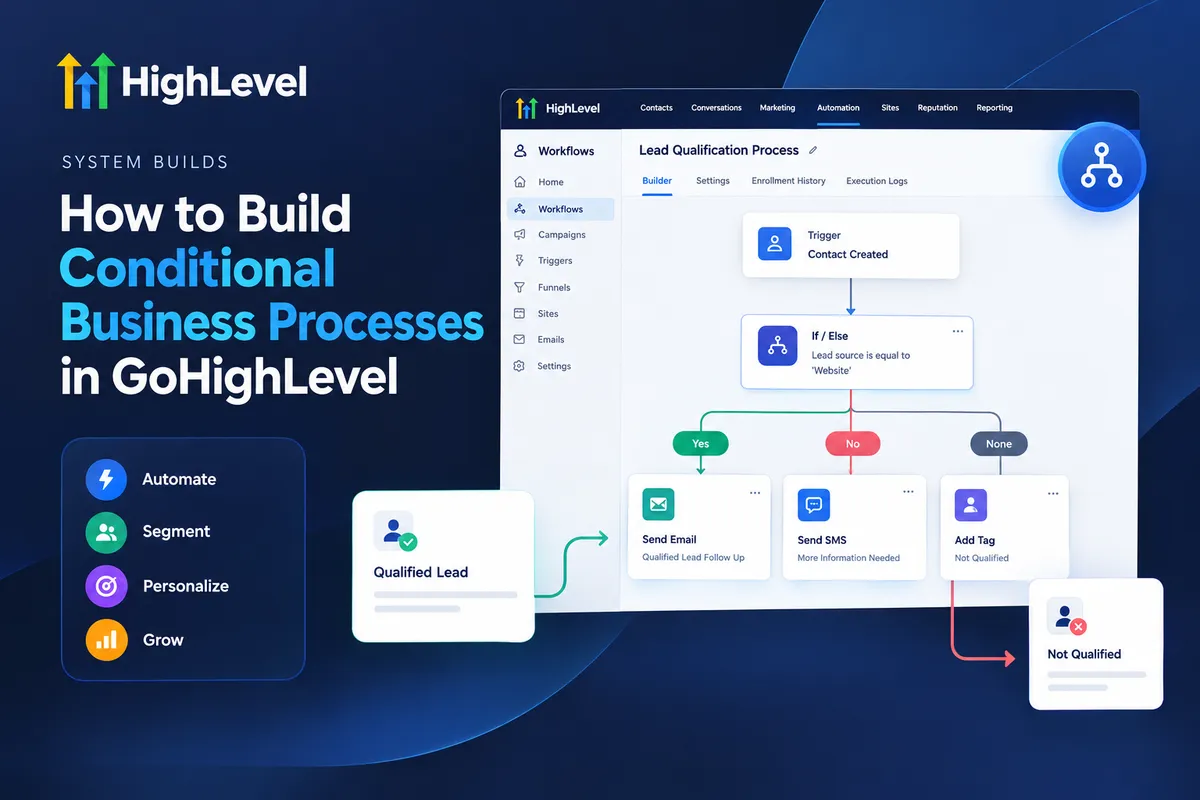
Conditional Workflow Automation
How to Build Conditional Business Processes in GoHighLevel
A qualified lead should not receive the same follow up as someone who has not completed a qualification form. Similarly, a booked client should not receive messages intended for someone who has never scheduled an appointment. When every contact follows the same sequence, businesses risk sending irrelevant messages, missing important actions, and creating unnecessary work for their teams. GoHighLevel workflow automation helps solve this problem by allowing businesses to build processes that respond to specific conditions and contact activities.
What Are Conditional Business Processes in GoHighLevel?
Conditional business processes use predefined rules to determine what happens next in an automated workflow. Instead of moving every contact through an identical sequence, the system evaluates relevant information and directs each contact toward an appropriate outcome.
In GoHighLevel, the If/Else workflow action supports this approach by evaluating conditions and creating separate branches. Depending on the available fields and workflow context, decisions can use contact information, custom field values, tags, appointment details, or other supported criteria.
A standard linear workflow follows a fixed sequence of actions. A conditional workflow introduces decision points, allowing subsequent actions to depend on whether particular requirements are satisfied.
This distinction makes conditional logic valuable for lead qualification, appointment management, customer onboarding, sales follow up, and other business processes.
How to Build Conditional Business Processes
1. Define the Business Rule
Start by identifying the decision your business needs to make. For example, decide whether a new lead meets your minimum qualification requirements before notifying the sales team.
Define the qualification criteria clearly. These might include a selected service, a budget recorded in a custom field, or a particular lead status. Specific rules make automation easier to configure, test, and maintain.
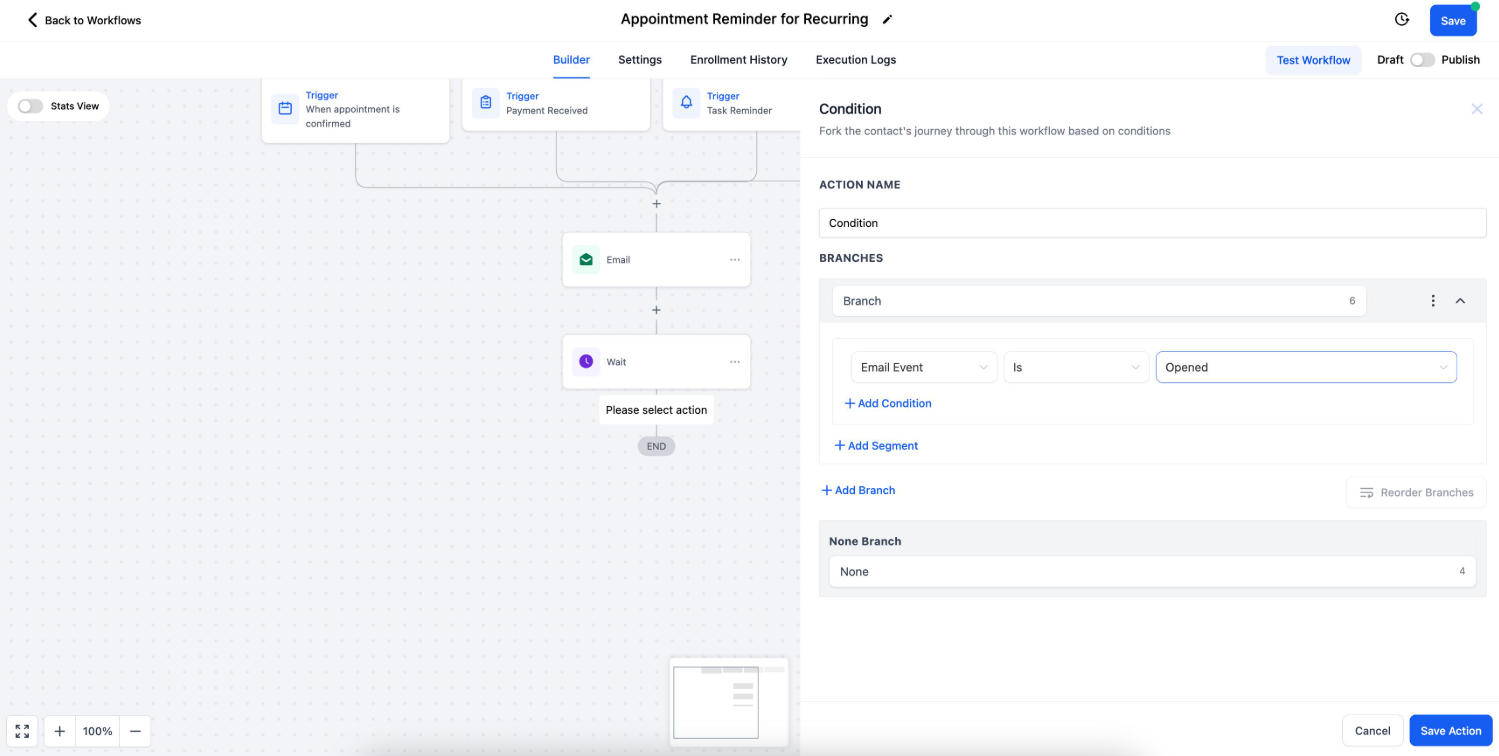
2. Choose the Appropriate Trigger
A workflow needs a supported trigger that determines when it begins. Choose one that matches the business event you want to handle.
For example, Contact Created can start a process when a new contact record is added. Contact Changed can respond to relevant contact updates, while Appointment Status can initiate appointment related automation when the configured status criteria are met.
The correct trigger depends on your intended outcome and the available trigger filters.
3. Prepare the Required Data
Conditional automation depends on reliable information. Ensure that the relevant custom fields, tags, and contact details are populated consistently.
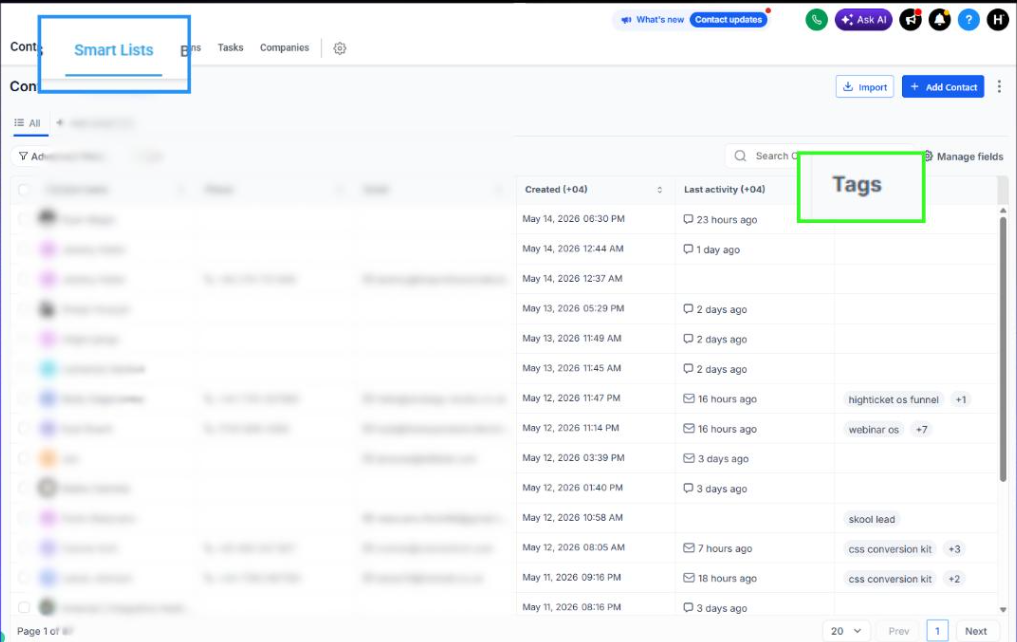
If qualification depends on a budget field, establish how that field will be completed before the workflow evaluates it. Missing or inconsistent information can send contacts down an unintended path.
4. Configure the Conditional Logic
Inside the workflow builder, add the If/Else action at the appropriate decision point. Select the relevant field, comparison operator, and value.
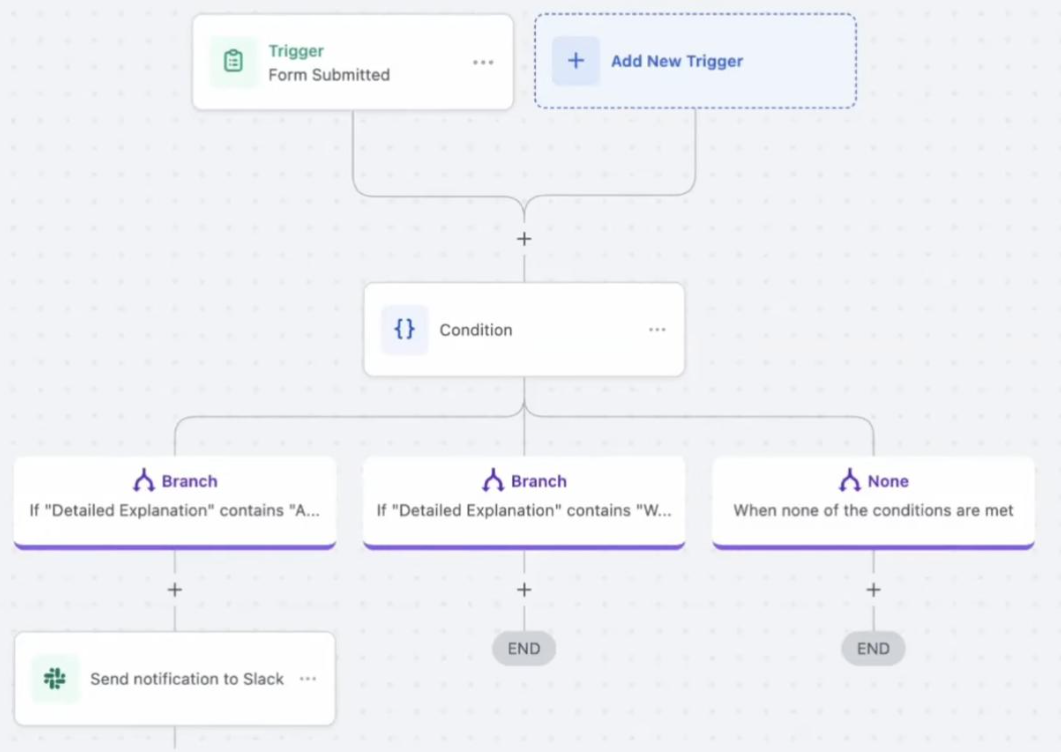
For example, evaluate whether a contact's qualification field matches your defined requirements. Configure additional branches when different outcomes need separate handling. The automatically provided None branch can serve as a fallback for contacts who do not match the defined conditions.
Available conditions depend on the selected workflow context and supported field types.
5. Configure the Resulting Actions
Place appropriate actions along each branch. Qualified leads might receive a targeted follow up message or generate an internal notification. Unqualified leads might enter a separate nurturing process or receive a request for missing information.
For appointment management, use an appropriate appointment trigger or condition so that booking related messages run only for the intended appointment status. Confirm that the selected actions match the business rule.
6. Test and Refine the Workflow
Test contacts that satisfy the conditions, contacts that fail them, and contacts with missing information. Review the workflow execution history and verify that each contact follows the expected path.
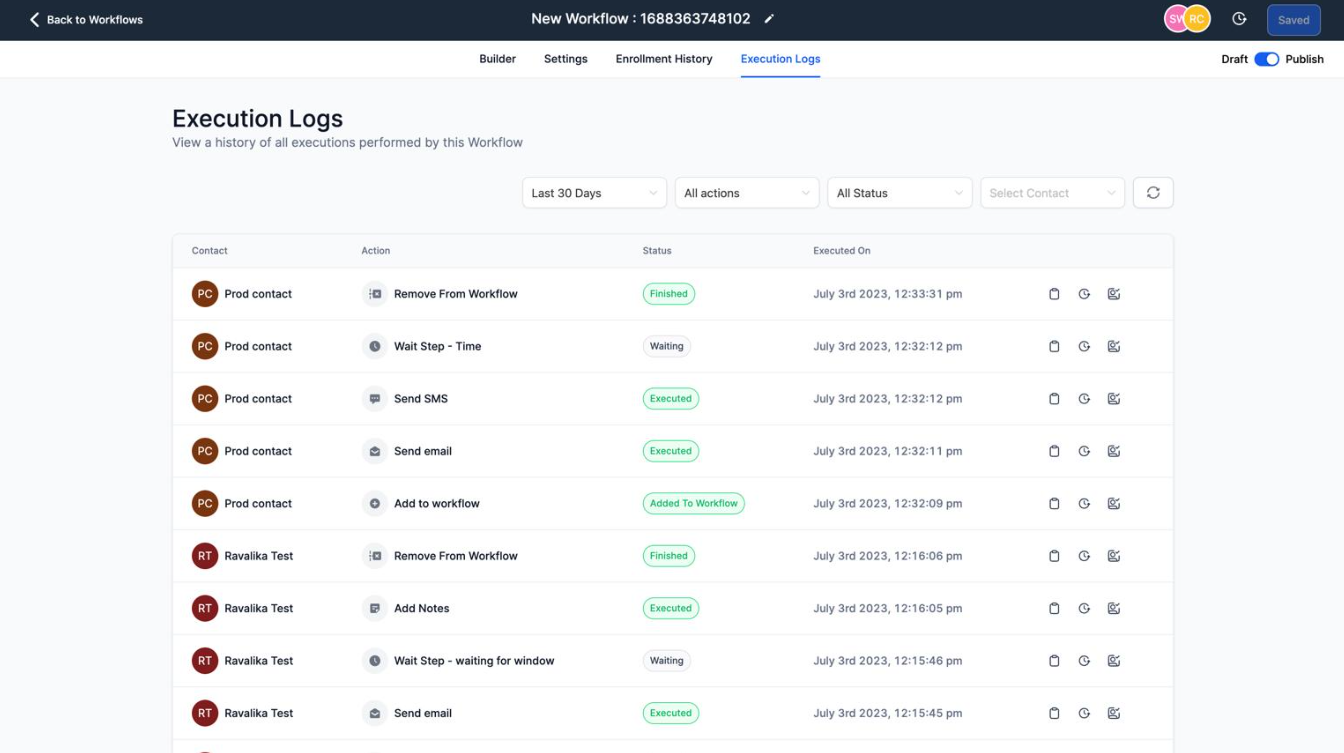
If a branch behaves unexpectedly, check the field values, operators, trigger filters, and action order before activating the process for broader use.
A Practical Example: Lead Qualification and Appointment Management
Consider a marketing agency that receives enquiries from businesses interested in its services.
When a new contact enters the CRM, a workflow evaluates the qualification information collected from the lead.
If the lead meets the agency's defined requirements, the workflow can notify the sales team and initiate the appropriate follow up. If the lead does not qualify, a different branch can provide relevant information or direct the contact toward a suitable alternative.
Appointment handling requires a separate decision based on the actual booking event or status. An appointment specific workflow can use the Appointment Status trigger with the appropriate filters to handle confirmed appointments, cancellations, or no shows.
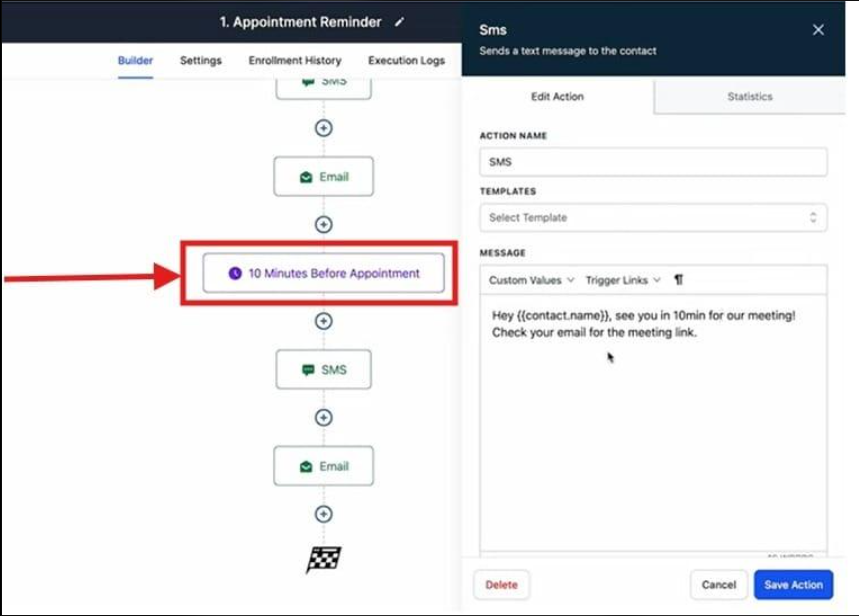
For instance, a confirmed appointment can lead to the relevant preparation message, while a cancelled appointment can initiate a rescheduling process. These outcomes require correctly configured triggers and actions rather than assuming that qualification automatically confirms a booking.
This design connects lead handling and appointment management without treating every contact identically.
Best Practices for Reliable Conditional Workflows
Use these practices to keep GoHighLevel business process automation manageable:
Write clear conditions with specific comparison values and documented business rules.
Keep contact fields and tags consistent across forms, workflows, and team processes.
Test both successful and unsuccessful condition paths, including missing data.
Check for duplicate notifications and conflicting actions across overlapping workflows.
Review execution history when results differ from expectations.
Keep branching logic simple and document important decisions for future maintenance.
A well structured workflow should be understandable to another team member, not just its original builder.
Conclusion
Building conditional business processes in GoHighLevel starts with understanding how a business makes decisions. By combining appropriate triggers, accurate data, clearly defined conditions, and carefully selected actions, you can create workflows that respond to different lead and customer situations. The goal is not to automate every possible action, but to build reliable processes that reflect real business requirements and remain practical to manage as operations grow.
Frequently Asked Questions
1. What are conditional workflows in GoHighLevel?
They are workflows that use defined conditions to direct contacts through different paths based on available information or events.
2. How does conditional logic direct contacts?
The If/Else action evaluates configured criteria and routes contacts into the corresponding branch.
3. Which business processes can use conditional logic?
Lead qualification, appointment management, customer onboarding, and follow up processes can benefit from conditional workflows when suitable triggers and conditions are available.
4. Why should conditional workflows be tested?
Testing confirms that contacts follow the intended paths, including when requirements are not met or information is missing.
5. What commonly causes conditional automation problems?
Incorrect field values, inconsistent tags, unsuitable trigger filters, poorly defined conditions, and overlapping workflows can produce unexpected outcomes.
Need Expert Help with GoHighLevel?
New to GoHighLevel and ready to get started? Buy your GoHighLevel account here and launch with confidence.
Already know what you need and want our team to handle everything, from complete setup and customization to funnels, workflows, automations, CRM, and pipelines? Click here.



