

GoHighLevel Expands Conditional Form Support for Services & Rentals
Conditional Form Support for Services & Rentals in GoHighLevel
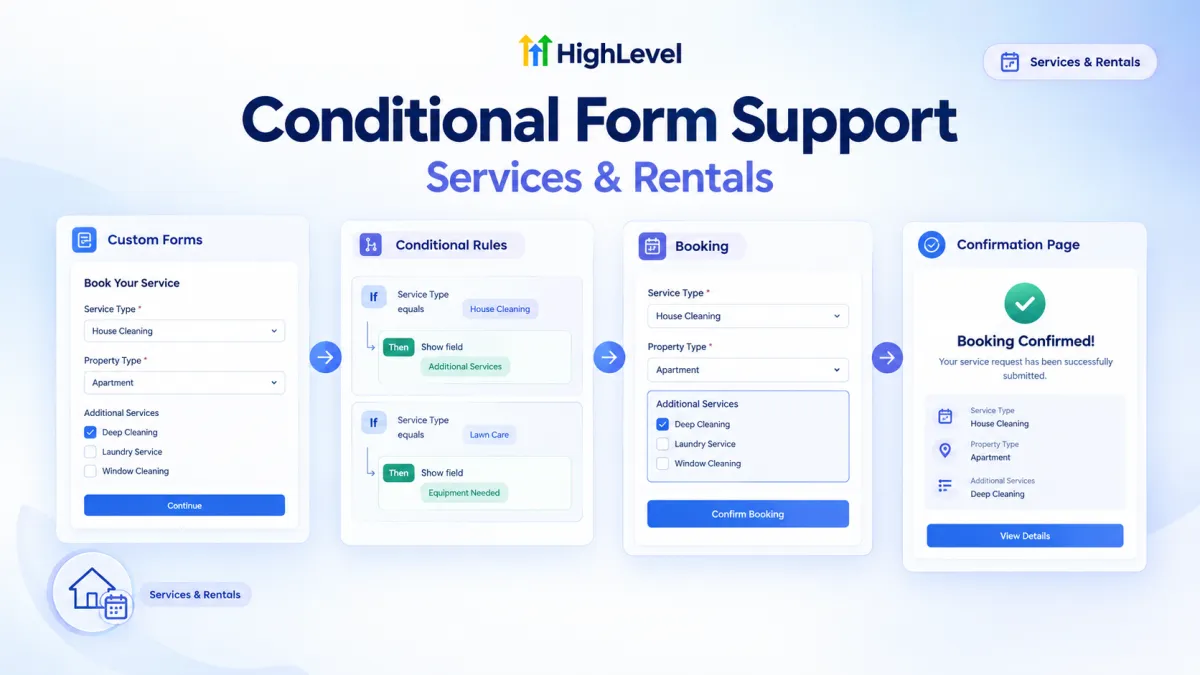
GoHighLevel has expanded conditional form support across Services & Rentals, giving custom forms more control over what happens after a booking is submitted. While show/hide field conditions already apply automatically during the booking process, this update adds support for post-booking conditional behavior and gives custom forms greater control over the confirmation experience.
The update introduces a new Global Settings option that allows a custom form to use its own rules after submission. With this enabled, the form’s On Submit action can control what the visitor sees on the confirmation page, while a smart fallback keeps the global confirmation configuration in place when the attached form does not have applicable rules.
What’s New in Conditional Form Support
Custom forms connected to Services & Rentals now have complete conditional logic support across the booking experience.
The existing show/hide field conditions continue to apply automatically during booking. This means conditional field behavior can determine which form fields are shown or hidden while someone is completing the booking form.
The new part of this update focuses on what happens after the booking is submitted.
Post-booking conditional rules allow the custom form to influence the confirmation experience based on its configured On Submit action.
Post-Booking Conditional Rules
The key addition is support for conditional behavior after a booking submission.
Once a custom form is attached to a Service or Rental, its post-booking rules can control the confirmation experience when the appropriate Global Settings option is enabled.
The available On Submit actions include:
Confirmation page
Redirect to URL
Display custom message
Disqualify lead
These actions provide the supported ways for a custom form to determine what happens after submission.
Importantly, this behavior is separate from the show/hide conditions used during the booking itself. The field conditions apply during form completion, while the On Submit action applies to the post-booking experience.
Form On Submit Actions
The On Submit action is central to the new post-booking behavior.
When the custom form is allowed to control the confirmation experience, its configured action determines what happens after the form is submitted. Depending on the selected rule, the visitor can be taken to the confirmation page, redirected to a URL, shown a custom message, or have the lead disqualified.
This makes the custom form's conditional rules directly relevant to the experience that follows a booking submission.
The important distinction is that these actions are controlled through the custom form when the relevant Global Settings option has been enabled.
The New Global Setting
The new behavior is controlled through Global Settings under Form & confirmation.
The setting is:
“Let a custom form override this with its own rules”
When this option is enabled, the custom form's On Submit action controls the confirmation page experience. This allows the custom form's own rules to replace the calendar-level confirmation settings.
This setting provides the connection between the global confirmation configuration and the individual custom form.
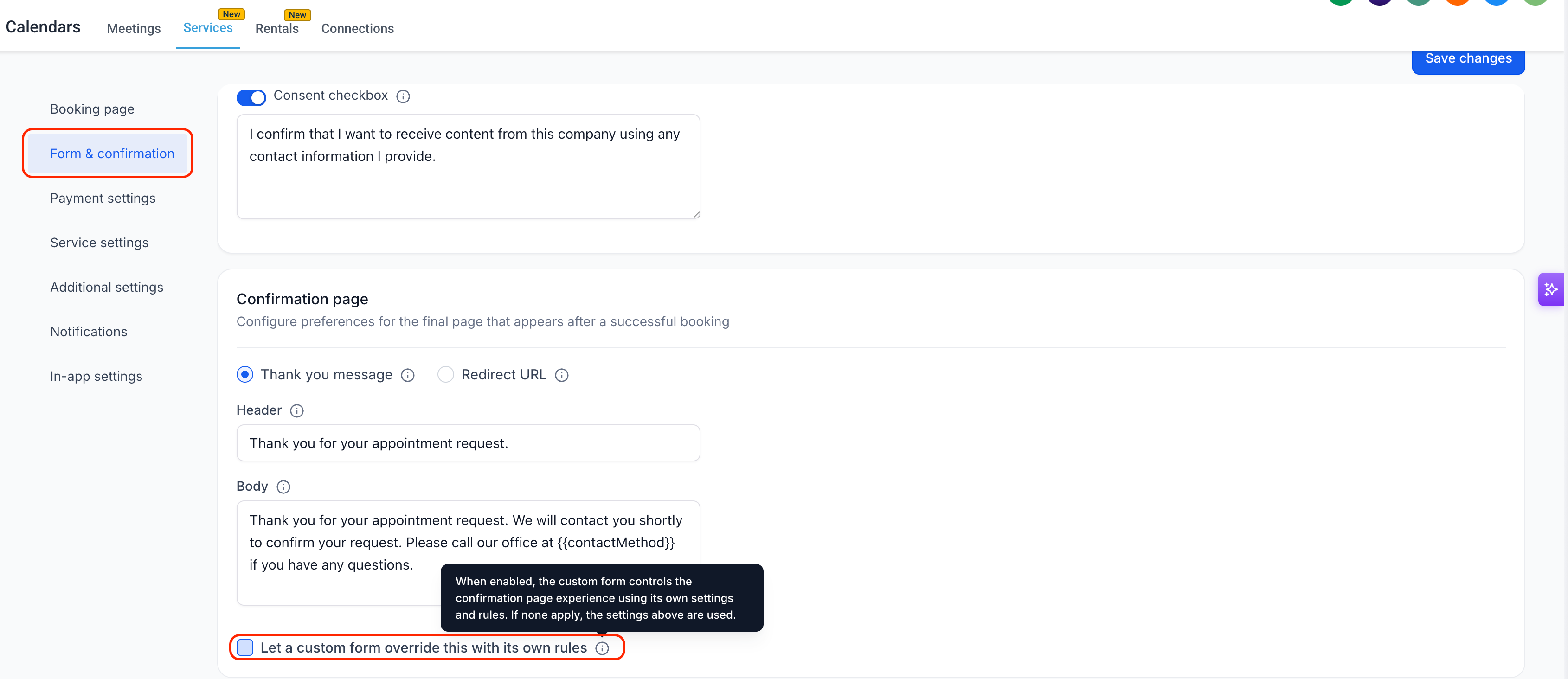
Rather than always relying on the broader confirmation configuration, users can allow an attached custom form to take control when its own applicable rules are configured.
Smart Fallback Behavior
The update also includes a smart fallback behavior.
When the global setting is enabled but the attached custom form does not have applicable settings or rules, the confirmation page falls back to the Global Settings configuration.
This fallback is important because enabling custom-form control does not mean the confirmation experience loses its global configuration when no applicable form-level rule exists.
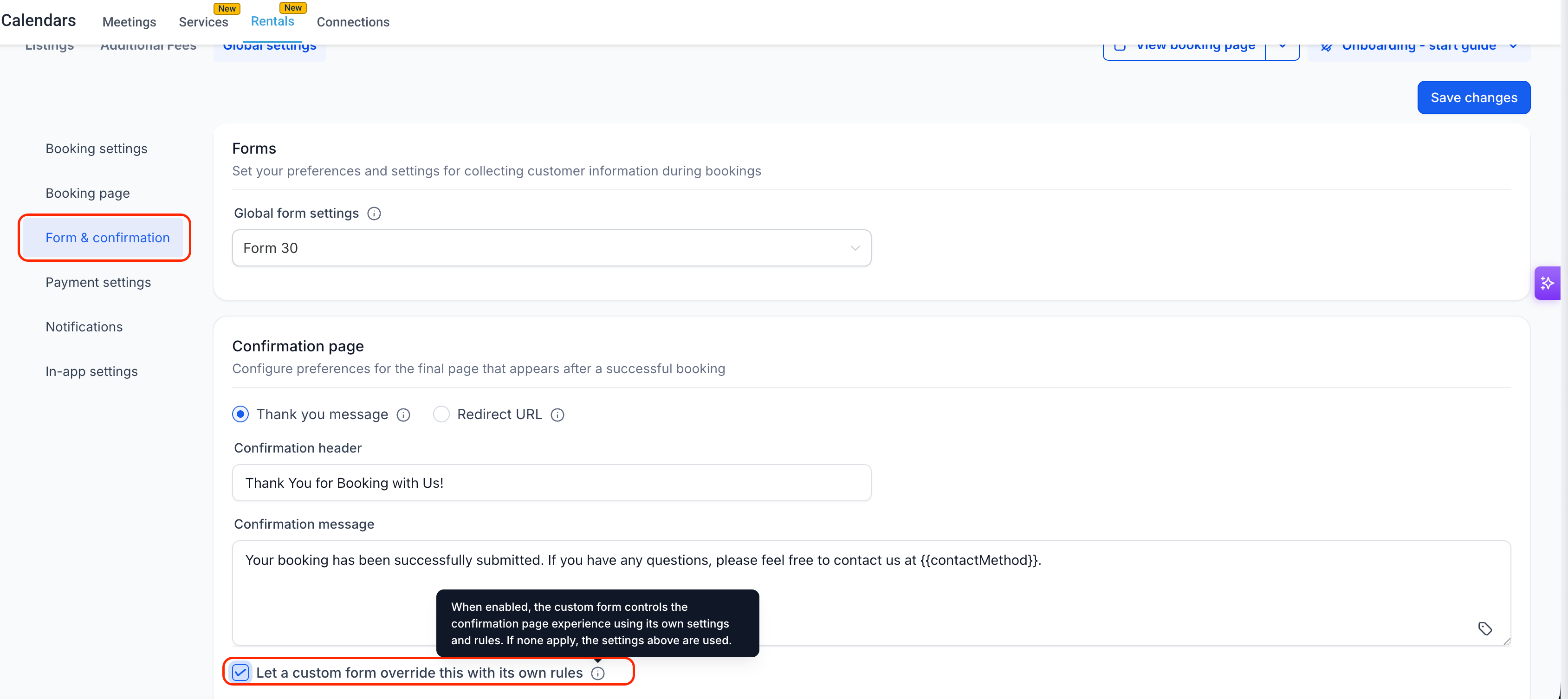
The system can therefore use the custom form's rules when they are available and applicable, while falling back to the Global Settings configuration when they are not.
Contextual Banners for Services and Listings
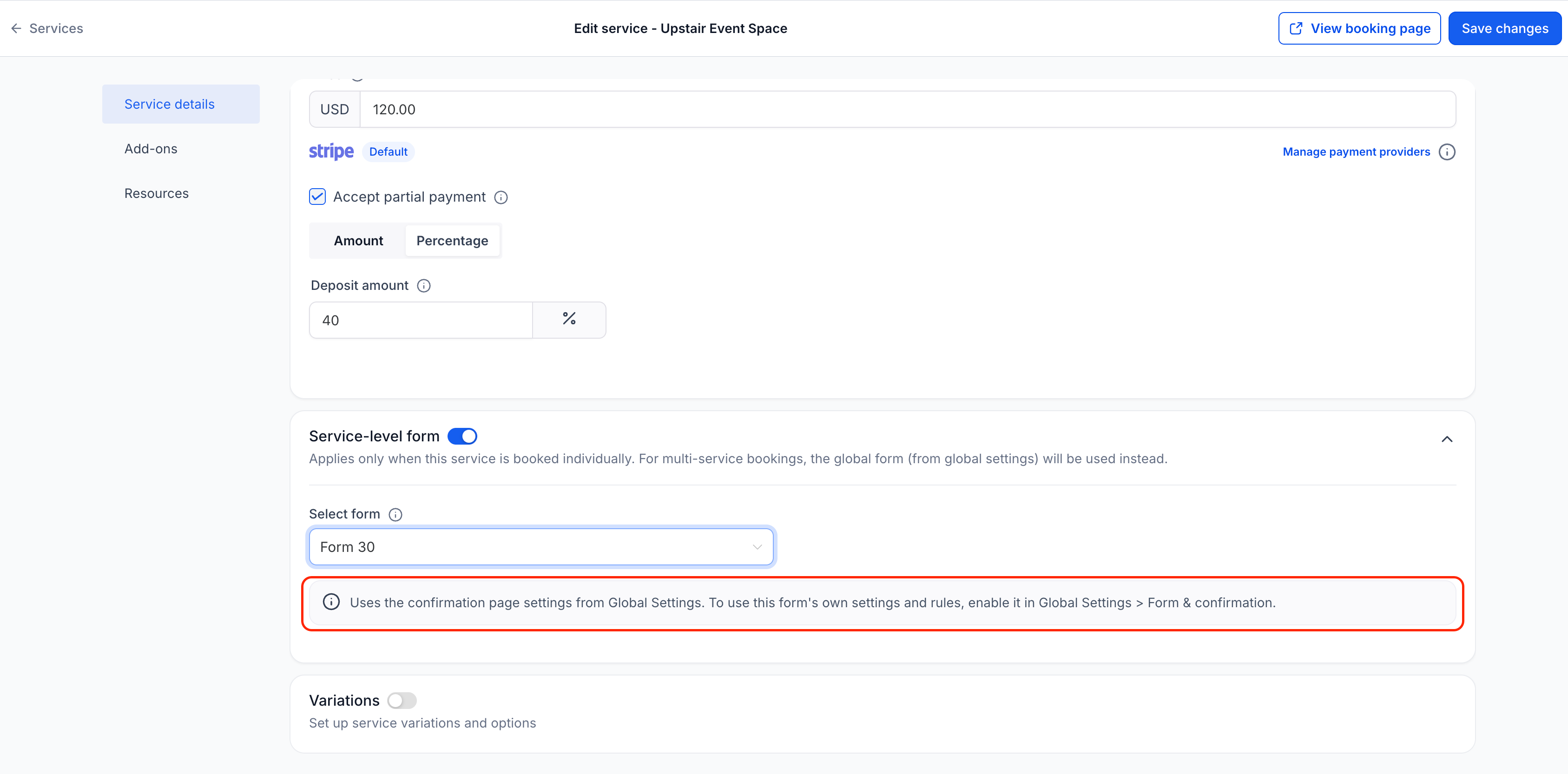
The update also introduces a contextual inline banner at the Listing and Service level.
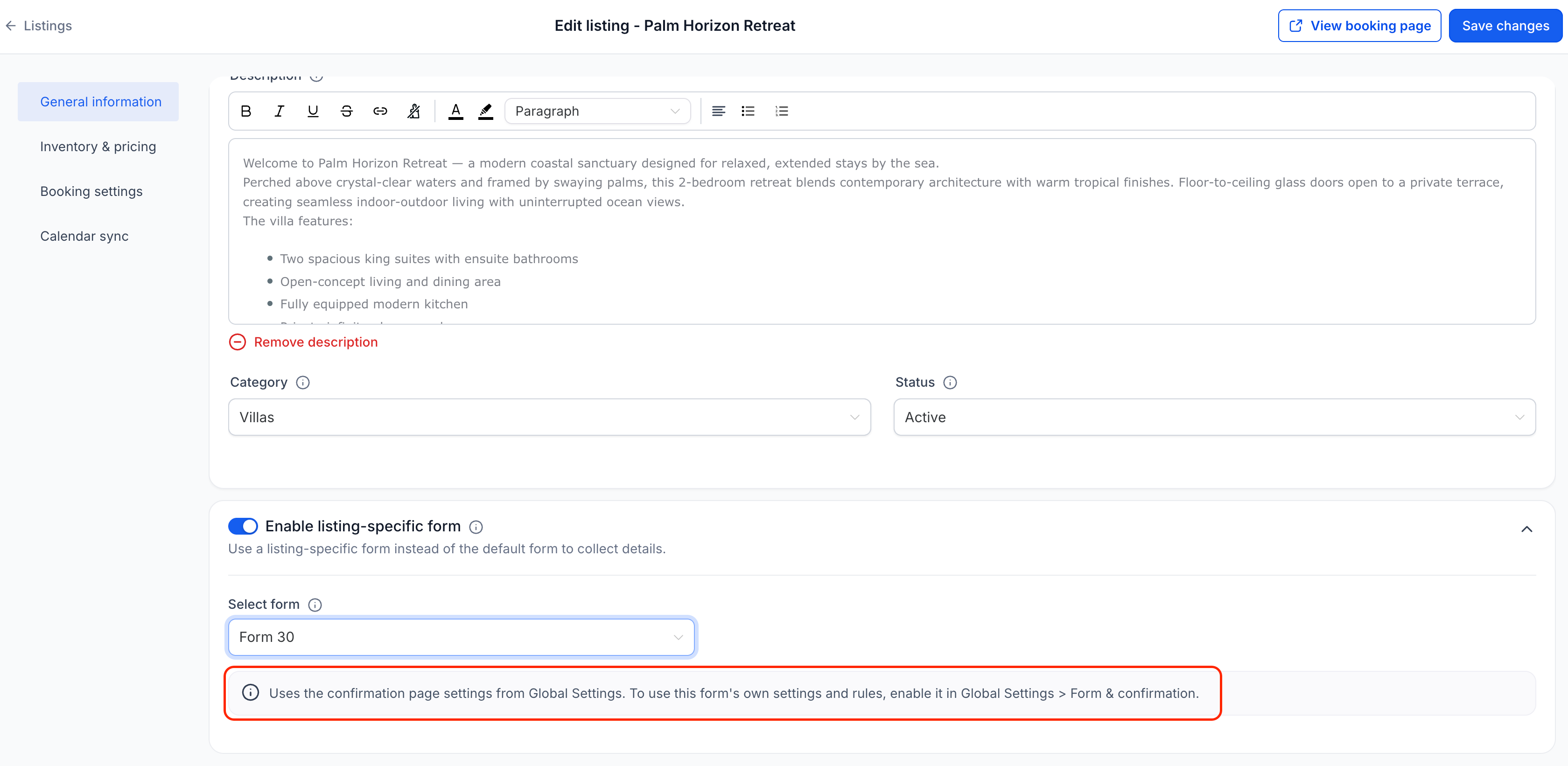
This provides contextual information within Services and Listings around the new custom form confirmation behavior.
The banner helps surface the relevant functionality where users manage these areas, connecting the setting and conditional form behavior more directly with the Services and Rentals experience.
How to Enable the Feature
To use the new post-booking custom form behavior, go to Global Settings and open Form & confirmation.
From there, enable:
“Let a custom form override this with its own rules”
Once enabled, the custom form's On Submit action can control the confirmation page experience and replace the calendar-level confirmation settings when applicable.
If the attached custom form does not have applicable settings or rules, the system uses the Global Settings configuration as the fallback.
Why This Update Matters
For businesses using Services and Rentals, confirmation behavior is an important part of the booking experience. This update gives custom forms a clearer role beyond collecting information during the booking process.
The existing conditional logic continues to manage field visibility during booking, while the new post-booking support extends conditional behavior to the experience after submission.
The addition of the Global Settings control also creates a clear relationship between global confirmation settings and custom-form rules. Users can allow their custom forms to take control while retaining the global configuration as a fallback when no applicable form-level rules are available.
That makes the behavior more structured and easier to understand across Services & Rentals.
Final Takeaway
This GoHighLevel update expands conditional forms across Services & Rentals by adding post-booking conditional support alongside the existing show/hide field conditions.
The new “Let a custom form override this with its own rules” option in Global Settings → Form & confirmation allows a custom form's On Submit action to control the confirmation experience. Supported actions include the confirmation page, redirect to URL, display custom message, and disqualify lead.
When no applicable custom-form rules are available, the experience falls back to the Global Settings configuration.
Together, these changes give custom forms more control over the booking and confirmation experience while keeping the existing global settings available as a reliable fallback.
Frequently Asked Questions (FAQs)
1. What is new with conditional forms in Services & Rentals?
Custom forms now support post-booking conditional behavior in addition to existing show/hide field conditions during booking.
2. What On Submit actions are supported?
The supported actions are Confirmation page, Redirect to URL, Display custom message, and Disqualify lead.
3. Where can I enable custom form confirmation rules?
Go to Global Settings → Form & confirmation and enable “Let a custom form override this with its own rules.”
4. What happens when a custom form has no applicable rules?
The confirmation page falls back to the Global Settings configuration.
5. Do show/hide conditions still work during booking?
Yes. Show/hide field conditions continue to apply automatically during the booking process.
Need Expert Help with GoHighLevel?
New to GoHighLevel and ready to get started? Buy your GoHighLevel account here and launch with confidence.
Already know what you need and want our team to handle everything, from complete setup and customization to funnels, workflows, automations, CRM, and pipelines? Click here.



