

GoHighLevel Bulk Updates
Enable or Disable Features for Multiple Sub-Accounts at Once in GoHighLevel
Managing feature access across multiple GoHighLevel sub-accounts can involve repetitive administrative work. When an agency needs to roll out a feature, restrict access, or standardize configurations across several client accounts, handling each sub-account individually adds unnecessary steps to the process.
GoHighLevel has introduced bulk feature updates, allowing users to change feature access for multiple sub-accounts in a single operation. Instead of repeating the same process for every account, you can select the required sub-accounts, choose the features to update, and apply your changes together. This update makes GoHighLevel sub-account management more efficient while keeping the process organized.
What Are GoHighLevel Bulk Feature Updates?
GoHighLevel bulk feature updates let you enable or disable selected features across multiple sub-accounts at once. The functionality is available through the Sub-Accounts listing page, where you can select the accounts you want to manage and use the Update features option.
Previously, changing feature access across multiple accounts required opening and managing those accounts individually. The new process brings these changes into one bulk operation, reducing repetitive administrative work.
This capability is particularly useful for agencies managing several client accounts. For example, when you need to apply the same feature-access change across multiple sub-accounts, you can prepare the update in one place instead of repeating the task account by account.
The process also includes options for searching features, selecting feature groups, enabling or disabling all selected features, and removing individual features before applying changes.
How to Enable or Disable Features Across Multiple Sub-Accounts
Follow these five steps to bulk update sub-account features in GoHighLevel.
Step 1: Select the Required Sub-Accounts
Open the Sub-Accounts listing page and select the sub-accounts you want to update.
Choose the accounts relevant to your intended change. Since the update applies to multiple selected accounts, reviewing your selection before continuing helps keep the operation aligned with your administrative goal.
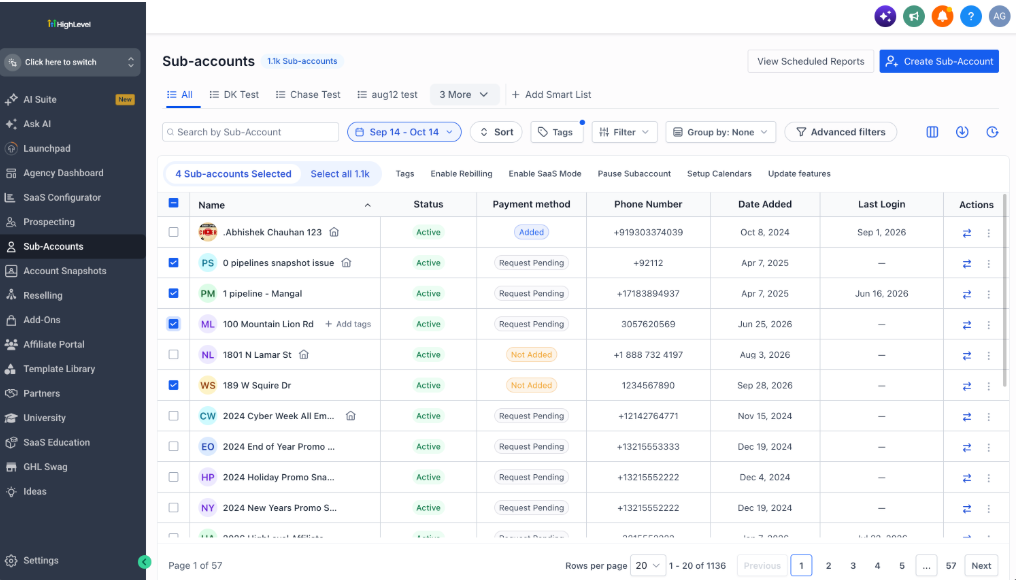
Step 2: Click Update Features
After selecting the required sub-accounts, click Update features.
This opens the bulk feature update process, allowing you to prepare changes for the selected accounts through a single operation.
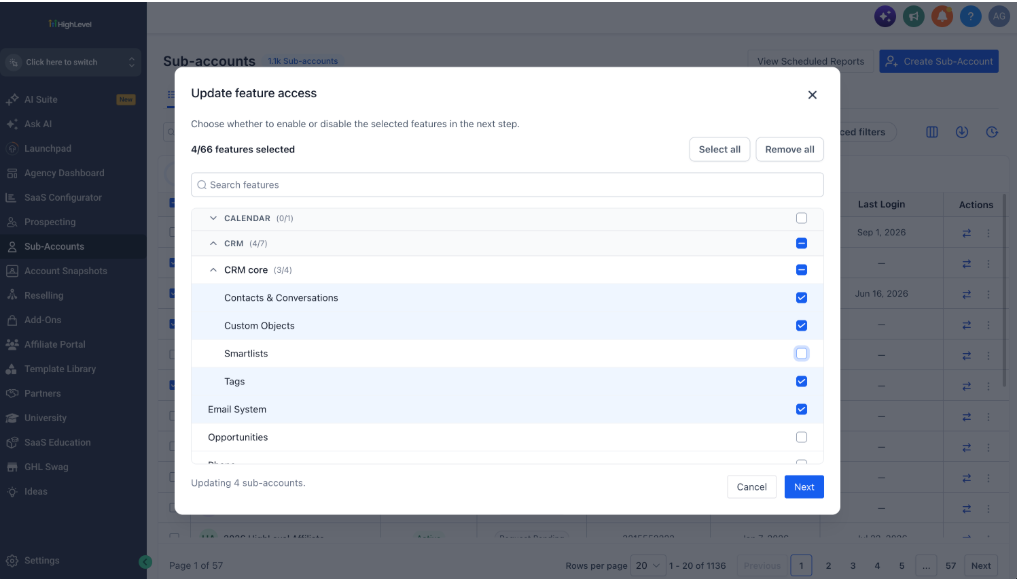
Step 3: Choose the Features You Want to Change
Select the features you want to include in the update, then click Next.
You can search for specific features or use the available feature-group selection options to prepare your selection more efficiently. You can also remove individual features from the list before proceeding.
Take a moment to review the features you intend to change. This helps ensure that the next step reflects your actual requirements.
Step 4: Choose Enable or Disable
For each selected feature, choose whether it should be enabled or disabled.
This step determines the change you want to apply to each feature included in the operation. Review your choices carefully before submitting the update, particularly when managing several sub-accounts together.
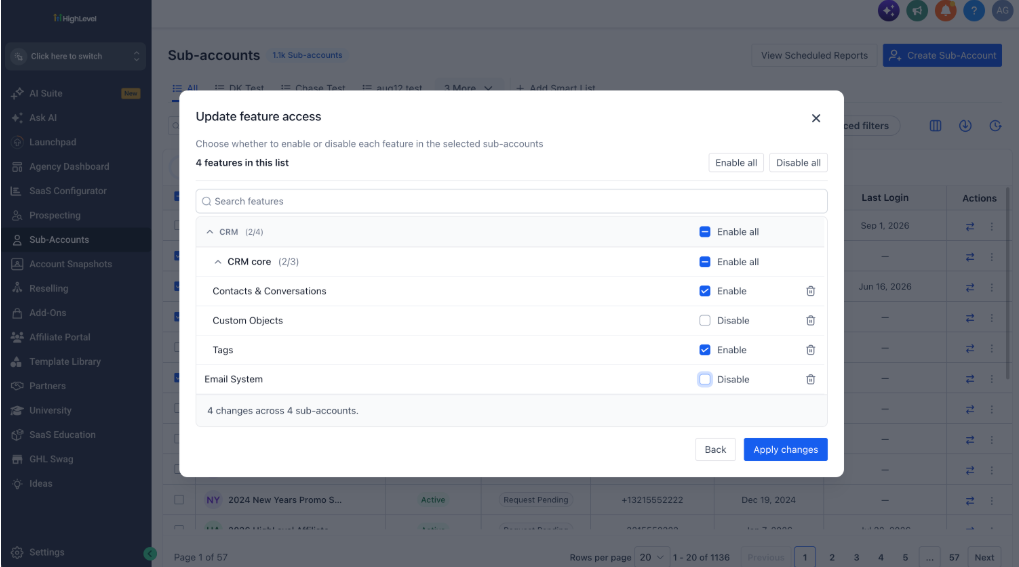
Step 5: Apply the Changes
Click Apply changes to submit the bulk update request.
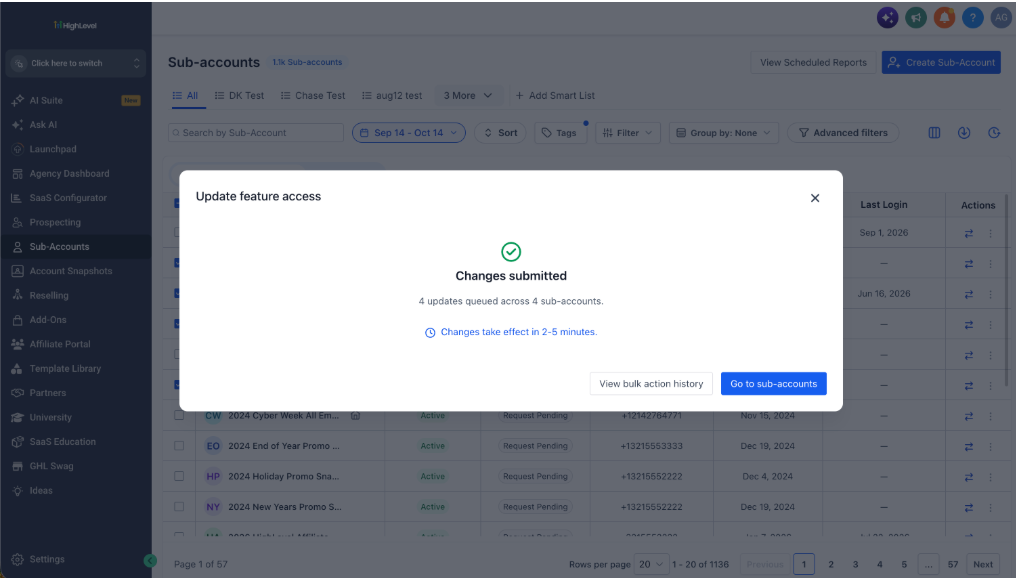
The requests are then queued for processing. The operation does not mean that every change takes effect immediately, so allow time for the selected updates to be processed.
Manage Feature Selection More Efficiently
GoHighLevel includes several selection options that help simplify bulk feature management. These options are useful when you need to prepare changes across multiple accounts without manually selecting every item one by one.
Search for features: Find the features you want to include in your update without manually reviewing the entire selection.
Select entire feature groups: Choose a complete feature group when you want to manage the group together.
Enable all: Use this option to speed up the process when your intended changes require enabling all features in the selection.
Disable all: Use this option when you want to disable all features in the selection.
Remove individual features: Exclude specific features from the list before applying the changes.
These controls provide flexibility when preparing a bulk update. You can work with a broader selection when appropriate or refine the list to include only the features relevant to your task.
Before applying changes, make sure the selected features and their intended Enable or Disable settings match your requirements.
What Happens After You Apply Changes?
Once you click Apply changes, GoHighLevel queues the requests and processes them. According to the update information, changes generally take effect within approximately 2–5 minutes after submission.
This processing period is important when planning administrative changes across multiple sub-accounts. Avoid assuming that the updated feature access will be reflected immediately after you submit the request.
You can monitor request statuses through Bulk Actions History. This provides a place to track the status of your bulk update requests after submission.
For a more organized workflow, account managers can use the following approach:
Select the intended sub-accounts and features carefully.
Apply the changes once the selection is ready.
Allow approximately 2–5 minutes for processing.
Check Bulk Actions History to monitor request status.
This approach keeps the process straightforward without confusing request submission with completed processing.
Why This Update Matters for Agencies
For agencies responsible for multiple client accounts, feature access is an important part of maintaining consistent configurations. Repeating the same administrative operation across individual sub-accounts can consume time that could otherwise be spent on client work or account management.
GoHighLevel bulk feature updates help address this challenge in three practical ways.
Rolling out features: When an agency needs to enable selected features across multiple sub-accounts, it can prepare and submit the changes through one bulk operation.
Restricting feature access: When the intended configuration requires certain features to be disabled, the same process supports applying those changes across the selected accounts.
Standardizing configurations: Agencies can use bulk updates to make consistent feature-access changes across multiple sub-accounts, rather than managing each account separately.
These use cases can make routine administration more manageable, especially when the same type of change needs to be applied to several accounts.
The update does not eliminate the need to review your selections. Instead, it reduces repetitive steps by bringing the feature changes for selected sub-accounts into one process.
Final Thoughts
GoHighLevel bulk feature updates provide a simpler way to enable or disable features across multiple sub-accounts. By combining account selection, feature selection, Enable or Disable settings, and request submission into one workflow, the update reduces the need for repetitive account-by-account changes.
Feature search, group selection, Enable all, Disable all, and individual feature removal also help users prepare their changes more efficiently. After submission, requests are queued for processing, generally taking approximately 2–5 minutes to take effect, and their statuses can be monitored through Bulk Actions History.
For agencies managing multiple GoHighLevel sub-accounts, this update offers a practical improvement to everyday account administration while keeping feature-access changes organized.
Frequently Asked Questions (FAQs)
1. What are GoHighLevel bulk feature updates?
GoHighLevel bulk feature updates allow users to enable or disable selected features across multiple sub-accounts in a single operation instead of managing each account individually.
2. How do you enable or disable features across multiple GoHighLevel sub-accounts?
Select the required sub-accounts from the Sub-Accounts listing page, click Update features, choose the features you want to change, and click Next. Select Enable or Disable for each feature, then click Apply changes.
3. How long do GoHighLevel bulk feature updates take to process?
Changes generally take effect within approximately 2–5 minutes after applying them. Requests are queued for processing, so changes may not take effect immediately.
4. Can you select or remove specific features before applying a bulk update?
Yes. You can search for features, select entire feature groups, use Enable all or Disable all, and remove individual features from the list before applying changes.
5. How can you track the status of bulk feature update requests in GoHighLevel?
You can monitor the status of submitted bulk feature update requests through Bulk Actions History. This helps you track requests after applying changes across multiple sub-accounts.
Need Expert Help with GoHighLevel?
New to GoHighLevel and ready to get started? Buy your GoHighLevel account here and launch with confidence.
Already know what you need and want our team to handle everything, from complete setup and customization to funnels, workflows, automations, CRM, and pipelines? Click here.



