

GoHighLevel Booking Forms Update
GoHighLevel Booking Forms: Attach Forms to Service and Rental Bookings In-App
When a service or rental booking is created manually, collecting the customer's information can be an easy step to overlook. A team member may have all the details needed to schedule the booking but still need additional intake information before the service takes place. When that information is collected separately, keeping records consistent across different booking methods becomes more difficult.
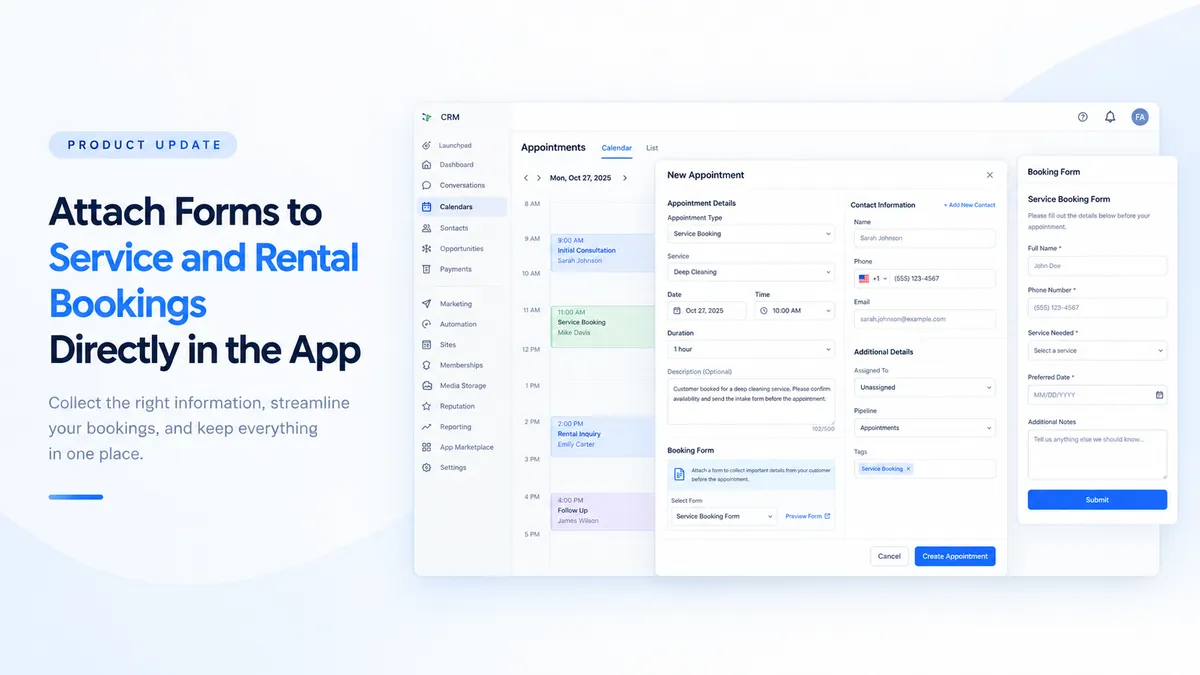
The latest GoHighLevel booking form update addresses this gap by allowing users to attach and complete forms while creating service and rental bookings directly through the in-app appointment modal. Instead of limiting form collection to bookings submitted through an online booking page, GoHighLevel now supports form completion during manual booking creation as well.
For businesses that manage appointments internally, this provides a more consistent way to collect customer information and associate submitted forms with their bookings.
What Is the GoHighLevel In-App Booking Form Update?
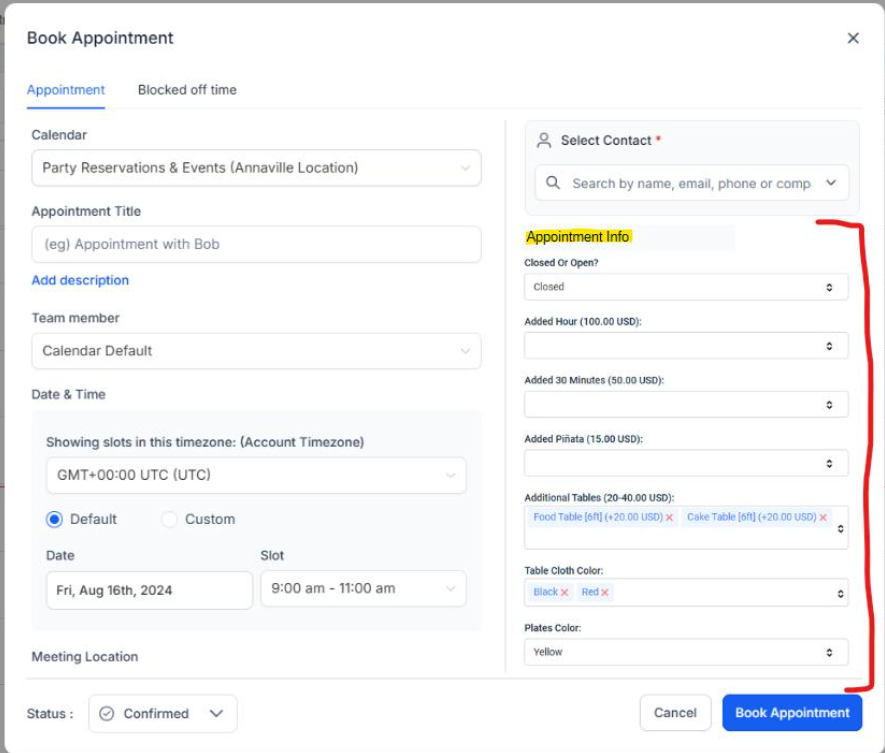
The update introduces a Booking form section for service and rental bookings created through the GoHighLevel appointment modal. Users can attach an available form, complete it on the customer's behalf, and create the booking as part of the same process.
Previously, the supplied update notes that forms were available for bookings made through the booking page. The new capability extends form collection to bookings created directly inside the application.
This distinction matters because businesses do not always rely exclusively on online booking pages. Staff may also create bookings themselves when handling customer requests or arranging appointments internally. With this update, those manually created bookings can include intake information collected through an attached form.
The feature specifically concerns service and rental bookings created through the in-app appointment modal. It should not be interpreted as a change that automatically applies to every appointment type in GoHighLevel.
Key Features of GoHighLevel Booking Forms
1. Attach Forms During Booking Creation
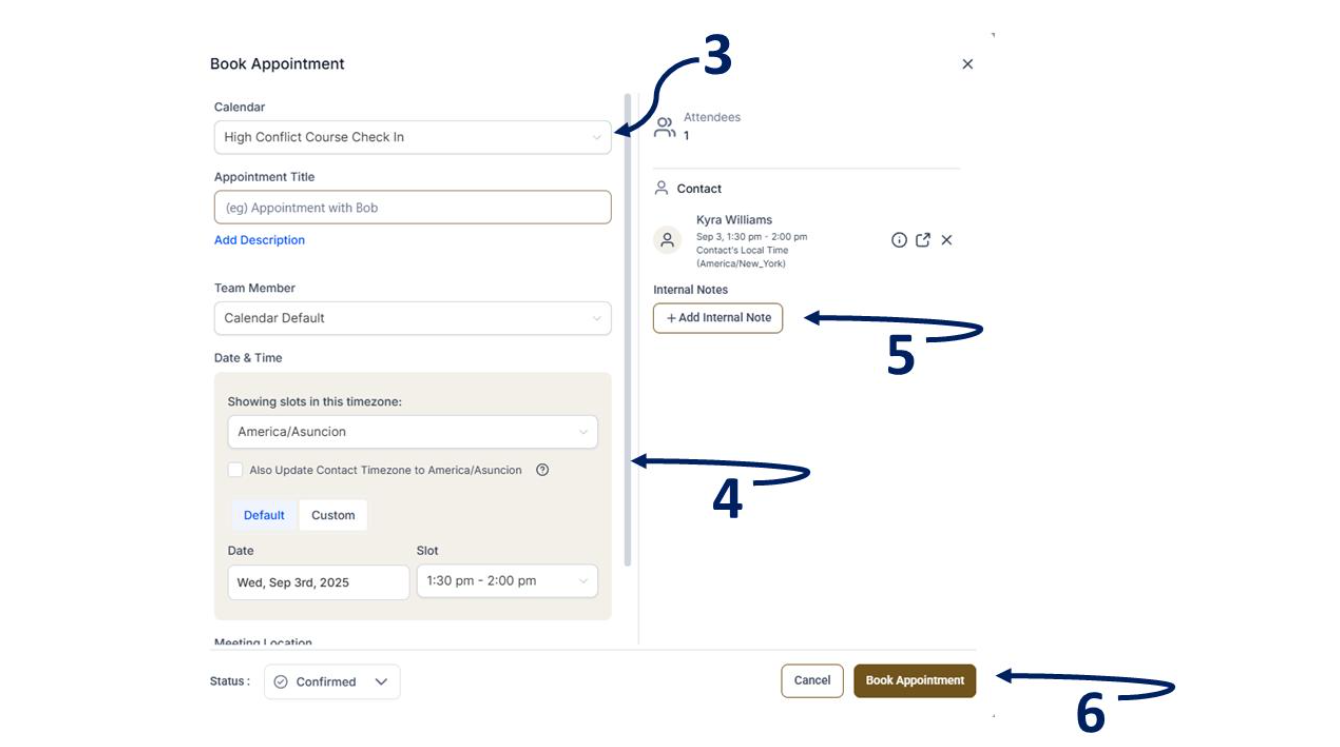
Service and rental bookings now include a Booking form section with an Attach form option. Selecting this option opens the form within the booking process, allowing the user to complete the required intake information before creating the booking.
The form attachment is optional. If a particular booking does not require an intake form, users can continue creating it without attaching one.
This flexibility allows businesses to collect additional information when necessary without making form completion a mandatory part of every booking.
2. Use the Preselected Form or Choose Another
GoHighLevel preselects the configured form for the booking process. Users can also select any available form from the dropdown if another form is more appropriate.
This is useful when different service or rental arrangements require different information. For example, a business might use different intake questions for different types of customer requests, provided the relevant forms are available for selection.
The key benefit is that users can work with the configured form or choose another available option instead of being restricted to a single preselected form.
3. Customer Contact Details Are Prefilled
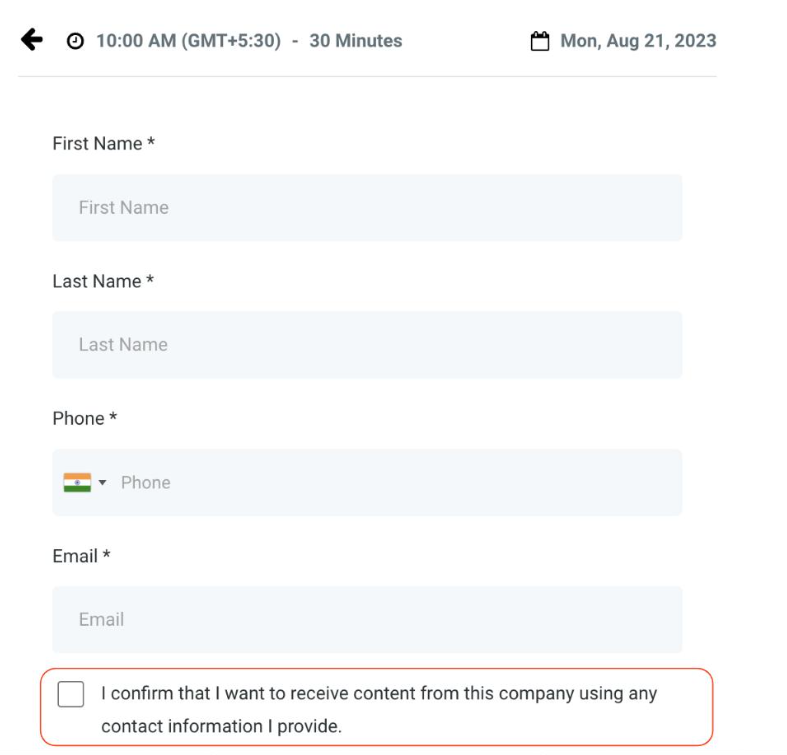
The selected contact's first name, last name, email address, and phone number are automatically prefilled in the form.
This reduces the need to enter those specific details again when completing the customer's intake information. It also helps keep the contact information used in the form aligned with the selected contact record.
However, this prefill behavior applies to the four contact fields identified in the update. It does not mean that every field in the form is completed automatically. Any other required information must be handled as part of completing the form.
4. Certain Form Elements Are Excluded
When a form is completed through the in-app appointment modal, CAPTCHA, product-selling, and payment elements do not appear.
This is an important distinction because the purpose of this process is to collect booking-related information while a team member creates a booking. The form experience excludes these particular elements rather than presenting every element that might appear in another form context.
Businesses should therefore understand that the form displayed in the appointment modal may not include all elements associated with a form used elsewhere.
How to Attach a Form to a GoHighLevel Service or Rental Booking
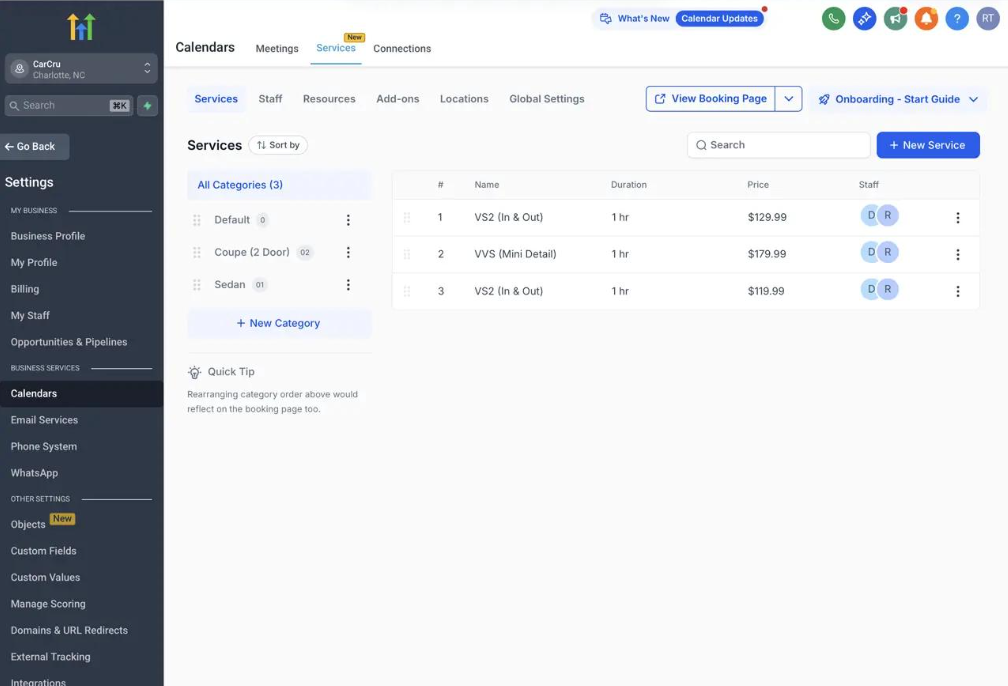
Using the new functionality involves four steps.
Step 1: Create the booking and select the contact.
Start creating a service or rental booking through the in-app appointment modal. Select the contact for whom the booking is being created.
Step 2: Open the Booking form section.
Within the booking process, locate the Booking form section and click Attach form. The form will open within the booking flow.
Step 3: Complete the form and create the booking.
Review the selected form and complete it on the customer's behalf. The selected contact's first name, last name, email address, and phone number will already be populated. Once the form is completed, create the booking.
Step 4: Review the submitted form later.
After the booking has been created, open the appointment details to view the submitted form.
Following this process allows staff to collect the relevant intake information during booking creation instead of treating form completion as a separate step.
Why This Update Matters for Businesses and Teams
Consistent customer intake is important when bookings enter a business through different channels. An online booking page may collect information through a form, while a booking created by a team member may previously have followed a different process.
The ability to attach forms during in-app booking creation helps reduce this difference.
Consider a hypothetical rental business that receives a customer request directly and creates the booking internally. The employee can now attach an available form, complete it with the customer’s information, and create the booking with the submitted form available through its appointment details.
The same principle applies to service businesses that arrange bookings directly for customers. Instead of relying solely on the online booking page for form collection, staff can capture intake information during the in-app booking process.
Prefilled contact details also make the process more practical. Since the selected contact's basic information is already populated, staff can focus on completing the remaining relevant questions rather than repeatedly entering the same contact details.
For teams managing multiple bookings, this provides a clearer and more consistent approach to collecting information at the point of booking. It does not guarantee specific business results, but it gives users a supported way to include intake forms when creating service and rental bookings themselves.
Important Limitation: Attach Forms Before Creating the Booking
There is one important restriction to understand: forms can only be attached while creating the booking. They cannot be added or edited later.
This means users should decide whether a booking requires an intake form before completing the booking creation process. If a form is needed, it should be attached and completed during that initial process.
Teams should account for this limitation when deciding how staff handle service and rental bookings. Establishing a clear process for identifying bookings that require intake information can help ensure that the form is included at the appropriate stage.
The update supports form collection during booking creation, not post-creation form attachment or editing.
Frequently Asked Questions (FAQs)
1. Can I attach a form to a service or rental booking created manually in GoHighLevel?
Yes. You can attach a form while creating a service or rental booking through the in-app appointment modal using the Attach form option.
2. Can I create a GoHighLevel booking without attaching a form?
Yes. Attaching a form is optional, so you can create a service or rental booking without a form when additional intake information is not required.
3. Which contact details are automatically prefilled in the booking form?
GoHighLevel prefills the selected contact's first name, last name, email address, and phone number. Other form fields are not guaranteed to be completed automatically.
4. Can I add or edit a booking form after creating the appointment?
No. Forms can only be attached during booking creation. You cannot add or edit a form after the booking has been created.
5. Do CAPTCHA and payment fields appear when completing a form through the appointment modal?
No. CAPTCHA, product-selling, and payment elements are excluded when users complete a form through the in-app appointment modal.
Conclusion
The GoHighLevel booking form update extends form collection to service and rental bookings created through the in-app appointment modal. Users can attach an available form, complete it on the customer's behalf, benefit from prefilled contact details, and review the submitted form through the appointment details later.
For businesses that create bookings internally as well as through online booking pages, this provides a more consistent approach to customer intake. The key is to attach the form during booking creation, since it cannot be added or edited afterward.
By incorporating this capability into their booking procedures, GoHighLevel users can collect relevant customer information as part of the booking process while keeping the feature's specific scope and limitations in mind.
Need Expert Help with GoHighLevel?
New to GoHighLevel and ready to get started? Buy your GoHighLevel account here and launch with confidence.
Already know what you need and want our team to handle everything, from complete setup and customization to funnels, workflows, automations, CRM, and pipelines? Click here.



