

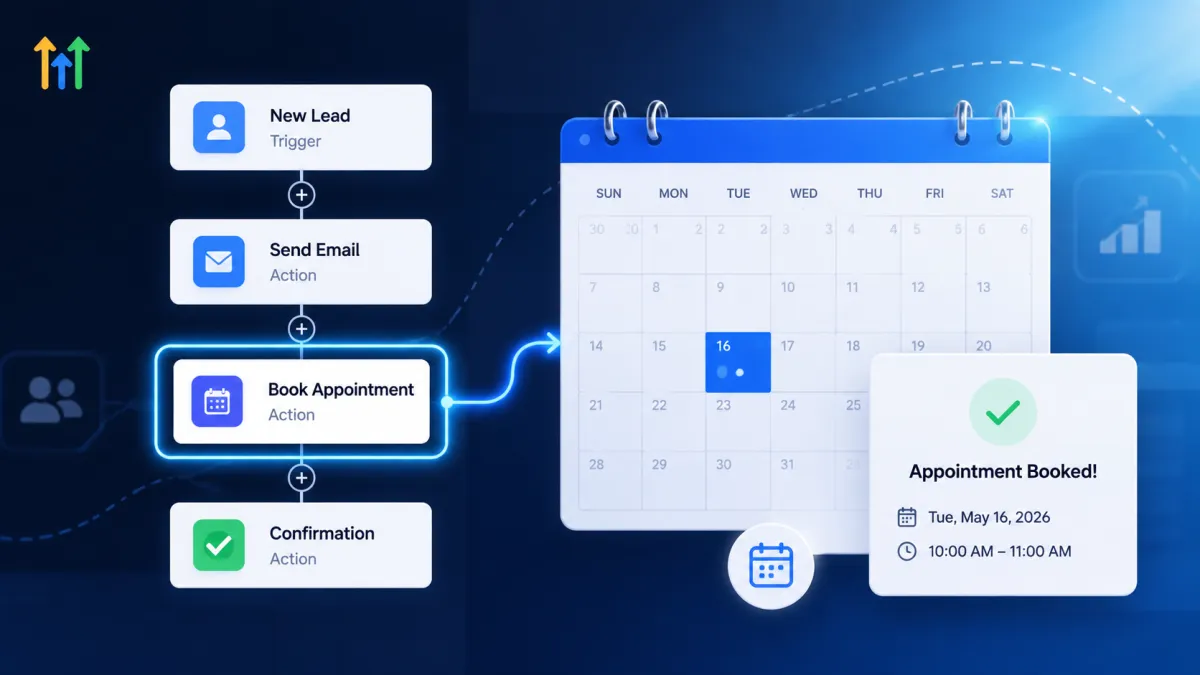
GoHighLevel Book Appointment Action
How to Automate Appointment Scheduling Using the Book Appointment Action in GoHighLevel
Manual appointment scheduling can quickly become repetitive. Teams often spend time checking calendars, choosing appointment times, assigning contacts, and creating bookings that could otherwise be handled automatically.
The GoHighLevel Book Appointment Action brings appointment creation directly into a Workflow. Instead of simply sending a contact a calendar link and waiting for them to book, a workflow can create an appointment when the defined automation reaches the Book Appointment step. This makes appointment scheduling part of the workflow itself.
What Is the Book Appointment Action in GoHighLevel?
The Book Appointment action in GoHighLevel is a Workflow action that automatically creates an appointment on a selected calendar when the workflow reaches that step.
Its purpose is different from sending a calendar link. A calendar link asks the contact to choose a time and complete the booking themselves. The Book Appointment action is designed to create the appointment through workflow automation based on the information and configuration provided to the action.
This makes it useful when appointment creation needs to happen as one step in a larger automated process.
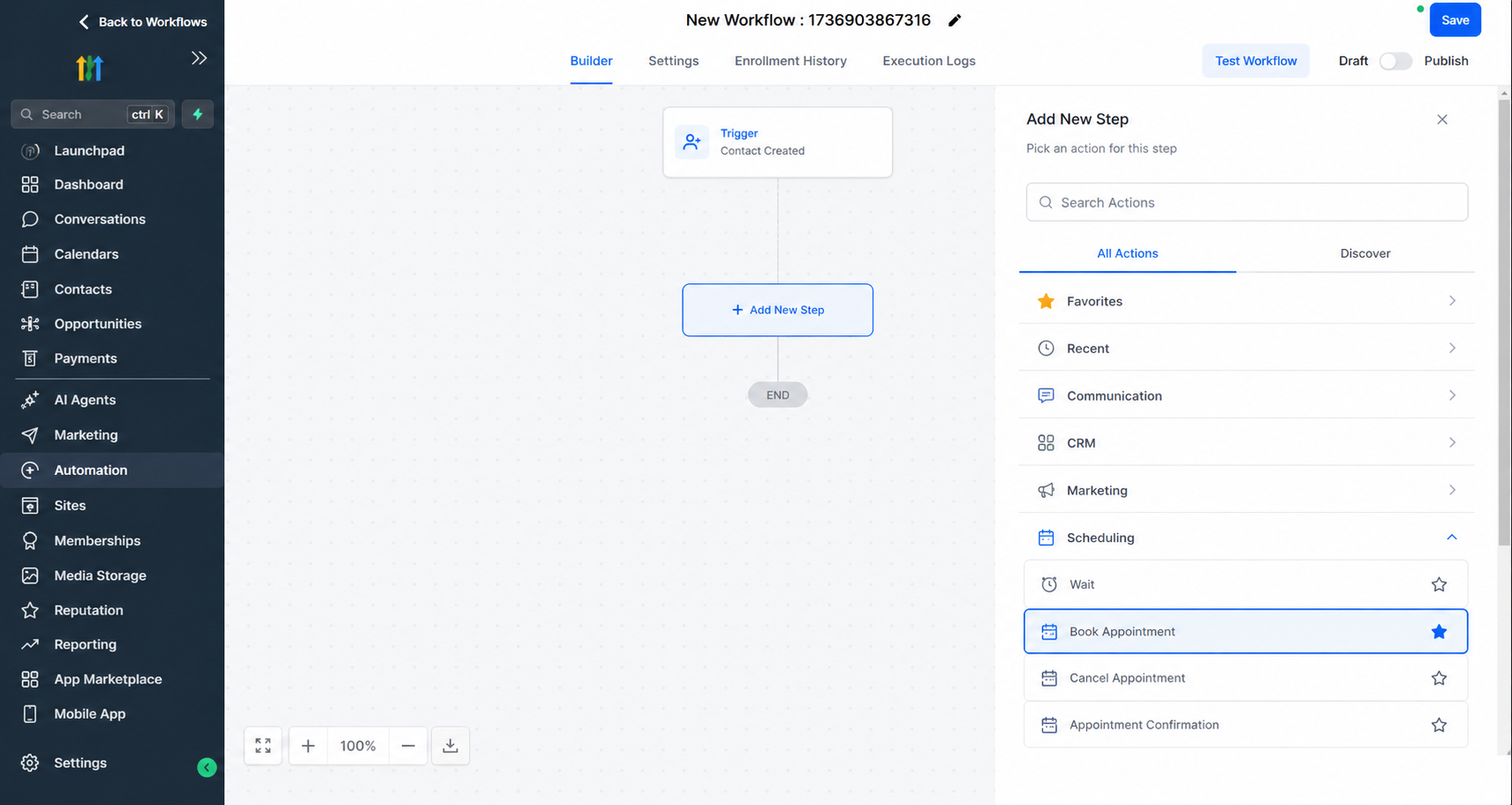
How the Book Appointment Action Works
The basic structure is straightforward:
Workflow Trigger → Conditions or Other Workflow Steps → Book Appointment Action → Appointment
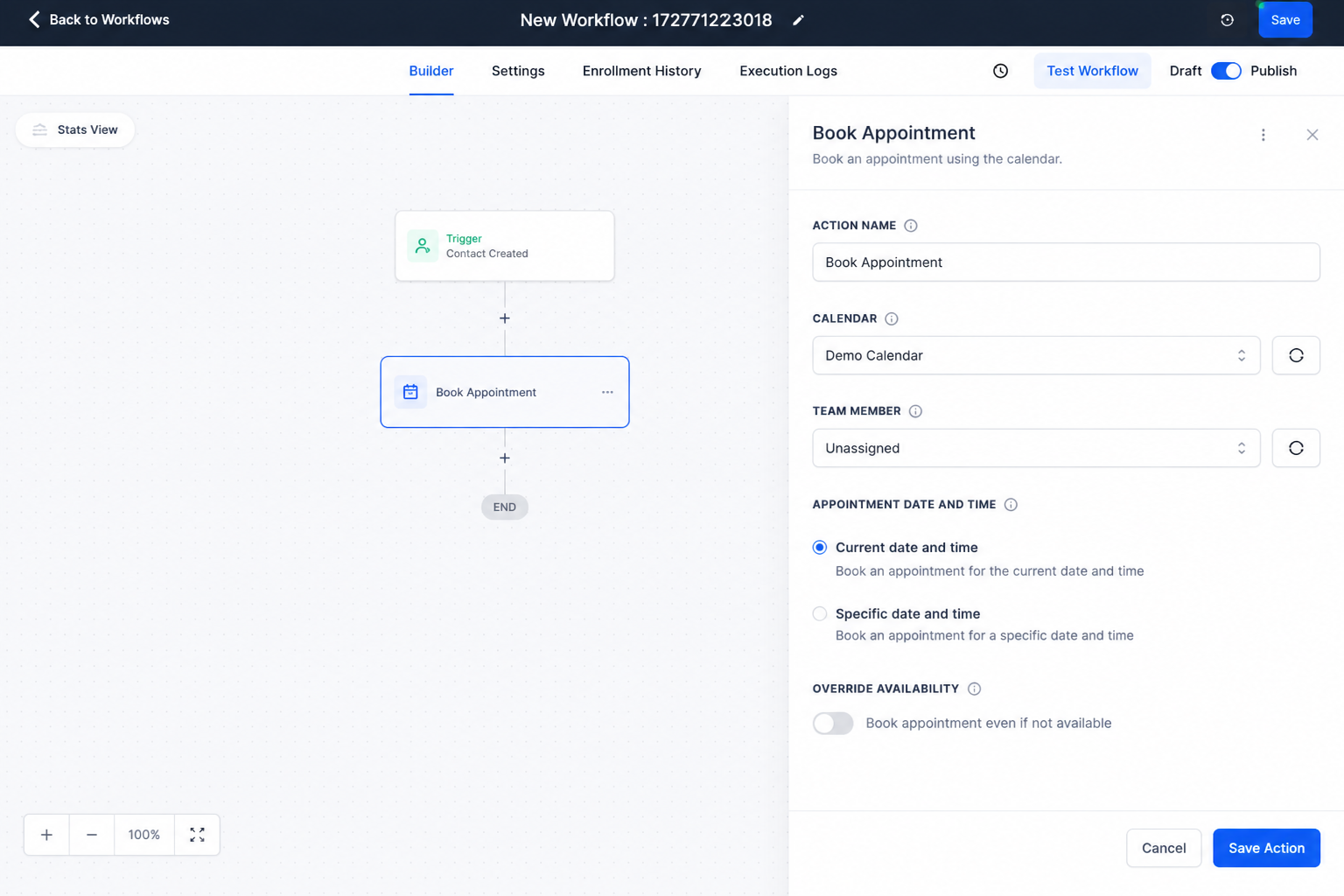
A workflow first needs an event that starts the automation. The workflow can then process its logic before reaching the Book Appointment action. At that point, HighLevel uses the action's configuration to attempt to create an appointment on the selected calendar.
The action requires a calendar, and the appointment date and time can be configured using either a fixed value or dynamic information supplied by the workflow.
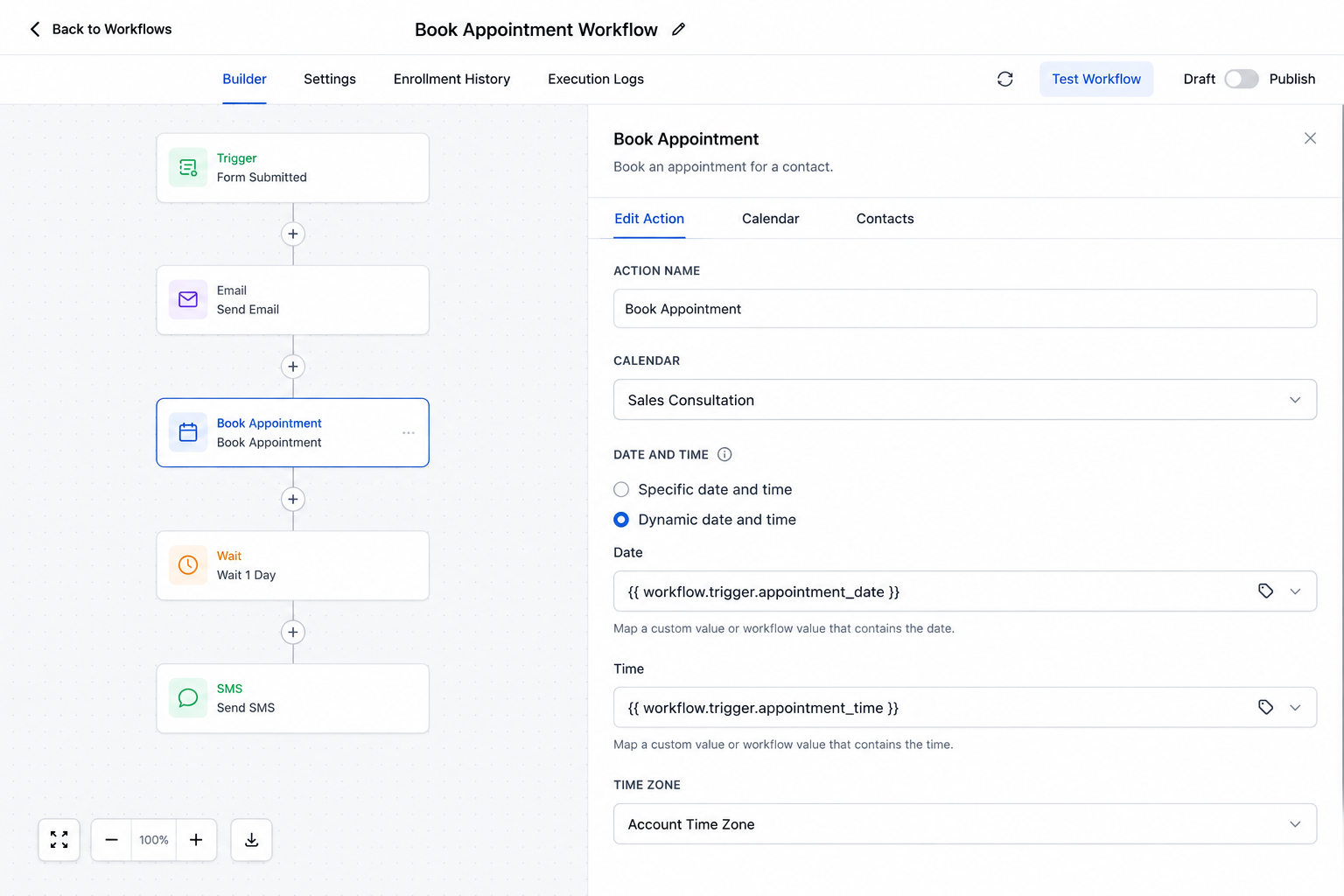
For dynamic dates and times, HighLevel supports mapping incoming date/time data and recommends using the Date Time Formatter action when the incoming format needs to be converted.
How to Set Up Book Appointment in a GoHighLevel Workflow
The exact setup depends on the automation you are building, but the general process is:
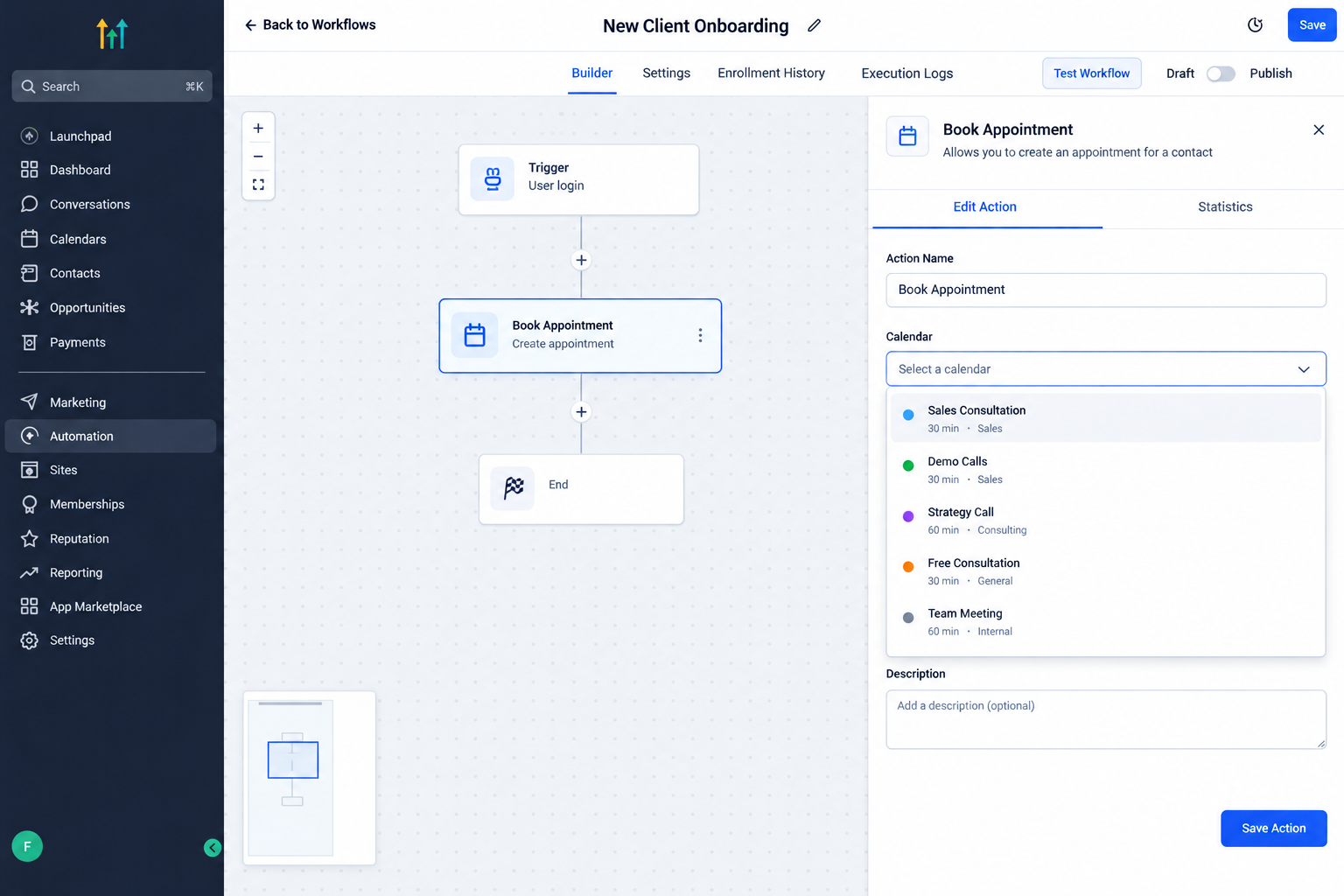
Create or open a Workflow.
Start with the workflow that should eventually create the appointment and configure an appropriate trigger.Add your workflow logic.
Place any relevant conditions, waits, or other steps before appointment creation so the booking occurs only when the intended criteria are met.Add the Book Appointment action.
Add Book Appointment at the point where the appointment should be created.Select the calendar.
Choose the calendar that should receive the appointment. HighLevel also allows the booking to follow the calendar's default team-member assignment or use a specific team member.Configure the appointment date and time.
The action can use a standard fixed date/time or dynamic date/time information mapped from workflow data. If your dynamic value is not in a supported format, use Date Time Formatter before the booking step.Review availability behavior.
By default, the system checks calendar availability. The action also provides an Override availability option, which can allow a booking without an availability check. This should be used carefully because it changes the normal availability behavior.
After configuring the action, test the workflow with realistic data before relying on it for live appointment scheduling.
Practical Example: Automating a Scheduled Follow-Up
Imagine a sales team has a workflow that receives information containing a specific follow-up date and time. After the workflow's required conditions are satisfied, the automation reaches the Book Appointment action.
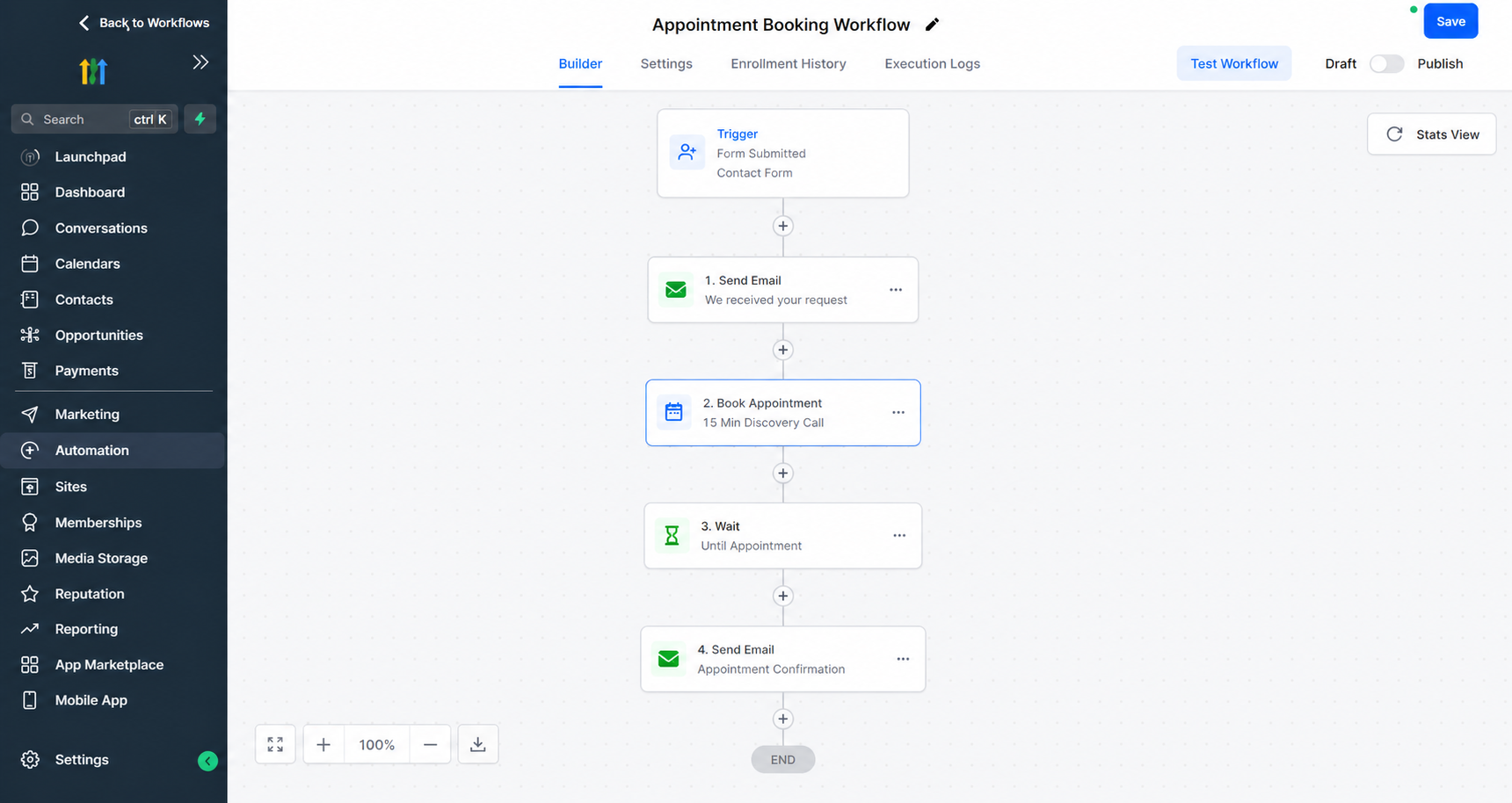
The action is configured with the appropriate sales calendar and the required appointment date and time. Instead of asking a team member to manually create the appointment, the workflow attempts to create it automatically.
If the calendar has no availability and availability override is disabled, the appointment will not be created. The workflow can then use its logic to handle the outcome appropriately, such as routing the contact through another step or notifying the team.
Use Cases for the Book Appointment Action
The action can be useful in several appointment-based processes:
Qualified lead workflows: Automatically create a scheduled appointment when a lead reaches a defined stage of a qualification process.
Sales follow-ups: Create planned appointments when a workflow receives a predetermined appointment time.
Appointment-based businesses: Integrate appointment creation into operational workflows instead of relying entirely on manual scheduling.
Webhook-driven processes: Use appointment date/time information received through workflow data to create a booking.
Automated follow-up processes: Make appointment creation one step within a broader workflow rather than a separate manual task.
The key is that the workflow must have the information and conditions necessary for the intended appointment to be created.
Benefits of Automating Appointment Scheduling
Using the GoHighLevel appointment automation action can reduce repetitive scheduling work. Staff do not necessarily need to create every appointment manually when the booking can be incorporated into an appropriate workflow.
It can also make processes more consistent. Once the workflow is correctly configured, the same appointment-booking logic can be applied whenever the relevant workflow conditions are met.
Most importantly, it allows appointment scheduling to become part of a broader automated process instead of remaining a completely separate administrative task.
Important Considerations
Before using the Book Appointment action in a live workflow, verify that the selected calendar is correctly configured and that its availability reflects the scheduling rules you expect.
Pay particular attention to the appointment date and time. If you are using dynamic values, confirm that the incoming data is in a supported format or convert it before the Book Appointment step.
Also review team-member assignment and availability behavior. If no one is available and availability override is disabled, the appointment will not be created. Additionally, calendars with Recurring enabled cannot currently be selected for the Book Appointment action.
Conclusion
The GoHighLevel Book Appointment Action gives businesses a practical way to make appointment creation part of their Workflow automation. By connecting a workflow's trigger and logic to an actual calendar booking, businesses can reduce manual scheduling work and create more consistent appointment processes.
When the calendar, appointment timing, assignment, and workflow conditions are configured correctly, the action can turn appointment scheduling from a repetitive manual task into a reliable part of an automated workflow.
Frequently Asked Question (FAQs)
1. What does the Book Appointment action do in GoHighLevel?
It automatically creates an appointment on a selected calendar when a workflow reaches the action. The appointment can be configured with a fixed or dynamic date and time.
2. Can the Book Appointment action use dynamic appointment times?
Yes. The action can use dynamic date and time information from workflow data. If the incoming format is not supported, HighLevel recommends using Date Time Formatter before the booking action.
3. Does the action check calendar availability?
Yes, availability is checked by default. The action also provides an Override availability option that can bypass the normal availability check.
4. Can I assign the appointment to a specific team member?
Yes. The action supports using the calendar's default assignment or selecting a specific team member, depending on how the booking should be routed.
5. Can recurring calendars be used with the Book Appointment action?
No. HighLevel's current documentation states that calendars with Recurring enabled cannot be selected for this Workflow action.
Need Expert Help with GoHighLevel?
New to GoHighLevel and ready to get started? Buy your GoHighLevel account here and launch with confidence.
Already know what you need and want our team to handle everything, from complete setup and customization to funnels, workflows, automations, CRM, and pipelines? Click here.



