

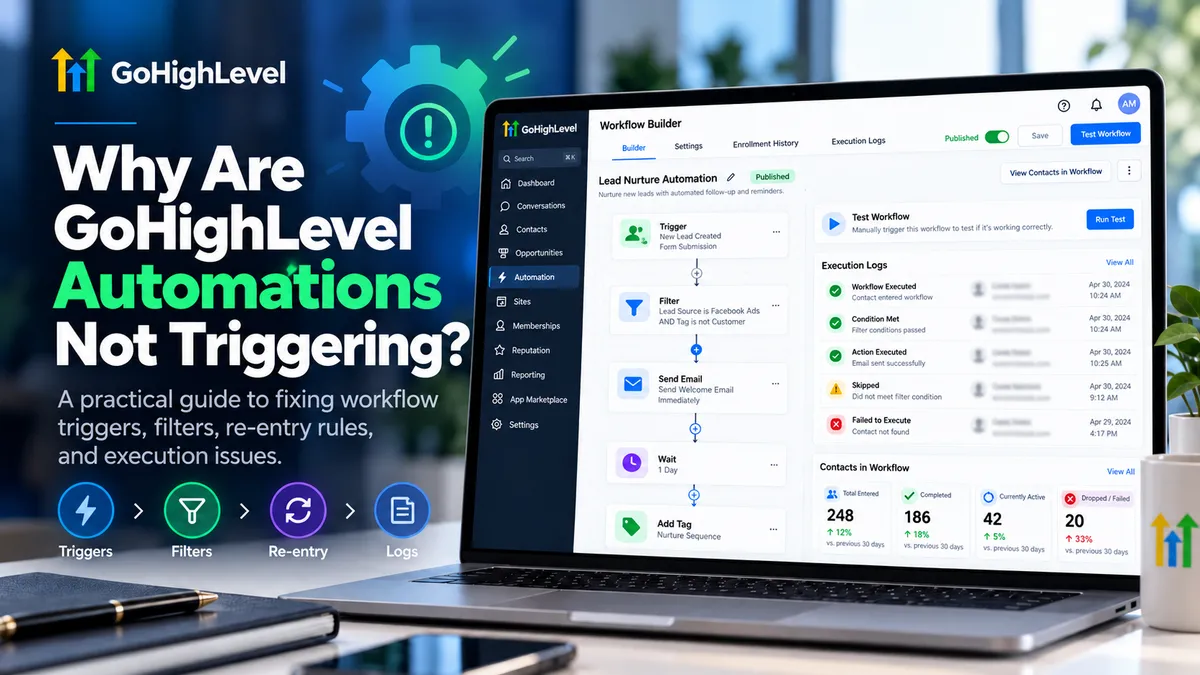
Why Are GoHighLevel Automations Not Triggering?
Why Are GoHighLevel Automations Not Triggering?
Imagine launching a lead generation campaign, receiving a new inquiry, and discovering that your automated follow-up never reached the prospect. Your GoHighLevel workflow looks correctly configured, yet nothing happens.
Delayed responses can mean missed conversations, frustrated prospects, and lost conversion opportunities.
If you're wondering why GoHighLevel automations are not triggering, the problem usually involves workflow publication, trigger configuration, enrollment conditions, or execution settings.
This guide explains how to identify the actual cause, troubleshoot the workflow systematically, and restore reliable lead follow-ups.
Why Are GoHighLevel Automations Not Triggering?
GoHighLevel workflows begin when a qualifying event matches a configured trigger and its conditions. However, an automation that appears inactive may have three different problems:
Trigger failure: The required event never occurred.
Enrollment failure: The event occurred, but filters or enrollment rules prevented entry.
Execution failure: The contact entered successfully, but an action was delayed, skipped, or failed.
Identifying which stage failed is essential before changing your workflow settings.
Most Common Reasons GoHighLevel Automations Fail to Trigger
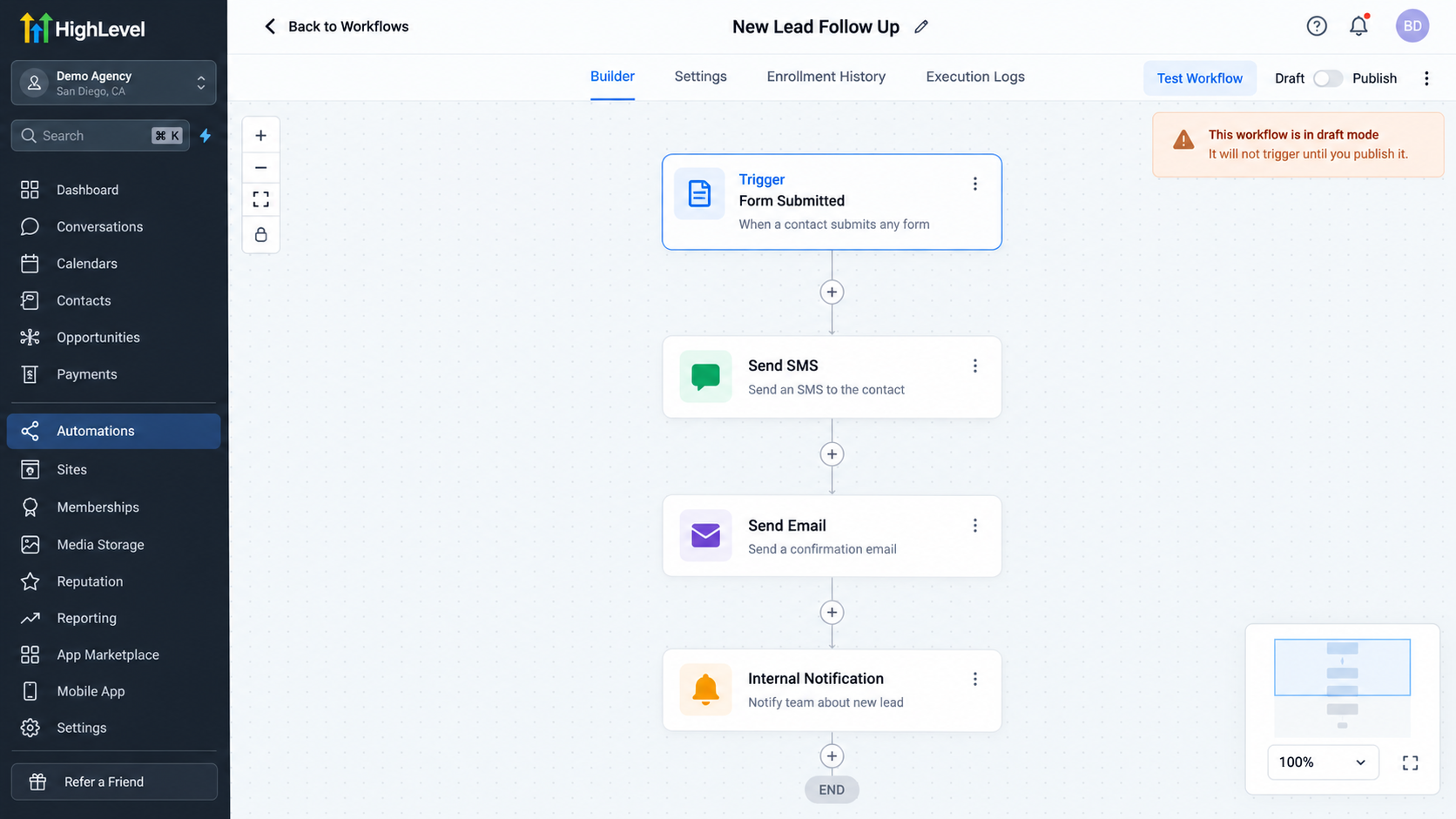
1. Workflow Is Still in Draft Mode
A workflow saved as Draft will not process new live trigger events.
Open Automations > Workflows, select your workflow, and inspect its publication status. Ensure the configuration is saved and the workflow is published.
Simply creating workflow actions does not activate the automation.
2. Incorrect Workflow Trigger Configuration
Selecting the wrong trigger can prevent a workflow from starting.
For example:
Form Submitted: Starts when a qualifying form submission occurs.
Contact Created: Starts when a new contact is created through a supported method.
Contact Tag: Responds to configured contact-tag events.
If an existing contact submits another form, a workflow relying exclusively on Contact Created may not fire because no new contact was created.
Choose the trigger that corresponds directly to the intended event.
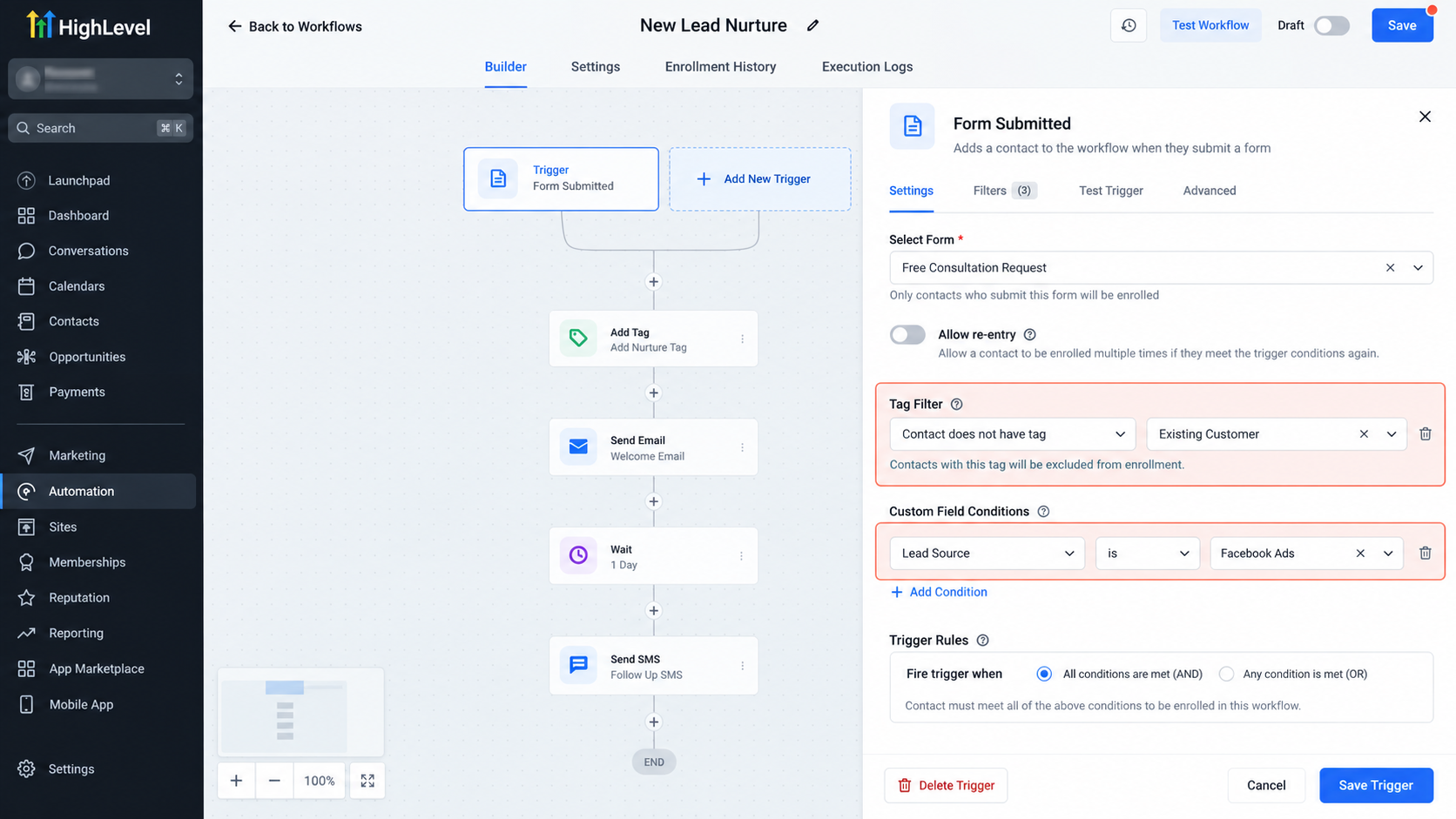
3. Trigger Filters Are Too Restrictive
Trigger filters determine which events qualify for enrollment.
Suppose your workflow uses Form Submitted but specifies an outdated form in its filter. Submissions through your replacement form will not meet that requirement.
Similarly, custom-field or tag conditions may exclude otherwise valid contacts.
Review every filter and confirm that the submitted event and contact data satisfy the configured conditions.
4. Contact Re-entry Settings Prevent Enrollment
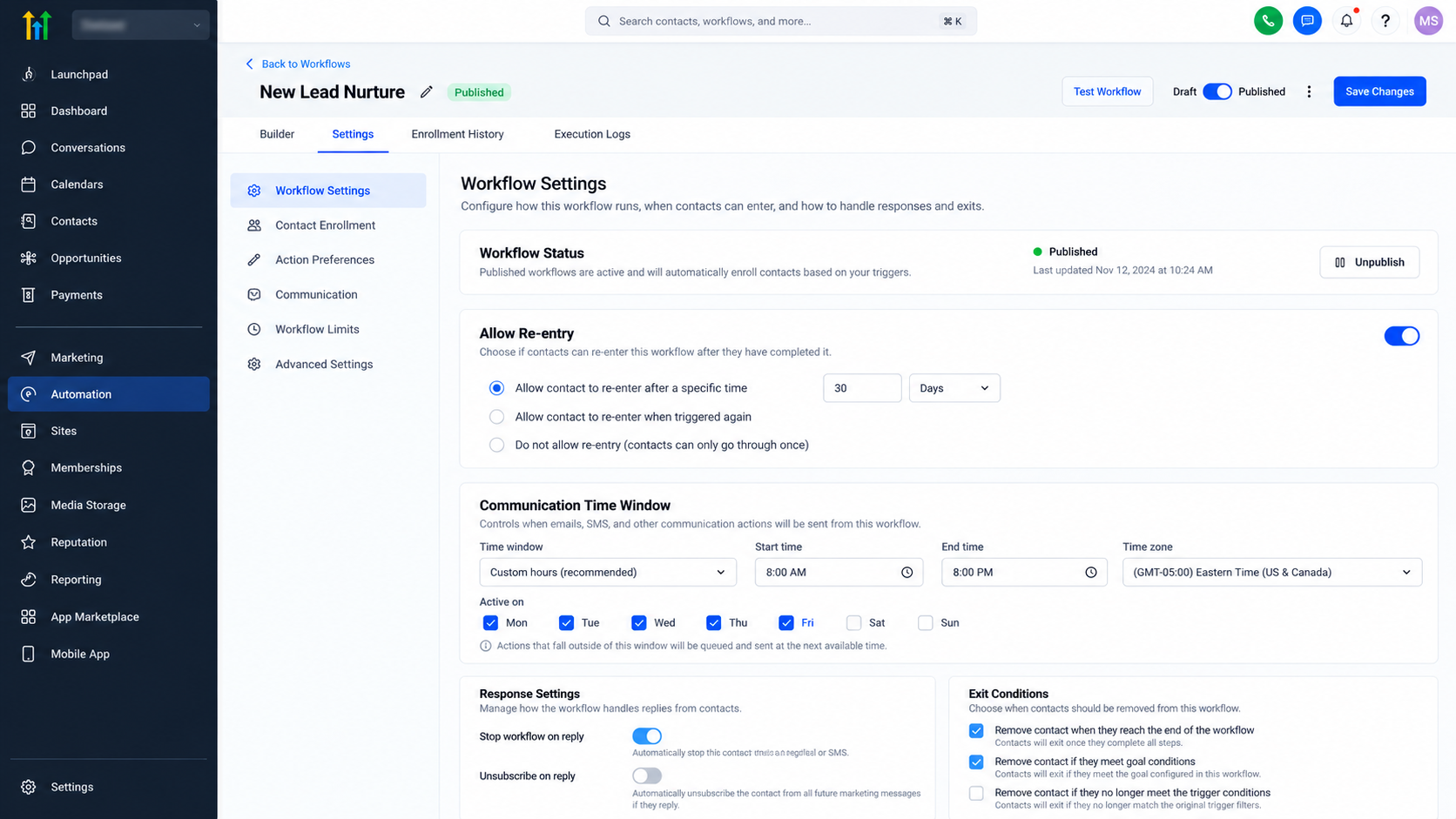
GoHighLevel's Allow Re-entry setting determines whether contacts can enter a workflow again.
When disabled, a contact generally enters that workflow only once. When enabled, contacts can re-enter after completing the workflow or being removed, but ordinarily cannot re-enter while still active.
Appointment-based and invoice-based triggers have special multiple-entry behavior.
Check these rules before repeatedly testing an automation with the same contact.
5. The Required Trigger Event Never Occurred
Workflows respond to qualifying events, not simply to existing CRM information.
For example, adding a Form Submitted trigger does not automatically process every contact who submitted that form previously.
Likewise, the Contact Created trigger does not activate for bulk-imported contacts.
Generate a new qualifying event instead of assuming historical activity will initiate enrollment.
6. Workflow Actions Are Delayed, Skipped, or Failing
Sometimes enrollment succeeds, but the expected message never arrives.
Possible explanations include:
A Wait action postponing execution.
An If/Else branch directing the contact elsewhere.
A configured communication time window delaying an email or SMS.
Missing recipient information or communication restrictions.
Remember that an executed message action does not necessarily guarantee successful delivery.
Review execution records before concluding that the trigger failed.
How to Fix GoHighLevel Automations Not Triggering
Use this troubleshooting sequence to isolate the problem efficiently.
Step 1: Open the affected workflow.
Navigate to Automations > Workflows and locate the automation experiencing problems.
Step 2: Verify publication status.
Confirm that the workflow is saved and published rather than remaining in Draft.
Step 3: Examine trigger configuration.
Check the selected trigger, associated form or event, and every applicable filter.
Step 4: Confirm the actual event.
Verify that the expected form submission, contact creation, tag change, or other qualifying activity occurred.
Step 5: Inspect enrollment settings.
Review Allow Re-entry and determine whether the affected contact previously participated in the workflow.
Step 6: Review diagnostic records.
Open Enrollment History to investigate contact enrollment. Use Execution Logs to identify completed, skipped, waiting, or failed actions.
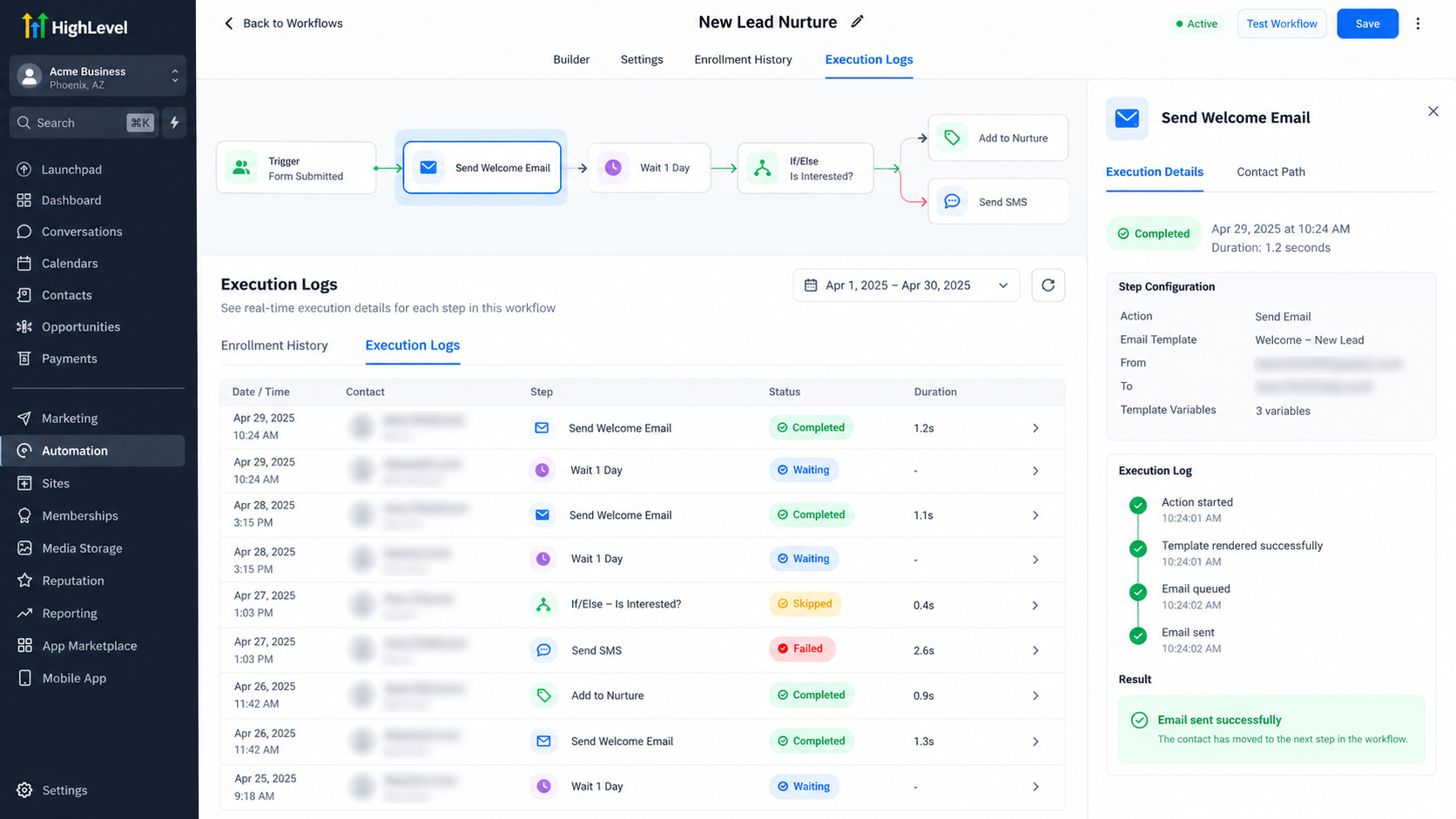
Step 7: Perform a live test.
Use a fresh test contact and reproduce the genuine triggering event. Check whether enrollment occurs and actions execute.
Step 8: Isolate restrictive conditions.
If enrollment still fails, temporarily simplify relevant trigger filters and retest. Restore the required conditions after identifying the issue.
If the problem persists, collect the workflow name, affected contact, timestamps, and relevant logs before contacting HighLevel support.
Real-World Example: A Lead Follow-Up Automation That Never Starts
Consider a business using a website inquiry form to trigger an immediate follow-up email.
The business replaces its original form during a website redesign but forgets to update the workflow trigger filter.
New inquiries appear in the CRM, yet the follow-up workflow never starts.
Reviewing Enrollment History reveals no enrollment for those submissions. Inspecting the trigger identifies the old form selection.
After selecting the correct form, saving, publishing, and performing a fresh submission test, the workflow enrolls the test contact successfully.
The lesson is straightforward: even a correctly published workflow cannot compensate for an incorrectly configured trigger.
Best Practices to Prevent GoHighLevel Workflow Failures
To maintain dependable lead generation automations:
Test before launch: Validate workflows using realistic trigger events.
Simplify filters: Apply only necessary enrollment conditions.
Review execution records: Investigate unexpected delays and failures.
Understand re-entry: Configure repeat enrollment according to your process.
Audit critical workflows: Regularly test lead capture and follow-up sequences.
Consistent monitoring helps prevent unnoticed automation failures and protects valuable sales opportunities.
Final Thoughts
GoHighLevel automation troubleshooting becomes easier when you separate trigger events, contact enrollment, and workflow execution.
Start by checking publication status, trigger filters, and re-entry rules. Then use Enrollment History and Execution Logs to identify the actual failure point.
Reliable workflows support timely responses, consistent lead nurturing, and stronger conversion processes.
If your automations continue to malfunction, a professional GoHighLevel workflow audit can help uncover configuration issues and improve follow-up reliability.
Frequently Asked Questions (FAQs)
1. Why is my GoHighLevel workflow not triggering?
Your GoHighLevel workflow may not trigger because it is still in Draft mode, the wrong trigger is selected, trigger filters are too restrictive, or contact re-entry settings prevent enrollment. Check the workflow's publication status, trigger configuration, and Enrollment History to identify the issue.
2. How do I check if a GoHighLevel automation is working?
Navigate to Automations > Workflows, open your workflow, and review its Enrollment History and Execution Logs. These records help determine whether contacts entered the workflow and whether individual actions completed, failed, or were skipped. You can also perform a live test using a fresh contact.
3. Why is my GoHighLevel automation not sending emails or SMS messages?
If a contact successfully enters a workflow but receives no message, check for Wait actions, conditional branches, communication time windows, missing contact information, and delivery restrictions. Review the Execution Logs to determine whether the messaging action executed. Remember that successful workflow execution does not always mean successful message delivery.
4. Can a contact trigger the same GoHighLevel workflow multiple times?
Yes. GoHighLevel provides an Allow Re-entry setting that controls repeat enrollment. When enabled, a contact can generally re-enter after completing or exiting the workflow. Contacts ordinarily cannot re-enter while still active, although certain appointment-based and invoice-based triggers have special behavior.
5. Why is my GoHighLevel form submission not triggering a workflow?
A form submission may fail to trigger a workflow if the Form Submitted trigger references the wrong form, its filters do not match the submission, or the workflow is unpublished. Confirm the selected form, review all trigger conditions, and submit a fresh test entry to verify enrollment.
Need Expert Help with GoHighLevel?
New to GoHighLevel and ready to get started? Buy your GoHighLevel account here and launch with confidence.
Already know what you need and want our team to handle everything, from complete setup and customization to funnels, workflows, automations, CRM, and pipelines? Click here.



