
How to Design Automation Dependencies in GoHighLevel
How to Design Automation Dependencies for Complex Business Processes
A service company closes a deal, triggering customer onboarding, billing, and project setup. However, the project team starts working before the customer signs the agreement, while billing sends an invoice before onboarding is approved.
The problem isn't a lack of automation. It's that the automations aren't properly connected.
GoHighLevel helps businesses coordinate these processes through workflow triggers, conditional logic, wait actions, and CRM updates.
With properly designed automation dependencies, businesses can ensure important tasks happen in the correct order without creating unnecessary delays or manual coordination.
How Automation Dependencies Work in GoHighLevel
Automation dependencies determine which conditions must be satisfied before another business process can begin.
GoHighLevel workflows support this through triggers, If/Else conditions, Wait actions, and actions that connect separate workflows.
For example, a customer onboarding workflow might need to confirm that an agreement is signed before moving to billing.
The Wait action can pause workflow progress until a configured condition is met.
The If/Else action evaluates information and routes contacts through appropriate branches.
The Add to Workflow action can enroll contacts in another automation. However, enrolling a contact does not automatically confirm that the second workflow has finished.
Reliable dependencies require clearly defined completion signals.
What You Need Before Designing Workflow Dependencies
Before starting, ensure you have:
Access to the appropriate GoHighLevel sub-account.
Existing workflows or clearly documented business processes.
Defined triggers and completion requirements.
Relevant CRM custom fields, tags, or pipeline stages.
Team members assigned to internal responsibilities.
Agreed response deadlines and exception procedures.
Test contacts for verifying workflow behavior.
These requirements help prevent conflicting actions, duplicate automation, and unfinished processes.
How to Design Automation Dependencies in GoHighLevel
Follow these six steps to connect business processes in a controlled sequence.
Step 1: Map Your Business Process Dependencies
Start by listing the activities required to complete your business process.
For example, a service agency might follow this sequence:
Sales opportunity becomes Won.
Customer agreement is completed.
Billing information is verified.
Onboarding begins.
Project setup is approved.
Identify which activities must finish before the next one starts.
Create a simple dependency map showing required conditions, responsible teams, and possible exceptions.
Step 2: Create a Workflow With the Correct Trigger
Navigate to Automation → Workflows → Create Workflow.
Select Start from Scratch and name your workflow "Customer Process Coordination."
Click Add New Trigger.
For a sales-driven process, select Opportunity Status Changed and configure the appropriate filters for Won opportunities.
Save the trigger.
This allows the workflow to begin when the configured sales event occurs.
Avoid using broad triggers that could repeatedly restart the same business process.
Step 3: Add Conditions for Required Approvals
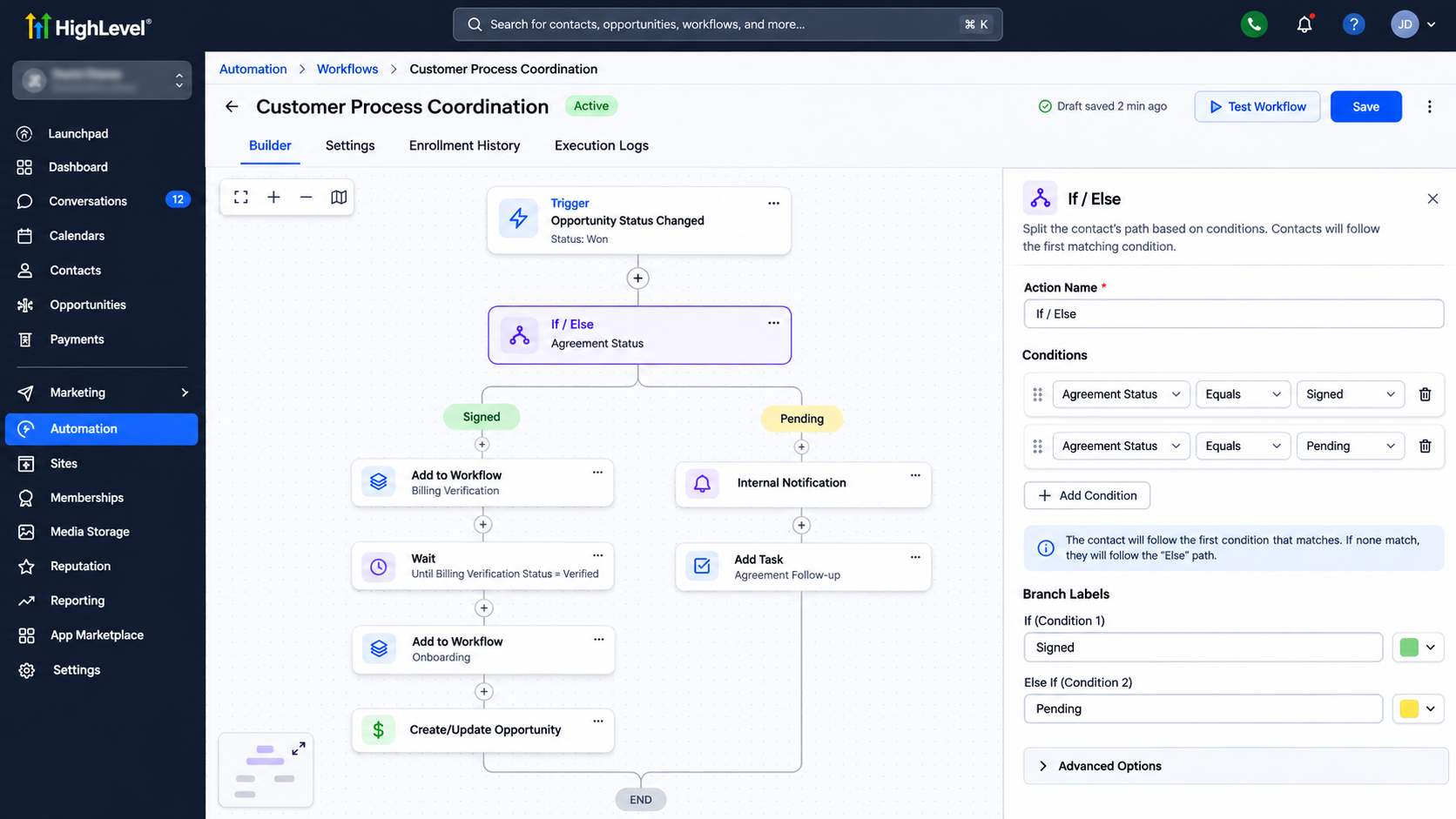
Click the plus icon beneath your trigger and select If/Else.
Configure conditions that evaluate a reliable approval indicator.
For example, create an appropriate contact custom field called "Agreement Status" with values such as Pending and Signed.
Configure branches for:
Signed: Continue toward billing verification.
Pending: Route the contact toward the agreement follow-up process.
Use actual recorded approval information rather than assuming a document has been signed.
Step 4: Configure Wait Actions for Dependencies
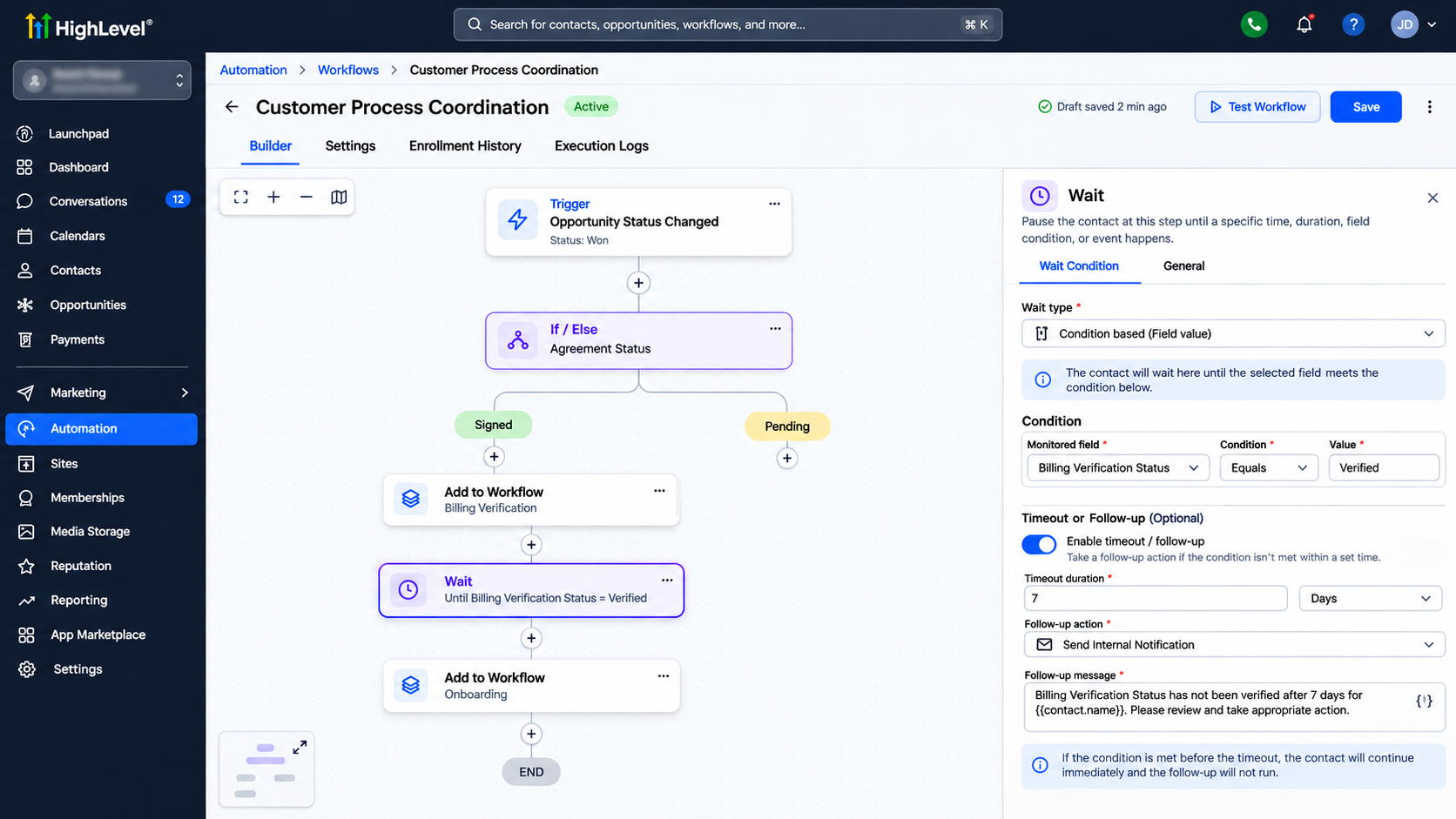
Add a Wait action before the business activity that depends on an earlier step.
Configure it to continue when the required condition becomes true.
For example, pause onboarding until the Agreement Status field indicates Signed.
Set an appropriate timeout when supported by the selected wait configuration.
If approval remains incomplete, use a separate condition or timeout path to notify the responsible employee.
Remember that a fixed delay does not prove a task was completed.
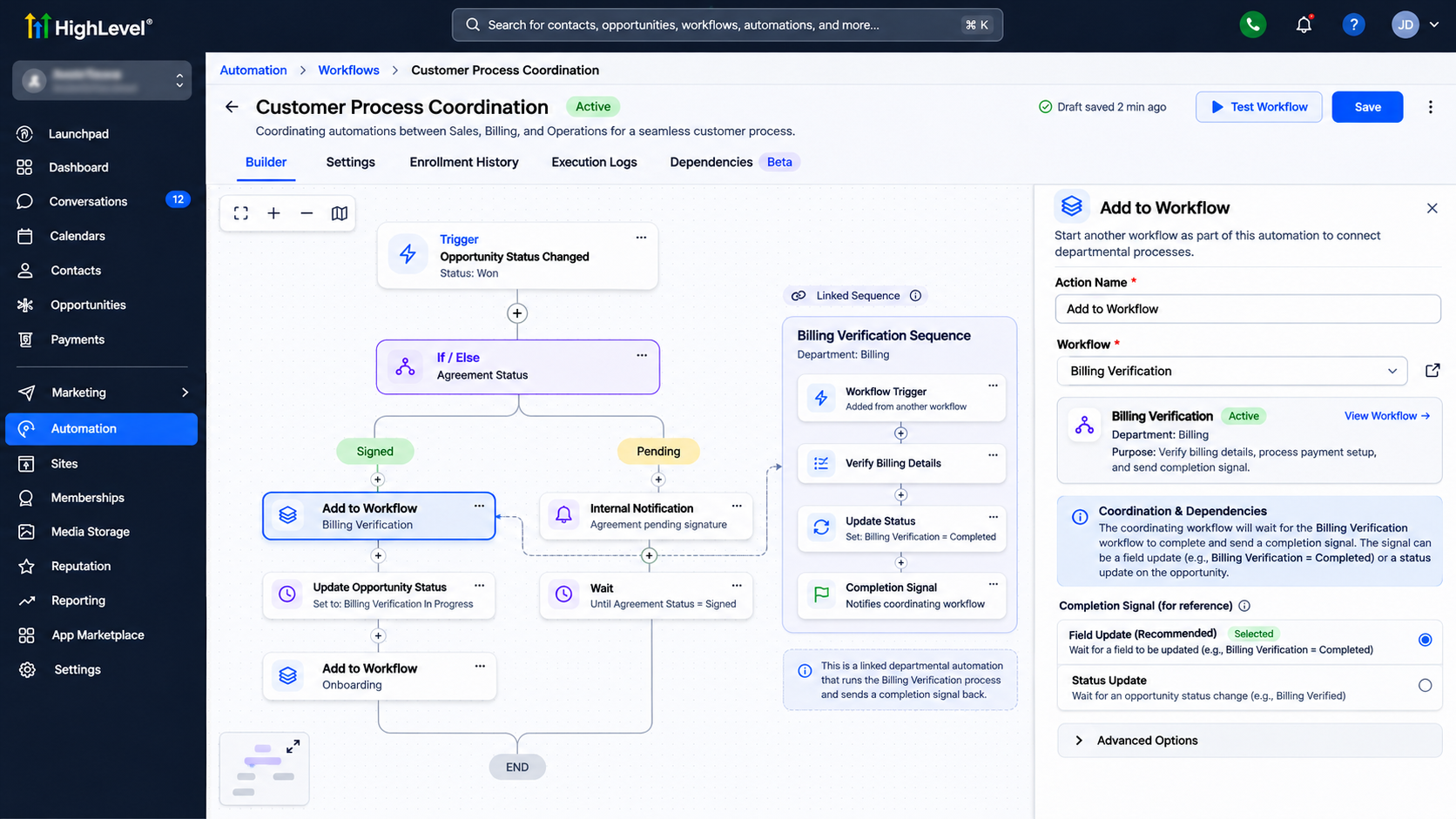
Step 5: Connect Separate Business Workflows
Use the Add to Workflow action when different departments manage separate automations.
For example, after agreement approval, enroll the contact in a billing verification workflow.
Configure that workflow to update a field such as "Billing Verification Status" when verification is complete.
In the coordinating workflow, wait for the verified completion value before initiating onboarding.
This creates an explicit dependency between the processes.
Prevent conflicting updates and avoid workflows repeatedly enrolling each other.
Step 6: Monitor Workflow Progress and Exceptions
Save and publish your workflows after reviewing their dependencies.
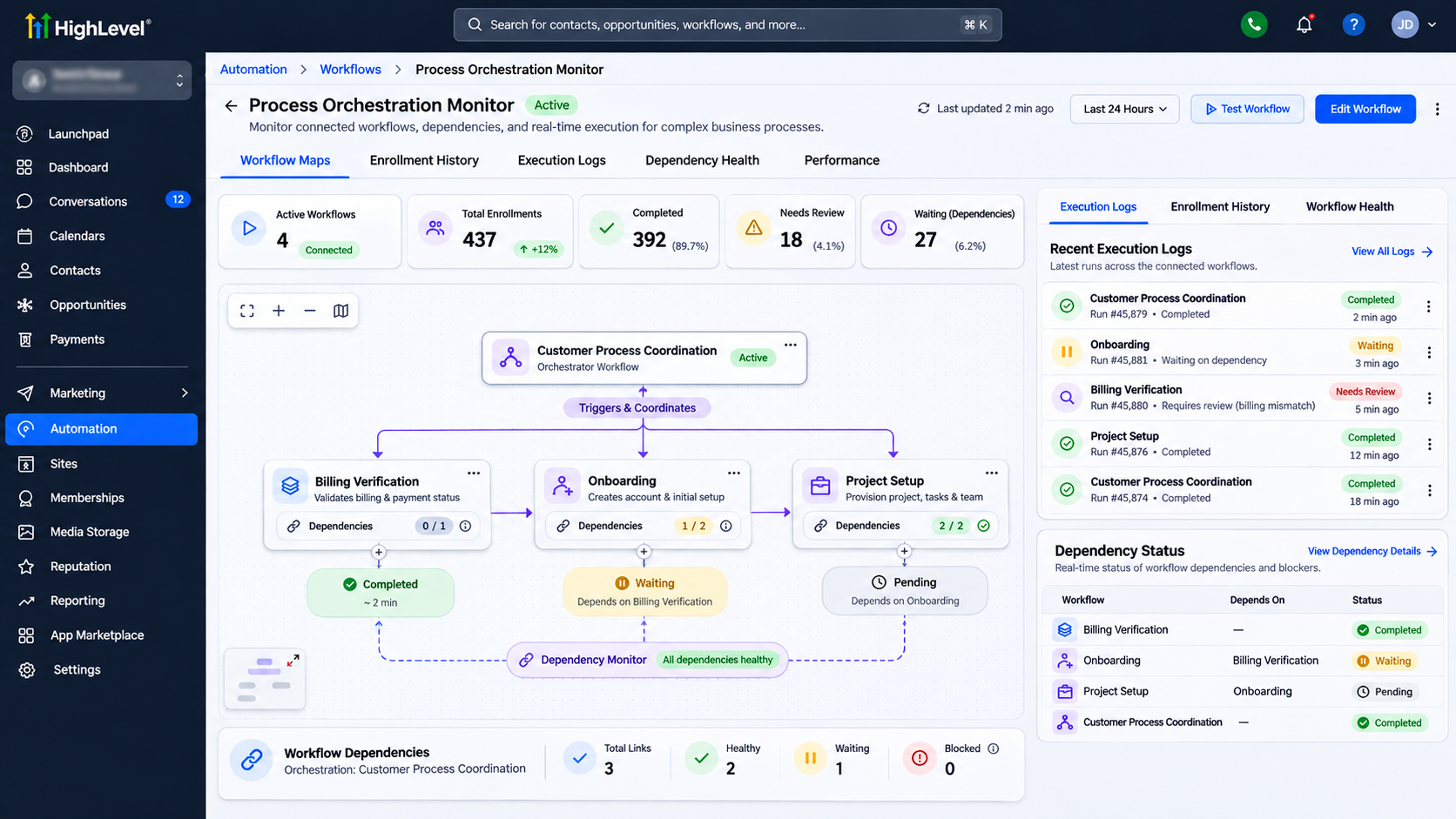
Use Execution Logs and Enrollment History to investigate workflow activity.
Check whether contacts entered the expected actions and whether required status updates occurred.
For complex automation systems, use available Workflow Maps to review relationships between workflows.
Monitor stalled approvals, unexpected re-entry, and unfinished dependencies.
Test Your Automation Dependencies
Create a test contact and simulate the initial business event.
Verify that dependent activities remain paused until their required conditions are satisfied.
Update the relevant approval fields and confirm the next process begins correctly.
Test missing approvals, timeouts, repeated triggers, and conflicting status updates.
Common Automation Dependency Problems and Fixes
Workflow starts too early: Review completion conditions and trigger filters.
Contacts remain stuck: Check Wait settings and the field values they monitor.
Duplicate processes: Review workflow re-entry and repeated enrollment actions.
Incorrect execution order: Verify that each dependency has a reliable completion signal.
Missing notifications: Check recipients, action configuration, and execution logs.
Best Practices for Complex Workflow Automation
Keep dependencies clearly documented and use consistent status values.
Assign responsibility for every approval and completion event.
Avoid unnecessary workflow loops and create escalation procedures for delayed activities.
Review connected workflows whenever business processes change.
Conclusion
Effective automation dependencies help businesses coordinate complex operations without sacrificing control or accountability.
GoHighLevel provides the workflow tools needed to manage conditional execution, departmental coordination, and process tracking.
Need help connecting your business automations? WispCode provides GoHighLevel workflow automation, CRM integration, and business process optimization solutions tailored to complex operational requirements.
Frequently Asked Questions (FAQs)
1. Can GoHighLevel connect multiple workflows?
Yes. The Add to Workflow action can enroll contacts in another configured workflow.
2. Can one workflow wait for another to finish?
Not automatically through enrollment alone. Use a reliable completion indicator and a condition-based Wait action to coordinate dependent processes.
3. Can GoHighLevel automate approval-based processes?
Yes. Workflows can evaluate recorded approval statuses through supported conditions and custom fields.
4. How can I prevent conflicting automations?
Use clearly defined ownership, status conditions, re-entry settings, and controlled workflow transitions.
5. How can I troubleshoot workflow dependencies?
Review Execution Logs, Enrollment History, field values, and connected workflow configurations to identify where progress stopped.
Need Expert Help with GoHighLevel?
New to GoHighLevel and ready to get started? Buy your GoHighLevel account here and launch with confidence.
Already know what you need and want our team to handle everything, from complete setup and customization to funnels, workflows, automations, CRM, and pipelines? Click here.