

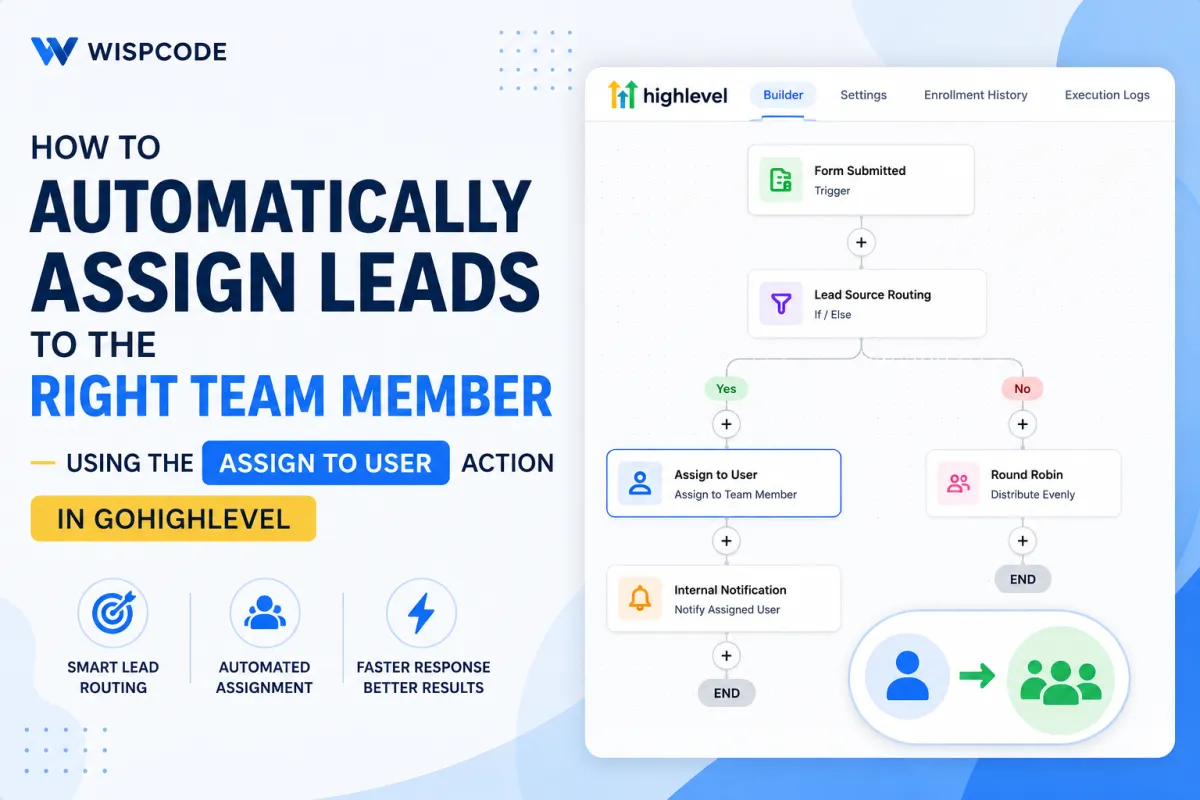
How to Automatically Assign Leads in GoHighLevel
How to Automatically Assign Leads to the Right Team Member Using the Assign to User Action in GoHighLevel
When new leads start coming in from forms, ads, landing pages, or other marketing channels, getting them into your CRM is only part of the job. Someone still needs to take responsibility for each lead.
If lead assignment is handled manually, that process can quickly become inconsistent. A lead may sit unassigned while team members assume someone else is handling it. Another may be sent to the wrong sales rep, delaying follow-up and creating unnecessary administrative work.
The GoHighLevel Assign to User action helps automate this responsibility inside a workflow. Instead of manually assigning every incoming contact, businesses can create workflow logic that determines where a lead should go and then assigns that lead to the appropriate user.
What Is the Assign to User Action in GoHighLevel?
The GoHighLevel Assign to User action is a workflow action used to assign a contact to a user within the GoHighLevel account.
It is important to understand where this action fits into a workflow.
A trigger determines when a contact enters the workflow. Conditions or branching logic can then determine which path the contact should follow. The Assign to User action performs the actual assignment once the contact reaches that step.
In simple terms:
Trigger → Routing logic → Assign to User → Follow-up actions
The action itself does not automatically decide which salesperson is the “best” match. The workflow must be configured with the logic required for your lead-routing strategy.
Why Automated Lead Assignment Matters
As lead volume grows, manually deciding who should handle every contact becomes difficult to manage.
Automated GoHighLevel lead assignment can help businesses create a more predictable process by providing:
Faster ownership: Leads can be assigned as soon as they reach the appropriate workflow step.
Clear responsibility: Your team can more easily identify who owns a particular contact.
Less administrative work: Managers do not need to manually distribute every new lead.
Consistent routing: The same predefined rules can be applied repeatedly.
Better scalability: Assignment workflows can support growing lead volume without adding the same amount of manual work.
Fewer unassigned leads: Properly designed workflows reduce the chance of contacts sitting without clear ownership.
The goal is not simply automation. It is creating a reliable lead-management process.
How to Automatically Assign Leads Using Assign to User
The exact workflow setup depends on how your business receives and distributes leads, but the general process is straightforward.
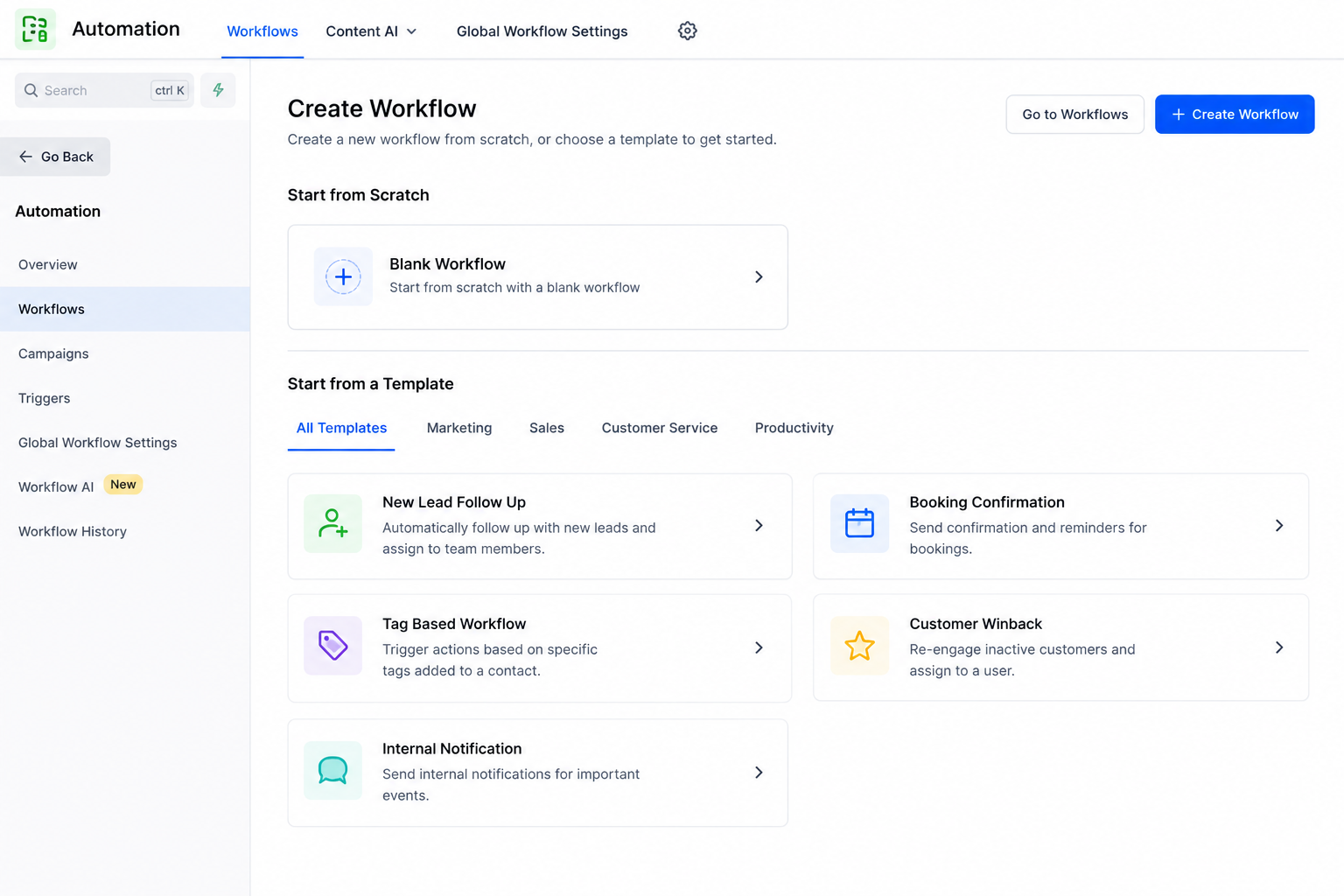
1. Create or Open a Workflow
Inside GoHighLevel, navigate to Automation > Workflows and create a new workflow or open an existing workflow where lead assignment needs to happen.
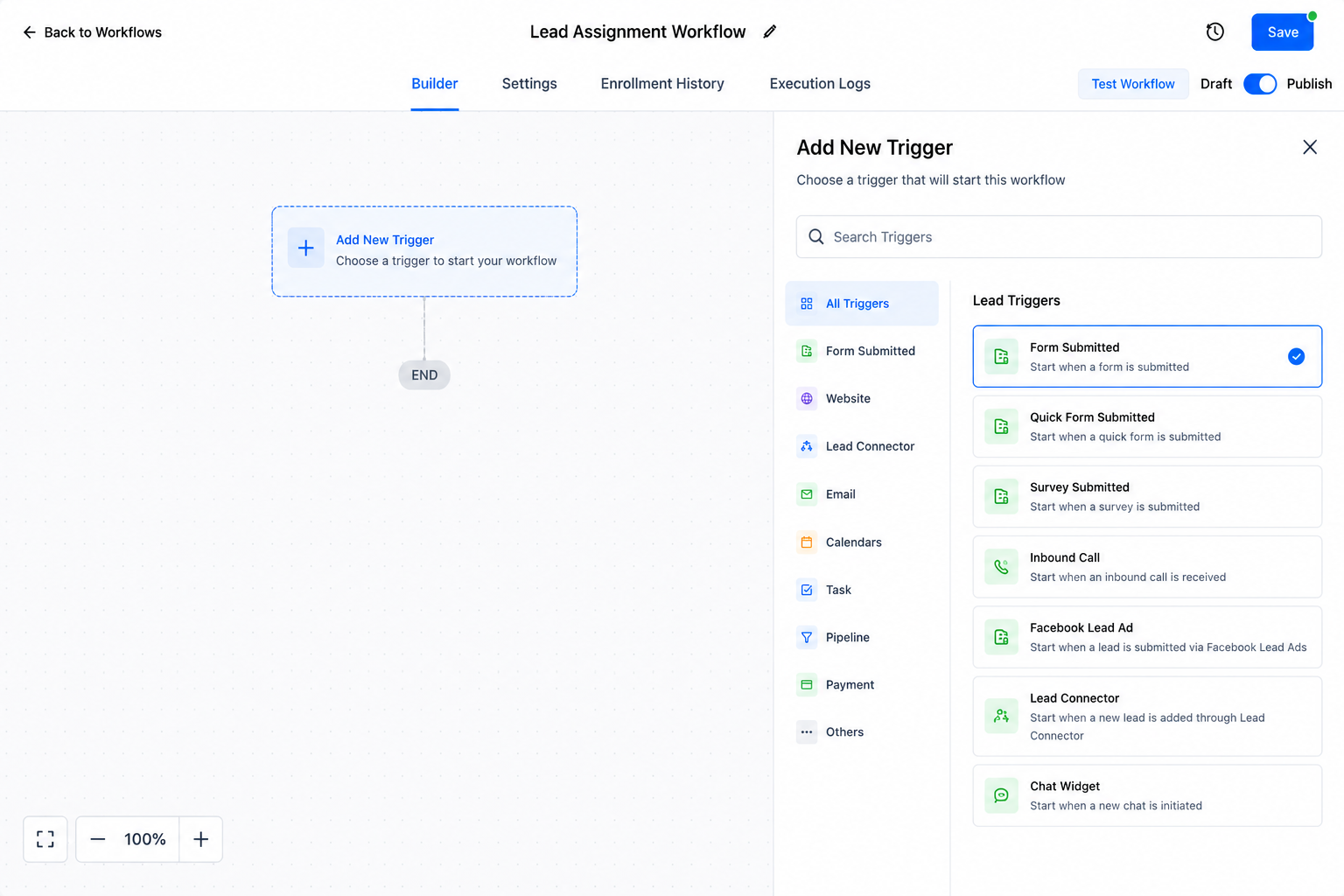
2. Choose the Appropriate Trigger
Select a workflow trigger that represents when the assignment process should begin.
Your trigger should match the actual business event you want to use for workflow entry. Avoid making entry conditions unnecessarily broad, because unrelated contacts could otherwise enter the automation.
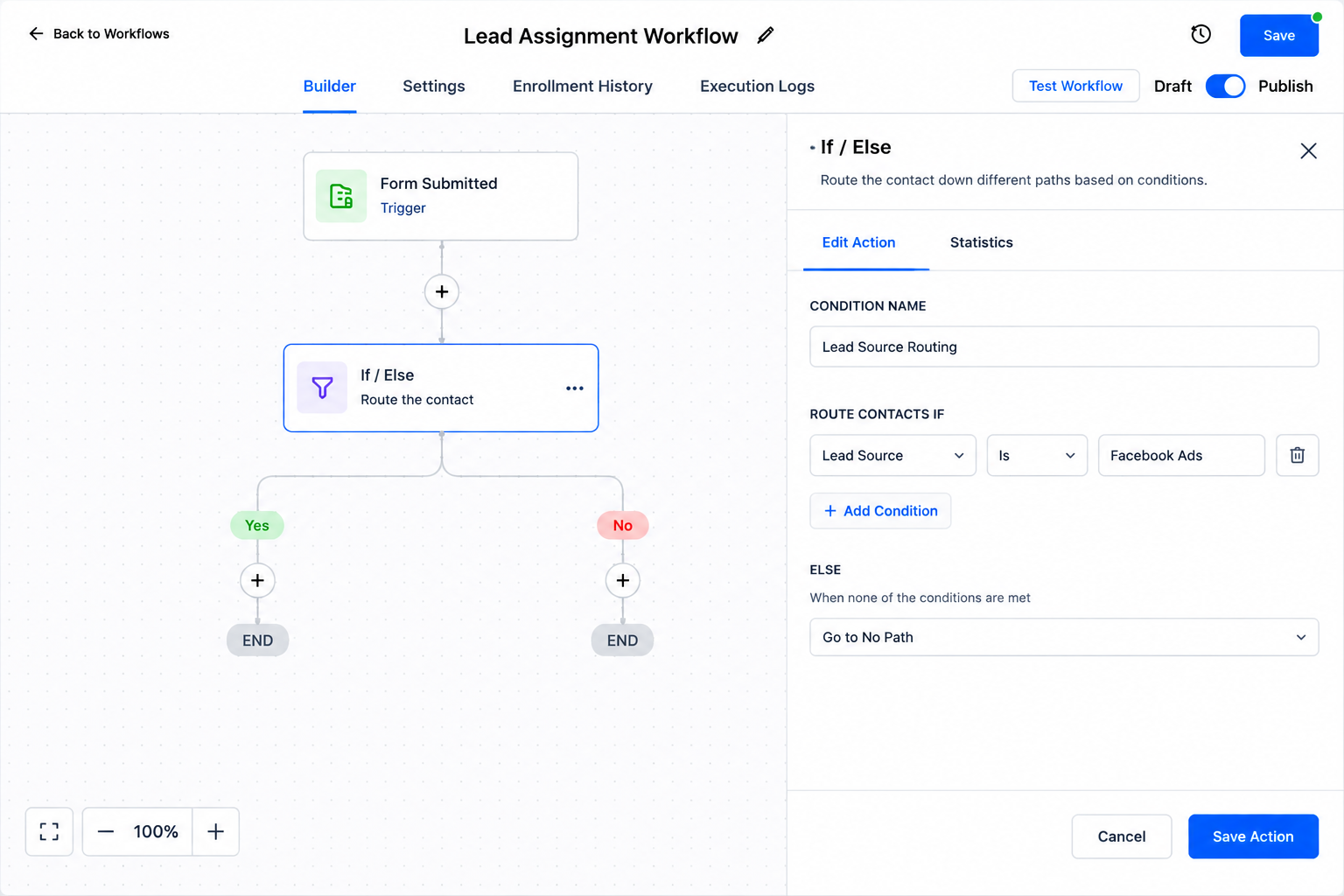
3. Add Your Routing Logic
If every qualifying lead should go to the same user, your workflow can remain simple.
If different types of leads need different owners, add appropriate workflow conditions or branching logic before the assignment step. The information used for routing should already be available in GoHighLevel and reliable enough to make the decision.
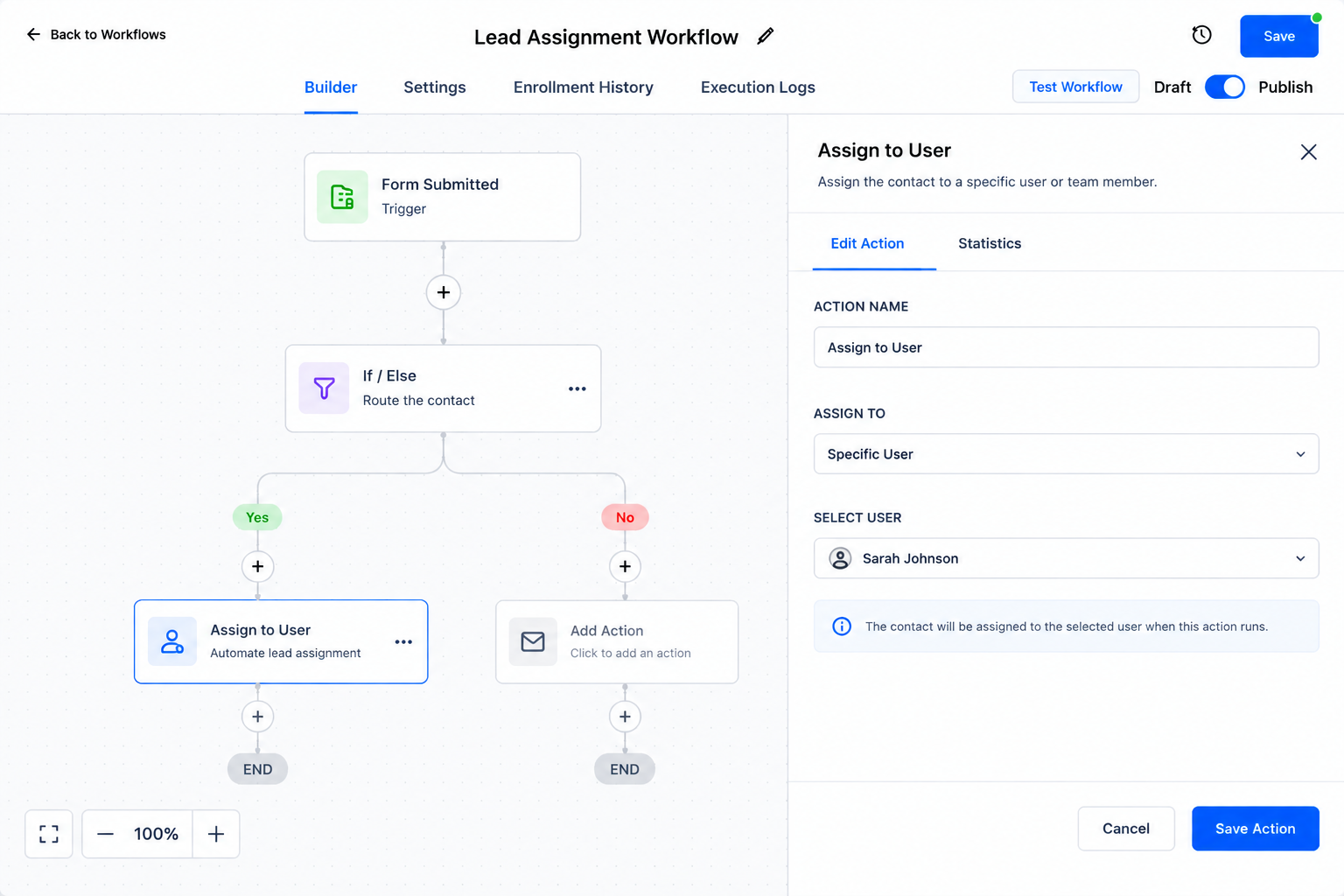
4. Add the Assign to User Action
Add a new workflow action and select Assign to User.
Configure the action according to the user assignment required for that workflow path.
5. Continue the Follow-Up Process
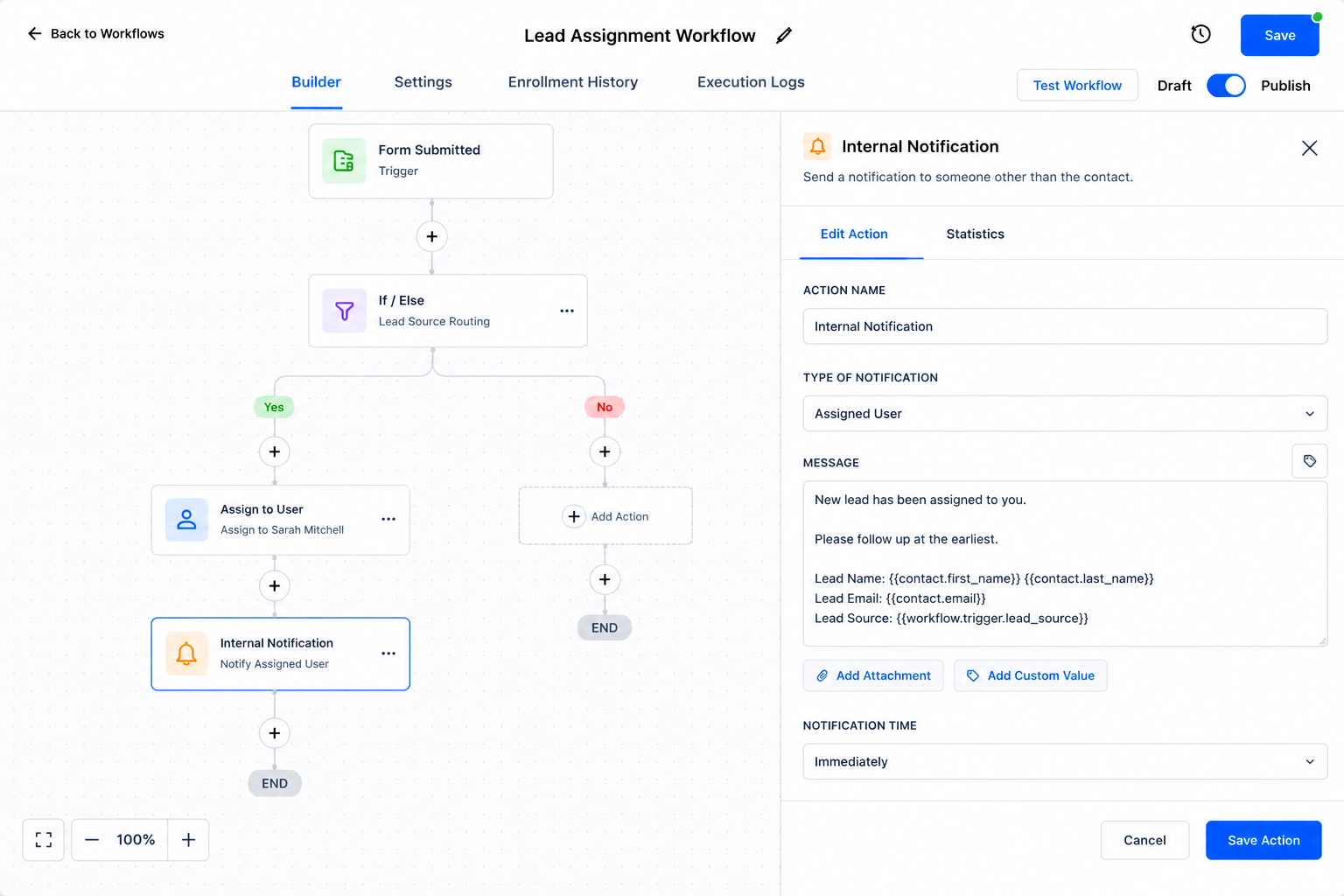
Assignment should usually be part of a larger GoHighLevel workflow automation.
After assigning ownership, the workflow can continue with other appropriate actions based on your sales process. This keeps assignment connected to the broader lead-management journey rather than treating it as an isolated task.
6. Test Before Going Live
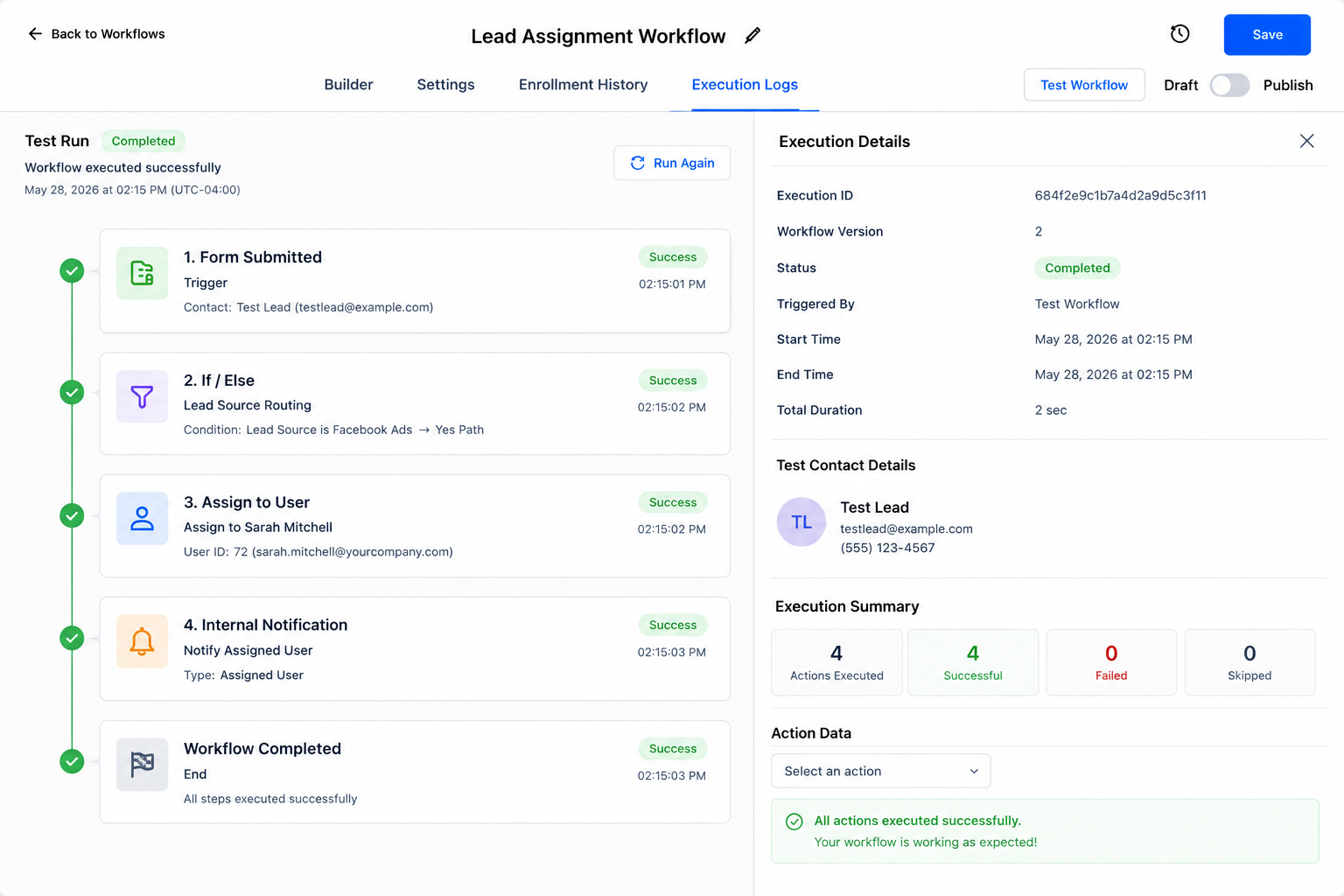
Run test contacts through the workflow and confirm that each routing path behaves as expected.
Check whether the correct contacts enter, whether conditions send them down the intended path, and whether the resulting user assignment is correct.
How to Route Leads to the Right Team Member
There is an important difference between automatically assigning a lead and routing a lead intelligently.
Assignment changes who is responsible for the contact. Routing determines which assignment should happen.
For example, a company may have different workflow paths based on information such as a lead's source, service interest, or other contact data collected during the lead-capture process.
Each path can then contain the appropriate GoHighLevel Assign to User action.
The key is to build routing around information your business actually collects instead of creating unnecessary complexity.
Real-World GoHighLevel Lead Routing Example
Imagine a service company offers two main services and has separate team members responsible for each.
A prospect submits a form and enters the company's GoHighLevel lead management workflow.
The workflow evaluates the service information captured for that contact. Leads interested in Service A follow one branch, while Service B leads follow another. Each branch contains an Assign to User action configured for the appropriate team member.
The process becomes:
Lead enters → Workflow evaluates configured logic → Assign to User runs → Team member receives ownership → Follow-up continues
Instead of a manager reviewing every submission and deciding who should handle it, the predefined workflow performs that process consistently.
Common Mistakes to Avoid
Even simple automated lead distribution requires careful setup. Common mistakes include:
Using workflow entry criteria that allow unintended contacts into the automation
Creating overly complicated routing rules
Forgetting to plan for contacts that do not match expected conditions
Failing to test every important workflow path
Assuming that assigning a contact automatically guarantees timely follow-up
Assignment establishes ownership. Your wider sales process still needs to define what happens after ownership is established.
Best Practices for GoHighLevel Lead Assignment
Keep your assignment workflows as simple as your business allows. Use clearly defined routing criteria, create logical workflow branches, and regularly test the process when making changes.
It is also useful to document why each routing rule exists. As your sales team grows, this makes it easier to understand and update your GoHighLevel lead routing system without rebuilding everything from scratch.
Most importantly, design assignment around actual business responsibilities rather than adding automation simply because it is available.
Conclusion
The GoHighLevel Assign to User action can turn manual lead distribution into a structured, repeatable process. When combined with carefully configured triggers and routing logic, it helps ensure that leads reach the appropriate team member without requiring someone to manually distribute every contact.
The real value is not automation for its own sake. It is making sure the right person takes responsibility for a lead at the right point in your sales process.
If lead assignment is still being handled manually, explore how GoHighLevel workflows can help you build a faster, clearer, and more scalable lead-management system.
Frequently Asked Questions
1. What is the Assign to User action in GoHighLevel?
The Assign to User action is a workflow action that assigns a contact to a specific user based on how the workflow has been configured.
2. Can I automatically assign leads in GoHighLevel?
Yes. You can use GoHighLevel workflows with appropriate triggers, routing logic, and the Assign to User action to automate lead assignment.
3. Can GoHighLevel route different leads to different team members?
Yes. You can build workflow branches based on relevant contact or lead information and use different Assign to User actions for each path.
4. Does the Assign to User action automatically choose the best sales rep?
No. GoHighLevel follows the assignment and routing logic you configure. You need to define how leads should be routed within your workflow.
5. Why should I automate lead assignment in GoHighLevel?
Automated lead assignment can reduce manual work, establish clearer ownership, improve consistency, and reduce the risk of leads remaining unassigned.
6. Should I test a GoHighLevel lead assignment workflow before publishing it?
Yes. Test your workflow and its important routing paths to confirm that the correct leads enter and are assigned to the intended users.
Need Expert Help with GoHighLevel?
New to GoHighLevel and ready to get started? Buy your GoHighLevel account here and launch with confidence.
Already know what you need and want our team to handle everything, from complete setup and customization to funnels, workflows, automations, CRM, and pipelines? Click here.



