

How to Issue Course Certificates Automatically Using the Issue Certificate Action in GoHighLevel
Design Custom Invoice Layouts with the New AI Powered Layout Builder
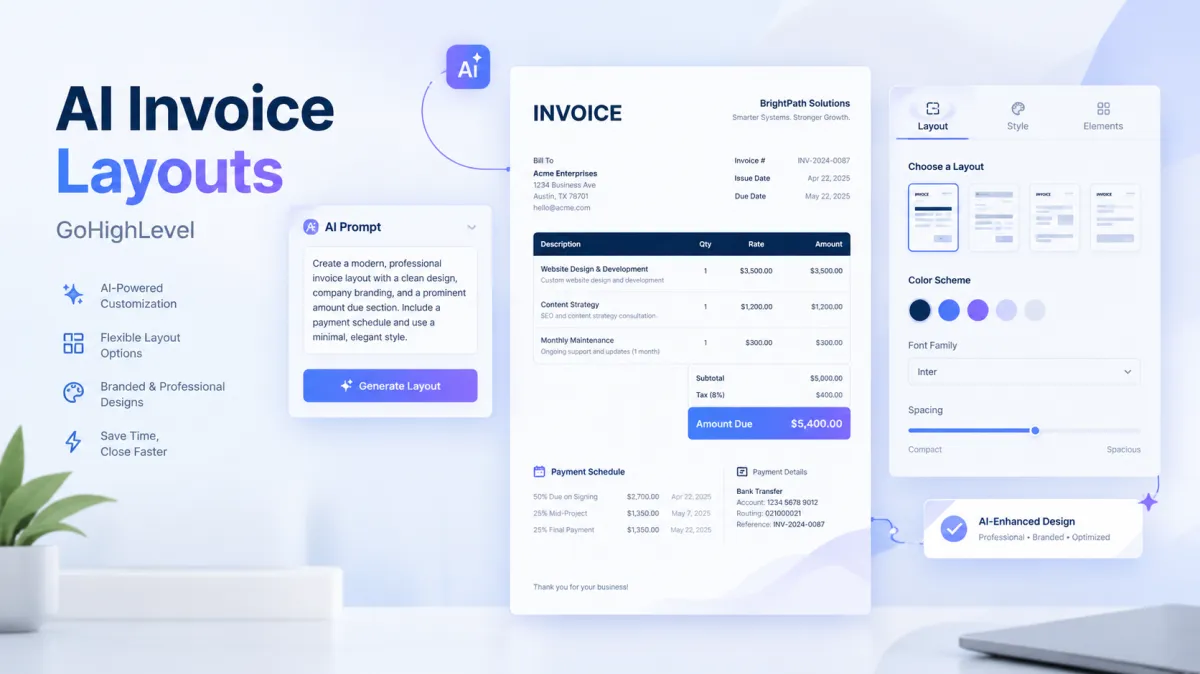
GoHighLevel has introduced a new AI Powered Custom Invoice Layout Builder that gives businesses more control over the way their invoices look. Instead of working with one fixed template, users can describe the invoice layout they want and let Layout AI generate it.
The new builder also allows users to recreate an existing invoice design, make further changes through AI, or manually fine tune the layout in a visual builder. Once a layout is ready and published, it can be selected for invoices that customers receive and see in the invoice preview.
What the New GoHighLevel AI Invoice Builder Does
The Layout AI Builder is designed to help users create custom invoice layouts without writing code or relying on a single fixed template. Users can describe the structure and appearance they want through a prompt, and AI generates the layout based on that description.
For example, a user could enter:
“A clean two column invoice with my logo top left, an itemized table in the center, and payment terms and bank details at the bottom.”
Layout AI can then create a layout based on that request. This gives businesses a way to start with a specific design rather than beginning with a blank template.
Recreate an Existing Invoice Design
The builder can also be used when a business already has an invoice design it wants to recreate. Users can upload or describe their current invoice layout and let AI rebuild it.
This means users do not have to start from a blank layout when they already have an invoice design they want to use. The existing design can serve as the starting point for creating a GoHighLevel invoice layout.
Fine Tune Your Invoice Layout
The first AI generated result does not have to be the final version. Users can continue asking Layout AI to make changes to the layout.
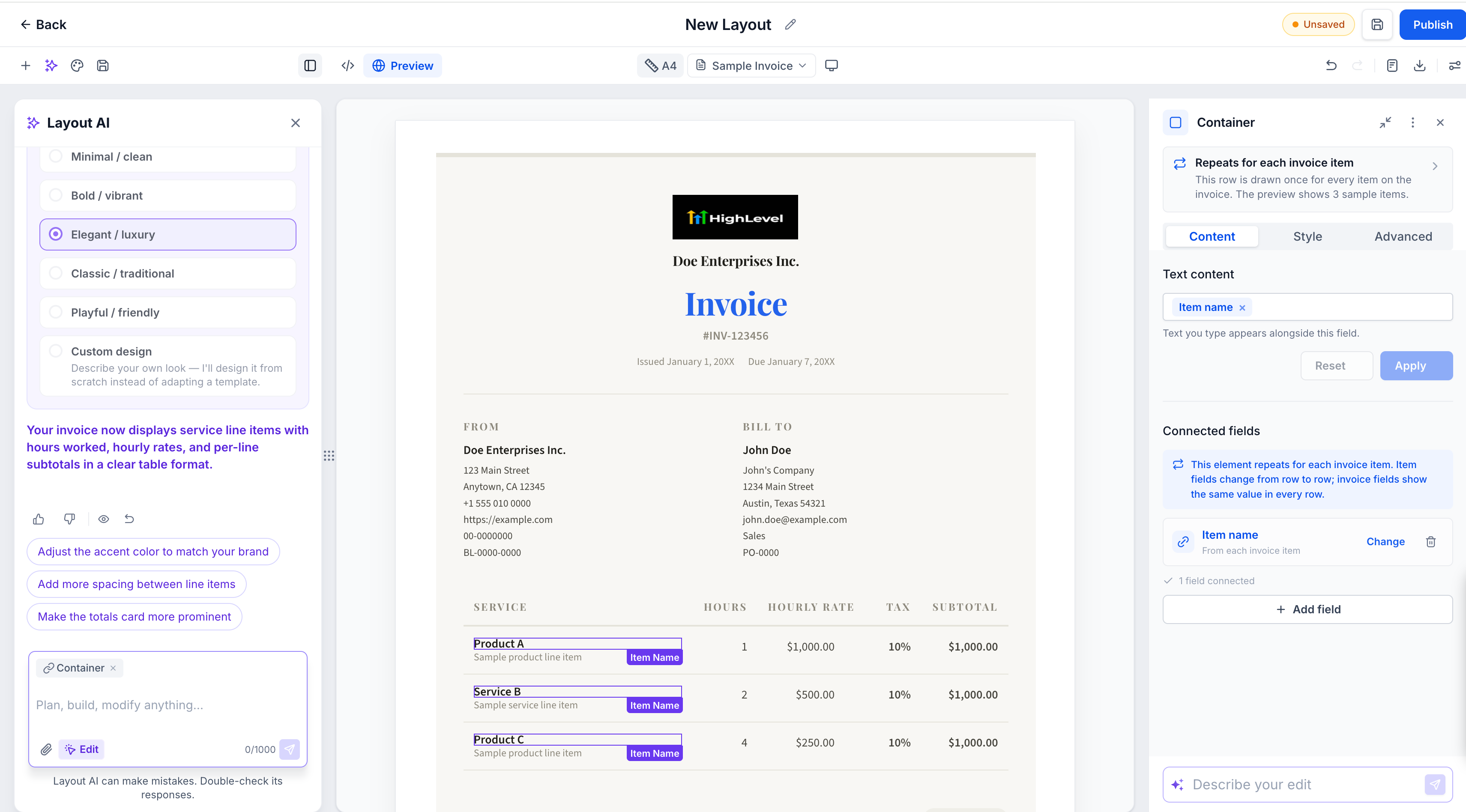
For more direct control, users can open the layout in the container and manually adjust its style and content. The visual builder allows users to add, remove, align, or delete elements directly.
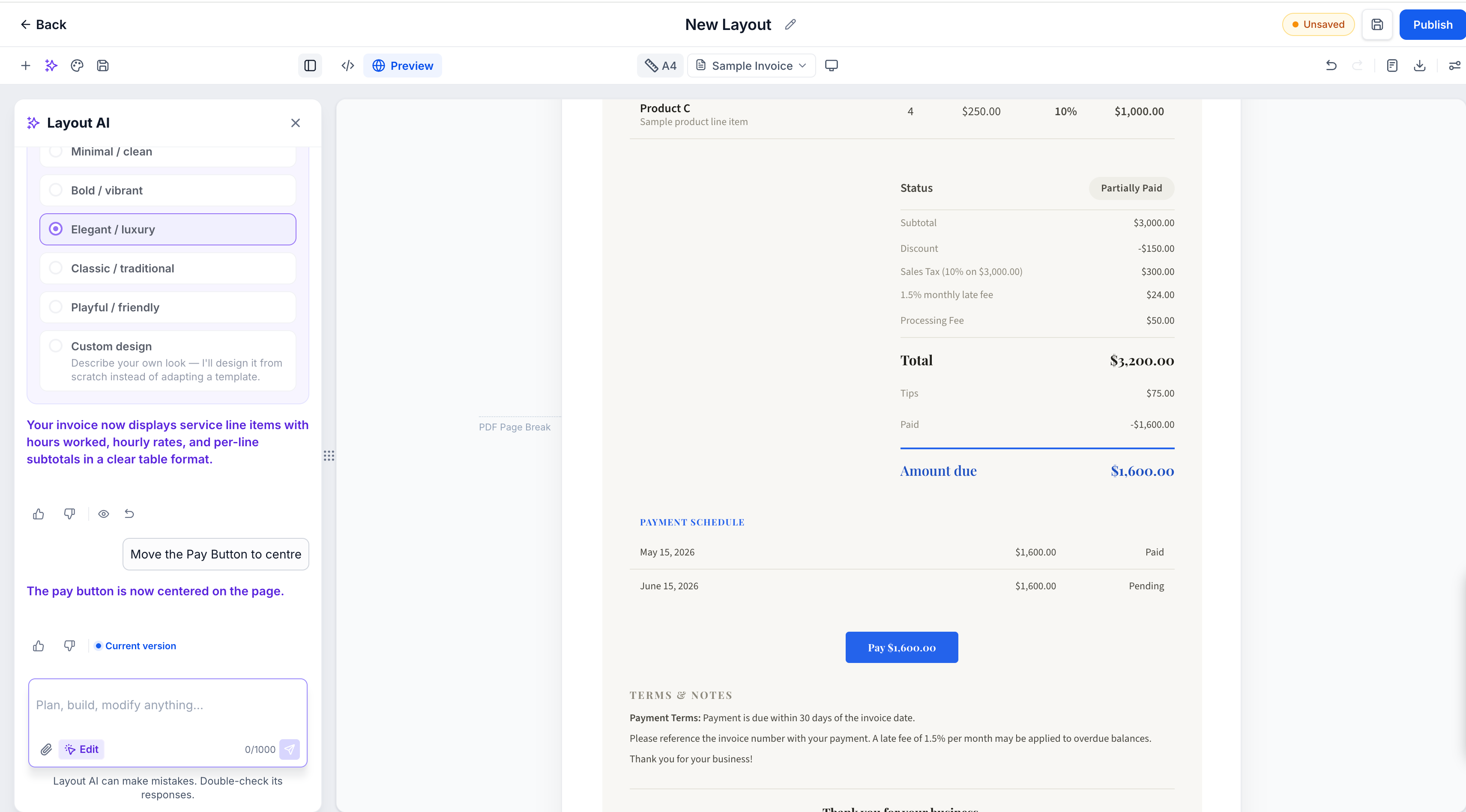
Every AI change also creates a restore point. If a user wants to return to an earlier version, they can restore it from the chat. Changes can also be undone from the toolbar.
Users can rate AI responses with a thumbs up or thumbs down, providing feedback on the results they receive.
Once the layout contains content, it can be published. After publishing, the user is taken back to the Layouts list, where the layout displays its new published version.
Manage Multiple GoHighLevel Invoice Layouts
Businesses can create separate invoice layouts for different clients, services, or business needs and manage them from one layouts list.
The list provides several ways to organize and work with layouts. Users can preview, download, clone, or delete layouts. They can also switch between grid and list views.
Finding a specific layout is supported through search by name. Layouts can also be sorted by name or by the last updated date. Users can preview a layout directly from the list without leaving the layouts page.
The three dot menu provides options to rename, clone, or delete a layout. There is also a history view that shows who created, edited, published, or copied a layout and when those actions happened.
These management options make it possible to keep multiple custom invoice layouts organized in one place.
How Custom Layouts Work with Invoices
After a layout has been published, users can select it for an invoice. The customer then sees that design in the invoice preview.
There are also specific behaviors to keep in mind when a layout is connected to an invoice. A layout locks once an invoice is sent or partially paid.
If a layout is deleted later, invoices that were already sent continue to show their original design. Draft invoices that were using the deleted layout switch to the default layout.
This keeps the original design associated with invoices that have already been sent, while allowing drafts to move back to the default layout when their selected layout is deleted.
Where to Find the GoHighLevel Layout AI Builder
The new Layout AI Builder can be found inside the Payments area.
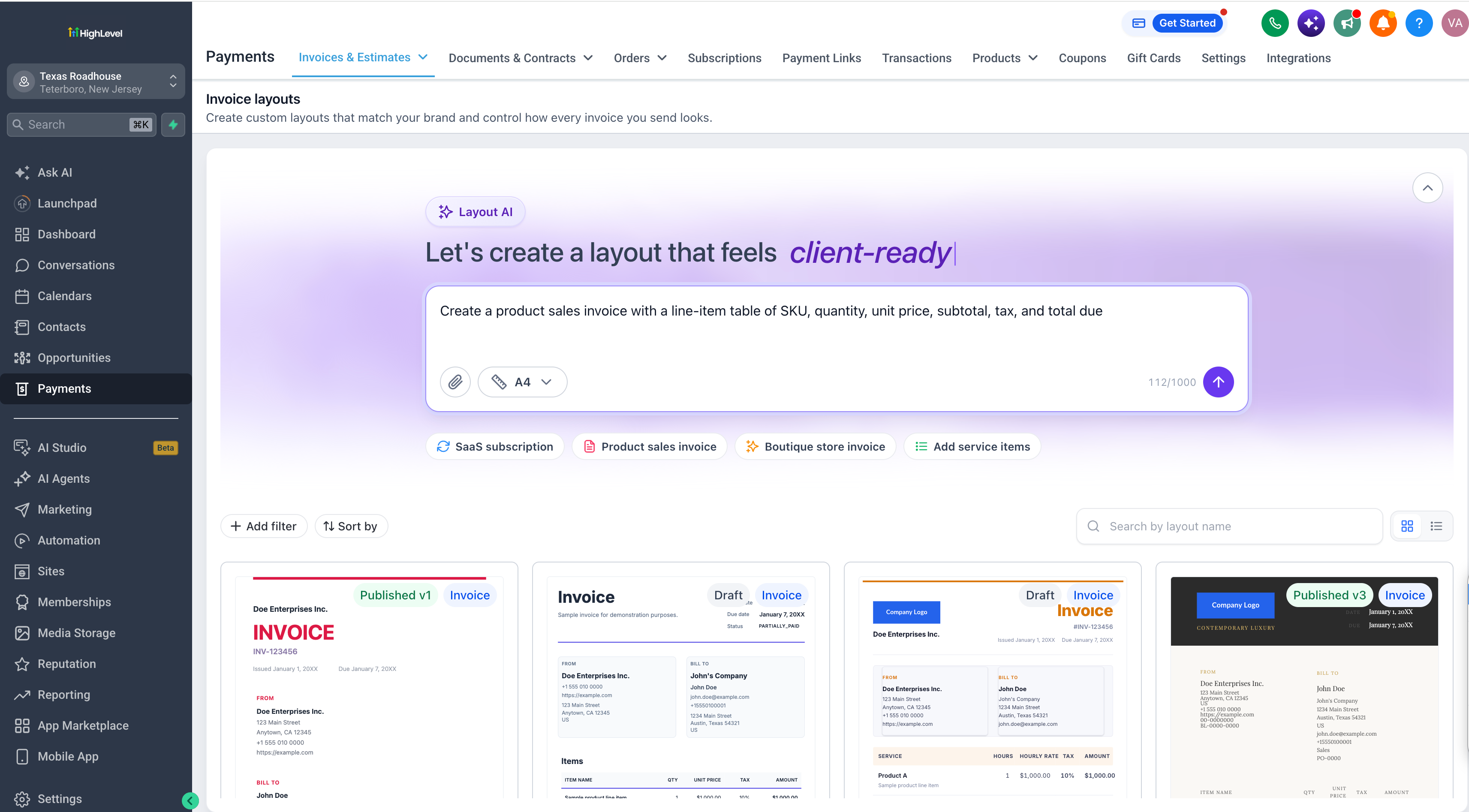
Go to:
Payments → Invoices & Estimates dropdown → Layouts
From the Layouts section, users can generate an invoice layout with AI. After creating and publishing a layout, it becomes available for selection when creating invoices.
How to Activate AI Powered Custom Invoice Layouts
Before using the feature, access needs to be activated through GoHighLevel Labs.
Go to:
Settings → Labs → Sub Account
Then search for:
AI Powered Custom Invoice Layouts
Click:
Activate Feature
Access can be enabled for individual sub accounts one at a time or for all sub accounts at once.
Final Takeaway
The new GoHighLevel AI Powered Invoice Layout Builder gives businesses a documented way to create and manage custom invoice designs using AI and visual editing. Users can describe a layout, recreate an existing invoice design, continue refining the result, manually adjust elements, and restore earlier AI generated versions.
With options for managing multiple layouts and selecting published designs for invoices, the feature adds more flexibility to the way GoHighLevel invoices are created and presented.
Frequently Asked Questions (FAQs)
1. What is the GoHighLevel Layout AI Builder?
It is a feature that lets users describe an invoice layout through a prompt and have AI generate the layout.
2. Can I recreate an existing invoice design?
Yes. Users can upload or describe an existing invoice layout and let AI rebuild it.
3. Can I manually edit an AI generated layout?
Yes. Users can open the layout in the container and manually adjust style and content, including adding, removing, aligning, or deleting elements.
4. What happens when an invoice layout is deleted?
Sent invoices keep their original design. Draft invoices using the deleted layout switch to the default layout.
5. Where can I activate the feature?
Go to Settings, then Labs, then Sub Account. Search for AI Powered Custom Invoice Layouts and select Activate Feature.
Need Expert Help with GoHighLevel?
New to GoHighLevel and ready to get started? Buy your GoHighLevel account heren and launch with confidence.
Already know what you need and want our team to handle everything, from complete setup and customization to funnels, workflows, automations, CRM, and pipelines? Click here.



