

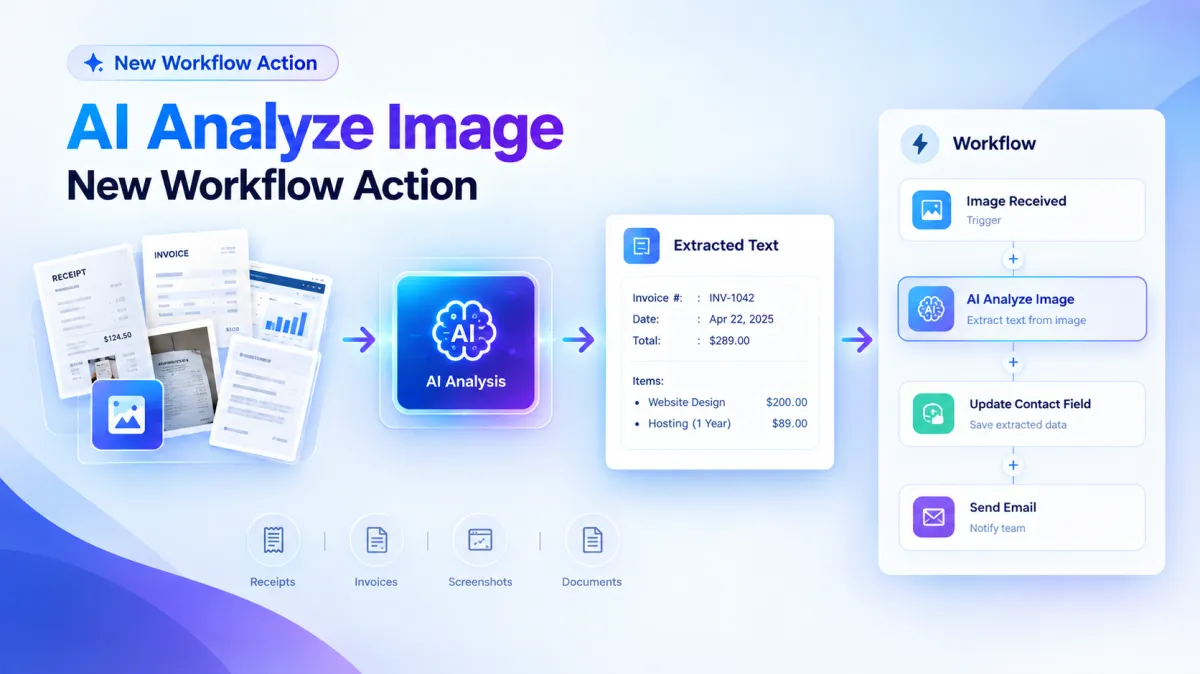
New Workflow Action: AI Analyze Image
GoHighLevel AI Analyze Image: A New Workflow Action for Image Analysis
What if a GoHighLevel workflow could do more than move an image from one step to another? With the new AI Analyze Image workflow action, workflows can now examine the contents of an image and return the analysis as text.
This new capability brings image analysis directly into GoHighLevel workflow automation. Instead of treating an image as simple input, users can provide an image URL, tell the AI what to look for, and receive a text-based result that can be used in subsequent workflow steps.
The action is available under AI Actions, giving GoHighLevel users a new way to work with information contained inside images.
What Is the GoHighLevel AI Analyze Image Action?
The AI Analyze Image workflow action allows users to analyze an image directly inside a workflow.
The process is straightforward. You provide an image URL and an analysis prompt. The selected AI vision model examines the image and returns the result as text.
That result can then become part of what happens next in the workflow.
For example, a workflow can analyze text from a receipt, invoice, screenshot, or document. It can also generate a written description of what is shown in an image. The prompt determines what you want the model to look for and how you want the response to be written.
This makes the feature useful when information exists inside an image but needs to be turned into text before a workflow can continue working with it.
What Can GoHighLevel Image Analysis Do?
The update introduces several ways to work with image content.
Extract Text From Images
One of the most practical capabilities is text extraction. AI Analyze Image can read text from images such as receipts, invoices, screenshots, and documents.
Instead of manually reading the information shown in an image, the workflow can send the image to the AI Analyze Image action and receive the result as text.
Generate Image Descriptions
The action can also provide a written description of an image's contents.
This gives workflows a way to turn visual information into a text response that can be used later in the automation.
Use Custom Prompts
The analysis isn't limited to one predefined instruction.
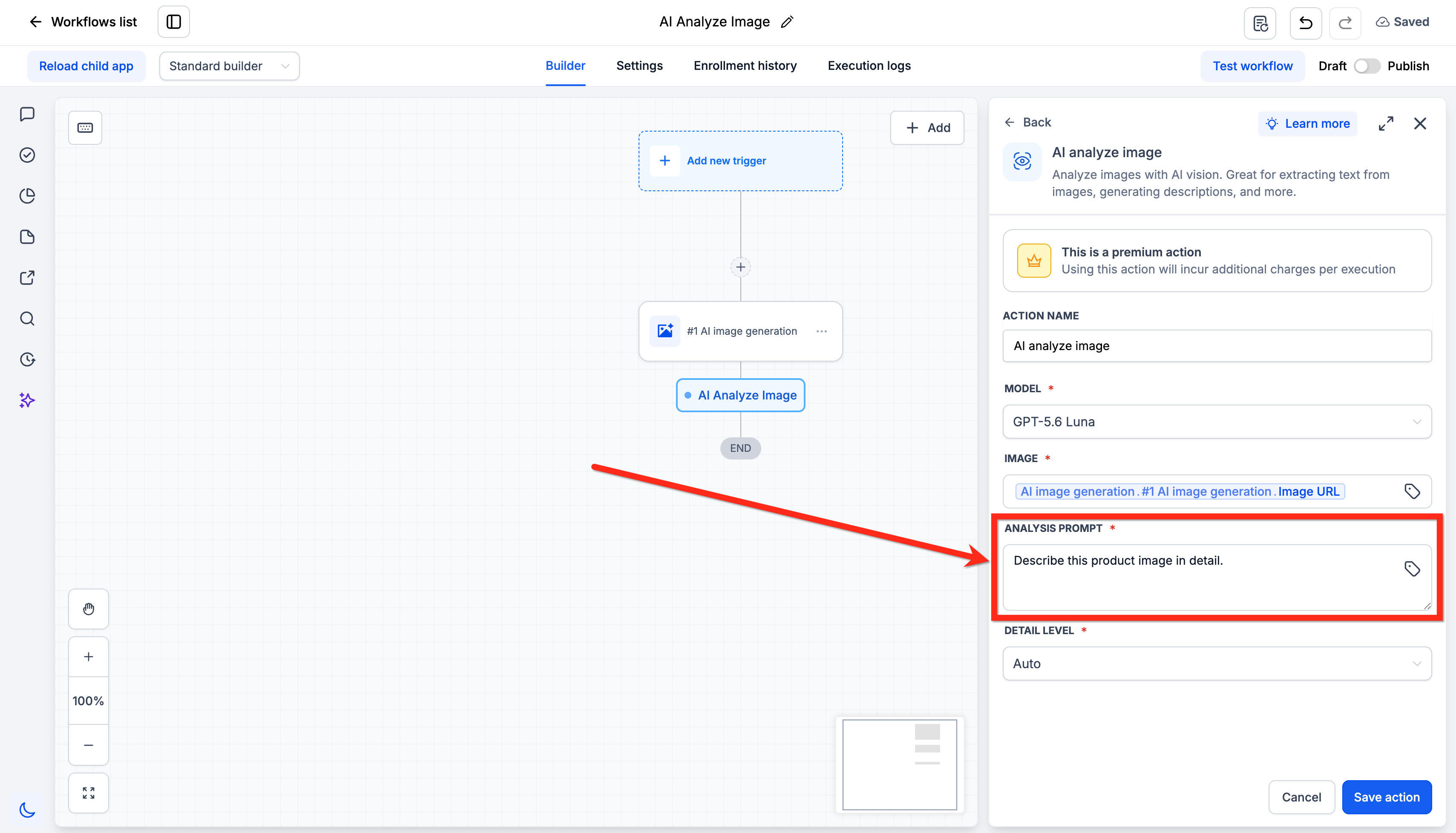
The prompt field accepts custom values, allowing users to tell the model what they want it to look for and how the response should be delivered. This gives the same action flexibility across different workflow requirements while keeping the instructions specific to the image being analyzed.
Choose the Right Detail Level
GoHighLevel also provides three detail-level options for image analysis: Auto, High, and Low.
The default setting is Auto.
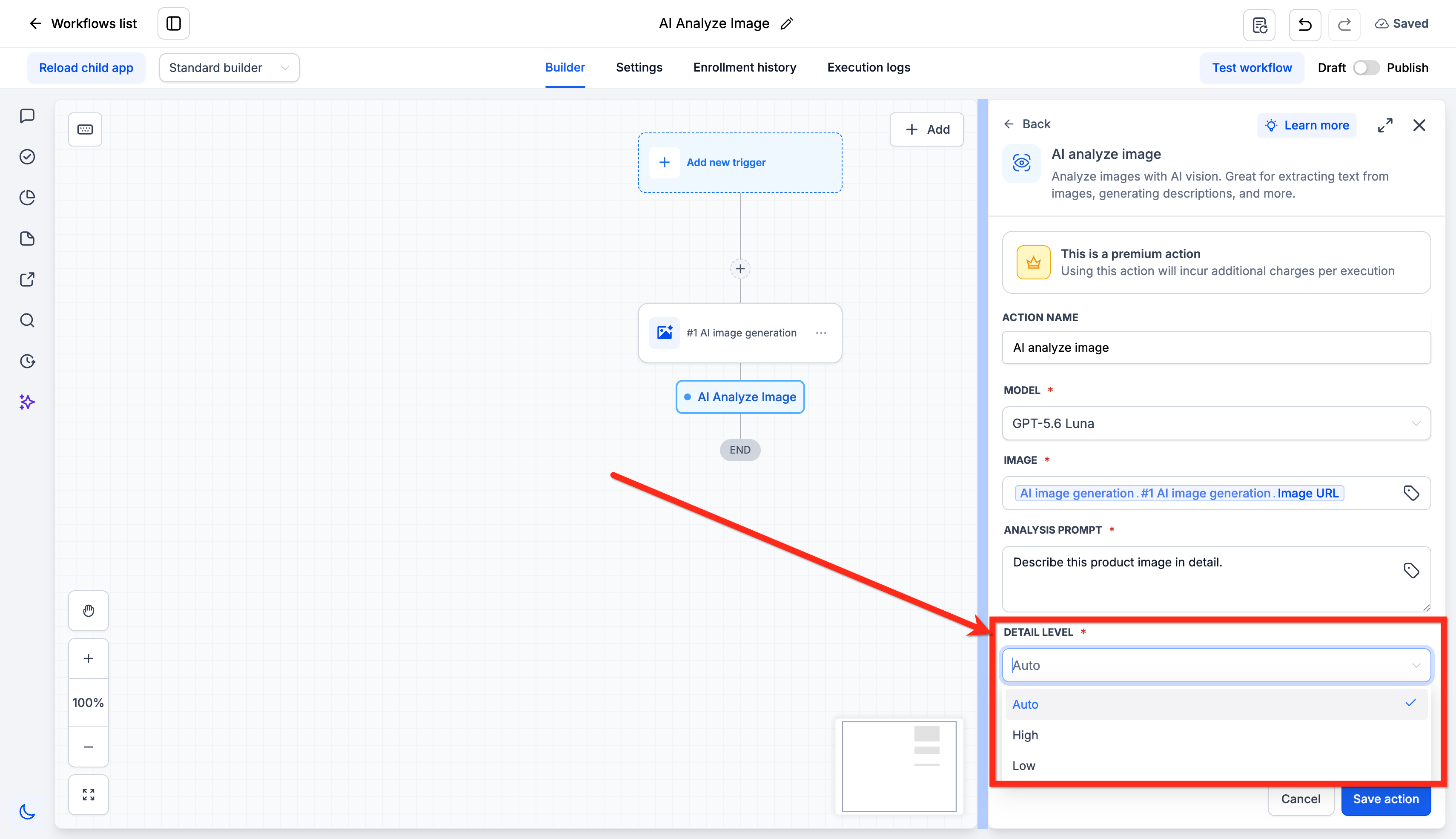
If the image contains small text where greater accuracy is important, High provides a more detailed analysis. If speed is more important, Low can be selected.
This gives users control over the level of detail they want from the image analysis rather than relying on a single setting for every situation.
Two AI Models Are Available
When setting up the action, users can select between two available models:
GPT-5.6 Luna
GPT-5.6 Tera
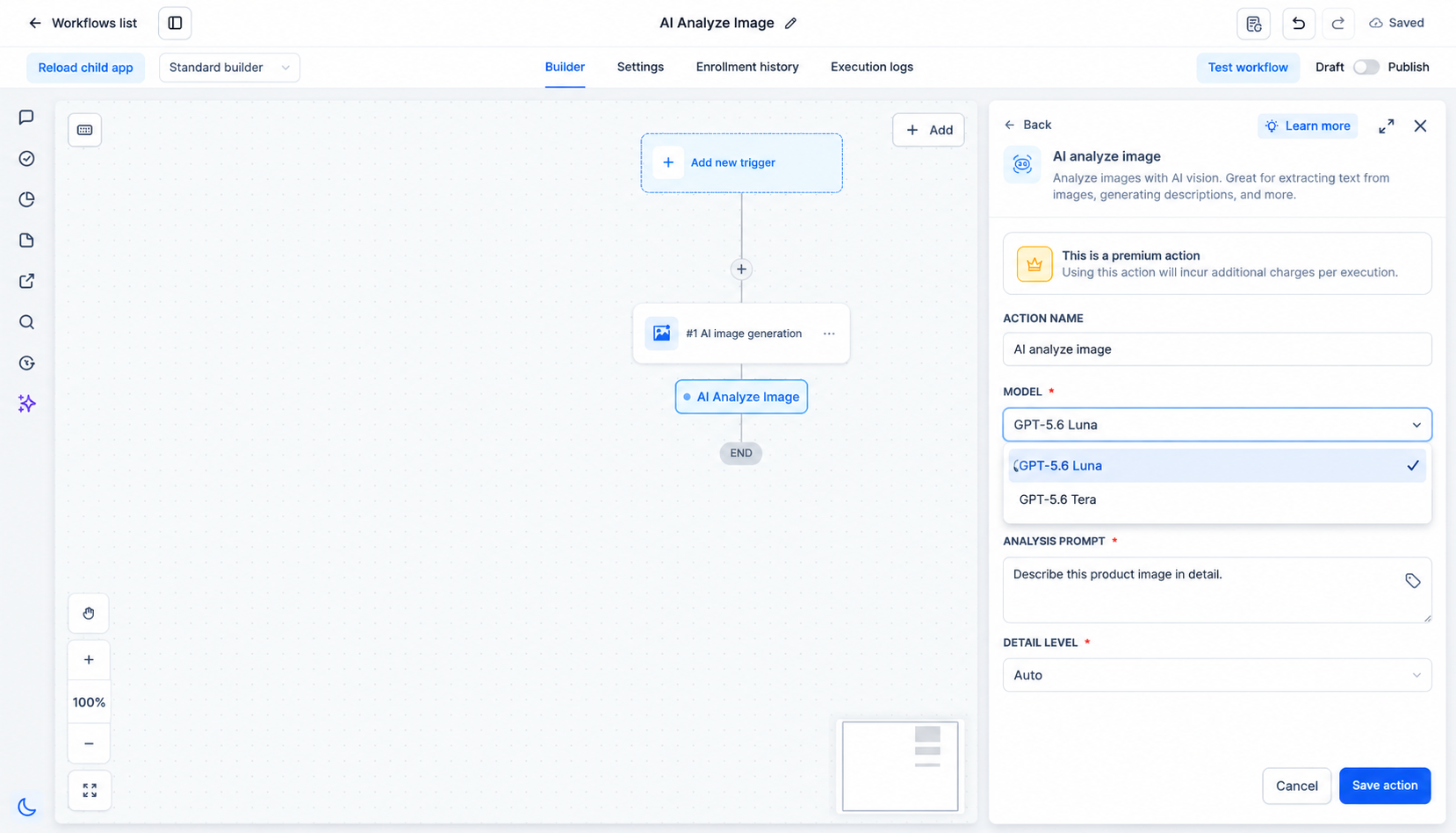
The AI Analyze Image action lets users choose between GPT-5.6 Luna and GPT-5.6 Tera.
The model selection is part of the AI Analyze Image setup, allowing users to choose which available model will process the image.
How to Set Up AI Analyze Image in a Workflow
Adding the new action to a workflow follows a simple process.
First, go to Automation > Workflows and open the workflow where you want to use image analysis.
Add the AI Analyze Image action from the AI Actions section. From there, configure the action by selecting the model you want to use.
Next, enter the image URL. This URL can come from the output of an earlier workflow step or from a custom value.
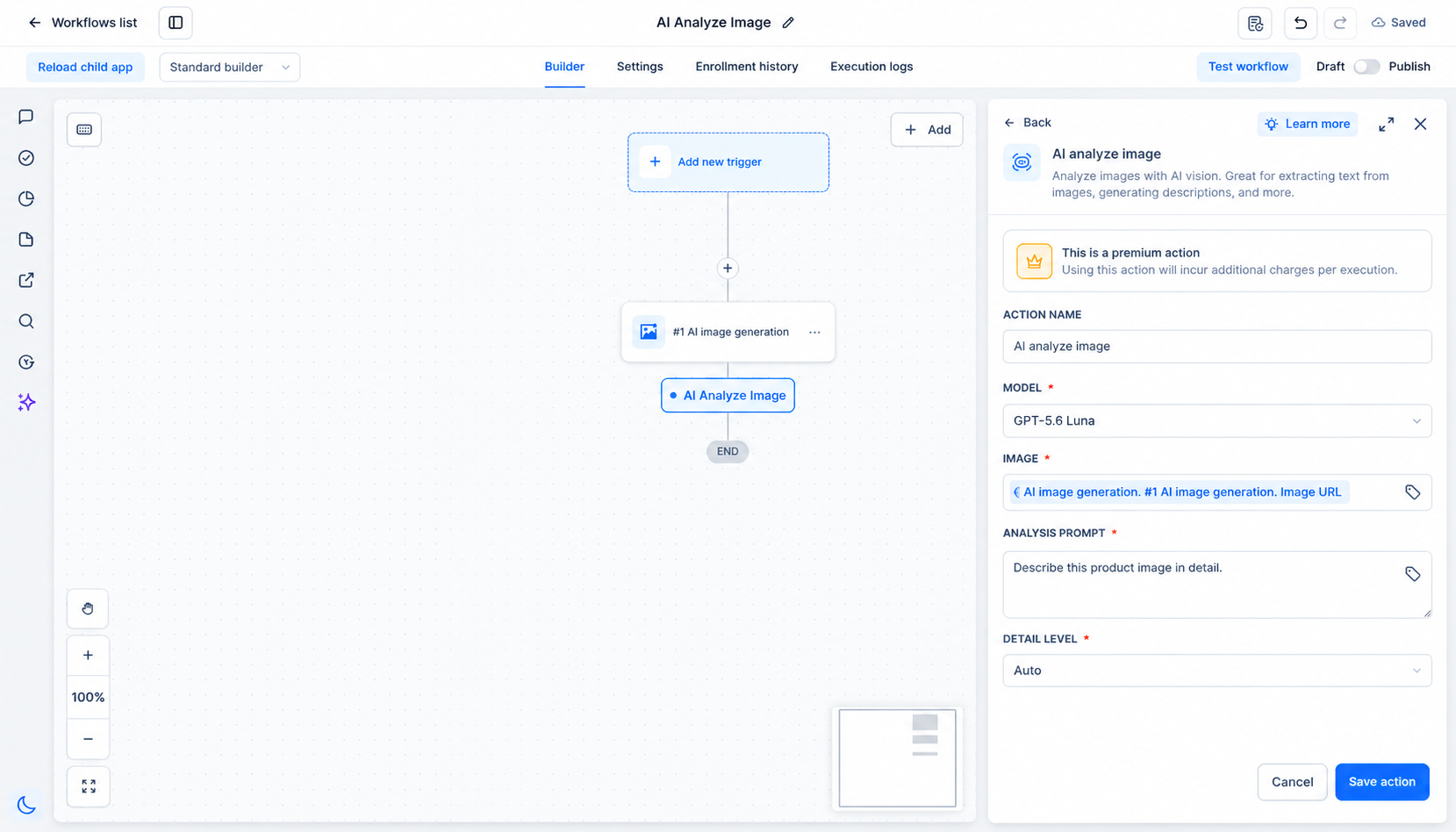
Then write your analysis prompt. This is where you explain what you want the AI to analyze and how you want the result to be provided.
After that, select the desired detail level: Auto, High, or Low. Auto is selected by default.
Finally, save the action.
The result produced by the AI Analyze Image action can then be used by later steps in the workflow.
Your Image URL Must Be Publicly Accessible
There is one important requirement to keep in mind when configuring this action: the image URL must be publicly accessible.
Anyone must be able to open the image without logging in. GoHighLevel users should also provide the direct URL to the image file, rather than a link to a webpage that contains the image.
Images stored in Media Storage are already public, according to the update.
This is an important part of the setup because the AI Analyze Image action needs access to the actual image through its URL.
What Happens After the Image Is Analyzed?
The most useful part of this update is that the workflow doesn't stop after analyzing the image.
The AI-generated result is returned as text, which means that text can be used in subsequent workflow actions.
For example, the result can be:
Saved to a custom field
Sent through email or SMS
Passed to a webhook
Sent to another AI action
This creates a clear flow: image → AI analysis → text → next workflow action.
Why This Update Matters
The new GoHighLevel AI Analyze Image action expands what workflows can do with visual information.
Previously, an image could simply move through a workflow as an image. With this update, the workflow can actually analyze the image and produce a text result based on a custom instruction.
Whether the goal is extracting text from a receipt, invoice, screenshot, or document, generating an image description, or passing the resulting text into another workflow step, the new action adds another layer of capability to GoHighLevel AI Actions.
It is a premium action with an additional charge per execution, so users should keep that consideration in mind when building workflows.
Overall, AI Analyze Image gives GoHighLevel users a straightforward way to bring image analysis into their automations. By combining an accessible image URL, a custom prompt, a selected detail level, and one of the available AI models, users can turn image content into text that their workflows can continue working with.
Frequently Asked Questions (FAQs)
1. What is the GoHighLevel AI Analyze Image action?
It analyzes an image inside a workflow and returns the result as text.
2. Where can I find AI Analyze Image in GoHighLevel?
You can find it under Automation > Workflows > AI Actions.
3. What image URL can I use with AI Analyze Image?
The image URL must be publicly accessible and link directly to the image file.
4. Which detail levels are available?
You can choose Auto, High, or Low. Auto is the default.
5. What can I do with the analysis result?
You can use the returned text in later workflow actions, such as custom fields, email, SMS, webhooks, or another AI action.
Need Expert Help with GoHighLevel?
New to GoHighLevel and ready to get started? Buy your GoHighLevel account here and launch with confidence.
Already know what you need and want our team to handle everything, from complete setup and customization to funnels, workflows, automations, CRM, and pipelines? Click here.



