

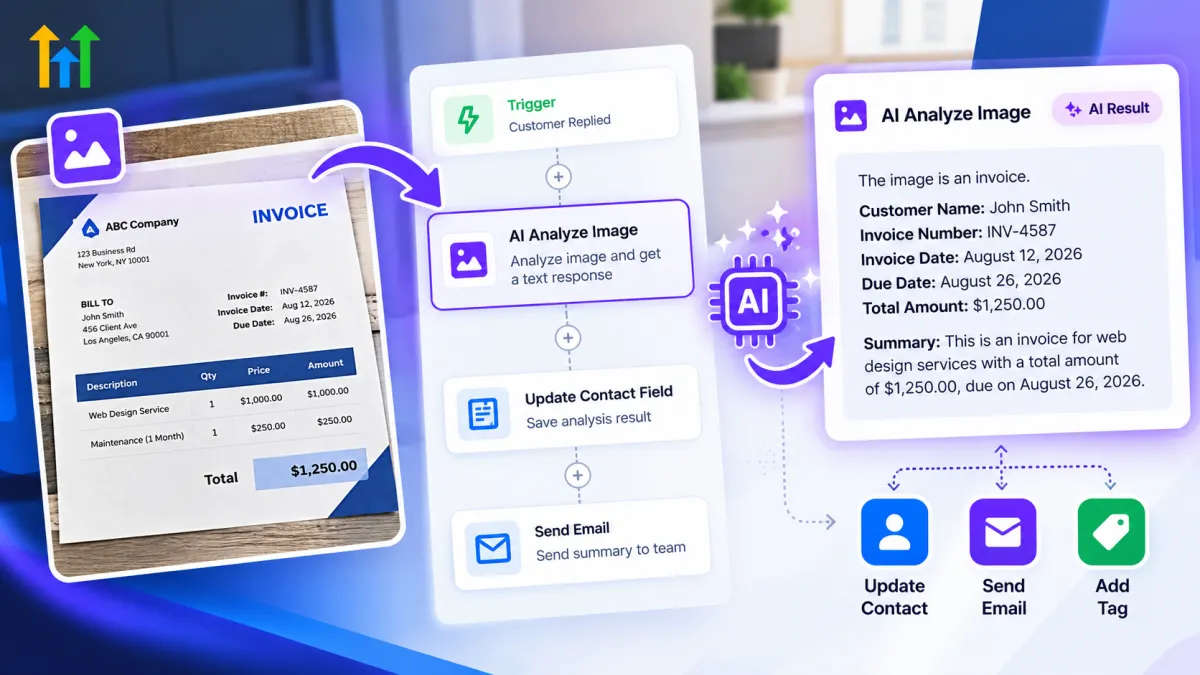
How to Use AI Analyze Image Action in GoHighLevel
How to Analyze Images Automatically Using the AI Analyze Image Action in GoHighLevel
A customer sends a photo of a receipt. A support lead submits a screenshot showing an error. A business receives a product image that needs a description. Normally, someone has to open the image, inspect it, understand what matters, and then decide what happens next.
That manual review can interrupt an otherwise automated process.
The GoHighLevel AI Analyze Image Action changes that by letting a workflow examine an image and return a text response based on instructions you provide. Instead of treating an image as an attachment that simply moves through your system, a workflow can turn visual information into text that later automation steps can use.
What Is the GoHighLevel AI Analyze Image Action?
AI Analyze Image is a premium action available under AI Actions inside GoHighLevel Workflows. You provide a publicly accessible image URL and an Analysis Prompt explaining what the AI should examine or return. An AI vision model analyzes the image and produces a text output.
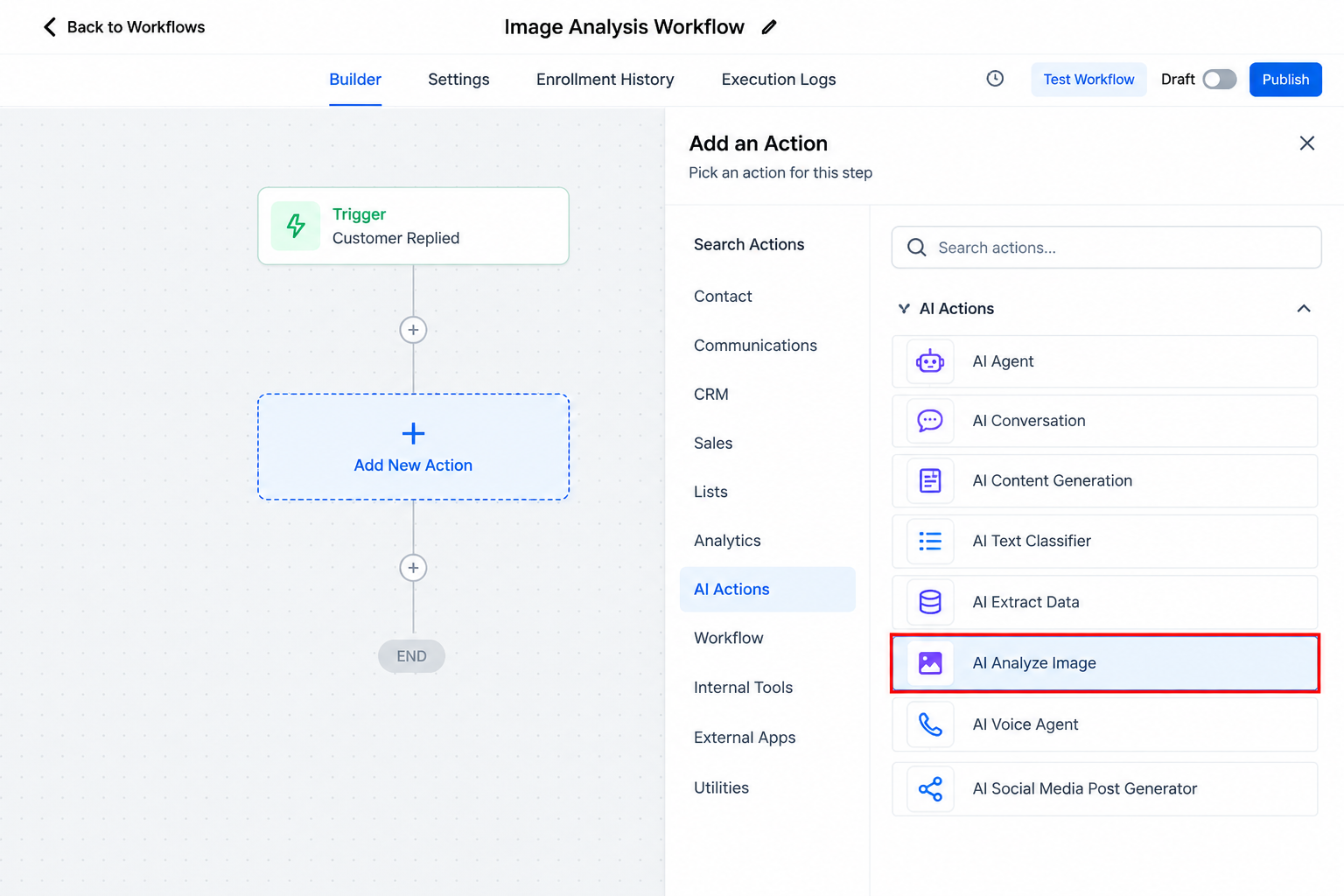
This makes the action useful for tasks such as extracting visible text, describing an image, identifying visible objects or attributes, or answering a specific question about image content.
The current configuration includes an Action Name, Model, Image URL, Analysis Prompt, and Detail Level. The Detail Level can be set to Auto, High, or Low. Auto is the default, while High provides more detailed analysis and Low provides a lighter, faster pass.
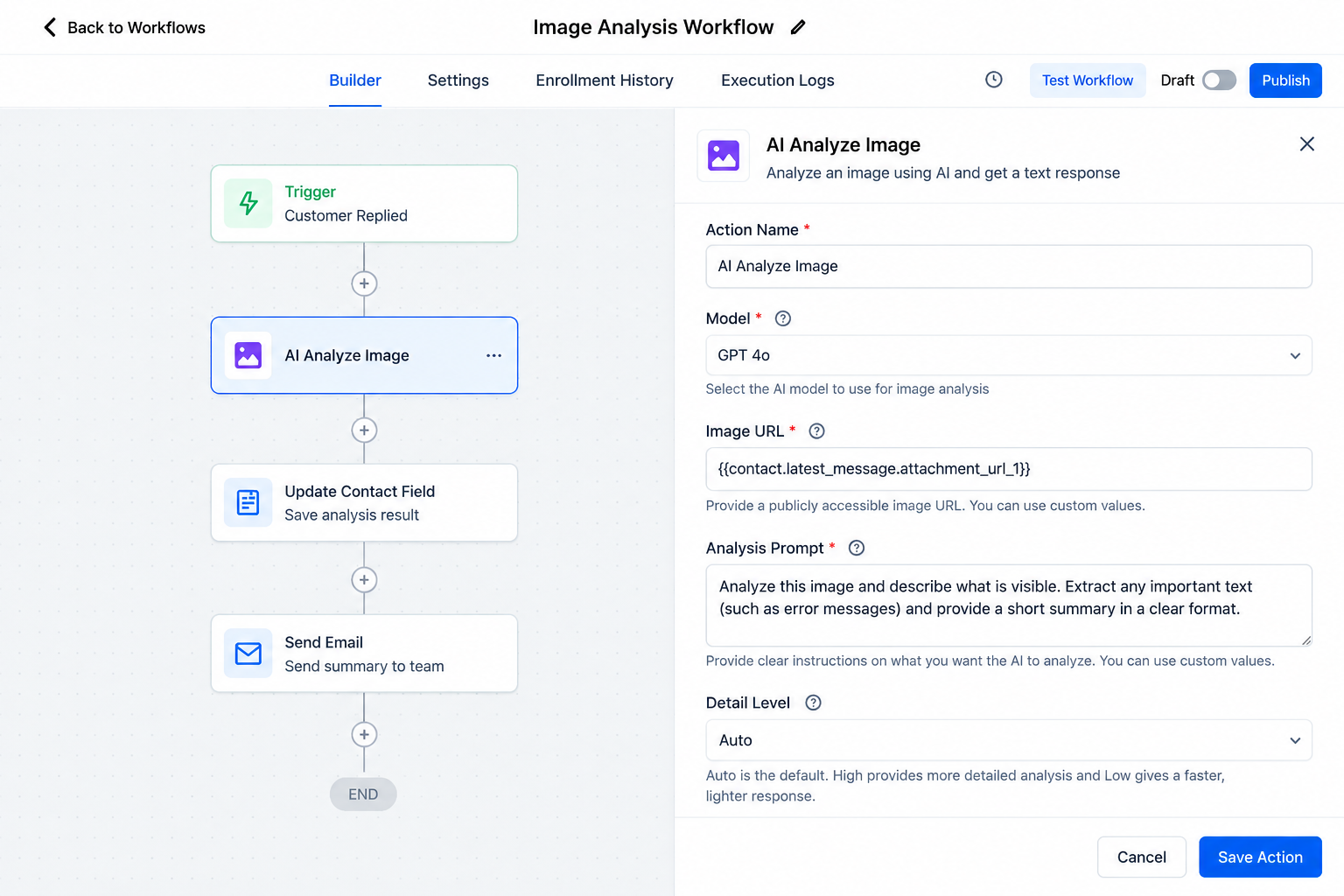
Most importantly, the result is returned as text and becomes available to downstream workflow actions.
Why Automated Image Analysis Matters
Many automations work well until visual information enters the process.
Imagine a support workflow where customers regularly send screenshots. The CRM may already automate notifications and follow-ups, but an employee still needs to inspect each screenshot before understanding the issue.
The same problem can occur with receipts, invoices, product photographs, property images, or customer-submitted photos.
GoHighLevel AI image analysis can reduce that repetitive step. The workflow can analyze the image first and make the resulting text available for whatever happens next.
This does not mean AI interpretation should automatically replace human judgment. Image quality, unclear content, and the analysis instructions can all affect the result. The advantage is that visual information can now participate in AI workflow automation instead of automatically creating a manual bottleneck.
How the Analyze Image Action in GoHighLevel Works
Setting up the action follows a straightforward workflow process.
First, open Automation → Workflows and add the AI Analyze Image action under AI Actions. Select the available AI vision model you want to use.
Next, provide the Image URL. This needs to be a publicly accessible direct URL. An image behind a login, authentication token, private share link, or restricted network cannot be fetched by the action. Images stored in HighLevel's Media Storage are already hosted at publicly accessible URLs.
Then write your Analysis Prompt. This tells the model what information matters. The prompt supports custom values, allowing instructions to incorporate dynamic workflow information.
Finally, choose the Detail Level and save the action.
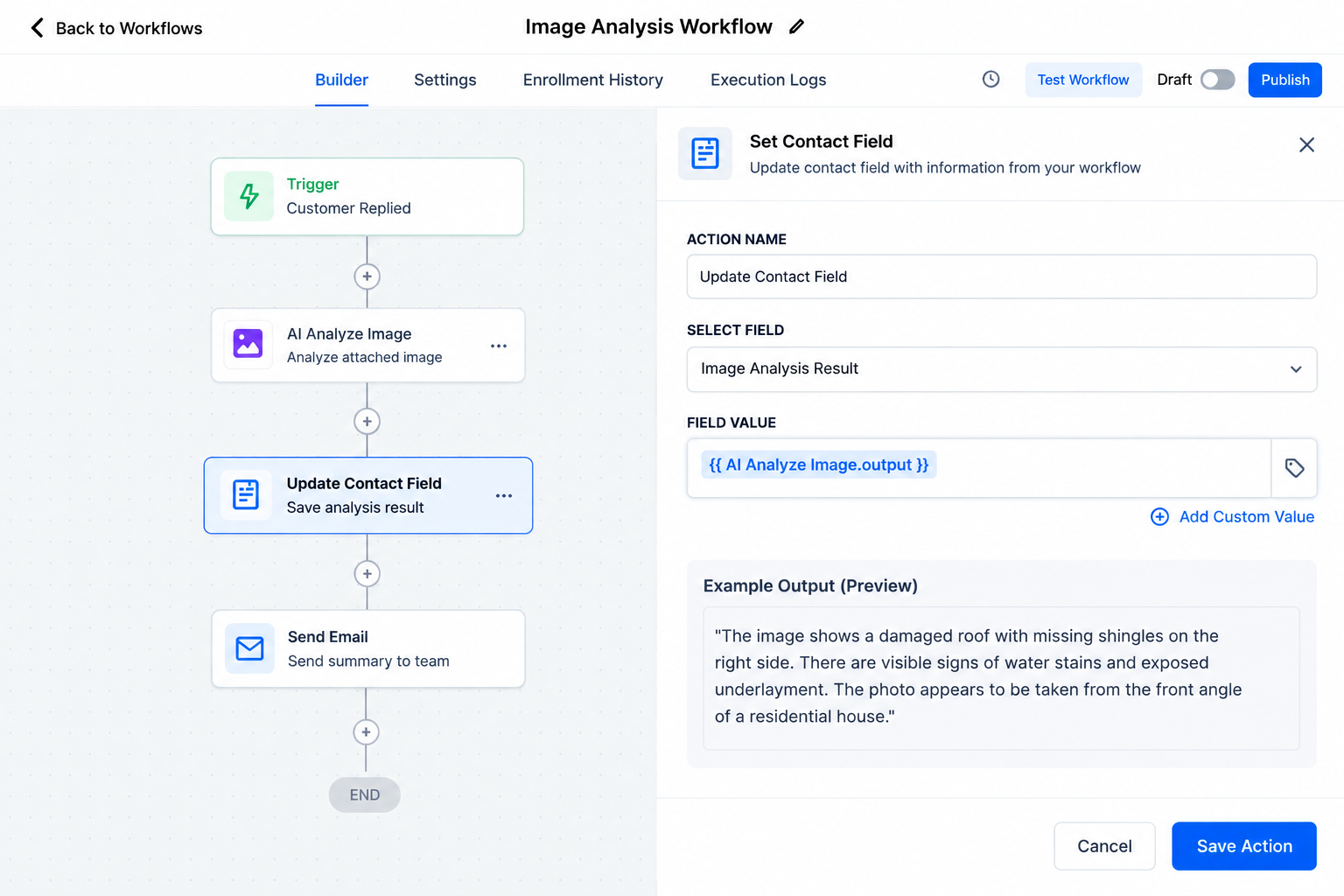
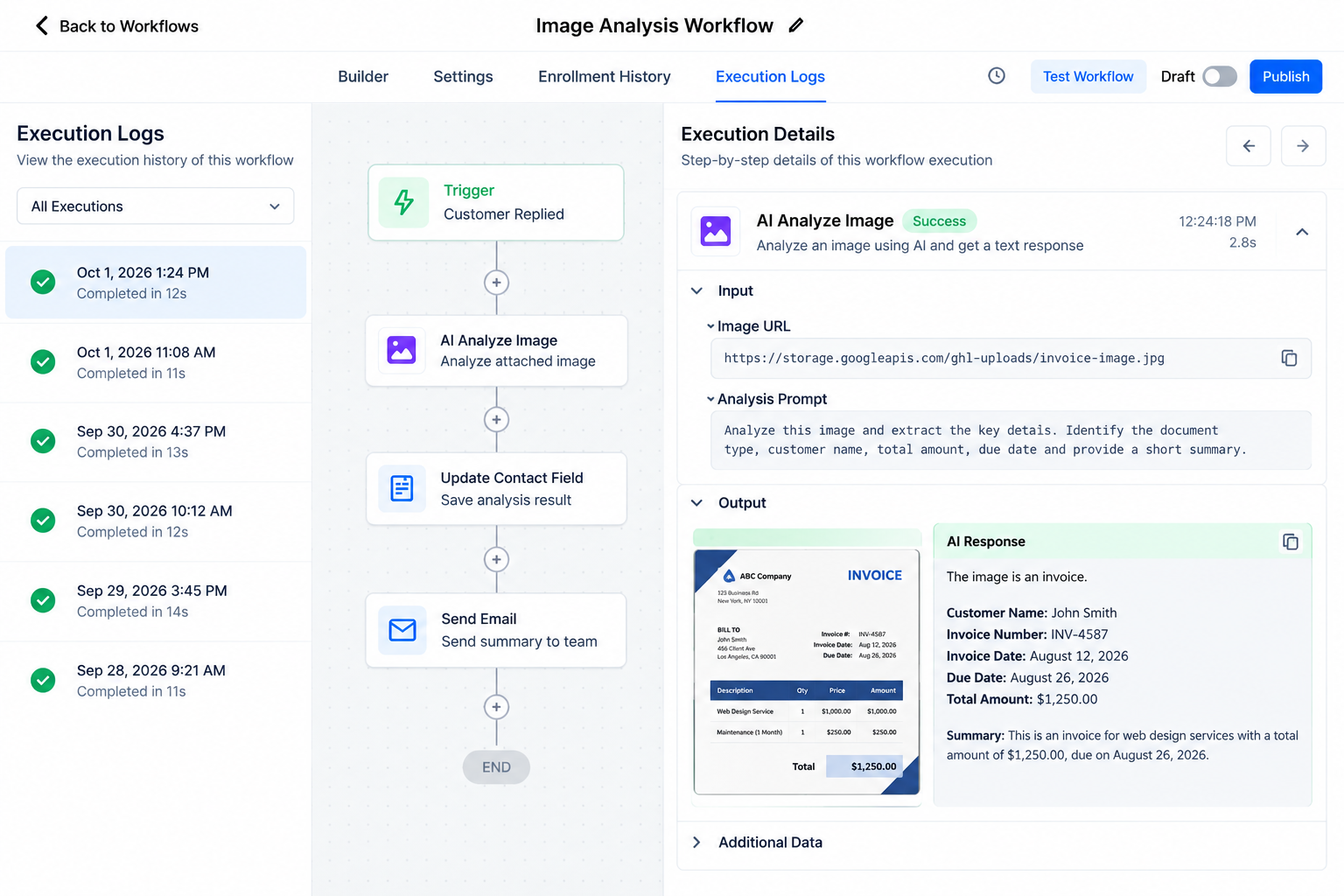
When the workflow executes, AI analyzes the image and returns a text value. That output appears in subsequent actions through the custom value picker under AI Analyze Image. It can, for example, be saved to a contact custom field, included in an email or SMS, passed to an outbound webhook, or provided to another AI action.
Practical Business Use Cases
The interesting part of image analysis automation is how it can fit into existing processes.
A roofing or home-service company could potentially analyze a customer-submitted property photo and generate a basic description of what is visible for staff review. This should not be treated as a professional damage assessment, but it could give the team useful context before follow-up.
An automotive business might use the action to describe visible characteristics in a submitted vehicle photo. A real estate team could create descriptions of property images for internal processing.
E-commerce or support teams have another practical use: screenshots. An analysis prompt can ask AI to extract visible error text or summarize what appears on the screen, making it easier to incorporate that information into the support workflow.
Agencies can also use the action to generate image descriptions or alt-text drafts at scale.
These are possible workflow use cases, not prebuilt industry-specific recognition systems provided by GoHighLevel.
Example GoHighLevel AI Automation Workflow
Consider a support team that receives screenshots from customers.
The workflow could conceptually look like:
Customer Replied → AI Analyze Image → Analysis Output → If/Else or Internal Notification → Follow-Up
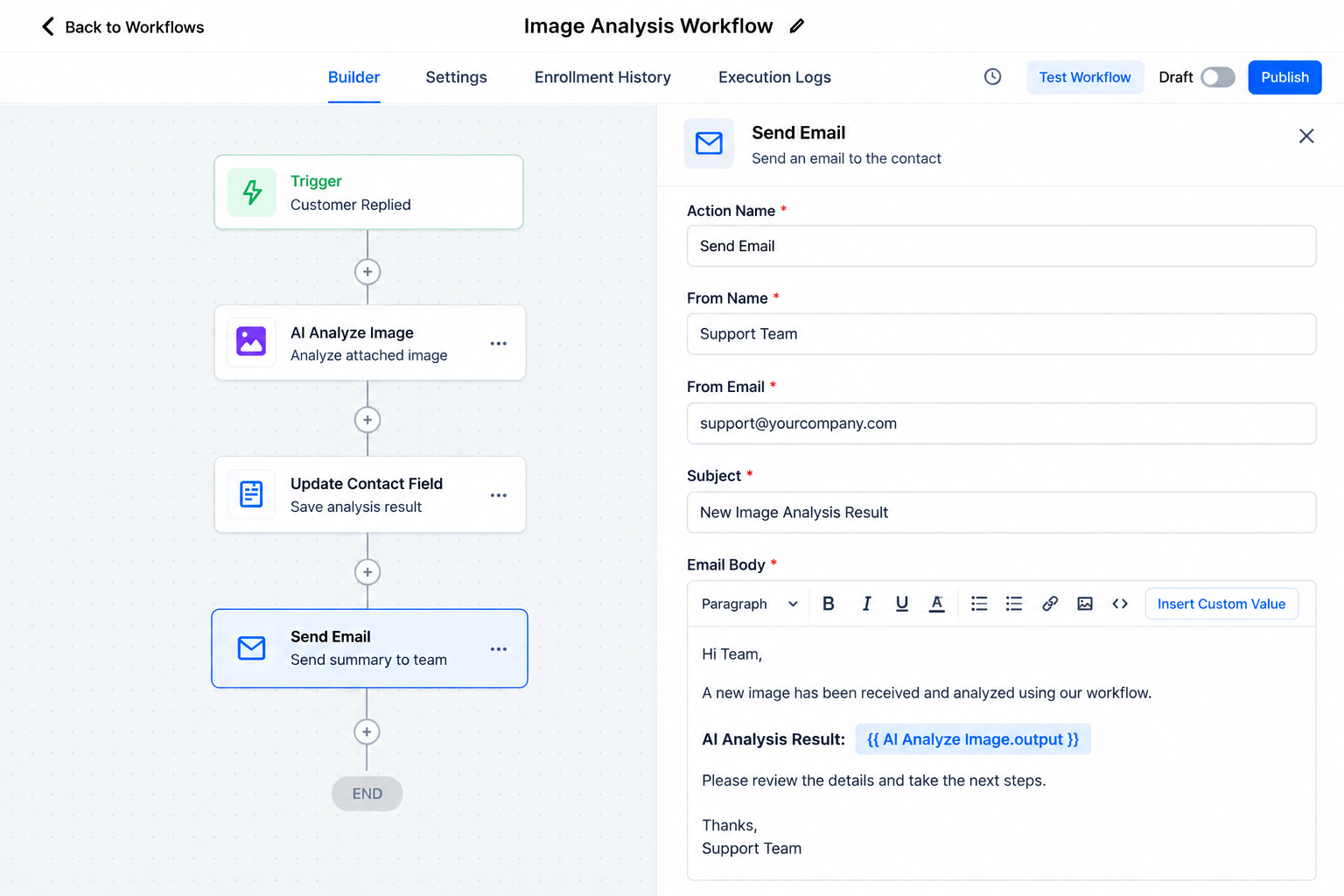
HighLevel's documentation specifically gives a Customer Replied workflow with an image attachment as an example. The image URL can be analyzed, and the resulting text can then be saved or used downstream.
For example, the Analysis Prompt might say:
“Extract the visible error message from this screenshot. Return only the error message and a short description of what is visible.”
The goal is not to have AI solve every support problem automatically. It is to turn the screenshot into useful text that the rest of the workflow can work with.
Writing Better Image Analysis Instructions
Your prompt has a major influence on the usefulness of the output.
Instead of asking, “What is in this image?”, tell the model exactly what matters. If you need one specific value, request that value. If another workflow step depends on consistent output, ask for a concise and predictable format.
For example, a receipt workflow could ask the AI to return only a particular visible piece of information rather than producing a long description of the entire receipt.
HighLevel also recommends testing the action with real images before using the workflow at volume. Different image quality and content can produce different results.
Limitations and Best Practices
AI image analysis is useful, but it should be implemented thoughtfully.
Poor image quality can make interpretation harder, and AI can misunderstand visual information. Use the appropriate Detail Level, verify that image URLs are publicly accessible, and test several realistic examples before publishing your workflow.
For critical financial, legal, safety, medical, identity, or other high-stakes decisions, AI interpretation should not be treated as the sole source of truth. Human review and appropriate safeguards remain important.
Also remember that AI Analyze Image is a premium workflow action, so executions can incur additional charges.
Conclusion
The real value of the GoHighLevel AI Analyze Image Action is not simply that AI can inspect an image. It is that image understanding can become another usable step inside GoHighLevel workflows.
Images can be analyzed, converted into relevant text, and connected with later automation actions instead of automatically requiring someone to inspect every submission manually.
When planning your next GoHighLevel automation, look for places where a workflow currently stops because a person needs to examine an image. Those are the places where carefully implemented GoHighLevel AI image analysis may help make the process more efficient.
Frequently Asked Questions
1. What is the AI Analyze Image Action in GoHighLevel?
The AI Analyze Image Action is a workflow action that uses AI to analyze an image and return a text-based result based on the instructions provided in the Analysis Prompt.
2. What type of images can GoHighLevel analyze?
The action works with images that are available through a publicly accessible image URL. Images stored behind restricted access, private logins, or authentication may not be available for analysis.
3. Can I use the AI Analyze Image output later in a workflow?
Yes. The generated analysis can be used in later workflow steps where GoHighLevel supports the action output, such as storing information, sending notifications, or passing the result into other automation steps.
4. Can GoHighLevel extract text from an image?
The AI Analyze Image Action can interpret visible content in an image and can be prompted to return visible text. Results can vary depending on image quality and clarity, so important information should be verified when necessary.
5. Is the AI Analyze Image Action always accurate?
No. AI can sometimes misunderstand an image, miss details, or return an incomplete interpretation. Businesses should test workflows with different images and use human review for sensitive or high-stakes decisions.
Need Expert Help with GoHighLevel?
New to GoHighLevel and ready to get started? Buy your GoHighLevel account here and launch with confidence.
Already know what you need and want our team to handle everything, from complete setup and customization to funnels, workflows, automations, CRM, and pipelines? Click here.



