

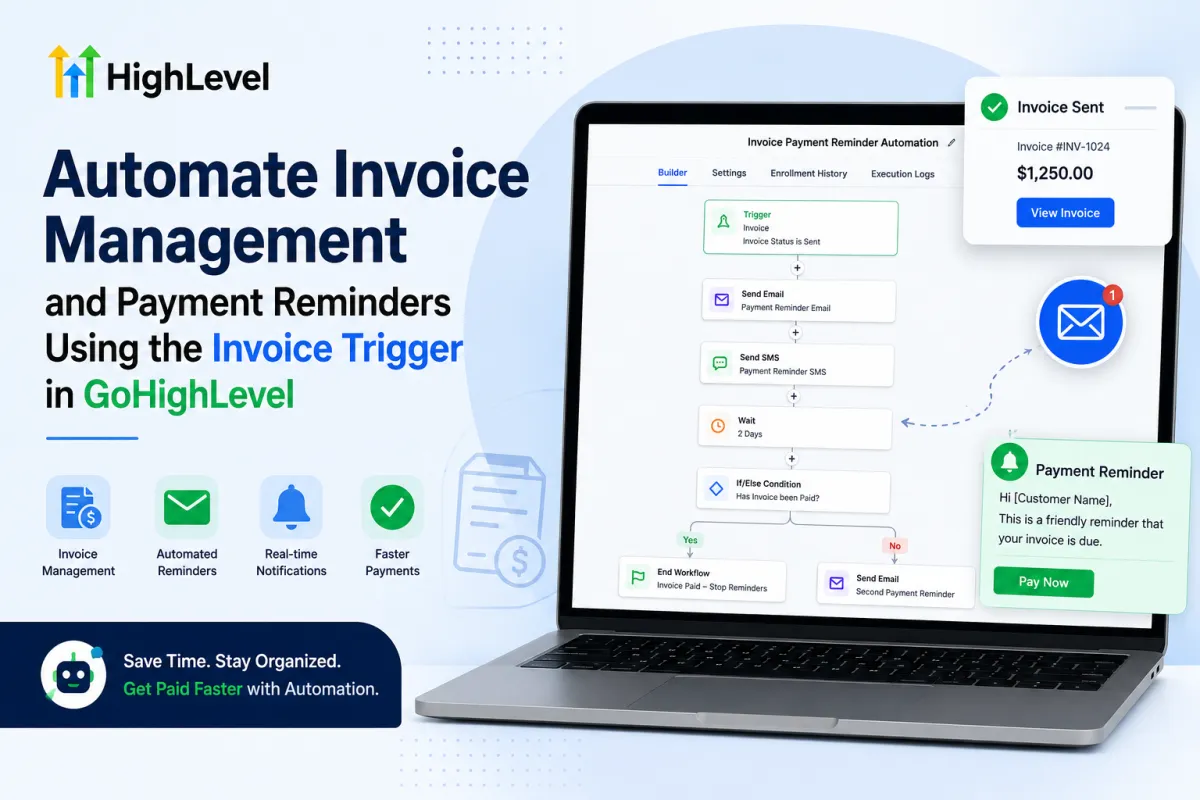
GoHighLevel Invoice Automation & Payment Reminders
How to Automate Invoice Management and Payment Reminders Using the Invoice Trigger in GoHighLevel
Managing invoices manually can become time-consuming, especially when businesses need to monitor whether an invoice has been sent, viewed, partially paid, fully paid, or voided. Without automation, team members may need to repeatedly check invoice activity and decide what action should happen next.
GoHighLevel helps simplify this process with the Invoice Trigger in workflows. By using the available Invoice Status filters Sent, Viewed, Partially Paid, Paid, and Void businesses can create automated processes based on what is happening with an invoice.
This allows you to send relevant payment follow-ups, update contact records, notify your team, and stop unnecessary reminders when an invoice is paid.
What Is the Invoice Trigger in GoHighLevel?
The Invoice Trigger allows a GoHighLevel workflow to start based on an invoice-related event and the invoice status selected in the trigger configuration.
When setting up the trigger, you can filter the workflow using the following invoice statuses:
Sent
Viewed
Partially Paid
Paid
Void
These statuses make it possible to create different automations for different stages of the invoice process.
For example, a business can start a workflow when an invoice is Sent and send a payment reminder. Another workflow can respond when the invoice is Paid and send a payment confirmation.
Instead of treating every invoice the same way, the automation can respond based on its current status.
Why Automate Invoice Management and Payment Follow-Up?
Invoice management often involves more than simply sending an invoice. Businesses may need to follow up with customers, monitor payments, identify partially paid balances, and notify team members when action is required.
Automating these processes can help create a more organized system.
Depending on the invoice status, a workflow can be used to:
Send payment reminders
Follow up after an invoice has been viewed
Handle partially paid invoices
Send payment confirmation messages
Notify internal team members
Add or remove contact tags
Create tasks for manual follow-up
Update CRM processes based on invoice activity
Stop payment-related follow-up after payment is completed
The goal is to make each action relevant to the actual status of the invoice.
How the Invoice Trigger Works
A basic invoice automation process can look like this:
Invoice Trigger → Invoice Status Filter → Workflow Actions → Follow-Up
The workflow starts when the selected invoice event matches the configured status. From there, GoHighLevel can perform the actions you have added to the workflow.
For example:
Invoice Status: Sent → Send Payment Reminder
Or:
Invoice Status: Paid → Send Payment Confirmation → End Workflow
You can also build separate workflows for different statuses to keep the automation clear and easy to manage.
How to Build an Invoice Management Workflow in GoHighLevel
1. Define Your Invoice Automation Process
Before creating the workflow, decide what should happen for each invoice status.
For example, your business may want to handle invoice activity like this:
Invoice StatusExample AutomationSentSend an invoice or payment reminderViewedFollow up if additional communication is neededPartially PaidRemind the customer about the remaining balancePaidSend a payment confirmationVoidNotify the internal team or update the CRM
Planning the process first helps you avoid adding unnecessary or overlapping actions.
It is also important to remember that each status may represent a different customer situation. A customer who has partially paid an invoice should not receive the same message as someone whose invoice has already been fully paid.
2. Create or Open a Workflow
Go to the Workflows section in your GoHighLevel sub-account.
Create a new workflow or open an existing workflow where you want to manage invoice automation.
Use a clear name, such as:
Invoice Payment Reminder Automation
Then add the Invoice Trigger as the starting point of the workflow.
A descriptive workflow name makes it easier to identify the purpose of the automation later, especially when your account contains multiple workflows.

3. Configure the Invoice Status Filter
After adding the Invoice Trigger, configure the Invoice status filter based on the automation you want to create.
The available statuses include:
Paid, Partially Paid, Sent, Viewed, and Void.

Choose the status that matches your intended workflow.
For example, if the purpose of the workflow is to begin payment communication after an invoice is sent, select Sent.
If you want to automate what happens after successful payment, select Paid.
Using the correct status is important because it ensures contacts enter the workflow only when the appropriate invoice event occurs.
Automating Payment Reminders for Sent Invoices
One practical use of the Invoice Trigger is creating a workflow for invoices with a Sent status.
When the invoice matches this status, the workflow can automatically begin the payment communication process.
A simple workflow could look like this:
Invoice Trigger: Sent → Send Payment Reminder
The message can remind the customer that their invoice is available and provide clear information about completing payment.

For example, the communication can include:
A professional reminder about the invoice
Relevant payment instructions
A clear call to action
Information the customer may need before completing payment
The message should remain helpful and professional rather than overly aggressive.

Following Up After an Invoice Is Viewed
The Viewed status can be useful for businesses that want to create a follow-up process after the customer has opened or viewed the invoice.
For example, you could use a workflow such as:
Invoice Trigger: Viewed → Wait → Send Follow-Up
The Wait step gives the customer time to take action before receiving another message.
This approach can be more appropriate than immediately sending multiple reminders.
Depending on your business process, the workflow could send a polite follow-up asking whether the customer has any questions or needs assistance with payment.
You can also notify a team member if certain invoices require personal follow-up.
Handling Partially Paid Invoices
A Partially Paid invoice requires a different approach because the customer has already completed part of the payment.
Instead of sending a generic invoice reminder, the workflow can be designed to communicate about the remaining balance.
For example:
Invoice Trigger: Partially Paid → Send Remaining Balance Reminder
The workflow may also:
Add a follow-up tag
Notify the relevant team member
Create a task for manual review
Send additional communication based on your business process
Using a separate automation for partially paid invoices helps keep the messaging relevant to the customer's actual payment situation.
Sending Payment Confirmation for Paid Invoices
When an invoice reaches the Paid status, there is usually no reason to continue payment-related reminders.
Instead, this status can trigger a confirmation process.
A simple workflow might look like this:
Invoice Trigger: Paid → Send Thank-You or Payment Confirmation → Update CRM
The workflow could send a message confirming that payment has been received.
You may also use the workflow to:
Add a customer or payment-completed tag
Notify the internal team
Create a follow-up process for the next stage of the customer journey
Update an opportunity or other CRM process when appropriate
This helps ensure the customer's experience continues smoothly after payment.
Managing Void Invoices
The Void status can be used to start an internal management process when an invoice is no longer active.
For example:
Invoice Trigger: Void → Notify Internal Team → Update CRM
Depending on the reason the invoice was voided, the business may need to review the contact's record or determine whether another invoice should be issued.
The workflow can help notify the appropriate person so the event does not go unnoticed.
Because a voided invoice can have different business reasons, the follow-up should be designed around your own invoice management process.
Use Wait Steps for Better-Timed Follow-Up
One of the most useful ways to improve invoice automation is by using Wait steps.
Not every communication needs to happen immediately.
For example:
Invoice Sent → Wait 3 Days → Send Follow-Up
A Wait step gives the customer time to review the invoice and take action before receiving another message.
You can create a payment communication sequence with appropriate spacing rather than sending multiple messages at once.
The timing should reflect your business and customer experience. The goal is to create helpful follow-up without overwhelming the customer.
Use Conditions and Separate Workflows Carefully
Different invoice statuses can require different actions.
For this reason, businesses can organize their automation using separate workflows or workflow logic based on their specific requirements.
For example:
Sent invoices may enter a payment reminder process.
Viewed invoices may enter a delayed follow-up process.
Partially Paid invoices may receive communication about the remaining balance.
Paid invoices may enter a confirmation process.
Void invoices may trigger an internal notification.
Keeping these scenarios organized helps make workflows easier to understand and maintain.
It also reduces the risk of sending the wrong communication to a customer.
Real-World Example: Automated Invoice Follow-Up
Imagine a service business that regularly sends invoices to clients.
The business creates separate invoice automations based on the available Invoice Trigger statuses.
Sent Invoice
When an invoice is marked Sent, the workflow sends a professional payment reminder.
Viewed Invoice
When the invoice is Viewed, the business can wait for a selected period before sending a follow-up if that fits its process.
Partially Paid Invoice
When the invoice becomes Partially Paid, the workflow sends communication regarding the remaining payment and can notify the relevant team member.
Paid Invoice
When the invoice is Paid, the workflow sends a confirmation message and moves the customer out of payment-related follow-up.
Void Invoice
When an invoice is Void, the workflow notifies the internal team so the account can be reviewed if necessary.
This creates a more structured system where each invoice status can trigger an appropriate response.
Best Practices for Invoice Automation in GoHighLevel
When building invoice workflows, keep these best practices in mind:
Define the purpose of each workflow before adding actions.
Select the correct Invoice status filter for the automation.
Keep customer messages relevant to the invoice status.
Do not send payment reminders after an invoice has reached the Paid status.
Use different messaging for Partially Paid invoices when appropriate.
Add Wait steps to avoid sending follow-ups too quickly.
Use internal notifications only when team action is required.
Keep workflows organized and easy to understand.
Avoid creating unnecessary overlapping automations.
Test each invoice scenario before relying on the workflow in a live process.
Review your workflows when your billing or payment process changes.
Common Mistakes to Avoid
Using the Same Message for Every Invoice Status
A Sent invoice, Partially Paid invoice, and Paid invoice represent different customer situations.
Using the same message for all of them can create confusion.
Build communication around the actual invoice status whenever possible.
Sending Too Many Reminders
Payment automation should help improve follow-up, not overwhelm customers.
Use reasonable timing between messages and consider the purpose of each follow-up.
Continuing Payment Communication After Payment
A Paid invoice should generally move into a confirmation or completed process rather than continue receiving payment reminders.
Make sure your workflow structure reflects this.
Ignoring Partially Paid Invoices
Partially paid invoices may need a different follow-up process because payment has already been made but a balance may still remain.
Create messaging that matches that situation.
Building Overly Complicated Workflows
Keep each automation focused on a clear purpose.
In many cases, separate workflows based on invoice status can be easier to manage than placing every possible invoice scenario into one complex workflow.
Frequently Asked Questions
What does the Invoice Trigger do in GoHighLevel?
The Invoice Trigger can be used to start a workflow based on invoice activity and the configured invoice status.
What invoice statuses can be used in the Invoice Trigger?
The available Invoice Status filter options shown in the trigger are Paid, Partially Paid, Sent, Viewed, and Void.
Can I automate payment reminders for sent invoices?
Yes. You can configure the Invoice Trigger with the Sent status and add communication actions to create an automated payment reminder process.
Can I create a workflow for partially paid invoices?
Yes. The Partially Paid status can be used to start automation designed around the customer's remaining payment situation.
What can happen when an invoice is paid?
A workflow using the Paid status can send a payment confirmation, notify the team, update CRM information, or begin another appropriate customer process.
Can I automate follow-up after an invoice is viewed?
Yes. You can use the Viewed status to start a workflow and add Wait steps or follow-up actions based on your business process.
Conclusion
The Invoice Trigger in GoHighLevel provides a practical way to automate invoice-related workflows based on important invoice statuses.
By using the available filters Sent, Viewed, Partially Paid, Paid, and Void businesses can create more relevant processes for payment reminders, follow-ups, payment confirmations, CRM updates, and internal notifications.
The key is to build each automation around the actual status of the invoice. A sent invoice may require a payment reminder, a partially paid invoice may need a remaining balance follow-up, and a paid invoice may require a confirmation instead.
When organized correctly, GoHighLevel invoice automation can reduce manual work, improve payment communication, and help ensure the right follow-up happens at the right stage of the invoice process.
Need Expert Help with GoHighLevel?
New to GoHighLevel and ready to get started? Buy your GoHighLevel account hereand launch with confidence.
Already know what you need and want our team to handle everything, from complete setup and customization to funnels, workflows, automations, CRM, and pipelines? 5Click here.



