


Stop Creating Duplicate Contacts in Your Workflows
How to Find Existing Contacts and Personalize Workflows Using the Find Contact Action in GoHighLevel
Most GoHighLevel workflows start with a contact already attached. A form comes in, a tag is added, a stage moves, and the workflow knows whose record it is working on. Then you wire up a webhook from Stripe or a booking tool, and the whole thing falls apart. The payload arrives with an email address in it but no contact, so every action after it has nobody to act on.
Find Contact is the action that fixes this. It takes a value you already have, searches your database for a matching contact, and loads that person into the workflow so the rest of your actions have somewhere to land. Just as usefully, it tells you when nobody matches, which is the difference between a clean database and one full of half duplicated records.
What the Find Contact action actually does
HighLevel describes it as a way to identify a contact in your database using specified criteria, either standard or custom fields. In plain terms, you tell it which field to search on, you give it a value, and it goes looking.
The documentation is direct about when to reach for it. It is normally used when the workflow is started by a trigger that does not already have a contact attached. The Inbound Webhook trigger is the obvious example. A webhook arrives carrying query parameters, and if those parameters do not include a contact ID but do include an email address, Find Contact turns that email into a real contact record so the actions behind it can run.
It is not only for webhooks. Custom App Marketplace triggers, the premium ones built by third party developers, work the same way once the identifying merge fields are passed through.
Where the action sits in the builder
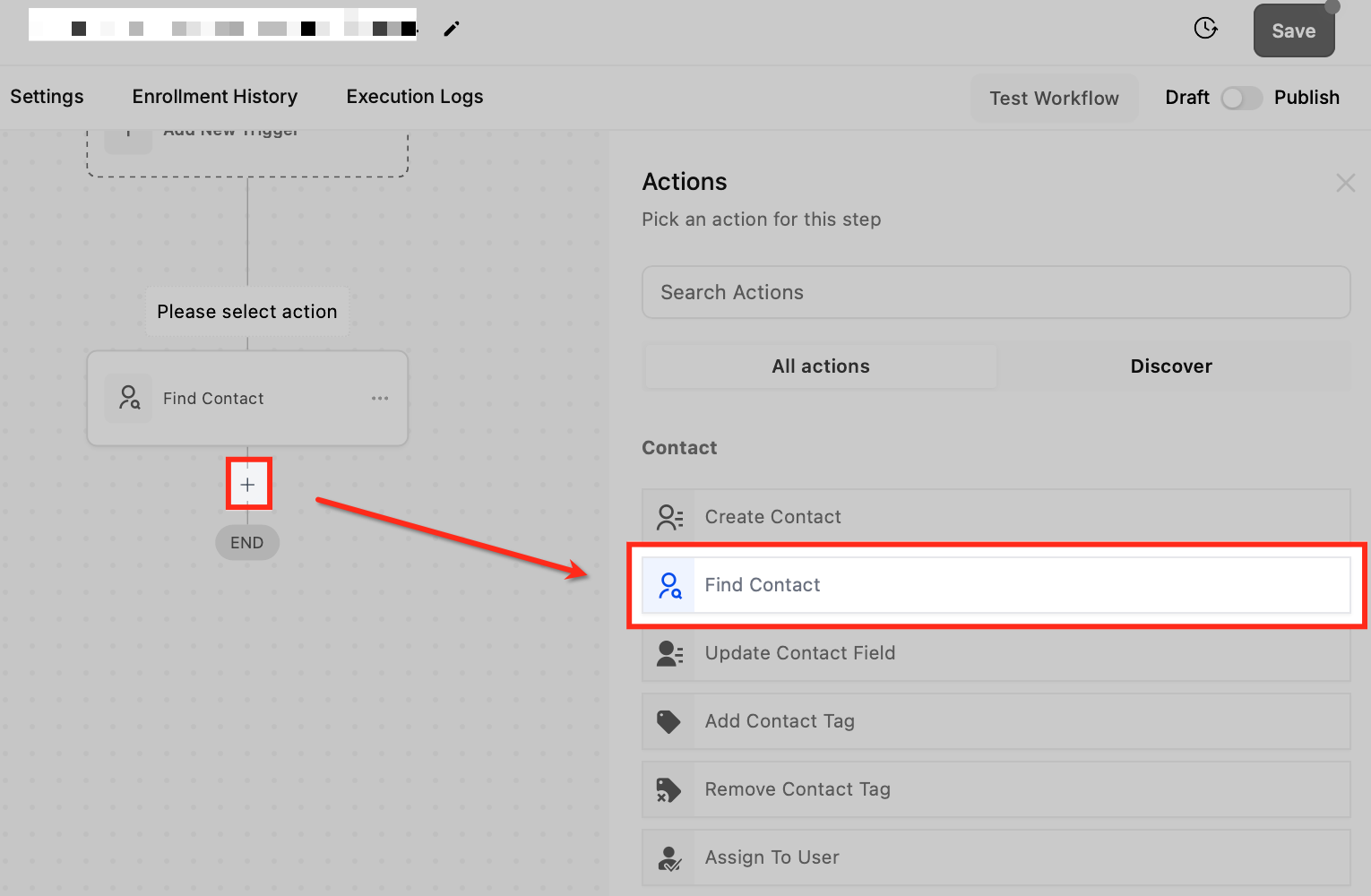
Open the workflow, click the plus icon where you want the step, and the Actions panel opens on the right. Find Contact sits in the Contact group, directly under Create Contact and directly above Update Contact Field. That grouping is a hint about how the three are meant to be used together.
Give the action a name you will understand in six months
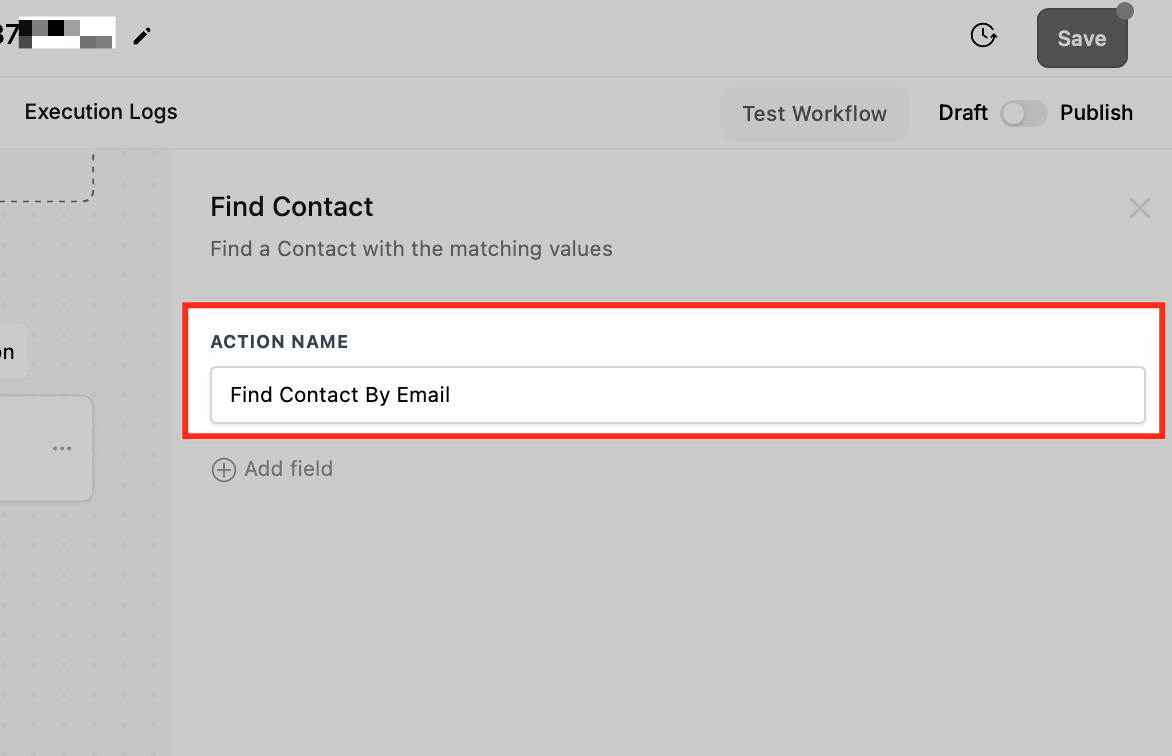
The first field in the panel is Action Name, and HighLevel's own example is a good one: Find Contact by Email. This matters more than it looks. A workflow with three lookup steps in it, all called Find Contact, is unreadable, and it is worse in the execution logs where you are trying to work out which lookup failed.
Choosing the field you match on
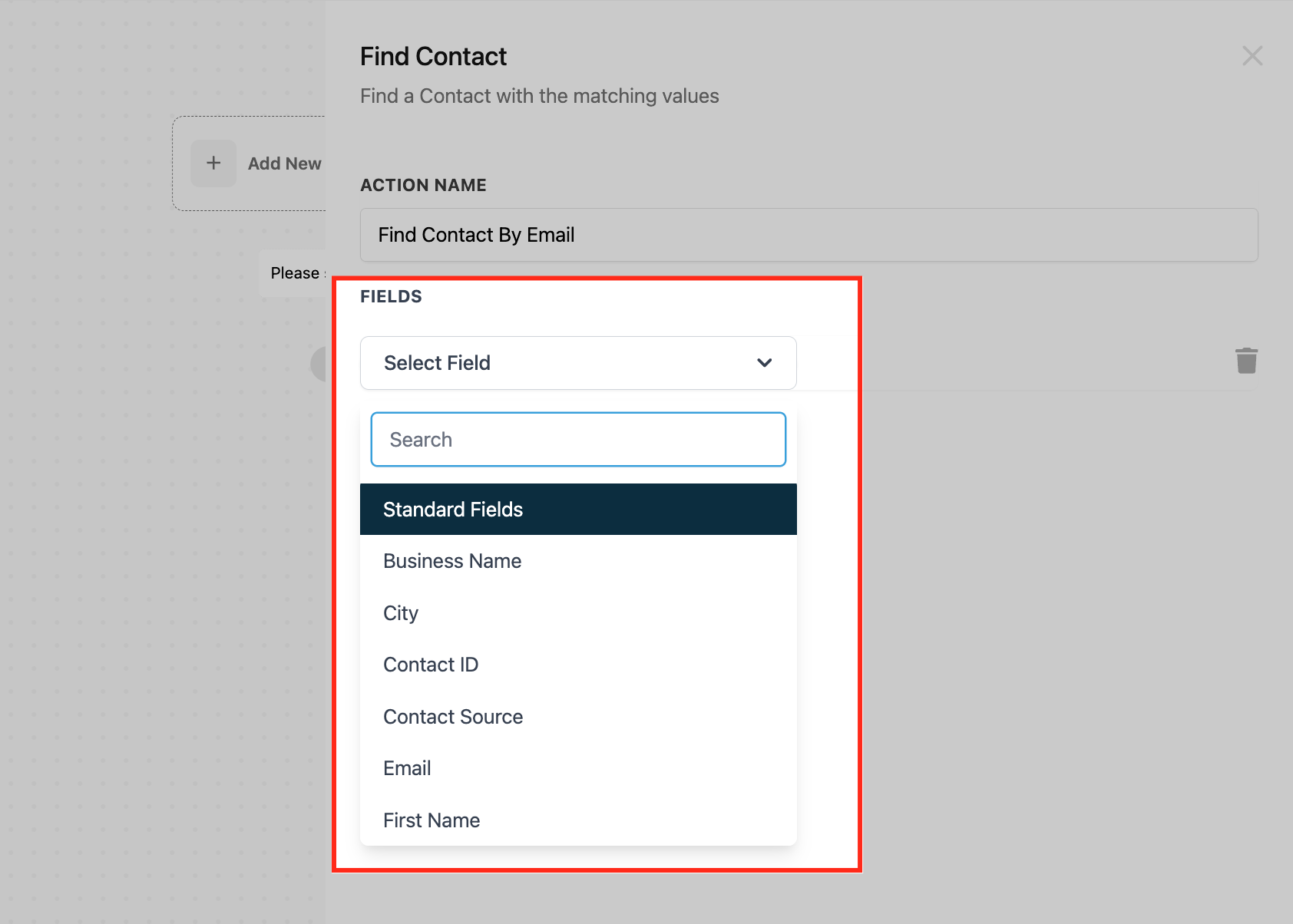
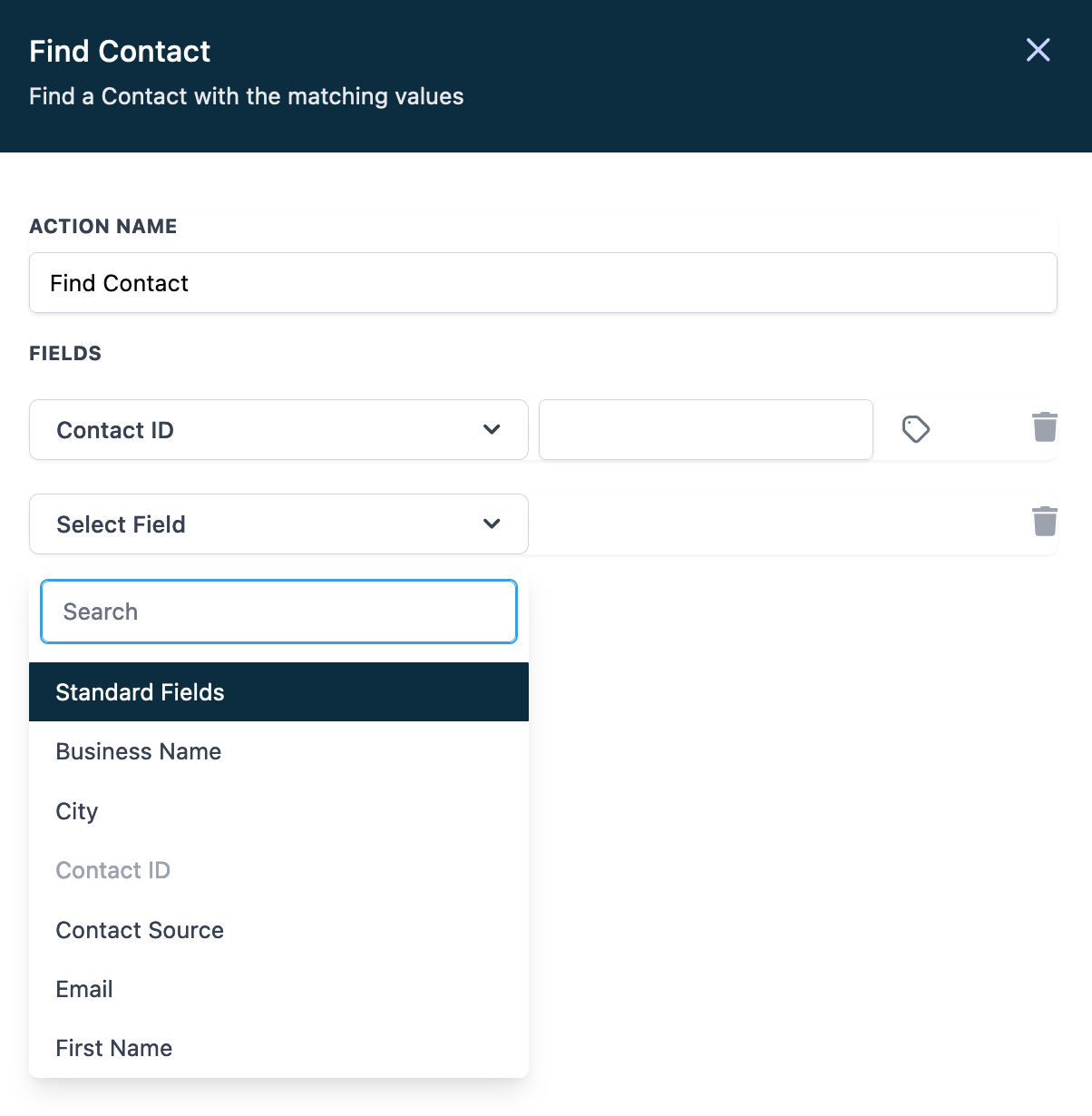
Under Fieldsyou pick which contact field the action searches, and this single choice decides whether the automation is reliable or a slow leak. Click Select Field and a searchable list opens with Standard Fields at the top: Business Name, City, Contact ID, Contact Source, Email, First Name, and the rest of the built in set.
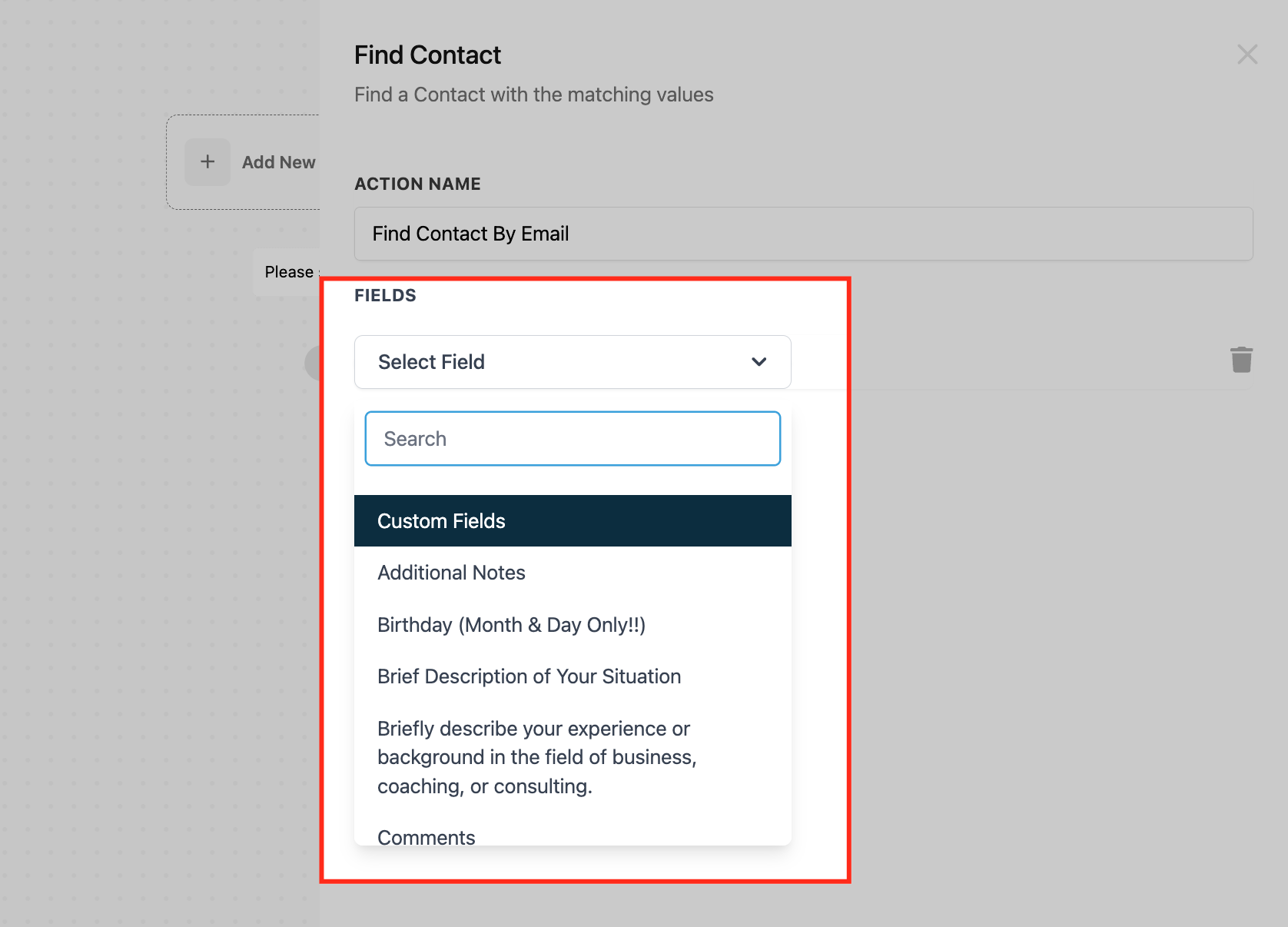
Scroll past those and you reach your Custom Fields, which is where the interesting matching happens. If you store a Stripe customer ID, a membership number, a subscription tier or a referral code on the contact record, you can search on it. HighLevel calls this external reference matching, and it is the cleanest way to connect a record in another system to a record in yours.
One condition that catches people out: the custom field has to already exist in the sub account and it has to be populated on the contact. An empty custom field matches nothing, so if the value only ever arrives through this webhook, you need a Create Contact or Update Contact Field step writing it in the first time round.
Matching on more than one field
Click Add field and you get a second row, a third, as many as you need. The rule to remember is that the action uses AND logic across every row. All of the values must match before a contact is returned. Email and phone and custom field, not email or phone or custom field.
That is a filter, not a net. Every extra row makes the search stricter, so add a second one only when the first field cannot identify a single person on its own. An online order carrying an email and a last name is a fair case for two rows. An email address rarely needs the help.
Additional emails and phone numbers
By default the action matches only the contact's primary email or phone. That is a real problem for anyone who buys with a work address and books with a personal one, because the same human ends up looking like two people.
There is a fix, and it is easy to miss. Choose Email or Phone as your field, and a checkbox appears underneath it reading Include additional emails, with the note that it finds contacts by additional emails too. Tick it and the search covers every email stored on the record instead of just the first one. The same option exists for phone numbers.
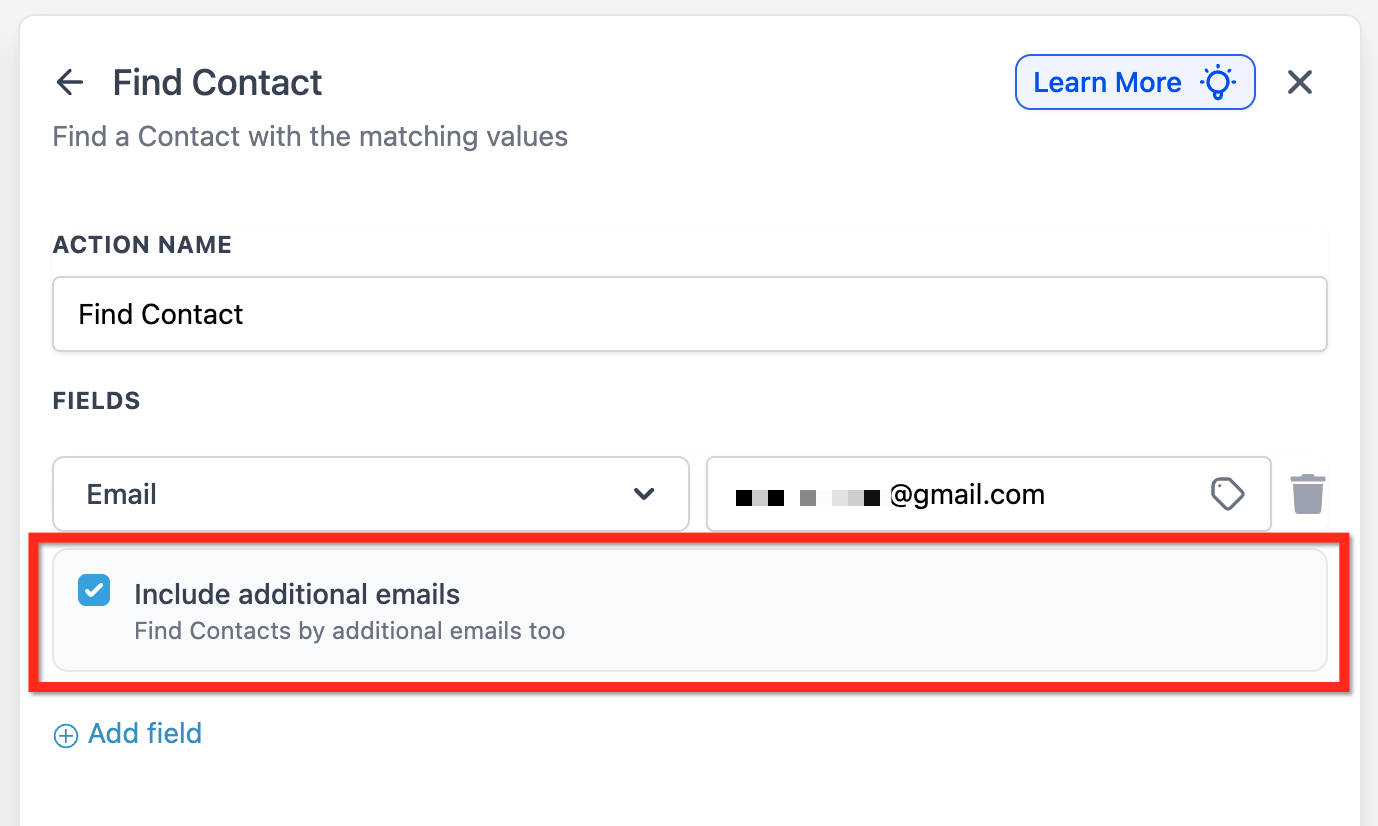
For any workflow fed by a payment processor, a booking tool or a marketplace, tick it. Those platforms hand over whichever address the customer typed that day, not the one you have on file.
The two branches are the whole point
Once the action is on the canvas it splits the workflow into two paths automatically: Contact FoundandContact Not Found. You do not build the branch yourself and you cannot skip it. Both paths are yours to fill.
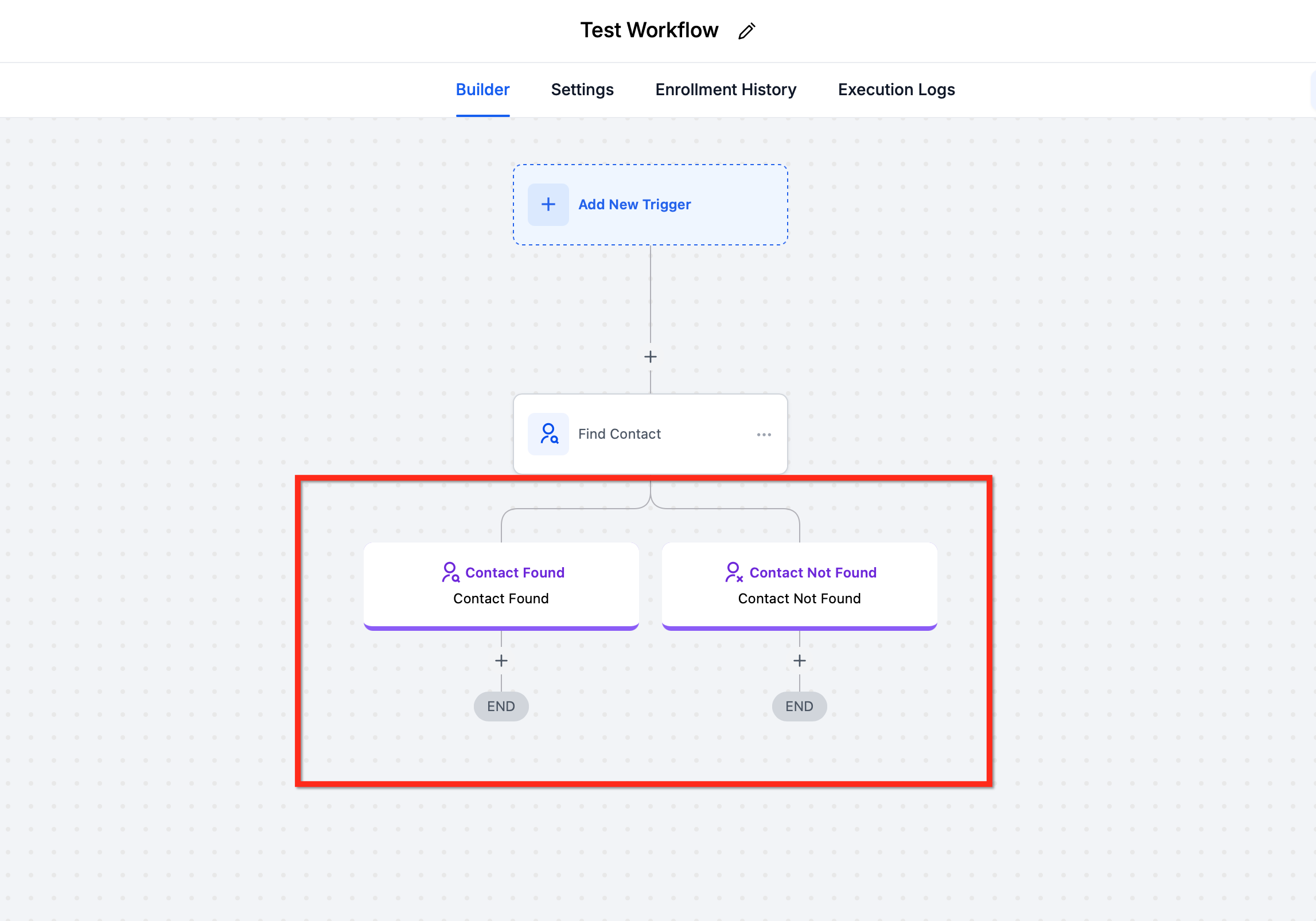
The Contact Found side is the personalization side. The contact is now loaded, so merge fields resolve, and you can update fields, add a tag, move an opportunity, send an email that references what the person already bought, or notify the rep who owns them.
The Contact Not Found side is the one people leave empty, and that is the mistake. This is where you add a Create Contact step, write the incoming values onto the new record, and let the rest of the sequence continue. Fill it in and every unmatched webhook becomes a new lead. Leave it empty and the automation silently drops the person.
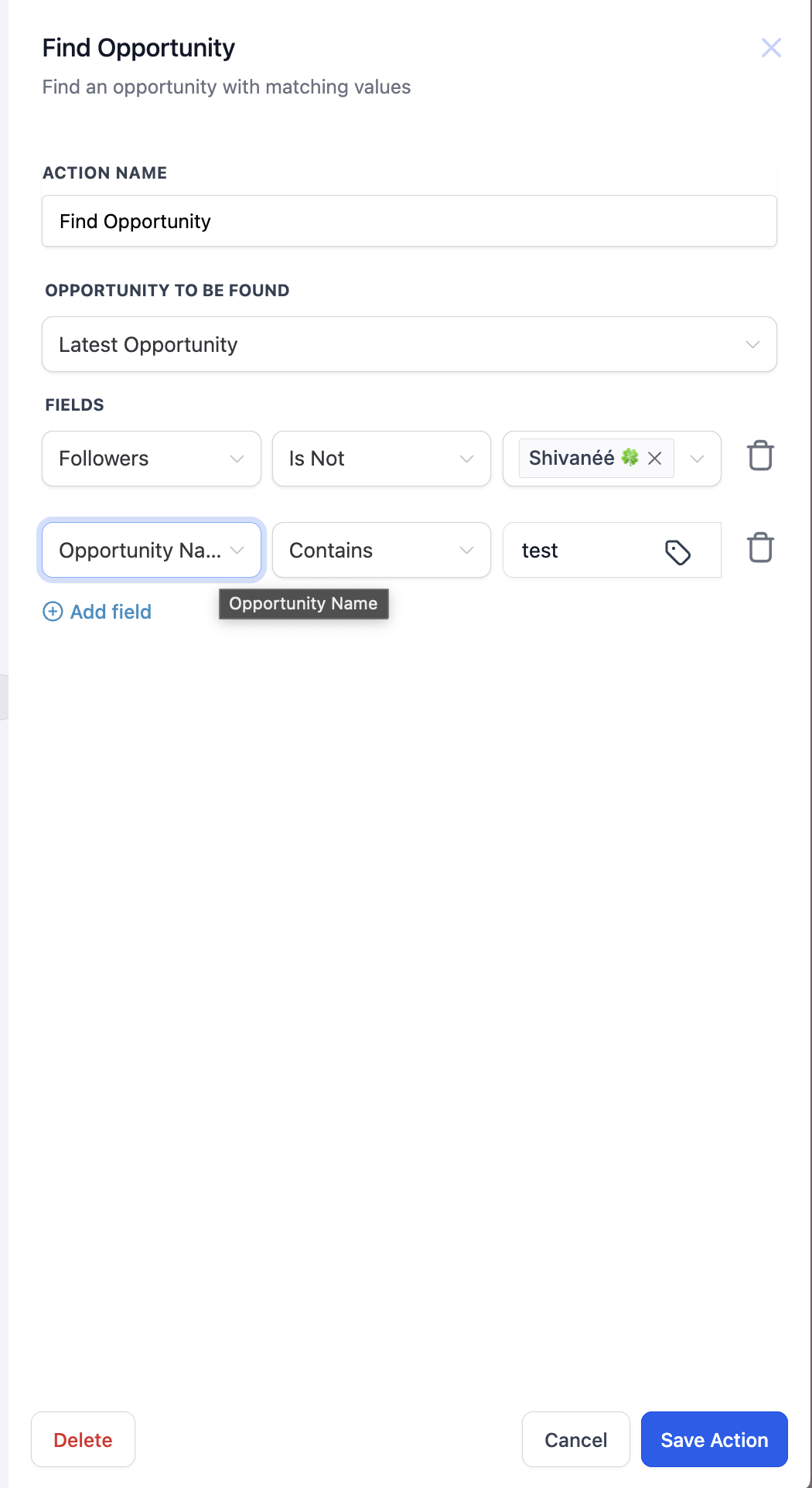
There is a sibling action worth knowing about.Find Opportunity does the same job for deals, with its own found and not found paths and a dropdown deciding whether it returns the earliest or the latest match.
A workflow worth copying
Here is the shape that solves the most common case, a payment platform posting to a webhook when somebody buys.
Inbound Webhook trigger, receiving the payload with the buyer's email and customer ID in it.
Find Contact by Customer ID, matching your Stripe customer ID custom field against the value in the payload.
On theContact Foundbranch, Update Contact Field to write the new plan and order total, Add Tagfor the product, then the receipt email.
On the Contact Not Foundbranch, Create Contact from the payload, write the customer ID into the custom field so the next purchase matches, then join the same follow up.
Internal Notification on the found branch only, so your team hears about repeat buyers rather than every single order.
The second lookup is the one that pays for itself. Because the not found branch stores the customer ID, the same buyer matches instantly next time, and you never build a second record for them.
Mistakes that cost you matches
Matching on a first name or a city.Both return several people, and the action can only hand one contact to the workflow. Use email, a phone number or a stored external ID.
Leaving the Contact Not Found branch empty.The workflow finishes quietly and the person disappears. A Create Contact step there turns every miss into a lead.
Forgetting the additional emails checkbox.People buy with one address and book with another, and without that box ticked you build a duplicate for the same person.
Adding field rows to widen the search.Every extra row makes it stricter, because all of them have to match at once.
Matching on a custom field nobody fills in.If the field is empty on the contact record, no configuration will find it. Populate it on the not found branch first.
Frequently Asked Questions
What happens if the contact is not found?
The action creates a Contact Not Found branch for exactly that case, and you decide what runs on it. The usual answer is a Create Contact step that builds the record from whatever the trigger sent you, then continues into the same follow up as the found branch.
Can I search on more than one field at once?
Yes. Click Add field for each extra row. All the values have to match for a contact to be returned, so extra rows make the search stricter, not broader. Use them only when one field cannot identify a single person.
How does matching on something like a Stripe customer ID work?
Store the external identifier in a custom field on the contact record, then point Find Contact at that field. The action compares the incoming value to what is saved on your contacts. The field has to exist and hold a value before it can match anything.
Which triggers can I use it with?
It is built for triggers that arrive without a contact attached, and Inbound Webhook is the main one. Custom App Marketplace triggers, the premium ones built by third party developers, also work as long as the identifying merge fields are passed through.
Need Expert Help with GoHighLevel?
New to GoHighLevel and ready to get started? Buy your GoHighLevel account here and launch with confidence.
Already know what you need and want our team to handle everything, from complete setup and customization to funnels, workflows, automations, CRM, and pipelines? Click here.



