

Turn Page Messages Into Real Pipeline
How to Turn Facebook Messenger Conversations into Sales Opportunities Using the Messenger Action in GoHighLevel
Someone messages your Facebook page at nine on a Tuesday night asking what a bathroom refit costs. They are ready to hear a number. Nobody opens the page inbox until morning, and by then they have asked two other companies the same question. The message is still sitting there. The job is not.
GoHighLevel pulls page messages into the same inbox as your calls, texts and emails, and the Messenger workflow action answers inside that thread while the person is still holding their phone. Here is the action itself, the 24 hour rule that decides whether your message ever arrives, the interactive version with buttons and quick replies, and the step that turns a chat into an opportunity you can report on.
Connect the page before anything else
The action sends through a Facebook page your sub account owns, so that connection has to exist first. Open Settings, then
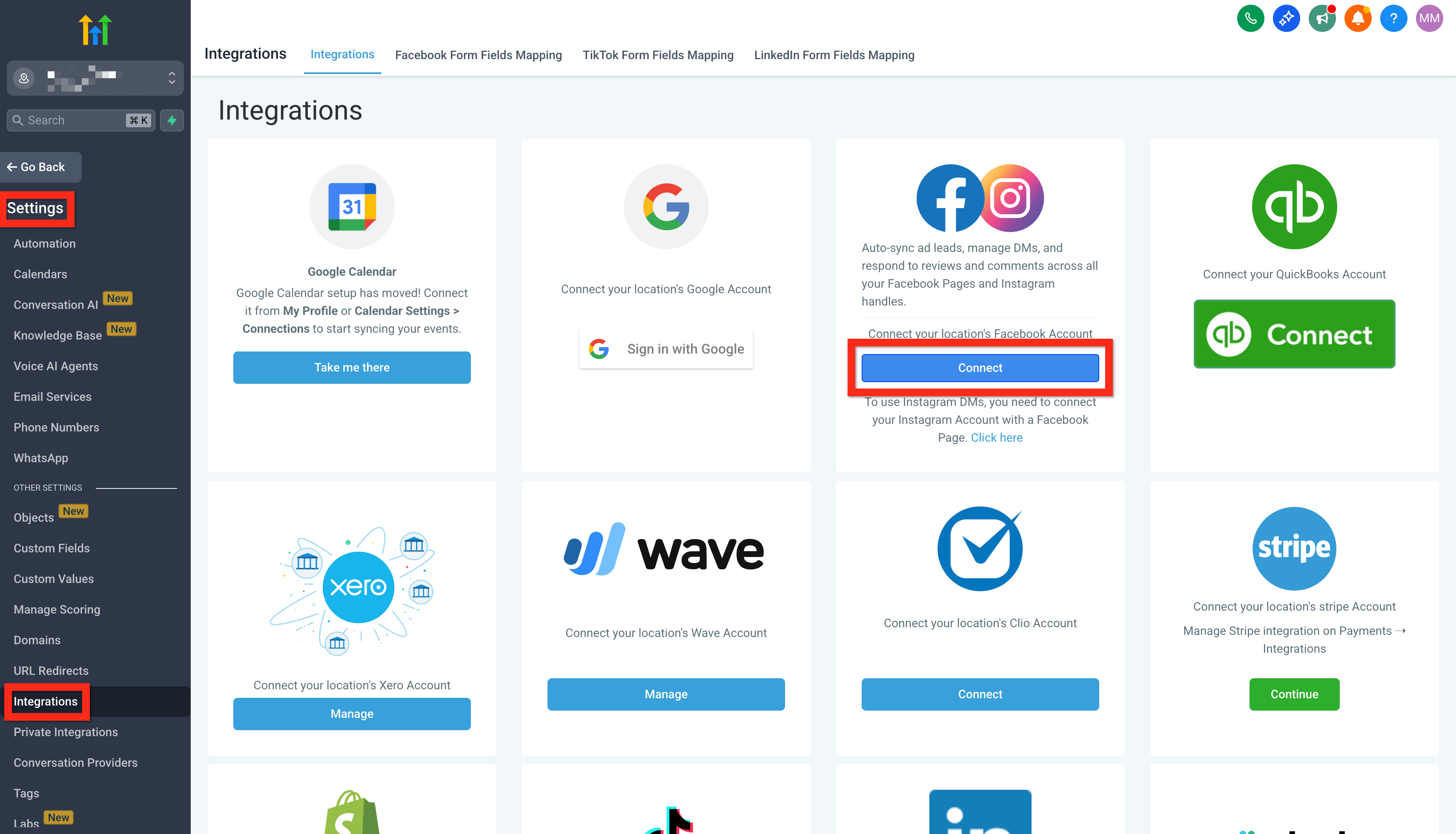
Integrations, and click Connect on the Facebook and Instagram card.
Log in, choose the page, click Connect Facebook and Instagram, then hit Sync Leads. If you want Instagram DMs in the same inbox, pick the page your Instagram account is linked to.
From then on, a first message to the page creates or updates a contact using your deduplication preferences. If that person later shares an email or phone number matching an existing record and duplicate contacts are switched off, the two are merged, so you keep one profile instead of two halves of a person.
Test it before you build anything. Message the page from a different Facebook account, open Conversations, reply from inside HighLevel and check that reply arrives. If both directions work, anything that breaks later is workflow logic.
Where the action lives
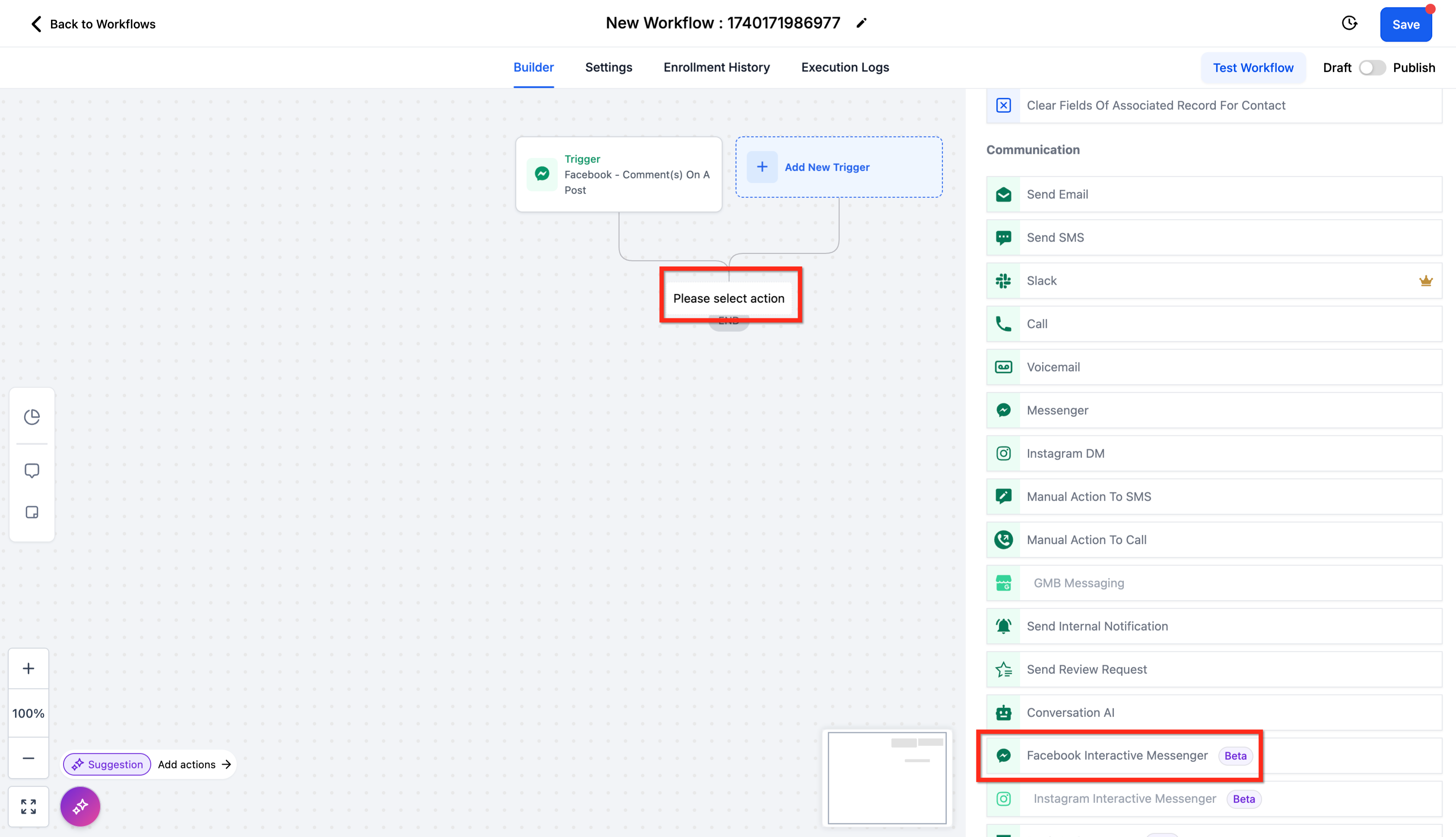
Go to Automation, open a workflow, add an action and scroll to the Communication group. Messenger sits in there with Send Email, Send SMS, Call, Voicemail and Instagram DM.
Two entries there send through Messenger and they are not the same thing .Messengersends one message and moves on. Facebook Interactive Messenger, still carrying a Beta label, attaches buttons and quick replies and splits the workflow on what the person taps. Start with the plain one, reach for the interactive one when you want the reply to sort people for you.
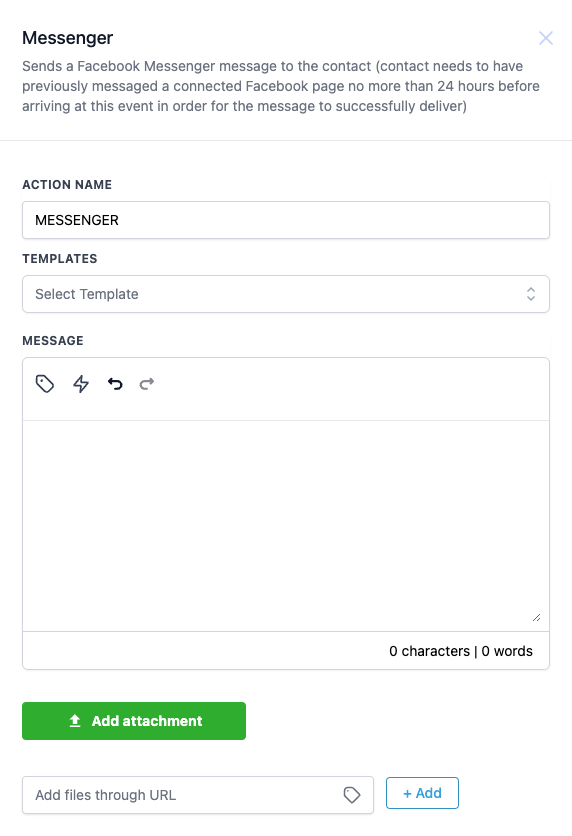
What sits inside the Messenger panel
There is very little to it, which is the point.
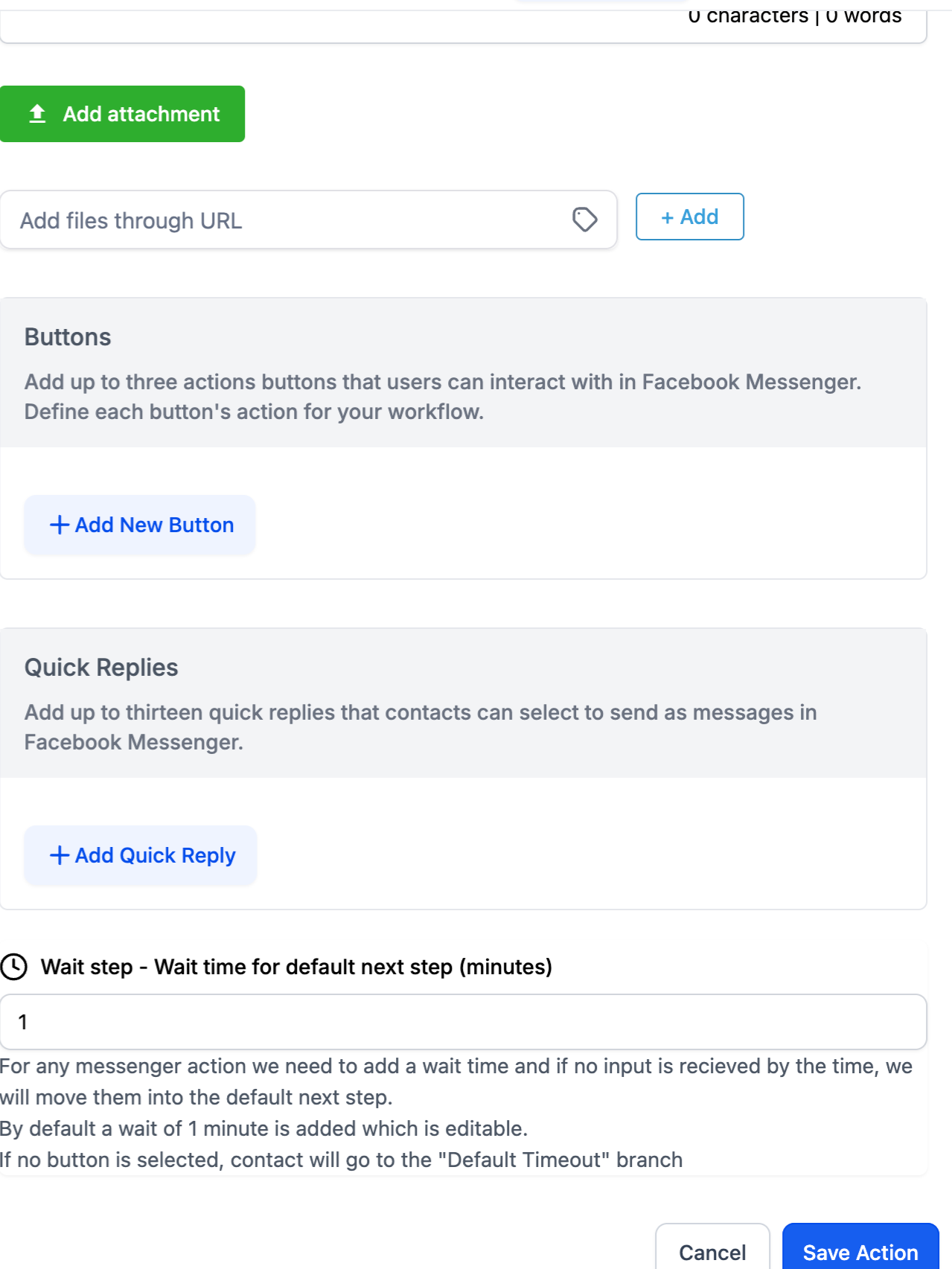
Action Name. Required, and only for your own benefit when you read the canvas months later.
Templates. Optional. A saved message so the wording stays the same every time.
Message. Required. Custom values and merge fields work here, so it can use the first name or the service they asked about.
Add attachment. Optional. An image, a price list or a brochure from your machine.
Add files through URL. Optional. Same idea for anything already hosted somewhere.
Test Phone Number. Optional. Fire a test so you read the message the way the customer will.
The important part of the panel is not a field at all. It is the grey line under the title, which says the contact must have messaged a connected page no more than 24 hours before reaching this step for the message to deliver.
The 24 hour window decides everything
That is Meta's rule, not HighLevel's. A business can message a person for 24 hours after that person last interacted with the page. Once the window shuts, the message does not bounce with a loud error. It simply never arrives, and the workflow carries on as though it did.
Almost every Messenger automation that quietly fails is failing for this reason, usually because the action sits behind a wait step of two days. Four habits keep you on the right side of it.
Put the Messenger step as close to the trigger as you can. Minutes, not days.
Anything going out later should go by email or SMS, where no window applies.
Every fresh reply opens another 24 hours, so a workflow that gets people talking buys itself room.
Comment automation is the exception. The interactive action notes that the window does not apply to a comment reply, which is why replying to a comment is such a dependable way to open a thread.
That last point matters if your leads come from post comments. Somebody commenting on an ad has not messaged your page, so a plain Messenger step aimed at them lands nowhere. Reply to the comment first, and the window starts.
Buttons and quick replies
The interactive action is where a Messenger thread stops being a broadcast and starts behaving like a conversation.
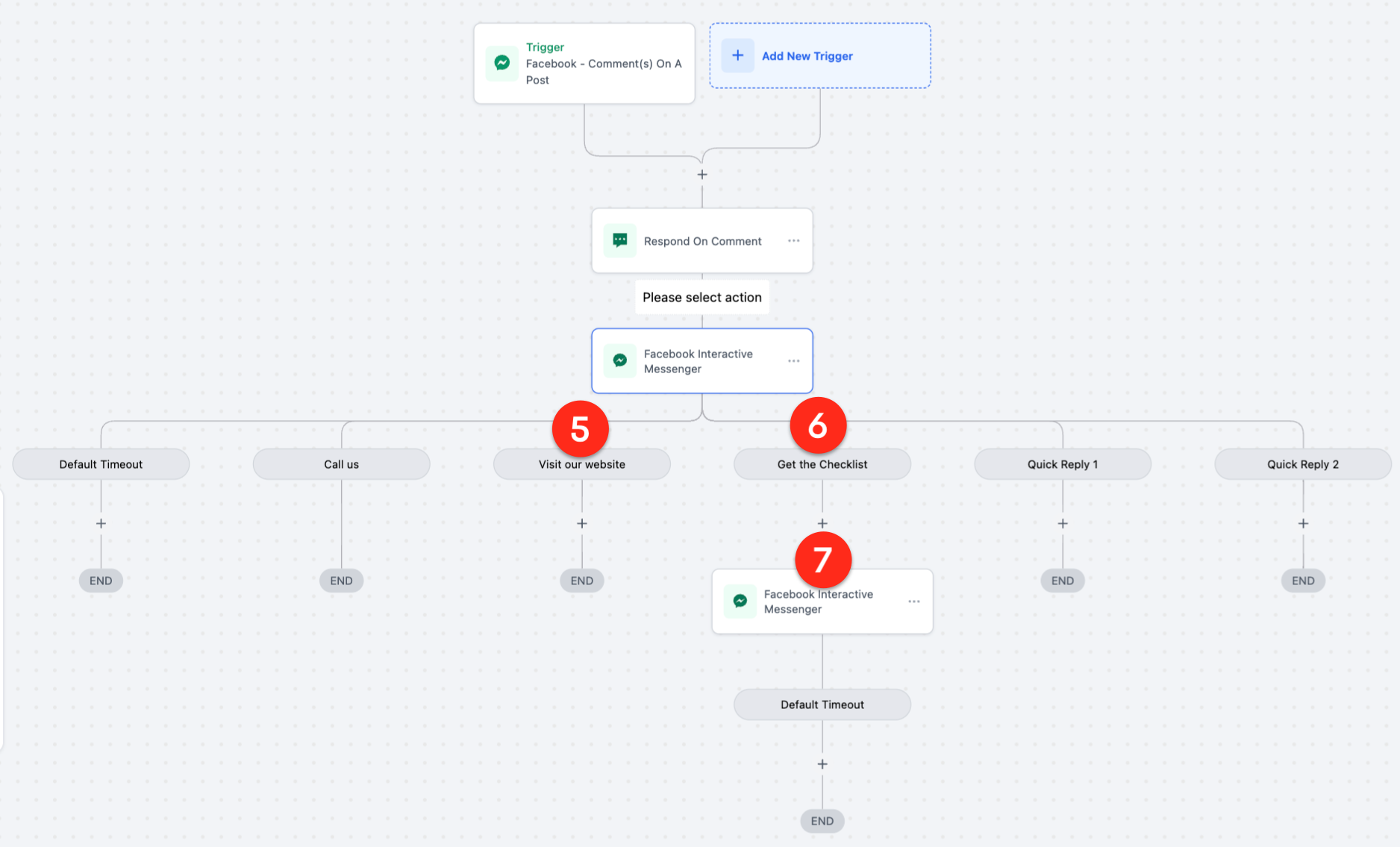
Buttons.Up to three per message. They stay visible after a tap, and each one can open a website, open the phone dialler, or just perform an action inside the workflow.
Quick replies.Up to thirteen per message, labels capped at 20 characters. They disappear the moment one is picked, which keeps the thread tidy.
Templates.These pull from the snippets you keep under Marketing, so nobody rewrites the same paragraph in every workflow.
Wait step.Defaults to one minute. It is how long the workflow holds for a tap before sending the person down Default Timeout.
Buttons suit anything you want on screen permanently, like a call button or a booking link. Quick replies suit questions with a short list of answers, which is what qualifying is.
Every tap becomes a branch
This is the part people underestimate. Each button and each quick reply creates its own branch on the canvas, named after the label you gave it, and Default Timeout catches everybody who never taps at all.
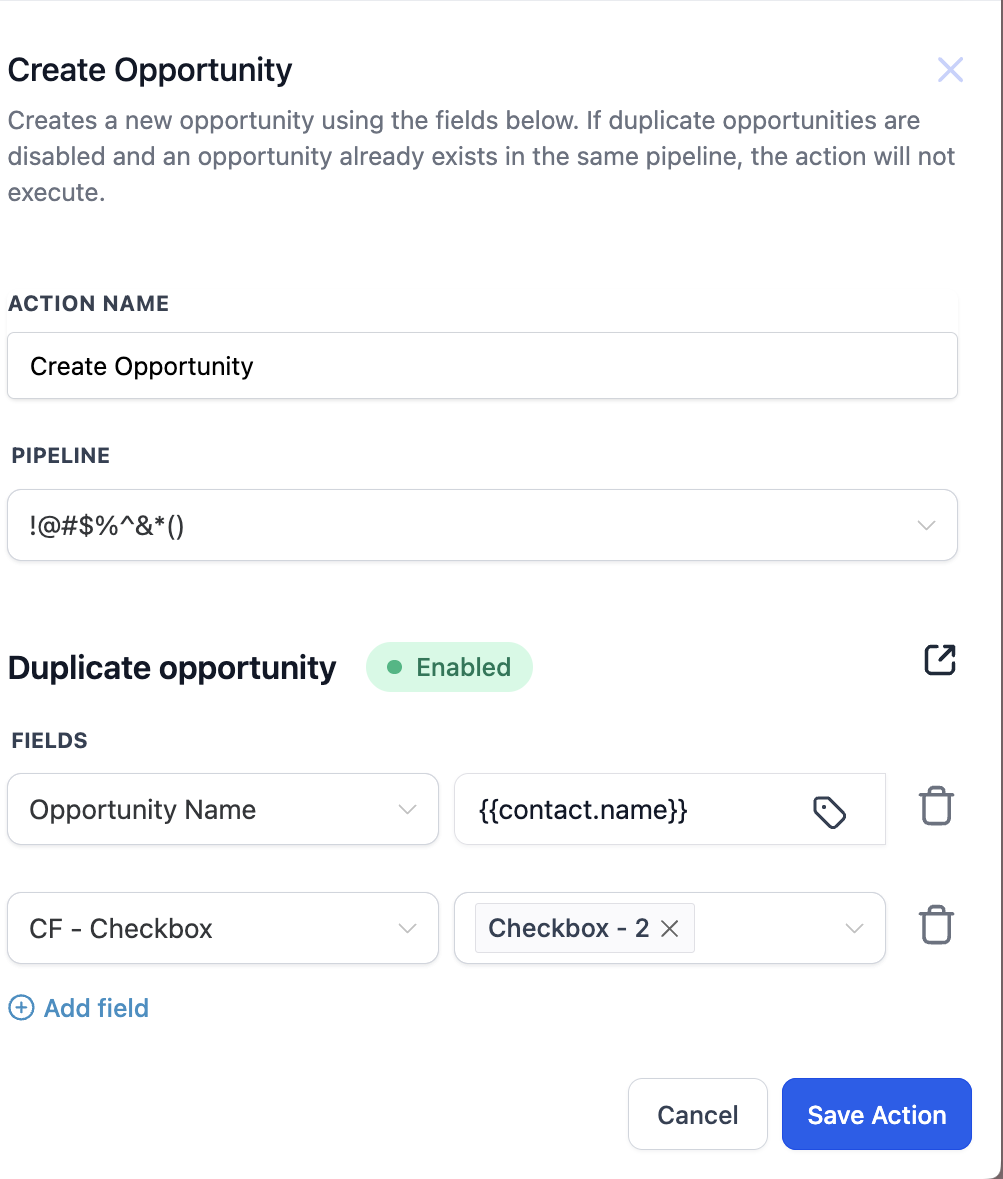
The example above starts on a comment, responds on it, opens a DM, then splits six ways. Tap Get the Checklist and a second interactive message delivers the file. Read it and do nothing and you sit in Default Timeout, which is the branch worth using for a nudge a day later on a channel with no window.
That is a lead qualified without a form, a call or a minute of anybody's time. The answer is not a note typed into a thread, it is a route through a workflow, so the next step can happen on its own.
Turning the thread into an opportunity
A conversation that never leaves the inbox is invisible. No pipeline value, no report, and nobody chasing it once the person goes quiet. Drop a Create Opportunity action on the branch that means real intent and the chat becomes a card on a board.
Pipeline.Required. Everything else here has a fallback, this one does not.
Pipeline Stage. Leave it blank and the opportunity lands in the first stage.
Opportunity Name. Defaults to the contact name and accepts merge fields, so the first name plus Messenger enquiry reads better on a board.
Opportunity Source. Blank by default. Put Facebook Messenger here and you can answer how much pipeline the page produces.
Status defaults to Open and Opportunity Value to zero, so set the value if you want a forecast that means anything.
Duplicate Opportunity. Decides whether a second opportunity can exist for the same person. The check runs on the contact id, not the name.
Two edge cases matter. With no contact attached to the run, an inbound webhook for instance, no opportunity is created at all. And with duplicates disabled, the same customer coming back next season will not produce a second card.
A workflow worth copying
For a home services business running ads that send people to Messenger, this shape holds up:
Trigger on the Facebook comment or on the first inbound message to the page.
Respond on the comment, then send an interactive message asking what they need, with quick replies for your three main services.
On each service branch, add the matching tag and send a price range with a booking link button.
On the branches that mean real intent, create the opportunity with the source set to Facebook Messenger and notify a human while the window is open.
On Default Timeout, wait a day and follow up by SMS or email instead.
Nothing there is clever. It is the difference between an inbox somebody checks when they remember and a channel that behaves like the rest of your CRM.
Frequently Asked Questions
Why did my Messenger message never arrive?
Nine times out of ten the 24 hour window had closed before the workflow reached the action. Check the gap between their last message to the page and that step, then move the action earlier.
Can I message a contact who has never messaged my page?
No. Meta allows the reply, not the cold approach. The person has to interact first, either a message or a comment you reply to.
What is the difference between Messenger and Facebook Interactive Messenger?
Messenger sends one message. The interactive version attaches buttons and quick replies and creates a workflow branch for each of them, plus Default Timeout for people who never tap.
Do Instagram DMs use the same action?
No, they have their own Instagram DM action and an interactive version, but it is the same connection and the same 24 hour thinking.
Need Expert Help with GoHighLevel?
New to GoHighLevel and ready to get started? Buy your GoHighLevel account here and launch with confidence.
Already know what you need and want our team to handle everything, from complete setup and customization to funnels, workflows, automations, CRM, and pipelines? Click here.



