

External Tracking Event Trigger in GoHighLevel
How to Trigger Automated Workflows from External Events Using the External Tracking Event Trigger in GoHighLevel
Businesses today use multiple platforms to manage customer interactions, payments, websites, memberships, applications, and other important activities. However, one common challenge is ensuring that these different systems communicate effectively with each other. If an important action happens outside your CRM, your team may need to manually update customer records or start follow-up processes.
This is where the External Tracking Event Trigger in GoHighLevel becomes useful.
With this trigger, you can use events from external platforms or applications to automatically start workflows inside GoHighLevel. When a specific event occurs and the relevant event data is sent to your GoHighLevel account, the system can trigger an automation and perform the actions you have configured.
In this guide, we'll explain what the External Tracking Event Trigger is, how it works, how to set it up, practical use cases, and answers to some frequently asked questions.
What Is the External Tracking Event Trigger in GoHighLevel?
The External Tracking Event Trigger allows you to start a GoHighLevel workflow based on an event that occurs outside the platform.
For example, imagine a customer completes a purchase through an external checkout system. Your external system can send a tracking event to GoHighLevel indicating that the purchase was completed. GoHighLevel can then recognize the event and automatically enroll the appropriate contact into a workflow.
From there, the workflow can perform multiple automated actions, such as:
Sending an email or SMS message
Applying or removing tags
Updating contact information
Updating custom fields
Creating or updating an opportunity
Assigning the contact to a user
Sending internal notifications
Adding the contact to another automation
Starting personalized follow-up sequences
This helps businesses connect external customer activity with their CRM and marketing automation.
Instead of waiting for someone to manually check another platform and take action, the workflow can begin automatically when the external event occurs.
Why Use External Events to Trigger GoHighLevel Workflows?
Not every customer action takes place directly inside GoHighLevel. Depending on your business, important activities may happen on an external website, custom application, membership platform, e-commerce system, or payment processor.
For example, a user might:
Create an account in your application
Start a free trial
Complete a purchase
Upgrade a subscription
Cancel a membership
Complete an online course
Reach an important product milestone
These actions can all be valuable opportunities for automated communication.
Using the External Tracking Event Trigger allows you to respond to those actions without relying on manual updates.
Faster Follow-Ups
Automation can begin as soon as the event is received. For example, when a customer completes a purchase, you can immediately send a thank-you message or onboarding email.
Less Manual Work
Your team does not need to constantly check multiple systems to see whether an important customer action occurred.
Better Personalization
If useful event information is available, you can build automations around the customer's specific activity and create more relevant follow-up experiences.
Better Connection Between Tools
External tracking events help bridge the gap between the tools your business uses and the automation you manage inside GoHighLevel.
How to Set Up an External Tracking Event Trigger in GoHighLevel
The exact process of sending the event depends on the external platform or integration you are using, but the workflow setup inside GoHighLevel follows a straightforward process.
Step 1: Create a New Workflow
Log in to your GoHighLevel sub-account and navigate to:
Automation > Workflows
Click Create Workflow to start a new automation, or open an existing workflow if you want to add the External Tracking Event as a trigger.
Give your workflow a clear name so it is easy to identify later. For example:
External Purchase Follow-Up
or
Course Completion Automation
Clear workflow names become especially important when you manage multiple external events and automations.
Step 2: Add the External Tracking Event Trigger
Inside the Workflow Builder, click Add New Trigger.
Search for and select External Tracking Event from the available workflow triggers.
This tells GoHighLevel that the workflow should listen for a relevant event coming from an external source.
The trigger becomes the starting point of your automation.
When the configured event is received and meets your trigger requirements, GoHighLevel can start the workflow for the relevant contact.

Step 3: Configure the Event Details
Next, configure the event conditions that should activate the workflow.
Your workflow should be designed to respond only to the event or events relevant to that automation.
For example, you may have different external events such as:
Account Created
Trial Started
Purchase Completed
Subscription Upgraded
Course Completed
Membership Cancelled
You can create separate workflows for different events so that each customer action starts the correct automation.
For example, a Purchase Completed event could start an onboarding sequence, while a Subscription Cancelled event could start a retention or feedback workflow.
Using clear event names and organized workflow conditions makes your automation easier to manage.

Step 4: Connect the External Event Source
Your external website, application, or third-party system must be configured to send the event data to GoHighLevel.
Depending on your setup, this may involve an API integration, webhook, custom application logic, or another supported connection method.
The external system should send the correct event information so GoHighLevel can recognize the event and associate it with the appropriate contact.
This is an important part of the setup. If the event name or data does not match your expected configuration, the workflow may not trigger as intended.
Before launching your automation, verify that your external system is successfully sending the event and that the event reaches GoHighLevel correctly.
Step 5: Add Your Workflow Actions
After configuring the trigger, you can build the automation that should happen when the event occurs.
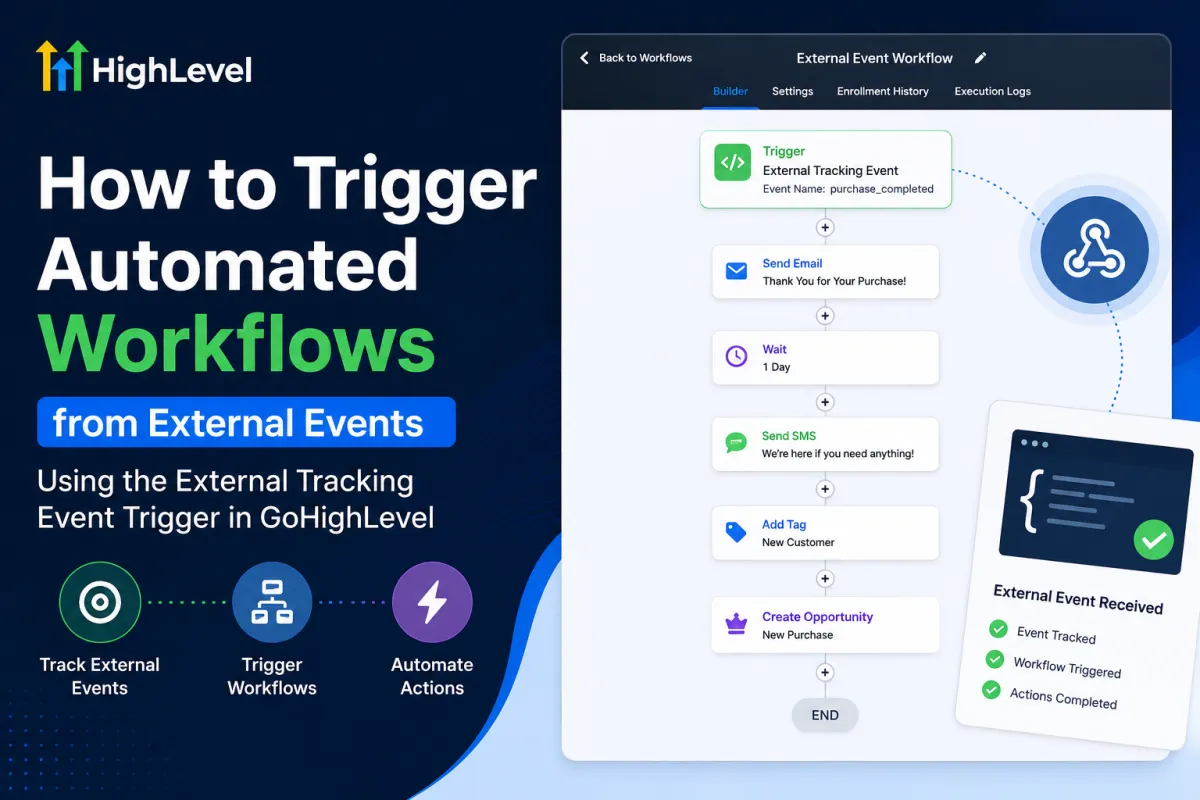
For example, you could create a workflow like this:
Trigger: External Tracking Event – Purchase Completed
Action 1: Apply the "New Customer" tag
Action 2: Update a custom field with product information
Action 3: Send a purchase confirmation email
Action 4: Wait for two days
Action 5: Send an SMS asking whether the customer needs assistance
Action 6: Create an opportunity for future follow-up

The exact actions depend on your business process.
You can also use If/Else conditions to create different paths based on the information available for the contact or event.
For example, one workflow path could send onboarding instructions to new customers, while another could notify your team when an existing customer makes an additional purchase.
Step 6: Test the External Event and Workflow
Testing is one of the most important steps when working with external events.
Before using the automation with real customers, send a test event from your external platform.
Then verify the complete process.
Check whether:
The external event was sent successfully
GoHighLevel received the event
The correct contact was identified
The workflow was triggered
The contact entered the expected workflow
Tags and custom fields were updated correctly
Emails or SMS messages were sent as expected
Any conditions or branches worked correctly
Testing the entire process helps identify issues early and prevents customers from missing important communications.

Practical Example: External Purchase Event
Suppose you use an external checkout system for selling digital products.
When a customer completes their payment, the external platform sends a Purchase Completed event.
You can use the External Tracking Event Trigger to automatically start a workflow inside GoHighLevel.
The workflow could immediately send a thank-you email and provide access instructions.
After one day, the workflow could send a message asking whether the customer needs help getting started.
After several days, you could send additional educational content related to the product.
Later, you could use another automation to offer a relevant upgrade or additional service.
This entire customer journey can begin based on one event that occurred outside GoHighLevel.
Practical Example: Course Completion Automation
The trigger is also useful for online courses and membership platforms.
Suppose your learning platform tracks when a student completes a course. When the student finishes the course, the platform sends a Course Completed event to GoHighLevel.
That event can automatically trigger a workflow.
The workflow could:
Apply a "Course Completed" tag
Send a congratulations email
Notify an internal team member
Ask the student for feedback
Request a testimonial or review
Recommend the next course
Move the contact into an upsell campaign
This allows you to create a seamless transition between your learning platform and your customer relationship management process.
Best Practices for Using External Tracking Events
Use Clear and Consistent Event Names
Choose event names that clearly explain what happened. Names such as Trial Started, Purchase Completed, and Subscription Cancelled are easier to understand than vague names.
Consistency is also important. Make sure the event naming used by your external system matches your workflow setup.
Keep Workflows Organized
If you have many external events, use clear workflow names and organize your automations based on their purpose.
For example, separate workflows for purchases, onboarding, cancellations, and course completion can be easier to maintain than one large workflow handling every event.
Avoid Duplicate Automations
Make sure the same external event is not unintentionally starting multiple workflows.
Review your existing triggers before creating new automations, especially if multiple workflows use similar event conditions.
Use Event Data Carefully
External events may provide useful information about what the customer did.
Use relevant information to create better automation paths, update records, and personalize your communication where appropriate.
Always Test Before Going Live
Never assume an external integration will work correctly without testing.
Test the event, the contact matching process, the workflow enrollment, and every important action that follows the trigger.
Common Use Cases for the External Tracking Event Trigger
The External Tracking Event Trigger can support many different automation strategies.
E-commerce Businesses: Start post-purchase onboarding, product education, review requests, and upsell workflows.
SaaS Companies: Trigger onboarding when users create accounts, start trials, upgrade plans, or reach important milestones.
Membership Businesses: Start workflows when members join, renew, cancel, or complete important activities.
Online Course Creators: Send congratulations, certificates, review requests, and next-course recommendations after course completion.
Custom Applications: Send important actions from your application to GoHighLevel and automate follow-ups based on user behavior.
Payment Systems: Trigger workflows when payments succeed, subscriptions change, or payment-related events require customer follow-up.
Conclusion
The External Tracking Event Trigger in GoHighLevel provides a powerful way to connect external customer activity with automated workflows.
Instead of limiting your automations to actions that happen directly inside GoHighLevel, you can respond when important events occur in external applications, websites, membership systems, payment platforms, and other connected tools.
Whether a customer completes a purchase, starts a trial, creates an account, or finishes a course, external events can help initiate the right workflow at the right time.
By using clear event names, building organized workflows, passing useful event information, and thoroughly testing every automation, you can create a more connected and efficient customer experience.
The result is less manual work for your team, faster responses to customer actions, and a more powerful automation system across your entire business technology stack.
Frequently Asked Questions
1. What is an External Tracking Event in GoHighLevel?
An External Tracking Event is an event generated outside GoHighLevel and sent into the platform from an external source. The External Tracking Event Trigger allows a workflow to start when a matching event is received.
2. Can I use external events to trigger different workflows?
Yes. You can create different workflows for different types of external events. For example, one event can trigger a purchase onboarding workflow, while another can trigger a cancellation follow-up workflow.
3. What can happen after an External Tracking Event triggers a workflow?
Once the workflow starts, you can use GoHighLevel workflow actions to automate tasks such as sending emails or SMS messages, applying tags, updating contact fields, assigning users, creating opportunities, and sending internal notifications.
4. Do I need to test the event before activating the workflow?
Yes. Testing is strongly recommended. Send a test event and confirm that GoHighLevel receives it, identifies the correct contact, triggers the workflow, and completes all expected actions.
5. Can external events help personalize automation?
Yes. When relevant event information is available, you can use it alongside your workflow logic to create more relevant follow-ups and automation paths based on what the customer did in the external system.
Need Expert Help with GoHighLevel?
New to GoHighLevel and ready to get started? Buy your GoHighLevel account here and start building your automated LinkedIn lead follow-up system.
Already know what you need and want our team to handle everything, from complete setup and customization to funnels, workflows, automations, CRM, and pipelines? Click here to connect with our team.



