

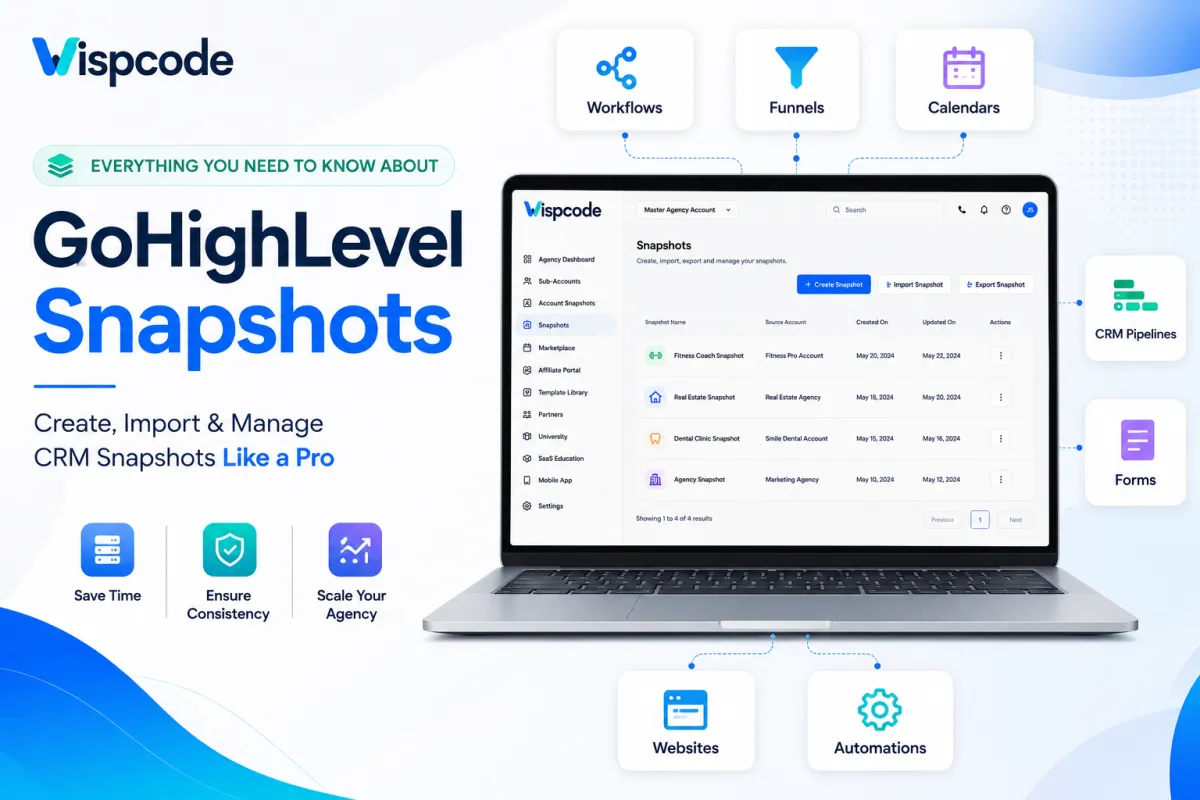
The Ultimate Guide to GoHighLevel Snapshots
Everything You Need to Know About GoHighLevel Snapshots
Introduction
Building a fully functional GoHighLevel account from scratch can be a time-consuming process, especially when you need to configure workflows, pipelines, calendars, forms, surveys, email templates, websites, funnels, and automation sequences for every new client or business location. For digital marketing agencies and growing businesses, repeating the same setup over and over not only consumes valuable time but also increases the risk of configuration errors and inconsistent account structures.
This is where GoHighLevel Snapshots become one of the platform's most powerful and time-saving features. Instead of manually rebuilding your CRM environment for every new sub-account, Snapshots allow you to package supported assets and configurations into a reusable template that can be applied in just a few clicks. Whether you're onboarding new clients, launching additional business locations, or creating standardized CRM systems, Snapshots help you work faster while maintaining consistency across every account.
In this comprehensive guide, you'll learn everything you need to know about GoHighLevel Snapshots, including how they work, their key benefits, how to create and apply them, real-world business use cases, best practices, and common mistakes to avoid. By the end of this article, you'll understand how Snapshots can simplify account setup and help you scale your business more efficiently.
What Are GoHighLevel Snapshots?
A GoHighLevel Snapshot is a reusable template that allows you to copy supported configurations and assets from one sub-account and apply them to another. Instead of recreating the same CRM setup manually, you can build a standardized system once and deploy it whenever you create a new client account or business location.
Snapshots are particularly valuable for agencies that onboard clients regularly because they eliminate repetitive setup tasks while helping maintain consistency across multiple accounts. Rather than spending hours configuring every workflow, pipeline, or form individually, you can load a prepared Snapshot and begin customizing the account immediately.
Depending on GoHighLevel's current Snapshot capabilities and the options selected during creation, a Snapshot may include supported assets such as:
Workflows
Sales Pipelines
Calendars
Forms
Surveys
Websites
Funnels
Email Templates
SMS Templates
Tags
Custom Fields
Custom Values
Automation Settings (where supported)
Opportunity Pipelines
Other supported CRM configurations
The exact content included within a Snapshot depends on the platform's current functionality and the selections made during the Snapshot creation process. Because some settings are account-specific, it is always recommended to review the destination account after importing a Snapshot to ensure everything is configured correctly.
One of the biggest advantages of GoHighLevel Snapshots is that they help businesses create repeatable systems. Once you've built an effective CRM structure, marketing automation, and sales process, you can reuse that same framework for future projects instead of starting from scratch every time.
Why GoHighLevel Snapshots Matter
For agencies, consultants, marketers, and businesses managing multiple accounts, efficiency is essential. Setting up the same CRM structure repeatedly wastes valuable time and increases the likelihood of missing important configurations. GoHighLevel Snapshots solve this challenge by allowing you to duplicate proven systems, helping your team launch new accounts faster while maintaining consistent quality.
Here are some of the biggest reasons why Snapshots are such an important feature within GoHighLevel.
Faster Client Onboarding
One of the greatest advantages of using GoHighLevel Snapshots is the ability to onboard new clients much faster. Instead of manually rebuilding workflows, pipelines, calendars, forms, and templates for every new account, agencies can apply a pre-built Snapshot and begin customizing it for the client's specific needs. This significantly reduces setup time and allows teams to focus more on strategy and customer success.
Consistent Business Processes
Consistency is critical when managing multiple client accounts or business locations. Using the same Snapshot ensures that every account begins with a standardized CRM structure, organized sales pipelines, automation workflows, communication templates, and lead management processes. This consistency makes ongoing management easier and helps deliver a uniform experience across all accounts.
Reduced Human Error
Manual account setup often leads to overlooked settings, duplicate assets, or incomplete automation. By using a carefully prepared Snapshot, businesses can minimize these risks and ensure that essential CRM configurations are included from the start. This creates a more reliable deployment process and reduces the need for troubleshooting later.
Easier Team Collaboration
When every account follows a familiar structure, team members can work more efficiently because they know where workflows, pipelines, calendars, and customer information are located. A standardized setup also simplifies employee training and improves collaboration between sales, support, and marketing teams.
Better Scalability
As your agency or business continues to grow, manually building every account becomes increasingly difficult. Snapshots provide a scalable solution by allowing you to replicate successful CRM systems across multiple clients or locations without repeating the same setup process. This helps your team serve more customers while maintaining quality and consistency.
Improved Operational Efficiency
Beyond saving time, Snapshots create a more organized workflow for your entire business. Instead of managing different account structures for every client, your team works with standardized systems that are easier to update, maintain, and optimize. This results in smoother operations and a more efficient client onboarding process.
How to Create a GoHighLevel Snapshot
Creating a GoHighLevel Snapshot is a straightforward process, but careful preparation is essential to ensure that the Snapshot contains everything you want to reuse. Taking time to organize your source account before creating a Snapshot will save considerable effort when deploying it to future client accounts.
Step 1: Configure Your Source Account
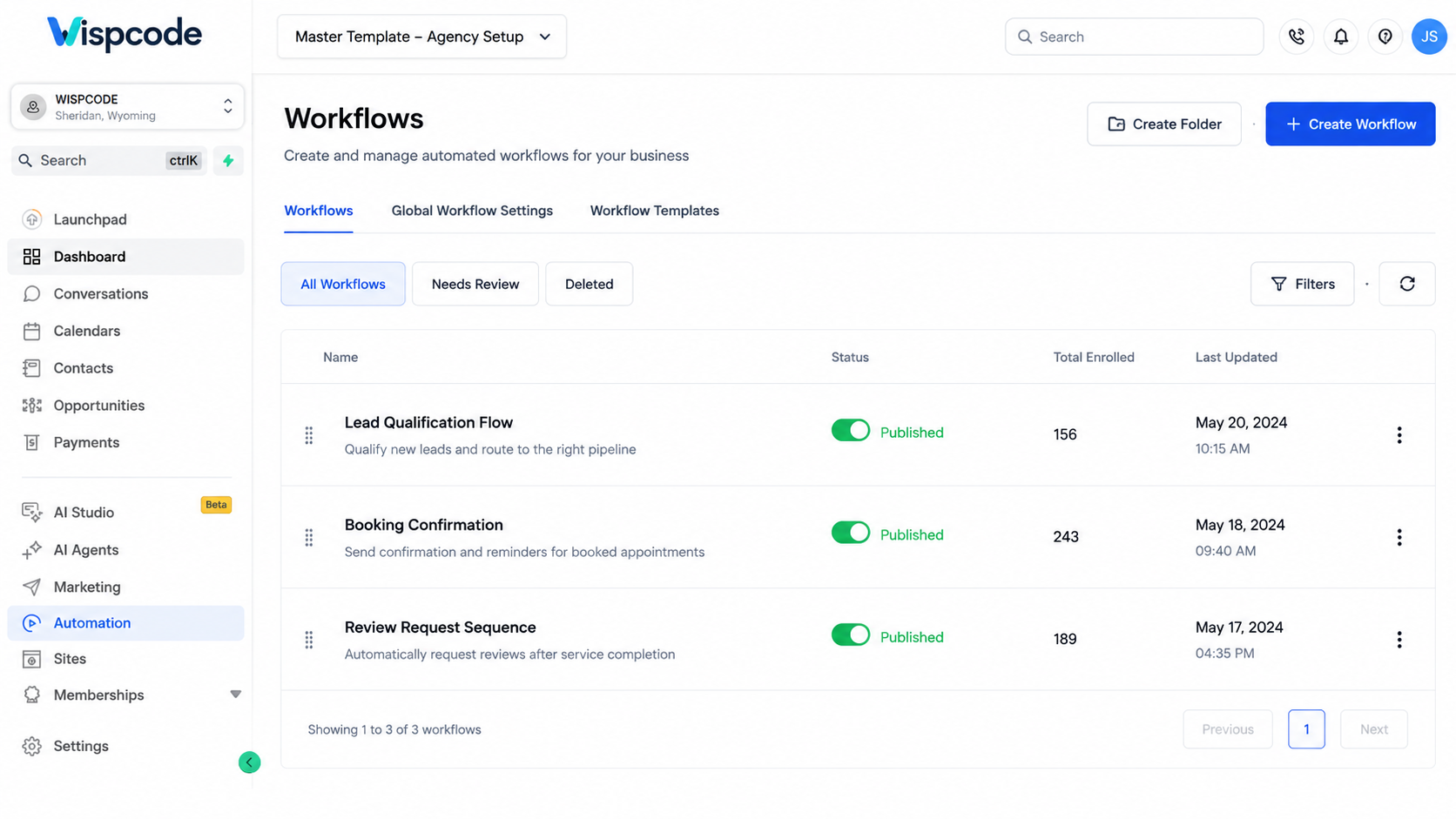
Before creating a Snapshot, build and organize the sub-account that will serve as your master template. Review every important asset to ensure it reflects your preferred business processes and automation strategy.
Your source account may include items such as:
Sales Pipelines
Workflows
Calendars
Forms
Surveys
Funnels
Websites
Email Templates
SMS Templates
Tags
Custom Fields
Custom Values
Remove outdated workflows, duplicate templates, unused forms, and unnecessary custom fields before creating the Snapshot. A clean source account makes future deployments much more organized and easier to manage.
Step 2: Create the Snapshot
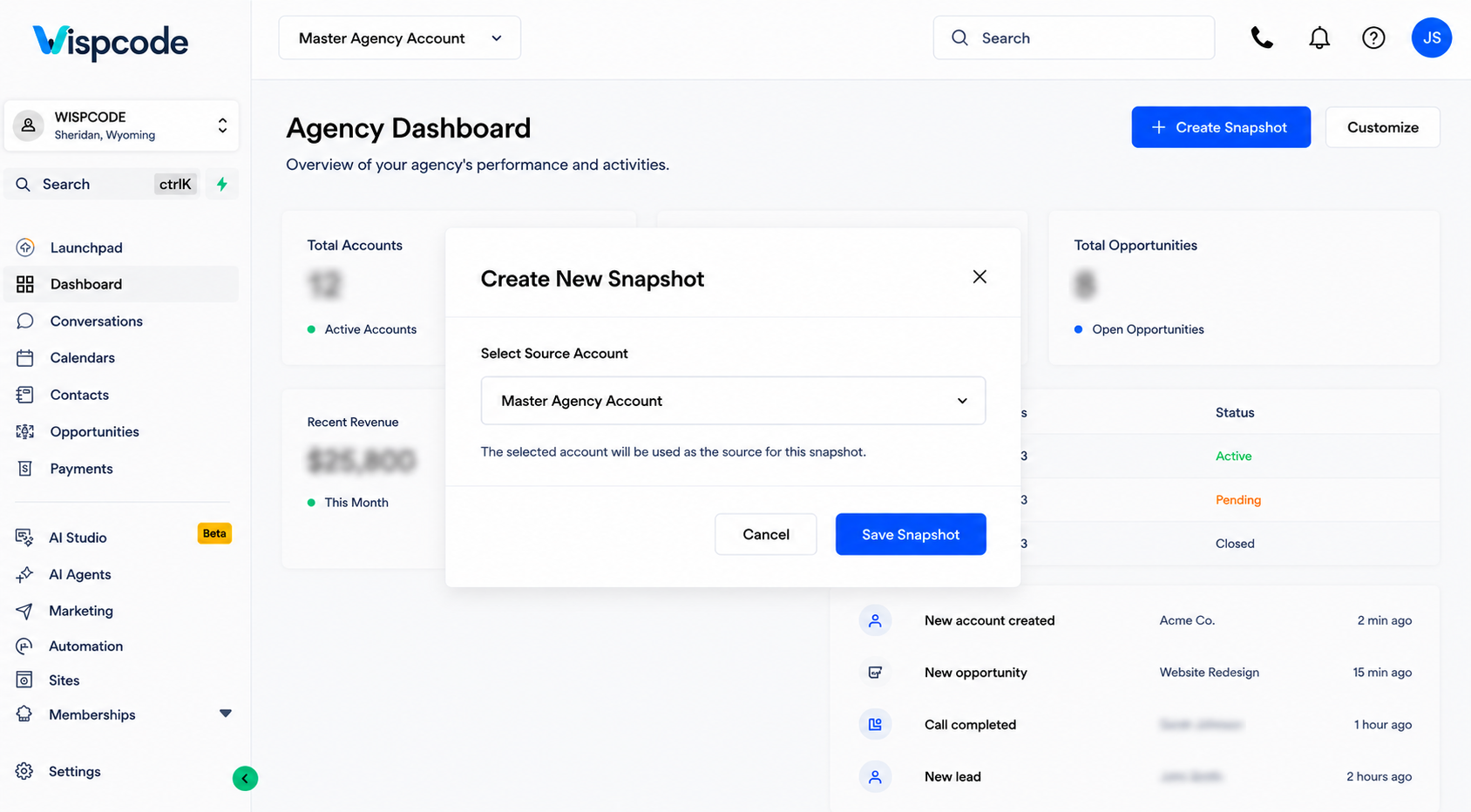
After verifying your source account, switch to Agency View and create a new Snapshot from the selected sub-account.
During the creation process, GoHighLevel allows you to include supported assets and configurations that you want to reuse in future accounts. Carefully review the available options and include only the components that are relevant to your standard setup. This helps keep your Snapshot organized and prevents unnecessary assets from being copied into every new account.
Step 3: Name Your Snapshot Clearly
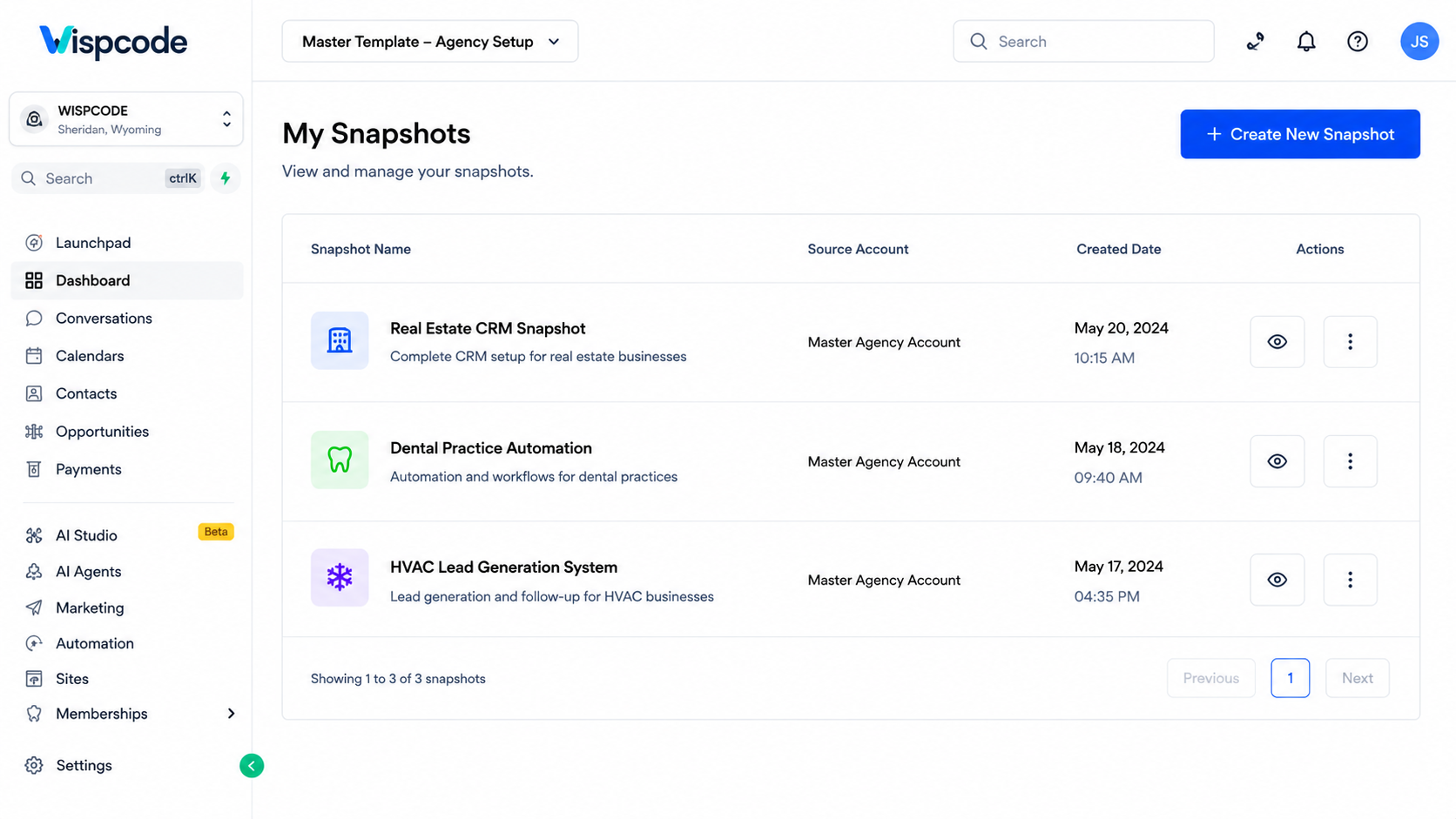
Choosing a descriptive name is an important but often overlooked step. As your Snapshot library grows, clear naming conventions make it much easier to identify the correct template for each client or industry.
For example, instead of using generic names like:
Snapshot 1
Agency Template
New Setup
Use names that clearly describe the Snapshot's purpose, such as:
Real Estate CRM Snapshot
Dental Practice Automation
HVAC Lead Generation System
Agency Starter Snapshot
Local Business Marketing Template
Using meaningful names improves organization, reduces confusion, and helps your team quickly select the appropriate Snapshot during client onboarding.
How to Apply a GoHighLevel Snapshot
Once you've created a Snapshot, applying it to another sub-account is a quick and efficient process. Instead of spending hours rebuilding CRM settings manually, you can import a pre-configured setup in just a few steps. This is especially useful for agencies that regularly onboard new clients or businesses managing multiple locations with similar operational requirements.
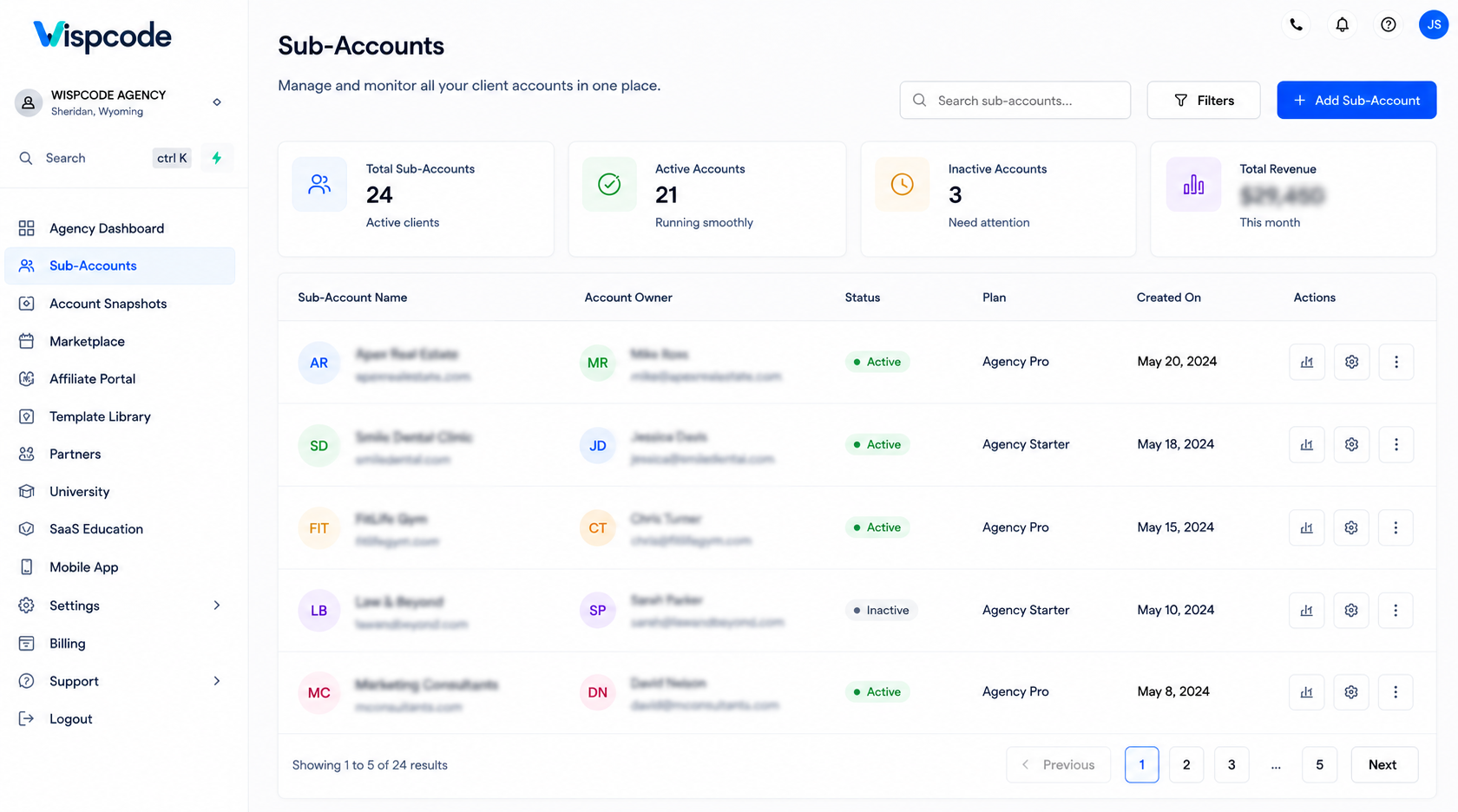
Step 1: Open or Create a Destination Sub-Account
Start by creating a new sub-account or opening an existing one where you want to apply the Snapshot. Before importing, make sure you're working in the correct location to avoid applying the template to the wrong account.
Step 2: Select the Appropriate Snapshot
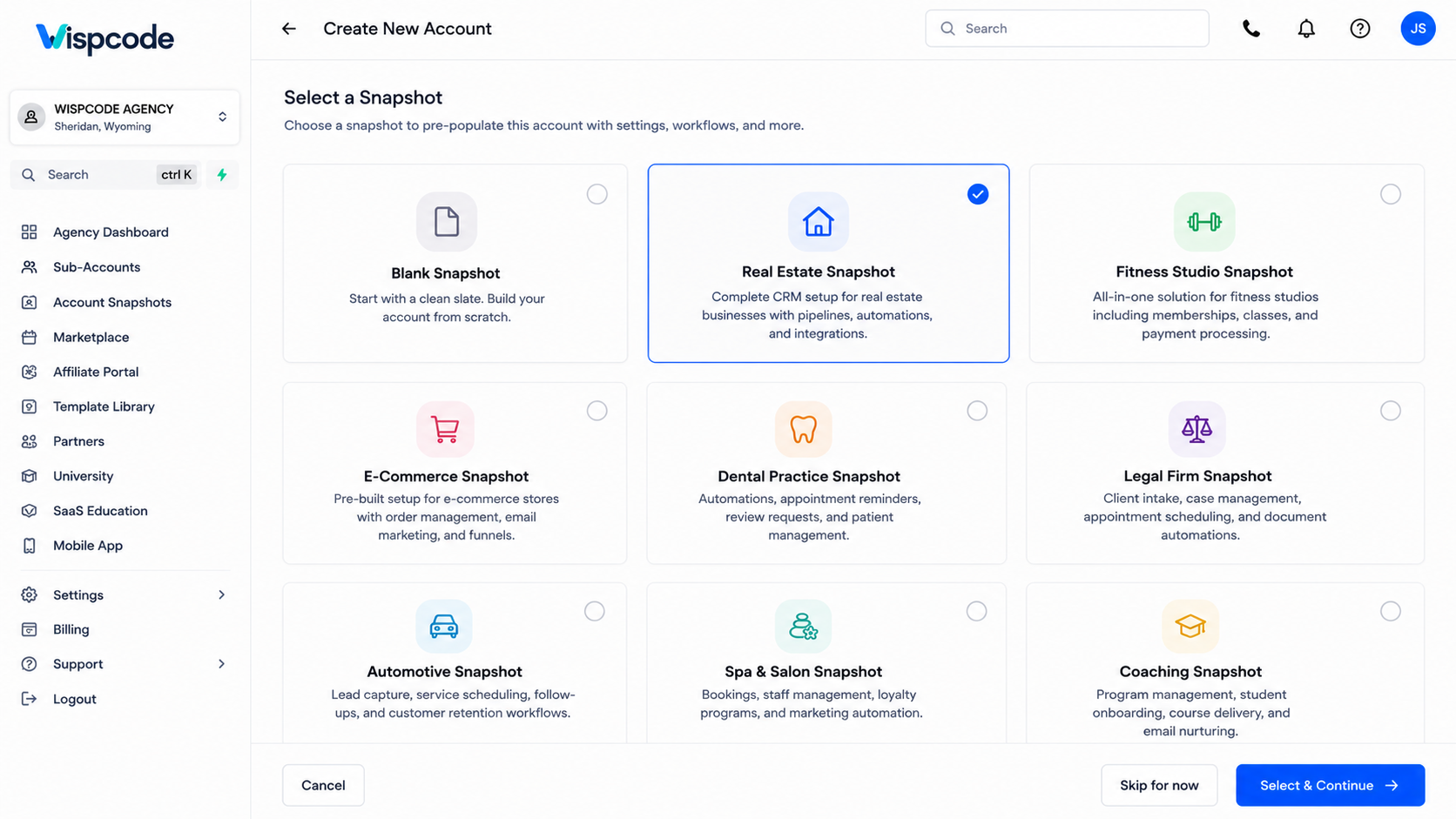
Navigate to the Snapshot section in Agency View and choose the Snapshot that best matches your business or client's requirements. If you maintain multiple industry-specific Snapshots, selecting the correct one ensures the imported assets align with the client's workflow and marketing strategy.
Step 3: Import the Snapshot
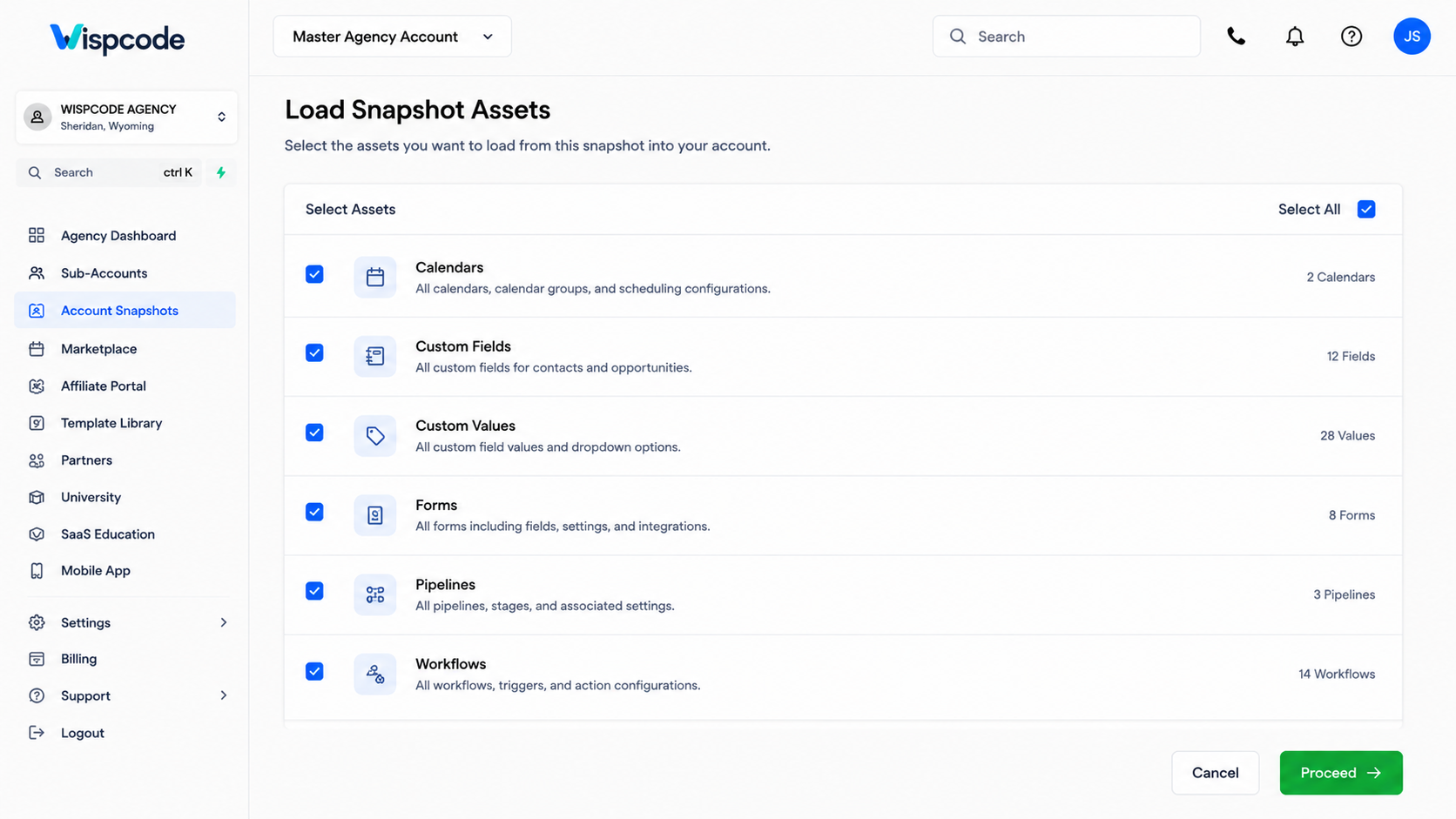
Apply the selected Snapshot and allow GoHighLevel to import all supported assets and configurations. Depending on the size of the Snapshot, the import process may take a few moments.
During this process, supported components such as workflows, pipelines, calendars, forms, templates, and custom fields are copied into the destination account according to GoHighLevel's current Snapshot capabilities.
Step 4: Review the Imported Configuration
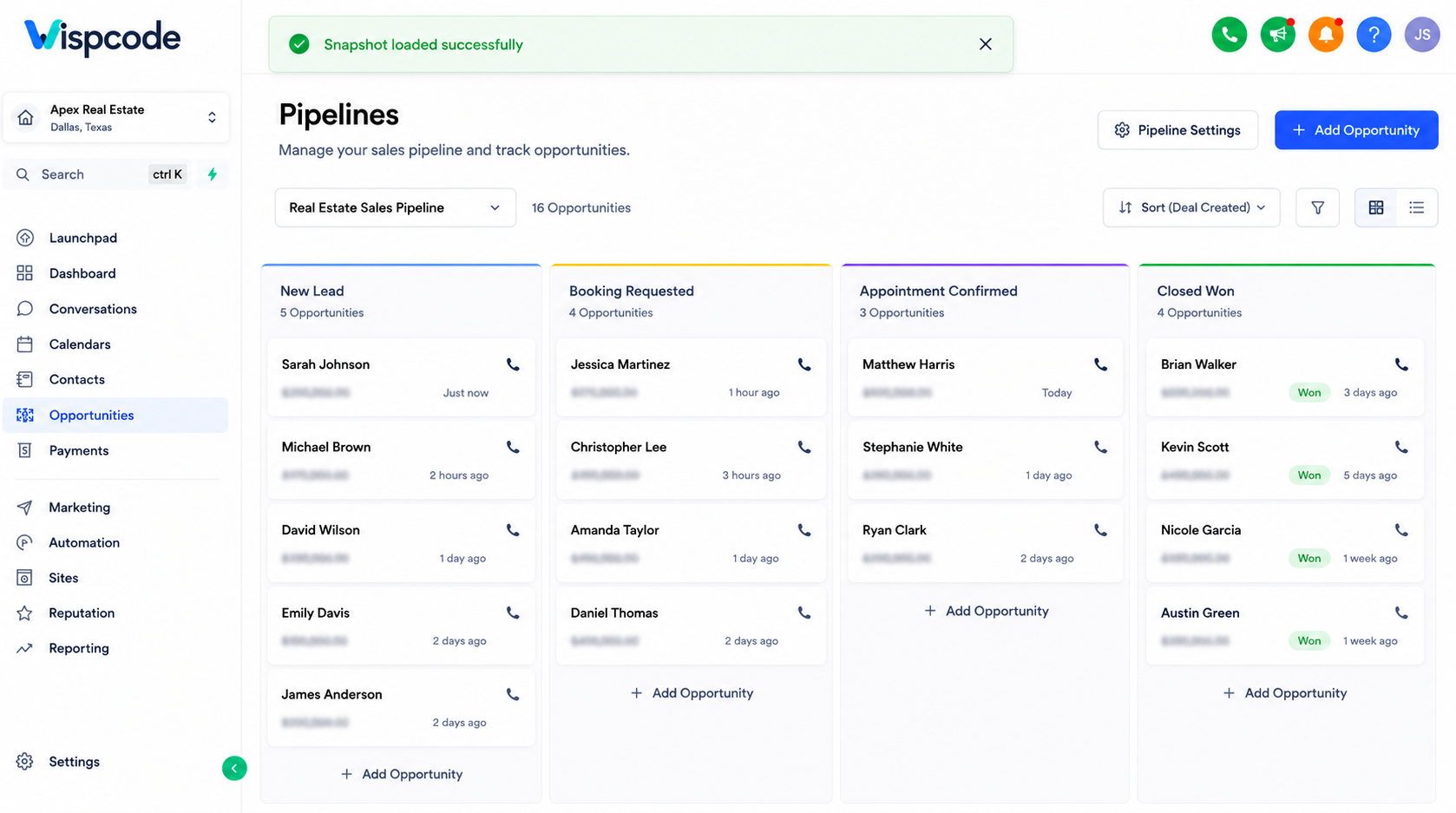
Although Snapshots significantly reduce setup time, it's important to review the imported account before launching campaigns or handing the account over to a client.
Verify that:
Workflows are active and configured correctly.
Calendars display the correct availability.
Forms and surveys function as expected.
Pipelines contain the correct stages.
Email and SMS templates appear properly.
Any account-specific integrations or authentication settings are completed where required.
A quick quality check helps ensure a smooth onboarding experience while minimizing unexpected issues later.
Real Business Use Cases
One of the biggest strengths of GoHighLevel Snapshots is their flexibility. Businesses across different industries can use them to standardize operations, reduce setup time, and improve team efficiency.
Marketing Agencies
Marketing agencies often manage dozens or even hundreds of client accounts. Instead of building every account from scratch, they can create separate Snapshots for industries such as:
Real Estate
Dental Clinics
Roofing Companies
HVAC Businesses
Fitness Centers
Law Firms
Each Snapshot can include industry-specific pipelines, workflows, forms, appointment calendars, email templates, and automation sequences. Once applied, the agency only needs to customize branding and business-specific information before launching the account.
Multi-Location Businesses
Businesses operating multiple branches can use Snapshots to maintain consistency across every location. Each new branch starts with the same CRM structure, customer communication templates, appointment scheduling system, and lead management process.
This standardized approach makes training easier while ensuring every location follows the same operational workflow.
Internal Team Standardization
Even businesses that manage a single brand can benefit from Snapshots. Companies often create separate environments for employee training, testing new automations, or launching new departments. Instead of rebuilding CRM assets manually, they can deploy an existing Snapshot and begin working immediately.
Best Practices for Using GoHighLevel Snapshots
Creating a Snapshot is only the first step. Following a few best practices helps ensure your Snapshots remain organized, reliable, and easy to manage as your business grows.
Build a Clean Master Snapshot
Before creating a Snapshot, remove outdated workflows, duplicate templates, unused forms, and unnecessary custom fields. A well-organized master Snapshot reduces confusion and ensures every new account starts with only the assets that provide value.
Keep Snapshots Updated
Business processes evolve. Whenever you improve workflows, sales pipelines, forms, or automation strategies, update your master Snapshot so future client accounts benefit from the latest improvements instead of outdated configurations.
Use Descriptive Naming Conventions
Avoid generic names such as "Snapshot 1" or "Default Template." Instead, use clear and descriptive names that identify the Snapshot's purpose, industry, or client type. Proper naming makes your Snapshot library easier to manage as it grows.
Test Before Client Deployment
Always apply a Snapshot to a test account before using it for a live client. Confirm that workflows run correctly, calendars display properly, forms submit successfully, and templates appear exactly as expected. A few minutes of testing can prevent hours of troubleshooting later.
Organize Your Snapshot Library
If your agency manages multiple industries, maintain a structured Snapshot library with clearly defined categories. This makes it easier for team members to locate the correct Snapshot quickly and reduces the risk of applying the wrong template.
Common Mistakes to Avoid
Although GoHighLevel Snapshots simplify account setup, avoiding a few common mistakes can save considerable time and prevent unnecessary configuration issues.
Assuming Everything Transfers Automatically
Not every account-specific setting or external integration is included in a Snapshot. Services that require authentication or unique account credentials often need to be configured separately after the import. Always review the destination account before considering the setup complete.
Using Outdated Snapshots
A Snapshot created several months ago may no longer reflect your current workflows, templates, or CRM processes. Regularly updating your master Snapshot ensures new accounts receive your latest improvements and best practices.
Skipping Quality Checks
Some users immediately begin using an imported account without reviewing the setup. Always inspect workflows, forms, calendars, pipelines, and communication templates to ensure everything functions correctly before launching campaigns.
Creating Too Many Similar Snapshots
Having dozens of nearly identical Snapshots can make account management confusing. Instead, maintain a smaller collection of well-organized Snapshots designed for specific industries or business models.
Forgetting to Customize Client-Specific Settings
After applying a Snapshot, remember to update business-specific information such as branding, logos, contact details, appointment availability, custom values, and any location-specific settings. Personalizing the account ensures it accurately reflects the client's business before going live.
Frequently Asked Questions (FAQs)
1. What is a GoHighLevel Snapshot?
A GoHighLevel Snapshot is a reusable template that copies supported CRM assets and configurations from one sub-account to another, helping businesses save time and standardize account setups.
2. Can I edit a Snapshot after creating it?
Snapshots are created from the current state of a sub-account. To include new changes or improvements, update the source account and create a new version of the Snapshot.
3. Do Snapshots include workflows and pipelines?
Yes. Depending on GoHighLevel's current Snapshot capabilities and your selected options, Snapshots can include supported assets such as workflows, pipelines, forms, calendars, templates, custom fields, and other CRM configurations.
4. Are external integrations transferred with a Snapshot?
Some integrations and account-specific authentication settings may require manual configuration after applying a Snapshot. Always review the destination account before launching it.
5. Who benefits most from GoHighLevel Snapshots?
Marketing agencies, SaaS businesses, consultants, franchise organizations, and multi-location businesses benefit the most because Snapshots simplify onboarding, improve consistency, and reduce repetitive setup work.
Conclusion
GoHighLevel Snapshots are one of the platform's most valuable features for agencies, marketers, consultants, and businesses looking to streamline CRM setup and improve operational efficiency. By packaging supported workflows, pipelines, templates, calendars, forms, and other CRM assets into a reusable template, Snapshots eliminate repetitive work and make client onboarding significantly faster.
Whether you're managing a handful of client accounts or scaling an agency with hundreds of sub-accounts, a well-designed Snapshot helps maintain consistency, reduce setup errors, and create a standardized workflow across your organization. The key to long-term success is keeping your Snapshots clean, regularly updated, and thoroughly tested before deploying them to live accounts.
By investing time in building a reliable master Snapshot today, you'll save countless hours in the future while delivering a more organized, professional, and scalable GoHighLevel experience for every client.
Need Expert Help with GoHighLevel?
New to GoHighLevel and ready to get started? Buy your GoHighLevel account here and launch with confidence.
Already know what you need and want our team to handle everything, from complete setup and customization to funnels, workflows, automations, CRM, and pipelines? Click here.



