

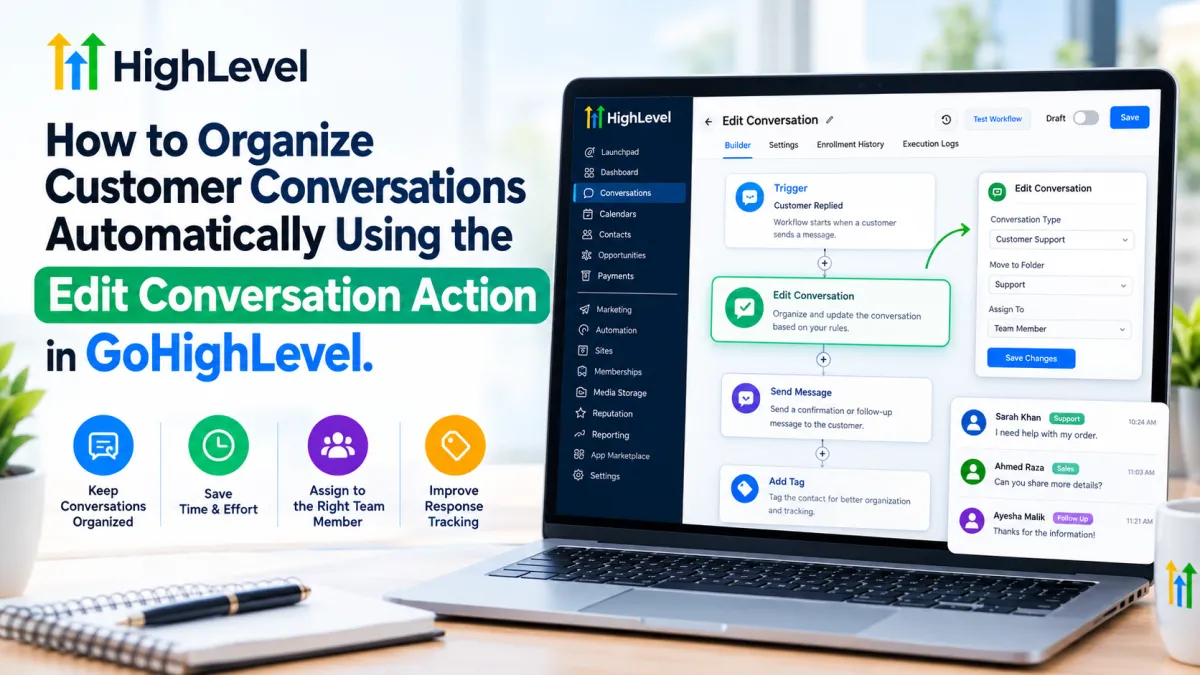
Edit Conversation Action in GoHighLevel
How to Organize Customer Conversations Automatically Using the Edit Conversation Action in GoHighLevel
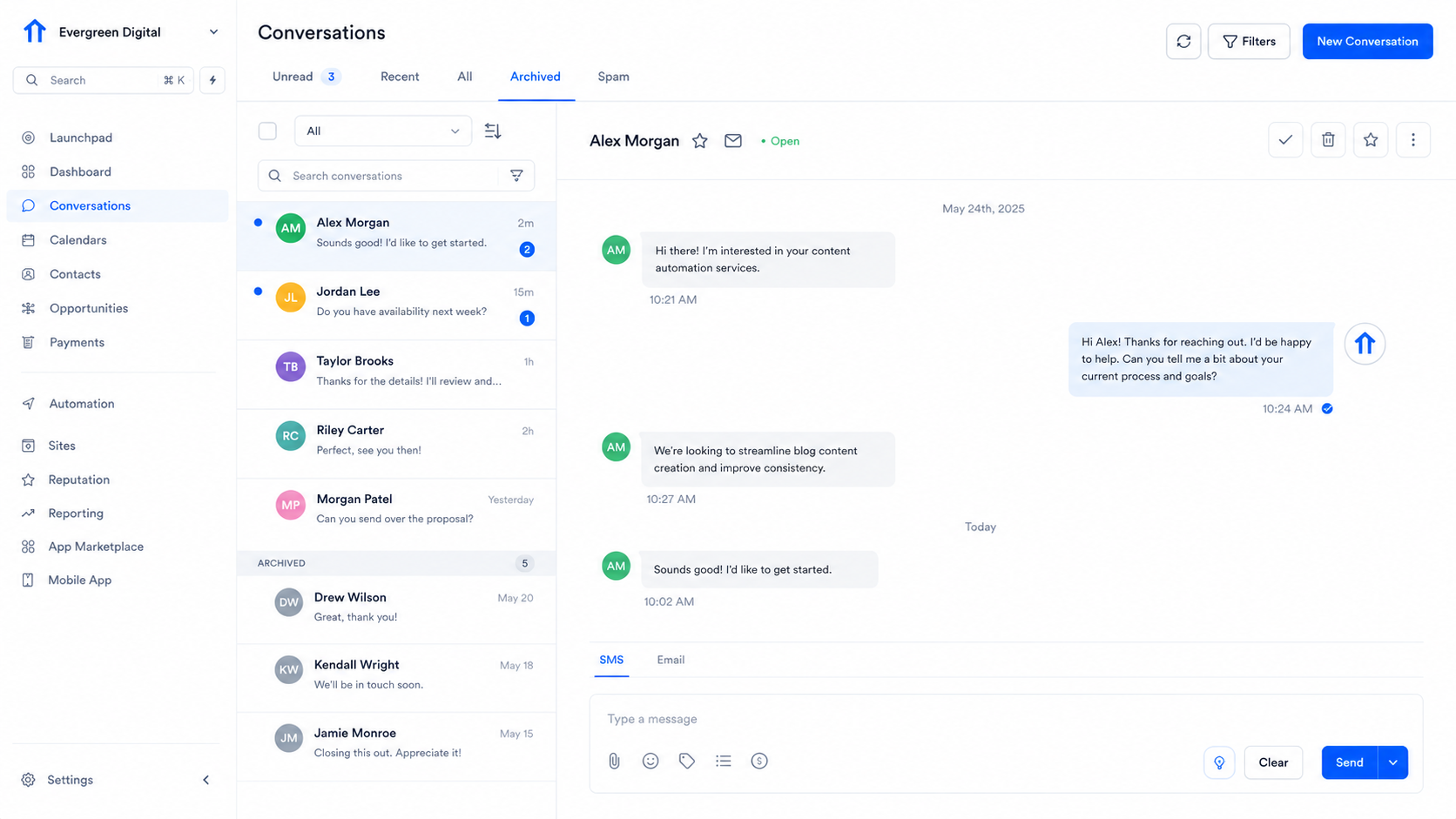
Managing customer conversations manually becomes difficult as lead volume grows. New messages can pile up, important conversations can remain unread, and completed conversations can clutter the active inbox. For teams handling multiple customers and follow-ups, keeping the Conversations area organized is an important part of efficient CRM management.
GoHighLevel automation can help by handling conversation-management tasks automatically. The Edit Conversation Action in GoHighLevel allows a workflow to update a conversation's read status and archive status based on the logic of that workflow.
What Is the Edit Conversation Action in GoHighLevel?
Edit Conversation is a workflow action, not a workflow trigger.
Its purpose is to modify the state of a conversation when a contact reaches that step in an active workflow. According to HighLevel's current documentation, the action can:
Mark a conversation as Read
Mark a conversation as Unread
Archive a conversation
Unarchive a conversation
Leave either setting unchanged by selecting None
This makes the action useful for automating inbox organization. Instead of relying on a team member to manually update a conversation after a particular event, a workflow can make the appropriate change automatically.
For example, a workflow could mark a conversation as read after a process has been completed, or archive a conversation when it no longer needs to remain in the active inbox.
Edit Conversation vs. a Workflow Trigger
The difference between a trigger and an action is essential when building GoHighLevel workflows.
Workflow Trigger = starts the workflow.
Edit Conversation Action = changes the conversation when the workflow reaches that step.
For example:
Trigger → Workflow conditions/logic → Edit Conversation → Additional actions
Suppose a contact reaches a particular event that you have selected as the workflow trigger. Once the workflow starts and reaches the Edit Conversation step, GoHighLevel can update the conversation according to the settings configured in that action.
Edit Conversation itself does not determine when the workflow starts.
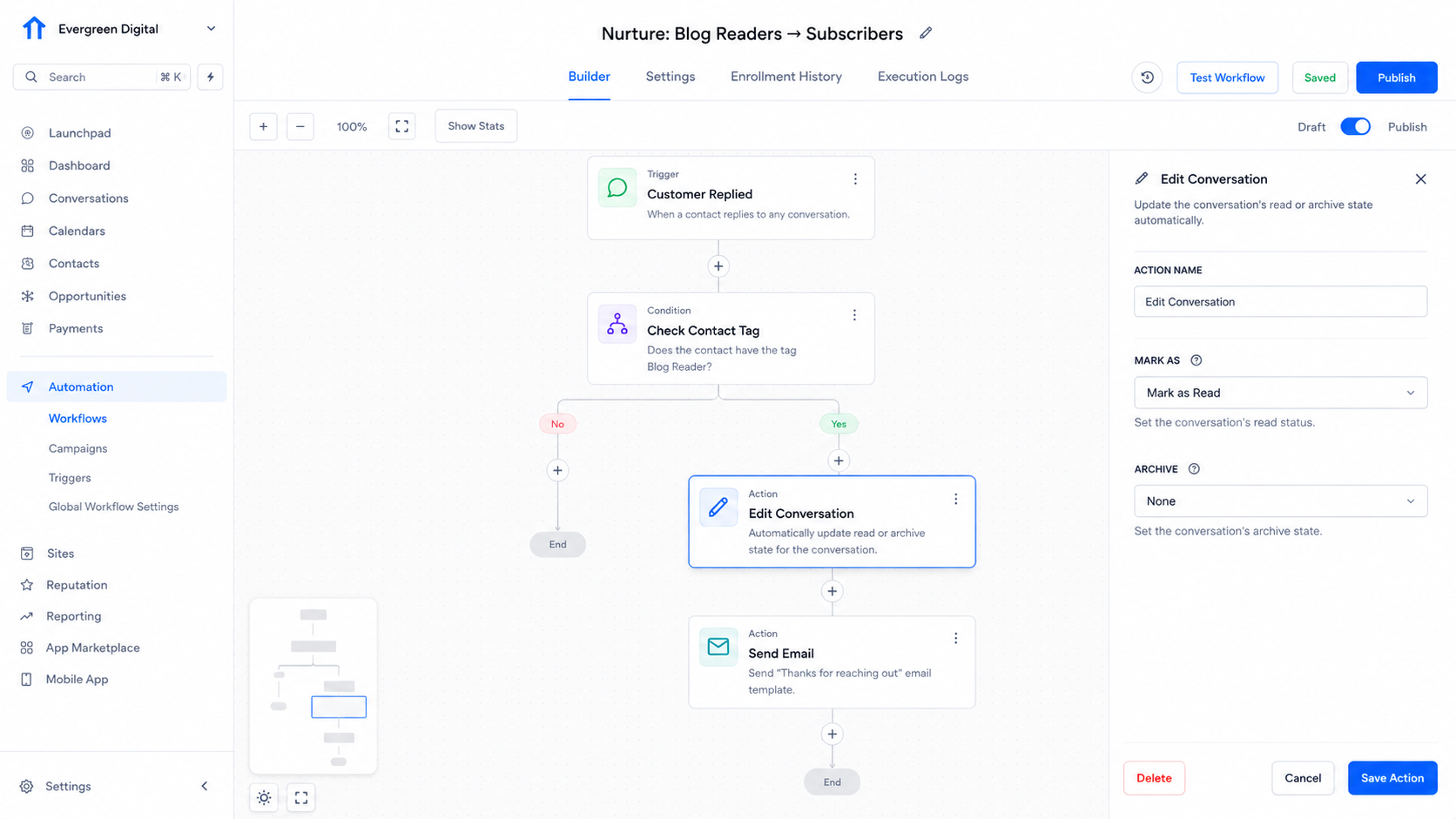
How to Use the Edit Conversation Action
The exact interface can change as GoHighLevel updates its Workflow Builder, but the general process is straightforward.
1. Open or Create a Workflow
Go to your GoHighLevel workflow area and create a new workflow or open an existing one. A workflow needs an appropriate trigger before conversation-management actions can be executed. HighLevel's current workflow documentation confirms that workflows run when their trigger conditions are met and the workflow is published.
2. Add the Edit Conversation Action
Within the workflow builder, add a new action and select Edit Conversation from the available workflow actions. HighLevel's documentation identifies it specifically as a workflow action.
3. Configure the Conversation Changes
The current Edit Conversation action provides two separate areas of control:
Mark as Read or Unread
You can choose whether the conversation should be marked as read, marked as unread, or left unchanged.
Archive or Unarchive
You can choose whether the conversation should be archived, unarchived, or left unchanged.
This separation gives you control over how the conversation should appear and remain organized after the workflow reaches the action.
4. Continue the Workflow
After Edit Conversation, you can continue with other appropriate workflow actions if your automation requires them. For example, a workflow might update the conversation first and then perform a separate notification or follow-up task.
The important point is to keep each action responsible for its own function rather than expecting Edit Conversation to perform unrelated operations.
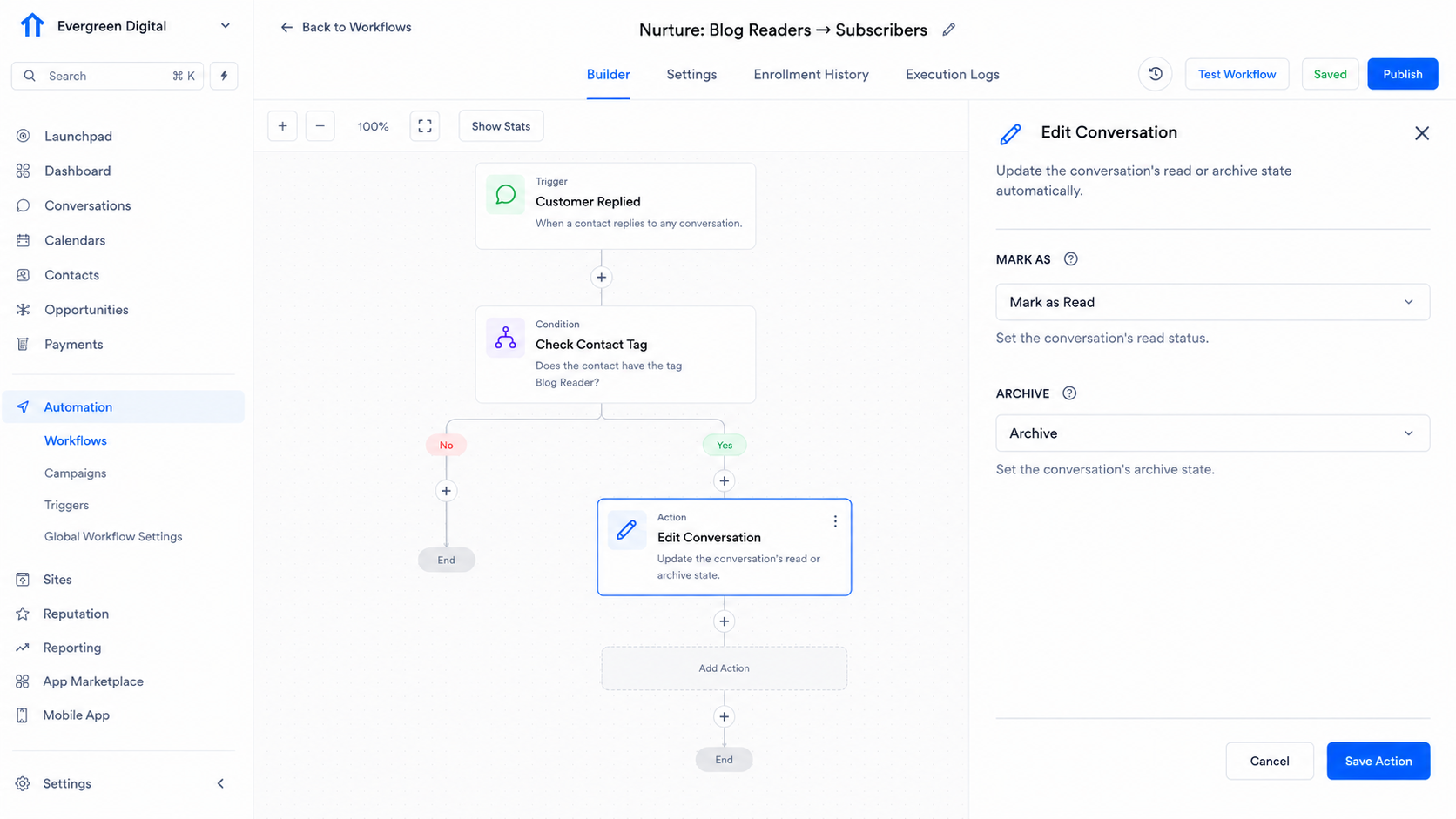
Practical Ways to Organize Customer Conversations
Automatically Mark Conversations as Read
If a workflow has completed a process that no longer requires a conversation to remain unread, Edit Conversation can mark it as read automatically.
What happens: The conversation's unread state is changed.
Why it helps: Team members can focus on conversations that still require attention.
Where Edit Conversation fits: It is placed after the workflow event or logic that determines the conversation should no longer remain unread.
HighLevel specifically documents workflow-based automation for marking conversations as read.
Keep Inactive Conversations Out of the Active Inbox
Some conversations no longer need to remain in the active conversation list. In those situations, an automation can use Edit Conversation to archive the conversation.
What happens: The conversation is archived.
Why it helps: The active inbox stays less cluttered.
Where Edit Conversation fits: The action is executed after the workflow determines that the conversation should be moved out of active view.
Restore Conversations When Needed
The action can also unarchive a conversation.
What happens: A workflow changes the conversation from archived back to an active state.
Why it helps: A conversation that needs renewed attention can be returned to the appropriate inbox view.
Where Edit Conversation fits: The action runs when the workflow reaches the condition or event that requires the conversation to be restored.
Example Workflow
Consider a simple customer-support process:
Relevant event occurs → Workflow starts → Required conditions are evaluated → Edit Conversation → Additional workflow actions
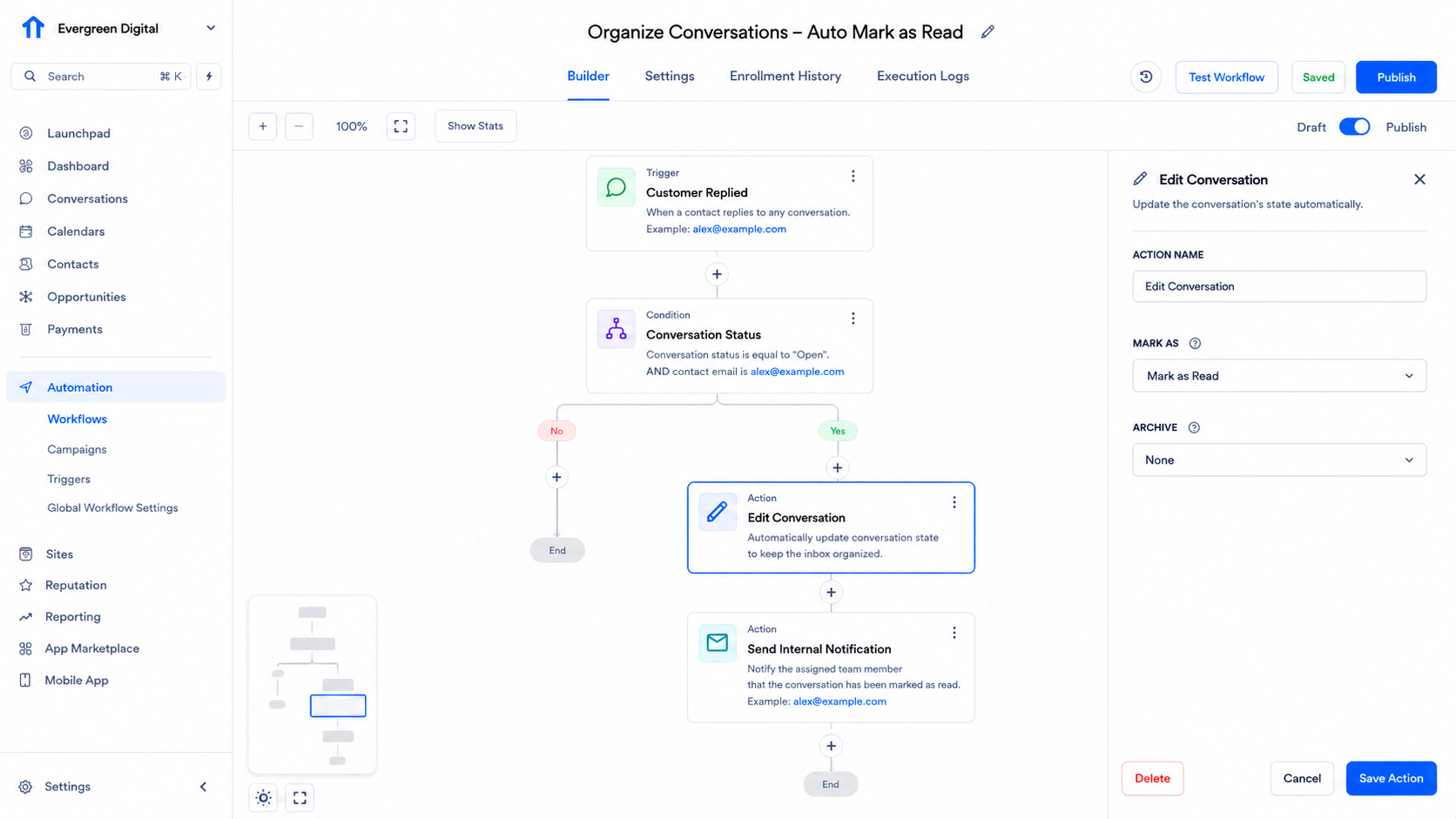
Imagine that the workflow determines a conversation no longer needs to remain in the active inbox. The workflow reaches Edit Conversation, where the conversation is configured to be archived.
The result is straightforward: the workflow handles the conversation-management step automatically instead of requiring someone to archive the conversation manually.
The same structure can be used when a workflow needs to mark a conversation as read, unread, archive it, or unarchive it.
Best Practices for Using Edit Conversation
To get reliable results from GoHighLevel workflow automation:
Start with a specific objective. Know exactly why the conversation needs to be changed.
Choose the correct trigger. Remember that Edit Conversation does not start the workflow.
Understand each setting. Configure only the conversation changes your process actually requires.
Test before publishing. Confirm that the workflow produces the expected conversation state.
Avoid unnecessary steps. A simple workflow is generally easier to maintain and troubleshoot.
Use other actions for other jobs. Sending messages, updating contacts, or performing unrelated tasks should be handled by the appropriate GoHighLevel features.
Review your automation regularly. Make sure your conversation-management rules still match your team's process.
Common Mistakes to Avoid
One of the most common mistakes is calling Edit Conversation a trigger. It is an action that operates after the workflow has started.
Another mistake is assuming that changing a conversation's state is the same as sending a message. Edit Conversation manages the conversation's read and archive state; it does not replace dedicated communication actions.
You should also avoid assuming that every GoHighLevel account will display an identical interface. UI wording and available options can change with product updates or account configuration, so check the current action settings in your account before building detailed automation.
Finally, do not expect Edit Conversation to perform unrelated tasks such as creating contacts, moving opportunities, sending messages, or generating AI responses. Those functions belong to other workflow actions or GoHighLevel features.
FAQs
What is the Edit Conversation action in GoHighLevel?
It is a workflow action that can automatically change a conversation's read/unread state and archive/unarchive state.
Is Edit Conversation a trigger or an action?
It is a workflow action, not a trigger. A separate workflow trigger determines when the automation begins.
When should I use Edit Conversation?
Use it when your workflow needs to automatically manage a conversation's read status or archive status based on an event or condition in the automation.
Can Edit Conversation send a message to a customer?
No. Edit Conversation is designed to update conversation status, such as read/unread or archived/unarchived. Sending a customer message requires an appropriate communication action.
How does Edit Conversation fit into a GoHighLevel workflow?
It is placed after the workflow trigger and any necessary logic. The workflow reaches the action and then applies the configured conversation changes.
What should I check before activating a workflow using Edit Conversation?
Confirm that the trigger is correct, the intended conversation changes are configured correctly, and the workflow has been tested before publishing. HighLevel recommends testing workflows to verify their behavior before going live.
Need Expert Help with GoHighLevel?
New to GoHighLevel and ready to get started? Buy your GoHighLevel account here and launch with confidence.
Already know what you need and want our team to handle everything, from complete setup and customization to funnels, workflows, automations, CRM, and pipelines? Click here.



