
How to Connect Customer Status Changes With Internal Business Processes
How to Connect Customer Status Changes With Internal Business Processes
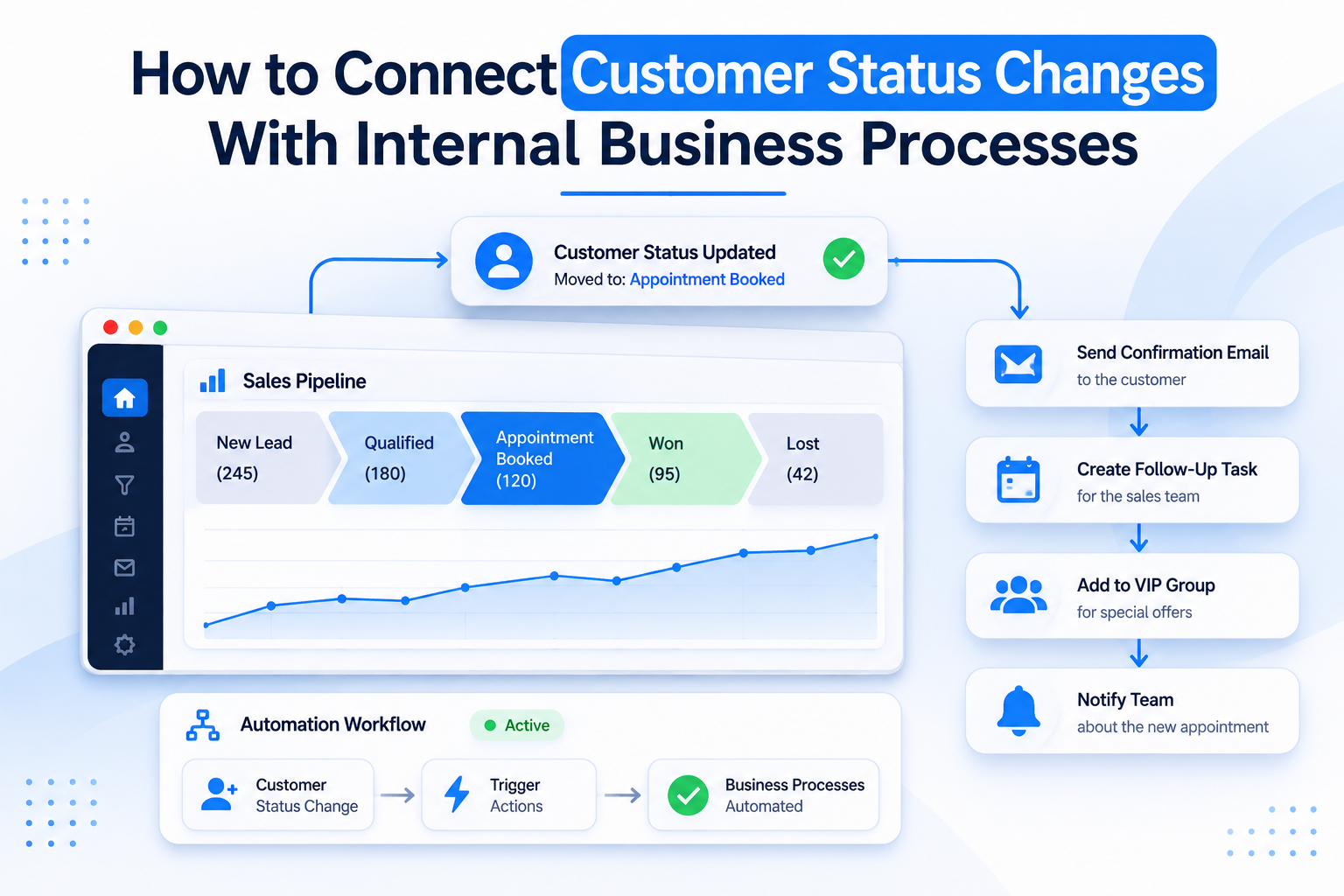
Businesses often update customer statuses in their CRM, but that does not always mean their internal teams know what to do next. A lead becomes qualified, a deal is marked as won, or a customer becomes inactive, yet employees may still depend on manual messages and reminders to take action. This creates delays, missed opportunities, and disconnected operations. With GoHighLevel workflow automation, businesses can connect important CRM updates with internal processes so the right actions happen when specific events occur.
Understanding Customer Status in GoHighLevel
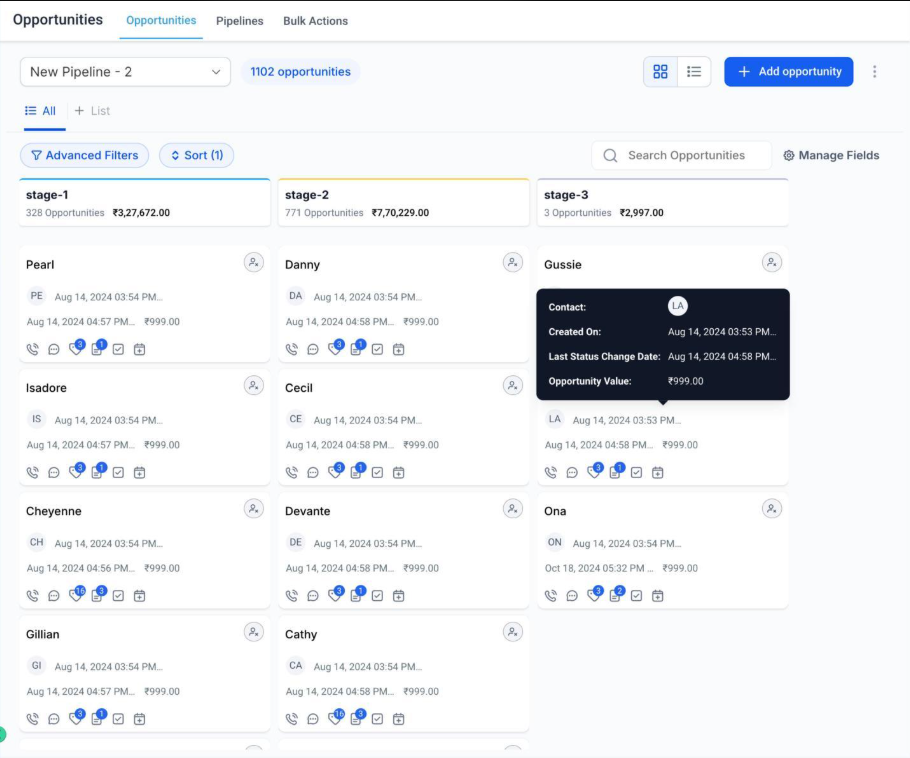
Before building an automation system, it is important to understand the difference between contacts, opportunities, and pipeline stages.
A contact represents a person or business stored in the CRM. Contact information, tags, and custom fields help organize customer records and maintain relevant details.
An opportunity represents a potential deal associated with a contact. Its status indicates whether the opportunity is Open, Won, Lost, or Abandoned.
A pipeline stage represents the opportunity's position within a particular sales process. For example, a sales pipeline might include New Lead, Qualified, Proposal Sent, and Negotiation.
These are separate elements. Moving an opportunity between pipeline stages does not mean its opportunity status has necessarily changed. Understanding this distinction helps businesses select the correct automation trigger.
How GoHighLevel Connects CRM Updates With Internal Processes
GoHighLevel uses workflow triggers to detect specific CRM events and execute predefined actions.
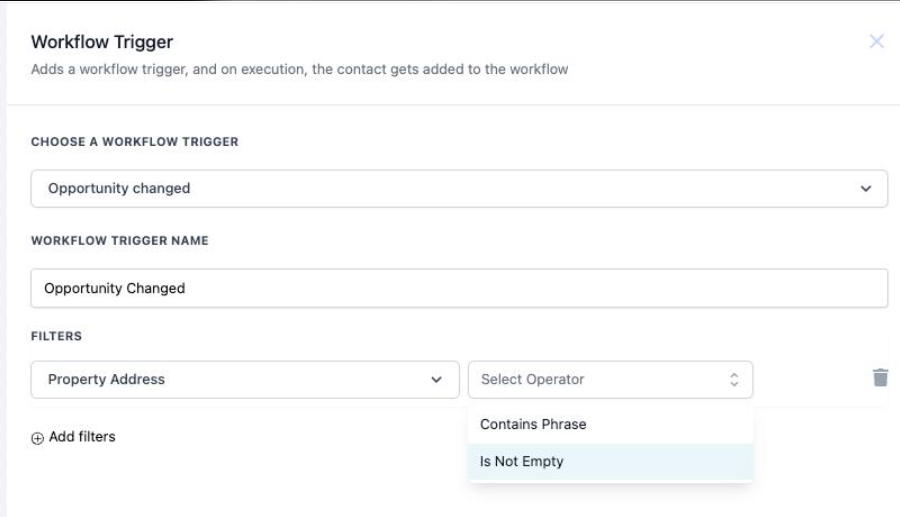
Three triggers are particularly useful:
Pipeline Stage Changed: Starts a workflow when an opportunity moves to another pipeline stage. Businesses can apply filters for pipelines, stages, assigned users, and other opportunity details.
Opportunity Status Changed: Responds when an opportunity changes between statuses such as Open, Won, and Lost. Filters help identify the specific status transition.
Contact Changed: Responds to supported contact record updates, including changes to selected custom fields, tags, and assigned users.
The appropriate trigger depends on what the business wants to monitor. A pipeline movement requires a different trigger from an opportunity status update.
Important GHL Components for Connected Business Processes
1. CRM Pipelines and Opportunity Stages
Pipelines provide a structured view of sales opportunities. Each stage represents a milestone in the sales process. When an opportunity enters a particular stage, a workflow can notify the responsible employee or create a follow-up task.
2. Opportunity Status
Opportunity statuses communicate the outcome of a deal. Open represents an active opportunity, Won represents a successful deal, Lost represents an unsuccessful deal, and Abandoned represents an opportunity no longer being pursued.
Businesses can use these statuses to initiate different internal processes, such as client handoffs, lost lead reviews, or follow-up procedures.
HighLevel Support Portal
3. Tags and Custom Fields
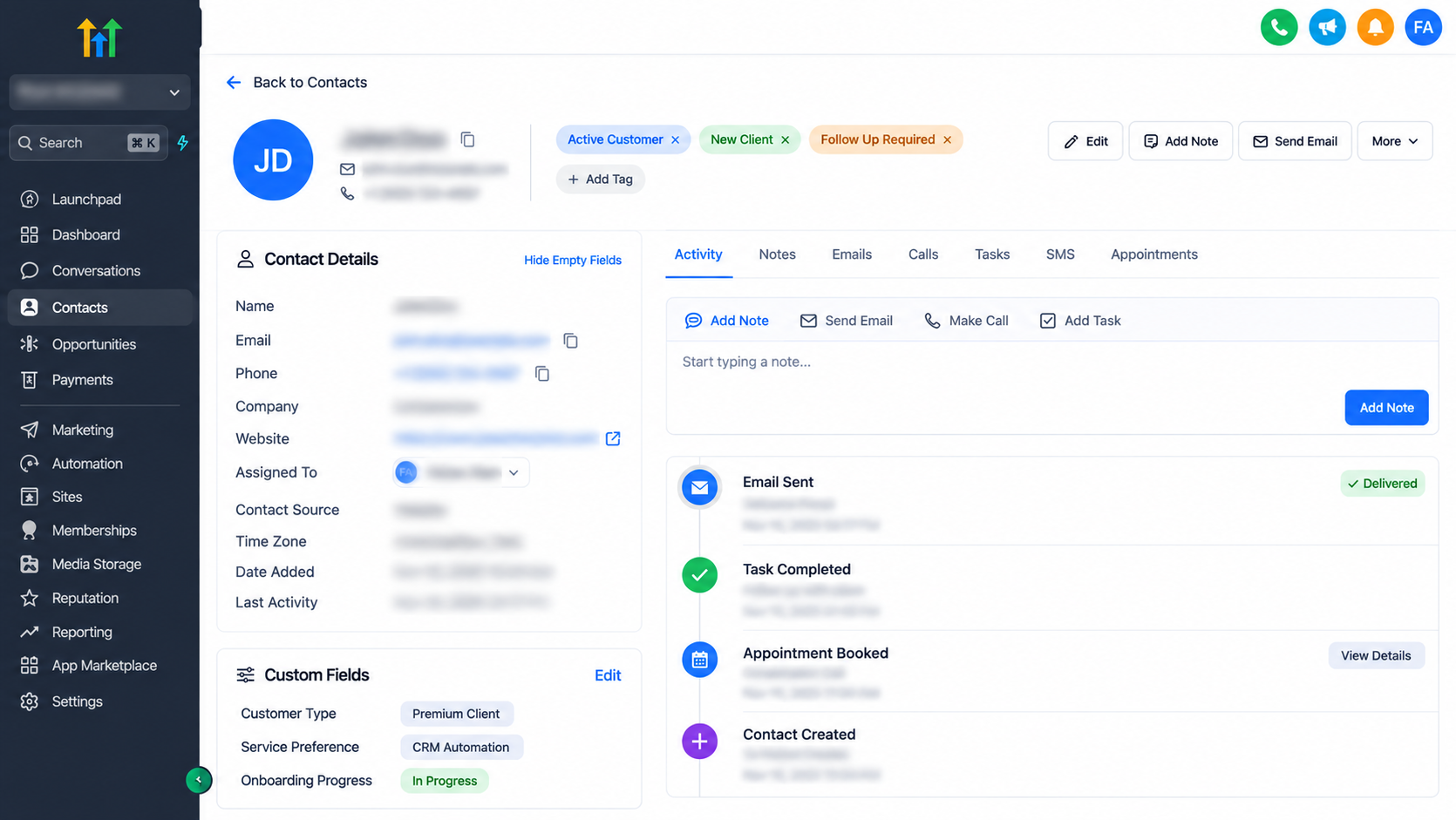
Tags help categorize contacts based on their characteristics or business relationships. For example, New Customer, VIP Client, and Follow Up Required can help organize records and support targeted automation.
Custom fields store additional information, such as customer type, service preference, or onboarding progress. Workflows can use supported field changes and conditions to determine which actions should follow.
4. Internal Notifications and Task Management
GoHighLevel supports internal notifications and the Add Task workflow action. The Add Task action allows businesses to define a task title, description, assigned user, and due date.
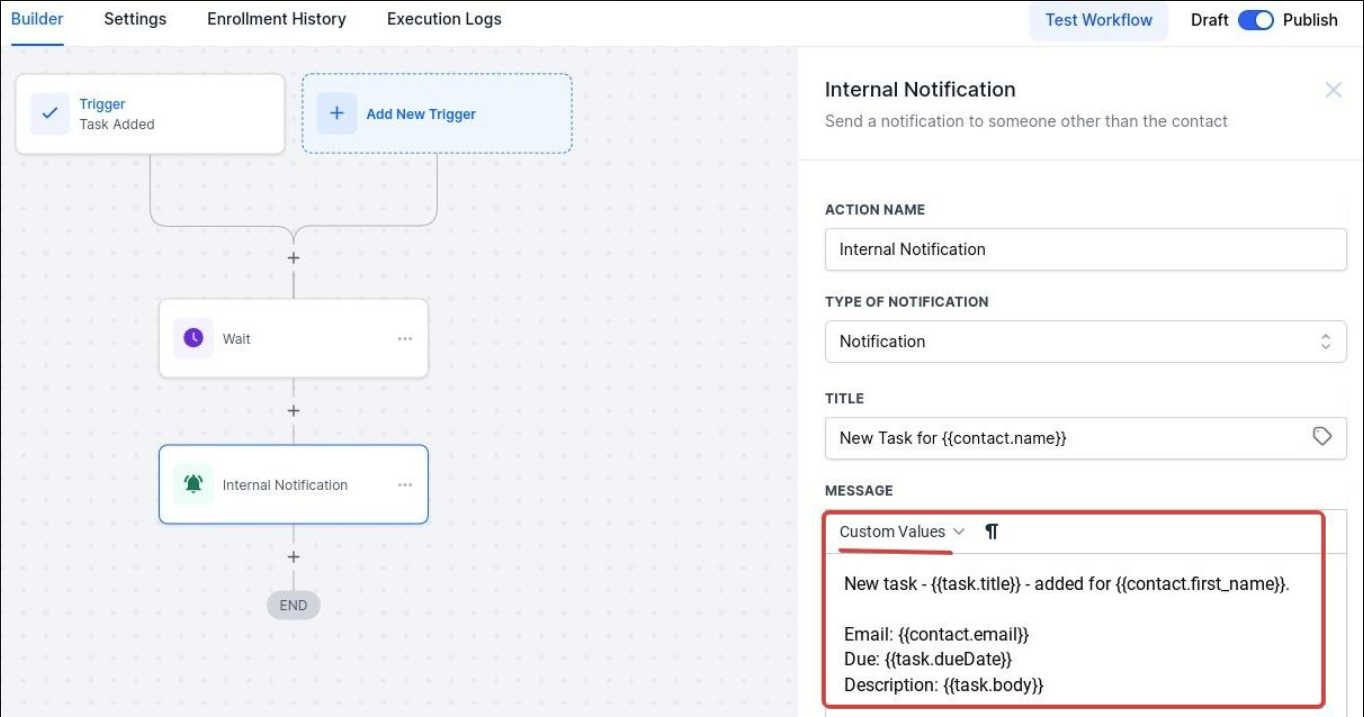
This makes it possible to turn CRM updates into clear responsibilities rather than relying on employees to monitor every record manually.
Step by Step: Build a Status Based Automation System
Consider a service business that wants to connect its sales pipeline with its internal operations.
Step 1: Identify Important Customer Events
Determine which changes require action. These might include a lead becoming qualified, an opportunity being marked Won, or a customer entering onboarding.
Step 2: Design the CRM Pipeline
Create pipeline stages that reflect the actual sales process, such as New Lead, Qualified, Proposal Sent, and Won.
Step 3: Select the Appropriate Trigger
Create a workflow and select Pipeline Stage Changed or Opportunity Status Changed, depending on the event being monitored.
Step 4: Configure Trigger Filters
Select the relevant pipeline, stage, or status conditions. This prevents unrelated opportunities from entering the workflow.
Step 5: Add Internal Actions
Add suitable actions, such as internal notifications and Add Task. Assign responsibilities to the appropriate team members.
Step 6: Connect Supporting CRM Information
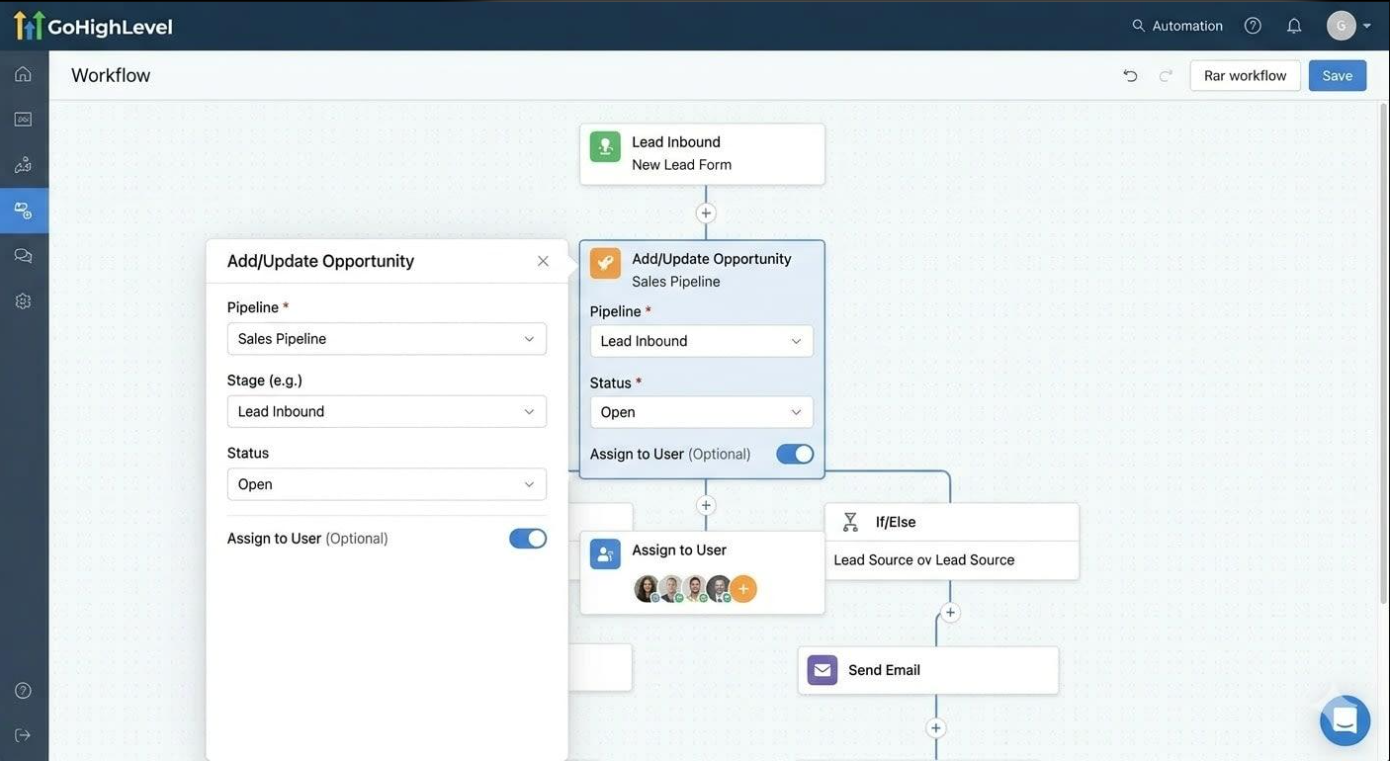
Where necessary, use tags, custom fields, and conditional workflow logic to maintain customer context and direct different situations toward the correct process.
Step 7: Test Different Scenarios
Manually change opportunity stages and statuses to verify that the correct workflow executes. Test both expected and unexpected transitions.
Step 8: Monitor and Improve
Review workflow execution history, identify unnecessary actions, and adjust filters when business processes change.
Practical Business Use Cases
Sales Teams
When an opportunity enters the Qualified stage, a workflow can notify the assigned salesperson and create a follow-up task. This helps ensure that promising leads receive attention.
Agencies
When an opportunity becomes Won, an internal notification can alert the onboarding team. A task can then be assigned to prepare the client's initial setup.
Service Businesses
When an appointment status changes to Confirmed, the relevant team can receive an internal notification. A separate appointment based workflow can handle subsequent appointment events.
Customer Retention Teams
Businesses can maintain an Active or Inactive customer classification using tags or custom fields. A relevant tag or field change can initiate a retention workflow or notify the account manager.
Customer Success Teams
When a renewal opportunity reaches a defined stage, the responsible account manager can receive a task to review the customer's requirements and prepare the next steps.
Common Mistakes and Best Practices
Poorly structured automation can create more work instead of reducing it.
Avoid these common mistakes:
Confusing contact information changes with opportunity status changes.
Creating unnecessary tags and overlapping workflows.
Sending duplicate notifications for the same business event.
Using broad triggers without appropriate filters.
Ignoring manual CRM updates during testing.
Creating tasks without assigning clear ownership.
Failing to account for multiple opportunities associated with one contact.
Keep each workflow focused on a specific business objective. Use descriptive workflow names, consistent tags, clear task ownership, and appropriate conditions. Also, test repeated status changes to ensure that workflows do not generate unnecessary notifications or duplicate tasks.
Conclusion
Customer status changes should do more than update CRM records. They should help businesses move their internal operations forward. By combining GoHighLevel pipelines, opportunity statuses, tags, custom fields, and workflow automation, businesses can create connected processes that improve team coordination and operational consistency.
Frequently Asked Questions
1. Can GoHighLevel trigger workflows when an opportunity status changes?
Yes. The Opportunity Status Changed trigger starts workflows when an opportunity's status is updated.
2. What is the difference between pipeline stages and opportunity statuses?
Pipeline stages represent progress through a sales process, while opportunity statuses indicate the outcome of a deal.
3. Can GoHighLevel automatically assign internal tasks?
Yes. The Add Task workflow action can create tasks and assign them to specific users.
4. Can contact tags trigger internal business processes?
Yes. The Contact Tag trigger can start workflows when specified tags are added or removed.
5. How can businesses prevent duplicate workflow actions?
Use specific trigger filters, appropriate conditions, and carefully structured workflows to avoid unnecessary executions.
Need Expert Help with GoHighLevel?
New to GoHighLevel and ready to get started? Buy your GoHighLevel account here and launch with confidence.
Already know what you need and want our team to handle everything, from complete setup and customization to funnels, workflows, automations, CRM, and pipelines? Click here.