

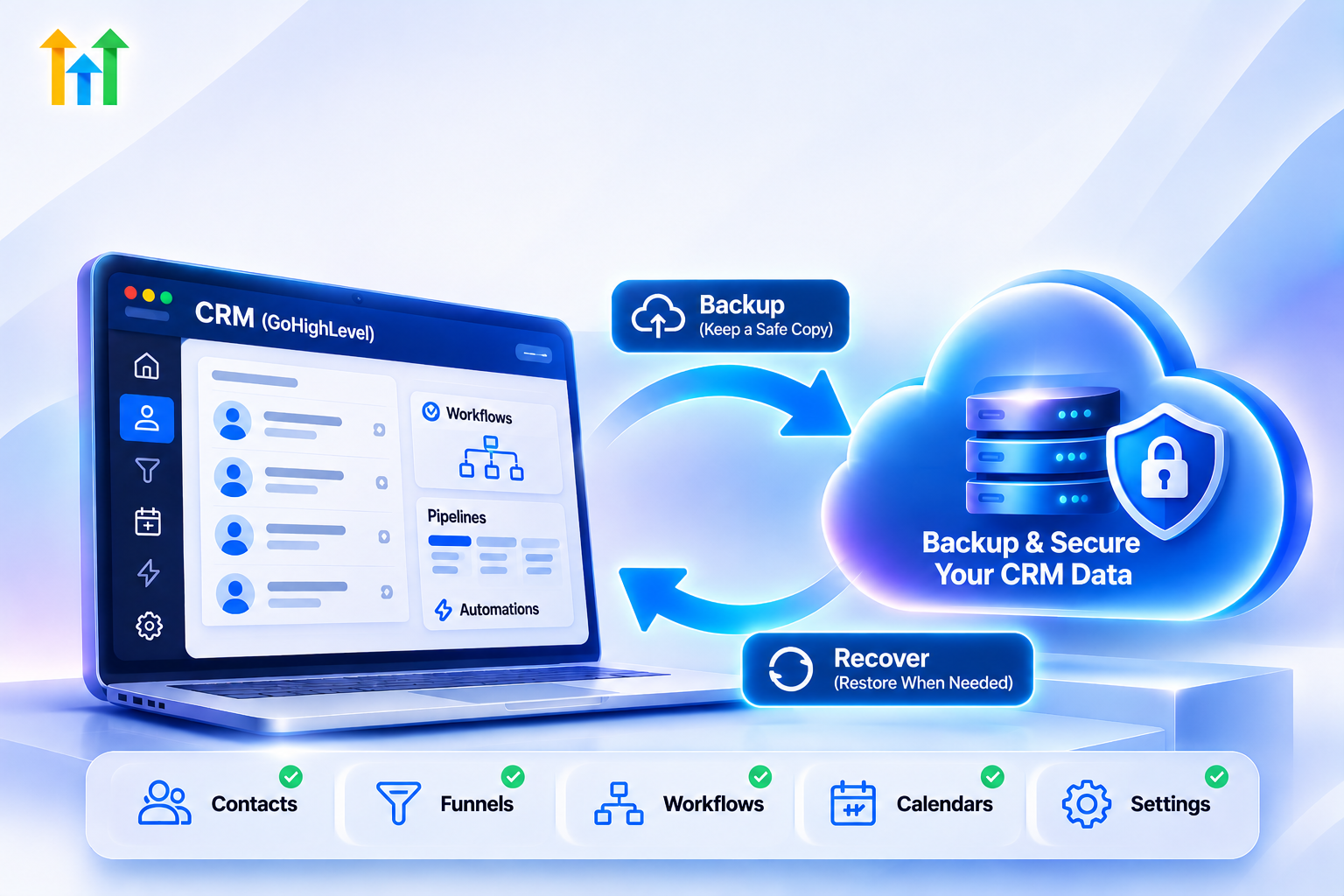
How to Create a Data Backup and Recovery Plan for CRM Projects
How to Create a Data Backup and Recovery Plan for CRM Projects
Introduction
A CRM can contain years of valuable customer information, workflows, forms, calendars, pipelines, and business configuration. If something is accidentally deleted or a project needs to be rebuilt, having a recovery plan can make the difference between a manageable issue and a major disruption.
For businesses and agencies using GoHighLevel, the key is understanding that not all CRM information is backed up in the same way.
GoHighLevel Snapshots are useful for preserving and reusing account configuration, but they do not include live contact records, appointments, conversations, or other account data. For important CRM records, businesses can use available export tools to maintain separate copies of their data.
A practical backup strategy therefore needs more than simply creating a Snapshot.
It should identify what needs to be preserved, where that information is stored, how often it should be backed up, and what steps the team should follow if something goes wrong.
What Is a CRM Backup and Recovery Plan?
A CRM backup and recovery plan is a documented process for protecting important CRM information and restoring or rebuilding the system when necessary.
For a GoHighLevel project, this can involve several different types of information:
Contact records
Company records
Transaction information
Custom fields
Pipelines
Workflows
Forms
Funnels and websites
Calendars
Templates
Custom values
Other account configuration
These categories should not be treated as one single backup.
For example, HighLevel Snapshots can capture configuration such as workflows, funnels, calendars, forms, custom fields, pipelines, tags, templates, and other supported assets. However, Snapshots do not include contacts, appointments, conversations, reputation data, Stripe connections, or integrations.
That distinction is one of the most important things to understand when designing a CRM recovery strategy.
Why a Backup Plan Matters for CRM Projects
CRM projects often change continuously.
A team may add new workflows, modify forms, update pipelines, import contacts, create new calendars, or change automation logic every week.
Without a structured backup process, it can become difficult to determine what the system looked like before a major change.
Consider a simple example.
An agency makes significant changes to a client's workflow system. Later, an important workflow is accidentally modified or deleted.
If the agency has documented the configuration and maintained an appropriate Snapshot, it may be able to recreate the configuration more efficiently.
But if the agency also needs the customer's live contact data, a Snapshot alone will not provide that data.
This is why a good recovery plan should separate configuration recovery from data recovery.
Step 1: Identify What Needs to Be Protected
Before creating backups, make an inventory of the information your CRM project depends on.
Start by separating your information into categories.
CRM Data
This can include:
Contacts
Companies
Custom fields
Customer information
Transaction records
Account Configuration
This can include:
Workflows
Funnels
Websites
Forms
Calendars
Pipelines
Tags
Custom values
Templates
External Connections
Also document important connections such as:
Payment integrations
Third-party integrations
Domains
Communication providers
External applications
The reason for separating these categories is simple: "one backup method may not cover everything."
HighLevel specifically states that Snapshots do not include live contacts, appointments, conversations, reputation data, Stripe connections, or integrations.
Your backup plan should therefore identify the appropriate protection method for each category.
Step 2: Use Snapshots to Preserve Account Configuration
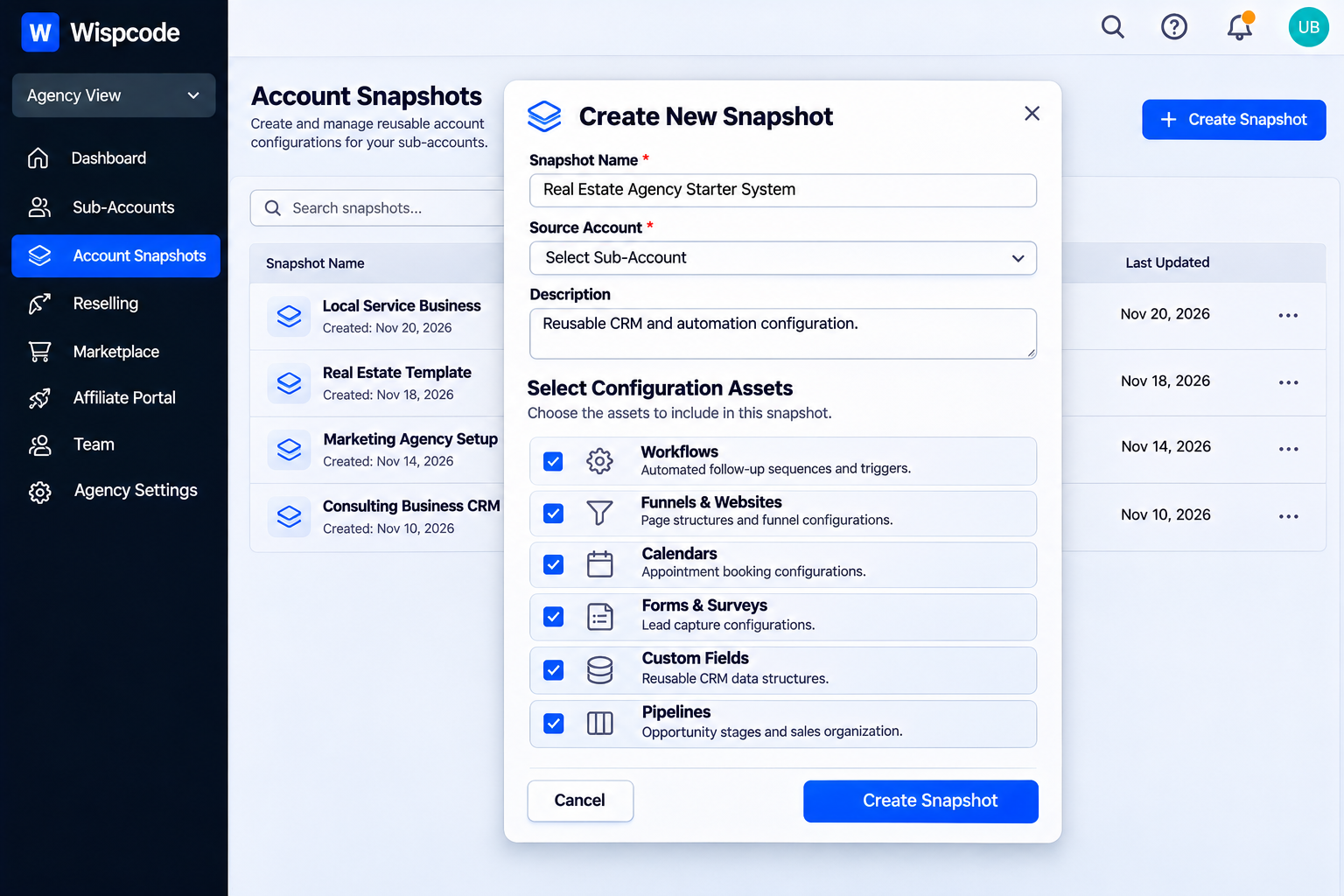
Snapshots are one of the most useful tools for preserving repeatable GoHighLevel account configuration.
A Snapshot is created from an existing sub-account and captures supported configuration that can later be reused across other sub-accounts. HighLevel currently lists assets such as workflows, funnels, calendars, forms, custom fields, pipelines, custom values, templates, dashboards, and other supported components among Snapshot assets.
For agencies, this can be especially useful when a client account contains a carefully designed system.
For example, an agency might maintain a Snapshot containing:
Lead capture → Qualification → Appointment booking → Follow-up → Sales pipeline
If the same system needs to be deployed elsewhere, the Snapshot can provide a reusable configuration foundation.
However, do not treat a Snapshot as a complete CRM backup.
It is primarily a way to preserve supported account configuration, not live customer data.
Step 3: Maintain Contact Data Exports
Contact records are a separate part of the backup strategy.
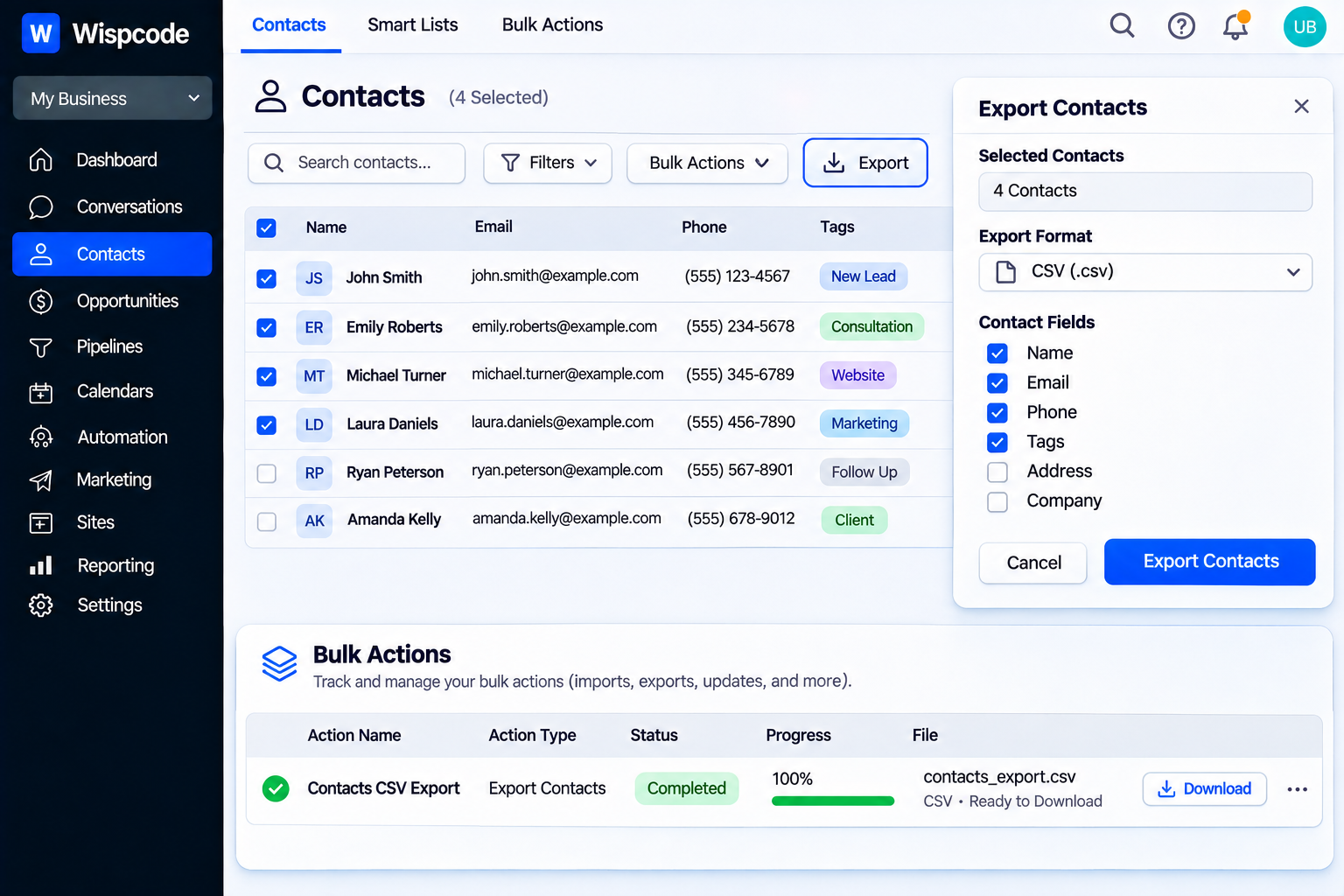
HighLevel allows contacts to be exported to CSV. The export can include information such as names, email addresses, phone numbers, tags, and custom fields, depending on the fields selected for export.
The current export process runs in the background through HighLevel's Bulk Actions system.
This makes contact exports useful for maintaining an external copy of important CRM records.
However, there are limitations.
HighLevel notes that contact exports do not include automation history such as previous email and SMS logs. Some note information can also be limited in the export.
Therefore, a CSV export should be considered a "contact-data backup", not a complete copy of the entire CRM history.
Step 4: Back Up Company and Transaction Information Separately
Businesses using CRM features beyond individual contacts should consider other available exports as part of their backup strategy.
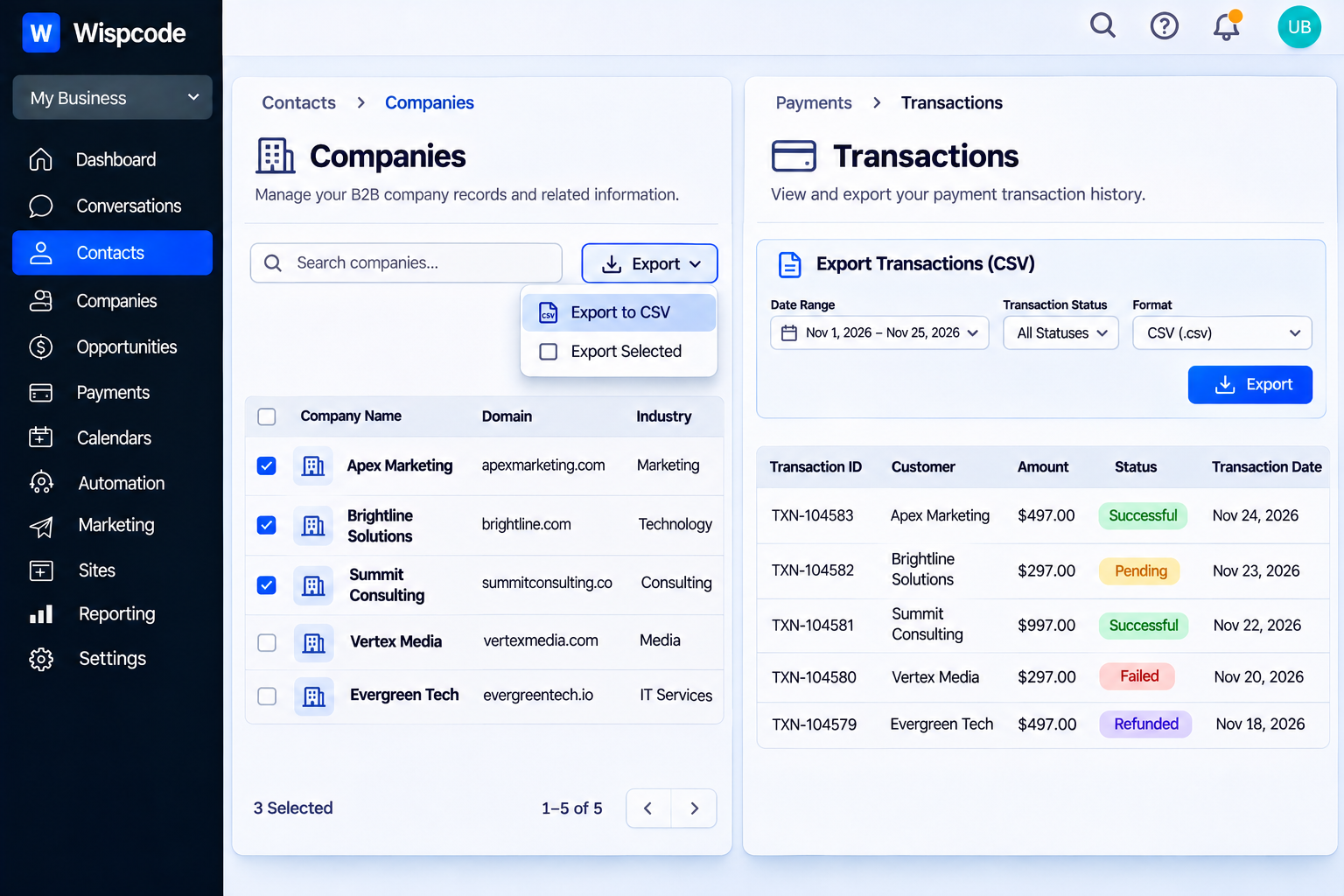
HighLevel supports exporting company records to CSV from "Contacts → Companies". Company exports can include company record data and visible custom company fields.
Transaction data can also be exported from "Payments → Transactions."
HighLevel's transaction export provides payment records in CSV format and can be filtered based on available transaction criteria.
This means a B2B business, for example, may want to maintain separate backup records for:
Contacts + Companies + Transactions + Account Configuration
Keeping these categories separate makes the backup easier to understand and restore when needed.
Step 5: Document Important Configuration
A backup is much more useful when your team understands what the system is supposed to look like.
Create documentation for important components such as:
Workflow names and purposes
Trigger conditions
Important workflow actions
Pipeline stages
Calendar structure
Form names
Custom fields
Custom values
Domain configuration
Important integrations
Special client-specific settings
This documentation does not replace a technical backup.
Instead, it provides context.
For example, if a workflow needs to be recreated, the team should know "why the workflow exists, what starts it, and what it is expected to do."
This is particularly valuable for agency projects where multiple team members may work on the same client account.
Step 6: Create a Consistent Backup Schedule
A backup process should follow a predictable schedule.
The exact frequency depends on how frequently the CRM changes and how important the data is.
For example, an agency could establish a process such as:
Before Major Changes
Create or refresh the appropriate configuration backup and export important data before making significant changes.
During Active Projects
Perform regular data exports based on the volume and importance of changes.
After Major Configuration Updates
Update documentation and preserve the latest configuration state.
Before Migration or Restructuring
Create a fresh backup set before moving data, changing account structures, or performing major cleanup.
The key is consistency.
A backup that exists only because someone remembered to create it once is not a reliable backup strategy.
Step 7: Keep Backup Files Organized
A backup is difficult to use if nobody knows which file is current.
Create a consistent naming system.
For example:
ClientName_Contacts_2026-11-25.csv
ClientName_Companies_2026-11-25.csv
ClientName_Transactions_2026-11-25.csv
ClientName_Snapshot_2026-11-25
You can also maintain a simple backup register containing:
Client name
Backup date
Data exported
Snapshot date
Person responsible
Storage location
Notes about major changes
This makes it easier to determine what is available when recovery is required.
Step 8: Store Backups Separately From the CRM
Do not rely exclusively on the CRM account itself as the location for your backup copies.
For exported files, use a controlled storage location with appropriate access permissions.
Consider:
Who can access the files?
Who can download them?
How long should they be retained?
Are sensitive customer records protected?
Are old backup files removed securely?
CRM exports can contain personal and business information, so backup management should be treated as part of your overall data-security process.
HighLevel's current contact export system also limits access to authorized admin roles for completed exports, which reinforces the importance of controlling who can access exported CRM information.
Step 9: Understand What Recovery Actually Means
Recovery does not always mean pressing a single "restore everything" button.
Different problems require different recovery actions.
Configuration Problem
If important account configuration needs to be recreated, a Snapshot may provide a starting point for rebuilding supported assets.
Deleted Contact
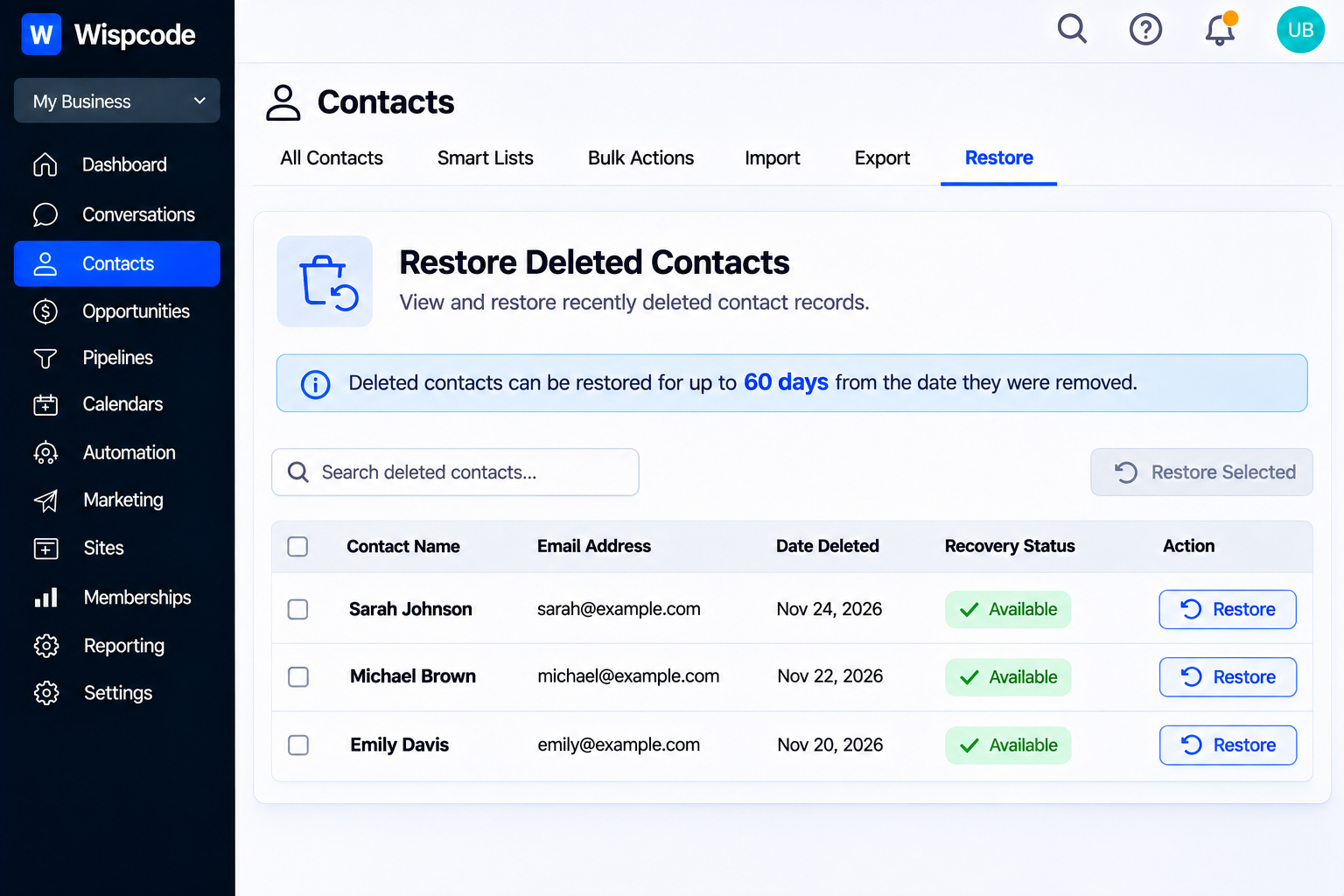
HighLevel documents that deleted contacts can be restored for up to 60 days. However, associated conversations, notes, and tasks are not restored with the contact.
Lost Contact Data
An external CSV export may provide the information needed to reconstruct contact records.
Missing Transaction Information
A transaction export can provide a separate record of payment data.
This is why recovery planning should begin with identifying "what was lost", rather than immediately attempting to restore everything.
Step 10: Test Your Recovery Process
A backup strategy is incomplete until you know that the process actually works.
You do not necessarily need to perform a full destructive test on a production client account.
Instead, document and test the recovery procedure in an appropriate environment or controlled scenario.
Ask:
Can the correct backup files be located?
Can the team identify the latest version?
Can contact data be understood and imported if necessary?
Is the Snapshot available?
Does the documentation explain the system?
Does the team know which integrations require separate configuration?
Does everyone know who is responsible for recovery?
The goal is to eliminate uncertainty before a real incident happens.
Common Backup Mistakes to Avoid
Treating Snapshots as Full CRM Backups
A Snapshot does not include contacts, appointments, conversations, reputation data, Stripe connections, or integrations.
Backing Up Only Contacts
Contact data is important, but a CRM project also depends on workflows, forms, calendars, pipelines, and other configuration.
Keeping Only One Backup
If that backup becomes outdated or corrupted, you may have no useful recovery point.
Ignoring Export Limitations
CSV exports do not contain every type of CRM history. Understand exactly what your export contains before treating it as a complete record.
Failing to Document Changes
A backup without context can be difficult to use.
Waiting Until Something Goes Wrong
Recovery planning is most valuable before an incident occurs.
Frequently Asked Questions (FAQs)
1. What is a CRM backup and recovery plan?
A CRM backup and recovery plan is a process for protecting important CRM data and configuration so they can be restored or rebuilt if something is accidentally deleted, changed, or lost.
2. Does a GoHighLevel Snapshot back up everything?
No. Snapshots preserve supported account configuration, but they do not include live contacts, appointments, conversations, reputation data, Stripe connections, or integrations.
3. How can I back up contacts in GoHighLevel?
You can export contact records to a CSV file, including selected contact information and custom fields. The exported file can then be stored securely outside the CRM.
4. How often should I back up my CRM data?
The frequency depends on how often your CRM changes and how important the data is. Review and back up important data before major changes, migrations, or restructuring.
5. Can deleted contacts be recovered in GoHighLevel?
GoHighLevel documents that deleted contacts can be restored for up to 60 days. However, associated conversations, notes, and tasks are not restored with the contact.
Conclusion
A reliable CRM backup and recovery plan is not about finding one tool that copies everything.
It is about understanding the different parts of your GoHighLevel project and protecting each one appropriately.
Use "Snapshots for supported account configuration". Maintain "CSV exports" for "important contact", "company", and "transaction data" where applicable. Document workflows, pipelines, forms, calendars, integrations, and other important configurations so your team understands how the system is supposed to work.
Most importantly, understand the difference between "backup and recovery".
A backup gives you a preserved copy or configuration reference. Recovery is the process of using the available information to restore or rebuild what was lost.
For agencies managing multiple CRM projects, this distinction becomes especially important.
The best time to create a recovery plan is before a workflow is accidentally changed, a contact list is deleted, or a major system migration begins.
Build the process while everything is working normally.
Then, when something goes wrong, your team can respond with a documented process instead of trying to figure everything out from scratch.
Need Expert Help with GoHighLevel?
New to GoHighLevel and ready to get started? Buy your GoHighLevel account here and launch with confidence.
Already know what you need and want our team to handle everything, from complete setup and customization to funnels, workflows, automations, CRM, and pipelines? Click here.