

Let the Workflow Create the Record and the Link
How to Keep Related CRM Records Connected Using the Create Associated Record for Contact Action in GoHighLevel
Most CRMs are good at storing people and bad at storing the things attached to those people. A roofing company does not just have a customer, it has a roof, with a survey date, a material and a warranty. A property agency does not just have a buyer, it has the four houses that buyer is circling. Push all of that into contact custom fields and you end up with a record that reads like a spreadsheet nobody wants to open.
GoHighLevel solves the storage half with custom objects and the connection half with associations. The Create Associated Record for Contact action is what joins the two inside a workflow. It builds a brand new object record while the automation runs and links it to the contact in the same step, so the relationship exists the moment the record does.
What the action actually does
Inside the workflow builder the panel is titled Create Associated Record For Contact, and the line underneath reads create an associated object record for Contact. That is the whole job. It creates one record on a custom object, fills whichever fields you tell it to fill, and attaches that record to the contact running through the workflow under a label you choose.
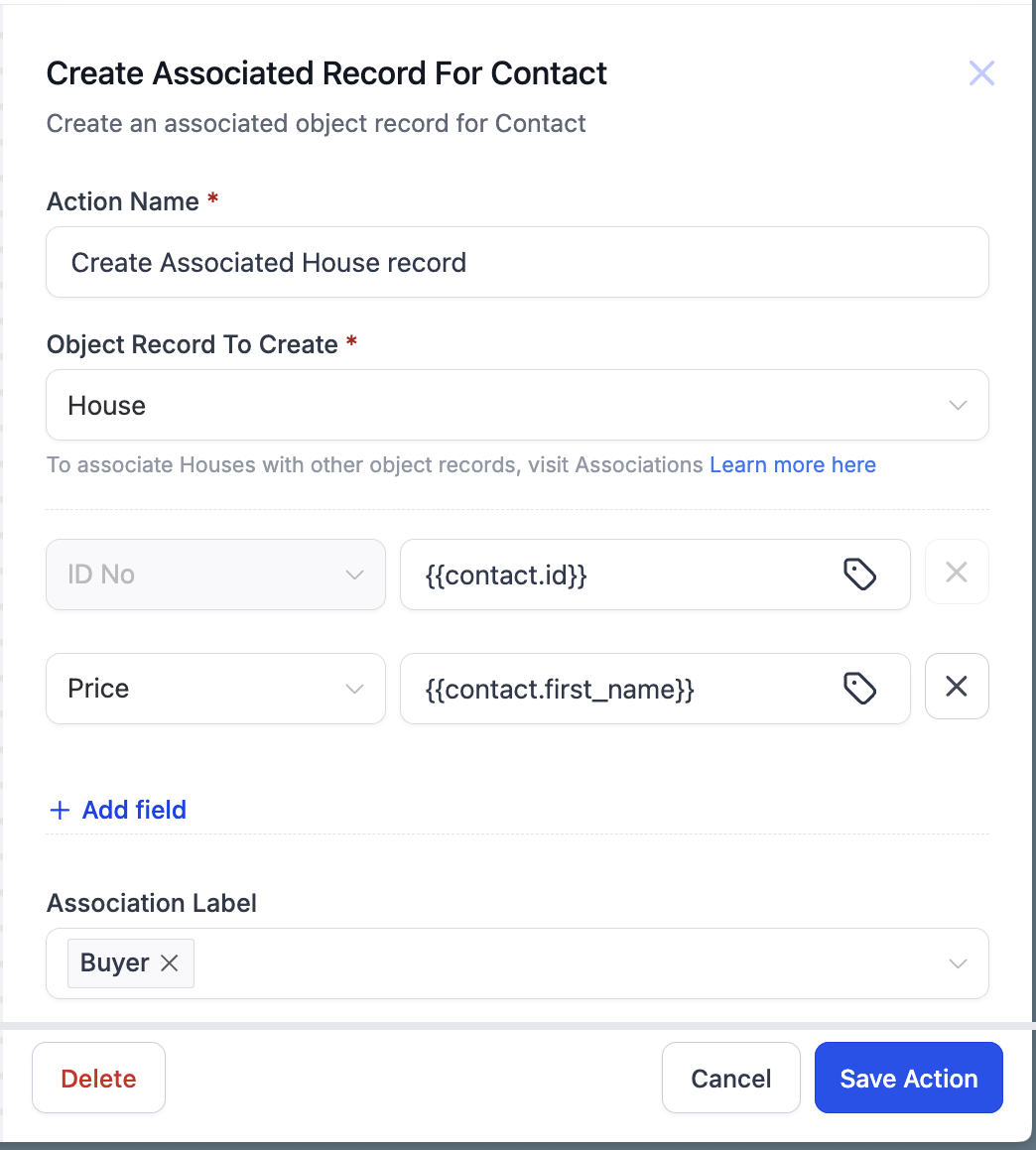
Four things sit in the panel. The Action Name, which is just for you and the rest of the team reading the canvas later. The Object Record To Create, which lists the custom objects that exist in the sub account. A stack of field rows, where each row is a field on that object plus the value it should be given. And the Association Label, which decides what the new relationship is called.
Notice the helper text under the object dropdown, telling you to visit Associations. It is there because the action cannot invent a relationship. It can only use one you already built.
Two things have to exist before this action is any use
The official article is blunt about the prerequisite: this action is possible only after creating custom objects in the sub account and creating an association label between at least one of those objects and contacts. Skip either step and the dropdowns come up empty.
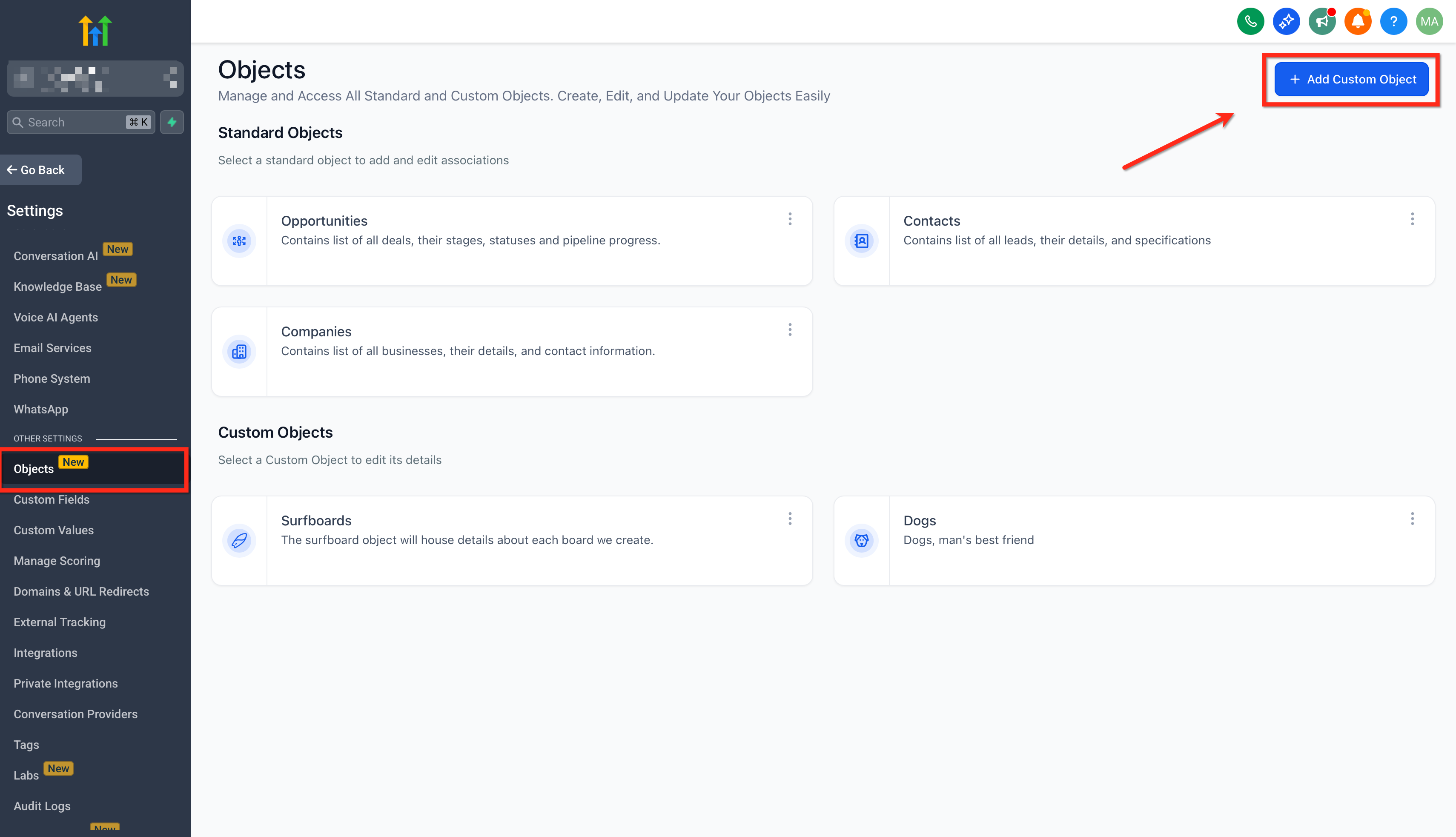
The first piece is the object itself. Go to Settings, then Objects. Standard objects such as Opportunities, Contacts and Companies are listed at the top, and anything you have built sits underneath in Custom Objects. Add Custom Object is where a House, a Policy, a Pet or a Vehicle gets created, along with its own fields.
The second piece is the association. Open the object, click the Associations tab, then Create Association. You pick the object to connect to, then you name the relationship. A single label works when both sides read the same way, for example Deal. A pair of labels works when each side has its own word, for example Buyer on one end and Seller on the other. After that you set the relationship type, one to one, one to many, many to one or many to many, and HighLevel shows you a plain English preview before you save.
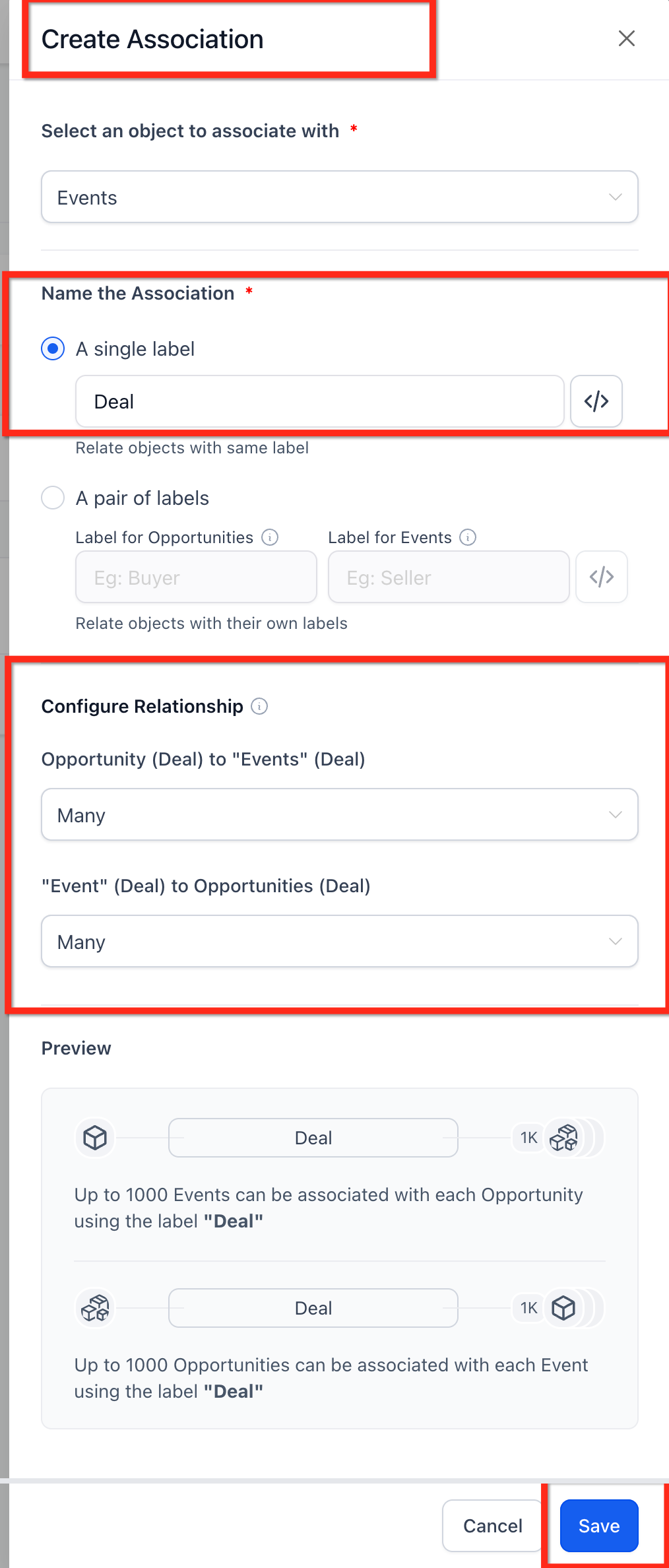
Those labels become the vocabulary your workflows use later, so name them the way your team already talks.
Building the action into a workflow
Open a contact based workflow, click the plus icon on the canvas and pick the action from the Contact group. From there it is four decisions:
Name the action so the canvas stays readable. Create Associated House record beats Action 3.
Choose the object record to create. Only objects that already have an association with contacts will be worth picking here.
Add a field row for every value the new record should start life with, and use Add field for more.
Choose the association label. The new record gets linked to the contact under that label the moment it is created.
Then Save Action. There is no branch to handle, no found and not found path like the Find Contact action gives you. The record is created and linked, and the workflow moves on.
Filling the new record with data you already hold
The field values are not limited to text you type in. Each row has a merge field picker, so a value can be pulled straight off the contact or out of a custom value. In HighLevel's own screenshot the ID No field is set to {{contact.id}} and a second row pulls {{contact.first_name}}, which is how a brand new object record arrives already stamped with who it belongs to.
That matters more than it sounds. If the record is created empty, somebody has to go back and fill it, and nobody ever does. Populate it at creation time and it is useful straight away, filters and reports included.
Where the link shows up afterwards
Once the workflow has run, open the contact and look at the Associations panel. Each object you have connected gets its own section with a count, and the linked records sit inside it under the label that ties them together. Click one and it opens without dragging you out of the contact.
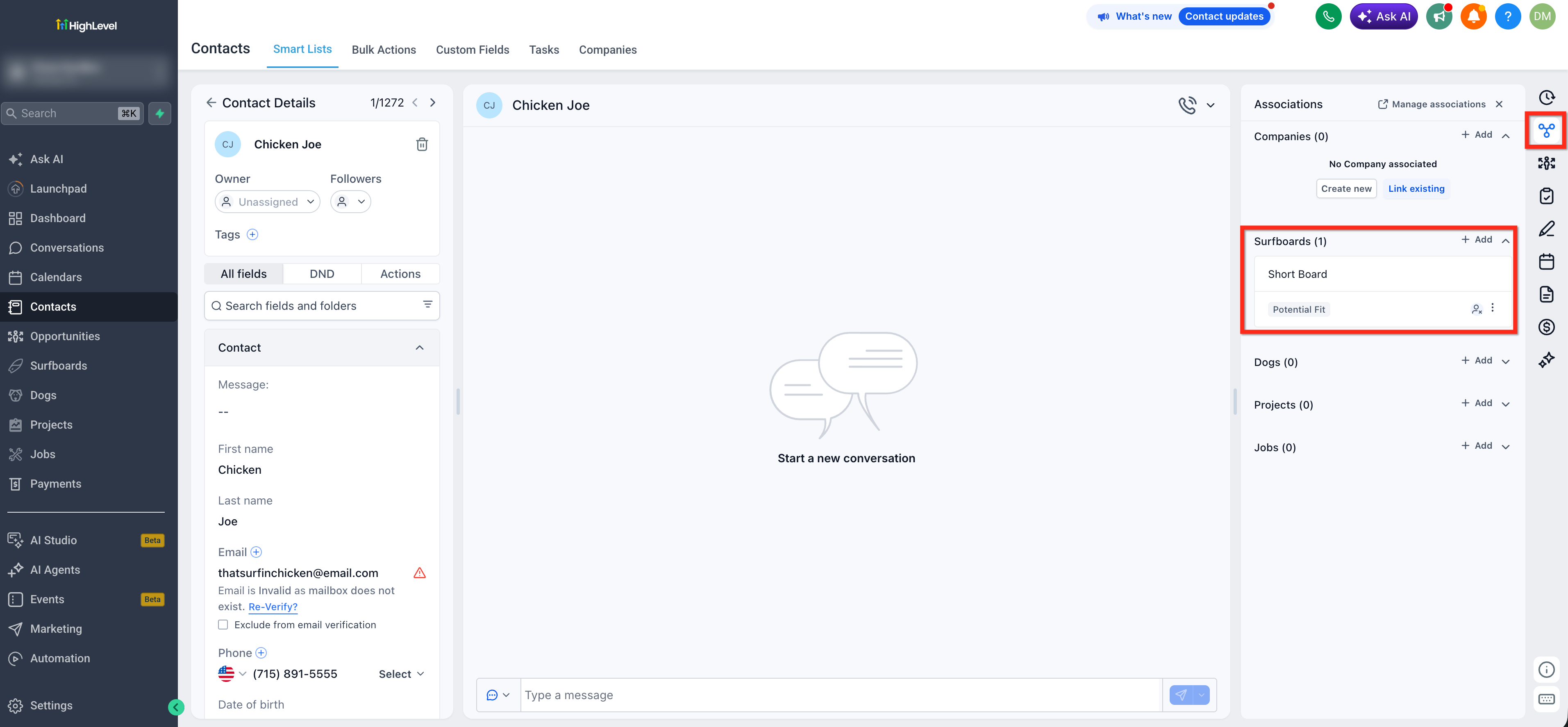
It travels further than the record page too. Association fields can be added to Opportunity cards and list views through Manage Fields, so a sales team sees the linked property or policy on the card itself.
The manual version of the same job
It helps to see what you are replacing. Without the action somebody opens the record, finds the related objects panel, clicks Associate new, searches, links, then repeats that for every customer.
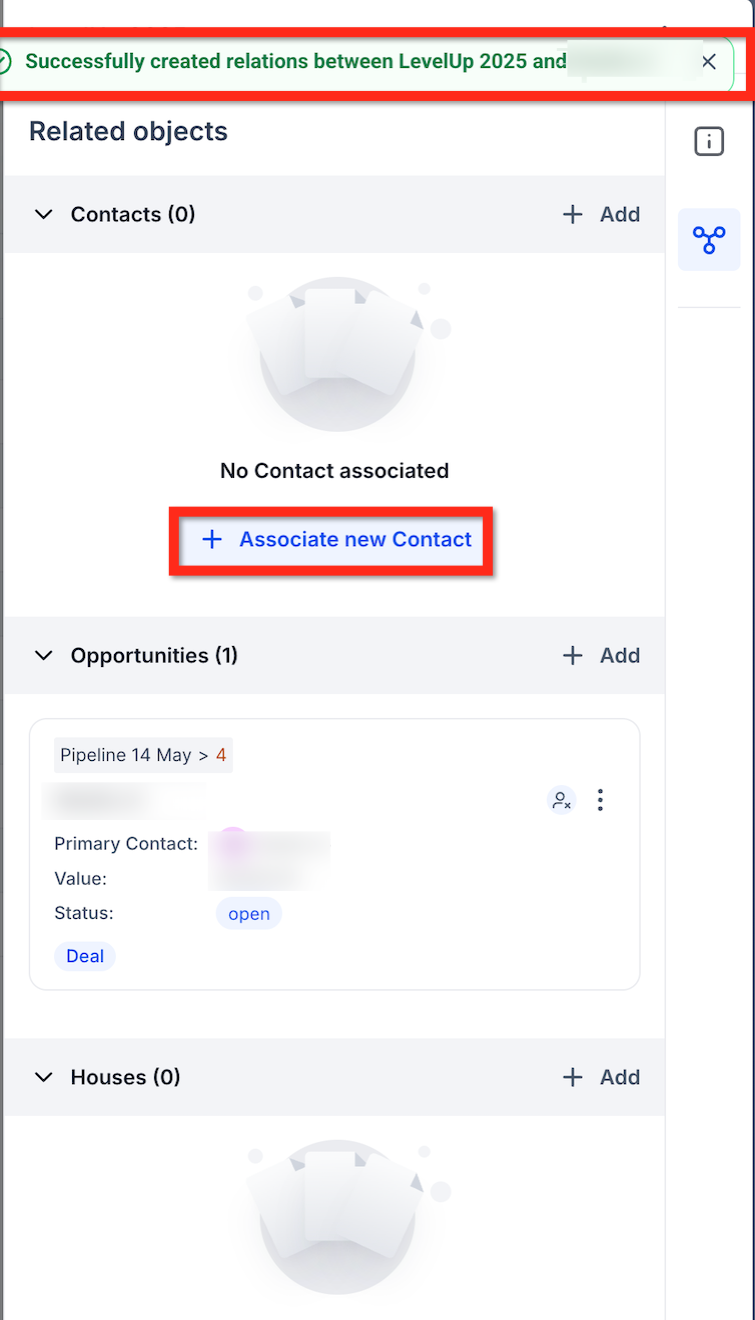
For ten records a month that is fine. For a few hundred it quietly stops happening, and half your object records end up attached to nobody.
The rest of the associated record family
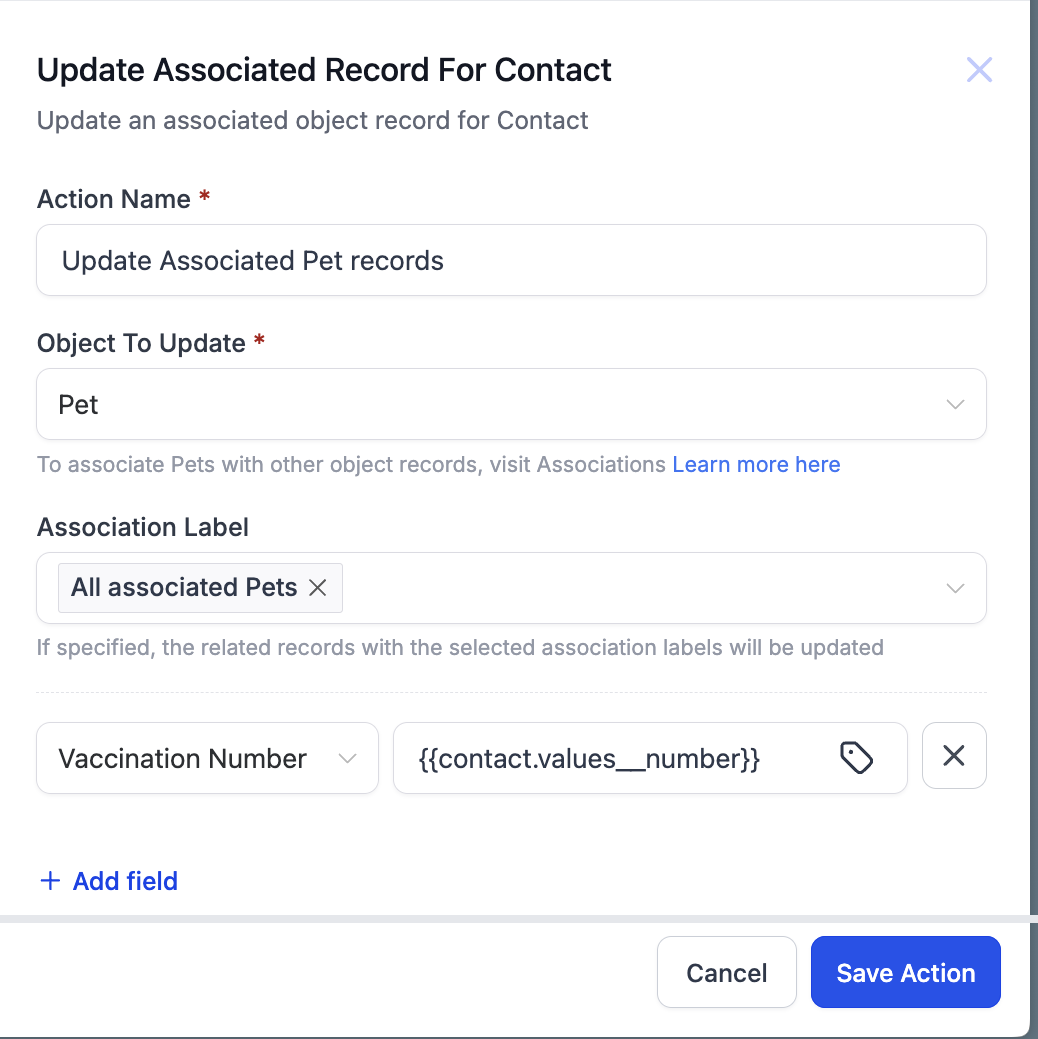
Create is one of three contact actions that work on associated records.Update an Associated Record for Contact edits records that already exist, and its panel adds an Association Label field where you can target something like all associated Pets. The helper text is worth reading: if specified, the related records with the selected association labels will be updated, so the label is how you aim it.
Clear Fields of Associated Record for Contact is the third, and it wipes chosen fields without deleting the record. There is also a newer Associate Records action, in beta behind Settings and Labs, which works the other way around. Instead of making a record it searches for existing ones with filters and links whichever match, using the earliest created record, the latest created record, or all of them.
The distinction is worth holding on to. Use Create when the thing genuinely does not exist yet, such as a new install job. Use Associate Records when the thing already exists and you are matching a person to it, such as a buyer to a listing.
Limits and behaviour worth knowing
You can create up to10 labels per pair of objects.
Each label supports up to1,000 linked records per side, plenty for a customer with a few policies and tight for anything larger.
Delete a record and its associations go with it. There is no orphan link left behind.
The action creates a record every time the workflow reaches it, so a contact who re enters the workflow gets a second record. Put a condition or a wait step in front of it if that is not what you want.
Association data can be used in reports and exports, which is usually the real reason a business wants the records connected at all.
A worked example from HighLevel
The documentation uses a solar company tracking a Site Survey Date and an Install Date. When an opportunity is marked as won, the workflow creates an Install record, fills both dates, and links it to the contact with the label Installation Scheduled.
The deal closing is the moment you know an install is happening, so it is the right moment to create the thing that tracks it. Nobody has to remember, and the record cannot exist without being connected to the customer.
Frequently Asked Questions
Why is my object missing from the Object Record To Create dropdown?
Almost always because there is no association between that object and contacts yet. Build the object, create the association from its Associations tab, then reopen the action.
Can one action create the record and fill several fields at once?
Yes. Use Add field for each extra field on the new record, and mix fixed values with merge fields as needed.
What is the difference between this and the Associate Records action?
This one creates a brand new record and links it. Associate Records finds existing records with filters and links those instead, and it is still in beta behind Labs.
Does the association work in both directions?
Yes. Open the object record and the contact is listed there too, under the paired label if you set one up.
Need Expert Help with GoHighLevel?
New to GoHighLevel and ready to get started? Buy your GoHighLevel account here and launch with confidence.
Already know what you need and want our team to handle everything, from complete setup and customization to funnels, workflows, automations, CRM, and pipelines? Click here.



