

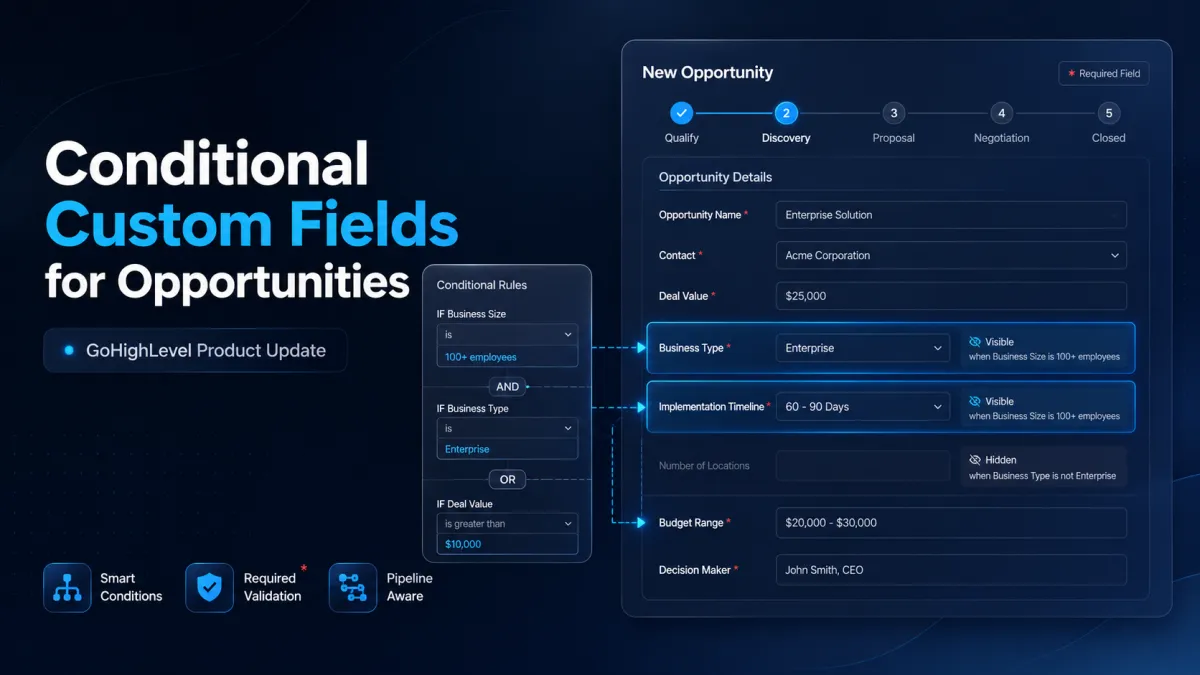
GoHighLevel Conditional Opportunity Fields
Conditional Custom Fields for Opportunities: A More Flexible Way to Manage GoHighLevel Opportunity Forms
Opportunity forms do not always need to show every field for every deal. When users are presented with irrelevant information, forms can become harder to manage and important details can be easier to miss. GoHighLevel’s new Conditional Custom Fields for Opportunities update changes this by allowing opportunity forms to adapt based on defined conditions. Admins can control which fields or folders appear and which fields are required based on an opportunity’s pipeline, stage, status, or supported field values, creating a more focused and controlled way to manage opportunity data.
What Are Conditional Custom Fields for Opportunities?
Conditional Custom Fields for Opportunities allow Admins to create rules that determine when specific opportunity fields or folders should appear.
Rules can be built using a single condition or multiple conditions connected with AND/OR logic. When the defined conditions are met, an Admin can configure an outcome such as showing a field, showing an entire folder, or making a visible field mandatory.
This gives Admins more control over how opportunity forms display information while keeping the configuration tied to defined rules.

What’s New in This Update?
The update introduces several capabilities for building and managing conditional opportunity fields.

Admins can use the following as triggers for conditional rules:
Pipeline
Pipeline stage
Status
Dropdown fields
Radio fields
Checkbox fields
Multi-select fields
Once conditions are established, Admins can choose what should happen when those conditions are met. They can show individual fields, show entire folders, or make visible fields mandatory.

The update also includes a real-time preview, allowing each rule to be reviewed before it is saved.
How Conditional Rules Work

Conditional rules combine trigger conditions with a defined outcome. Admins can create a rule with one condition or connect multiple conditions using AND/OR logic.

For example, the rule configuration can evaluate supported opportunity values and determine whether a particular field or folder should be displayed. If the conditions are met, the configured outcome is applied.
A field can also be made mandatory when it becomes visible. This means required information can be enforced as part of the conditional rule rather than simply displaying every field at all times.
When multiple rules apply to the same opportunity, their mandatory requirements are combined. This ensures that the requirements established by applicable rules are considered together.
How to Enable and Configure the Feature
Before creating conditional rules, an Admin must enable the feature for the sub-account.
Go to:
Settings → Labs

Then enable:
Show & Require Opportunity Fields Conditionally
Once enabled, navigate to:
Settings → Custom Fields → Opportunity → Conditional Rules
Select Create conditional rule.
From there, choose the trigger conditions and connect them using AND/OR logic. Then select the desired outcome:
Show field
Show folder
Make mandatory
Review the live preview to verify the rule before selecting Save rule.
Rules activate immediately after they are saved.
Manage Rules Directly From Pipelines
Conditional rules can also be managed from the Pipelines page. Go to:
Settings → Opportunities & Pipelines
Then open the Actions menu for a pipeline or stage and select:
Manage conditional rules
This provides a direct way to manage rules in relation to the relevant pipeline or stage.
Why This Update Matters
The main value of this update is greater control over the information presented within opportunity forms.
Instead of displaying every conditionally configured field or folder from the beginning, fields included in a Show rule remain hidden until their conditions are met. Fields that are not included in a Show rule remain visible as usual.
This can help keep opportunity forms focused on relevant information while supporting more consistent data collection. Required details can also be collected at the appropriate point in the sales process, and mandatory fields can help prevent opportunities from being saved with missing required information.
The feature also supports Add, Edit, and Bulk Edit flows across both web and mobile, giving the conditional rules broader coverage when working with opportunities.
Important Things to Know
There are several important details Admins should understand before using the feature.
Only Admins can create, edit, or delete conditional rules. Rules are configured separately for each sub-account, so the configuration applies within the sub-account where it was created.
Nothing changes automatically when the feature is enabled. An Admin must create the first conditional rule before conditional behavior begins.
Validation applies when opportunities are saved on web and mobile. However, this validation does not apply to Public API or workflow-based updates.
It is also important to remember that fields and folders included in a Show rule stay hidden until their conditions are satisfied, while fields outside a Show rule remain visible.
A More Controlled Opportunity Data Experience
GoHighLevel’s Conditional Custom Fields for Opportunities update gives Admins a structured way to control which opportunity fields and folders appear and which visible fields are required.
With condition-based rules, AND/OR logic, multiple supported trigger types, live previews, pipeline-level rule management, and support across web and mobile opportunity flows, the update provides more precise control over opportunity forms.
For teams managing opportunity data, the key benefit is straightforward: show the relevant information when the defined conditions are met, require the information that needs to be completed, and keep the configuration under Admin control.
Frequently Asked Questions
What are Conditional Custom Fields in GoHighLevel?
They allow opportunity fields or folders to appear based on defined conditions.
What conditions can trigger a rule?
Rules can use pipeline, pipeline stage, status, dropdown, radio, checkbox, and multi select fields.
Can I make conditional fields required?
Yes. Admins can make visible fields mandatory when the conditions are met.
Can I use AND and OR logic?
Yes. Conditional rules support both AND and OR logic.
Where can I enable this feature?
Go to Settings → Labs and enable Show & Require Opportunity Fields Conditionally.
Who can manage conditional rules?
Only Admins can create, edit, or delete conditional rules.
Do conditional rules work on mobile?
Yes. They apply to Add, Edit, and Bulk Edit flows on web and mobile.
Need Expert Help with GoHighLevel?
New to GoHighLevel and ready to get started?Buy your GoHighLevel account herea and launch with confidence.
Already know what you need and want our team to handle everything, from complete setup and customization to funnels, workflows, automations, CRM, and pipelines? Click here.



