

Automate Community Engagement with Comments
How to Increase Community Engagement Using the Group Comment Created Trigger in GoHighLevel
Keeping members active in an online community can be challenging. Members may join a group, read posts, and then become inactive without regular interaction. GoHighLevel Communities can help businesses and community managers create a more engaging member experience by connecting community activity with automated workflows.
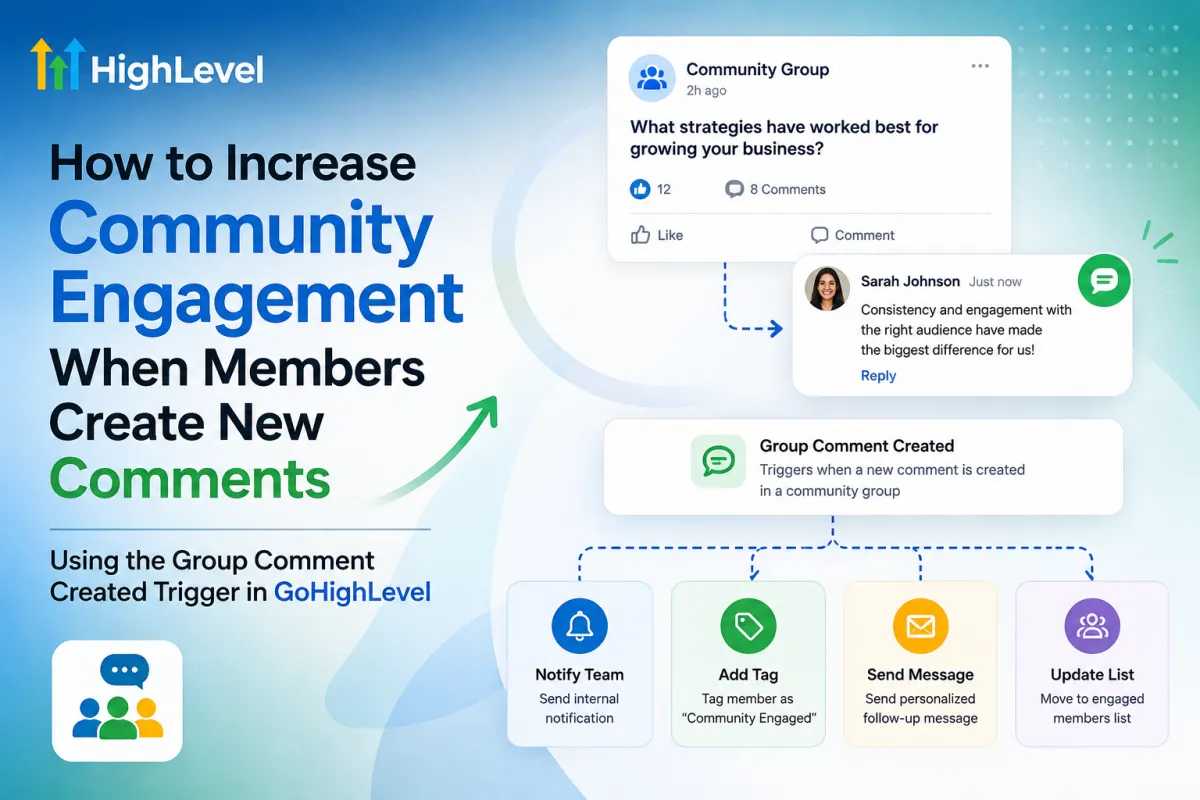
One useful automation concept is the Group Comment Created Trigger, which can start a workflow when a member creates a new comment inside a community group. This allows you to respond to member activity, encourage further participation, notify your team, and create personalized engagement journeys.
In this guide, we'll explain how to use the Group Comment Created Trigger in GoHighLevel to automate community engagement.
What Is the Group Comment Created Trigger in GoHighLevel?
The Group Comment Created Trigger is designed to start a workflow when a member creates a new comment within a community group.
Instead of manually monitoring every discussion, you can use the trigger as the starting point for automated actions. For example, you could notify a community manager, send a follow-up message, apply a tag, or use additional workflow logic to determine what should happen next.
This approach can help turn individual member comments into opportunities for continued engagement.
GoHighLevel organizes Community-related workflow triggers separately from other CRM, appointment, payment, and communication triggers.

Why Automate Community Engagement?
Without automation, community managers have to constantly monitor posts and comments. This becomes increasingly difficult as the number of members and discussions grows.
Automating actions around member comments can help you:
Respond to members more consistently
Encourage members to continue conversations
Notify your team about important discussions
Recognize active community members
Create personalized follow-up journeys
Reduce repetitive community management tasks
The goal is not to replace genuine interaction. Instead, automation should support the community team and make it easier to respond at the right time.
How to Set Up the Group Comment Created Workflow
Step 1: Create a New Workflow
Start by navigating to Automations → Workflows inside your GoHighLevel sub-account.
Create a new workflow and give it a descriptive name, such as:
Community Comment Engagement
A clear workflow name makes it easier to understand the purpose of the automation when you have multiple workflows running.

Step 2: Add the Group Comment Created Trigger
Inside the Workflow Builder, click Add Your First Workflow Trigger.
Search for Group Comment Created and select the trigger.
Configure the available trigger settings and choose the relevant community group if the trigger provides group-level filtering in your account.
This ensures that the workflow responds to the community activity you actually want to monitor.

Step 3: Decide What Should Happen After a Comment
Once the trigger is configured, add the actions that should happen whenever the workflow receives a new comment event.
Your automation can be designed around your specific community goals.
For example, you could:
Notify Your Team
Send an internal notification to a community manager when a new comment is created. This is useful when human interaction is important.
Send a Follow-Up Message
Create a follow-up communication that encourages the member to continue participating in the community.
Add a Tag
Apply a tag such as:
Community Engaged
This can help you identify members who are actively participating.

Use If/Else Logic
You can also introduce conditions to create different paths based on your workflow requirements.
For example:
Active member → Continue engagement journey
New member → Send additional support
High-value member → Notify community manager
General comment → Continue standard engagement workflow
Step 4: Create a Personalized Engagement Experience
One of the biggest advantages of workflow automation is that you don't have to send the same response to everyone.
You can create different paths for different types of members.
For example, when an active member creates a comment, your workflow could identify that engagement and move the member into a specific nurture sequence.
You could use this to:
Recognize active members
Encourage additional participation
Invite members to relevant discussions
Share helpful resources
Notify staff about valuable conversations
This creates a more personalized community experience without requiring your team to manually track every interaction.
Step 5: Test and Activate the Workflow
Before publishing the workflow, test the automation carefully.
Create a test comment inside the selected community group and verify that the workflow starts as expected.
Then check each action to make sure:
The correct contact is identified
The correct group is being monitored
Notifications are delivered correctly
Tags or other actions are applied properly
Any conditions or branches work as intended
Once everything works correctly, publish or activate the workflow.

Practical Ways to Use Group Comment Automation
The Group Comment Created Trigger can support several community engagement strategies.
Welcome Active Participation
When a member starts participating in discussions, automation can help recognize that activity and encourage them to remain involved.
Alert Community Managers
Not every comment should receive an automated response. Instead, you can notify your team when a new comment requires personal attention.
Identify Engaged Members
Use tags or workflow logic to identify members who regularly participate. This information can later support segmentation and personalized communication.
Encourage More Discussions
A comment can be the beginning of a larger conversation. Your workflow can help create follow-up opportunities that encourage members to keep participating.
Support Community Growth
Consistent engagement helps create an active community environment. GoHighLevel also provides community features such as commenting controls, allowing community managers to decide when posts should invite interaction.
Best Practices for Community Comment Automation
Automation works best when it feels natural.
Avoid sending too many messages every time someone comments. Instead, focus on actions that provide real value.
Here are some best practices:
Keep automated messages relevant.
Make sure the communication relates to the member's activity.
Give members space to interact naturally.
Not every comment needs an automated response.
Use human follow-up when appropriate.
Important questions or meaningful discussions may require a community manager.
Segment active members.
Use tags and workflow conditions to identify different engagement levels.
Review your workflow regularly.
Community behavior changes over time, so adjust your automation based on member feedback and engagement.
Conclusion
The Group Comment Created Trigger can help turn community activity into actionable automation. Instead of relying entirely on manual monitoring, community managers can connect member comments with notifications, follow-ups, segmentation, and other workflow actions.
The key is to use automation as a support system rather than replacing genuine community interaction. When implemented thoughtfully, comment-based workflows can help members feel recognized, encourage ongoing conversations, and create a more active GoHighLevel Community.
Frequently Asked Questions
What is the Group Comment Created Trigger in GoHighLevel?
It is a Community workflow trigger designed to start automation when a member creates a comment within a community group.
Why should I automate community comments?
Automation can help community managers monitor engagement, notify team members, segment active members, and create consistent follow-up experiences without manually checking every discussion.
Can I notify my team when a member comments?
Yes. You can use workflow actions after the trigger to notify the appropriate team member when a comment event occurs.
Can community comment activity be used for member segmentation?
Yes. You can use workflow actions such as tags and conditions to help identify members based on their engagement activity.
Should every community comment receive an automated response?
Not necessarily. The best approach is to automate useful actions while keeping important or meaningful conversations available for human interaction.
Need Expert Help with GoHighLevel?
New to GoHighLevel and ready to get started? Buy your GoHighLevel account here and launch with confidence.
Already know what you need and want our team to handle everything, from complete setup and customization to funnels, workflows, automations, CRM, and pipelines? Click here.



