

Client Upload Notifications
Client Portal: File Upload Notifications for Account Admins and Users
Introduction
GoHighLevel continues to improve the Client Portal experience with a practical update that helps teams stay informed whenever clients share important documents. The new Client Portal File Upload Notifications feature allows relevant Account Admins and Users to receive in-app notifications whenever a contact uploads files through the Client Portal.
For agencies, business owners, marketing teams, CRM administrators, and client onboarding teams, timely document visibility is essential. Instead of manually checking for newly uploaded files, staff members can be notified immediately, helping them respond more efficiently and keep document-related processes moving.
In this article, you'll learn what the update includes, how it works, how notification preferences are managed, and why this enhancement improves everyday workflows within GoHighLevel CRM.
What Is the New Client Portal File Upload Notification Update?
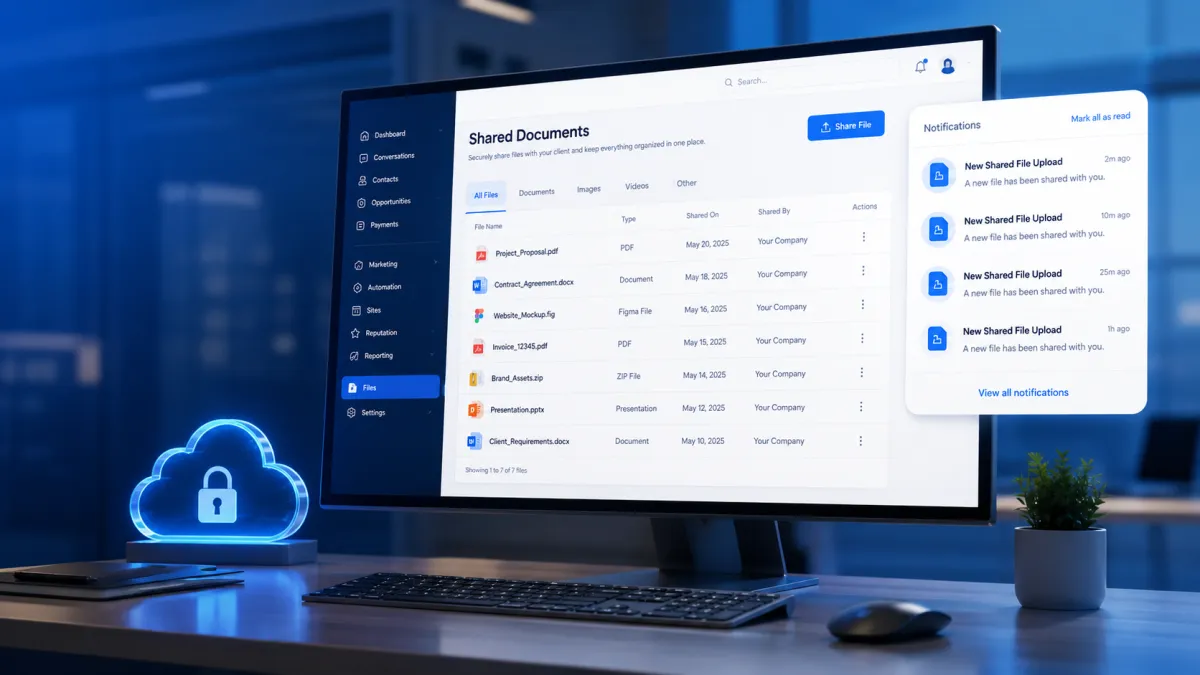
The latest GoHighLevel Client Portal update introduces in-app notifications that alert relevant Account Admins and Users whenever a contact uploads files through the Shared Documents section of the Client Portal.
This enhancement provides instant visibility into client submissions, making it easier for teams to know when new documents are available for review. Whether the files are related to onboarding, approvals, contracts, or other document-based workflows, staff members can quickly see when uploads occur without repeatedly checking the Client Portal manually.
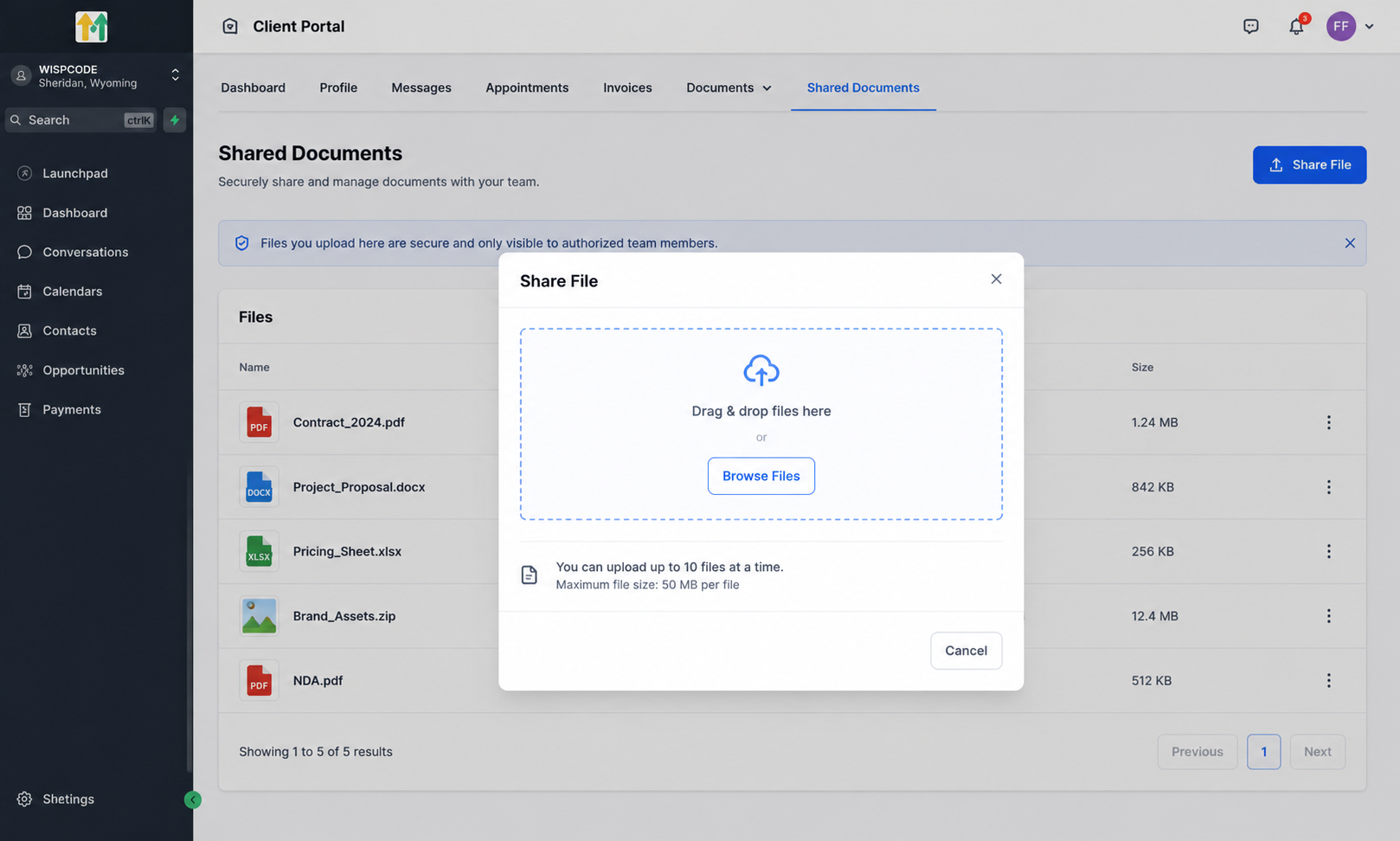
Clients can upload files directly from the Shared Documents area, while designated staff members automatically receive in-app notifications once the upload is complete.
What's New?
Receive Notifications for Client File Uploads
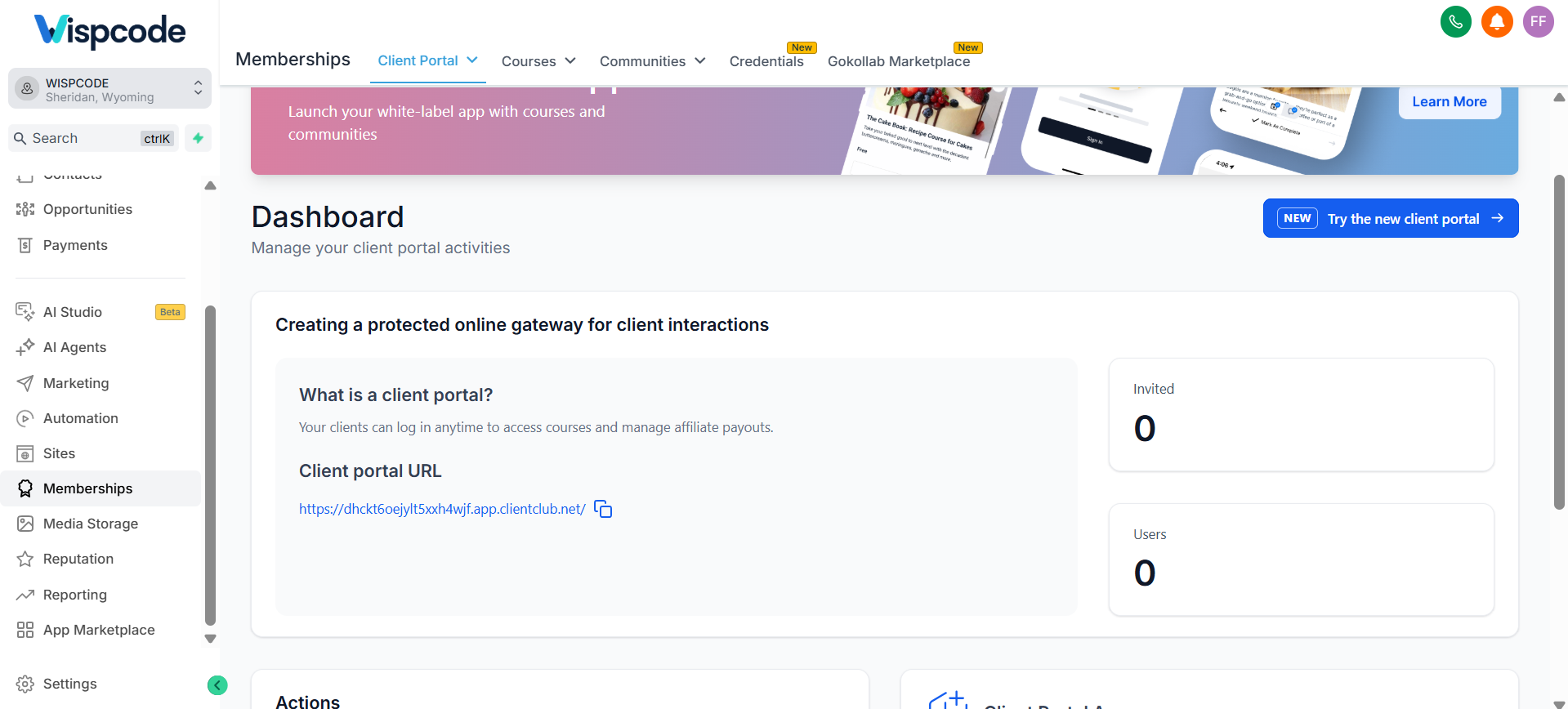
The update introduces automatic GoHighLevel Notifications whenever contacts upload files through the Client Portal.
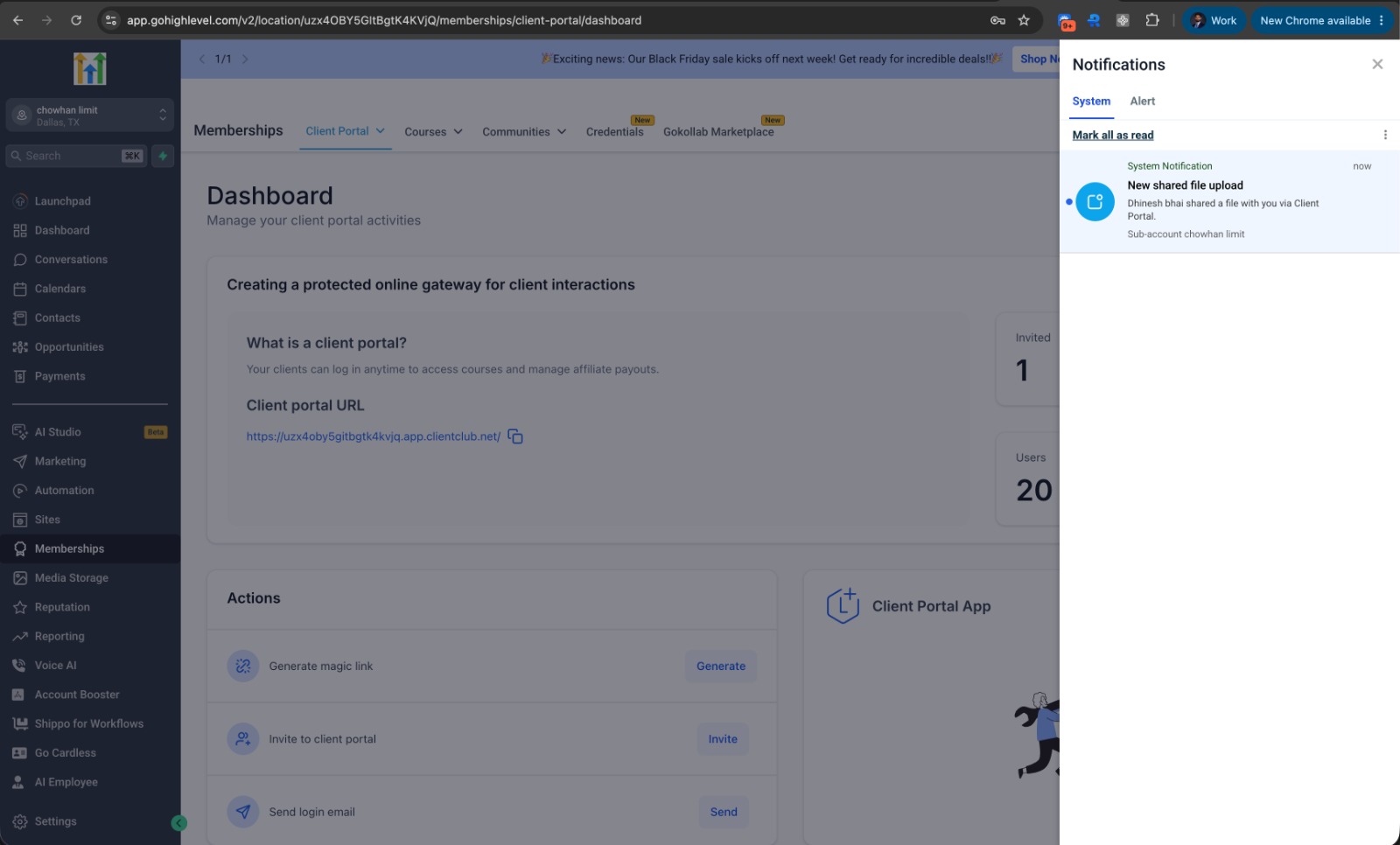
Key highlights include:
Contacts upload files using the Shared Documents section.
Notifications are triggered after a successful file upload.
Clients can upload up to 10 files at a time.
Relevant Account Admins and Users receive in-app notifications automatically.
Teams gain immediate visibility into newly submitted client documents.
This helps ensure important uploads are noticed promptly without requiring staff to manually monitor document activity.
Manage Notification Preferences
Account Admins can choose which staff members receive Client Portal File Upload Notifications by following these steps:
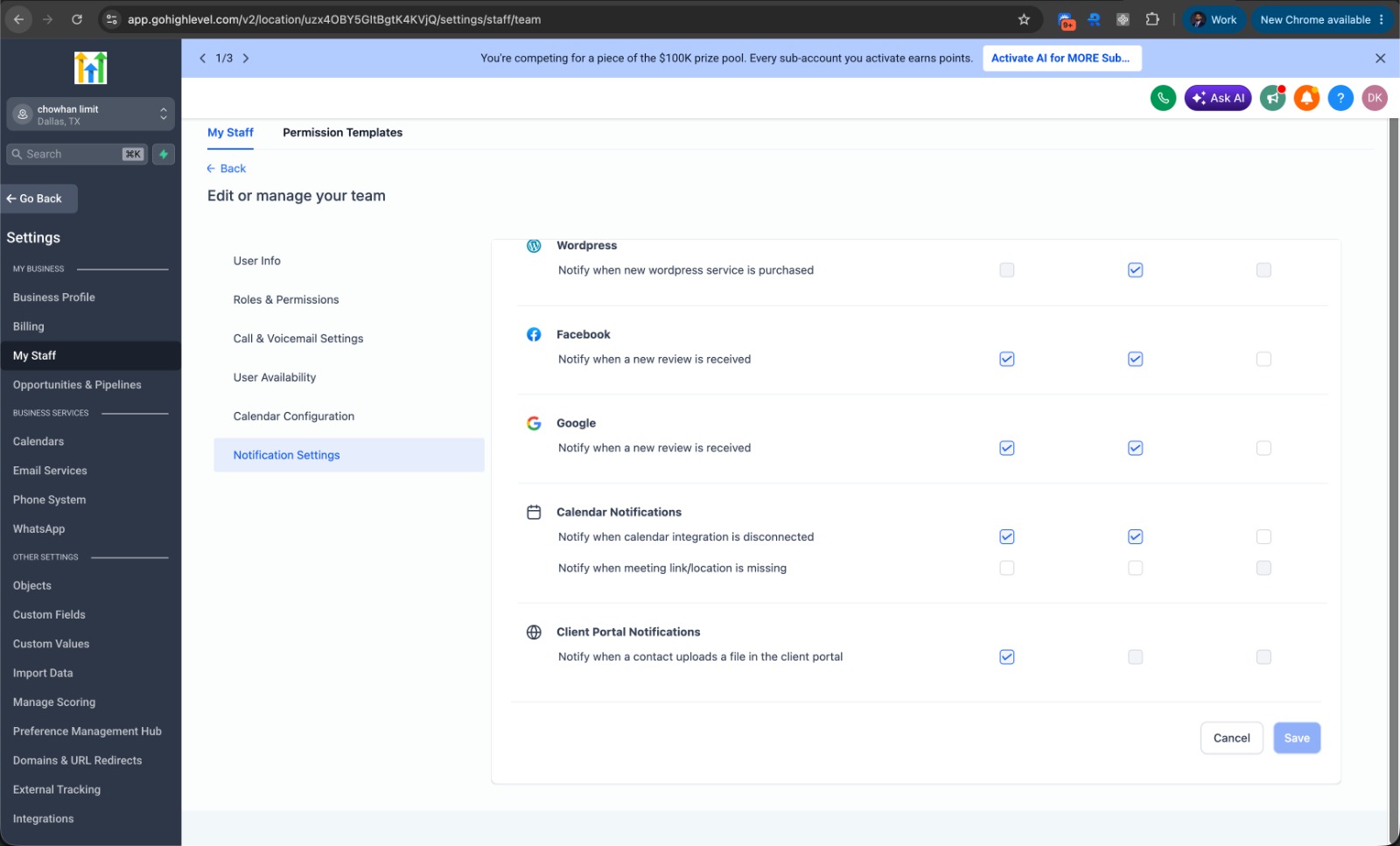
Go to Settings.
Select My Staff.
Choose the desired Staff Member.
Open Notification Settings.
Navigate to Client Portal Notifications.
Enable or disable "Notify when a contact uploads a file in the Client Portal."
Click Save Changes.
Notification preferences are configured individually for each staff member, giving Account Admins control over who receives alerts.
How It Works
The notification process follows a simple workflow:
The client logs into the Client Portal.
The client opens Shared Documents.
The client clicks Share File.
One or more files are uploaded.
The upload is completed successfully.
Relevant Account Admins and Users receive an in-app notification informing them of the new file upload.
This straightforward workflow keeps staff informed as soon as client documents become available.
Why This Update Matters
The introduction of Client Portal File Upload Notifications makes document-related workflows more efficient by improving visibility and reducing unnecessary manual checks.
Some of the key advantages include:
Faster Response to Client Uploads
With in-app notifications appearing after uploads are completed, teams can review newly submitted documents sooner instead of waiting until they manually check the Client Portal.
Better Visibility Across Teams
Relevant Account Admins and Users receive notifications automatically, making it easier to stay aware of incoming client submissions.
Reduced Manual Checking
Rather than repeatedly opening the Shared Documents section to see whether new files have been uploaded, staff members receive notifications when uploads occur.
Improved Collaboration
Having the appropriate staff members notified helps teams coordinate document reviews more efficiently, especially when multiple people are involved in client-facing processes.
Faster Onboarding
During onboarding, clients often need to submit required documentation. Instant visibility into uploaded files helps onboarding teams continue the process without unnecessary delays.
Efficient Document Reviews
The update supports faster handling of document-based activities, including:
Reviewing client-uploaded documents
Processing approvals
Reviewing contracts
Verifying identity documents
Managing project deliverables
Keep Document Workflows Moving
By reducing delays caused by manually checking for uploads, teams can keep document-based workflows progressing more smoothly while maintaining better communication around client submissions.
Important Notes
Keep these details in mind when using the feature:
Notifications are triggered only when contacts upload files through the Shared Documents experience inside the Client Portal.
Notification preferences are configured individually for each staff member.
Settings are managed at the Subaccount level.
The currently supported notification channel is in-app notifications only.
Conclusion
The new Client Portal File Upload Notifications feature is a valuable improvement for businesses using GoHighLevel Client Portal to collect and manage client documents. By automatically notifying relevant Account Admins and Users whenever files are uploaded, the update provides better visibility into client submissions and helps teams respond more quickly.
With configurable notification preferences, support for uploads of up to 10 files at a time, and a simple workflow centered around the Shared Documents section, this enhancement streamlines document management while reducing the need for manual monitoring. For agencies, onboarding teams, CRM administrators, and business owners, it contributes to faster communication, improved efficiency, and a smoother client experience within GoHighLevel CRM.
Frequently Asked Questions
1. What are Client Portal File Upload Notifications in GoHighLevel?
They are in-app notifications that alert relevant Account Admins and Users whenever a contact uploads files through the Client Portal's Shared Documents section.
2. Who receives file upload notifications?
Relevant Account Admins and Users who have notifications enabled for their staff profile receive the in-app notifications.
3. Can Account Admins manage notification settings?
Yes. Account Admins can enable or disable notifications for each staff member through Settings → My Staff → Notification Settings → Client Portal Notifications.
4. How many files can clients upload at once?
Clients can upload up to 10 files at a time through the Shared Documents section of the Client Portal.
5. Which notification channel is currently supported?
At present, in-app notifications are the only supported notification channel.
Need Expert Help with GoHighLevel?
New to GoHighLevel and ready to get started? Buy your GoHighLevel account here and launch with confidence.
Already know what you need and want our team to handle everything, from complete setup and customization to funnels, workflows, automations, CRM, and pipelines? Click here.



