

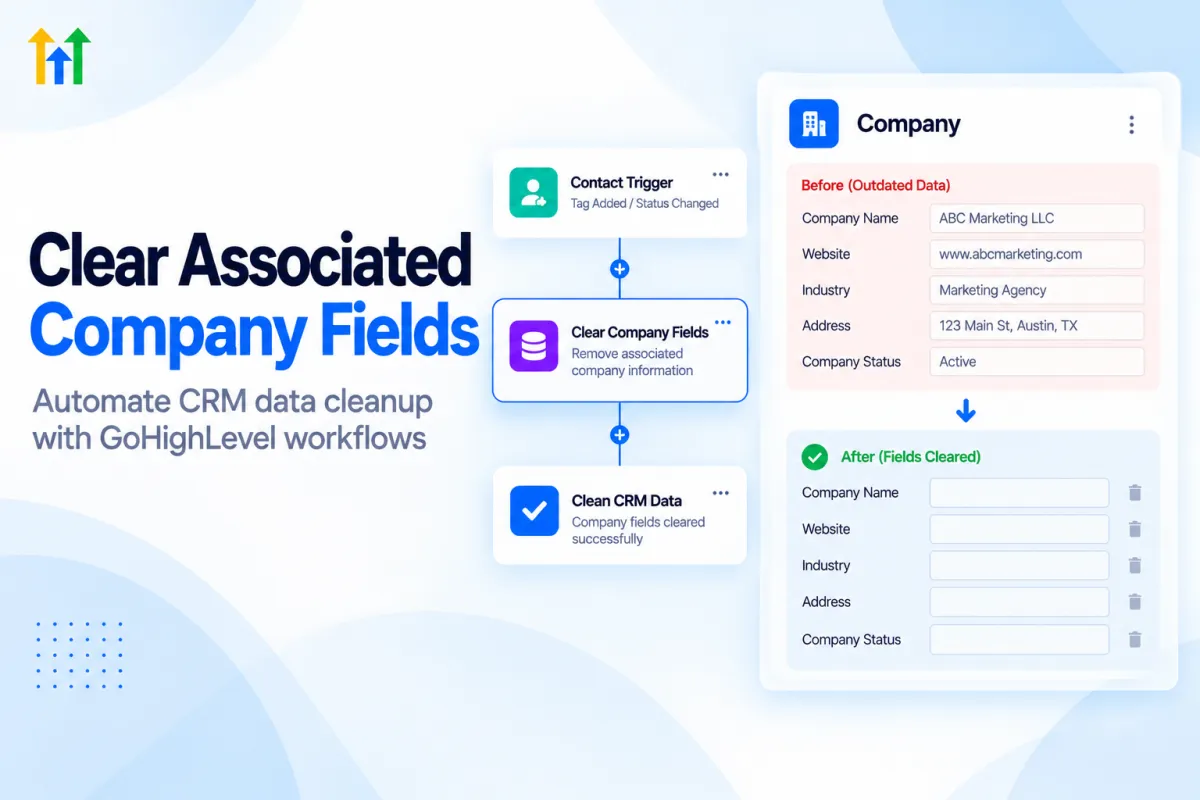
Clear Associated Company Fields in GoHighLevel: Step-by-Step guide
How to Clear Company Information Automatically Using the Clear Associated Company Fields Action in GoHighLevel
Introduction
Keeping CRM data accurate is important, especially when your business works with multiple companies, contacts, or changing customer relationships. Over time, company records can collect information that is no longer relevant, old addresses, outdated websites, temporary statuses, or custom fields that should be reset.
Instead of manually opening company records and removing outdated information one by one, "GoHighLevel lets you automate this process with the Clear Associated Company Fields action".
This workflow action can clear selected fields from the company associated with the contact who triggered the workflow. It is designed for data cleanup while keeping the company record and its relationship with the contact intact.
In this guide, you'll learn what the action does, how to configure it, practical use cases, common mistakes, and best practices for using it safely.
What Is the Clear Associated Company Fields Action?
The "Clear Associated Company Fields" action is a GoHighLevel workflow action that removes values from selected fields on the Company record associated with a Contact.
For example, suppose a contact is connected to a company that has an outdated website, address, or custom status. A contact-based workflow can trigger the action and automatically clear those selected company fields.
The important point is that this action "clears field values rather than deleting the company record". It also does not break the association between the contact and the company.
You can use it to clear:
Standard company fields
Company custom fields
Outdated business information
Temporary company statuses
Other selected values that are no longer needed
The action is available in "Contact-based workflows". If the contact does not have an associated company, the action is skipped automatically. When multiple company associations exist, the action targets the primary associated company.
Why Clear Company Information Automatically?
CRM data can become outdated for many reasons. A company may change its website, move to another location, change its status, or stop being relevant to a particular contact.
If old information remains in your CRM, your team may accidentally use it in communications, reports, or future workflows.
Automated field clearing helps create a cleaner data structure without requiring your team to perform repetitive maintenance.
Keep Company Records Clean
A company record may contain temporary or outdated information that should no longer be displayed. Automating the cleanup process makes it easier to maintain current records.
Reduce Manual CRM Maintenance
Instead of asking team members to find records and remove information manually, a workflow can perform the cleanup when a specific event occurs.
Support Changing Relationships
Business relationships can change. A contact may move to another organization or a temporary company status may no longer apply. Clearing selected company fields can help keep the CRM aligned with those changes.
Protect Data Accuracy
Clean CRM data makes it easier for teams to understand the current state of a business relationship and avoid relying on outdated information.
How to Set Up Clear Associated Company Fields in GoHighLevel
Setting up the action is straightforward once you know which company information needs to be cleared.
Step 1: Create a Contact-Based Workflow
Start by navigating to "Automation → Workflows" in your GoHighLevel account.
Create a new workflow and make sure it is a "Contact-based workflow".
This is important because the Clear Associated Company Fields action works from the contact's associated company.
Step 2: Choose Your Trigger
Next, select the event that should cause the cleanup.
Your trigger should represent a situation where specific company information is no longer needed.
For example, you could build a workflow around a relevant contact change and then use the clear action after that event.
The exact trigger depends on your business process. The important thing is to make sure the trigger identifies the right contacts before any company information is cleared.
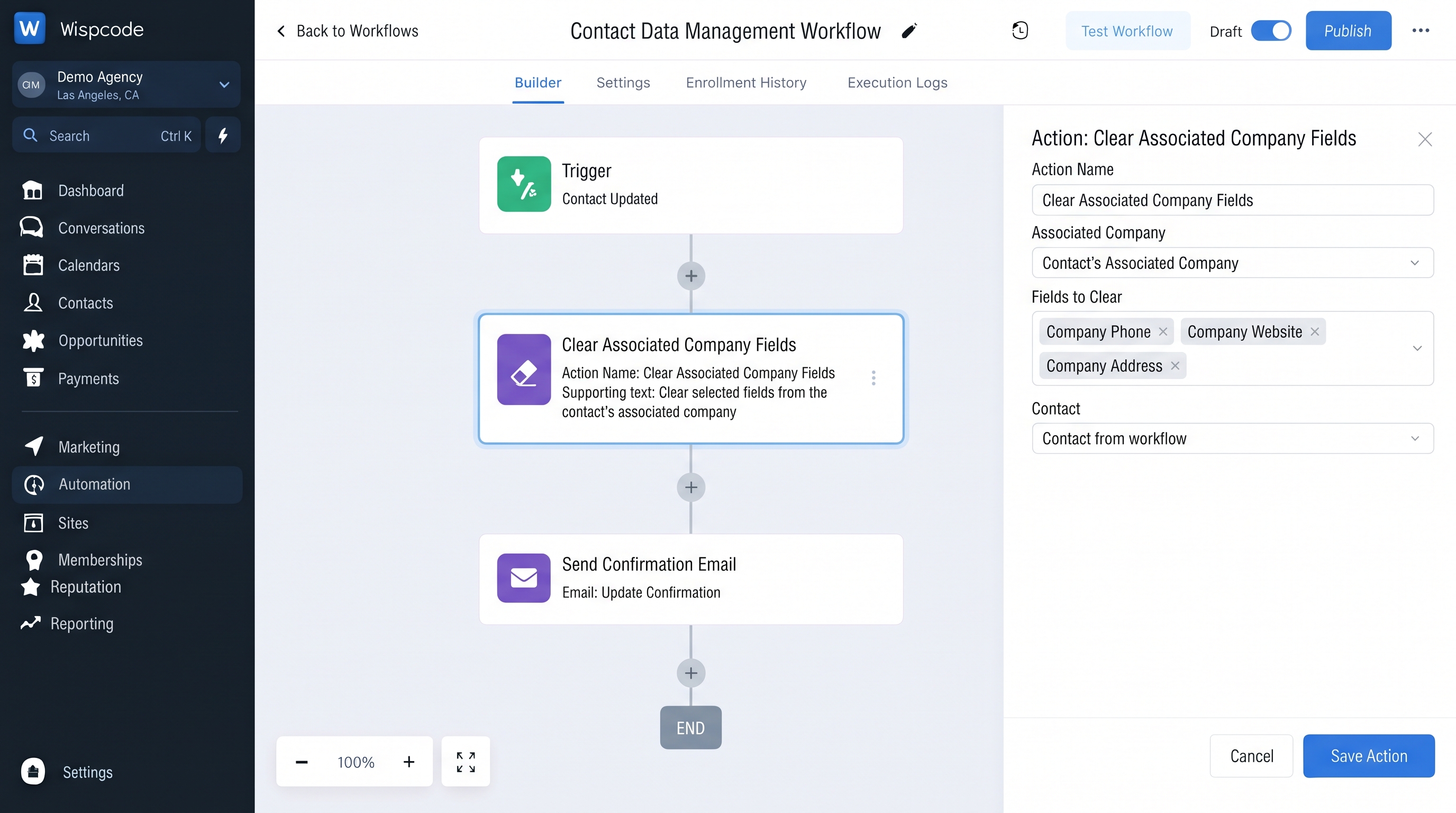
Step 3: Add the Clear Associated Company Fields Action
After configuring your trigger, add a workflow action.
Search for:
Clear Associated Company Fields
Select it and add it to the workflow.
The action will allow you to choose which fields should be cleared from the associated Company record.
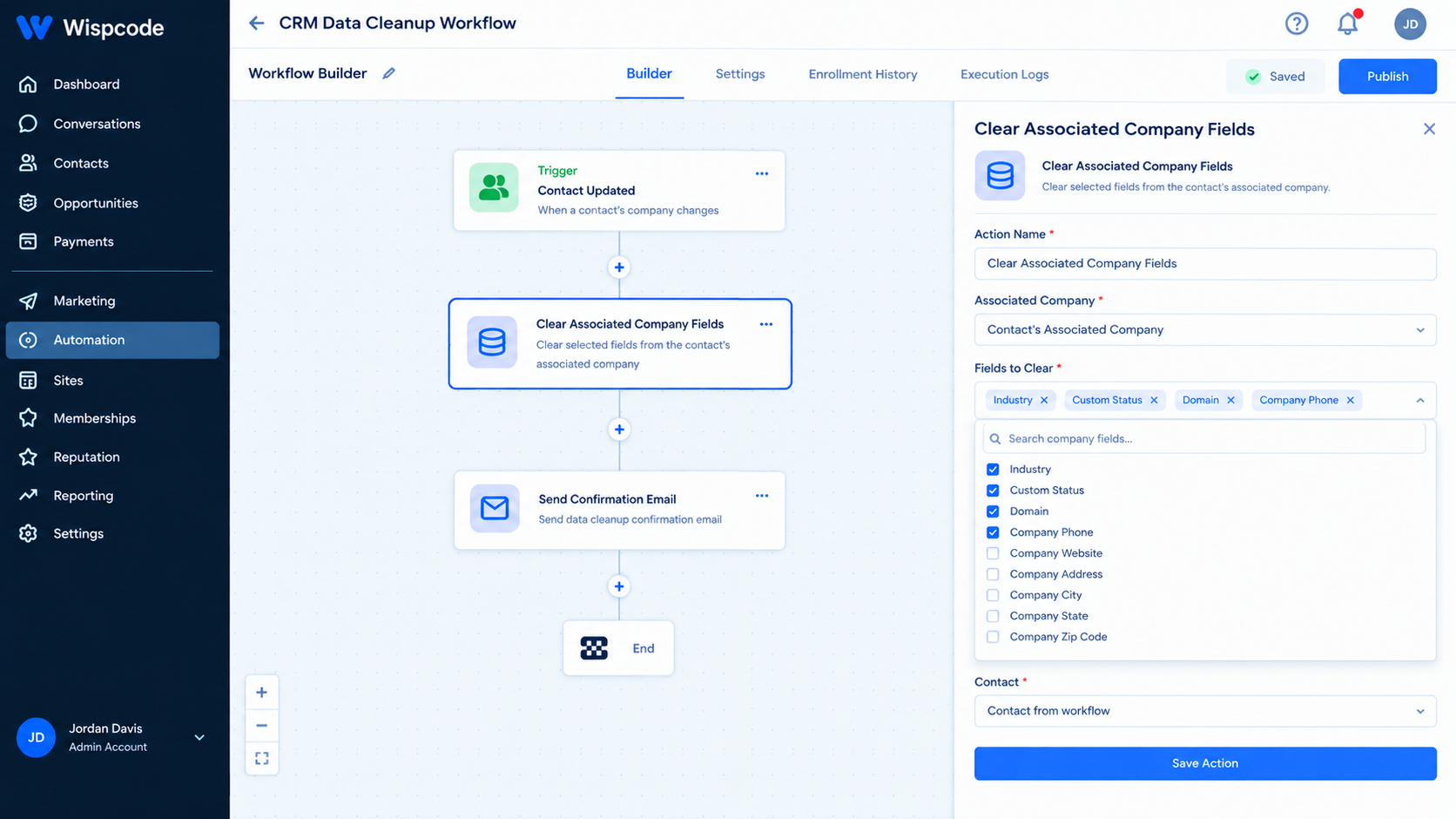
Step 4: Select the Fields to Clear
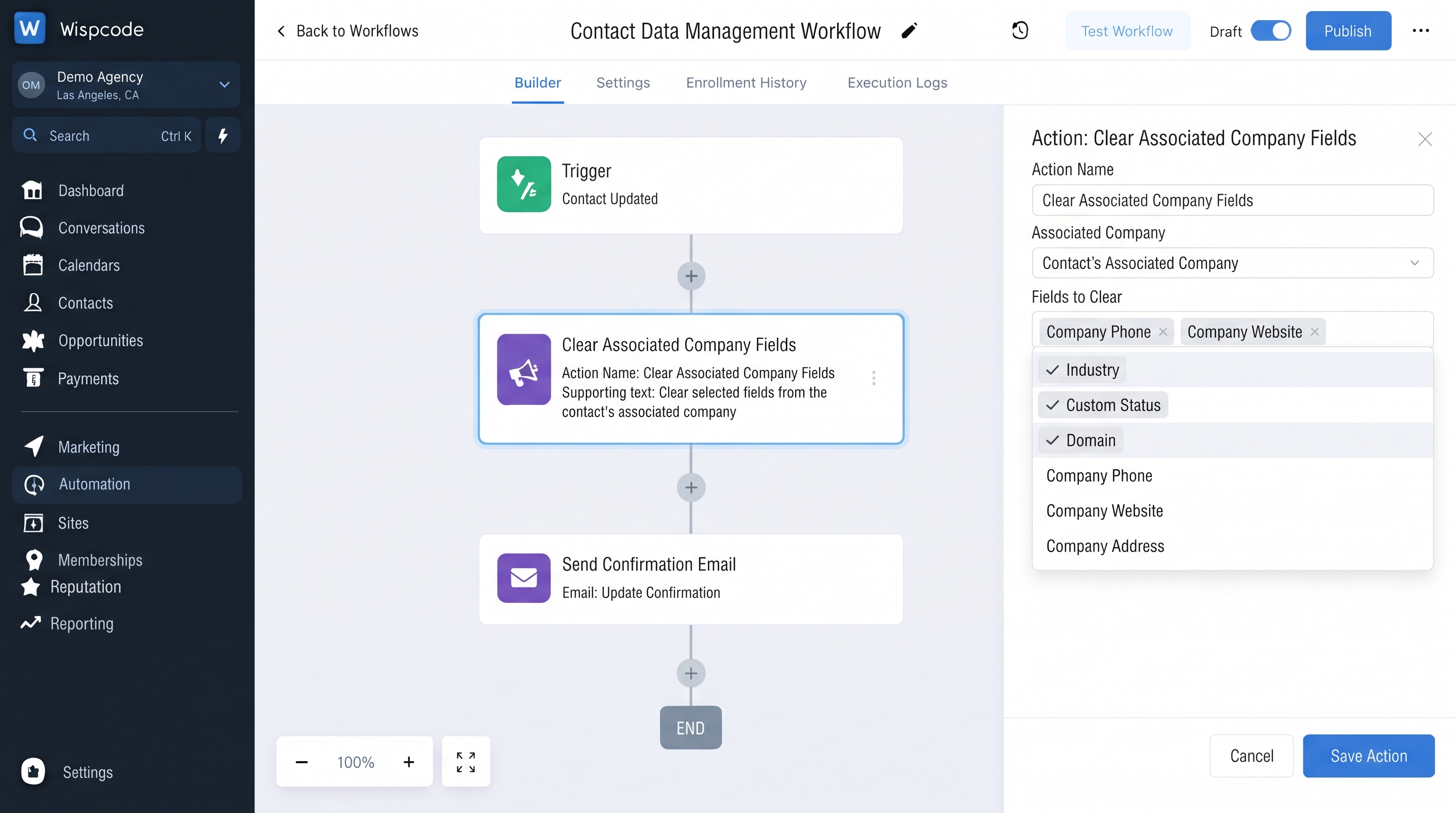
Choose the company fields that should be reset.
You can select one or multiple fields in the same action.
For example, you might choose:
Industry
Domain
Address
A custom company status
A temporary custom field
GoHighLevel supports both standard and custom Company fields for this action.
Only select information that you are certain should be removed.
Step 5: Save the Action
Once you've selected the appropriate fields, click "Save Action."
Your workflow is now configured to clear those values whenever a contact reaches this part of the workflow.
Before publishing it for your entire database, test the workflow with a controlled contact and company record.
A Practical Example
Imagine an agency manages leads from several organizations.
A contact's company record contains a temporary custom field called "Prospect Status". The field is useful during the early sales process, but once the relationship changes, the value should be removed.
You could structure the automation like this:
Contact event
↓
Workflow trigger
↓
Clear Associated Company Fields
↓
Clear Prospect Status
When the workflow runs, the selected field value is cleared from the associated company.
The company record itself remains available, and the contact-company association is not deleted.
Company Fields and Contact Workflows
Understanding the difference between Contact and Company data is important when building this automation.
GoHighLevel's Companies feature allows businesses to store information at the company level, including details such as company name, website, address, and other custom attributes.
A contact-based workflow can use company information associated with that contact. Company fields can also be used as dynamic values in supported workflow actions and other areas of GoHighLevel.
This means you need to know whether the information you want to remove belongs to the "Contact" or the "Company."
The Clear Associated Company Fields action is specifically for company fields. It "does not clear contact fields".
If you need to clear information stored directly on a contact, you should use an appropriate contact-field workflow action instead.
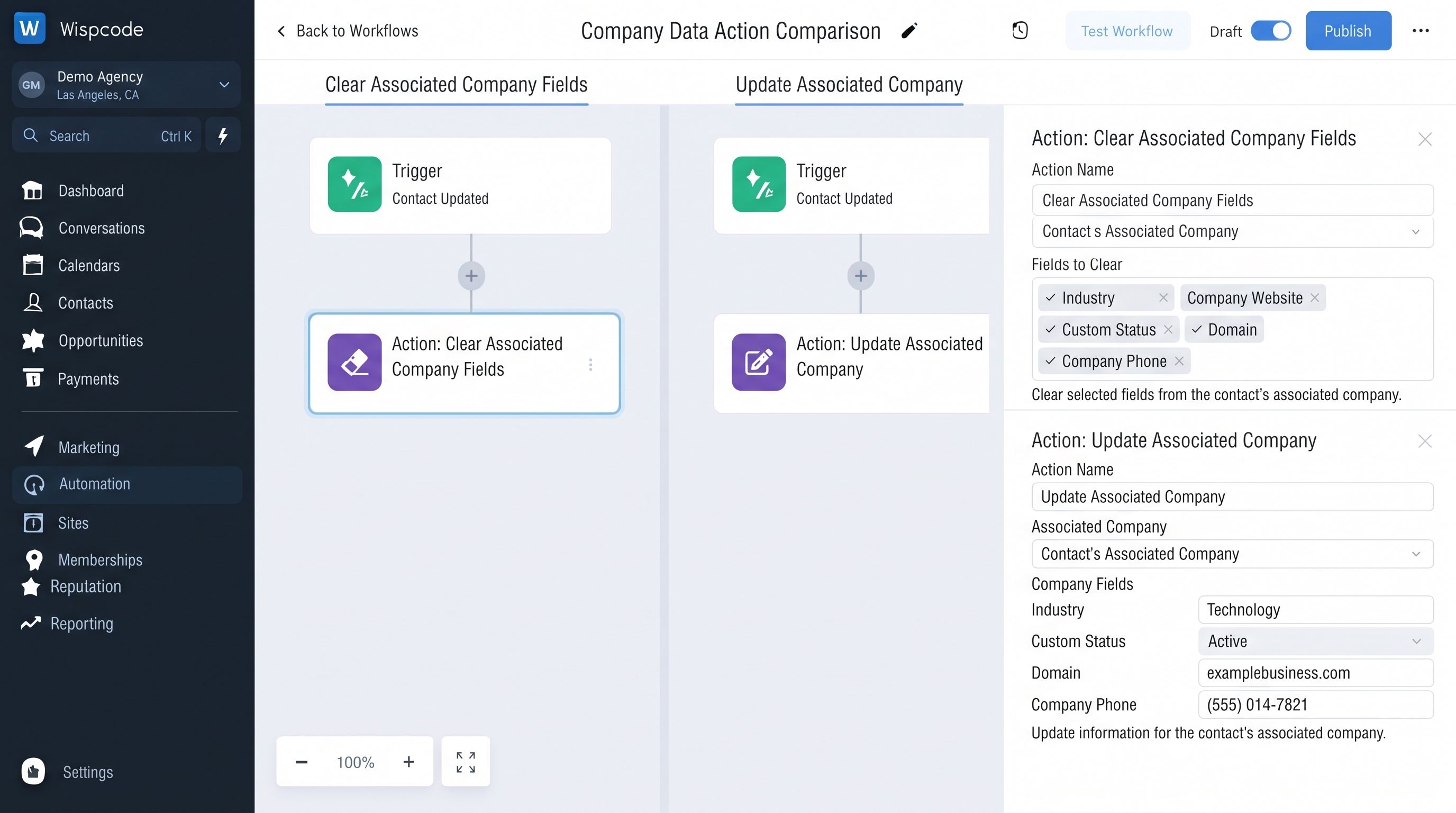
Clear vs. Update Company Information
It is also important to understand the difference between clearing and updating.
The "Clear Associated Company Fields" action removes values from selected company fields.
The "Update Associated Company" action, on the other hand, is used when you want to change existing company information to a new value. It can map contact information, webhook data, workflow values, or fixed values to company fields.
For example:
Clear:
Remove an outdated company website.Update:
Replace the old website with a new website.
Choosing the correct action prevents unnecessary data changes and makes your workflow easier to understand.
Best Practices for Clearing Company Fields
Automated data cleanup is powerful, but it should be configured carefully.
Only Clear Information You No Longer Need
Before selecting a field, ask whether your team may need that information later.
Do not clear valuable historical information simply because it is currently unused.
Use Specific Triggers
Avoid creating a workflow that clears company information too broadly.
Your trigger should identify the exact situation that requires the cleanup.
Test Before Publishing
Create a test contact with an associated company and populate the fields you intend to clear.
Run the workflow and verify the result before activating it for a larger audience.
Keep Your Workflow Easy to Understand
Give the workflow a descriptive name and keep the action sequence logical.
For example:
Clear Temporary Company Data – Contact Status Change
This makes future troubleshooting much easier.
Be Careful With Multiple Associations
If a contact has multiple company associations, understand which company the workflow will affect. HighLevel's documentation states that the Clear Associated Company Fields action targets the "primary associated company."
This is particularly important in B2B environments where contacts may have relationships with more than one organization.
Common Mistakes to Avoid
Clearing Contact Fields by Mistake
The action is designed for Company fields associated with the triggering Contact. It cannot be used to clear Contact fields.
Always verify where your data is stored before configuring the action.
Assuming the Company Will Be Deleted
Clearing fields does not delete the company record.
It simply empties the selected values while keeping the company and association intact.
Selecting Too Many Fields
More fields are not necessarily better.
Only select fields that genuinely need to be cleared. Unnecessary clearing can remove information your team still needs.
Ignoring Missing Company Associations
If a contact has no associated company, the action will be skipped automatically.
Therefore, your workflow should be designed with the possibility of missing company associations in mind.
When Should You Use This Action?
The action can be particularly useful when company information has a temporary role in your process.
Common scenarios include:
Removing outdated company information
Resetting temporary company fields
Cleaning CRM data after a relationship change
Removing obsolete company statuses
Maintaining cleaner B2B records
Automating recurring CRM data maintenance
For businesses that frequently manage company-level information, small automated cleanup steps can help keep workflows and CRM records organized.
Frequently Asked Questions(FAQ's)
1. What does Clear Associated Company Fields do in GoHighLevel?
It clears selected field values from the company associated with the contact triggering the workflow. It does not delete the company record or remove the association.
2. Can I clear multiple company fields at once?
Yes. You can select multiple company fields within the same Clear Associated Company Fields action.
3. Can this action clear Contact fields?
No. The action is specifically designed to clear fields on the associated Company record, not Contact fields.
4. What happens if a contact has no associated company?
The action is automatically skipped when the contact does not have an associated company.
5. Does clearing company fields delete the company?
No. Clearing selected fields only removes their values. The Company record and its association remain intact.
Conclusion
The Clear Associated Company Fields action in GoHighLevel provides a practical way to automate CRM data cleanup at the company level. Instead of manually removing outdated information, you can build a Contact-based workflow that clears specific fields when the right business event occurs.
The key is to use the action selectively. Identify the information that genuinely needs to be removed, choose an appropriate trigger, test the workflow, and pay attention to which company is associated with the triggering contact.
Used correctly, this simple workflow action can help keep company records cleaner, reduce repetitive administrative work, and make your GoHighLevel CRM easier for your team to manage.



