

Category Started Trigger: Personalized Content in GoHighLevel
How to Deliver Personalized Content When Members Start a Category Using the Category Started Trigger in GoHighLevel
Personalized content can make a big difference in how members engage with your courses and membership area. Instead of sending the same emails and resources to every member, you can use their activity to deliver content based on what they are actually interested in.
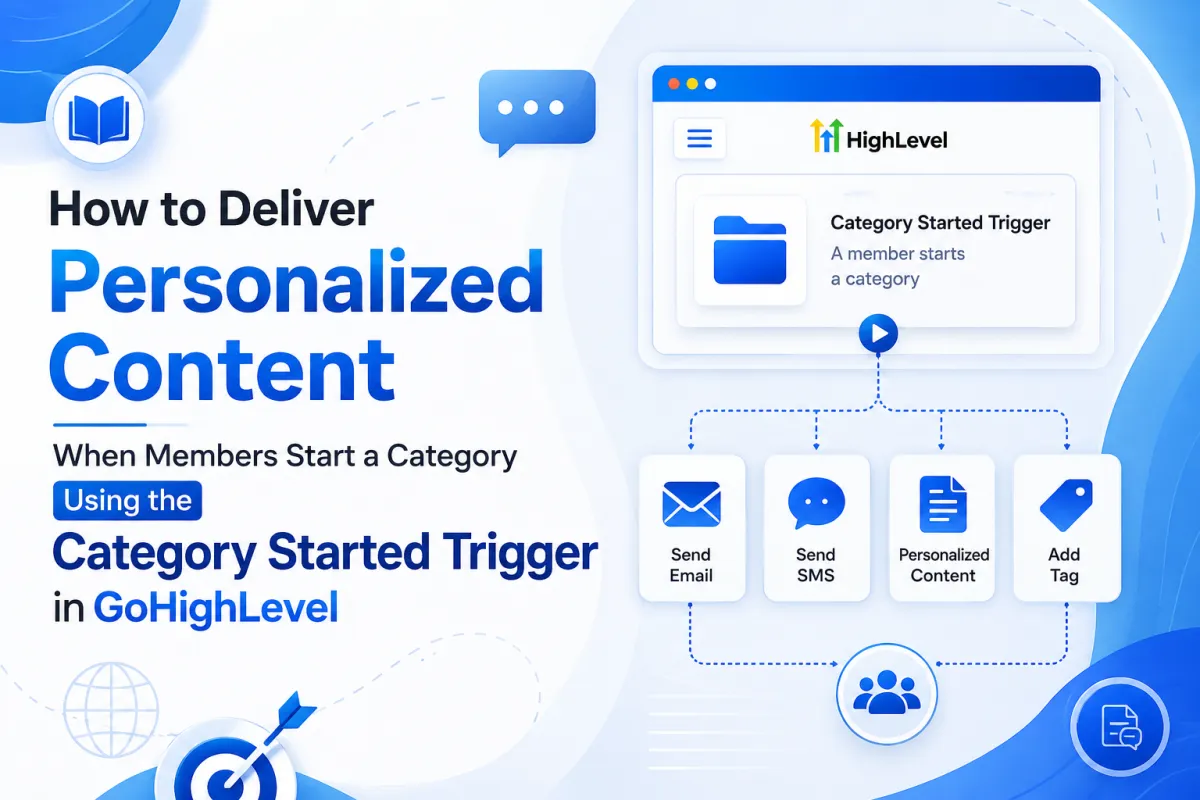
In GoHighLevel, the Category Started Trigger allows you to automate this process. When a member starts a specific category, the trigger can automatically enroll them in a workflow. From there, you can send relevant emails, share helpful resources, apply tags, recommend related content, and create a more personalized learning experience.
For example, if your membership includes categories for Marketing, Sales, AI Tools, and Workflow Automation, a member who starts the AI Tools category may be more interested in AI-related resources than sales training. With the Category Started Trigger, you can respond to that activity automatically and deliver content that matches their interests.
In this guide, we'll explore how to use the Category Started Trigger in GoHighLevel to deliver personalized content and improve member engagement.
What Is the Category Started Trigger in GoHighLevel?
The Category Started Trigger is a workflow trigger that activates when a member starts a category in your course or membership content.
You can select the category you want to monitor and build a workflow around that action. When a member begins that category, GoHighLevel can automatically perform the next actions you have configured.
For example, if a member starts a category called Workflow Automation, you could trigger a workflow that sends them a welcome email, provides an automation checklist, and recommends other related training.
This allows you to create automations based on actual member behavior. Rather than guessing what a member may be interested in, you can use the category they choose to start as an indication of the content they want to explore.
How to Set Up the Category Started Trigger
To begin, open your GoHighLevel sub-account and navigate to Automations > Workflows.
Create a new workflow and give it a clear name that helps you identify its purpose. For example, you could name it Category Started – Personalized Content.
Next, add a new workflow trigger and select Category Started. Configure the trigger based on the category you want to use for your automation.

For instance, you may want to create a workflow specifically for members who start your AI and Automation category. Once the trigger is configured, members who start that category can automatically enter the workflow.
You can create separate workflows for different categories if you want each group of members to receive a unique experience. This is useful when your categories cover different topics and require different types of follow-up.
Send Content Based on Member Interests
Once a member enters the workflow, you can begin delivering personalized content.
One of the easiest ways to do this is by sending a welcome email related specifically to the category they have started.
For example, if someone begins a Workflow Automation category, you could send an email welcoming them to that section and sharing additional resources to help them get started. You might include a link to an important lesson, a workflow template, a checklist, or a helpful guide.

Because the content is directly connected to what the member is currently learning, the message is more useful and relevant.
You can also use personalization fields, such as the member's first name, to make the communication feel more personal.
Deliver Helpful Resources Automatically
The Category Started Trigger can also be used to automatically deliver additional resources.
Suppose a member starts a Lead Generation category. Your workflow could send them useful content such as a lead generation checklist, landing page ideas, follow-up examples, or links to additional training.
Similarly, if a member starts a Sales category, you could send sales scripts, objection-handling tips, or follow-up templates.
The goal is to provide resources that support the member's current learning journey.
You can send these resources immediately after the category is started or use a Wait action to deliver them later. This gives you more control over the timing of your communication and prevents members from receiving too much information at once.
Track Member Interests With Tags
Another useful way to personalize your automations is by applying tags when a member starts a category.
For example, when a member starts an AI category, you could automatically apply a tag such as Interest – AI Tools. If they start a Sales category, you could apply Interest – Sales.

These tags can help you organize your contacts and understand which topics different members are engaging with.
You can later use those tags to create Smart Lists, send targeted campaigns, or start additional workflows.
For example, if you launch a new AI-related course, you can send an announcement to members who previously showed interest in AI rather than sending the same message to your entire contact list.
This helps make your future marketing and communication more relevant.
Create a Personalized Follow-Up Journey
Personalization does not have to end with one email.
After a member starts a category, you can create a complete follow-up sequence using different workflow actions.
You could first send a welcome email, then wait a few days before sending an additional resource. After that, you might share a helpful tip or recommend another category that relates to the content they are currently exploring.
For example, a member who starts a CRM and Lead Management category may later benefit from learning about Workflow Automation or Follow-Up Campaigns.
By recommending related content, you can help members discover more resources and continue their learning journey.
Wait steps are especially useful here because they allow you to spread your communication over time. Instead of sending several messages immediately, you can give the member time to explore the category before sending the next piece of content.

Use Conditions for More Advanced Personalization
For a more customized experience, you can combine the Category Started Trigger with If/Else conditions.
For example, after a member starts an AI category, you could check whether they have a particular membership tag.
Premium members could receive advanced resources, while new or basic members could receive beginner-friendly content.
You can also create different paths based on information stored in tags, custom fields, or other contact details available in your account.
This gives you more flexibility and allows you to personalize content based on both the category a member started and the information you already have about them.
Recommend Related Courses and Categories
The Category Started Trigger can also help you guide members toward other relevant content.
If someone starts a Marketing category, they may also be interested in Lead Generation, Sales Funnels, or Email Marketing. You can use your workflow to recommend these topics after they have had time to explore the original category.
For example, after several days, you could send an email saying that since they are currently learning about marketing, they may also find another related category helpful.
These recommendations can improve content discovery and encourage members to explore more of your membership.
Rather than leaving members to search through all available content on their own, your automation can guide them toward relevant next steps.
Notify Your Team When Needed
You can also use this trigger for internal automation.
For example, when a member starts an advanced category, you may want to notify a team member. Your team can then review the member's activity or reach out personally if appropriate.
This can be useful for coaching programs, premium memberships, or high-value clients where a personal follow-up may improve the member experience.
By combining automated workflows with timely human support, you can create a more engaging experience for your members.
Best Practices for Using the Category Started Trigger
Keep the content you send relevant to the category the member has started. The more closely your resources match their current interests, the more valuable your communication will be.
Avoid sending too many messages at once. Use wait steps when necessary so members have time to explore the content before receiving additional resources or recommendations.
Use clear and consistent tags to track member interests. This will make it easier to organize contacts, create Smart Lists, and build future targeted campaigns.
It is also important to test your workflow before activating it. Make sure the trigger works correctly, the right members enter the workflow, and all emails, tags, and follow-up actions are working as expected.
Conclusion
The Category Started Trigger in GoHighLevel provides a simple but effective way to deliver personalized content based on member activity.
When a member starts a category, you can automatically respond with content that matches their interests. You can send welcome emails, provide useful resources, apply interest-based tags, recommend related training, and continue the conversation through automated follow-ups.
This helps create a more relevant learning experience while reducing the need for manual work.
By combining the Category Started Trigger with workflow actions such as emails, tags, wait steps, and If/Else conditions, you can build personalized member journeys that deliver the right content at the right time.
Whether you manage an online course, membership community, or training platform, this automation can help you keep members engaged and guide them toward the content that is most relevant to their goals.
Frequently Asked Questions
What is the Category Started Trigger in GoHighLevel?
It is a workflow trigger that can activate when a member starts a selected category within your course or membership content.
Can I send personalized emails using this trigger?
Yes. Once the trigger activates, you can use workflow actions to send emails containing content and resources related to the category the member has started.
Can I apply tags when a member starts a category?
Yes. You can automatically add category-specific tags to track a member's interests and use them for future segmentation and automation.
Can I recommend other content through the workflow?
Yes. You can use follow-up emails and wait steps to recommend related categories, courses, lessons, or resources.
Can I use If/Else conditions with this trigger?
Yes. You can combine the trigger with If/Else conditions to create different experiences based on tags, custom fields, membership details, or other available contact information.
Need Expert Help with GoHighLevel?
New to GoHighLevel and ready to get started? Buy your GoHighLevel account here and launch with confidence.
Already know what you need and want our team to handle everything, from complete setup and customization to funnels, workflows, automations, CRM, and pipelines? Click here.



