
How to Automate Internal Tasks in GoHighLevel
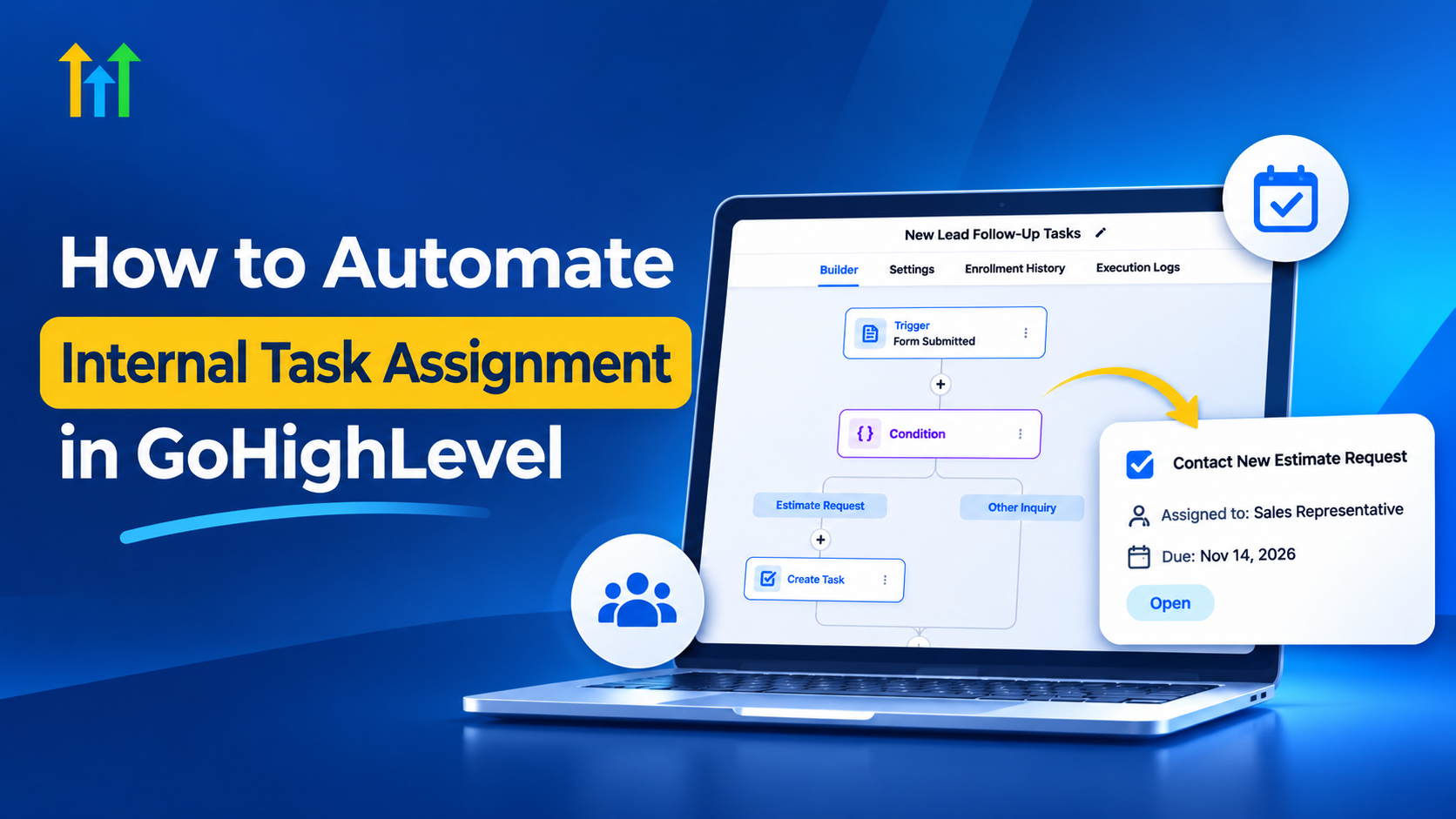
How to Automate Internal Task Assignment in GoHighLevel
Why Manual Task Assignment Slows Teams Down
A new lead submits an inquiry, but nobody follows up. The sales manager assumes a representative is handling it, while the representative believes someone else received the request. By the time the confusion is resolved, the opportunity may have gone cold.
Situations like this are common when businesses rely on manual task distribution, spreadsheets, or informal team communication.
Understanding how to automate internal task assignment in GoHighLevel helps businesses establish clearer responsibilities and more consistent follow-up processes. Instead of depending on someone to remember every action, teams can use automated workflows to create tasks when specific business events occur.
What Is Automated Internal Task Assignment in GoHighLevel?
Automated internal task assignment uses predefined workflow rules to create responsibilities for team members when certain conditions are met.
In GoHighLevel, a workflow begins with a trigger, such as a form submission or opportunity stage change. Additional conditions can determine which actions should happen next. The workflow can then create a task with relevant instructions and a deadline.
An important distinction exists between contact ownership and task ownership.
Assigning a contact identifies the user responsible for that contact. Creating a task establishes a specific action that someone needs to complete.
Effective GoHighLevel task automation connects these two concepts without assuming that assigning a contact automatically creates every necessary follow-up task.
How to Automate Internal Task Assignment in GoHighLevel
Setting up automated tasks begins with identifying which business events should generate internal responsibilities.
Step 1: Create a Workflow
Navigate to Automation > Workflows in GoHighLevel and create a new workflow.
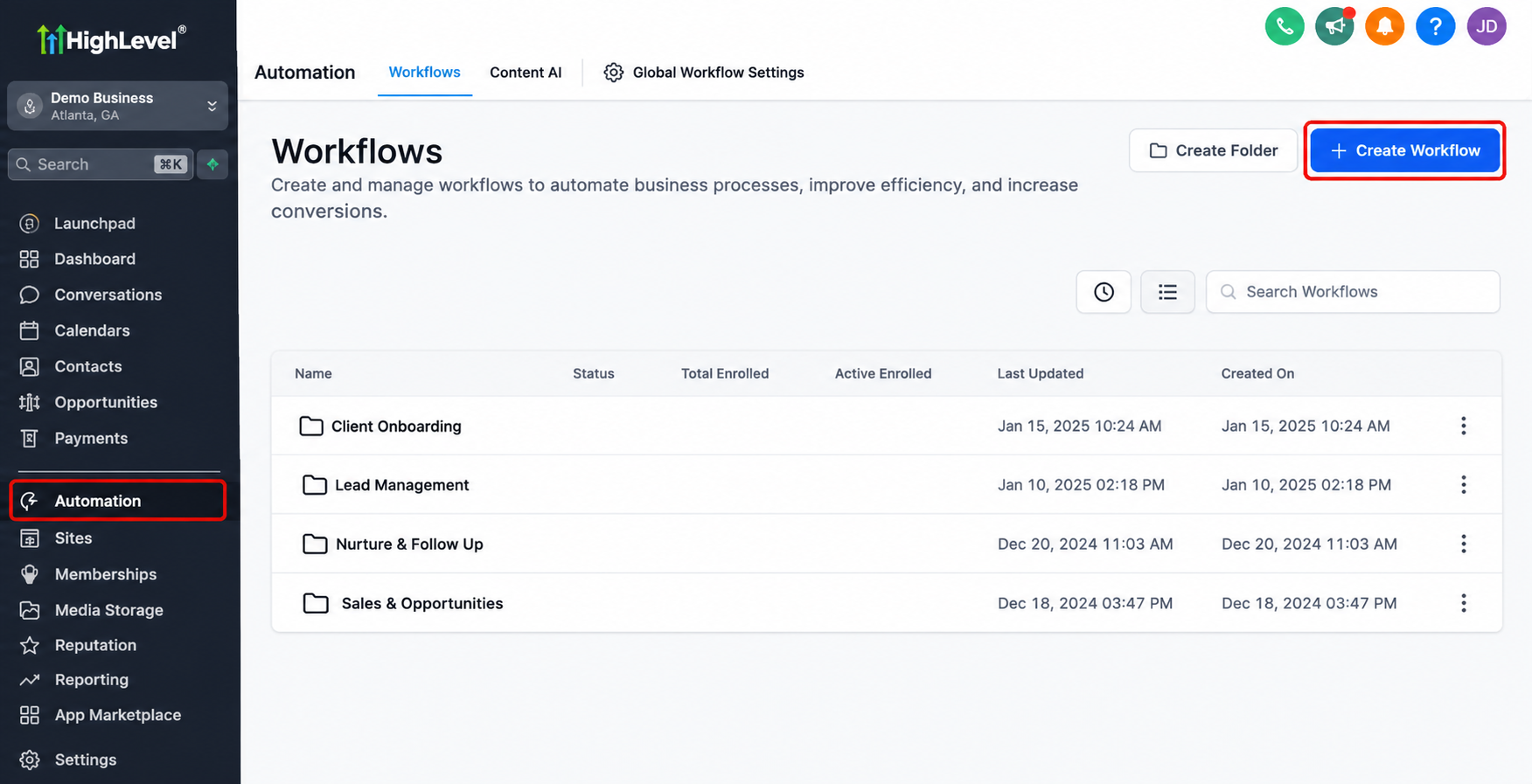
Choose a descriptive name, such as "New Lead Follow-Up Tasks," so other team members can understand its purpose.
Step 2: Select a Workflow Trigger
Choose an event that should initiate task creation.
Common examples include contact creation, form submissions, and opportunity stage changes.
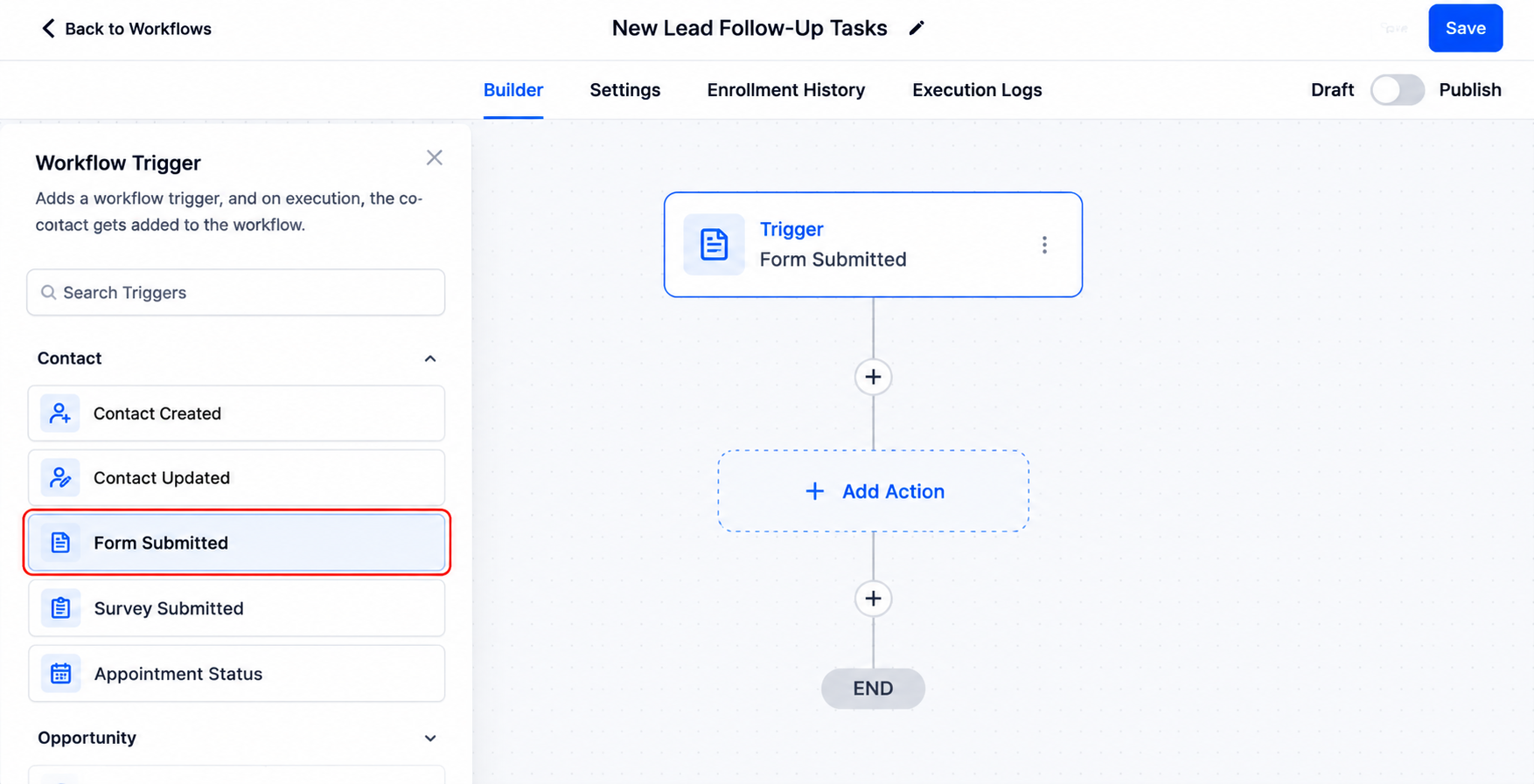
For instance, a submitted estimate request could initiate a workflow that prepares a follow-up task for the sales team.
Step 3: Add Relevant Conditions
Use workflow conditions when different scenarios require different actions.
A business might create separate tasks for new inquiries and existing customers requesting additional services.
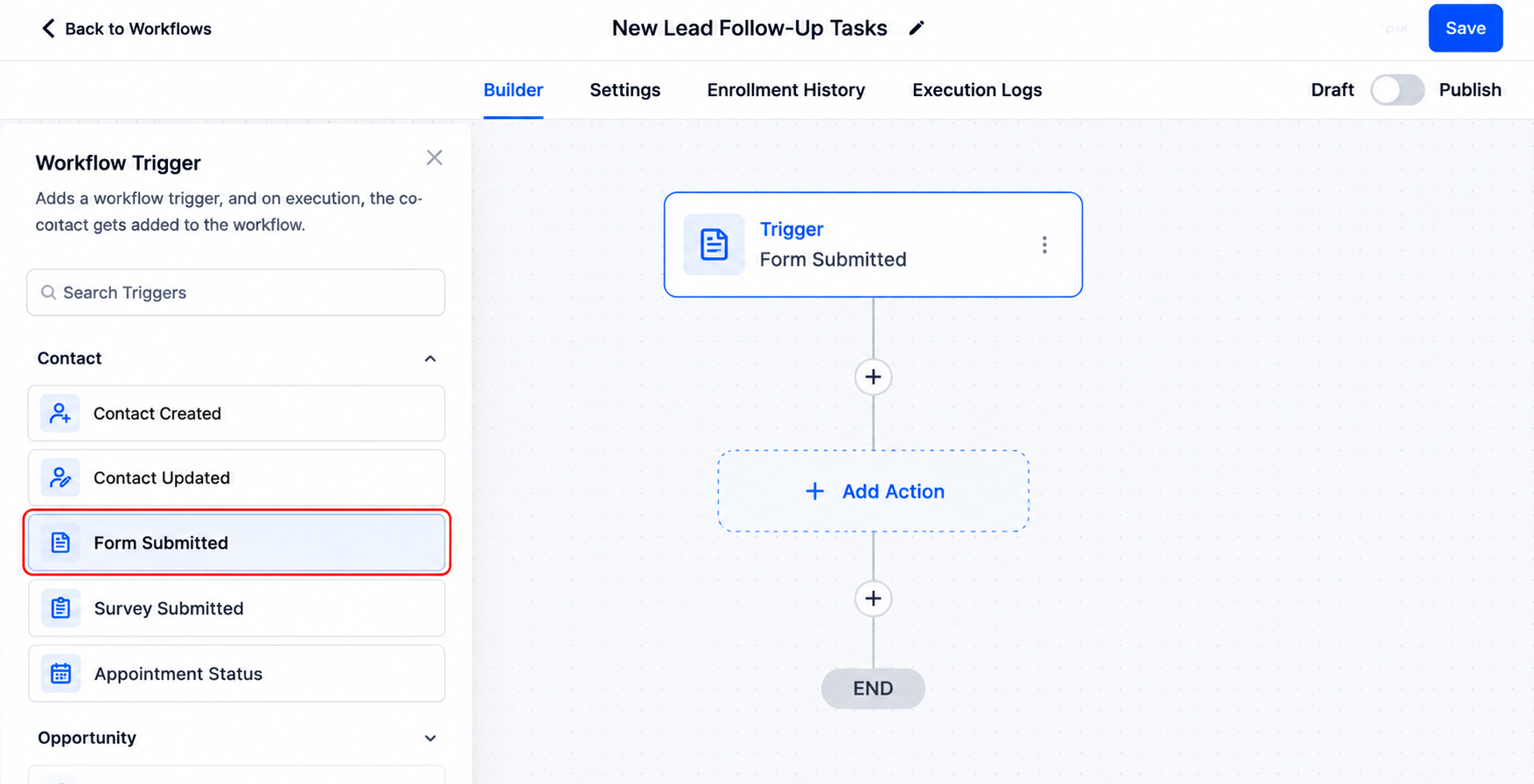
These conditions help prevent irrelevant assignments.
Step 4: Configure the Create Task Action
Add the Create Task workflow action.
Configure the available task details, including a clear title, description, assigned user, and appropriate due date.
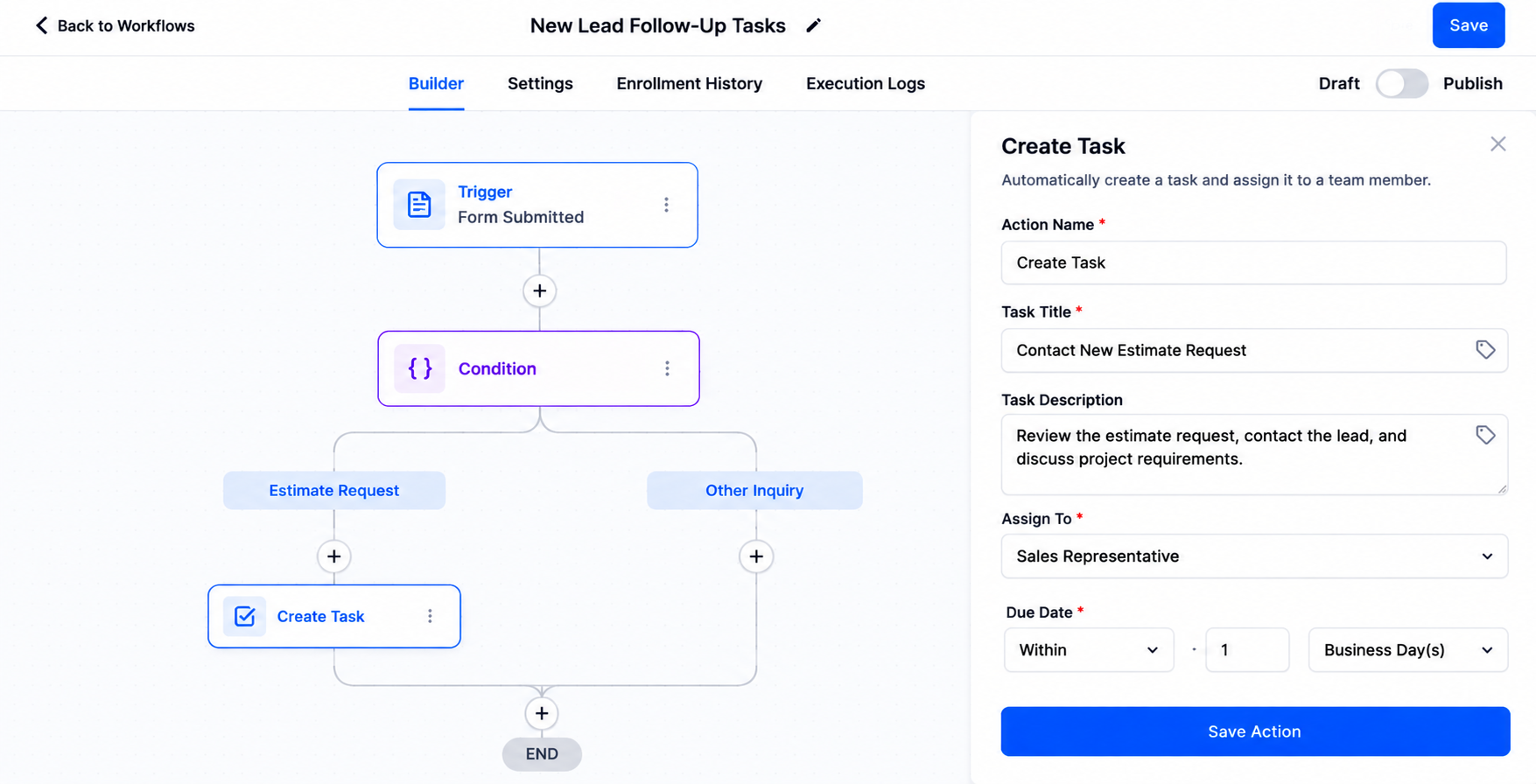
For example:
Task: Contact New Estimate Request
Description: Review the customer's inquiry and discuss project requirements.
Due: Within one business day.
Confirm that the intended user assignment is supported by the selected configuration.
Step 5: Test and Publish
Test the workflow using a realistic contact or opportunity scenario.
Verify that the correct task appears, the intended user receives responsibility, and the deadline is accurate.
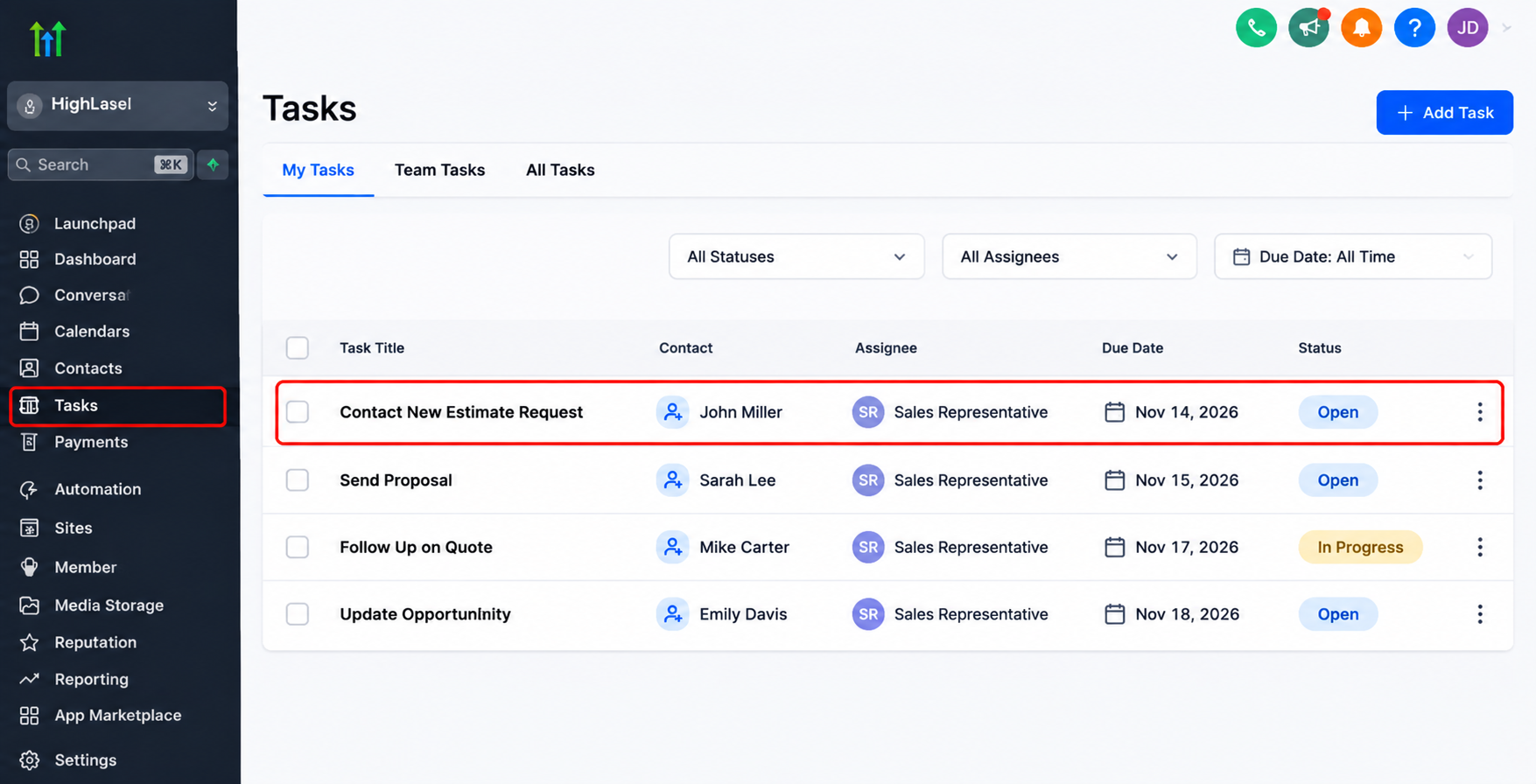
Once testing succeeds, publish the workflow.
Practical Examples of Automated Task Assignment
Different industries can use GoHighLevel workflow automation to coordinate recurring responsibilities.
Home Services
A homeowner submits a request for a plumbing estimate.
The submission triggers a task reminding the responsible sales representative to review the inquiry and contact the homeowner.
This creates a defined next step without requiring a manager to distribute every request manually.
Real Estate
A prospective buyer moves into a consultation stage within the sales pipeline.
A workflow creates a task for the responsible agent to review property preferences and prepare for the upcoming conversation.
This helps agents maintain organized prospect interactions.
Agencies and Professional Services
A newly signed client enters the onboarding stage.
The workflow creates a task for the designated onboarding specialist to collect required information.
This supports a more consistent onboarding process and reduces dependence on informal handoffs.
Best Practices for Building Reliable Task Assignment Workflows
Successful CRM task automation requires thoughtful configuration and ongoing maintenance.
Start with clear task names that describe specific actions. "Call Customer About Estimate" communicates more than "Follow Up."
Assign tasks to appropriate users and establish realistic deadlines based on urgency.
Use conditions to ensure tasks are created only when relevant.
Pay particular attention to duplicate tasks. If contacts can enter a workflow multiple times, review re-entry settings and existing-task handling before publishing.
Test different scenarios, including incomplete contact information and unexpected opportunity changes.
Finally, review outstanding tasks regularly. Identify recurring delays, clarify ownership, and adjust workflows when business processes change.
Reliable automation should make responsibilities easier to manage, not generate unnecessary administrative work.
How Automated Task Assignment Improves Team Accountability
Automated task creation makes responsibilities more visible and easier to track.
When employees receive clearly defined tasks, managers can review assigned work without repeatedly asking who is handling each request.
GoHighLevel task management can also support more consistent follow-ups by connecting important customer events with actionable responsibilities.
However, automation does not eliminate the need for supervision.
Managers must still establish priorities, review incomplete tasks, and ensure assignments reflect actual team capacity.
The strongest systems combine automated task creation with clear expectations and regular operational reviews.
Conclusion
Automated internal task assignment helps businesses replace inconsistent manual coordination with structured, repeatable processes.
By connecting workflow triggers, conditions, and task creation, GoHighLevel allows teams to establish clearer responsibilities across sales, customer service, and onboarding activities.
The greatest benefit comes from identifying which business events require action and ensuring the right person receives a clearly defined responsibility.
Start with one recurring process, test it carefully, and expand automation as your team's needs become clearer.
Frequently Asked Questions (FAQs)
1. Can GoHighLevel automatically assign tasks to team members?
Yes. GoHighLevel allows businesses to create tasks automatically using workflows. When a specific event occurs, such as a form submission or opportunity stage change, a workflow can create a task for a designated team member based on its configuration.
2. How do I create an automated task in GoHighLevel?
Navigate to Automation > Workflows, create a workflow, and select an appropriate trigger. Add the Create Task action, configure the task details, including its title, description, assignee, and due date using the available settings, then test and publish the workflow.
3. What is the difference between assigning a contact and assigning a task in GoHighLevel?
Assigning a contact identifies the team member responsible for managing that contact. Assigning a task gives a team member a specific action to complete, such as calling a prospect, preparing an estimate, or following up on an appointment. Both functions support team coordination but serve different purposes.
4. Can GoHighLevel create tasks when an opportunity moves to a new pipeline stage?
Yes. GoHighLevel supports opportunity-based workflow triggers that can initiate actions when opportunities move into specific pipeline stages. Businesses can use these triggers to create relevant tasks, such as preparing proposals, contacting prospects, or beginning client onboarding.
5. How can I prevent duplicate tasks in GoHighLevel workflows?
To reduce duplicate tasks, review workflow enrollment and re-entry settings, use appropriate trigger filters, and add conditions where necessary. Test scenarios where a contact submits multiple forms or moves between pipeline stages to ensure unnecessary tasks are not created.
6. Which businesses benefit most from GoHighLevel task automation?
GoHighLevel task automation can benefit home service companies, real estate agencies, marketing agencies, healthcare practices, and professional service businesses. It is particularly useful for organizations managing frequent inquiries, customer follow-ups, sales activities, and onboarding responsibilities.
Need Expert Help with GoHighLevel?
New to GoHighLevel and ready to get started? Buy your GoHighLevel account here and launch with confidence.
Already know what you need and want our team to handle everything, from complete setup and customization to funnels, workflows, automations, CRM, and pipelines? Click here.