

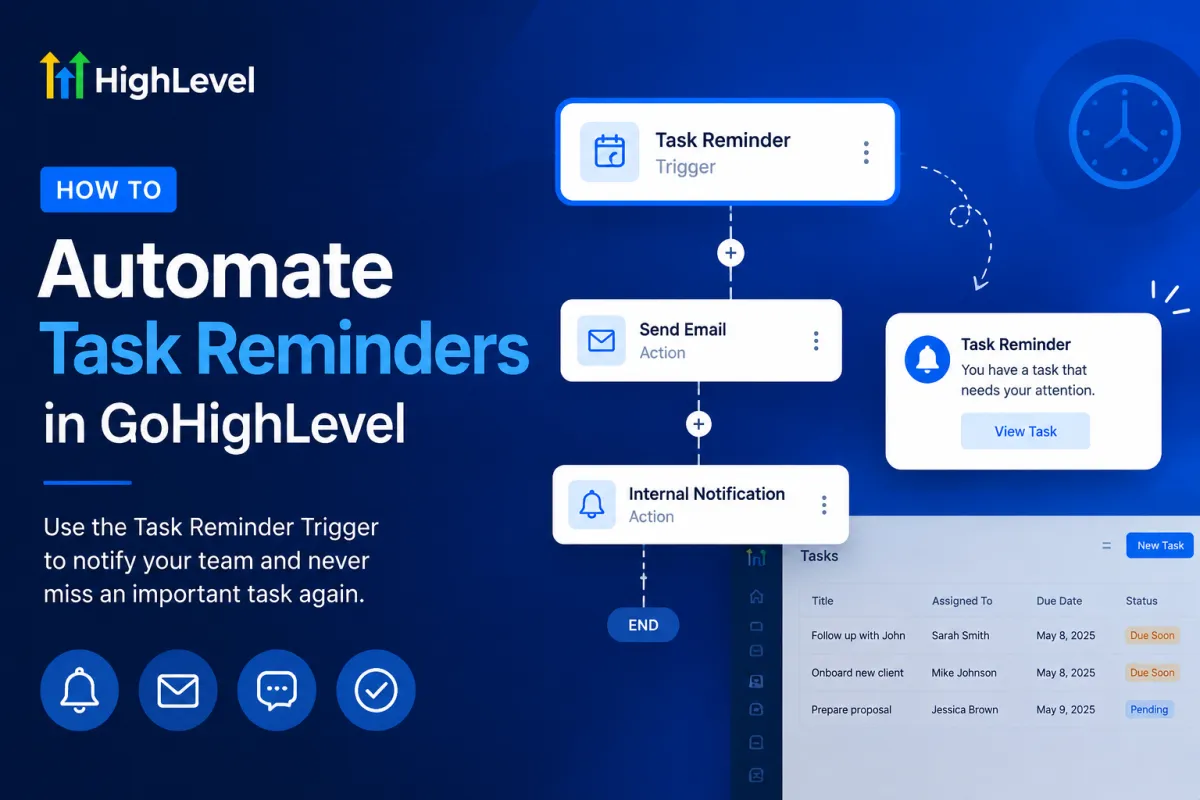
Automate Task Reminders in GoHighLevel
How to Send Automated Task Reminders Using the Task Reminder Trigger in GoHighLevel
Managing tasks manually can quickly become overwhelming, especially when your team handles appointments, follow-ups, customer onboarding, or internal projects. Missing an important task can lead to delayed responses, unhappy customers, and lost opportunities.
Fortunately, GoHighLevel makes task management much easier with workflow automation. By using the Task Reminder Trigger, you can automatically notify team members when a task reminder is due, ensuring important work is completed on time without relying on manual follow-ups.
In this guide, you'll learn what the Task Reminder Trigger is, how it works, how to set it up, and the best practices for creating reliable automated task reminder workflows.
What Is the Task Reminder Trigger in GoHighLevel?
The Task Reminder Trigger is a workflow trigger that starts an automation when a task reaches its configured reminder time. Instead of checking the CRM throughout the day, your team can receive automatic notifications exactly when action is needed.
Once the reminder is triggered, the workflow can perform one or more actions, such as:
Sending an internal notification
Sending an email reminder
Sending an SMS reminder
Creating follow-up actions
Updating records within the workflow
This automation helps businesses stay organized while reducing the chances of forgotten tasks.
Why Use Automated Task Reminders?
Automating task reminders offers several advantages for businesses of all sizes.
Never Miss Important Tasks
Automatic reminders ensure that sales calls, customer follow-ups, onboarding activities, and internal assignments are completed on schedule.
Improve Team Accountability
Every assigned team member receives reminders at the appropriate time, making responsibilities clear and reducing missed deadlines.
Save Time
Instead of manually reminding employees, workflows handle the process automatically so your team can focus on higher-value work.
Increase Productivity
Timely reminders help employees prioritize their daily workload and complete tasks more efficiently.
Create Consistent Processes
Automation ensures reminders are delivered consistently every time a task reaches its reminder schedule.
How the Task Reminder Trigger Works
The Task Reminder Trigger is designed to activate workflows when a task reminder occurs. A typical workflow follows this process:
A task is created inside GoHighLevel.
A reminder time is assigned to that task.
When the reminder time is reached, the Task Reminder Trigger activates.
The workflow starts automatically.
Configured actions—such as email, SMS, or internal notifications—are executed.
The assigned user receives the reminder and can complete the task promptly.
This process eliminates manual tracking while helping teams stay organized.
Step-by-Step: Create an Automated Task Reminder Workflow
Follow these steps to build your workflow.
Step 1: Open Workflows
From your GoHighLevel dashboard, navigate to Automation → Workflows.
Click Create Workflow and choose either a blank workflow or a suitable template.

Step 2: Add the Task Reminder Trigger
Click Add New Trigger and select Task Reminder Trigger from the available workflow triggers.
Configure the trigger according to your business requirements.

Step 3: Add Reminder Actions
After adding the trigger, insert one or more workflow actions, such as:
Send Internal Notification
Send Email
Send SMS
Create Follow-up Task
Update Contact Information (if needed)
Choose the actions that best match your workflow.

Step 4: Customize the Reminder
Write a clear reminder message that includes useful task information.
For example:
Task name
Due date
Assigned team member
Customer name (if applicable)
Any additional notes
Clear reminders reduce confusion and improve task completion.
Step 5: Save and Publish
Review your workflow settings carefully before publishing.
Once everything looks correct, save the workflow and publish it so automation can begin running.

Step 6: Test the Workflow
Create a sample task with a reminder time and verify that the workflow triggers correctly.
Testing helps identify configuration issues before using the workflow in a live environment.
Best Practices for Task Reminder Automation
To get the best results from your automation, follow these recommendations:
Keep reminder messages short and easy to understand.
Include important task details whenever possible.
Use internal notifications for employee reminders.
Test workflows before deploying them.
Avoid creating duplicate reminder workflows for the same task.
Regularly review workflow performance as your business processes evolve.
These simple practices help maintain reliable automation and reduce unnecessary notifications.
Common Use Cases
The Task Reminder Trigger can support many everyday business processes.
Some common examples include:
Sales follow-up reminders
Appointment preparation tasks
Customer onboarding checklists
Support ticket follow-ups
Invoice collection reminders
Internal project management
Daily administrative tasks
Team accountability reminders
Because workflows are flexible, businesses can adapt reminders to match their own operations.
Common Mistakes to Avoid
Even simple workflows can experience problems if configured incorrectly.
Avoid these common mistakes:
Forgetting to publish the workflow
Using incorrect trigger settings
Leaving reminder actions empty
Failing to test the workflow
Sending multiple duplicate reminders
Creating unclear reminder messages
Taking a few minutes to review your workflow can prevent unnecessary issues later.
Conclusion
The Task Reminder Trigger in GoHighLevel is an excellent way to automate internal task management and keep your team organized. Instead of relying on manual reminders, businesses can automatically notify team members when action is required.
Whether you're managing sales follow-ups, onboarding processes, customer support, or daily operations, automated task reminders help improve productivity, reduce missed deadlines, and create more consistent workflows. By following the setup steps and best practices outlined above, you can build reliable automations that save time and keep your business running smoothly.
Frequently Asked Questions
1. What is the Task Reminder Trigger in GoHighLevel?
It is a workflow trigger that starts an automation when a task reaches its configured reminder time.
2. Can I send SMS reminders using the Task Reminder Trigger?
Yes. You can add a Send SMS action to your workflow if SMS is configured in your GoHighLevel account.
3. Can I notify my internal team automatically?
Yes. Internal notifications can be added to remind assigned users about upcoming or due tasks.
4. Can I add multiple actions after the Task Reminder Trigger?
Absolutely. A single workflow can include multiple actions, such as email notifications, SMS messages, internal alerts, and additional workflow steps.
5. Why should I test my workflow before using it?
Testing ensures the trigger activates correctly and that all reminder actions work as expected before they are used in a live business environment.
Need Expert Help with GoHighLevel?
New to GoHighLevel and ready to get started? Buy your GoHighLevel account here and launch with confidence.
Already know what you need and want our team to handle everything, from complete setup and customization to funnels, workflows, automations, CRM, and pipelines? Click here.



