

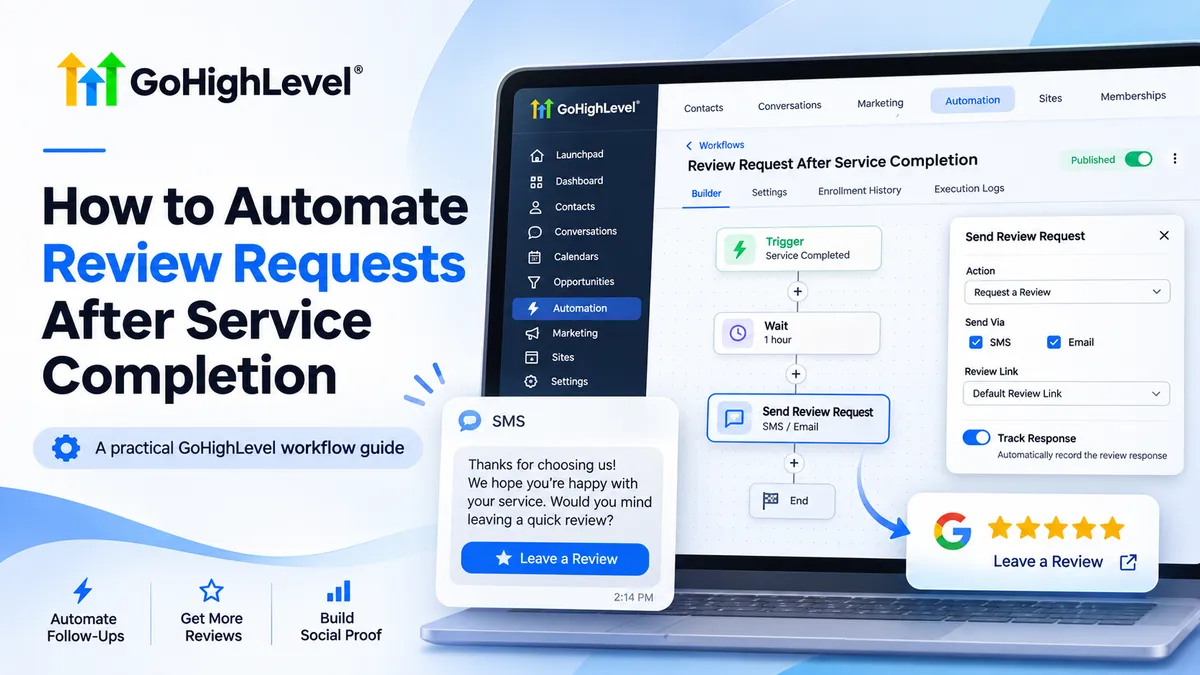
How to Automate Review Requests After Service Completion
How to Automate Review Requests After Service Completion
A cleaning company finishes ten jobs in a day, but only three customers receive review requests. The problem isn't poor service. It's an inconsistent follow-up process.
When employees handle review requests manually, opportunities to collect feedback are easily missed. GoHighLevel solves this problem by automating review invitations after completed services.
With the right workflow, businesses can send timely, personalized requests without relying on employees to remember every follow-up. Here's how to automate review requests after service completion using GoHighLevel.
How GoHighLevel Review Request Automation Works
GoHighLevel connects customer activity with automated communication through its workflow builder.
A workflow starts when a specified event occurs, such as an appointment status changing. Filters determine which contacts qualify, while actions control what happens next.
The Send Review Request action initiates an email or SMS invitation using your Reputation Management configuration.
The important distinction is that booking an appointment doesn't mean the service has been completed. Your automation needs a reliable completion signal.
Once configured, this process reduces manual work and makes customer review requests more consistent.
What You Need Before Creating the Workflow
Before building your GoHighLevel review request automation, make sure you have:
Access to the appropriate GoHighLevel sub-account.
A connected Google Business Profile or another valid review destination.
Configured review request templates and delivery settings.
Customer email addresses or phone numbers with appropriate communication consent.
A dependable method for recording completed services.
Also, verify that your email or SMS sending service is configured correctly.
These prerequisites help prevent requests from being triggered incorrectly or sent to the wrong destination.
How to Automate Review Requests After Service Completion in GoHighLevel
Follow these six steps to create a working automation.
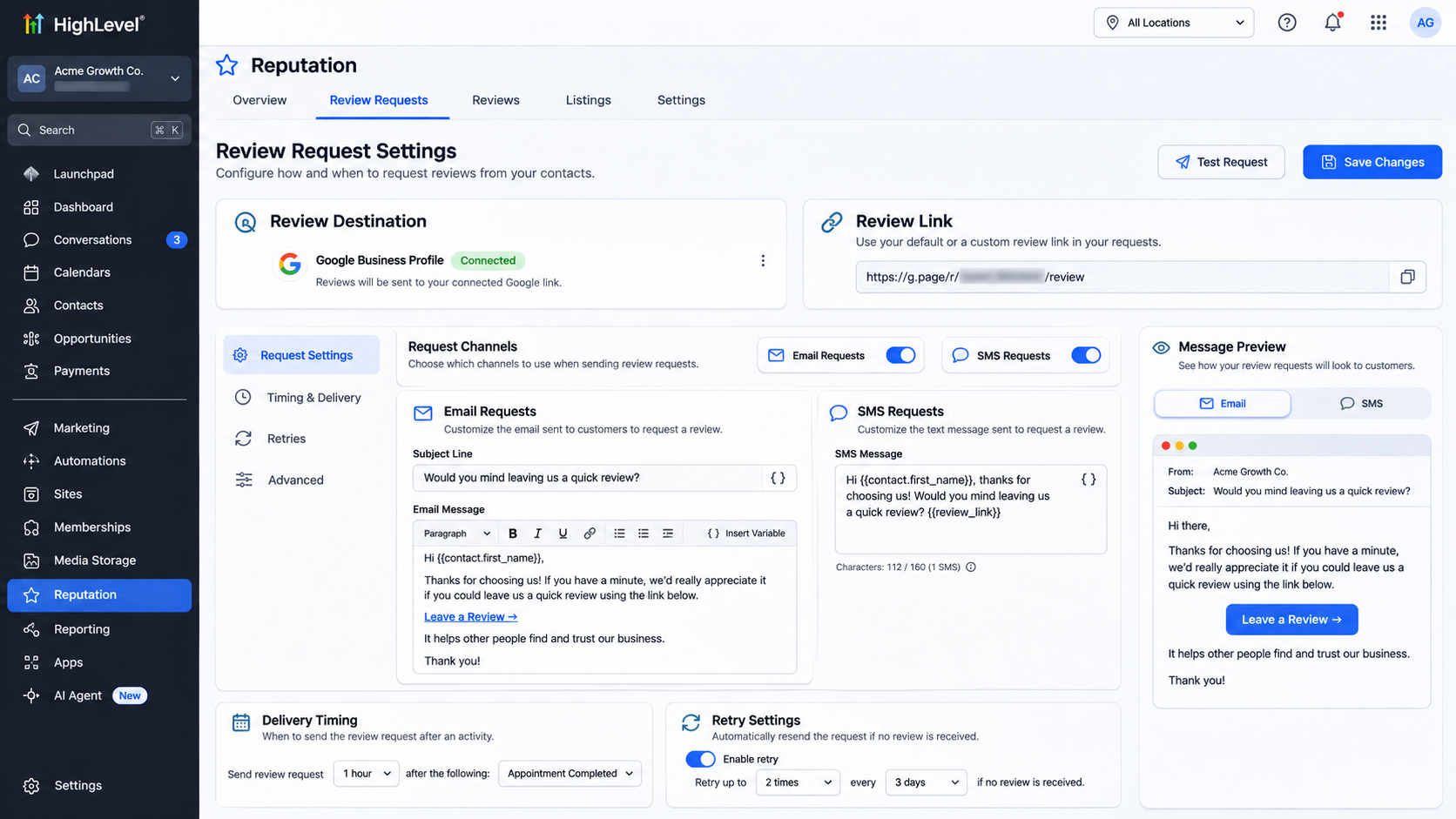
Step 1: Configure Your Review Request Settings
Navigate to Reputation → Settings → Review Link.
Choose your connected review platform or configure a custom review URL.
Next, open SMS Requests or Email Requests under Reputation Settings.
Enable your preferred channel, customize the message, and select the appropriate live template.
For SMS messages, the {{reputation.review_link}} field inserts your configured review destination.
Review the initial sending delay and retry settings carefully. These settings can delay delivery even after a workflow action executes.
Step 2: Create a New Workflow
Navigate to Automation → Workflows → Create Workflow.
Select the option to start from scratch.
Give your workflow a descriptive name, such as "Post-Service Review Request."
This makes it easier to identify and maintain when managing multiple automations.
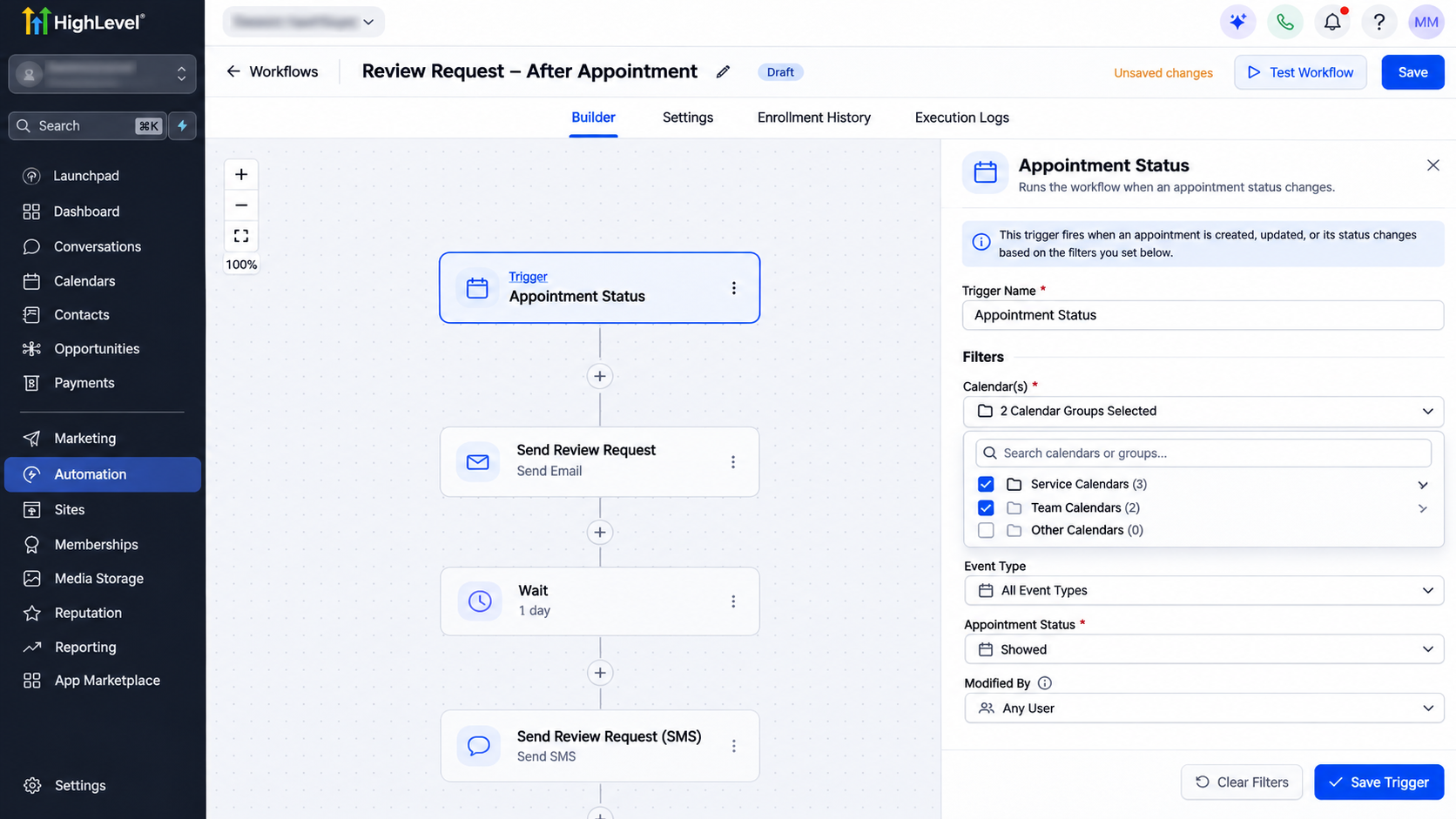
Step 3: Configure the Service Completion Trigger
Click Add New Trigger and select Appointment Status.
For appointment-based businesses, choose the appropriate calendar and filter the status to Showed, or a verified custom completion status.
Only use this trigger if that status accurately represents completed work.
Businesses tracking service delivery through pipelines can instead use Pipeline Stage Changed, filtered to a dedicated completed-service stage.
Opportunity Status Changed is another option when an actual opportunity status change represents completion.
Avoid triggering review requests simply because a deal was won or an appointment was booked.
Step 4: Add Conditions and Timing
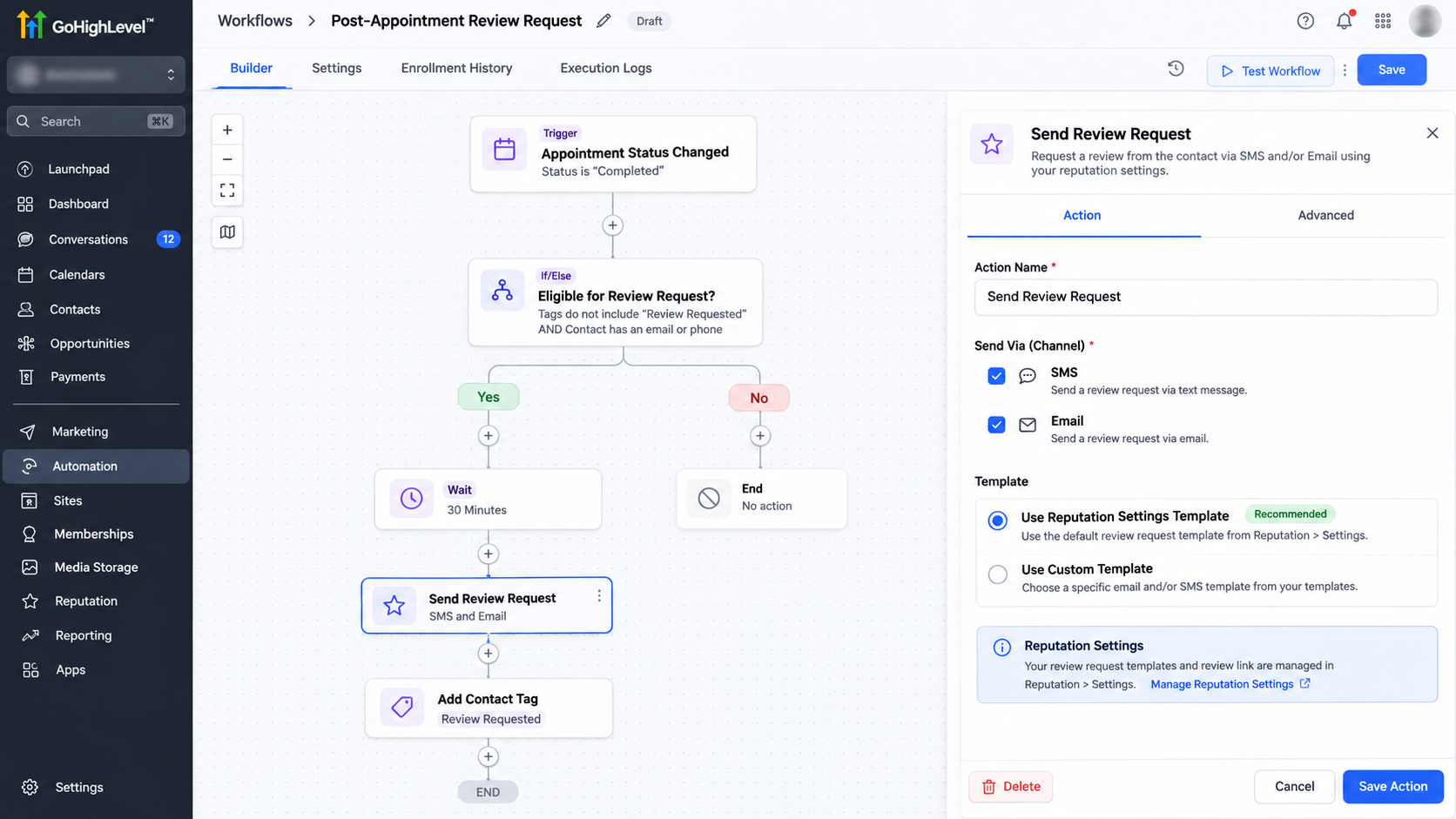
Add an If/Else action to check relevant customer eligibility, such as whether a review-requested tag already exists.
Route ineligible contacts away from the sending action.
Add a Wait action if your process requires a delay before initiating the request.
For example, a cleaning company might wait two hours after confirming job completion.
Coordinate this delay with Reputation Settings to avoid unintended additional waiting.
Step 5: Add the Send Review Request Action
Click the plus icon beneath your workflow conditions.
Search for Send Review Request and select the action.
Choose the available communication channel, such as SMS or Email, then save the action.
Unlike ordinary Send SMS or Send Email actions, this dedicated action works with GoHighLevel's configured review request system.
After sending, consider adding an Add Contact Tag action with a tag such as "Review Requested" to support duplicate prevention.
Step 6: Save and Publish Your Workflow
Review the complete trigger-to-action sequence.
Save your changes and publish the workflow to activate it.
Do not begin sending requests to actual customers until testing confirms the configuration works correctly.
Test Your Automated Review Request Workflow
Create a test contact with an email address or phone number you control.
Simulate the relevant completion event, such as updating an appointment to its configured status.
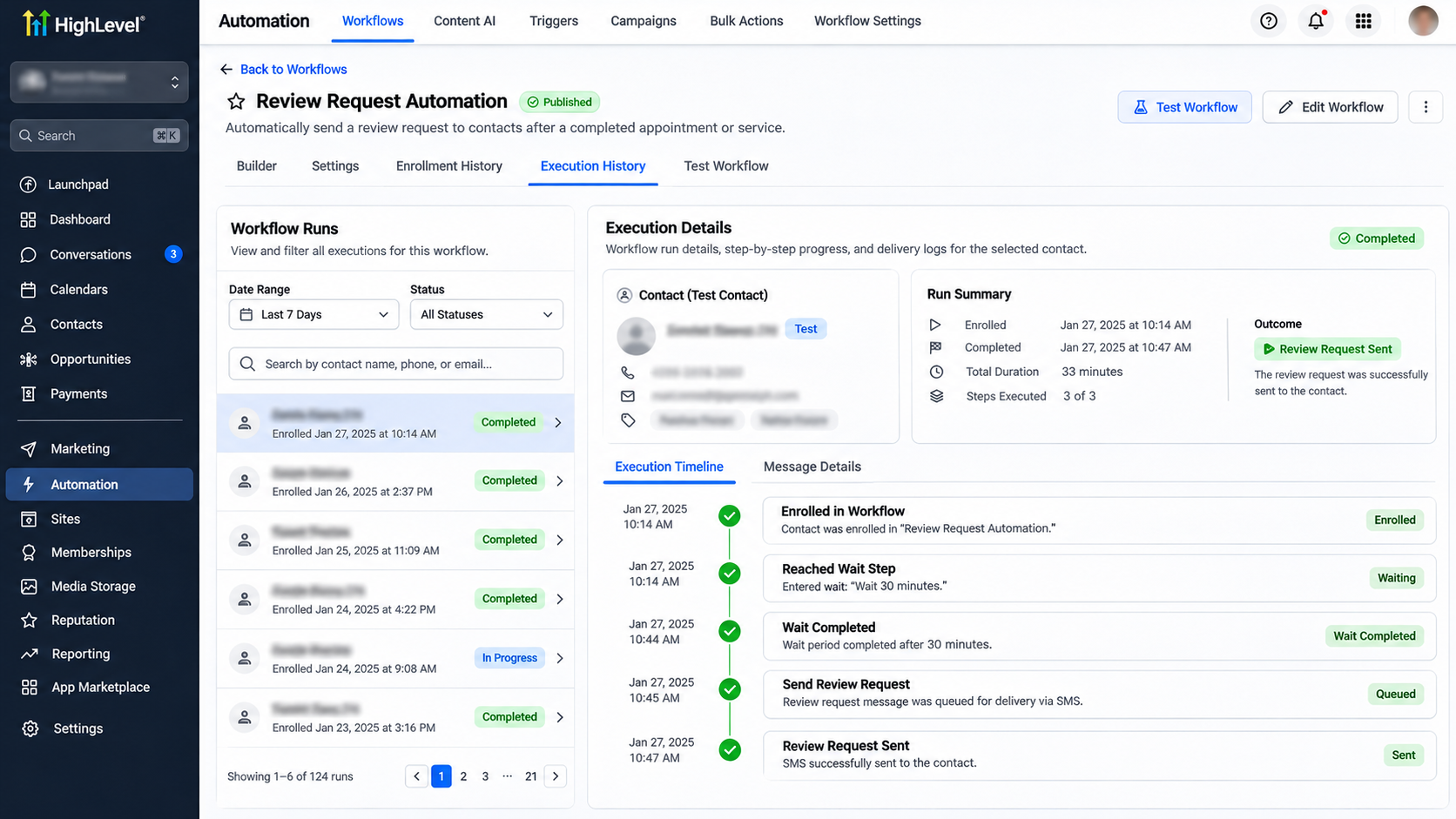
Check the workflow's execution history to confirm that the contact entered and passed through the expected actions.
Then verify message delivery, review link functionality, and timing.
Remember that a successfully executed workflow doesn't necessarily mean the message was delivered successfully.
Common Problems and How to Fix Them
If your automation isn't working, check these areas:
Workflow not triggering: Verify the published status, trigger filters, and service completion event.
Message not delivered: Check contact information, consent, DND status, and sending configuration.
Unexpected delays: Review both workflow Wait actions and Reputation delivery settings.
Incorrect review link: Verify the destination under Reputation Settings.
Duplicate requests: Check workflow re-entry, existing tags, and retry configurations.
Use execution history and message statuses to isolate the issue before changing your workflow.
Best Practices for Better Review Request Results
Send requests reasonably soon after genuine service completion.
Personalize messages, keep them brief, and make the review link accessible.
Respect communication preferences and avoid excessive reminders.
Request honest feedback from customers without filtering invitations based on their expected rating. Never offer incentives in exchange for positive reviews.
Conclusion
Automating review requests in GoHighLevel creates a reliable process for collecting customer feedback after completed services.
Accurate triggers, appropriate conditions, and thorough testing make the automation dependable.
Need help configuring your GoHighLevel workflows? WispCode provides CRM automation and reputation management solutions tailored to your business operations.
Frequently Asked Questions
1. Can GoHighLevel automatically request reviews after an appointment?
Yes. An Appointment Status workflow can initiate a review request when the selected status reliably indicates completed service.
2. Can review requests be sent through both SMS and email?
Yes. GoHighLevel supports SMS and email review requests through its Reputation Management system and workflow actions.
3. What if a customer doesn't receive the review request?
Check delivery status, contact information, DND settings, configured delays, and the relevant email or SMS sending service.
4. How can I prevent duplicate review requests?
Use appropriate trigger filters, contact tags, workflow re-entry settings, and carefully configured Reputation retry schedules.
5. Can GoHighLevel send Google review requests automatically?
Yes. Configure a valid Google review destination and use the Send Review Request workflow action to initiate invitations automatically.
Need Expert Help with GoHighLevel?
New to GoHighLevel and ready to get started? Buy your GoHighLevel account here and launch with confidence.
Already know what you need and want our team to handle everything, from complete setup and customization to funnels, workflows, automations, CRM, and pipelines? Click here.