

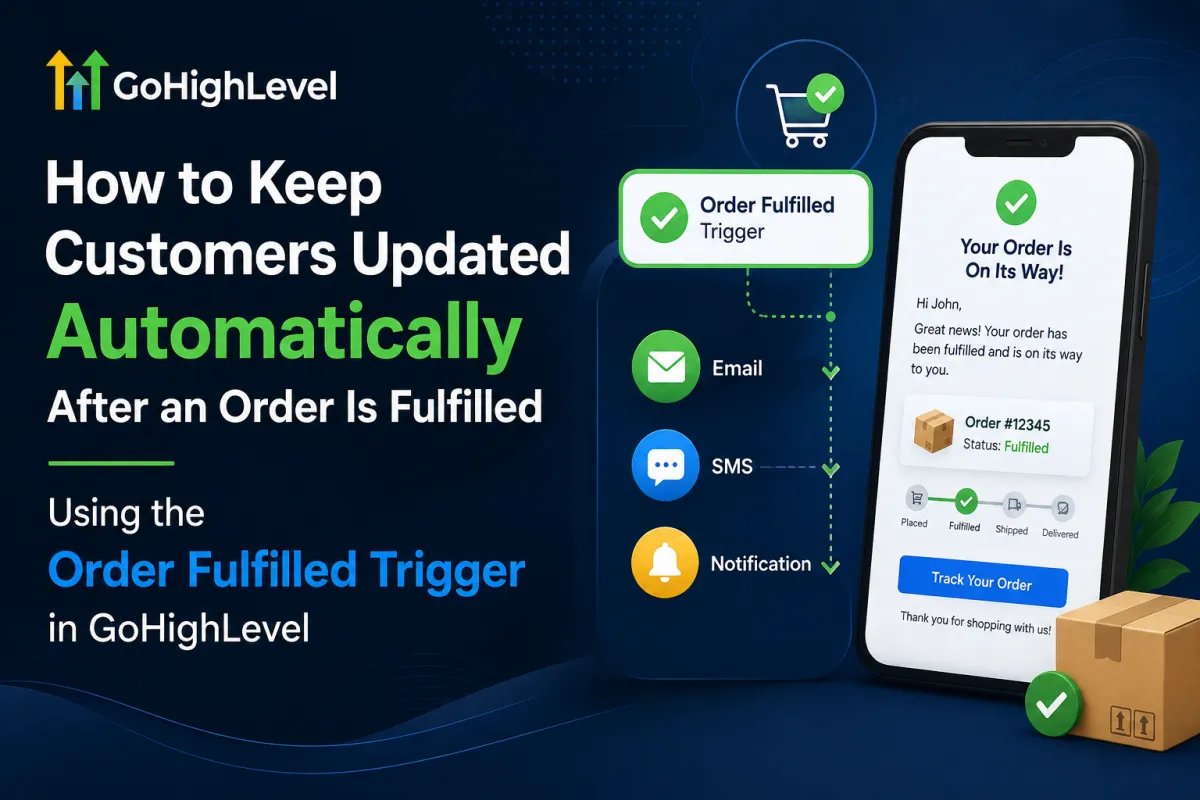
Automate Order Fulfillment Updates in GoHighLevel
How to Keep Customers Updated Automatically After an Order Is Fulfilled Using the Order Fulfilled Trigger in GoHighLevel
The customer experience does not end after someone places an order. Customers also want to know what happens after their purchase, especially when their order has been prepared, shipped, or fulfilled.
Keeping customers informed at the right time can improve trust, reduce support questions, and create a more professional buying experience. However, manually checking fulfilled orders and sending individual updates can quickly become time-consuming.
With the Order Fulfilled Trigger in GoHighLevel, businesses can automate communication as soon as an order is fulfilled. You can send confirmation messages, update customer records, add tags, create follow-up tasks, request reviews, and continue engaging with customers after their purchase.
In this guide, we'll explain how to use the Order Fulfilled Trigger in GoHighLevel to create an automated post-purchase communication workflow.
What Is the Order Fulfilled Trigger in GoHighLevel?
The Order Fulfilled Trigger is a workflow trigger that starts an automation when an order is marked as fulfilled.
Once the trigger fires, GoHighLevel can automatically perform different actions based on the workflow you create.
For example, you can use the trigger to:
Send an order fulfillment email
Send an SMS notification
Share available tracking information
Add a tag to the customer
Update customer information
Create an internal follow-up task
Request a product review
Start a post-purchase campaign
Segment customers for future marketing
Instead of manually monitoring completed orders, your workflow can handle these actions automatically.
Why Automate Customer Updates After Order Fulfillment?
Customers appreciate receiving updates about their orders without having to contact support.
An automated fulfillment workflow can help your business in several ways.
Keep Customers Informed
A timely message lets customers know that their order has reached an important stage. This can reduce uncertainty and make the purchasing experience smoother.
Reduce Manual Work
Your team does not need to manually check fulfilled orders and send individual messages. Once the workflow is configured, the process can happen automatically.
Improve Customer Experience
A simple fulfillment confirmation can make your business appear more organized and responsive. You can also include useful information such as shipping or tracking details when available.
Create More Follow-Up Opportunities
Order fulfillment can be the beginning of your post-purchase communication. After the customer receives the product, you can follow up with helpful information, request feedback, or ask for a review.
How to Set Up the Order Fulfilled Trigger in GoHighLevel
Step 1: Create a New Workflow
Go to Automation and open Workflows in your GoHighLevel account.
Create a new workflow and start with a blank workflow.

Give your workflow a descriptive name, such as:
Order Fulfilled Customer Update Workflow
A clear workflow name makes it easier for your team to identify and manage the automation later.
Step 2: Add the Order Fulfilled Trigger
Click Add New Workflow Trigger and search for Order Fulfilled.
Select the Order Fulfilled Trigger and configure it according to the type of orders you want to monitor.
Once a qualifying order is marked as fulfilled, the contact can enter the workflow automatically.
This becomes the starting point for your post-purchase communication process.

Step 3: Add Relevant Filters
Filters can help you control which fulfilled orders should enter the workflow.
Depending on your setup, you can use conditions related to information such as:
Cart Value
Fulfilled Products
Order Source
Order Sub-Source
Shipping Carrier
Tracking Number
For example, you could create a specific workflow for customers who purchased a particular product.
You could also create different experiences for high-value orders or orders that have tracking information available.
Using filters helps ensure that customers receive relevant messages instead of receiving the same communication for every order.
Step 4: Send a Fulfillment Confirmation
After the trigger, add a Send Email or Send SMS action.
Your message can be simple and informative.
For example:
Hi {{contact.first_name}}, your order has been fulfilled successfully. Thank you for your purchase! We'll keep you updated as your order progresses.
If tracking information is available, you can include it in the message so customers can easily check their shipment status.
The main goal is to provide reassurance and useful information rather than sending unnecessary promotional content.

Step 5: Add an Order Fulfilled Tag
You can also add an Add Tag action to identify customers whose orders have been fulfilled.
For example:
Order Fulfilled
Depending on your business, you could use additional tags such as:
First Order Fulfilled
VIP Order Fulfilled
High Value Customer
Product A Fulfilled
Repeat Customer
These tags can later be used to create Smart Lists, customer segments, or additional workflows.
Step 6: Update Customer Information
Keeping your CRM records updated can make future customer communication more effective.
For example, you may want to maintain information related to the customer's latest purchase or order activity.
You can use workflow actions and custom fields to organize important customer data and make it easier for your team to understand the customer's history.
This information can also be useful when creating future campaigns based on purchase behavior.
Step 7: Add a Wait Step
Not every follow-up needs to happen immediately after fulfillment.
After sending the initial confirmation, add a Wait action.
For example, you could wait several days before sending the next message.

A simple sequence could be:
Order Fulfilled
Send Confirmation
Wait 5 Days
Send Follow-Up
The exact timing should depend on your product, shipping time, and customer journey.
Step 8: Send a Follow-Up Message
After the waiting period, you can send another email or SMS.
The message could ask whether the customer received their order or provide helpful information related to the product.
For example:
Hi {{contact.first_name}}, we hope your order arrived safely. If you have any questions or need help with your purchase, our team is here to help.
This type of follow-up can make customers feel supported after the purchase.

Step 9: Request a Product Review
Once the customer has had enough time to receive and use the product, you can send a review request.
For example:
Hi {{contact.first_name}}, we hope you're enjoying your order. We'd love to hear about your experience. If you have a moment, please share your feedback with us.
Review requests can help your business collect valuable feedback and build social proof.

Example Order Fulfillment Workflow
A simple workflow could include these steps:
Order Fulfilled Trigger
Add "Order Fulfilled" Tag
Send Fulfillment Confirmation Email
Wait 5 Days
Send Customer Follow-Up
Wait 3 Days
Send Product Review Request
You can make the workflow more advanced by adding conditions based on the product purchased, order value, shipping information, or customer segment.
Best Practices for Order Fulfillment Automation
When creating your workflow, keep the following best practices in mind:
Send the first update as soon as the fulfillment event occurs.
Keep fulfillment messages clear and useful.
Include tracking information when it is available.
Use filters to send relevant messages to the right customers.
Avoid sending too many messages after an order.
Use wait periods between follow-ups.
Personalize your messages with customer information.
Use tags to organize fulfilled customers.
Test the workflow before publishing it.
Review customer responses and improve the automation over time.
If your business handles partial or split shipments, pay special attention to your workflow conditions so customers do not receive unnecessary duplicate notifications.
Conclusion
The Order Fulfilled Trigger in GoHighLevel makes it easier to keep customers informed after their orders have been fulfilled.
Instead of manually checking orders and contacting customers, you can create an automated workflow that sends fulfillment confirmations, updates customer records, adds tags, schedules follow-ups, and requests product reviews.
A well-designed post-purchase workflow can reduce manual work while creating a more consistent customer experience. By combining the Order Fulfilled Trigger with personalized messages, filters, wait steps, and follow-up actions, businesses can stay connected with customers throughout the post-purchase journey.
Frequently Asked Questions
1. What is the Order Fulfilled Trigger in GoHighLevel?
The Order Fulfilled Trigger starts a workflow when a qualifying order is marked as fulfilled. This allows businesses to automate customer communication and other follow-up actions.
2. Can I send an SMS after an order is fulfilled?
Yes. You can add an SMS action to your workflow and automatically notify customers after their order is fulfilled.
3. Can I create different workflows for different products?
Yes. You can use available trigger filters to create more targeted workflows for specific products or order conditions.
4. Can I request a review after an order is fulfilled?
Yes. You can add a Wait action and then send a review request after giving the customer enough time to receive and use the product.
5. Can I use the Order Fulfilled Trigger for post-purchase follow-up?
Yes. The trigger can be used as the starting point for a complete post-purchase sequence that includes confirmation messages, customer support follow-ups, review requests, and future engagement.
6. Why should I automate order fulfillment notifications?
Automation saves time, keeps customers informed, reduces manual follow-up, and helps create a consistent post-purchase experience for every customer.
Need Expert Help with GoHighLevel?
New to GoHighLevel and ready to get started? Buy your GoHighLevel account here and launch with confidence.
Already know what you need and want our team to handle everything, from complete setup and customization to funnels, workflows, automations, CRM, and pipelines? 5 Click here.



