

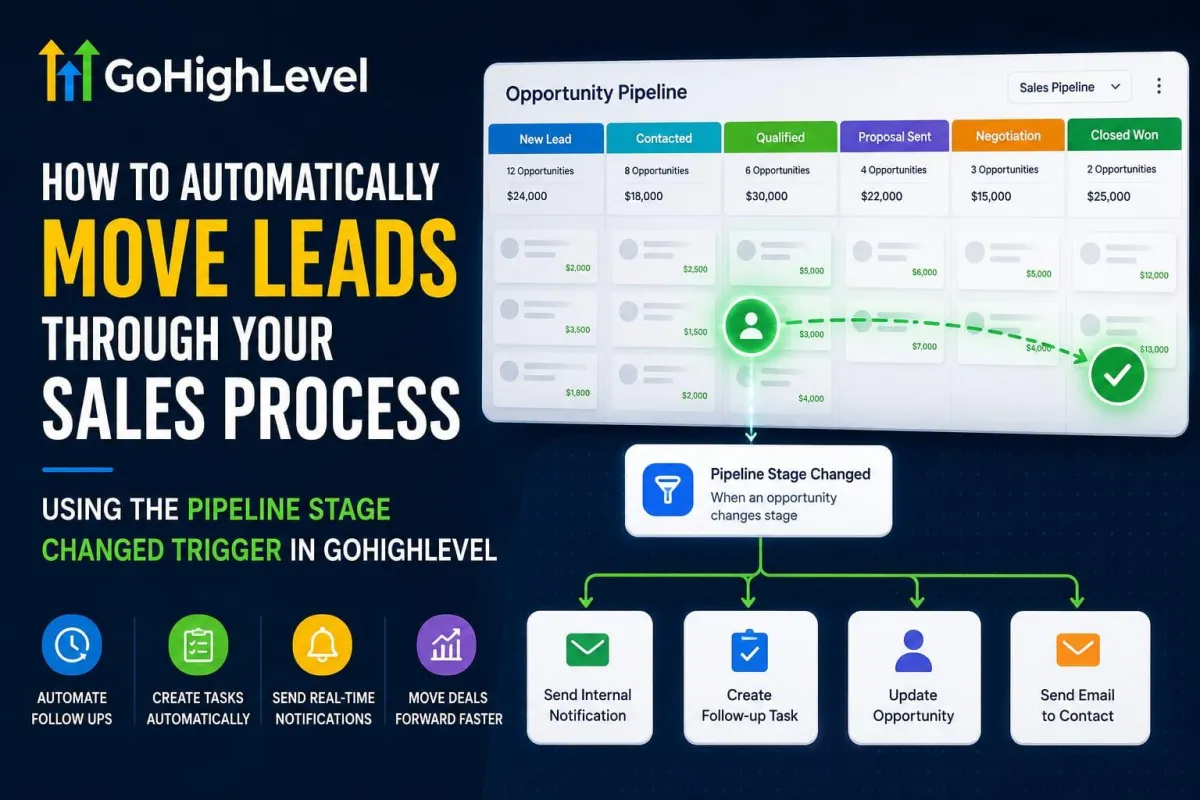
Automate Lead Movement with the GoHighLevel Pipeline Stage Changed Trigger
How to Automatically Move Leads Through Your Sales Process Using the Pipeline Stage Changed Trigger in GoHighLevel
Introduction
Managing leads through a sales pipeline becomes much easier when important actions happen automatically. As a lead moves from one stage to another, your team may need to send a follow up, create a task, notify a sales representative, or update the opportunity. Handling each of these actions manually can take time and can also lead to missed steps.
GoHighLevel's Pipeline Stage Changed Trigger helps businesses connect these sales activities with workflow automation. The trigger can start a workflow when an opportunity moves from one pipeline stage to another, allowing the next step in the sales process to happen automatically.
For example, a lead may start in New Lead, move to Qualified, then Proposal Sent, and eventually Closed Won. Each stage can have its own actions and follow up process.
Instead of asking team members to remember what needs to happen at every stage, GoHighLevel can use the opportunity's movement through the pipeline to start the appropriate workflow.
What Is the Pipeline Stage Changed Trigger?
The Pipeline Stage Changed Trigger is a GoHighLevel workflow trigger that responds when an opportunity changes pipeline stages.
The trigger can be configured with different conditions so the workflow only runs when the right opportunity reaches the right stage. GoHighLevel provides filters such as Pipeline, Pipeline Stage, Assigned To, Lead Value, Lost Reason, Status, and Tag for this trigger.
This makes it possible to build specific automations instead of creating one general workflow for every opportunity.
For example, if you only want an automation to run when an opportunity reaches the Qualified Lead stage inside a particular pipeline, you can configure the trigger around that pipeline and stage.
This gives businesses more control over their sales automation and helps keep each workflow focused on a specific part of the customer journey.
How to Set Up the Pipeline Stage Changed Trigger
To start building this automation, open your GoHighLevel sub account and go to Automation > Workflows.
Create a new workflow or open an existing workflow where you want the pipeline automation to run. Select Add New Trigger and search for Pipeline Stage Changed.
After selecting the trigger, you can configure the conditions that determine when the workflow should start.
The first important setting is the pipeline itself. If your business has multiple pipelines, selecting the correct one helps ensure that the automation only responds to opportunities inside the intended sales process.
You can then select the pipeline stage that should activate the workflow.
For example, imagine your pipeline contains these stages:
New Lead → Contacted → Qualified → Proposal Sent → Negotiation → Closed Won
You could create a workflow that starts whenever an opportunity enters the Qualified stage. From there, you can add the actions that your sales team normally performs at that point.
This approach allows every important stage to have its own automated process.

Use Filters to Control When the Workflow Runs
One of the most useful features of the Pipeline Stage Changed Trigger is its filtering options.
A business may have several pipelines, sales representatives, opportunity values, and lead types. Without filters, an automation could run when it should not.
The In Pipeline filter allows you to select the specific pipeline that should be monitored.
The Pipeline Stage filter lets you target a particular stage. This is useful when a workflow should begin only after an opportunity reaches an important point in the sales process.
The Assigned To filter can be useful when the automation should apply to opportunities assigned to a specific team member.
GoHighLevel also provides a Lead Value filter. This can help businesses create different processes for opportunities based on their potential value.
For example, a high value opportunity may require an internal notification to a manager, while a smaller opportunity may follow a standard sales process.
The trigger also supports filters related to Status, Lost Reason, and Tags, giving businesses additional control over which opportunities should enter the workflow.
Using these filters correctly keeps automation focused and prevents unnecessary workflow executions.

Automate the Next Step After a Lead Moves
Once the trigger is configured, the next part is deciding what should happen after the opportunity enters the selected stage.
For example, when a lead moves into Qualified, the workflow could create a task for the assigned sales representative. An internal notification could also be sent so the team knows the lead is ready for the next step.
When an opportunity reaches Proposal Sent, another workflow could be used to organize the follow up process.
The important idea is that the pipeline stage becomes the signal that tells GoHighLevel what should happen next.
This can help sales teams maintain a consistent process without manually checking every opportunity and remembering which action is required.
The workflow can include appropriate GoHighLevel actions such as notifications, tasks, opportunity updates, emails, or other workflow steps depending on the process being built.

Moving Leads Through a Complete Sales Process
The real value of the Pipeline Stage Changed Trigger becomes clear when it is used across the entire sales process. Instead of creating automation for only one stage, businesses can create a structured system where different stages trigger different actions.
For example, a sales pipeline could include New Lead, Contacted, Qualified, Proposal Sent, Negotiation, and Closed Won.
When a new lead becomes qualified, the assigned team member could receive a notification. When the proposal is sent, a follow up task could be created. When the opportunity reaches the final stage, the business could begin its next customer process.
This allows the sales pipeline and automation to work together instead of operating as two separate systems.
Practical Ways Businesses Can Use This Trigger
Different businesses can use the Pipeline Stage Changed Trigger according to their own sales process.
A roofing company could move an opportunity from New Inquiry to Inspection Scheduled, then to Estimate Sent. Each stage can have its own internal tasks and follow up actions.
A marketing agency could use stages such as New Lead, Discovery Call, Proposal Sent, Negotiation, and Client Won. When an opportunity reaches the proposal stage, the sales representative can automatically receive a task to follow up.
A real estate business could use stages for New Inquiry, Consultation, Property Showing, Offer Submitted, and Closed. Moving an opportunity through these stages can keep the team informed about what needs to happen next.
The exact stages will depend on the business, but the principle remains the same. The opportunity's position in the pipeline can become the signal for the next automated action.

Best Practices for Pipeline Stage Automation
The first step is to keep your pipeline stages clear and meaningful. Each stage should represent a real step in the sales process. This makes it easier to understand which automation should run when an opportunity reaches that stage.
Avoid putting too many actions into a single workflow. If different stages require completely different processes, separate workflows can make the automation easier to manage and troubleshoot.
Filters should also be used carefully. Selecting the correct pipeline and stage helps make sure the workflow only runs for the opportunities you actually want to automate.
Testing is another important step. Move a test opportunity through the relevant stage and confirm that the expected workflow actions occur. This is especially important when the workflow includes notifications, tasks, or customer communication.
It is also worth reviewing your automations regularly. As your sales process changes, your pipeline stages and workflows may need to change with it.
Conclusion
The Pipeline Stage Changed Trigger gives businesses a practical way to connect their GoHighLevel sales pipeline with automated workflows.
Instead of manually checking opportunities and deciding what needs to happen next, businesses can build workflows that respond when leads move through important sales stages.
From creating tasks and sending notifications to updating opportunities and starting follow up processes, the trigger can help sales teams maintain a consistent process while reducing repetitive manual work.
The key is to build clear pipeline stages, use the right filters, create relevant actions, and test everything before putting the automation into regular use.
Frequently Asked Questions (FAQs)
1. What is the Pipeline Stage Changed Trigger?
It is a GoHighLevel workflow trigger that starts when an opportunity changes its pipeline stage.
2. Can I select a specific pipeline stage?
Yes. You can configure the trigger to respond to a specific pipeline and stage.
3. Can I create different automations for different stages?
Yes. Separate workflows can be created for different stages so each part of the sales process has the appropriate actions.
4. Can I use the trigger for high value leads?
Yes. The trigger includes a Lead Value filter, which can help businesses create different processes based on opportunity value.
5. Why should I test the workflow?
Testing helps confirm that the correct opportunity movement activates the workflow and that the intended actions happen afterward.
Need Expert Help with GoHighLevel?
New to GoHighLevel and ready to get started? Buy your GoHighLevel account here and launch with confidence.
Already know what you need and want our team to handle everything, from complete setup and customization to funnels, workflows, automations, CRM, and pipelines? Click here.



